

Microsoft is extending Copilot’s reach inside Windows 11 again, this time by placing an Ask Copilot quick action directly on files shown in File Explorer Home. Hovering over a recent, favorite, or recommended file can reveal buttons for opening the file’s location and sending it to Copilot, although early testing suggests the handoff does not always preserve the selected file’s context. The feature is small, selectively rolled out, and easy to overlook, but it raises a much larger question about Microsoft’s AI strategy: does embedding Copilot beside everyday objects make Windows more useful, or does it merely create another shortcut to an assistant that still cannot reliably understand everything File Explorer contains?
That concept evolved substantially. Copilot increasingly became an app-based experience rather than a deeply privileged Windows control surface, while Microsoft distributed more specialized AI commands across applications, context menus, the taskbar, Click to Do, Windows Search, Paint, Photos, Notepad, Microsoft Edge, and Microsoft 365.
The result is not one Copilot interface but a collection of entry points. Some are tightly connected to the content a user is viewing, while others simply open the Copilot app and expect the user to explain what they need.
That makes Home a logical place for quick actions. A user who recognizes a document but does not remember where it is stored can select Open file location, while someone reviewing a recent report might theoretically choose Ask Copilot to summarize it or answer a question.
Microsoft documented the hover actions in Windows 11 Release Preview builds 26100.8728 and 26200.8728, released on June 12, 2026, for Windows 11 versions 24H2 and 25H2. The company subsequently continued servicing those branches, including through Release Preview builds 26100.8942 and 26200.8942 announced on July 20, 2026, so visibility may differ depending on account type, region, build, and controlled rollout status.
That approach reduces deployment risk, but it also makes reports difficult to interpret. An Insider may receive the hover interface without a fully functional Copilot handoff, while another may not see the buttons at all.
The presence of the button does not necessarily prove that every supporting component is ready. Copilot app versions, account eligibility, cloud services, regional rules, and Windows feature flags can all influence the result.
The two central commands are:
The Copilot command is more ambitious. For it to save time, Windows must transfer the correct file or a reliable reference to it, Copilot must support the format, and the assistant must understand what kind of help the user wants.
It also suggests that Microsoft is treating Home as a recommendation and action dashboard. Instead of navigating through folders first, users are encouraged to begin with recent work and act directly on it.
This design resembles the direction of the modern Start menu, Microsoft 365 home pages, and cloud storage portals. Content becomes the primary interface, while the hierarchy containing that content becomes secondary.
These distinctions matter because “Ask Copilot” is not necessarily the same service for every user. A personal Microsoft account may connect to the consumer Copilot experience, while an organization can have licensing, data-protection, administrative, and Microsoft 365 integration considerations.
Administrators should therefore avoid assuming that a screenshot from one Windows edition or account configuration represents all managed devices. The visible shell command may be similar, but the identity, policy, and data path behind it can differ.
The file could also be unsupported, unavailable offline, protected by an organization, or represented by a stale recent-item link. If the source is OneDrive or SharePoint, Copilot may need a valid cloud identity and permission rather than a conventional local path.
Release Preview is more stable than experimental Windows channels, but it is still a validation environment. Bugs are possible, especially when a feature spans the Windows shell, Microsoft Store applications, identity services, cloud storage, and remote AI infrastructure.
A robust design would display messages such as:
File Explorer is where many users encounter those objects. Even people who spend most of their day in a browser still download PDFs, open attachments, organize photos, manage archives, and synchronize work through OneDrive.
Microsoft therefore has a strong strategic reason to place Copilot beside files. It reduces the distance between discovering content and requesting assistance with it.
That creates more opportunities for engagement, but it also increases Microsoft’s responsibility to make each entry point meaningful. A contextual button should do more than inflate the number of places from which Copilot can be opened.
The standard should be task completion, not button visibility. If users consistently reach Copilot with the correct file attached and receive useful results, the integration earns its place. If they arrive at an empty chat window, the shortcut becomes decorative duplication.
Windows has an advantage because File Explorer already brokers access to local disks, removable storage, network shares, and cloud-backed files. It also has a disadvantage: that enormous scope creates privacy, compatibility, and security complications that a single web application can avoid.
Microsoft must balance those forces carefully. Deep integration can make Copilot more convenient, but the Windows shell cannot treat every file as suitable for cloud analysis.
Images also offer practical use cases. A user might ask for a description, request visible text through optical character recognition, identify broad visual elements, or generate alt text for accessibility.
Supported consumer Copilot uploads have included formats such as PNG, JPEG, SVG, PDF, DOCX, XLSX, CSV, JSON, and TXT. However, accepting an extension does not guarantee complete or equally reliable analysis of every file using that extension.
A quick hover action may successfully attach such a file, but the assistant could analyze only a limited representation of it. It might omit hidden sheets, misunderstand formulas, truncate rows, or infer relationships that are not supported by the data.
Users should be especially skeptical of numerical answers unless the interface explains what was processed. A plausible summary is not proof that Copilot examined every cell.
Even apparently simple files can conceal complexity. A PDF may consist entirely of scanned pages, a text file may use an unusual encoding, and a ZIP archive may contain thousands of nested items or password-protected content.
The interface should therefore distinguish among three states:
That means a large file is rarely processed as one indivisible object. The assistant may retrieve selected passages rather than keeping the entire contents available during every response.
This architecture can work well for targeted questions, but it complicates broad instructions such as “find every discrepancy” or “verify all totals.” The answer may sound comprehensive even when retrieval covered only part of the source.
That difference affects performance and privacy. Cloud-backed files may open quickly because the service already knows the document, while a large local file may require noticeable transfer time.
Windows should expose that behavior rather than hide it. Users deserve to know when content leaves the device, whether an existing cloud copy is used, and whether temporary processing data will be retained.
Windows 11 includes a mixture of local models, hybrid features, and cloud services. The presence of capable AI hardware does not mean that a Copilot conversation about a document remains entirely on the PC.
Microsoft should identify the processing boundary at the point of action. An AI-branded PC is not, by itself, a privacy disclosure.
The shortcut may be particularly helpful when File Explorer Home has already surfaced the relevant item. Instead of opening the document, finding Copilot, and attaching the file, the user can begin from one place.
That convenience depends on a reliable attachment flow. If Copilot opens without the file, most users will not investigate feature flags or app versions; they will simply conclude that the button does not work.
Every additional command competes for attention with those core tasks. Hover interfaces can be especially distracting because controls appear and disappear as the pointer moves.
The current implementation is relatively restrained, but Microsoft should provide a straightforward way to disable Copilot actions without removing recent files or changing broader File Explorer behavior. Users should not have to uninstall an app or edit the registry merely to simplify a hover card.
The actions should work through keyboard navigation, screen readers, context menus, and touch-friendly interfaces. Labels must also explain what Copilot will do rather than relying solely on a recognizable icon.
Microsoft has made substantial accessibility investments across Windows 11, so this integration should meet the same standard. Convenience for mouse users cannot be the only measure of success.
A document may contain customer records, financial projections, source code, legal advice, health information, export-controlled material, or confidential merger discussions. The fact that an employee can see a file does not automatically mean every AI service should process it.
Microsoft’s enterprise offerings can provide stronger commercial data protections and organizational controls than consumer services, but administrators still need clarity about which Copilot endpoint receives the file. Similar branding can conceal materially different service boundaries.
Useful controls would include the ability to:
Microsoft can reduce that burden by exposing diagnostic information. Event logs, clear error codes, management documentation, and visible policy explanations would make the feature much easier to operate at scale.
Without those tools, a tiny File Explorer button can create disproportionate support costs. Enterprise readiness requires more than making the control appear on managed PCs.
“Ask Copilot” is less precise. It may attach the file, open a conversation, suggest prompts, or simply launch an app.
Microsoft could improve the wording by using Ask Copilot about this file and showing the filename in a tooltip. After activation, Copilot should display a visible file card so the user can confirm that the intended item was received.
Dynamic capability detection would make the interface more honest. Windows already knows a file’s extension, size, location, availability state, and certain security attributes, even if deeper inspection is required later.
That information could support sensible preflight checks. A disabled action is less frustrating than an apparently successful handoff followed by an empty chat.
The ideal setting would be clearly labeled and available through Windows Settings or File Explorer Options. It should disable the hover command without affecting Copilot elsewhere.
Enterprise administrators should receive a corresponding supported policy. User choice should be part of the initial release, not a concession added after months of complaints.
The June 12, 2026 Release Preview documentation confirms that the feature predates the July 20 builds, even if more users are only now seeing it. Microsoft can expand, pause, revise, or withdraw the rollout without changing the headline Windows version.
The most important signal will be whether Microsoft lists the action in public Windows 11 update notes and clarifies its account and regional requirements. Until then, absence on an updated PC does not necessarily indicate a fault.
Microsoft also needs to explain how local, OneDrive, SharePoint, and network files are handled. Processing indicators and file-specific errors would demonstrate that the feature is becoming a genuine integration rather than a shallow shell command.
Testing should cover more than Word documents and JPEG images. Excel workbooks, large PDFs, offline cloud placeholders, encrypted files, protected documents, and renamed or moved recent items are the cases most likely to expose design weaknesses.
For enterprises, documentation should identify the applicable policies, supported Windows editions, licensing requirements, audit behavior, and relationship to Microsoft 365 Copilot controls. Administrators will also need confirmation that sensitivity labels and data-loss prevention rules are enforced at the point of submission.
If those controls are absent when the feature reaches general availability, many organizations may choose to suppress Copilot more broadly than necessary. Granularity benefits both customers and Microsoft.
The File Explorer action will succeed if it becomes the fastest trustworthy way to ask questions about a file. It will fail if users learn that opening the document first produces more accurate results, or that they must reattach the file after Copilot launches.
Microsoft should measure successful context transfers, completed tasks, cancellations, unsupported files, and repeat use rather than raw button clicks. Engagement metrics without outcome data could reward an interface that attracts attention but does not solve problems.
Microsoft’s latest Copilot expansion is neither the most intrusive AI addition to Windows 11 nor an obviously pointless one. File Explorer is a sensible place to begin document-aware assistance, and the accompanying Open file location command makes Home more practical even for people who never use AI. Yet the value of Ask Copilot depends entirely on details that a small hover button cannot conceal: reliable attachment, honest format limits, visible processing boundaries, strong enterprise controls, accessible interaction, and a simple option to turn it off. If Microsoft delivers those elements, File Explorer could become one of Copilot’s most natural entry points; if it does not, Windows 11 will have gained yet another place to open an assistant without gaining a better way to finish the task.
 Background
Copilot’s changing role in Windows
Microsoft has spent several years trying to determine where Copilot belongs within Windows. The original Windows Copilot appeared as a prominent operating-system feature, complete with taskbar placement and ambitions to help users change settings, summarize information, launch applications, and interact with online services.That concept evolved substantially. Copilot increasingly became an app-based experience rather than a deeply privileged Windows control surface, while Microsoft distributed more specialized AI commands across applications, context menus, the taskbar, Click to Do, Windows Search, Paint, Photos, Notepad, Microsoft Edge, and Microsoft 365.
The result is not one Copilot interface but a collection of entry points. Some are tightly connected to the content a user is viewing, while others simply open the Copilot app and expect the user to explain what they need.
File Explorer Home becomes a launch surface
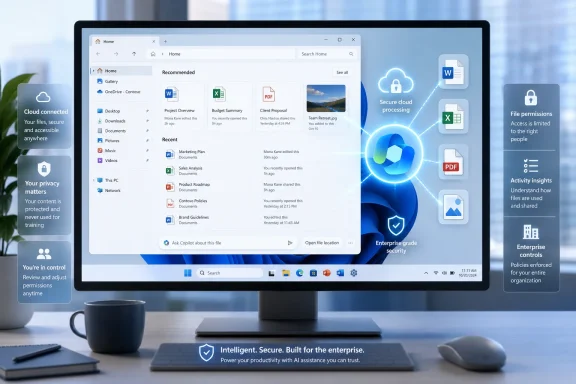
File Explorer Home is no longer merely a list of folders. Microsoft has gradually transformed it into an activity-oriented landing page containing pinned locations, favorite files, recent items, OneDrive content, and, in some configurations, recommendations derived from Microsoft 365 activity.That makes Home a logical place for quick actions. A user who recognizes a document but does not remember where it is stored can select Open file location, while someone reviewing a recent report might theoretically choose Ask Copilot to summarize it or answer a question.
Microsoft documented the hover actions in Windows 11 Release Preview builds 26100.8728 and 26200.8728, released on June 12, 2026, for Windows 11 versions 24H2 and 25H2. The company subsequently continued servicing those branches, including through Release Preview builds 26100.8942 and 26200.8942 announced on July 20, 2026, so visibility may differ depending on account type, region, build, and controlled rollout status.
A gradual rollout complicates testing
Microsoft frequently uses controlled feature rollouts to activate Windows functionality independently of the installed build number. Two PCs running the same build can therefore display different interfaces, and a feature may arrive days or weeks after the underlying update.That approach reduces deployment risk, but it also makes reports difficult to interpret. An Insider may receive the hover interface without a fully functional Copilot handoff, while another may not see the buttons at all.
The presence of the button does not necessarily prove that every supporting component is ready. Copilot app versions, account eligibility, cloud services, regional rules, and Windows feature flags can all influence the result.
What Microsoft Is Adding to File Explorer
Hover actions on files
The new interface appears when the pointer rests over a file presented on File Explorer’s Home page. Instead of requiring a right-click or opening a toolbar menu, Windows exposes compact actions on the file card or row.The two central commands are:
- Open file location navigates to the folder containing the selected item.
- Ask Copilot is intended to start a Copilot interaction related to that file.
The Copilot command is more ambitious. For it to save time, Windows must transfer the correct file or a reliable reference to it, Copilot must support the format, and the assistant must understand what kind of help the user wants.
Home only, rather than every folder
The action is associated with File Explorer Home rather than being a universal hover control across every folder view. That distinction limits visual clutter and positions the feature as a convenience for files Windows has already surfaced.It also suggests that Microsoft is treating Home as a recommendation and action dashboard. Instead of navigating through folders first, users are encouraged to begin with recent work and act directly on it.
This design resembles the direction of the modern Start menu, Microsoft 365 home pages, and cloud storage portals. Content becomes the primary interface, while the hierarchy containing that content becomes secondary.
Account and regional conditions
Microsoft’s June 12 Release Preview documentation described support for work and school accounts using Microsoft Entra ID and said the experience was unavailable in the European Economic Area. Earlier iterations of similar File Explorer hover actions were tested with Microsoft accounts, indicating that eligibility has changed as Microsoft has refined the feature.These distinctions matter because “Ask Copilot” is not necessarily the same service for every user. A personal Microsoft account may connect to the consumer Copilot experience, while an organization can have licensing, data-protection, administrative, and Microsoft 365 integration considerations.
Administrators should therefore avoid assuming that a screenshot from one Windows edition or account configuration represents all managed devices. The visible shell command may be similar, but the identity, policy, and data path behind it can differ.
How the Copilot Handoff Should Work
The expected sequence
A contextual AI command is useful only when it preserves context. In practical terms, the intended flow should resemble the following:- The user hovers over a file on File Explorer Home.
- Windows identifies the selected file and confirms that Copilot can receive it.
- The user clicks Ask Copilot.
- Windows opens Copilot and transfers the file, a secure cloud reference, or an authorized content representation.
- Copilot indicates that it has received the correct item.
- The user asks for a summary, explanation, comparison, rewrite, or other supported operation.
- Copilot produces an answer while clearly identifying any limitations.
Why early failures are plausible
A broken or incomplete handoff in a Release Preview deployment could have several explanations. Windows may be exposing the shell interface before the appropriate Copilot app update has arrived, or a server-side capability may not yet be enabled for the account.The file could also be unsupported, unavailable offline, protected by an organization, or represented by a stale recent-item link. If the source is OneDrive or SharePoint, Copilot may need a valid cloud identity and permission rather than a conventional local path.
Release Preview is more stable than experimental Windows channels, but it is still a validation environment. Bugs are possible, especially when a feature spans the Windows shell, Microsoft Store applications, identity services, cloud storage, and remote AI infrastructure.
Windows needs clearer feedback
The interface should not silently open Copilot when the context transfer fails. It should tell the user whether the file was attached, referenced through the cloud, rejected as unsupported, blocked by policy, or too large to process.A robust design would display messages such as:
- “This file has been added to your Copilot conversation.”
- “This file type is not supported.”
- “Download the file before asking Copilot.”
- “Your organization does not allow this file to be shared with Copilot.”
- “Copilot can analyze only part of this workbook.”
- “The file could not be found at its original location.”
Why File Explorer Is an Attractive AI Target
Files are the natural unit of work
Generative AI becomes more valuable when grounded in a specific object. A blank chatbot asks the user to supply both the context and the request, whereas a contextual command can begin with the document, image, or dataset already under consideration.File Explorer is where many users encounter those objects. Even people who spend most of their day in a browser still download PDFs, open attachments, organize photos, manage archives, and synchronize work through OneDrive.
Microsoft therefore has a strong strategic reason to place Copilot beside files. It reduces the distance between discovering content and requesting assistance with it.
The move supports Microsoft’s broader platform strategy
Microsoft wants Copilot to function as a cross-application layer rather than a destination that users must remember to visit. An action in File Explorer can funnel users into Copilot without requiring them to pin the app, use a keyboard shortcut, or begin from a blank prompt.That creates more opportunities for engagement, but it also increases Microsoft’s responsibility to make each entry point meaningful. A contextual button should do more than inflate the number of places from which Copilot can be opened.
The standard should be task completion, not button visibility. If users consistently reach Copilot with the correct file attached and receive useful results, the integration earns its place. If they arrive at an empty chat window, the shortcut becomes decorative duplication.
Competitors are moving toward contextual assistants
The broader computing industry is shifting from isolated chatbots toward assistants that can interpret active documents, selected text, open windows, and on-screen content. Operating-system vendors see contextual awareness as a way to reduce copying, uploading, and repetitive navigation.Windows has an advantage because File Explorer already brokers access to local disks, removable storage, network shares, and cloud-backed files. It also has a disadvantage: that enormous scope creates privacy, compatibility, and security complications that a single web application can avoid.
Microsoft must balance those forces carefully. Deep integration can make Copilot more convenient, but the Windows shell cannot treat every file as suitable for cloud analysis.
What Copilot Can Realistically Do With Files
Documents and straightforward images
Copilot can be useful with common documents when the content is accessible and the user’s request is narrow. Potential tasks include summarizing a report, extracting action items, explaining unfamiliar terminology, comparing two versions, or drafting a response based on a text file.Images also offer practical use cases. A user might ask for a description, request visible text through optical character recognition, identify broad visual elements, or generate alt text for accessibility.
Supported consumer Copilot uploads have included formats such as PNG, JPEG, SVG, PDF, DOCX, XLSX, CSV, JSON, and TXT. However, accepting an extension does not guarantee complete or equally reliable analysis of every file using that extension.
Spreadsheets expose the limits
A small workbook containing one clean table is very different from a large Excel file with numerous worksheets, formulas, pivot tables, macros, external connections, hidden ranges, comments, and business-specific conventions. The.xlsx extension tells Copilot almost nothing about the workbook’s true complexity.A quick hover action may successfully attach such a file, but the assistant could analyze only a limited representation of it. It might omit hidden sheets, misunderstand formulas, truncate rows, or infer relationships that are not supported by the data.
Users should be especially skeptical of numerical answers unless the interface explains what was processed. A plausible summary is not proof that Copilot examined every cell.
Unsupported and opaque formats
File Explorer handles executables, virtual machine disks, database files, compressed archives, engineering projects, media containers, encrypted documents, system binaries, disk images, source repositories, and proprietary application formats. A general-purpose language model cannot meaningfully interpret all of them.Even apparently simple files can conceal complexity. A PDF may consist entirely of scanned pages, a text file may use an unusual encoding, and a ZIP archive may contain thousands of nested items or password-protected content.
The interface should therefore distinguish among three states:
- The file is supported and can be analyzed directly.
- The file is partially supported, with important limitations.
- The file cannot be analyzed and should not show an active Copilot command.
File Size, Tokens, and Cloud Processing
A file is not the same as usable context
Generative AI systems work with bounded context. Before Copilot can answer a question about a file, the service may need to extract text, classify content, generate indexes, split information into chunks, or select only the portions considered relevant to the prompt.That means a large file is rarely processed as one indivisible object. The assistant may retrieve selected passages rather than keeping the entire contents available during every response.
This architecture can work well for targeted questions, but it complicates broad instructions such as “find every discrepancy” or “verify all totals.” The answer may sound comprehensive even when retrieval covered only part of the source.
Local and cloud files behave differently
A OneDrive or SharePoint document can potentially be referenced through Microsoft’s cloud identity and permissions systems. A local file on an internal drive, USB device, or network share may need to be uploaded or transformed before Copilot can use it.That difference affects performance and privacy. Cloud-backed files may open quickly because the service already knows the document, while a large local file may require noticeable transfer time.
Windows should expose that behavior rather than hide it. Users deserve to know when content leaves the device, whether an existing cloud copy is used, and whether temporary processing data will be retained.
Copilot+ PCs do not eliminate the cloud question
The Copilot+ PC label can lead users to assume that any AI feature runs locally on the neural processing unit. That is not necessarily true.Windows 11 includes a mixture of local models, hybrid features, and cloud services. The presence of capable AI hardware does not mean that a Copilot conversation about a document remains entirely on the PC.
Microsoft should identify the processing boundary at the point of action. An AI-branded PC is not, by itself, a privacy disclosure.
Consumer Impact
Convenience for everyday files
For consumers, the best use cases are likely to involve familiar, moderately sized files. A student could request a summary of lecture notes, a homeowner could ask for an explanation of a contract, or a traveler could extract details from an itinerary.The shortcut may be particularly helpful when File Explorer Home has already surfaced the relevant item. Instead of opening the document, finding Copilot, and attaching the file, the user can begin from one place.
That convenience depends on a reliable attachment flow. If Copilot opens without the file, most users will not investigate feature flags or app versions; they will simply conclude that the button does not work.
More visual noise in a central interface
File Explorer is foundational Windows infrastructure. People use it for direct, predictable operations such as copying, renaming, deleting, moving, and opening files.Every additional command competes for attention with those core tasks. Hover interfaces can be especially distracting because controls appear and disappear as the pointer moves.
The current implementation is relatively restrained, but Microsoft should provide a straightforward way to disable Copilot actions without removing recent files or changing broader File Explorer behavior. Users should not have to uninstall an app or edit the registry merely to simplify a hover card.
Accessibility considerations
Hover-only controls can create discoverability and accessibility challenges. Keyboard users need an equivalent path, touch users do not have conventional pointer hover, and people with motor impairments may trigger or lose transient controls unintentionally.The actions should work through keyboard navigation, screen readers, context menus, and touch-friendly interfaces. Labels must also explain what Copilot will do rather than relying solely on a recognizable icon.
Microsoft has made substantial accessibility investments across Windows 11, so this integration should meet the same standard. Convenience for mouse users cannot be the only measure of success.
Enterprise Impact
Data governance matters more than convenience
In a managed organization, “Ask Copilot about this file” is not merely a user-interface feature. It is a potential data-handling event involving identity, authorization, cloud services, retention, auditing, and compliance obligations.A document may contain customer records, financial projections, source code, legal advice, health information, export-controlled material, or confidential merger discussions. The fact that an employee can see a file does not automatically mean every AI service should process it.
Microsoft’s enterprise offerings can provide stronger commercial data protections and organizational controls than consumer services, but administrators still need clarity about which Copilot endpoint receives the file. Similar branding can conceal materially different service boundaries.
Policy controls must be granular
Organizations may want to permit Copilot in Microsoft 365 applications while suppressing it in File Explorer, or allow it for cloud documents but not local and network files. Others may want the command available only to licensed users or specific security groups.Useful controls would include the ability to:
- Disable File Explorer’s Ask Copilot action independently.
- Restrict the action by account type.
- Block local, removable, or network-based files.
- Permit only approved file extensions.
- Respect sensitivity labels and information-protection policies.
- Record auditable events when files are submitted.
- Prevent consumer Copilot accounts from handling organizational data.
Support desks will inherit ambiguous failures
If the action opens Copilot but does not transfer the file, employees will submit tickets. Support teams then have to determine whether the cause is a Windows rollout state, Copilot app version, account mismatch, license, regional restriction, unsupported format, offline file, policy block, or service incident.Microsoft can reduce that burden by exposing diagnostic information. Event logs, clear error codes, management documentation, and visible policy explanations would make the feature much easier to operate at scale.
Without those tools, a tiny File Explorer button can create disproportionate support costs. Enterprise readiness requires more than making the control appear on managed PCs.
Interface Design and User Control
Contextual actions should be predictable
A good contextual action communicates three things before it runs: what object it will use, what operation it will perform, and where the result will appear. “Open file location” satisfies that test because its behavior is familiar and deterministic.“Ask Copilot” is less precise. It may attach the file, open a conversation, suggest prompts, or simply launch an app.
Microsoft could improve the wording by using Ask Copilot about this file and showing the filename in a tooltip. After activation, Copilot should display a visible file card so the user can confirm that the intended item was received.
Unsupported files should not advertise false capability
If Copilot cannot use a file, the command should be hidden or disabled with an explanation. Showing an active button on every object implies universal compatibility that the service cannot deliver.Dynamic capability detection would make the interface more honest. Windows already knows a file’s extension, size, location, availability state, and certain security attributes, even if deeper inspection is required later.
That information could support sensible preflight checks. A disabled action is less frustrating than an apparently successful handoff followed by an empty chat.
An off switch is essential
Microsoft has recently shown greater willingness to reduce unwanted AI exposure, including removing some Ask Copilot buttons from basic inbox applications and offering more control over prominent AI surfaces. File Explorer should follow that direction.The ideal setting would be clearly labeled and available through Windows Settings or File Explorer Options. It should disable the hover command without affecting Copilot elsewhere.
Enterprise administrators should receive a corresponding supported policy. User choice should be part of the initial release, not a concession added after months of complaints.
Strengths and Opportunities
The File Explorer integration has legitimate potential if Microsoft treats it as a workflow feature rather than another promotional surface.- It can reduce repetitive navigation. A reliable handoff removes the need to open Copilot separately and browse for the same file again.
- It brings AI to the object the user is already considering. Contextual assistance is generally more intuitive than starting with an empty chatbot.
- Open file location is useful independently of Copilot. The companion command addresses a real weakness of Home’s recent and recommended views.
- It can help less technical users discover document analysis. Many people do not know that they can upload files to an AI assistant or which formats are accepted.
- It creates opportunities for format-specific prompts. Windows could suggest summarization for documents, description for images, and schema explanation for structured data.
- It could integrate with sensitivity and permission systems. A well-designed enterprise implementation could honor Microsoft Purview labels and organizational restrictions before transfer.
- It may evolve into a broader action framework. File Explorer could eventually surface relevant operations from installed applications without requiring an overloaded right-click menu.
- It gives Microsoft a chance to make AI behavior transparent. Clear file cards, processing indicators, and privacy notices could establish a better standard for contextual assistants.
Risks and Concerns
The same integration can undermine confidence if Microsoft prioritizes reach over reliability.- The file context may fail to transfer. Opening an empty Copilot window turns a contextual shortcut into a misleading app launcher.
- Users may overestimate format support. A recognized extension does not guarantee that Copilot can interpret every sheet, page, formula, attachment, or embedded object.
- Large files may be only partially analyzed. Answers can appear comprehensive even when the service retrieved a limited subset of the content.
- Sensitive data may be submitted unintentionally. A prominent command beside work files can encourage casual use without adequate consideration of policy or confidentiality.
- Hover controls can add clutter. File Explorer’s core purpose is file management, and transient AI buttons may distract from predictable operations.
- Account differences can confuse users. Consumer, work, and school identities may produce different availability, protections, and results.
- Regional restrictions create inconsistent documentation. Advice that works in the United States may not apply in the European Economic Area or other regulated markets.
- The feature could increase support complexity. Windows build state, server rollout, app version, licensing, and file compatibility can all affect one apparently simple button.
- Copilot branding may obscure processing boundaries. Users may not know whether analysis occurs locally, through a protected enterprise service, or through a consumer cloud endpoint.
- There may be no obvious way to disable the command. Lack of granular control would repeat one of the most persistent criticisms of Microsoft’s earlier AI integrations.
What to Watch Next
Public rollout timing
The hover actions are traveling through Windows 11’s controlled rollout system, so broader availability may arrive through a monthly cumulative update rather than a major feature upgrade. Release Preview builds often provide an indication of what Microsoft intends to ship soon, but they do not guarantee that every feature will activate for everyone on the next Patch Tuesday.The June 12, 2026 Release Preview documentation confirms that the feature predates the July 20 builds, even if more users are only now seeing it. Microsoft can expand, pause, revise, or withdraw the rollout without changing the headline Windows version.
The most important signal will be whether Microsoft lists the action in public Windows 11 update notes and clarifies its account and regional requirements. Until then, absence on an updated PC does not necessarily indicate a fault.
Improvements to the actual file transfer
The next technical milestone is a dependable context handoff. Clicking Ask Copilot should consistently show the selected file inside Copilot, not merely launch the application.Microsoft also needs to explain how local, OneDrive, SharePoint, and network files are handled. Processing indicators and file-specific errors would demonstrate that the feature is becoming a genuine integration rather than a shallow shell command.
Testing should cover more than Word documents and JPEG images. Excel workbooks, large PDFs, offline cloud placeholders, encrypted files, protected documents, and renamed or moved recent items are the cases most likely to expose design weaknesses.
Settings and administrative policies
A visible consumer setting to hide Copilot actions in File Explorer would address concerns before they grow. Microsoft should avoid bundling that choice with unrelated Home features such as recent files or OneDrive recommendations.For enterprises, documentation should identify the applicable policies, supported Windows editions, licensing requirements, audit behavior, and relationship to Microsoft 365 Copilot controls. Administrators will also need confirmation that sensitivity labels and data-loss prevention rules are enforced at the point of submission.
If those controls are absent when the feature reaches general availability, many organizations may choose to suppress Copilot more broadly than necessary. Granularity benefits both customers and Microsoft.
Whether users actually adopt the workflow
Microsoft can place Copilot in many locations, but repeated exposure does not guarantee meaningful adoption. Users keep shortcuts that save time and ignore those that add uncertainty.The File Explorer action will succeed if it becomes the fastest trustworthy way to ask questions about a file. It will fail if users learn that opening the document first produces more accurate results, or that they must reattach the file after Copilot launches.
Microsoft should measure successful context transfers, completed tasks, cancellations, unsupported files, and repeat use rather than raw button clicks. Engagement metrics without outcome data could reward an interface that attracts attention but does not solve problems.
Microsoft’s latest Copilot expansion is neither the most intrusive AI addition to Windows 11 nor an obviously pointless one. File Explorer is a sensible place to begin document-aware assistance, and the accompanying Open file location command makes Home more practical even for people who never use AI. Yet the value of Ask Copilot depends entirely on details that a small hover button cannot conceal: reliable attachment, honest format limits, visible processing boundaries, strong enterprise controls, accessible interaction, and a simple option to turn it off. If Microsoft delivers those elements, File Explorer could become one of Copilot’s most natural entry points; if it does not, Windows 11 will have gained yet another place to open an assistant without gaining a better way to finish the task.
References
- Primary source: Neowin
Published: 2026-07-21T20:14:01+00:00
Loading…
www.neowin.net - Related coverage: windowscentral.com
Microsoft rolls out 6 helpful new Windows 11 Insider features for early July, including one built to protect your PC from disaster | Windows Central
Microsoft's latest Insider builds in early July introduce Cloud rebuild, big Search improvements, Taskbar customization, and more changes.www.windowscentral.com - Official source: blogs.windows.com
Loading…
blogs.windows.com - Official source: learn.microsoft.com
Experimental Preview Build 26300.8346 - Windows Insider Program | Microsoft Learn
Release notes for Experimental Preview Build 26300.8346learn.microsoft.com - Official source: adoption.microsoft.com
- Related coverage: techradar.com
Microsoft introduces 'Ask Copilot' box to Windows 11's taskbar – but only if you want AI there | TechRadar
Copilot replaces the traditional search box, if you opt inwww.techradar.com