

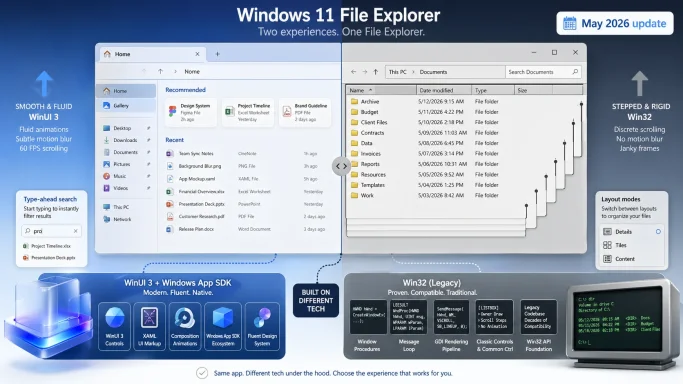
Microsoft has finally put a name to one of Windows 11 File Explorer’s most noticeable quirks: the reason Home and Gallery scroll smoothly while ordinary folders still feel stepped is that they are not built the same way under the hood. The modern views ride on WinUI 3 and the Windows App SDK, while the older directory views remain tied to legacy Win32 code paths. That split explains the uneven experience many users have felt for months, and it also shows why Microsoft is not treating smooth scrolling as a simple visual tweak.
The bigger story is not just about animation. It is about the slow, complicated transformation of File Explorer into something that can modernize without breaking the deeply embedded behaviors people rely on every day. Microsoft’s own explanation makes clear that the team is balancing smooth motion against older features such as type-ahead search, automatic column resizing, and multiple layout modes. In other words, this is not a cosmetic bug so much as a classic Windows modernization problem: every improvement has to coexist with a lot of history.
File Explorer remains one of the most important pieces of Windows because it sits at the center of daily file management, device navigation, and a huge amount of legacy behavior. When Microsoft changes it, the effect is felt immediately by both consumers and enterprises. That is why File Explorer tends to accumulate tension between polish and compatibility, and why seemingly small UI differences can persist for surprisingly long periods.
The current split in scrolling behavior is a perfect example. Home and Gallery were rebuilt more recently with modern framework components, so they benefit from the smoother motion patterns associated with the Windows App SDK and its composition pipeline. Traditional folders, by contrast, still inherit a more complex rendering and interaction stack from older Windows architecture. Microsoft is effectively running two eras of Windows UI in the same app.
That creates a strange user perception problem. A user lands in File Explorer, sees slick movement in one area, and then abruptly hits a more rigid experience elsewhere. The inconsistency can make the app feel unfinished even when the underlying reason is technical, not careless. For many users, feeling matters as much as feature lists, and Explorer’s mixed behavior undermines confidence in the whole surface.
Microsoft leadership’s response is important because it confirms that the company is aware of the issue and tracking it internally. Tali Roth, who leads Product for Windows Shell, explained that the older folder views still depend on functionality that is tightly coupled to the Win32 model. That means the fix is not simply “turn on smooth scrolling” but rather rebuild the experience without breaking the behaviors people expect.
By contrast, legacy folder views are still carrying the weight of older implementation choices. Microsoft noted that the traditional layout has features such as type-ahead search, automatic resizing, and multiple view modes that are deeply integrated with the old system. Those features are not free to move; they are entangled with the structure of the interface itself. As a result, a modernization effort has to preserve behavioral fidelity while changing the plumbing beneath it.
That is why the difference shows up most clearly when users scroll. Smooth scrolling depends on how motion is composed and how input is translated into movement. In a legacy architecture, the app may still be functionally correct but visually less fluid. The result is a familiar Windows problem: the app works, yet it does not always feel modern.
This also helps explain why the company has chosen a phased approach. The Home and Gallery experiences are relatively contained, so they are easier to modernize first. Traditional folders are far more central and far more entangled, so the cost of error is much higher. In practice, that means the user sees progress in one area while another area waits its turn.
There is a trade-off here that Microsoft seems willing to accept for now. Fresh UI surfaces are more elegant, but they are often simpler. The old folder experience is clunkier, yet it also supports deeper sorting behavior and a broader range of day-to-day use cases. This is the kind of compromise that defines mature platform software: beauty and stability rarely arrive on the same schedule.
The problem is not just hit targets, though those matter. It is the overall interaction model: how gestures are interpreted, how quickly controls respond, and whether motion feels natural on a touch screen. When scroll behavior feels abrupt or layout responds in a way that assumes a mouse, the experience can feel dated even if the underlying app is otherwise functional. That friction is exactly what modern UI frameworks are supposed to reduce.
This is where File Explorer’s design debt becomes visible. A control surface built for decades of desktop habits is not automatically ideal for hybrid devices. Microsoft’s challenge is to make the app feel native across form factors without collapsing the behaviors that power users need. That is a difficult balance, and it helps explain why touch-related fixes move slowly.
That focus aligns with Microsoft’s broader messaging around Windows quality. When a platform component such as Explorer becomes more stable, it also reduces knock-on effects elsewhere in the shell. Because Explorer is tied so closely to the desktop environment, a crash or rendering glitch can affect the taskbar and the entire feel of the system. Stability work is therefore not a side quest; it is foundational.
The expected May 2026 update is significant because it signals that Microsoft is shipping incremental repairs rather than waiting for a larger rewrite. That approach usually frustrates users who want a visible makeover, but it is often the only responsible way to modernize a deeply embedded shell component. The boring answer is frequently the right one in operating systems engineering.
This is also why users often react so strongly to scrolling differences. People may not know the underlying technology, but they recognize whether an interface “moves right.” Smoothness becomes shorthand for quality, even when the actual engineering challenge is much more complex than motion alone. In that sense, scroll behavior is a proxy for confidence in the app.
Microsoft’s leadership appears to understand that perception gap. By acknowledging the issue publicly, the company is effectively admitting that Explorer’s current split is visible enough to matter. The next step is not just fixing the motion, but making sure the fix does not introduce new bugs or regressions in the most used app on the desktop.
For enterprises, the stakes are more operational. A shell that crashes, changes layout unexpectedly, or behaves differently across builds can increase support burden and reduce confidence in updates. In managed environments, even a small change in Explorer can ripple into ticket volume, training cost, and user frustration. Consistency is not a luxury in enterprise Windows; it is a requirement.
That said, enterprises are also more tolerant of slower modernization if it means fewer regressions. A visual upgrade that breaks existing workflows is far worse than a dated but reliable interface. Microsoft’s phased strategy therefore makes practical sense across both markets, even if it leaves enthusiasts waiting longer for the polished experience they want.
This hybrid pattern is common across Microsoft’s ecosystem because it reduces risk. But it comes with a real cost: the user can spot the seams. In Explorer, those seams are not just visual; they are behavioral. Smooth motion in one surface and abrupt motion in another makes the layers obvious in a way users are not supposed to notice.
The advantage of this approach is that Microsoft can improve quality incrementally. The disadvantage is that it can take a long time for the whole product to feel cohesive. That is exactly where File Explorer is now: part modern shell, part legacy backbone, all of it held together by compatibility requirements that refuse to disappear.
That matters because Windows still has to serve a massive installed base with varied hardware, workflows, and update cadences. A feature can’t just look good; it has to survive real-world pressure across desktops, laptops, tablets, and managed fleets. Explorer is one of the clearest examples of why Microsoft moves carefully when it touches the shell.
And yet, there is a competitive dimension too. Users compare Windows not only to previous versions of Windows, but to the smoothness they expect from modern operating systems and apps. In that comparison, small motion inconsistencies matter more than they used to. A file manager is not supposed to feel like a museum exhibit.
The most important question is whether Microsoft can deliver that polish without sacrificing the small behaviors that power users depend on. File Explorer is the kind of product where invisible correctness matters just as much as visible beauty. If the company gets both right, it could finally close one of Windows 11’s most stubborn quality gaps. If it doesn’t, Explorer will remain the perfect symbol of Windows itself: capable, layered, and still negotiating with its own history.
Source: Microsoft explains why Windows 11 File Explorer scrolls smoothly in some places, but not everywhere
The bigger story is not just about animation. It is about the slow, complicated transformation of File Explorer into something that can modernize without breaking the deeply embedded behaviors people rely on every day. Microsoft’s own explanation makes clear that the team is balancing smooth motion against older features such as type-ahead search, automatic column resizing, and multiple layout modes. In other words, this is not a cosmetic bug so much as a classic Windows modernization problem: every improvement has to coexist with a lot of history.
 Overview
File Explorer remains one of the most important pieces of Windows because it sits at the center of daily file management, device navigation, and a huge amount of legacy behavior. When Microsoft changes it, the effect is felt immediately by both consumers and enterprises. That is why File Explorer tends to accumulate tension between polish and compatibility, and why seemingly small UI differences can persist for surprisingly long periods.The current split in scrolling behavior is a perfect example. Home and Gallery were rebuilt more recently with modern framework components, so they benefit from the smoother motion patterns associated with the Windows App SDK and its composition pipeline. Traditional folders, by contrast, still inherit a more complex rendering and interaction stack from older Windows architecture. Microsoft is effectively running two eras of Windows UI in the same app.
That creates a strange user perception problem. A user lands in File Explorer, sees slick movement in one area, and then abruptly hits a more rigid experience elsewhere. The inconsistency can make the app feel unfinished even when the underlying reason is technical, not careless. For many users, feeling matters as much as feature lists, and Explorer’s mixed behavior undermines confidence in the whole surface.
Microsoft leadership’s response is important because it confirms that the company is aware of the issue and tracking it internally. Tali Roth, who leads Product for Windows Shell, explained that the older folder views still depend on functionality that is tightly coupled to the Win32 model. That means the fix is not simply “turn on smooth scrolling” but rather rebuild the experience without breaking the behaviors people expect.
Why the Experience Feels Split
The first reason File Explorer feels inconsistent is architectural. WinUI 3 is designed for more modern, composited experiences, and Microsoft positions the Windows App SDK as a way to add those capabilities to new or existing desktop apps. That is why rebuilt surfaces can feel fluid and more responsive without the developer having to handcraft every animation. Traditional folder views, however, are still anchored in the older Win32 world.Different Rendering Paths, Different Feel
The modern Home and Gallery views are not just prettier shells. They are part of a framework that handles rendering and interaction in a way that better supports polished motion. The visual layer in Windows App SDK is specifically meant to provide smooth, hardware-accelerated animation behavior. That helps explain why these newer views feel more refined during scrolling.By contrast, legacy folder views are still carrying the weight of older implementation choices. Microsoft noted that the traditional layout has features such as type-ahead search, automatic resizing, and multiple view modes that are deeply integrated with the old system. Those features are not free to move; they are entangled with the structure of the interface itself. As a result, a modernization effort has to preserve behavioral fidelity while changing the plumbing beneath it.
That is why the difference shows up most clearly when users scroll. Smooth scrolling depends on how motion is composed and how input is translated into movement. In a legacy architecture, the app may still be functionally correct but visually less fluid. The result is a familiar Windows problem: the app works, yet it does not always feel modern.
- Home and Gallery benefit from a newer UI framework.
- Folder views still depend on older Windows foundations.
- Scroll behavior reflects rendering and composition differences.
- Compatibility requirements slow full modernization.
- Users notice the inconsistency immediately, even if the code path is logical.
The Legacy Feature Burden
Microsoft’s explanation makes one thing very clear: Explorer’s older folder views are not just “old” in the abstract. They contain practical, working behaviors that users depend on every day. Type-ahead search, automatic column sizing, and multiple layout modes are not flashy features, but they are the kinds of details that make Explorer useful across millions of workflows.Why Rewriting Explorer Is Hard
A rewrite sounds attractive until the consequences arrive. Every legacy behavior has to be recreated, tested, and then validated across countless file types, folder structures, policies, and third-party integrations. Microsoft has to make sure a modernized interface still behaves like Windows, not just like a new app with a file list. That is why these transitions tend to happen in layers rather than in a single leap.This also helps explain why the company has chosen a phased approach. The Home and Gallery experiences are relatively contained, so they are easier to modernize first. Traditional folders are far more central and far more entangled, so the cost of error is much higher. In practice, that means the user sees progress in one area while another area waits its turn.
There is a trade-off here that Microsoft seems willing to accept for now. Fresh UI surfaces are more elegant, but they are often simpler. The old folder experience is clunkier, yet it also supports deeper sorting behavior and a broader range of day-to-day use cases. This is the kind of compromise that defines mature platform software: beauty and stability rarely arrive on the same schedule.
- Modern views are easier to polish quickly.
- Folder views support more advanced user workflows.
- Rewrites risk regressions in basic navigation.
- Legacy compatibility can outweigh visual consistency.
- Microsoft is prioritizing reliability before broader visual changes.
Touch, Tablets, and Input Expectations
The scrolling issue is only one piece of the broader File Explorer experience. Another user raised the question of touch support, which is especially relevant on devices like the Surface Pro and other 2-in-1 systems. Tali Roth did not dismiss that complaint, and that matters because it suggests Microsoft is at least collecting feedback on how Explorer behaves beyond mouse-and-keyboard usage.A Mouse-First Feel Still Lingers
File Explorer still feels like software that was originally optimized for pointer precision rather than finger-driven input. Touch works, but it often feels like a compatibility layer rather than a design center. That is a subtle but important distinction, because modern Windows devices increasingly live in the gap between laptop and tablet modes.The problem is not just hit targets, though those matter. It is the overall interaction model: how gestures are interpreted, how quickly controls respond, and whether motion feels natural on a touch screen. When scroll behavior feels abrupt or layout responds in a way that assumes a mouse, the experience can feel dated even if the underlying app is otherwise functional. That friction is exactly what modern UI frameworks are supposed to reduce.
This is where File Explorer’s design debt becomes visible. A control surface built for decades of desktop habits is not automatically ideal for hybrid devices. Microsoft’s challenge is to make the app feel native across form factors without collapsing the behaviors that power users need. That is a difficult balance, and it helps explain why touch-related fixes move slowly.
Reliability First, Polish Second
Perhaps the most revealing part of Microsoft’s message is not the promise of smoother scrolling later, but the decision to focus first on reliability and performance. That sequence makes sense. No user wants a prettier File Explorer that crashes more often, resets layouts unpredictably, or stumbles on basic navigation tasks.What Microsoft Is Fixing Now
Windows Latest reports that recent preview builds have improved folder view consistency and reduced random layout resets. The site also notes faster launches, better responsiveness, and fewer white flashes in dark mode, along with fewerexplorer.exe crashes. Those kinds of improvements may be less glamorous than smooth motion, but they are the sort of fixes that materially improve daily use.That focus aligns with Microsoft’s broader messaging around Windows quality. When a platform component such as Explorer becomes more stable, it also reduces knock-on effects elsewhere in the shell. Because Explorer is tied so closely to the desktop environment, a crash or rendering glitch can affect the taskbar and the entire feel of the system. Stability work is therefore not a side quest; it is foundational.
The expected May 2026 update is significant because it signals that Microsoft is shipping incremental repairs rather than waiting for a larger rewrite. That approach usually frustrates users who want a visible makeover, but it is often the only responsible way to modernize a deeply embedded shell component. The boring answer is frequently the right one in operating systems engineering.
- Faster launch times make the app feel less heavy.
- Fewer dark-mode flashes reduce visual disruption.
- Layout consistency cuts down on user confusion.
- Crash reduction improves system-wide shell stability.
- Incremental fixes lower the risk of regressions.
What Smooth Scrolling Really Means
Smooth scrolling is easy to dismiss as a purely aesthetic issue, but users notice it because it changes how control feels. Modern motion makes interfaces feel more reactive and more premium, while stepped scrolling often gives the impression of an older rendering pipeline. That matters in a file manager because Explorer is one of the first places people judge whether Windows feels polished.Motion as a Sign of Modernity
In contemporary UI design, smooth motion is not just decoration. It reinforces continuity, suggests low latency, and makes interactions feel anchored to the user’s input. Microsoft’s own Windows App SDK documentation emphasizes high-performance visuals, animation, and input-driven experiences. So when Explorer is smooth in one surface but abrupt in another, it exposes the divide between old and new design philosophy.This is also why users often react so strongly to scrolling differences. People may not know the underlying technology, but they recognize whether an interface “moves right.” Smoothness becomes shorthand for quality, even when the actual engineering challenge is much more complex than motion alone. In that sense, scroll behavior is a proxy for confidence in the app.
Microsoft’s leadership appears to understand that perception gap. By acknowledging the issue publicly, the company is effectively admitting that Explorer’s current split is visible enough to matter. The next step is not just fixing the motion, but making sure the fix does not introduce new bugs or regressions in the most used app on the desktop.
Enterprise Versus Consumer Impact
File Explorer is one of those components where the impact crosses every audience segment. Consumers see the difference as a matter of comfort and polish. Enterprises see it as a question of predictability, stability, and productivity. Both audiences care about consistency, but they measure it differently.Different Users, Different Stakes
For consumers, the main issue is experience. A smooth Home view followed by a jagged folder list makes the system feel uneven, especially on a modern laptop or tablet. On a consumer PC, Explorer is often the place where a user decides whether the OS feels coherent. That is a high bar for a utility app.For enterprises, the stakes are more operational. A shell that crashes, changes layout unexpectedly, or behaves differently across builds can increase support burden and reduce confidence in updates. In managed environments, even a small change in Explorer can ripple into ticket volume, training cost, and user frustration. Consistency is not a luxury in enterprise Windows; it is a requirement.
That said, enterprises are also more tolerant of slower modernization if it means fewer regressions. A visual upgrade that breaks existing workflows is far worse than a dated but reliable interface. Microsoft’s phased strategy therefore makes practical sense across both markets, even if it leaves enthusiasts waiting longer for the polished experience they want.
- Consumers prioritize feel and visual polish.
- Enterprises prioritize stability and supportability.
- Both groups benefit from fewer crashes and layout resets.
- Touch-heavy users need better input consistency.
- Managed environments need fewer behavioral surprises.
How Microsoft’s Stack Explains the Outcome
The current File Explorer behavior is not accidental; it is the result of how Microsoft’s modern Windows stack has evolved. WinUI 3 and the Windows App SDK are built to help both new apps and existing desktop applications adopt modern UI patterns. Microsoft explicitly describes the SDK as a bridge for Win32, WPF, and WinForms apps that want newer capabilities without a ground-up rewrite.A Bridge, Not an Instant Rewrite
That bridge model is useful, but it also creates hybrid products. When one portion of an app is modernized and another remains older, the result can look and feel uneven. XAML Islands exist precisely to embed modern controls inside existing desktop apps, which is ideal for incremental modernization. It is also a reminder that the full application may still be rooted in older assumptions.This hybrid pattern is common across Microsoft’s ecosystem because it reduces risk. But it comes with a real cost: the user can spot the seams. In Explorer, those seams are not just visual; they are behavioral. Smooth motion in one surface and abrupt motion in another makes the layers obvious in a way users are not supposed to notice.
The advantage of this approach is that Microsoft can improve quality incrementally. The disadvantage is that it can take a long time for the whole product to feel cohesive. That is exactly where File Explorer is now: part modern shell, part legacy backbone, all of it held together by compatibility requirements that refuse to disappear.
Why This Matters Beyond File Explorer
It would be easy to treat the scrolling issue as a niche complaint from enthusiasts, but that would miss the broader significance. File Explorer is the visible edge of a larger Windows modernization project, and its inconsistencies reveal how hard it is to evolve a platform that must support old and new expectations at once. That is relevant far beyond Explorer itself.Windows Is Still Negotiating Its Past
Microsoft has been modernizing pieces of Windows in phases for years, and each phase has involved trade-offs. Some surface-level changes are easy to notice, but the biggest gains often come from engineering work that users barely see. Smooth scrolling may be the headline, yet reliability improvements are what make future modernization possible.That matters because Windows still has to serve a massive installed base with varied hardware, workflows, and update cadences. A feature can’t just look good; it has to survive real-world pressure across desktops, laptops, tablets, and managed fleets. Explorer is one of the clearest examples of why Microsoft moves carefully when it touches the shell.
And yet, there is a competitive dimension too. Users compare Windows not only to previous versions of Windows, but to the smoothness they expect from modern operating systems and apps. In that comparison, small motion inconsistencies matter more than they used to. A file manager is not supposed to feel like a museum exhibit.
- Explorer is a proxy for Windows quality.
- Modernization must not break legacy workflows.
- The shell exposes the cost of architectural debt.
- Incremental changes are safer than full rewrites.
- Perceived polish shapes overall OS confidence.
Strengths and Opportunities
Microsoft’s current approach has real upside, even if it frustrates users who want faster visible change. The company is not ignoring File Explorer; it is trying to improve the parts that can be safely improved now while preparing for a broader cleanup later. That is a sensible strategy for a component with this much historical baggage.- Incremental modernization reduces the risk of breaking core file-management behavior.
- Reliability fixes deliver immediate value to every user, regardless of hardware.
- WinUI 3 adoption gives Microsoft a cleaner path to richer motion and smoother interaction.
- Touch improvements could make Explorer more credible on hybrid devices.
- Performance gains improve the perception of the entire Windows shell.
- Consistency work can reduce support issues caused by layout resets and crashes.
- Public acknowledgment of the issue builds trust with advanced users.
Risks and Concerns
The main concern is that Microsoft may take so long to fully unify Explorer that users become resigned to the split. Once people accept inconsistency as normal, it becomes harder to justify the engineering effort needed to fix it. There is also the usual Windows risk that a future rewrite could introduce regressions that outweigh the visual gains.- Slow rollout may leave the mixed experience in place for too long.
- Feature parity gaps could emerge if modern views cannot match legacy folder behavior.
- Regression risk rises whenever Microsoft rewrites shell components.
- User frustration may increase if visual fixes lag behind visible problems.
- Touch support could remain secondary if desktop workflows continue to dominate.
- Performance trade-offs may limit how aggressively Microsoft can modernize the shell.
- Perception damage can persist even after technical issues are resolved.
Looking Ahead
The next few months will tell us whether Microsoft can keep its balance. The company has already signaled that reliability and performance come first, with smoother scrolling following later, which suggests the final fix will likely arrive as part of a broader shell modernization effort rather than as an isolated tweak. If that happens, users may eventually get the polished, uniform Explorer they have wanted for years.The most important question is whether Microsoft can deliver that polish without sacrificing the small behaviors that power users depend on. File Explorer is the kind of product where invisible correctness matters just as much as visible beauty. If the company gets both right, it could finally close one of Windows 11’s most stubborn quality gaps. If it doesn’t, Explorer will remain the perfect symbol of Windows itself: capable, layered, and still negotiating with its own history.
- Watch for the May 2026 update and related Explorer fixes.
- Monitor whether folder views gain smoother motion in later preview builds.
- Track touch-related changes on hybrid and tablet-style PCs.
- Look for continued reductions in
explorer.execrashes and layout resets. - Pay attention to whether Microsoft expands WinUI-based surfaces inside Explorer.
Source: Microsoft explains why Windows 11 File Explorer scrolls smoothly in some places, but not everywhere
