

Use System Information or PowerShell’s Get-CimInstance to find your motherboard model in Windows 11 without opening the PC. These built-in methods work across current Windows 11 installations, including versions 24H2 and 25H2, and avoid the increasingly unreliable
Many older guides tell you to open Command Prompt and run:
That advice is no longer durable. Microsoft says new Windows 11 version 24H2 and 25H2 installations have WMIC removed by default. It may still appear on upgraded PCs, and it can currently be added as a Feature on Demand in those releases, but scripts and instructions cannot assume that
The cutoff is approaching quickly. In guidance published on February 13, 2026, Microsoft said WMIC will be completely removed in the next Windows 11 feature update. At that point, it will no longer be available as a Feature on Demand.
This does not mean Windows Management Instrumentation is disappearing. WMI remains part of Windows. Microsoft is removing the old WMIC command-line utility and recommends supported PowerShell cmdlets such as
For a one-time visual check, use System Information. For copying, scripting, inventory, or repeatable support work, use PowerShell CIM.
Do not confuse these entries with System Manufacturer and System Model. On a prebuilt desktop or laptop, the system model identifies the complete computer, while the BaseBoard entries identify its internal system board.
If you are collecting broader specifications for troubleshooting, System Information can also show the BIOS version, processor, installed memory, Windows build, and other hardware details. Those additional fields can help distinguish between PCs that use similar board names.
Interpret the fields as follows:
To request it, run:
Whether every field contains a useful value depends on what the hardware manufacturer exposes to Windows. A blank or generic property does not mean the PowerShell command failed if the command completed and returned a
Use
The command in this guide queries:
Microsoft defines that class as representing a baseboard, motherboard, or system board. Its available properties include:
For administrators, this also makes migration straightforward. A script that previously parsed output from
If BaseBoard Product, Version, PartNumber, or SerialNumber is blank or unhelpful:
Does
It may work on systems where WMIC remains installed, particularly some upgraded installations. It is removed by default from new Windows 11 24H2 and 25H2 installations, however, and Microsoft says complete removal follows in the next Windows 11 feature update.
System Information remains the simplest built-in visual method, while
wmic baseboard command.
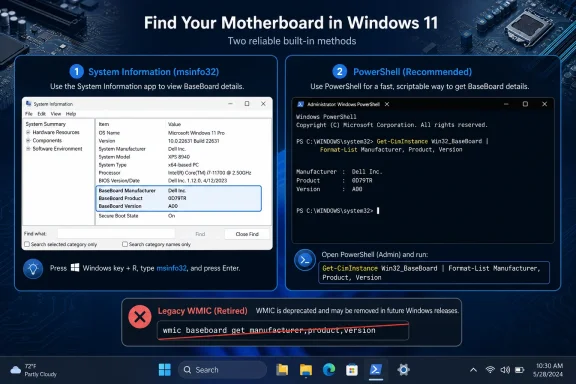 Why the old WMIC command is now a trap
Many older guides tell you to open Command Prompt and run:wmic baseboard get product,manufacturer,version,serialnumberThat advice is no longer durable. Microsoft says new Windows 11 version 24H2 and 25H2 installations have WMIC removed by default. It may still appear on upgraded PCs, and it can currently be added as a Feature on Demand in those releases, but scripts and instructions cannot assume that
wmic.exe exists.The cutoff is approaching quickly. In guidance published on February 13, 2026, Microsoft said WMIC will be completely removed in the next Windows 11 feature update. At that point, it will no longer be available as a Feature on Demand.
This does not mean Windows Management Instrumentation is disappearing. WMI remains part of Windows. Microsoft is removing the old WMIC command-line utility and recommends supported PowerShell cmdlets such as
Get-CimInstance instead.For a one-time visual check, use System Information. For copying, scripting, inventory, or repeatable support work, use PowerShell CIM.
Method 1: Find the motherboard model in System Information
System Information, also known asmsinfo32, is the easiest option when you want to inspect the motherboard details visually.- Press Windows key + R to open Run.
- Enter:
msinfo32 - Select OK or press Enter.
- Wait for the System Information window to finish collecting data.
- Select System Summary in the left pane if it is not already selected.
- Find these entries in the right pane:
- BaseBoard Manufacturer
- BaseBoard Product
- BaseBoard Version
Do not confuse these entries with System Manufacturer and System Model. On a prebuilt desktop or laptop, the system model identifies the complete computer, while the BaseBoard entries identify its internal system board.
If you are collecting broader specifications for troubleshooting, System Information can also show the BIOS version, processor, installed memory, Windows build, and other hardware details. Those additional fields can help distinguish between PCs that use similar board names.
Method 2: Use PowerShell CIM for a clean result
PowerShell is the better replacement for the retired WMIC one-liner. Microsoft’sWin32_BaseBoard class represents the baseboard, also called the motherboard or system board.- Right-click Start.
- Select Terminal or Windows PowerShell, depending on what appears on the PC.
- Enter the following command:
Get-CimInstance -ClassName Win32_BaseBoard | Select-Object Manufacturer, Product, Version, SerialNumber - Press Enter.
Code:
Manufacturer  Product  Version  SerialNumber
------------  -------  -------  ------------
...- Manufacturer: The organization responsible for producing the physical board.
- Product: The manufacturer-defined baseboard product or part identifier.
- Version: The reported board version or revision.
- SerialNumber: The manufacturer-allocated serial number for the physical element.
Include the motherboard part number
The supported replacement command focuses on the four fields most readers need. TheWin32_BaseBoard class also exposes a PartNumber property.To request it, run:
Get-CimInstance -ClassName Win32_BaseBoard | Select-Object Manufacturer, Product, Version, PartNumber, SerialNumberWhether every field contains a useful value depends on what the hardware manufacturer exposes to Windows. A blank or generic property does not mean the PowerShell command failed if the command completed and returned a
Win32_BaseBoard object.Copy the result as a simple list
A list is often easier to copy into a support ticket than a wide table:Get-CimInstance -ClassName Win32_BaseBoard | Format-List Manufacturer, Product, Version, PartNumber, SerialNumberUse
Select-Object rather than Format-List when the output will be passed into another PowerShell command or exported. Formatting cmdlets are intended primarily to control what appears on screen.Which method should you use?
Choose the method based on what you intend to do with the result.- Use System Information when you need a quick visual check and prefer not to enter a command.
- Use PowerShell CIM when you need output that can be copied, filtered, exported, or incorporated into an inventory process.
- Avoid building new procedures around WMIC, even if the old command still works on a particular PC.
- Do not install WMIC solely for this task. Windows already includes two supported ways to retrieve the same motherboard information.
What the PowerShell command is actually querying
The important distinction is between WMIC, WMI, and CIM.wmic.exe is the legacy command-line utility being removed. WMI is the underlying Windows management technology and is not being removed. PowerShell’s Get-CimInstance cmdlet provides a supported way to query CIM-compliant classes, including WMI classes.The command in this guide queries:
Win32_BaseBoardMicrosoft defines that class as representing a baseboard, motherboard, or system board. Its available properties include:
ManufacturerProductVersionPartNumberSerialNumber
For administrators, this also makes migration straightforward. A script that previously parsed output from
wmic baseboard should be rewritten around objects returned by Get-CimInstance, rather than checking whether the optional WMIC component happens to be installed.If the motherboard details are blank or generic
Both System Information and PowerShell obtain their results from hardware information made available to Windows. They do not inspect printed labels on the physical board.If BaseBoard Product, Version, PartNumber, or SerialNumber is blank or unhelpful:
- Compare the result from System Information with the PowerShell command.
- Confirm that you are reading the BaseBoard entries rather than only System Model.
- Record any useful combination of manufacturer, product, version, and serial number rather than relying on one field.
- On a prebuilt PC or laptop, also record System Manufacturer and System Model from System Information.
- Use the full-system model when seeking OEM-specific drivers, firmware, or replacement parts if the board-level identifier is incomplete.
Verify that you identified the right component
Before downloading firmware, purchasing parts, or giving the information to support, verify the result.- Open System Information with
msinfo32. - Note BaseBoard Manufacturer, BaseBoard Product, and BaseBoard Version.
- Run:
Get-CimInstance -ClassName Win32_BaseBoard | Select-Object Manufacturer, Product, Version, SerialNumber - Compare the manufacturer, product, and version values.
- Separately record System Manufacturer and System Model if the computer is a laptop or prebuilt desktop.
Do not confuse motherboard, PC, and BIOS identifiers
These labels answer different questions:- BaseBoard Manufacturer/Product: Identifies the motherboard or system board.
- System Manufacturer/Model: Identifies the complete laptop, desktop, or workstation.
- BIOS Version/Date: Identifies the currently installed firmware release.
- SerialNumber: Identifies a physical element, but the usefulness of the returned value depends on the manufacturer-provided data.
Frequently Asked Questions
Does wmic baseboard get product still work in Windows 11?
It may work on systems where WMIC remains installed, particularly some upgraded installations. It is removed by default from new Windows 11 24H2 and 25H2 installations, however, and Microsoft says complete removal follows in the next Windows 11 feature update.Is Microsoft removing WMI from Windows 11?
No. Microsoft is removing the WMIC command-line utility, not Windows Management Instrumentation itself.Get-CimInstance remains the supported PowerShell alternative for querying WMI classes.Can I find the motherboard model without administrator access?
Start with System Information or the PowerShell command shown above. The query is read-only and does not modify the computer; access restrictions imposed by an organization may still affect what tools a managed account can launch.Why does Windows show a PC model instead of a retail motherboard name?
Prebuilt desktops and laptops may contain OEM-specific system boards. Record both the BaseBoard fields and the complete System Manufacturer and System Model so you have the identifiers needed for support and firmware searches.System Information remains the simplest built-in visual method, while
Get-CimInstance is the durable command-line choice for Windows 11. With WMIC heading for complete removal after already disappearing by default from current installations, scripts, documentation, and support procedures should move to PowerShell CIM now rather than waiting for the old command to fail.References
- Primary source: learn.microsoft.com
msinfo32 | Microsoft Learn
Reference article for the msinfo32 command, which opens the System Information tool to display a comprehensive view of the hardware, system components, and software environment on the local computer.learn.microsoft.com - Independent coverage: support.microsoft.com
Windows Management Instrumentation Command-line (WMIC) removal from Windows | Microsoft Support
Windows Management Instrumentation Command-line (WMIC) removal from Windowssupport.microsoft.com - Independent coverage: us.msi.com
- Independent coverage: learn.microsoft.com.mcas.ms

Continue
learn.microsoft.com.mcas.ms
- Independent coverage: en.wikipedia.org
System Information (Windows) - Wikipedia
en.wikipedia.org
- Independent coverage: support.moonpoint.com
