

Windows 11 users can replace a folder’s default File Explorer icon by right-clicking the folder, opening Properties, choosing Customize and Change Icon, browsing to an .ico file, and selecting Apply and OK. Neowin estimates that the process takes less than a minute once the icon has been downloaded. Used selectively, custom icons can turn frequently visited folders into recognizable visual landmarks without requiring a separate customization application.
A custom icon provides an additional visual label. A camera symbol might identify photographs, a document symbol might represent records, and a box might indicate archived material. The purpose is not to redesign every part of Windows but to make selected locations easier to recognize during routine navigation.
That distinction is useful because Windows personalization is often discussed in connection with additional utilities. Neowin names Windhawk, FlyOOBE, and DeskScapes 2026 as customization options while explaining the folder-icon procedure available through File Explorer. Stardock describes Object Desktop as a package containing Fences, Start11, Groupy, SoundPackager, DeskScapes, and Multiplicity.
Those names establish that broader customization products exist, but the native folder procedure stands on its own. A user who only wants several important directories to look different can start with the control already available in the folder’s Properties dialog.
WindowsForum editorial guidance: Treat custom icons as visual labels, not as security or access-control indicators. A padlock, warning symbol, company logo, or archive graphic should not be taken as proof that a folder is encrypted, restricted, backed up, approved, or governed by a particular retention policy. Use Windows security and organizational controls—not decorative artwork—for those purposes.
Navigate to the folder whose appearance you want to change. Right-click it, choose Properties, and open the Customize tab. Select Change Icon to open the icon-selection interface.
The dialog initially displays icons available for selection. If one of those choices suits the folder, select it and confirm the change. To use a separately obtained icon, select Browse, navigate to the desired .ico file, select it, and return to the Properties dialog. Choose Apply, followed by OK.
The complete path is:
Folder > Properties > Customize > Change Icon > Browse > choose an .ico file > Apply > OK.
Neowin estimates that this takes less than a minute after the icon has been downloaded.
Neowin also recommends selecting View > Extra large icons when users want the artwork to appear more prominently in File Explorer. That view is optional; it changes how prominently the icons are displayed rather than adding another step to the folder-customization procedure.
The most important procedural point is that users do not need Windhawk, FlyOOBE, DeskScapes 2026, Object Desktop, or another customization product to follow these instructions. The reported method is available from the folder’s own Properties interface.
A JPEG, PNG, WebP, or image preview is not the .ico file called for in Neowin’s instructions. Changing an image’s filename extension does not meaningfully convert its format. If an image is available only in another format, it must first be converted with a suitable tool before it can be used as the .ico file required by this particular workflow.
The guide’s reference to Google Images should consequently be read as a suggestion for finding possible artwork, not as a guarantee that every search result will provide an appropriate icon file. Users still need to identify what they have downloaded and confirm that it is in the required format.
Icon Archive is the more direct example named by Neowin because it is organized around downloadable icons. Even then, the user should confirm that the selected download is an .ico file rather than relying only on the appearance of an on-page preview.
Artwork also needs to remain recognizable at the size used in File Explorer. WindowsForum’s editorial recommendation is to favor clear symbols and distinct shapes over fine text or highly detailed photographs. A design that looks attractive in a large preview may be less useful when it appears beside a folder name in a denser Explorer layout.
Neowin’s suggestion to use Extra large icons can help when visual browsing is the priority. Details or list-oriented views may remain more practical when filenames, dates, types, and other information are more important than the artwork. The icon choice and the Explorer view should support the task rather than compete with it.
The table intentionally stops short of assigning undocumented technical behavior to the products. The cited information establishes their names in a broader customization context, not that they are necessary for changing one folder icon or that they all provide the same features.
Stardock’s published Object Desktop package list includes Fences, Start11, Groupy, SoundPackager, DeskScapes, and Multiplicity. That package should be understood as a collection of named products, while the File Explorer procedure is a direct folder-level action.
Neowin includes a disclosure under the heading “Disclaimer: Neowin’s relationship to Stardock.” That disclosure is relevant when reading its mentions of DeskScapes and Object Desktop. It does not alter the native sequence of opening Properties, choosing Customize and Change Icon, selecting an icon, and applying the result.
For a user whose objective is simply to distinguish a handful of folders, the direct procedure is the logical starting point. Broader products remain optional choices for readers interested in wider customization, not prerequisites for the steps described here.
WindowsForum’s editorial recommendation is to begin with a small visual vocabulary. Symbols can indicate broad types of content: a camera for photographs, a document for records, a box for archives, or a distinctive project symbol for active work. Colors may provide a secondary cue, but they should not be the only source of meaning.
Icons are best reserved for folders that users revisit frequently. Changing every directory in a large hierarchy can make the interface noisy, while changing five or ten high-value locations can make those folders stand out immediately.
Custom icons should also complement clear folder names rather than replace them. An image cannot communicate a client name, reporting period, version number, or deadline as precisely as text. A practical division of labor is for the icon to indicate the general kind of folder while the name identifies the specific contents.
Accessibility deserves consideration as part of that design. A scheme based only on color may not work equally well for everyone. Similar silhouettes may also be difficult to distinguish in compact views. Combining clear names with differences in shape and color provides more than one route to recognition.
Neowin specifically suggests View > Extra large icons to make customized artwork more prominent. That layout can be useful for a visually browsed collection, but it is not necessarily the best view for every folder. A directory containing many items may be easier to manage in Details view, where names and other information receive more space.
The goal is not to force File Explorer into a single presentation. Folder icons and Explorer views can be adjusted according to the work: large visual browsing for one location, denser information-oriented browsing for another.
If a folder receives an “urgent” symbol and nobody changes it after the deadline, the visual cue becomes misleading. The same problem occurs when a completed-work icon remains in place after unfinished material is added.
For changing workflow states, meaningful folder names or a dedicated task-management process may be more reliable. Custom icons are strongest as quick recognition aids, not as a complete status-tracking system.
This is also why WindowsForum recommends against assigning official-looking meanings to decorative symbols. A lock image may be memorable, but it should not be used as the sole signal that data is protected. A company logo may make a folder easy to find, but it does not authenticate the folder’s contents. A red warning icon can attract attention, but it does not enforce a rule.
The distinction should be communicated clearly whenever custom icons are introduced in a shared working environment:
To undo a customization:
Restore Defaults belongs in the primary procedure rather than being treated as an obscure troubleshooting measure. Anyone applying a visual change should know at the outset how to reverse it.
The control is folder-specific, matching the narrow scope of the customization itself. A user can experiment with one folder without committing every directory to the same design.
The Properties-based procedure calls for an icon file. WindowsForum’s general safety guidance is to confirm that the downloaded item is the expected .ico file, use a source you trust, and avoid opening unrelated files merely to obtain decorative artwork. Users should also respect any stated terms governing how an icon may be used.
This is a general download-safety note rather than a claim that icon websites present a particular threat. The relevant practical point is simple: identify the file, confirm its format, and scan or handle it according to the same security practices used for other downloads.
Users who do not want to obtain external artwork can first review the choices displayed by the Change Icon interface. The reported procedure supports selecting an available icon as well as browsing to a separate .ico file.
According to Neowin, the process requires only a few selections after the icon has been obtained. There is no requirement in the cited procedure to install Windhawk, FlyOOBE, DeskScapes 2026, Object Desktop, or another customization package.
That does not make broader tools irrelevant. It simply places them outside the direct instructions. Readers considering wider Windows personalization can evaluate those products separately, based on verified information about their actual capabilities and requirements.
For folder icons, the practical sequence remains uncomplicated: choose the folder, open its Properties, select Customize and Change Icon, choose the desired icon, and apply it. If the result does not help, use Restore Defaults.
The limitation is that the procedure is presented one folder at a time. It should not be described as a bulk classification platform or a substitute for organizational management systems. Its value lies in adding a modest visual cue to selected locations.
Cohesive designs generally make a collection easier to scan. Similar line weight, color treatment, and visual style can make separate icons feel like parts of one system. At the same time, each symbol must remain different enough to be recognized quickly.
The default folder appearance remains valuable as a neutral category. Leaving ordinary directories unchanged allows customized folders to stand out. There is no benefit in changing every folder simply because the option exists.
Users should also avoid attaching meanings that cannot be maintained. Durable categories are easier to manage than rapidly changing statuses. If the icon system requires constant correction, it may be solving the wrong problem.
The strongest use case is selective emphasis:
Neowin’s instructions establish the central workflow and estimate that it takes less than a minute after the icon has been downloaded. The same coverage points users toward .ico files, mentions Icon Archive and Google Images as places to look, recommends Extra large icons when greater visual prominence is desired, and identifies Restore Defaults as the route back to the standard appearance.
The essential points are:
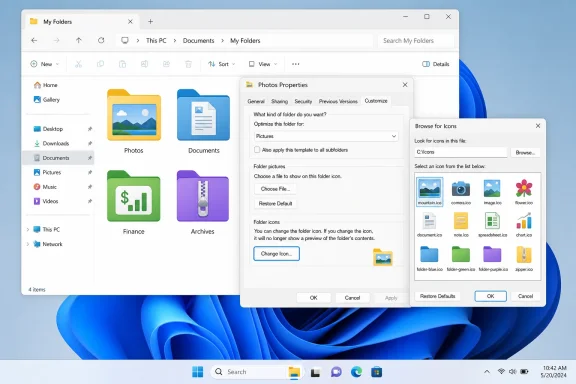 Quick procedure
- Right-click the folder and select Properties.
- Open the Customize tab.
- Select Change Icon.
- Select Browse and choose an .ico file.
- Select Apply, then OK.
- To undo the change, return to Change Icon and select Restore Defaults.
The Best Windows Customization May Already Be in File Explorer
Windows 11’s default folder design provides a consistent appearance throughout File Explorer. The trade-off is that folders containing photographs, financial records, archived projects, application files, or current work may look similar until their names are read.A custom icon provides an additional visual label. A camera symbol might identify photographs, a document symbol might represent records, and a box might indicate archived material. The purpose is not to redesign every part of Windows but to make selected locations easier to recognize during routine navigation.
That distinction is useful because Windows personalization is often discussed in connection with additional utilities. Neowin names Windhawk, FlyOOBE, and DeskScapes 2026 as customization options while explaining the folder-icon procedure available through File Explorer. Stardock describes Object Desktop as a package containing Fences, Start11, Groupy, SoundPackager, DeskScapes, and Multiplicity.
Those names establish that broader customization products exist, but the native folder procedure stands on its own. A user who only wants several important directories to look different can start with the control already available in the folder’s Properties dialog.
WindowsForum editorial guidance: Treat custom icons as visual labels, not as security or access-control indicators. A padlock, warning symbol, company logo, or archive graphic should not be taken as proof that a folder is encrypted, restricted, backed up, approved, or governed by a particular retention policy. Use Windows security and organizational controls—not decorative artwork—for those purposes.
One Properties Dialog Does the Entire Job
According to Neowin’s guide, the process begins by obtaining an icon in the .ico format. Neowin names Icon Archive as one possible source and also mentions Google Images as a way to search for icons. Once the file is available locally, the remaining steps take place in File Explorer.Navigate to the folder whose appearance you want to change. Right-click it, choose Properties, and open the Customize tab. Select Change Icon to open the icon-selection interface.
The dialog initially displays icons available for selection. If one of those choices suits the folder, select it and confirm the change. To use a separately obtained icon, select Browse, navigate to the desired .ico file, select it, and return to the Properties dialog. Choose Apply, followed by OK.
The complete path is:
Folder > Properties > Customize > Change Icon > Browse > choose an .ico file > Apply > OK.
Neowin estimates that this takes less than a minute after the icon has been downloaded.
Neowin also recommends selecting View > Extra large icons when users want the artwork to appear more prominently in File Explorer. That view is optional; it changes how prominently the icons are displayed rather than adding another step to the folder-customization procedure.
The most important procedural point is that users do not need Windhawk, FlyOOBE, DeskScapes 2026, Object Desktop, or another customization product to follow these instructions. The reported method is available from the folder’s own Properties interface.
Start With an Actual .ico File
Neowin specifies an .ico file for the custom-icon procedure. Users should therefore check the downloaded file rather than assuming that every image returned by a web search is ready for use in the Change Icon dialog.A JPEG, PNG, WebP, or image preview is not the .ico file called for in Neowin’s instructions. Changing an image’s filename extension does not meaningfully convert its format. If an image is available only in another format, it must first be converted with a suitable tool before it can be used as the .ico file required by this particular workflow.
The guide’s reference to Google Images should consequently be read as a suggestion for finding possible artwork, not as a guarantee that every search result will provide an appropriate icon file. Users still need to identify what they have downloaded and confirm that it is in the required format.
Icon Archive is the more direct example named by Neowin because it is organized around downloadable icons. Even then, the user should confirm that the selected download is an .ico file rather than relying only on the appearance of an on-page preview.
Artwork also needs to remain recognizable at the size used in File Explorer. WindowsForum’s editorial recommendation is to favor clear symbols and distinct shapes over fine text or highly detailed photographs. A design that looks attractive in a large preview may be less useful when it appears beside a folder name in a denser Explorer layout.
Neowin’s suggestion to use Extra large icons can help when visual browsing is the priority. Details or list-oriented views may remain more practical when filenames, dates, types, and other information are more important than the artwork. The icon choice and the Explorer view should support the task rather than compete with it.
Choose the Smallest Approach That Solves the Problem
The verified procedure supports two straightforward choices: select an icon offered in the Change Icon interface or browse to an .ico file obtained elsewhere. Broader customization products are a separate category.| Approach | What the cited material establishes | Appropriate use |
|---|---|---|
| Icon offered through Change Icon | Available from the folder’s native Properties workflow | Giving a folder a different appearance without obtaining separate artwork |
| Separate .ico file | Selected with Browse in the same native workflow described by Neowin | Assigning chosen artwork to an individual folder |
| Broader customization product | Neowin names Windhawk, FlyOOBE, and DeskScapes 2026 in its customization coverage | Considering Windows personalization beyond this folder-specific procedure |
Stardock’s published Object Desktop package list includes Fences, Start11, Groupy, SoundPackager, DeskScapes, and Multiplicity. That package should be understood as a collection of named products, while the File Explorer procedure is a direct folder-level action.
Neowin includes a disclosure under the heading “Disclaimer: Neowin’s relationship to Stardock.” That disclosure is relevant when reading its mentions of DeskScapes and Object Desktop. It does not alter the native sequence of opening Properties, choosing Customize and Change Icon, selecting an icon, and applying the result.
For a user whose objective is simply to distinguish a handful of folders, the direct procedure is the logical starting point. Broader products remain optional choices for readers interested in wider customization, not prerequisites for the steps described here.
Visual Filing Works Only When the Vocabulary Is Consistent
A custom-icon system is most useful when each symbol has a stable meaning. If red sometimes means urgent, sometimes means confidential, and sometimes has no meaning at all, the artwork adds ambiguity rather than reducing it.WindowsForum’s editorial recommendation is to begin with a small visual vocabulary. Symbols can indicate broad types of content: a camera for photographs, a document for records, a box for archives, or a distinctive project symbol for active work. Colors may provide a secondary cue, but they should not be the only source of meaning.
Icons are best reserved for folders that users revisit frequently. Changing every directory in a large hierarchy can make the interface noisy, while changing five or ten high-value locations can make those folders stand out immediately.
Custom icons should also complement clear folder names rather than replace them. An image cannot communicate a client name, reporting period, version number, or deadline as precisely as text. A practical division of labor is for the icon to indicate the general kind of folder while the name identifies the specific contents.
Accessibility deserves consideration as part of that design. A scheme based only on color may not work equally well for everyone. Similar silhouettes may also be difficult to distinguish in compact views. Combining clear names with differences in shape and color provides more than one route to recognition.
Neowin specifically suggests View > Extra large icons to make customized artwork more prominent. That layout can be useful for a visually browsed collection, but it is not necessarily the best view for every folder. A directory containing many items may be easier to manage in Details view, where names and other information receive more space.
The goal is not to force File Explorer into a single presentation. Folder icons and Explorer views can be adjusted according to the work: large visual browsing for one location, denser information-oriented browsing for another.
Keep the Meaning Modest
A folder icon is most dependable when it communicates a durable, simple category. “Photos,” “finance,” “archives,” and “client work” are examples of meanings that may remain useful over time. Rapidly changing states such as “urgent,” “waiting,” or “finished” require more upkeep.If a folder receives an “urgent” symbol and nobody changes it after the deadline, the visual cue becomes misleading. The same problem occurs when a completed-work icon remains in place after unfinished material is added.
For changing workflow states, meaningful folder names or a dedicated task-management process may be more reliable. Custom icons are strongest as quick recognition aids, not as a complete status-tracking system.
This is also why WindowsForum recommends against assigning official-looking meanings to decorative symbols. A lock image may be memorable, but it should not be used as the sole signal that data is protected. A company logo may make a folder easy to find, but it does not authenticate the folder’s contents. A red warning icon can attract attention, but it does not enforce a rule.
The distinction should be communicated clearly whenever custom icons are introduced in a shared working environment:
- Visual label: helps a person recognize a folder.
- Folder name: identifies the folder and its contents more precisely.
- Security or management control: determines access, protection, classification, retention, or other enforceable conditions.
Reversibility Is Built Into the Procedure
Neowin’s guide identifies Restore Defaults as the way to return a customized folder to its standard appearance. The option is available from the same Change Icon interface used to select the custom artwork.To undo a customization:
- Right-click the folder and choose Properties.
- Open Customize.
- Select Change Icon.
- Select Restore Defaults.
- Choose Apply, then OK.
Restore Defaults belongs in the primary procedure rather than being treated as an obscure troubleshooting measure. Anyone applying a visual change should know at the outset how to reverse it.
The control is folder-specific, matching the narrow scope of the customization itself. A user can experiment with one folder without committing every directory to the same design.
Apply a Concise Safety Check to Downloads
Neowin’s method may involve obtaining an .ico file from a third-party source, so the ordinary caution applied to any internet download remains appropriate.The Properties-based procedure calls for an icon file. WindowsForum’s general safety guidance is to confirm that the downloaded item is the expected .ico file, use a source you trust, and avoid opening unrelated files merely to obtain decorative artwork. Users should also respect any stated terms governing how an icon may be used.
This is a general download-safety note rather than a claim that icon websites present a particular threat. The relevant practical point is simple: identify the file, confirm its format, and scan or handle it according to the same security practices used for other downloads.
Users who do not want to obtain external artwork can first review the choices displayed by the Change Icon interface. The reported procedure supports selecting an available icon as well as browsing to a separate .ico file.
Action checklist for admins
- Decide whether custom folder icons serve a useful navigation purpose in the environment.
- Clarify whether users may obtain external artwork or should choose from approved options.
- If external files are allowed, direct users to follow the organization’s ordinary download and file-handling practices.
- Consider providing a small, approved collection of .ico files when consistent visual labels are desirable.
- Require meaningful folder names even when icons are used.
- State clearly that icons do not represent encryption, access rights, retention status, backup status, or formal data classification.
- Test proposed artwork in the File Explorer views employees commonly use.
- Document Restore Defaults as the standard way to remove a folder-specific icon change.
- Treat Windhawk, FlyOOBE, DeskScapes 2026, and Object Desktop as optional references, not prerequisites.
Native Controls Remain Useful
The folder-icon procedure is a reminder that File Explorer still contains focused personalization controls inside familiar property dialogs. The feature may be less prominent than a dedicated customization product, but it directly addresses the narrow task of changing one folder’s appearance.According to Neowin, the process requires only a few selections after the icon has been obtained. There is no requirement in the cited procedure to install Windhawk, FlyOOBE, DeskScapes 2026, Object Desktop, or another customization package.
That does not make broader tools irrelevant. It simply places them outside the direct instructions. Readers considering wider Windows personalization can evaluate those products separately, based on verified information about their actual capabilities and requirements.
For folder icons, the practical sequence remains uncomplicated: choose the folder, open its Properties, select Customize and Change Icon, choose the desired icon, and apply it. If the result does not help, use Restore Defaults.
The limitation is that the procedure is presented one folder at a time. It should not be described as a bulk classification platform or a substitute for organizational management systems. Its value lies in adding a modest visual cue to selected locations.
The Most Useful Folder Icons Are the Ones You Barely Notice
Good visual organization supports work without demanding attention. After a short period of use, the icon should help the user recognize the intended folder faster, not turn every visit to File Explorer into a search through unrelated artwork.Cohesive designs generally make a collection easier to scan. Similar line weight, color treatment, and visual style can make separate icons feel like parts of one system. At the same time, each symbol must remain different enough to be recognized quickly.
The default folder appearance remains valuable as a neutral category. Leaving ordinary directories unchanged allows customized folders to stand out. There is no benefit in changing every folder simply because the option exists.
Users should also avoid attaching meanings that cannot be maintained. Durable categories are easier to manage than rapidly changing statuses. If the icon system requires constant correction, it may be solving the wrong problem.
The strongest use case is selective emphasis:
- Mark the folders opened most often.
- Use symbols with clear, repeatable meanings.
- Retain descriptive folder names.
- Choose an Explorer view suited to the contents.
- Remove icons that no longer communicate anything useful.
What Matters Before You Redesign Explorer
The practical lesson is not that every Windows 11 folder needs custom artwork. It is that selected folders can receive useful visual labels through a direct File Explorer procedure.Neowin’s instructions establish the central workflow and estimate that it takes less than a minute after the icon has been downloaded. The same coverage points users toward .ico files, mentions Icon Archive and Google Images as places to look, recommends Extra large icons when greater visual prominence is desired, and identifies Restore Defaults as the route back to the standard appearance.
The essential points are:
- Windows 11 exposes folder-icon customization through Properties > Customize > Change Icon.
- Select Browse when choosing a separate .ico file.
- Select Apply, then OK, to confirm the choice.
- Use View > Extra large icons when the artwork needs to be more prominent, as Neowin suggests.
- Use Restore Defaults to return the folder to its standard appearance.
- Keep clear folder names alongside visual labels.
- Do not treat an icon as proof of encryption, access control, backup, authenticity, retention, or formal classification.
- Apply normal caution when obtaining any file from an external source.
- Windhawk, FlyOOBE, DeskScapes 2026, and the Object Desktop package are optional, not prerequisites.
References
- Primary source: Neowin
Published: 2026-07-11T12:20:08.407583
Loading…
www.neowin.net - Official source: support.microsoft.com
Loading…
support.microsoft.com - Official source: learn.microsoft.com
Loading…
learn.microsoft.com - Related coverage: allthings.how
Loading…
allthings.how - Related coverage: solveyourtech.com
Loading…
www.solveyourtech.com - Related coverage: quia.com
Loading…
www.quia.com
- Related coverage: askwoody.com
- Related coverage: cur.ac.rw
Loading…
www.cur.ac.rw - Related coverage: windowscentral.com
“It is intentional” Microsoft says Windows 11’s broken folder icons are by design. Here's what's going on. | Windows Central
Windows 11 changes how folder customizations work, and what looks like a bug is actually a security upgrade.www.windowscentral.com