

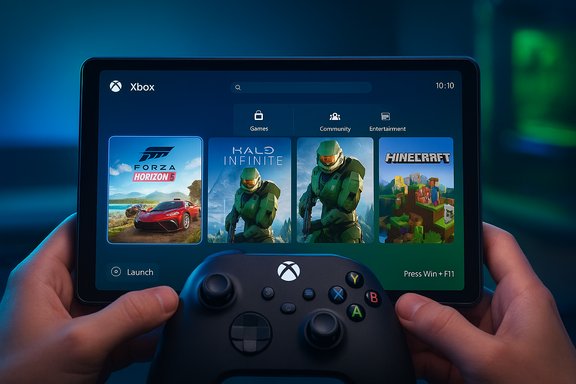
Microsoft’s console‑style Xbox Full Screen Experience (FSE) — the controller‑first, full‑screen Xbox PC app shell that debuted on the ROG Xbox Ally — is now available more broadly and can be enabled on many Windows 11 machines, either through the supported Insider path or via community unlocks; the difference between the two paths is one of safety, support, and stability.
Microsoft built the Full Screen Experience (FSE) as a session posture layered on top of Windows 11 that turns a chosen “home app” (the Xbox PC app by default) into a full‑screen, controller‑centric launcher. It’s intended to reduce desktop clutter, suppress nonessential background processes during gaming sessions, and provide a console‑like navigation model optimized for controllers and smaller, handheld screens. The feature was introduced as the out‑of‑box shell for the ASUS ROG Xbox Ally family and has been rolled out to additional handhelds and Windows Insider previews. Why this matters: FSE aims to improve usability for controller-first sessions and practical performance on thermally constrained handhelds by minimizing the desktop shell and deferring a subset of background tasks. Early hands‑on reporting indicates sensible resource savings on constrained hardware, but those figures vary by device and workload.
If you plan to try FSE today, follow the official checklist first; if the option still does not appear and you decide to experiment with ViVeTool, document the exact Insider build you’re running, note any ViVeTool IDs you enable, keep a system image on hand, and be prepared to undo the changes. Those precautions will keep the experiment reversible and your main system recoverable.
Source: Tom's Guide https://www.tomsguide.com/gaming/pc-gaming/how-to-enable-xbox-full-screen-experience/
 Background / Overview
Microsoft built the Full Screen Experience (FSE) as a session posture layered on top of Windows 11 that turns a chosen “home app” (the Xbox PC app by default) into a full‑screen, controller‑centric launcher. It’s intended to reduce desktop clutter, suppress nonessential background processes during gaming sessions, and provide a console‑like navigation model optimized for controllers and smaller, handheld screens. The feature was introduced as the out‑of‑box shell for the ASUS ROG Xbox Ally family and has been rolled out to additional handhelds and Windows Insider previews. Why this matters: FSE aims to improve usability for controller-first sessions and practical performance on thermally constrained handhelds by minimizing the desktop shell and deferring a subset of background tasks. Early hands‑on reporting indicates sensible resource savings on constrained hardware, but those figures vary by device and workload. What FSE actually does (under the hood)
- Boots your Windows session into a full‑screen Xbox app shell instead of foregrounding Explorer as the primary UI.
- Defers or suppresses some nonessential user‑mode background processes and Explorer ornamentation to free system resources during the FSE session.
- Reworks Game Bar and Task View behaviors for controller navigation, including Xbox‑button long‑press switching and a Win + F11 toggle to enter/exit FSE.
- Preserves underlying Windows kernel, drivers and compatibility with third‑party stores (Steam, Epic, Battle.net) — FSE is a UI/session posture, not a new OS.
The supported (official) way to get FSE on a Windows 11 PC
If you want the safest, supported path that retains Microsoft and OEM entitlements, follow this official checklist.- Join the Windows Insider Program and choose the Dev or Beta channel (the preview expansion for PC form factors is being distributed via Insider Preview builds).
- Install the Xbox Insider Hub from the Microsoft Store and enroll your Microsoft account in the PC Gaming Preview — being an Xbox Insider improves your chance of receiving Xbox app bits tied to FSE.
- Update Windows 11 to the Insider Preview build that carries the FSE components (the rollout referenced Insider build family 26220.xxxx / preview builds around build 26220.7271). If your device is OEM‑gated, the toggle may remain hidden until the OEM enables it for your model.
- Update the Xbox PC app (Microsoft Store) to the latest preview/beta — FSE relies on the Store‑delivered Xbox app as the “home app.”
- Open Settings → Gaming → Full screen experience. If visible, choose Xbox (or another supported home app), optionally enable Enter full screen experience on startup, and restart to apply startup optimizations.
When the toggle doesn’t appear: why that happens
- Microsoft and OEMs gate FSE with server‑side entitlements and firmware/driver expectations; identical Insider builds can show different features depending on device and OEM settings.
- The rollout is phased: even Insiders won’t necessarily see the option immediately; joining the Xbox Insider program speeds things up but does not guarantee instant visibility.
- OEM overlays, custom thermal utilities, or nonstandard drivers may block or cause inconsistent behavior if FSE is forced without vendor support.
The unofficial method (ViVeTool) — how it’s commonly done and why the details matter
Several practical guides and hands‑on how‑tos (including the Tom’s Guide walkthrough that many users follow) demonstrate how to surface the hidden toggle using ViVeTool and registry edits. ViVeTool flips Windows feature flags embedded in Insider builds; community guides then mark the device as a handheld via an OEM registry key so Windows exposes the FSE option. Tom’s Guide shows a straightforward ViVeTool command — vivetool /enable /id:59765208 — as the key step to enable FSE when the toggle is not visible. What community reporting shows in aggregate (important caveats follow): many hobbyist guides use a combination of ViVeTool feature IDs and an OEM registry DeviceForm change under HKLM\SOFTWARE\Microsoft\Windows NT\CurrentVersion\OEM to mimic a handheld form factor. Feature IDs reported in community threads vary — commonly cited ones include 52580392 and 50902630 in earlier walkthroughs — which signals that Microsoft’s internal IDs can change between Insider flights, and community‑published IDs are observational, not official.The typical ViVeTool + registry sequence (community method)
- Download and extract ViVeTool (official repository releases are recommended).
- Open an elevated Command Prompt, cd into the ViVeTool folder.
- Run ViVeTool to enable the observed feature ID(s) (examples you’ll see in the wild):
- vivetool /enable /id:59765208 (example from Tom’s Guide)
- other community guides have used: vivetool /enable /id:52580392 and vivetool /enable /id:50902630.
- Edit Registry: HKLM\SOFTWARE\Microsoft\Windows NT\CurrentVersion\OEM → create/modify DWORD DeviceForm = 0x2E (46 decimal) to emulate handheld form factor.
- Reboot, open Settings → Gaming → Full screen experience, and toggle as desired. Reboot again when prompted.
Why the ID mismatch matters (and why it’s risky)
- Microsoft does not publish these internal feature IDs — they are learned by community observation across Insider builds and can change between flights. A command that works for one Insider build or on one device may be different (or harmful) on another. Treat any printed ID as transient evidence, not an official key.
- Editing DeviceForm and flipping feature flags can alter how Windows enumerates the device and how drivers or OEM utilities behave. This can cause missing input, black screens, or boot/resume problems if the system is not prepared.
Technical verification: what independent sources say
- Microsoft’s support documentation defines FSE behavior, entry points (Game Bar, Task View, Win + F11), and the Settings path to enable it. That documentation confirms the feature applies to Windows 11 versions 24H2 and 25H2 and includes an optimize at startup option that can skip loading nonessential background processes.
- The Windows Insider Blog explicitly announced the preview expansion for PC form factors (Insider Preview Build 26220.7271 seeded to Dev and Beta channels) and confirmed the Xbox app is required from the Microsoft Store. The Insiders post also emphasizes the phased rollout and feedback path via Feedback Hub.
- Tom’s Guide provides a practical step‑by‑step that many readers will follow, including the ViVeTool example with feature ID 59765208. That article is a useful hands‑on companion for users willing to attempt the community route, but Tom’s Guide and community resources are not replacements for Microsoft/OEM support.
Real‑world benefits and limitations
What you’ll likely gain
- Cleaner, console‑style launcher that aggregates Game Pass, Xbox, and discovered third‑party titles into a single surface — quicker picks for couch or handheld sessions.
- Reduced desktop overhead and fewer background wakeups — practical memory gains on constrained hardware, often reported around 1–2 GB in favorable scenarios. This can improve minimum framerates and reduce stutters on thermally limited handheld APUs.
What won’t change
- FSE does not alter GPU or CPU driver scheduling, nor does it change the underlying anti‑cheat or DRM stacks. Demanding AAA workloads will still be limited by the hardware’s thermal and power envelope.
UX and compatibility quirks to expect
- Controller‑first navigation is superb on handhelds, but some third‑party integrations (Discord overlays, some launcher overlays) may behave oddly or require keyboard/mouse to access certain functions. Early testers have flagged inconsistent controller focus and overlay conflicts on non‑OEM devices.
- Some keyboard shortcuts and search/desktop functions behave differently in FSE by design (to avoid accidental interruptions), which can be disorienting for power users.
Safety, recovery, and troubleshooting — practical guidance
Before attempting any community unlock method, do the following:- Create a full system image and a Windows recovery USB. This is mandatory if you value your current configuration.
- Update OEM utilities, GPU drivers and firmware; OEMs sometimes ship compatibility updates for FSE that prevent odd behavior.
- If you use community tools, obtain them from a trusted channel (official GitHub repo / verified release), check checksums, and read the README/issue list. Community authors often include revert options; test those revert paths before you rely on them.
- Option doesn’t appear after enabling flags: sign out/in, reinstall the Xbox app, restart, or move to the correct Insider channel.
- Boots to an unusable full‑screen shell: use your recovery USB to boot and undo registry changes or restore from the system image.
- Controller input doesn’t work in the Xbox shell: update controller firmware and OEM input drivers, disable conflicting overlays, or revert the DeviceForm registry change.
Step‑by‑step quick reference (two paths)
Official (recommended)
- Enroll in Windows Insider (Dev/Beta) → install latest Insider Preview.
- Install Xbox Insider Hub → join PC Gaming Preview.
- Update Xbox PC app from Microsoft Store.
- Settings → Gaming → Full screen experience → choose Xbox → enable Enter on startup if desired → reboot.
Community unlock (advanced, unsupported)
- Backup + recovery USB (mandatory).
- Download ViVeTool, extract to folder.
- Run elevated CMD: cd to ViVeTool folder. Run the observed enable command(s) (examples in the wild include /id:59765208, /id:52580392, /id:50902630). Verify success message, reboot.
- Registry: HKLM\SOFTWARE\Microsoft\Windows NT\CurrentVersion\OEM → create DeviceForm = 0x2E (46). Reboot.
- Open Settings → Gaming → Full screen experience → choose Xbox → reboot. Test and be ready to revert.
A critical assessment: strengths, risks, and the balance
Strengths- Convenience and discoverability: FSE gives Windows a true couch/handheld launcher, reducing launcher‑hopping and making Game Pass/Xbox libraries immediately accessible.
- Practical resource gains on constrained devices: Deferring Explorer and background tasks is an effective, low‑risk optimization for handhelds when implemented by OEMs and Microsoft.
- Supportability: Community unlocks that flip transient internal flags and spoof form factors create states that OEMs and Microsoft may not support. If you depend on vendor support, wait for official enablement.
- Transient engineering details: Feature IDs and delivery mechanisms change across Insider flights; commands that work today may fail or break on tomorrow’s build. Treat published ViVeTool IDs as ephemeral.
- Compatibility and edge cases: Anti‑cheat overlays, third‑party launchers, OEM input utilities, and resume/suspend behaviors have produced reports of instability on non‑tuned devices. Proceed with caution on mission‑critical hardware.
Final verdict and practical recommendation
- If you own a supported handheld or a machine where your OEM has announced FSE support: enable it via the official Settings path after updating to the appropriate Insider or public build; that’s the lowest‑risk route.
- If you’re a Windows Insider and comfortable with preview builds: enroll in Dev/Beta, join the Xbox Insider PC Gaming Preview, update the Xbox app, and wait for the toggle to roll out to your device. Use the official UI to enable/disable FSE.
- If you are technically experienced, have verified backups and a recovery USB, and accept the potential need to restore Windows: the ViVeTool + DeviceForm approach can surface the feature on unsupported PCs, but treat community feature IDs as sampling evidence — verify the ID against the exact Insider build you run and be prepared to revert.
If you plan to try FSE today, follow the official checklist first; if the option still does not appear and you decide to experiment with ViVeTool, document the exact Insider build you’re running, note any ViVeTool IDs you enable, keep a system image on hand, and be prepared to undo the changes. Those precautions will keep the experiment reversible and your main system recoverable.
Source: Tom's Guide https://www.tomsguide.com/gaming/pc-gaming/how-to-enable-xbox-full-screen-experience/
