

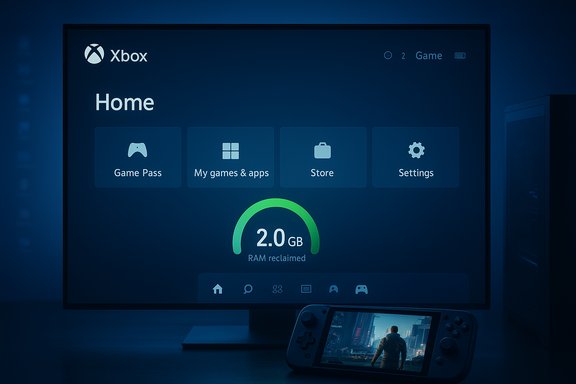
Microsoft’s Full Screen Experience (FSE) for Windows 11 is rolling out beyond the ROG Ally and into regular PCs via Insider builds — and early hands‑on tests show a consistent pattern: about 1–2 GB of user‑space memory is reclaimed in console mode, the UI feels smoother and more controller‑friendly, but raw frame‑rate improvements are negligible for most desktop GPUs.
Microsoft introduced the Full Screen Experience as a layered, controller‑first shell that runs a chosen “home app” (most commonly the Xbox PC app) as the primary interface instead of Explorer. The goal is pragmatic: present a console‑style launcher, reduce background OS noise during play sessions, and make Windows handhelds behave more like dedicated gaming devices. The feature shipped preinstalled on ASUS’ ROG Xbox Ally family and has been expanded through Windows Insider preview builds to other OEM handhelds and, in preview form, to laptops, tablets and desktops for Insiders. Under FSE, Windows does not become a new operating system — it remains Windows 11 under the hood. Instead, FSE applies session policies that deliberately defer or suspend many Explorer‑ and desktop‑centric elements and delay non‑essential background tasks. That trimming of user‑space components is the source of the reported memory savings and the smoother UI.
That strategy has both commercial and UX benefits. It strengthens Microsoft’s cross‑device narrative (console ↔ handheld ↔ PC), pushes Game Pass and the Xbox app closer to the player, and simplifies the out‑of‑box experience for users who primarily care about games. It also gives OEMs a supported path to ship a console‑like launcher without abandoning Windows.
At the same time, FSE is not a silver bullet. It cannot substitute for driver tuning, firmware updates, or hardware performance ceilings. Its benefits are device‑dependent, and the “up to 2 GB” figure should be treated cautiously as a best‑case observation, not a guarantee. Early adopters should expect growing pains — compatibility edge cases, gated enablement, and a period of OEM tuning — while Microsoft and partners refine the experience.
The Full Screen Experience is not a performance magic trick — it’s a pragmatic usability and resource‑management improvement that, in the right hardware and workload, can noticeably improve perceived smoothness. Early evidence shows meaningful memory reclamation and cleaner task switching, while independent benchmarks confirm the right conclusion: FSE helps the environment a game runs in; it does not rewrite the laws of thermals, drivers, or GPU throughput.
Source: eTeknix Windows 11’s Xbox Full Screen Experience Frees 2 GB of RAM But Doesn’t Boost FPS
 Background / Overview
Microsoft introduced the Full Screen Experience as a layered, controller‑first shell that runs a chosen “home app” (most commonly the Xbox PC app) as the primary interface instead of Explorer. The goal is pragmatic: present a console‑style launcher, reduce background OS noise during play sessions, and make Windows handhelds behave more like dedicated gaming devices. The feature shipped preinstalled on ASUS’ ROG Xbox Ally family and has been expanded through Windows Insider preview builds to other OEM handhelds and, in preview form, to laptops, tablets and desktops for Insiders. Under FSE, Windows does not become a new operating system — it remains Windows 11 under the hood. Instead, FSE applies session policies that deliberately defer or suspend many Explorer‑ and desktop‑centric elements and delay non‑essential background tasks. That trimming of user‑space components is the source of the reported memory savings and the smoother UI. What the Full Screen Experience actually changes
A session shell, not a driver-level patch
FSE is a userland intervention: the Windows kernel, GPU drivers, anti‑cheat kernel modules, and DRM layers remain unchanged. What changes is what Windows loads and presents at sign‑in. The selected home app becomes the active shell and many cosmetic or non‑critical desktop services are postponed until you explicitly return to the desktop. That means:- Explorer.exe is not the active foreground shell for the session.
- Desktop wallpaper, some taskbar ornaments and start‑up conveniences are suppressed or delayed.
- A controller‑first Game Bar and Task View are elevated as the primary overlays.
- Background maintenance jobs and non‑essential startup agents may be deferred.
UX changes you’ll notice
- A full‑screen, tiled Xbox home launcher that aggregates Game Pass, Microsoft Store and discovered installs from third‑party storefronts.
- Controller‑optimized navigation, an on‑screen keyboard, and Xbox button long‑press for rapid task switching.
- Options to boot directly into FSE at startup or enter it on demand via Game Bar or Task View.
Hands‑on results: memory savings, smoother switching — but not FPS miracles
Independent testing shared publicly (notably a video from the creator ETA Prime reproduced in multiple publications) gives the clearest real‑world picture so far.- On an RTX‑5050‑equipped laptop used in testing, idle background memory usage dropped from about 7.7 GB (desktop) to 5.7 GB (FSE) — roughly a 2 GB reduction in that test environment. That same video demonstrated quick app/game switching and a console‑like feel when juggling titles.
- In benchmark runs of Cyberpunk 2077 (1080p Ultra on the RTX 5050 testbed), average framerate differences were in the order of 1–2 FPS between desktop and FSE sessions — well within typical run‑to‑run variance and the statistical margin of error for short benchmark loops. Notebookcheck and other outlets that replayed ETA Prime’s footage reached the same conclusion.
- On certain handheld APUs and highly loaded systems, reviewers have reported slightly larger uplifts (single‑digit to low‑double‑digit percentage gains) for particular titles where background memory contention or periodic CPU wakeups were a real limiting factor. Those outcomes are hardware and workload dependent, not universal.
What the 2 GB number means (and what it doesn’t)
The oft‑quoted “up to ~2 GB” freed figure is best read as an order‑of‑magnitude observation, not a guaranteed constant. The amount of reclaimed RAM depends on:- Which startup apps and telemetry agents are present on the system prior to entering FSE.
- OEM utilities and overlays (MSI Center, Armoury Crate, etc. and whether they are deferred.
- Background services (cloud sync, backup agents, monitoring tools) active on the desktop session.
- Test methodology (idle memory snapshot vs. in‑game committed memory).
Why reclaimed RAM matters — and when it actually helps
Freeing user‑space RAM and reducing background CPU wakeups yields two practical benefits in the right contexts:- Lower page‑file pressure and more VRAM headroom for integrated GPUs. Systems with limited RAM (16 GB, or integrated GPUs that share system RAM) can see real improvements because freed system memory reduces swapping and gives the GPU more working memory without invoking the page file.
- Reduced frame‑time variance on thermally‑constrained handheld APUs. Small, frequent background wakeups are costly on devices where the CPU is already operating near thermal or power limits; reducing those wakeups improves 1% lows and perceived smoothness more than average FPS.
The performance ceiling: what FSE cannot do
FSE is intentionally conservative in scope. It does not:- Modify GPU drivers, increase GPU clock speeds, or change kernel scheduler behavior.
- Replace or bypass anti‑cheat modules or DRM protections required by certain titles.
- Guarantee thermal headroom or physical power envelope improvements.
Who benefits most (and who gains little)
- Best candidates:
- Handheld gaming PCs with limited thermal envelopes and 16 GB (or less) of RAM.
- Systems with integrated GPUs that share system memory.
- Users who want a controller‑first, console‑like UX and faster time‑to‑game.
- Owners of devices with many OEM utilities and background agents that can be deferred by FSE.
- Less likely to see gains:
- High‑end desktops and laptops with discrete GPUs and 32 GB+ RAM.
- Workstations that rely on desktop services and background sync — as FSE defers those, it may break desired workflows.
- Users who expect dramatic FPS boosts purely from toggling a shell.
Risks, rough edges and compatibility caveats
FSE’s staged rollout and architecture carry a handful of real risks and trade‑offs:- Gated availability and OEM entitlements — Microsoft uses server‑side gating and OEM entitlements to control the rollout. Identical hardware may show different behavior if the OEM has not enabled FSE for that SKU. Attempting to force the feature with community tools bypasses vendor testing and can produce unstable states.
- Overlay and utility conflicts — Early Insiders reported timing issues between OEM utilities (Armoury Crate, MSI Center), overlays, and FSE’s suppression of Explorer elements. These can cause overlay desyncs or loss of quick toggles until vendors ship updates.
- Sleep / resume and session fragility — Some early builds exhibited fragile sleep/resume behavior when switching in and out of FSE. This appears fixable through firmware, driver or OS patches, but it’s a notable pain point for early adopters.
- Not a Quick‑Resume clone — FSE mimics console‑style multitasking and fast switching, but it is not a true equivalent of Xbox Series X|S Quick Resume. The implementation is a shell posture with suspended desktop components, not a full system snapshot‑and‑restore mechanism. Expect functional differences.
- Anti‑cheat and DRM interactions — Because kernel‑mode anti‑cheat modules are unchanged, some titles and overlays that expect the desktop shell may behave differently. Developers and middleware authors should test overlay and capture flows under FSE to ensure compatibility.
How to enable Full Screen Experience (supported path)
- Join the Windows Insider Program (Dev or Beta channel as recommended for the staged preview).
- Install the Xbox Insider Hub from the Microsoft Store and opt into the PC Gaming Preview if required.
- Update Windows 11 to the Insider preview build that contains the FSE plumbing (the early previews were in the 26220.x family).
- Update the Xbox PC app (and Game Bar) from the Microsoft Store.
- Open Settings → Gaming → Full screen experience and choose your home app (select Xbox to get the Xbox experience). Optionally enable Enter full screen experience on startup.
- Use Game Bar, Task View, or the Win + F11 shortcut to enter/exit FSE.
Testing FSE properly — methodology for reviewers and power users
If you plan to evaluate FSE’s impact on your hardware, follow a reproducible test plan:- Create a clean baseline: reboot into a standard desktop session and record idle RAM and a list of running startup processes.
- Measure a representative scenario: run the same benchmark or built‑in benchmark sequence (repeat 3–5 times) to collect average FPS and 1%/0.1% low frame times.
- Enable FSE, reboot into the FSE session (or enter it from desktop), and repeat the exact same benchmark runs.
- Capture idle RAM, process lists and power draw telemetry (if available). Compare frame‑time histograms and 1% lows rather than focusing solely on averages.
- If possible, repeat tests across power profiles and TDP settings to isolate thermal and power interactions.
- 1% and 0.1% lows (frame‑time variance)
- Idle system RAM and committed game process memory
- Power draw and sustained CPU/GPU clocks
- Presence of micro‑stutters or periodic frame spikes
Strategic implications: Microsoft’s console‑style posture for Windows
FSE is a deliberate strategic move: it narrows the UI gap between Windows handhelds and console/Steam‑deck style ecosystems while preserving Windows’ openness to multiple storefronts. By layering a console‑grade shell rather than forking Windows, Microsoft keeps the PC’s compatibility advantages while improving discoverability for Xbox services and Game Pass. For OEMs, FSE becomes another product differentiation lever: boot‑to‑FSE on handheld SKUs, boot‑to‑desktop for productivity laptops.That strategy has both commercial and UX benefits. It strengthens Microsoft’s cross‑device narrative (console ↔ handheld ↔ PC), pushes Game Pass and the Xbox app closer to the player, and simplifies the out‑of‑box experience for users who primarily care about games. It also gives OEMs a supported path to ship a console‑like launcher without abandoning Windows.
Balanced verdict: measured optimism
The Full Screen Experience is an elegant, narrowly scoped engineering and UX tweak that addresses real pain points on Windows handhelds. For owners of tightly thermally constrained devices or machines with modest RAM, FSE offers a practical uplift: reclaimed memory, fewer background wakeups, and a cleaner, more controller‑friendly launcher that reduces friction for play sessions. ETA Prime’s hands‑on demonstration and independent coverage from outlets like Notebookcheck reproduce the same directional effects: meaningful memory savings and smoother switching, but not a transformative FPS leap on discrete‑GPU laptops.At the same time, FSE is not a silver bullet. It cannot substitute for driver tuning, firmware updates, or hardware performance ceilings. Its benefits are device‑dependent, and the “up to 2 GB” figure should be treated cautiously as a best‑case observation, not a guarantee. Early adopters should expect growing pains — compatibility edge cases, gated enablement, and a period of OEM tuning — while Microsoft and partners refine the experience.
Practical takeaway for Windows gamers
- If you own a Windows handheld or a 16 GB device with an integrated GPU, try FSE via the supported Insider path; the UX and memory savings can be worthwhile.
- If you’re on a high‑end desktop or a machine with ample RAM and a discrete GPU, don’t expect major FPS gains — treat FSE as a comfort and convenience feature instead.
- For reviewers and power users, prioritize frame‑time analysis (1% lows) and repeatable test runs rather than single benchmark averages.
- Follow the supported enablement route and avoid unsupported hacks unless you are prepared to recover your system.
The Full Screen Experience is not a performance magic trick — it’s a pragmatic usability and resource‑management improvement that, in the right hardware and workload, can noticeably improve perceived smoothness. Early evidence shows meaningful memory reclamation and cleaner task switching, while independent benchmarks confirm the right conclusion: FSE helps the environment a game runs in; it does not rewrite the laws of thermals, drivers, or GPU throughput.
Source: eTeknix Windows 11’s Xbox Full Screen Experience Frees 2 GB of RAM But Doesn’t Boost FPS
