

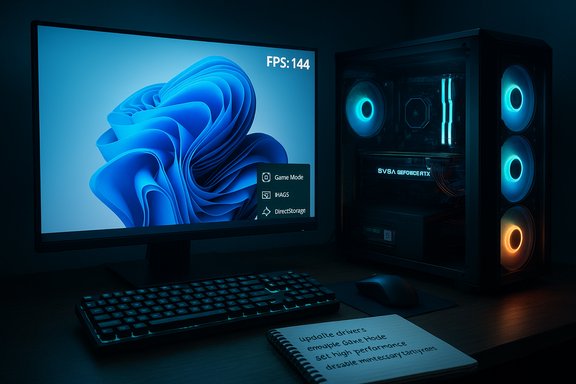
Windows 11 ships with game-oriented features, but a handful of targeted system tweaks will reliably improve frame rates, reduce stutter, and shorten load times—especially on mid-range rigs—when applied carefully and tested one change at a time.
Background
Windows 11 includes several built‑in gaming features that matter to real‑world performance: Game Mode, per‑app GPU selection, Hardware‑accelerated GPU Scheduling (HAGS), Auto HDR, and DirectStorage. These features are designed to reduce background interruptions, provide lower latency presentation paths, and accelerate I/O for NVMe SSDs when games opt into the APIs. Practical gains vary by title, hardware, and driver maturity.Windows also exposes power and graphics controls that let you tune behavior at the system or per‑game level. Many shops and community tests show the best first steps are updating GPU drivers, enabling Game Mode, setting a high‑performance power profile, and removing unnecessary background services.
What to change first: low‑risk, high‑reward tweaks
1) Update GPU drivers and Windows before anything else
Keeping drivers current is the single most important maintenance step. GPU vendors (NVIDIA, AMD, Intel) ship game‑specific optimizations frequently; updating drivers often yields immediate FPS and stability improvements without changing system behavior. Update Windows, then update GPU drivers from the vendor’s site or their official updater tools.2) Enable Game Mode
Why: Game Mode is a lightweight prioritization layer that reduces background interruptions and steers system resources toward the active game. It also helps prevent Windows Update from interrupting gameplay.How: Settings > Gaming > Game Mode → toggle On. Test with your main titles; if a game behaves oddly you can toggle it off per title.
3) Select a high‑performance power profile
Why: Balanced power plans can let CPUs downclock under load, increasing stutters in CPU‑bound scenarios. Choosing a “Best performance” or High performance plan prevents aggressive power savings that throttle clocks.How: Settings > System > Power & battery > Power mode → Best performance, or Control Panel > Power Options → High performance. Advanced users can create a custom plan to lock minimum/maximum processor states and disable PCI‑Express Link State Power Management.
Visuals and system UI: reclaim resources
Disable unnecessary visual effects
Windows 11’s animations and transparency are attractive but consume GPU and CPU cycles. Turning off transparency and many animations gives back system resources for games.- Quick option: Settings > Accessibility > Visual effects → turn off transparency and animations.
- More granular: Start menu → “Adjust the appearance and performance of Windows” → choose Adjust for best performance and re‑enable the few effects you prefer.
Disable HDR/Auto HDR only if it hurts performance
Auto HDR can make SDR games look richer on HDR displays, but it requires an HDR‑capable display and may impact frame pacing in edge cases. Enable Auto HDR via Settings > System > Display > Use HDR when you have compatible hardware, but test visually and for performance.Resource control: background apps, startup and indexing
Turn off background apps and high‑impact startup programs
Background apps, cloud sync services, and chat clients can consume CPU, RAM, and I/O. Audit Settings > Apps > Installed apps and disable background permissions for nonessential apps. Use Settings > Apps > Startup to disable high‑impact starters. Pay attention to OneDrive, game‑recording helpers, and streaming overlays.Disable search indexing for game drives
If your library sits on a separate drive, disabling indexing on that volume reduces background disk activity and can help reduce stutters on HDDs or saturated SSDs. Right‑click the drive in File Explorer → Properties → uncheck “Allow files on this drive to have contents indexed.” Test for search responsiveness after the change.Graphics stack choices: HAGS, per‑app GPU, overlays
Hardware‑accelerated GPU scheduling (HAGS)
HAGS offloads some scheduling work to the GPU, which can reduce latency and improve frame‑time consistency on many modern systems. It is supported only with compatible GPUs and up‑to‑date drivers.- Location: Settings > System > Display > Graphics > Change default graphics settings → toggle “Hardware‑accelerated GPU scheduling.” Reboot after changing.
- Caveat: Some older hardware/drivers report regressions. If you see instability, toggle it back and compare benchmarks. Measure both average FPS and 1%/0.1% lows to judge real-world benefit.
Per‑game GPU preference and disabling overlays
Use Settings > System > Display > Graphics to set a specific game to High performance to force the discrete GPU on hybrid systems. Also disable in‑game overlays (Xbox Game Bar, Discord, GeForce Experience) if they cause stutter or crashes—these can be surprisingly heavy on resources.Storage: DirectStorage, NVMe, and virtual memory
DirectStorage — what it does and what it needs
DirectStorage reduces CPU overhead and speeds asset streaming by leveraging NVMe SSD throughput and GPU decompression when a game specifically implements the API. Installing a game on an NVMe SSD alone does not guarantee DirectStorage benefits—titles must be written to use the API. When supported, DirectStorage shortens load times and reduces micro‑stutter during streaming.Virtual memory (pagefile) — when to tweak
Windows manages the pagefile well by default. Increasing virtual memory to 1.5–2× physical RAM can help systems with very low RAM or when running memory‑heavy mods, but custom sizes can also interfere with system memory management. Try leaving Windows to manage the pagefile first; only manually tune if you have a clear, measurable reason. Flag: this advice is system‑dependent—test and monitor before committing.Advanced tweaks and trade‑offs
Disable Memory Integrity (Core isolation) and Virtual Machine Platform only temporarily
Virtualization‑backed security features like Memory Integrity provide strong defenses but can add overhead to certain workloads. Some guides recommend temporarily disabling Memory Integrity and the Virtual Machine Platform to reduce overhead during gaming; re‑enable them afterward. This reduces system security and should be done with caution.Ultimate Performance power plan (advanced, optional)
Windows includes an Ultimate Performance plan on some SKUs (Workstation/Pro), and it can be made available on other editions via command‑line changes. This plan aims to eliminate micro power savings that may limit peak performance. Use it only if you understand it increases power draw and heat; laptops should be used on AC power when using aggressive plans. Note that enabling hidden power plans may require administrative commands; treat those instructions as advanced and verify your exact command before running it.Hardware and thermal considerations
Pushing clocks and disabling power mitigation increases thermal output and fan noise. Sustained high clocks can lead to thermal throttling if cooling is inadequate, which will reduce effective performance over time. Monitor temperatures when you switch to “Best performance” or “Ultimate” plans.Monitoring, measuring and rolling back: a disciplined workflow
How to test effectively
- Update drivers and Windows.
- Record baseline performance (in‑game FPS, 1% lows, CPU/GPU temps, and load times).
- Change one setting at a time.
- Run a repeatable benchmark or a defined in‑game sequence.
- Compare results and roll back if unstable.
What to record
- Average FPS and 1%/0.1% lows (the real measure of stutter).
- CPU and GPU utilization and temperatures.
- Load times for large scenes or map changes.
- Any crashes, UI glitches, or visual corruption that appears after a tweak.
Practical checklists: quick step sequences
Quick (5–10 minute) checklist to optimize before gaming
- Update Windows and GPU drivers.
- Enable Game Mode.
- Set Power Mode to Best performance (AC power for laptops).
- Disable unneeded startup apps and background sync (OneDrive, chat clients).
- Open Game Bar (Win + G) and enable the performance widgets for live monitoring.
Deeper (30–60 minute) checklist for sustained gains
- Test HAGS on and off with a benchmark.
- Configure per‑game GPU preference for laptop hybrid GPUs.
- Move large, I/O‑heavy games to an NVMe SSD if possible (for DirectStorage‑capable titles).
- Calibrate HDR/Auto HDR on an HDR display if you use one; otherwise disable HDR for maximum consistency.
- When trying aggressive advanced changes (Memory Integrity off, Ultimate Performance), document the state and revert when not gaming.
Critical analysis: strengths, limits, and risks
Strengths and realistic gains
- Many players see measurable improvements from driver updates, power mode changes, and disabling heavy startup items. These are low risk and often the best first moves.
- DirectStorage and Auto HDR provide architectural improvements: faster streaming and improved visuals—but only when the game implements those features and the hardware meets requirements. These are high value where supported.
Limitations and when gains are small
- If a GPU is already at its limit in a given title, OS tweaks will only yield modest gains. Heavy optimization cannot fully compensate for underpowered hardware.
- Some features (HAGS, Auto HDR) are driver/hardware dependent; inconsistency between vendors means results vary widely across systems.
Risks and security trade‑offs
- Disabling Memory Integrity or the Virtual Machine Platform reduces security against low‑level attacks. These should be toggled only temporarily and re‑enabled when not actively gaming.
- Enabling hidden or aggressive power plans increases heat and power draw; laptops will see battery life reductions and possible thermal throttling if cooling is insufficient.
- Driver rollbacks or using unofficial driver packages can destabilize a system; prefer vendor sites or official toolchains.
Final recommendations and a practical experiment plan
- Prioritise: update drivers → enable Game Mode → set Best performance → disable overlays/startup apps → test HAGS. Measure and decide.
- For storage‑bound stutter and long load times, invest in an NVMe SSD and favour DirectStorage‑enabled games to see the largest improvements. Expect diminishing returns if the bottleneck is the GPU.
- Use a methodical test approach: one change at a time, record before/after, and focus on 1% lows as the true measure of smoothness.
Windows 11 gives gamers practical levers to improve responsiveness, visuals, and I/O throughput, but the real wins come from a careful, measured approach: update drivers, prioritize performance with power and Game Mode, reduce background noise, and only apply advanced or security‑impacting changes when you understand their trade‑offs. Test everything, document your results, and keep a rollback plan ready—this is the fastest path to a stable, higher‑FPS gaming setup that respects both performance and system integrity.
Source: Australian Technology News Best Windows 11 Tweaks for Gaming - Tech Business News
