• Thread Author
GovCIO’s Kearneysville hiring blitz for a Journeyman Windows System Administrator puts a familiar, high‑stakes mix of legacy Windows operations, enterprise virtualization, and DoD‑grade security squarely in the spotlight — a hybrid role that demands hands‑on Windows Server and VMware experience, active or transferable Secret clearance, and the kind of automation and compliance know‑how that large federal programs increasingly require.

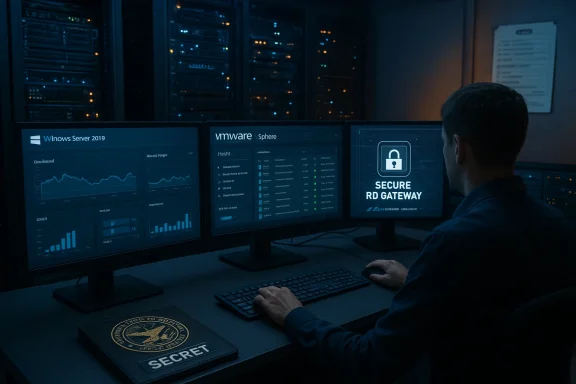
IT technician monitors secure server dashboards on a triple-monitor setup in a data center.Background​

Over the past five years federal contractors supporting DoD and U.S. Coast Guard (USCG) programs have leaned heavily on experienced Windows systems administrators who can combine day‑to‑day server ops with automation, stringent STIG/DoD hardening, and platform migration planning. GovCIO’s posting for a Journeyman Windows System Administrator reflects that reality: it lists core responsibilities such as installing and maintaining Windows Server 2016/2019+, managing VMware vSphere environments, deploying and securing Remote Desktop Services (RDS), and running patch/compliance automation with TrueSight Server Automation (TSSA). The role also stresses DoD‑specific security validation — alignment with DoD 8570/8140 baselines and support inside UNCLAS and other DoD network enclaves.
This job sits at the junction of operational continuity and modernization. Agencies still run mission‑critical workloads on supported but aging Windows Server branches, while program owners push for virtualization refreshes, hardened RDS access, and automated compliance workflows to reduce human error and audit risk.

What the job tells us: responsibilities and immediate technical demands​

The bulletin is a useful snapshot of what modern federal Windows admin roles now demand on a daily basis.
  • Install, configure and maintain Windows Server (2016, 2019, and newer) in enterprise environments.
  • Administer VMware vSphere/ESXi/vCenter, including virtual networking and storage integration.
  • Deploy, secure and troubleshoot Remote Desktop Services (RDS) infrastructures (Gateways, Licensing, Session Hosts).
  • Use TrueSight Server Automation (TSSA) for patch automation, configuration enforcement and compliance jobs.
  • Administer Active Directory (GPOs, DNS, DHCP) and perform domain health monitoring.
  • Apply DoD/USCG hardening standards, STIGs, and vulnerability remediation practices.
  • Operate in UNCLAS and secure DoD network environments with an Active Secret clearance required or eligible.
These are not checkbox tasks; they form a workflow that touches provisioning, lifecycle management, security posture, and availability. A candidate must be equally comfortable troubleshooting a hung ESXi host, tuning an RDS collection under load, writing PowerShell to automate AD tasks, and creating a remediation job in TSSA that drives thousands of endpoints into compliance.

Why Windows Server versions matter right now​

Windows Server 2016 and 2019 still power a massive number of government workloads, but product lifecycle timing matters for planning and risk management. Microsoft’s lifecycle documentation shows Windows Server 2016 enters extended support sunset windows through early 2027, while Windows Server 2019 enjoys extended servicing further into the decade. That reality forces contractors and program managers to balance immediate operational stability against migration risk. Administrators working on these stacks must therefore plan for staged upgrades, interim mitigations, and careful patch windows that align with both Microsoft’s lifecycle and agency modernization timelines.
Key technical implications for admins:
  • Patch cadence and ESUs: Understanding Microsoft’s support timeline and any Extended Security Update (ESU) programs is essential when justifying the cost/benefit of delaying an OS migration.
  • Application compatibility: Legacy applications and third‑party integrations may constrain upgrade windows; test and compatibility scripts are non‑negotiable.
  • STIG/hardening drift: Older OS builds require more aggressive STIG remediation and continuous monitoring to stay compliant.

Virtualization: VMware vSphere expectations and the certification landscape​

Managing VMware vSphere environments is a core item in the posting — ESXi hosts, vCenter operations, VM lifecycle, and integrated storage/networking are all cited. Administrators must troubleshoot host failures, manage DRS/HA clusters, and coordinate firmware/driver compatibility across hardware stacks. Those responsibilities remain central to keeping mission workloads resilient.
On certifications: historically the VCP‑DCV (VMware Certified Professional – Data Center Virtualization) has been the recognized credential for vSphere-centric administrators. VMware’s certification program has evolved, and employers tend to value either a current VCP track or demonstrable vSphere experience. Candidates should check the current VMware certification roadmap and note that Broadcom’s stewardship of VMware certification has led to changes in exam names and tracks — but practical, demonstrable vSphere experience remains the hiring currency.
Operational tips for virtualization work in DoD/USCG contexts:
  • Keep host/firmware catalogs and compatibility matrices up to date.
  • Treat vCenter and ESXi patching as staged, tested changes with rollback plans.
  • Maintain configuration backups for hosts and vCenter, and document maintenance runbooks rigorously.

Remote Desktop Services at scale: security, licensing, and operational realities​

RDS remains a common approach for delivering applications and desktops to dispersed users. The job’s emphasis on RDS — gateways, licensing, and session hosts — is practical: agencies need secure remote access paths that are both auditable and resilient. Microsoft’s RDS documentation outlines the core roles (RD Gateway, RD Connection Broker, RD Session Host, RD Licensing, RD Web Access) and provides deployment guidance that administrators in this role will need to follow. Proper certificate management, load balancing, and session broker high availability planning are essential for production RDS environments.
Security and licensing considerations that commonly trip up programs:
  • RD Gateway certificates and TLS configuration: RD Gateway commonly sits at the internet edge and must use certificates that match public FQDNs and adhere to modern TLS policies.
  • RDS licensing compliance: Ensure RD CALs are tracked and properly assigned; licensing misconfigurations can threaten user access during audits.
  • Hardened RDP surface: Lock down legacy RDP protocols and cipher suites; test STIGs against RDS role services to avoid service disruptions from overly strict hardening.

TrueSight Server Automation: automation at enterprise scale​

GovCIO’s requirement for TrueSight Server Automation (TSSA) experience is notable; TSSA (formerly BladeLogic in many enterprises) remains a heavyweight tool for provisioning, patching, configuration management, and compliance reporting across heterogeneous estates. BMC’s documentation describes how TSSA centralizes jobs, enforces RBAC, and scales to manage large fleets — exactly the capabilities a DoD support contract needs when dealing with thousands of endpoints and strict compliance objectives. Industry product reviews also show that while TSSA is powerful, it requires experienced operators and careful integration planning.
Practical notes for administrators using TSSA in a DoD environment:
  • Maintain a strict role‑based access model inside TSSA to separate patching, provisioning, and remediation duties.
  • Integrate TSSA with vulnerability scanners (e.g., Tenable or Qualys) and your security operations workflows to automate remediation tickets where possible.
  • Test NSH/agent scripts in staging before broad rollout; automation mistakes at scale can cause system outages.

DoD security baselines, STIGs, and the certification floor: DoD 8570 / 8140 context​

The job lists DoD 8570 IAT Level II equivalence (e.g., Security+ CE, CySA+) — a common contractual baseline for technician‑level IT security responsibilities. While DoD policy has evolved (DoD 8140 replaced some of the 8570 language), the underlying expectation holds: personnel with privileged access must hold an approved baseline certification. ISC2 and training providers reflect the matrix that maps job functions to acceptable certs. Candidates should verify the specific baseline required by the contract and be prepared to present certification documentation during onboarding and periodic audits.
Administratively important points:
  • Keep certification records current and traceable; many federal contracts will ask for contractor certification listings during audit windows.
  • Understand the difference between baseline certification requirements and program‑specific credentials or training (e.g., sponsor‑provided STIG training).
  • Employers may accept equivalent or higher credentials — a CISSP or CASP+ will typically exceed IAT Level II minimums.

Operational resilience: backup, recovery, documentation, and runbooks​

The role’s call for backup and recovery testing, runbooks, SOPs, and diagrams is a reflection of mission‑critical uptime expectations. For USCG/DoD programs the paperwork is not mere bureaucracy — it’s the blueprint that lets teams recover quickly and demonstrate audit‑level readiness.
Essential best practices:
  • Maintain tested backup and recovery playbooks for AD, RDS collections, vCenter, and critical VMs.
  • Keep Change Control and SACL/Audit logs centralized; tie them to incident response playbooks.
  • Produce concise runbooks for common operational tasks (e.g., ESXi host remediation, RDS collection scale‑out, certificate rotation).
Documentation is often the difference between a quick recovery and a costly outage. Make the documentation executable and version controlled.

Hiring process, Clearances, and candidate realities​

GovCIO’s posting outlines a multi‑stage screening: virtual interview (camera on), photo ID checks, enhanced biometrics verification, background checks covering the past seven years, and employment/education verification. The job also requires an Active Secret clearance — or the ability to hold one — which materially affects candidate timelines and mobility. For applicants, the clearance requirement means:
  • Expect a weeks‑to‑months onboarding timeline depending on clearance status and adjudication backlog.
  • Keep employment and education records readily available; gaps or inconsistencies slow the process.
  • Be prepared for enhanced identity verification (biometrics) as part of the contractor vetting process.
From a recruiter’s or manager’s perspective, active clearance dramatically reduces time‑to‑billable status; from a candidate perspective, it often increases market value and mobility.

Compensation, market fit, and remote/hybrid realities​

The Dice posting for this position lists a base range around USD $80,000–$100,000 per year for the Journeyman role, with senior roles in the same office commanding higher ranges. Comparable listings in the Kearneysville/Berkeley County market show variability based on experience and active clearance status. Candidates with strong VMware, AD, RDS, and TSSA experience — plus a valid DoD IAT Level II certification and an active Secret — will position themselves at the upper end of pay bands.
Employers should be mindful that pay bands must reflect both clearance premiums and the deep, cross‑platform operational experience the role requires; under‑compensating for the clearance/skill set risks longer vacancy times and operational risk during transitions.

Risks, red flags, and mitigation for program managers​

  • Too many legacy dependencies: Heavy reliance on older Windows Server versions or bespoke integrations increases migration risk. Mitigation: schedule phased application testing windows and maintain isolated staging replicates of production.
  • Single‑tool automation dependence: Overreliance on a single automation console (e.g., TSSA) without cross‑training creates a single‑person / single‑point‑of‑failure. Mitigation: cross‑train teams and maintain documented manual fallback steps.
  • Misconfigured RDS hardening: Overzealous STIG application can break service dependencies; under‑hardening exposes the RDP surface. Mitigation: pair STIG runs with a service validation checklist and rollback plan.
  • Certification and clearance gaps: Hiring without required baseline certs or an active clearance slows program readiness. Mitigation: prioritize cleared candidates or present a clear roadmap for certification and interim supervision.

Practical guidance for applicants​

  • Lead with your clearance and certs. Put Active Secret and IAT Level II / Security+ CE or CySA+ at the top of your resume if you have them.
  • Quantify virtualization scale: list clusters, number of hosts, vCenter versions, typical maintenance windows, and major incident remediations.
  • Describe RDS ownership: number of session hosts, average concurrent sessions, RD Gateway topology, licensing model.
  • Show automation depth: include specific TSSA jobs or NSH scripts, number of nodes automated, and any integrations with vulnerability scanners.
  • Bring documentation samples (redacted): runbook snippets, architecture diagrams, or a short post‑mortem summary that demonstrates process maturity.
A concise portfolio of operational evidence — not just buzzwords — will separate strong candidates from marginal ones.

Conclusion​

GovCIO’s Journeyman Windows System Administrator opening is an archetype of contemporary federal IT work: a demanding hybrid role that balances legacy Windows estate stewardship with virtualization, remote‑access security, and enterprise‑scale automation. Candidates need solid hands‑on skills across Windows Server and VMware, practical RDS deployment experience, and operational exposure to TrueSight or equivalent server automation frameworks — layered over the non‑negotiable baseline of DoD‑aligned certifications and clearance eligibility.
For hiring managers, success will come from realistic scopes of work that reconcile Microsoft lifecycle realities, automation staffing, and the non‑trivial complexity of integrating RDS and patch orchestration into a STIG‑driven environment. For candidates, the path to being competitive is clear: document clear, verifiable operational wins, maintain required certifications and clearance status, and be ready to demonstrate both automation expertise and airtight documentation practices on day one.

Source: Dice https://www.dice.com/job-detail/5b3873bf-2771-4edc-8081-cc673a87bda4/
 

Microsoft's apparent decision to restore a movable, resizable taskbar to Windows 11 has reignited an old debate about design trade‑offs, engineering priorities, and the invisible battles that shape the operating system millions rely on—now complicated by a revealing comment from a former Microsoft executive who says he “fought hard” to keep vertical taskbar support during the Windows 11 redesign. the taskbar became a battleground
The Windows taskbar has been a foundational UI element since Windows 95. For decades, users could move the taskbar to the left, right, top, or bottom of the screen and change its size to suit workflow, screen shape, and accessibility needs. When Microsoft rebuilt the shell for Windows 11 and reimplemented the taskbar from the ground up, that flexibility vanished: the bar was anchored to the bottom and its size and behavior were deliberately constrained. That choice created a persistent, vocal minority of frustrated users—especially owners of tall, vertical monitors and power users who depend on dense, multi-column workflows.
Microsoft’s public rationale for locking the taskbar centered on rearchitecting the shell and the engineering complexity of supporting “reflow” across countless hardware and software permutations. In short, moving the taskbar is not just a surface change: it affects snapping behavior, context menus, flyout placements (calendar, notifications, quick settings), DPI math, and many third‑party apps that implicitly rely on a bottom‑anchored taskbar. Microsoft framed the omissions as deliberate trade‑offs tied to compatibility and telemetry—decisions made to prioritize the largest number of users while delivering a modern, polished default experience.

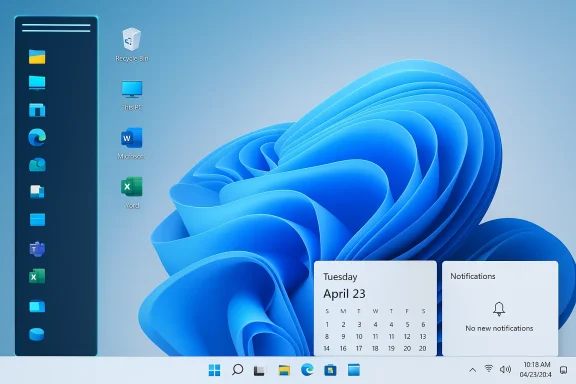
Windows 11 desktop with a left-side app column and a blue swirling wallpaper.What changed this week: the new reporting and the executive’s admission​

Multiple Windows‑focused outlets report that Microsoft is prototyping the ability to both move the taskbar to the top, left, or right edges of the display and resize it beyond current presets. Those reports place an aspirational public preview or Insider flighting in mid‑2026, with broader rollout subject to quality gates and the company’s release cadence. The reporting is explicit that this is prototyping work—not a guaranteed ship date—and that Microsoft has not published an official feature announcement.
Against that backdrop, former Microsoft engineering executive Mikhail Parakhin—now CTO at Shopify and previously a senior leader at Microsoft—tweeted that he “fought hard against the decision to take it away back then,” calling attention to internal disagreement over removing vertical taskbar support during the Windows 11 redesign. That revelation offers a rare, human data point about the internal infighting that often surrounds major UI rewrites. News aggregation and Windows‑beat outlets picked up the quote and the broader narrative quickly.

Why vertical taskbars matter: productivity, ergonomics, and workflows​

The practical case for a vertical taskbar​

  • Vertical taskbars maximize productive vertical space on 16:9/16:10 and ultrawide monitors, letting users keep long document listings, explorer trees, or chat windows unobstructed while maintaining a dense app launcher.
  • Developers and power users with many pinned apps or multiple instances of the same program can take advantage of multi‑row or denser vertical layouts to reduce window switching friction.
  • Accessibility: users with visual or motor constraints sometimes prefer larger taskbar height or vertical orientation for reachability and predictable cursor travel.
Those productivity gains are not hypothetical. Third‑party utilities such as Start11 and ExplorerPatcher have remained popular precisely because they restore this kind of customization, underscoring that a measurable segment of Windows users values flexibility over the skew toward a single, simplified default.

The counterarguments Microsoft raised​

  • Compatibility risk: older apps may assume the taskbar is bottom‑anchored and will miscompute client areas or overlay controls incorrectly, causing visual glitches or even lost UI controls.
  • Complexity of reflow: every element that depends on the taskbar’s position—system flyouts, the Start menu, Copilot/AI integrations, notification placement—must be verified and adapted for alternative orientations and sizes.
  • Telemetry: Microsoft has emphasized a “majority experience” approach in some design decisions; if telemetry signals that only a small percentage of users move their taskbars, the engineering investment must be justified against other priorities.
These arguments are legitimate engineering constraints, and they explain why Microsoft’s shell rewrite initially removed many legacy affordances. But they do not tell the whole story; product priorities and internal power dynamics shape which engineering problems get solved. The recent reporting suggests the company is now treating the taskbar work as engineer‑solvable and worth the allocation.

Inside the conflict: what Parakhin’s comment reveals (and what it doesn’t)​

Mikhail Parakhin’s remark that he “fought hard” to keep vertical taskbar support provides an unusual window into the product‑level infighting that occurs at large software companies. His background—leading engineering teams across Windows, Edge, Search and more while at Microsoft—lends weight to the claim that these debates were fought at relatively senior levels. Parakhin’s comment suggests that the vertical taskbar decision was not merely a technical inevitability but a product choice influenced by competing priorities. (x.com)
What the comment does not prove:
  • It is a recollection from a single participant, not documentation of board‑level minutes or a technical post‑mortem. Personal recollections are valuable but not definitive proof of why a corporate decision finally landed the way it did.
  • It does not indicate whether Parakhin’s advocacy was for design reasons, compatibility mitigations, accessibility, or a mixture of motives—nor does it reveal what counter‑arguments ultimately prevailed.
Journalists and analysts who examined the reporting have flagged this distinction: Parakhin’s statement is a data point, not an airtight explanation for the product roadmap. Treating it as such keeps analysis honest while acknowledging the human element in engineering trade‑offs.

The backlash: why some in the Windows community reacted poorly​

Public reactions have been mixed. Many users cheered news that Microsoft is prototyping taskbar movement and resizing, seeing it as a necessary restoration of choice. Others mocked Microsoft for delaying an apparently simple QoL feature for years.
Beyond user snark, there’s sharper criticism from inside the Windows development community. Some developers pointed to other areas where Microsoft’s product choices were more contentious—ads inserted into system surfaces, controversial AI experiments, and perceived prioritization of marquee features over everyday ergonomics. In particular, one prominent Windows developer publicly criticized the former executive involved, accusing him of involvement in decisions that led to “garbage ads, scams, and other unwanted junk” in system surfaces such as Widgets and Edge. That criticism complicates the narrative: it reframes the taskbar debate as one thread in a much broader argument about platform direction and platform monetization. The exact provenance and nuance of those accusations remain a matter of public online debate and should be interpreted carefully.

Technical implications and engineering risks of reintroducing a movable/resizable taskbar​

Re‑enabling taskbar movement and size control sounds simple to end users, but it carries several engineering and operational risks the Windows team must handle carefully.

1. Legacy app compatibility​

  • Some Win32 and poorly authored applications assume fixed screen workareas and may place or size windows incorrectly if the system work area changes in unexpected ways.
  • Visual clipping, off‑screen controls, and broken context menus could surface in enterprise‑critical tools.

2. Flyout and shell reflow​

  • System flyouts (calendar, notifications, quick settings, Start, Copilot) must anchor and animate correctly when the taskbar is on a side or the top.
  • Touch targets and gestures must remain usable in new orientations; accessibility support needs retesting.

3. Multi‑monitor and DPI complexity​

  • Different displays often run at distinct scalings; moving a taskbar and preserving consistent behavior across monitors with mixed scaling is non‑trivial.
  • Flyouts that attach to the taskbar will need dynamic repositioning logic; Windows must avoid scenarios where a flyout is clipped or appears on the wrong screen.

4. Interference with third‑party tooling​

  • Many users run Start11, ExplorerPatcher, or other shell‑modifying tools. An official implementation may conflict with those tools, producing inconsistent behaviors until vendors update.
  • Enterprises that standardize on custom tooling will need validation and potentially updated images or group policies.

5. Security surface and UX correctness​

  • Any shell change must preserve secure desktop flows, elevation prompts, and UAC positioning. UI changes that alter input routing or desktop surfaces must be validated for security regressions.
Microsoft’s prototyping and engineering work must create mitigation strategies for each of these vectors before shipping at scale. The reporting that surfaced this week explicitly calls the work prototyping—an important caveat.

How credible is the timeline? What to expect next​

Multiple Windows‑beat outlets peg an aspirational public preview to summer 2026, with broader release possibly landing in the typical H2 feature update window (26H2) if testing and compatibility gates are passed. That timeline aligns with Microsoft’s public pivot this year toward reliability and addressing “pain points,” a strategic reorientation announced by Windows leadership that reallocated engineering focus to core quality work. Still, prototypes can change shape or be shelved entirely, and Microsoft has not published a formal commitment. Treat “summer 2026” as a targeted preview window, not an ironclad ship date.
Insider channels will be the earliest place to see prototypes. When a prototype arrives, it will be critical to:
  • Test compatibility across common enterprise line‑of‑business apps.
  • Validate multi‑monitor and mixed‑DPI scenarios.
  • Check interaction with known shell customizers (Start11, ExplorerPatcher).
  • Evaluate how Copilot, the Start menu, and system flyouts behave in alternate orientations.
Enterprises should prepare to pilot Insider builds in isolated rings and coordinate with independent vendors who provide shell customization tools.

The third‑party ecosystem: short‑term alternatives and long‑term friction​

Because Microsoft removed the flexibility in Windows 11, third‑party vendors stepped in. Tools such as Start11, ExplorerPatcher, and Open‑Source Shell Modders reintroduced vertical taskbars, denser layouts, and other power‑user functionality.
  • Benefits of third‑party solutions:
  • Rapid availability for users who need vertical taskbars today.
  • Customization beyond what Microsoft supports in its default shell.
  • Drawbacks:
  • Potential stability and security trade‑offs for system‑level modifications.
  • Enterprise risk: unsupported tool behavior in managed environments.
  • Potential conflicts when Microsoft ships an official implementation.
If Microsoft ships an official movable/resizable taskbar, vendors will need to adapt quickly. Users and IT admins should expect a transition period where third‑party solutions and Microsoft’s implementation coexist uneasily until one side (vendor or Microsoft) updates to restore consistent behavior.

Practical guidance for users and IT admins​

For enthusiasts and daily users​

  • Celebrate cautiously: prototypes are promising, but timelines can slip.
  • If you depend on vertical taskbars now, continue using proven third‑party solutions but maintain backups and expect potential incompatibilities when official builds land.
  • When Insider previews arrive, test on non‑critical machines first.

For IT admins and enterprises​

  • Inventory mission‑critical apps and verify behavior on Insider builds when available.
  • Prepare a rollback plan and imaging strategy if a preview introduces regressions.
  • Communicate with third‑party shell tool vendors about compatibility roadmaps.
  • Avoid deploying Insider builds on production systems; instead, stage tests in a controlled ring.

For developers and ISVs​

  • Validate application behavior with varied taskbar positions and sizes.
  • Ensure UI layout logic does not hardcode assumptions about available workarea or top/bottom offsets.
  • Monitor Microsoft’s developer guidance and adapt Window message handling for dynamic workarea changes.

What this episode reveals about product decision‑making at scale​

Parakhin’s recollection—that he “fought hard” to preserve a vertical taskbar option—adds texture to the well‑worn narrative that product design is a mix of telemetry, engineering reality, and internal politics. Big redesigns are rarely purely technical: they are negotiated outcomes shaped by leadership vision, resource allocation, perceived business priorities, and competing roadmaps (for example, AI integration vs. polish and reliability).
Microsoft’s public pivot in early 2026—committing to “improving system performance, reliability, and the overall experience of Windows”—provides strategic context for why the company might now reprioritize what were once deprioritized customization features. Restoring taskbar flexibility would be a concrete, visible sign that Microsoft is listening and adjusting course. But execution still matters: how Microsoft reintroduces movement and resizing—balancing legacy compatibility, modern UX expectations, and the company’s broader platform goals—will determine whether this becomes a meaningful fix or just a symbolic concession.

Strengths, weaknesses, and the net impact​

Strengths of Microsoft restoring taskbar flexibility​

  • Restores long‑requested customization for power users and vertical‑monitor workflows.
  • Signals responsiveness to user feedback and a renewed focus on core UX issues.
  • Potential to reduce reliance on unsupported third‑party shell tools.

Weaknesses and risks​

  • Potential for regressions and compatibility issues with legacy apps and shell extensions.
  • Temporary friction with third‑party tools and enterprise imaging strategies.
  • If the feature is rushed, it could introduce new stability problems that erode trust rather than restore it.

Net impact — why it matters​

Restoring a movable, resizable taskbar is not just a UI tweak; it is an emblematic test of whether Microsoft truly rebalances its priorities toward reliability and user choice. Done well, it will be a small but meaningful victory for customization and productivity. Done poorly, it risks reopening the conversation about rushed features and the company’s ability to deliver stable experiences at scale. The human detail—an insider saying he “fought hard”—makes the stakes feel less abstract: these are design decisions made by people with competing visions, and their outcomes affect how millions of people work every day.

What to watch next​

  • Insider builds and official Microsoft announcements: prototypes may appear in the Dev/Beta channels first—watch those closely for behavior and compatibility details.
  • Microsoft’s engineering guidance for developers and admins: look for documentation on handling dynamic workarea changes and mixed‑DPI scenarios.
  • Third‑party tool vendor responses: vendors like Stardock (Start11) and ExplorerPatcher maintain active roadmaps and will be the first to indicate whether they will retire or adapt features once an official implementation stabilizes.
  • Community tests and enterprise pilots: these will reveal real‑world regressions or edge cases that the prototypes don’t surface.

Restoring a vertical, resizable taskbar would close a long chapter of Windows UI debate: it’s a modest but tangible fix that addresses real workflows. The revelation that a senior Microsoft figure actively fought to keep the feature underscores the role of internal advocacy in shaping product direction—and the often unglamorous engineering and compatibility work that must follow when a company decides to give users back a small but meaningful choice. For users and IT professionals, the coming months will be a time for careful testing, compatibility planning, and, with luck, a return to a more flexible Windows desktop without the regressions that originally motivated the redesign.

Source: Neowin Former Microsoft executive claims he "fought hard" to keep this Windows 11 feature, but lost
 

When a former senior Microsoft engineering leader publicly said he “fought hard” to keep the vertical taskbar during the Windows 11 redesign, it did more than add a quotable line to the debate — it pulled back the curtain on a decision that has frustrated a vocal portion of Windows users for half a decade and illuminated the real tensions that drive modern platform design. The short version: the vertical taskbar was removed as part of a deliberate, design-driven choice tied to a new “symmetric panes” UI philosophy and an extensive reimplementation of the shell, and Microsoft is now prototyping a return of taskbar movement and resizing as it responds to feedback and compatibility concerns. What follows is a deep look at why the feature was removed, what bringing it back actually involves, who wins and loses, and what power users and IT administrators should prepare for next.

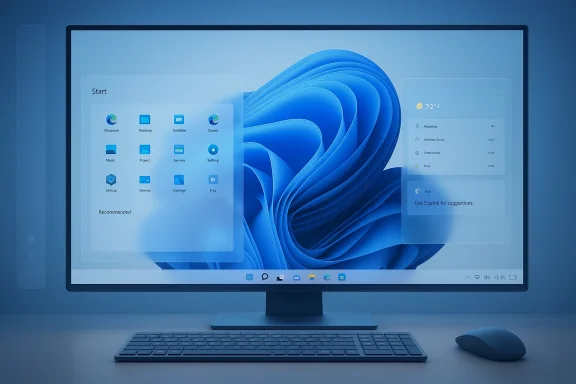
Blue-tinted desktop setup with a large monitor displaying a Windows-style Start menu and widgets.Background: the taskbar that used to move — and why its loss mattered​

For decades, the Windows taskbar was a defining, flexible element of the desktop: users could dock it to the bottom, top, left, or right of the screen; they could resize it and use dense, multi-row layouts; and enterprises and advanced users relied on those behaviors for ergonomics and workflows. When Windows 11 launched, Microsoft rebuilt the shell, introduced a centered Start, and shipped a simplified taskbar locked to the bottom with constrained sizing and many legacy behaviors removed. That decision produced immediate friction.
The reaction was predictable and persistent. Enthusiasts, professionals who use tall or vertical monitors, and IT teams relying on well-established screen real estate patterns pushed back. Third‑party utilities and registry hacks appeared to restore the old abilities, but those solutions brought trade‑offs: stability risks, support challenges, and management pain for enterprises. The locked‑down taskbar became symbolic of a broader tension between a streamlined default experience for mainstream users and the flexibility long‑time customers expected from Windows.

The former executive’s inside view: “symmetric panes” and the design rationale​

A credible, senior voice from Microsoft has now added color to why that trade‑off happened. According to the executive’s public remarks, a central conceptual choice at the heart of the Windows 11 redesign was what he characterizes as a “symmetric panes” model: system controls and quick settings on the right, widgets and information on the left, and a centered Start menu positioned to create a balanced, predictable composition. In that architecture, a vertical taskbar is not merely a different placement — it’s a fundamentally conflicting element that muddies the left/right assignments that designers used to compose the whole screen.
Put plainly: designers and product leads wanted a consistent, symmetrical layout that would make the shell predictable and visually unified. Allowing the taskbar to live on the left or right would create multiple competing anchors that complicate composition and the placement of flyouts, widgets, notification areas, and new surfaces like AI or Copilot integrations. The executive’s recollection is that this design-first stance ultimately outweighed arguments for preserving legacy placement flexibility.
It’s important to treat this explanation as a firsthand perspective on internal tradeoffs rather than a corporate engineering whitepaper. A senior participant’s recollection clarifies motivations and tradeoffs, but it does not replace formal post‑mortems or internal design docs. Still, it explains why a seemingly small customization option might be removed for reasons that look aesthetic and strategic rather than purely technical.

Why moving the taskbar back isn’t just a toggle: engineering realities and compatibility costs​

When you hear “restore the vertical taskbar,” it sounds small. In reality, for a modern shell rebuilt from the ground up, it’s a complex engineering and compatibility effort. The Windows 11 taskbar was reimplemented with many assumptions baked into the shell and app ecosystem — assumptions that affect layout math, flyout origin points, DPI/scale calculations, window snapping, taskbar icon behavior, and interactions with assistive technologies.
Key technical challenges include:
  • Flyout and “workarea” reflow: Calendar, notifications, quick settings, and other flyouts assume a bottom origin. Repositioning the anchor changes where flyouts appear and how apps calculate available screen space.
  • Window maximization and snapping: Many apps and some legacy libraries expect a fixed bottom taskbar. Maximizing windows against a vertical taskbar or mixed DPI multi‑monitor setups can reveal edge cases.
  • Mixed DPI and multi‑monitor scenarios: Modern laptops and desktops often run displays with differing DPIs and rotations — vertical placement changes how the OS reconciles scaling across monitors and can cause clipping or misplacement.
  • Accessibility and keyboard focus: Screen readers, keyboard navigation, and high‑contrast modes need rigorous testing. Orientation changes impact tab order and focus traps, and assistive technologies cannot be an afterthought.
  • Third‑party extensions and shell customizers: Several popular tools (both open‑source and commercial) relied on previous architectures. An official reintroduction will need to account for potential conflicts and fragmentation.
  • AI and new taskbar features: Microsoft has been expanding the taskbar’s role as a platform for AI agents and Copilot functionality. Adding alternate placements complicates the UX model for those services and requires redesigning transient UI affordances to be orientation‑agnostic.
All of these items are time‑consuming to validate across the wide combination of hardware, screen sizes, and third‑party software that Windows supports. This is why the company’s earlier message — that reflow and reimplementation were deliberately prioritized elsewhere — makes engineering sense even if users found it frustrating.

Design vs. engineering vs. business: the three-way tug-of-war​

Removing the vertical taskbar wasn’t a single‑minded technical decision; it was the result of competing priorities across product, engineering, and business teams.
  • Design prioritized visual harmony, predictability, and a modern baseline for the majority of users.
  • Engineering prioritized stability, performance, and the feasibility of shipping a redesigned shell with a maintainable codebase.
  • Business teams often push for consistent, simplified defaults that support new discovery surfaces or monetization opportunities (widgets, promoted content, and platform integrations).
When design and product groups decide that a symmetrical canvas is critical for long‑term expansion (for example, adding consistent AI agent indicators or a unified center task area), they may accept the short‑term cost of removing legacy customization. What Mahklil Parakhin’s account suggests is that this was a conscious choice, debated internally, not a simple oversight.
That said, the business argument is double‑edged: making space for new features and promotional surfaces can erode trust if users perceive the change as cosmetic or monetization-driven. The backlash around other Windows 11 changes — and Microsoft’s subsequent partial reversals in later updates — shows how fragile that balance can be.

What’s changing now: prototyping a return and the risks of a hasty reintroduction​

Public reports and insider signals indicate Microsoft is prototyping movable and resizable taskbar behavior in 2026, with a target of previewing changes in mid‑2026. The plan is to enable top, left, right, and bottom placements and to add control over taskbar size — a meaningful restoration for users who have long requested finer control over desktop density and ergonomics.
That said, prototypes are not ship commits. The company is deliberately treating this as an engineering validation exercise, which is the right move given the compatibility surface involved. Shipping without fully addressing the issues above risks:
  • Regression of core workflows (e.g., file dialogs, window snapping).
  • Accessibility regressions that disadvantage users of assistive technologies.
  • Enterprise imaging and management headaches when line‑of‑business apps assume a bottom taskbar.
  • Fragile third‑party ecosystem interactions where vendors and customizers compete with the official implementation.
  • Fragmentation and inconsistent user experience across Insider rings, enterprise channels, and stable releases.
A careful, phased preview that prioritizes compatibility testing and enterprise guidance will reduce those risks. The alternative — a rushed release — would likely inflame the existing distrust among power users rather than soothe it.

The role of third‑party tools: short‑term fixes with long‑term costs​

In the absence of an official option, tools such as ExplorerPatcher, Start11, and open‑source shell mods have filled the gap for users who need vertical taskbars now. Those tools have clear benefits and trade‑offs:
Benefits:
  • Immediate restoration of desired workflow for users.
  • Greater granularity and customization than Microsoft’s baseline.
  • A stopgap for enterprises and professionals who depend on side‑docked ergonomics.
Drawbacks:
  • Unsupported modifications can break with system updates and create security or stability problems.
  • Enterprises face compliance and imaging challenges if unsupported tools are deployed widely.
  • When Microsoft ships an official solution, vendor and user transitions must be coordinated to avoid conflicts.
If you rely on third‑party shell customizers, plan for a transition window: don’t pin critical workflows to a single third‑party implementation without a fall‑back plan, and test Insider previews carefully before adopting them into production images.

Accessibility and enterprise: the unforgiving test cases​

Two groups will be the most unforgiving if the feature returns in a buggy form: assistive technology users and enterprise customers.
Accessibility:
  • Screen reader and keyboard navigation rely on stable focus order and predictable flyout geometry.
  • Any orientation change must be validated against screen readers, magnifiers, and alternative input devices.
  • Accessibility isn’t optional — regressions here can create real barriers and invite regulatory scrutiny.
Enterprise:
  • Enterprises depend on consistent imaging, testing, and certification windows. A change to core shell geometry can break custom apps, monitoring, or management tooling.
  • IT should expect guidance from Microsoft and test builds in controlled rings well before broad deployment.
Microsoft should treat these groups as primary gates for shipping — if assistive tech and enterprise validation fail, the company should delay rather than ship a half‑implemented option.

Who benefits — and who should be skeptical​

Winners:
  • Power users and professionals who use vertical monitors or dense window layouts will regain productivity options.
  • Organizations that resisted third‑party hacks for support reasons will eventually get a sanctioned path to restore workflows.
  • The wider Windows ecosystem will gain a compatibility baseline that reduces the need for risky shell mods.
Cautions:
  • Users who adopted third‑party tools could face transition friction or temporary breakage during switchover periods.
  • Those who prioritize a minimal, stable desktop may see increased complexity in testing and support, at least temporarily.
  • Skeptical users will watch for whether the return represents genuine accommodation of power users or merely a cosmetic concession.

Practical guidance: what readers should do now​

If you rely on vertical taskbars or need to prepare for the upcoming changes, take these practical steps now.
  • Establish a test ring.
  • Create a small, representative test group (IT staff, power users) to validate Insider/prototype builds when they arrive.
  • Document baseline behaviors to make regressions easier to spot.
  • Avoid blanket third‑party deployments.
  • If you use third‑party shell tools in an enterprise, limit them to pilot groups. Plan for a migration path to an official implementation.
  • Inventory critical apps.
  • Identify apps that assume a bottom taskbar. Prioritize testing these in scenarios with left/right/top placements and mixed DPI setups.
  • Coordinate accessibility testing.
  • Engage assistive‑technology users early in the pilot to verify keyboard navigation, screen reader semantics, and high‑contrast behaviors.
  • Prepare communication for end users.
  • If you roll the change out, provide guidance on how to switch placements, what to expect, and how to revert. Clear messaging reduces helpdesk volume.
  • Maintain rollback plans.
  • Keep a tested rollback image or policy to revert if you uncover critical regressions in production.

Bigger picture: why this matters beyond the taskbar​

Restoring taskbar movement and resizing is more than a UX tweak. It’s a signal about Microsoft’s relationship with its installed base and how it balances design sanctity against user agency. For a decade, platform vendors have wrestled with the tension between curated, consistent default experiences and the power of configurability that made desktop computing versatile in the first place.
The story also shows how modern OS design is increasingly about composability: design decisions cascade into AI integrations, telemetry, monetization surfaces, and developer expectations. A seemingly small UI constraint — “taskbar can’t move” — ripples across features and ecosystem assumptions. The current prototyping effort therefore carries symbolic weight: restore an old option well, and Microsoft can demonstrate it listens and cares about productivity; rush it and the company risks deepening the distrust that has surfaced at several points since Windows 11’s release.

Conclusion: cautious optimism, and the work that remains​

The revelation that the vertical taskbar was removed as part of a deliberate “symmetric panes” design — and the news that Microsoft is prototyping a return — should be read with cautious optimism. The explanation from a former Microsoft executive helps explain a decision that long frustrated users, but it also underscores how complex and contested UI design becomes at platform scale.
Restoring movement and resizing is the right move for many users, but the value of that move depends entirely on execution. Robust compatibility testing, rigorous accessibility validation, clear enterprise guidance, and a transparent rollout plan are non‑negotiable. For power users and IT, the immediate path forward is pragmatic: pilot the previews, inventory risk, avoid wholesale third‑party rollouts without fallback options, and prepare to validate critical workflows.
If Microsoft executes this reintroduction with the care the platform deserves, it will be a practical win and a symbolic restoration of user agency. If it rushes or patches a partial solution, it risks making the pain worse. Either way, the episode is a reminder: big UI decisions are negotiated, messy, and human — and a single design principle can shape millions of daily interactions.

Source: Windows Report https://windowsreport.com/former-mi...-why-windows-11-removed-the-vertical-taskbar/
 

Nearly five years after Windows 11 shipped with a redesigned—and deliberately less customizable—taskbar, Microsoft appears to be reversing course: multiple industry reports say Windows 11 will soon let users move the taskbar off the bottom of the screen and adjust its size, restoring long-missed flexibility that many felt made Windows feel more personal and productive.

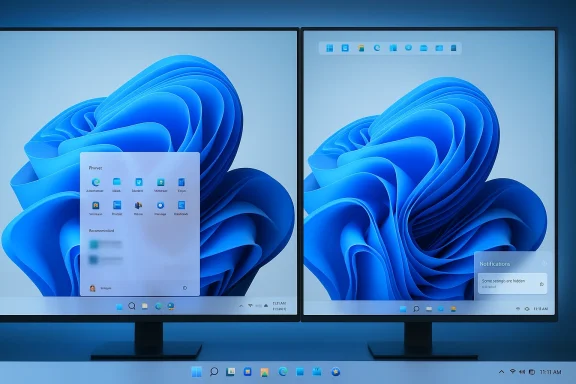
Dual-monitor setup displaying Windows 11 with a blue abstract wallpaper.Background​

Windows has offered a movable taskbar since the mid‑1990s, and that simple capability became part of many power users’ workflows: docking the bar to the left or right for vertical screen real estate, or to the top to keep frequently used apps within a different visual plane. When Windows 11 launched, Microsoft rebuilt the taskbar around a new UX and performance model—and one consequence was that the taskbar became fixed to the bottom of the screen, with only icon alignment (left vs. center) and a small-icons toggle available by default.
That change provoked years of feedback. The ability to “move the taskbar” became one of the top requests on Microsoft’s Feedback Hub and a frequent topic across forums, Reddit threads, and specialist Windows sites. In response, a lively ecosystem of third‑party tools—StartAllBack, ExplorerPatcher, TaskbarX and others—emerged to restore vertical and top docking, custom heights, and other behaviors. Those tools filled the short‑term gap but introduced compatibility and support risks for users and IT departments.
Now, after persistent community pressure and a string of taskbar‑related fixes in recent Insider builds, Microsoft is reportedly prototyping native support for a movable and resizable taskbar in Windows 11. Multiple outlets covering the Windows beat describe the work as active engineering prototyping with the goal of previewing the feature in mid‑2026, and wider availability later in the year as part of the normal feature update cadence.

Overview: What’s being promised​

Initial industry reporting frames the change as two related capabilities:
  • The ability to reposition the taskbar to the top, left, right, or keep it at the bottom of the primary display—bringing back parity with Windows versions prior to Windows 11.
  • An option to resize the taskbar, not just change icon scale: controls that alter the bar’s height (or width when vertical), potentially enabling denser icon rows or more compact layouts for users on smaller or high‑DPI screens.
In addition to those headline items, the development work reportedly covers important integration points:
  • Ensuring flyouts and popups (system tray, notification center, quick settings) anchor correctly when the bar is moved.
  • Handling multi‑monitor setups consistently so that the taskbar behaves predictably across primary and secondary displays with mixed DPIs.
  • Preserving stability and accessibility across Windows experiences—particularly for users who rely on predictable UI placement.
These are not trivial changes. While the visible feature is simple to describe, its surface area touches a large portion of Windows shell behavior and app interactions, which explains why Microsoft initially avoided the complexity and why reintroducing the capability requires careful engineering and testing.

Why the feature disappeared—and why it’s coming back​

When Windows 11 was designed, Microsoft intentionally simplified the taskbar to achieve a consistent visual language and simplify animation/transition behaviors. The design team reportedly concluded that the majority of users do not reposition the taskbar and decided to lock its placement to preserve the new interaction model and eliminate coordinate‑system complexity for animations and anchored flyouts.
Two forces appear to have changed that calculus:
  • Persistent user feedback and high votes in the Feedback Hub made the lack of taskbar movement a visible grievance, especially among power users and those migrating from Windows 10.
  • The practical reality of real‑world workflows—multiple monitors, ultrawide and vertical displays, and hybrid work styles—kept the issue high on the list of usability pain points.
Microsoft’s approach now seems to be: keep the modernized taskbar as the default experience for most users while offering choice for those who need alternative placements and sizes. That tradeoff preserves the company’s original design goals while addressing a prominent user demand.

What this means technically​

Restoring a movable, resizable taskbar is deceptively complex. Here are the primary technical areas that Microsoft must handle:
  • Flyout anchoring and behavior: Notification center, quick settings, and system tray popups assume a bottom‑anchored bar. Moving the bar means recalculating anchor points, hit‑test areas, and animation origins to keep interactions fluid and accessible.
  • DPI and scaling consistency: Many multi‑monitor setups combine displays with different scaling factors. The taskbar must render correctly (and place icons and flyouts predictably) regardless of per‑display scaling. That includes making sure mouse coordinates map correctly to UI hit areas when the bar is on a secondary monitor.
  • Explorer process and shell compatibility: The taskbar and system tray are tightly integrated with the Explorer shell and multiple Windows APIs. Changes to layout must avoid breaking app assumptions, particularly legacy applications that query taskbar metrics or anchor custom UI to the taskbar.
  • Accessibility and keyboard navigation: Screen readers, keyboard focus order, and assistive tools expect consistent placement. Any repositioning capability must be fully accessible, exposing new settings via accessibility APIs and ensuring predictable navigation order.
  • Multi‑monitor and per‑display policies: IT departments often require consistent desktop experiences across fleets. Microsoft must expose relevant group policy or MDM controls to manage taskbar placement and behavior at scale.
  • Animation and visual design: Microsoft previously noted that moving the bar could disrupt animation flow. The team will need to reconcile legacy placement with modern animation timetables so that movement and flyouts don’t feel jarring.
Each of these technical areas carries the potential for regressions, which explains the typical Microsoft pattern of prototyping in Insider channels long before any broad rollout.

Provenance of the reports and a caution on timelines​

The current story is grounded in reporting from multiple Windows‑focused outlets and sources familiar with Microsoft’s product engineering. These accounts describe an active prototype and an aspirational timeline: a public reveal or Insider preview in mid‑2026, with a broader consumer rollout possibly aligned with the company’s larger 26H2 feature update window in the second half of 2026.
Important caveats:
  • This is prototype work, not an official shipping commitment. Microsoft’s internal plans change frequently during engineering, and features that reach Insider builds can be reworked, delayed, or cancelled.
  • Timelines like “summer 2026” are targets, not firm ship dates. The usual Microsoft cadence is to validate in Insider channels and then release to broad audiences in a feature update (commonly targeted to the H2 window for major consumer changes). Expect staggered availability across device channels and hardware families.
Because of this, readers should treat reports as a credible signal that Microsoft is actively working on the capability, but not as a guarantee that the feature will be delivered on a specific date or in a particular form.

How this affects users today​

For everyday users the implications are straightforward and immediate:
  • If you’ve been avoiding upgrading to Windows 11 because you miss vertical or top docking, this news reduces that particular blocker. A native option removes the need for third‑party tools and lowers a practical reason to linger on Windows 10 (or to avoid Windows 11 altogether).
  • If you rely on a docked taskbar as part of a workflow—developers with vertical monitors, financial traders with dense taskbar rows, or accessibility needs tied to consistent UI placement—you’ll likely welcome the change.
  • For those already using third‑party utilities to simulate a vertical taskbar, a native solution should be safer and more stable. However, there will be migration and compatibility considerations; third‑party utilities often alter shell behavior in ways that could conflict with Microsoft’s official implementation.

Enterprise and IT admin considerations​

IT teams should prepare for the change, but there’s no need for panic:
  • Policy controls: Expect Microsoft to provide Group Policy (GPO) or MDM options to lock taskbar placement for managed devices. If your organization needs uniform desktop experiences, verify that the upcoming release exposes policy settings and test them in an Insider channel.
  • Compatibility testing: Any shell change can affect in‑house apps that rely on taskbar geometry or assume the taskbar is bottom‑anchored. Run compatibility tests in a controlled lab using the Insider preview when it becomes available.
  • User education: If your environment deploys the feature, update documentation and support scripts to reflect the ability to reposition the taskbar and how to revert settings if needed.
  • Accessibility assessments: Coordinate with assistive‑technology users to validate keyboard navigation and screen‑reader behavior when the bar is moved. Microsoft’s own accessibility guidance should improve over time, but enterprise validation remains critical.

Risks and open questions​

While the change is widely welcomed, it introduces potential downsides and open technical questions:
  • Fragmentation of UX: Microsoft’s long game has favored a consistent, opinionated UI. Allowing movable and resizable taskbars increases customization but risks fragmenting the experience across devices and user support channels.
  • Animation and polish trade‑offs: Restoring placement flexibility may require compromises in animation consistency or the inclusion of conditional animation rules, which could yield minor visual regressions for some users.
  • Phased availability and device compatibility: Microsoft’s servicing model has branches for special hardware and different update windows (for example, spring vs. fall releases). Some devices may receive features sooner than others, creating temporary inconsistencies across a fleet.
  • Unclear policy exposure at launch: It’s not guaranteed that management policies will be fully built out at initial preview. Enterprises should look for clear policy options before broad deployment.
  • Potential for partial implementations: Microsoft may ship a limited variant initially—e.g., move but not fully resizable, or move only on primary displays—requiring additional updates to reach full parity with pre‑Windows 11 behavior.
Because much of this work is in prototype, these risks deserve attention from both users and administrators. Microsoft has the engineering depth to address many of these issues, but history shows that subtle shell changes can surface edge‑case bugs that require iterative fixes.

Third‑party workarounds: why they rose and why they’re risky now​

Third‑party projects and registry hacks kept users who needed alternative taskbar behaviors afloat. Typical options included:
  • Registry tweaks that attempted to repurpose legacy keys. These sometimes produced partial results—like a moved bar with broken button rendering—and were fragile across Windows updates.
  • Shell‑patching tools (StartAllBack, ExplorerPatcher) that reintroduce older taskbar code paths or intercept shell APIs to present a legacy interface. These tools can be powerful but fall outside Microsoft’s support boundaries.
  • Utility overlays and docks (TaskbarX, other docks) that emulate a taskbar‑like UI without modifying system internals.
The risks of these approaches are real: breakage after cumulative updates, security surface expansion when shell APIs are intercepted, and support complications for enterprise help desks. A native Microsoft solution should remove most of those concerns—assuming Microsoft ships a fully supported option and documents management controls.

What to do next: practical recommendations​

For regular users:
  • If the ability to move the taskbar is critical to your workflow, consider enrolling a spare machine in the Windows Insider Preview program when Microsoft announces the feature flighting. That lets you test behavior and provide feedback.
  • Resist reliance on third‑party shell patches unless you accept the attendant stability and update risks.
  • Back up configurations and make a rollback plan before trying Insider builds.
For power users and hobbyists:
  • Track Insider changelogs and engage directly in Feedback Hub votes to influence priority and polish.
  • Prepare to compare the native implementation to existing third‑party solutions; native behavior is likely to be more stable and to receive official support.
For IT admins and enterprise teams:
  • Watch for Microsoft announcements about policy controls and test those in a controlled lab as soon as an Insider preview is available.
  • Update application compatibility test suites to include scenarios with the taskbar placed on top/left/right and with non‑default heights.
  • Coordinate with accessibility stakeholders to ensure assistive technologies remain functional and predictable.

Broader implications: Microsoft’s product priorities​

This reported reversal is more than a single UX fix. It’s a signal about Microsoft’s priorities for Windows 11 in 2026:
  • A renewed attention to core usability and polish over headline AI features may be underway, responding to long‑standing complaints about capability regressions from Windows 10 to Windows 11.
  • Restoring long‑requested functionality can reduce friction for users deciding whether to upgrade, strengthening adoption in the long term.
  • The approach—prototype in Insider channels, iterate based on feedback, then ship broadly—reflects a conservative, measurement‑driven product development model that balances modern design goals against legacy expectations.
At the same time, this work underscores the delicate balance Microsoft must strike between an opinionated, modern UI and the need to support established user workflows. Reintroducing choice is often the pragmatic path forward, and here that choice may finally reconcile those competing priorities.

Final assessment and caution​

The prospect of a movable, resizable taskbar in Windows 11 is welcome news for many users and may remove a long‑standing upgrade disincentive. The technical challenges—flyout anchoring, DPI scaling, multi‑monitor behavior, and enterprise policy—are significant but surmountable with careful engineering and Insider validation.
Readers should treat current reports as credible indicators that Microsoft is actively building this capability, but not as guarantees about exact feature details or ship dates. Prototype work commonly evolves before it reaches general availability; feature shape, scope, and rollout timing may all change.
If you rely on a particular taskbar placement today, avoid hastily switching to third‑party solutions that modify the shell. Instead, plan for a measured transition: follow official Insider channels, test in isolated environments, and coordinate with IT and accessibility teams to ensure the final implementation meets your needs.
Windows 11’s evolution continues to be iterative. Restoring the ability to move and resize the taskbar is a straightforward fix from a user perspective, but it speaks to a larger maturity in the platform: listening to feedback, investing in usability, and delivering choice without compromising the modern shell. For those who’ve missed vertical docking or a smaller, denser taskbar, the next year could make the Windows 11 desktop feel a lot more like the flexible workspace you—and many others—remember.

Source: 디지털투데이 Windows 11 finally adds taskbar move feature
 

Microsoft appears to be quietly preparing one of the clearest user‑experience course corrections of the Windows 11 era: multiple Windows‑focused reports now indicate Microsoft is prototyping a movable and resizable taskbar — restoring the long‑requested ability to dock the taskbar at the top, left or right of the display and to change its thickness — with public Insider previews possibly arriving in mid‑2026.

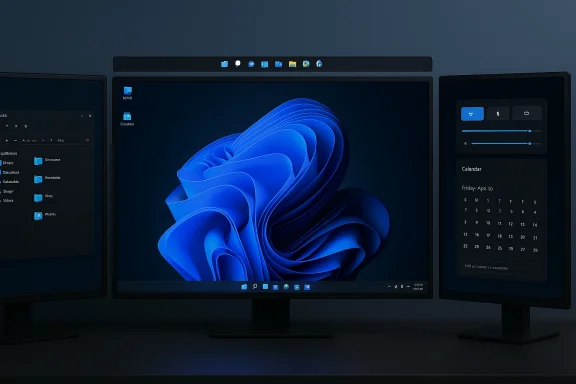
Triple-monitor desktop setup in a dark room, center display showing a blue abstract wallpaper.Background​

When Windows 11 launched in October 2021 it brought a modernized shell, centered icons, and a simplified baseline experience — but it also removed several long‑standing customization options, most notably the ability to relocate the taskbar from the bottom of the screen and to change its height freely. For many power users, developers, and accessibility advocates that removal was not merely aesthetic: vertical taskbars and adjustable heights materially affect screen real estate, ergonomic workflows, and multi‑monitor setups.
Over the years Microsoft has reintroduced a handful of previously missing conveniences — drag‑and‑drop onto taskbar icons, a seconds toggle for the clock, and denser icon modes — but full system‑level taskbar relocation and free resizing remained absent, forcing many users to rely on third‑party utilities and registry hacks to achieve the layouts they prefer. The new reporting frames the 2026 effort not as a reinvention, but rather as a pragmatic restoration of user choice that Microsoft has frequently been asked to bring back.

What’s being prototyped (and what isn’t)​

According to reporting across the Windows beat the prototype work centers on three user‑visible capabilities:
  • Taskbar repositioning — native support to dock the taskbar at the top, left, or right edges of the display as well as the bottom.
  • Resizable taskbar — a user‑facing control to change the taskbar’s thickness (height when horizontal, width when vertical), enabling denser rows or multi‑row layouts.
  • Multi‑monitor and mixed‑DPI consistency — engineering work to ensure flyouts, trays, and system interactions behave predictably when the taskbar moves, across different scale factors and monitor arrangements.
Reporters emphasize these are prototypes and that the work is being treated as a cross‑cutting engineering project rather than a simple toggle in Settings. That suggests Microsoft intends a system‑level implementation — updating Start, flyouts (Quick Settings, Notifications, calendar), Snap behavior, and shell plumbing — instead of shipping the capability as an optional PowerToys experiment.

Why this is harder than it looks​

At first glance, letting a bar live on another screen edge sounds trivial. In practice, Windows 11's shell rewrite introduced tight coupling and geometry assumptions that make reintroducing arbitrary taskbar positions a substantial engineering effort.

Key technical dependencies​

  • Flyout anchoring and animation — Start, Quick Settings, the notification center, and other flyouts were designed for bottom‑anchor geometry. Moving the taskbar requires recalculating anchor points, animation paths, and hit targets to keep flyouts discoverable and visually consistent.
  • Window sizing and maximize math — Snap layouts, maximize/restore behavior, and taskbar‑occupancy calculations assume a bottom‑docked bar. A relocated taskbar changes how windows maximize and snap, which can cascade into sizing regressions if not handled correctly.
  • Accessibility semantics — Screen readers, keyboard navigation, and touch gestures rely on predictable tab order, focus cages, and hit targets. Reorienting the taskbar must preserve accessibility behavior and not introduce new barriers.
  • Mixed‑DPI and multi‑monitor scaling — Ensuring sensible layout and crisp rendering when primary and secondary displays use different scale factors adds complexity; the taskbar must render correctly, preserve spacing, and maintain consistent hit areas.
These cross‑cutting dependencies explain why Microsoft removed movement when it rebuilt the shell for Windows 11: the rewrite provided a consistent, modern baseline but at the cost of some configurability. Restoring that configurability without reintroducing fragility requires careful, system‑level engineering — and that’s exactly what the recent reporting says is happening.

Timeline, channels, and certainty​

Industry coverage converges on the same high‑level timeline: prototyping and internal validation through early‑to‑mid 2026, with an aspirational public preview (likely via Windows Insider channels) around summer 2026 and broader consumer availability possible later in the year as part of a feature update. However, these are reports based on anonymous sources and internal prototypes; Microsoft has not published a formal confirmation or a fixed release date, and the timeline is explicitly provisional. Expect the company to surface the capability first to Insiders for compatibility testing and feedback before any mass rollout.
Because this remains engineering work, two critical caveats apply:
  • Microsoft can change scope or delay the feature if compatibility, accessibility, or stability issues arise.
  • Preview appearances (Insider channels) are not guarantees of the final behavior; settings, UX, and availability may evolve between preview and public release.

Practical benefits for users and workflows​

If the reported changes reach production, the move would deliver immediate, tangible benefits for several classes of users:
  • Power users and developers — vertical taskbars reclaim vertical pixel real‑estate on portrait or 3:2 displays, which helps code editors and terminal windows. A resizable taskbar enables denser app pinning and more compact workflows.
  • Multitaskers on ultrawide monitors — top or side placement can better match muscle memory and window arrangements for multi‑column workflows, making snap layouts more natural.
  • Users migrating from macOS or classic Windows layouts — top‑anchored bars can feel familiar for some users and reduce friction when switching platforms.
  • Accessibility and ergonomics — letting users choose a placement that minimizes pointer travel or optimizes for keyboard navigation can improve comfort and reduce repetitive strain for certain setups.
Benefits extend beyond aesthetics: an official, supported taskbar relocation avoids the fragility, performance trade‑offs, and security questions that come with registry hacks and third‑party mods. That alone would be a compelling reason for many users to prefer the official implementation.

Risks, unknowns, and enterprise considerations​

Restoring taskbar relocation is positive in principle, but the devil is in the details. Here are the most important risks and unanswered questions to watch as prototypes reach public previews.
  • Compatibility regressions — non‑bottom taskbar placements can reveal latent assumptions in apps, shell integrations, and third‑party utilities. Some enterprise line‑of‑business applications may rely on bottom‑anchored workflows; IT teams should be prepared to test and mitigate.
  • Accessibility pitfalls — although restoration can help some users, any missteps in focus management or keyboard navigation could create new accessibility regressions. Thorough testing with assistive technologies is essential before broad deployment.
  • Performance and power — any additional layout and anchor calculations across monitors and flyouts could add CPU/GPU work, especially on resource‑constrained devices. Microsoft will need to balance flexibility with efficiency.
  • Enterprise policy controls — IT administrators will want Group Policy and MDM controls to standardize taskbar placement across fleets. The speed and completeness of Microsoft’s management tooling will be a key determinant of enterprise adoption. This is currently unconfirmed and should be treated as an open question until Microsoft publishes management guidance.
  • Third‑party ecosystems — utilities that patched the taskbar gap (Start11, ExplorerPatcher, etc.) may see reduced demand, but they also expose the reality that many customers have built workflows around those tools. Microsoft must consider compatibility or migration guidance for users of such utilities.
Where reporting is speculative — for example, precise policy controls or exact APIs exposed to developers — treat those points as provisional until Microsoft provides official documentation. The prototyping status means some claims remain unverifiable until we see an official feature blog or Insider build.

Developer and IT admin implications​

If taskbar relocation becomes a first‑class, system‑level capability, developers and administrators will need to respond on several fronts.

For developers​

  • Check assumptions: re‑test your app’s window sizing, context‑menu positioning, and flyout anchoring against non‑bottom taskbar geometries.
  • Respect system metrics: where possible, rely on OS APIs for taskbar and work‑area metrics rather than hardcoded values.
  • Validate accessibility: ensure keyboard focus ordering and screen‑reader announcements remain coherent when the taskbar changes orientation.

For IT administrators​

  • Plan compatibility testing: create a test matrix that includes different taskbar placements, mixed DPI displays, and target LOB applications.
  • Wait for management controls: do not deploy preview builds broadly in production until Microsoft publishes MDM/Group Policy settings for taskbar placement.
  • Communicate with users: provide guidance to end users on supported configurations and any temporary workarounds recommended by IT.
Multiple reports imply Microsoft is prototyping the capability with an eye toward system‑level integration — which would mean developers and admins should expect to adjust to official APIs and management controls when they arrive.

What a preview might look like (educated expectations)​

Based on the prototypes described in reporting and prior Microsoft preview practices, here's what users and testers should reasonably expect during Insider previews:
  • A Settings toggle or drop‑down under Personalization → Taskbar that exposes placement (Bottom / Left / Right / Top) and a slider or presets for thickness/density.
  • Shell updates so Start, Quick Settings, and notifications reposition and animate from the new edge.
  • Improved multi‑monitor behavior where the taskbar can be docked independently on each display or follow the primary display, depending on Options.
  • Diagnostic telemetry and a Feedback Hub collection specifically for taskbar placement issues to help Microsoft prioritize compatibility fixes.
Remember: these expectations are informed by prototype reporting and Windows engineering patterns; final UI and controls could differ in the shipped product.

How this compares to existing third‑party solutions​

Third‑party tools like Start11 and ExplorerPatcher emerged to fill the customization vacuum and offered many users immediate relief. But those tools carry trade‑offs:
  • They can break after major OS updates.
  • They might not integrate cleanly with new shell features (for example, Copilot/Search integrations).
  • They introduce support and security complexities for enterprises.
An official Microsoft implementation should remove the need for hacks and increase long‑term reliability — but only if it is fully supported, backwards compatible, and delivered with appropriate management controls. The presence of prototypes in the Windows engineering pipeline is promising, but users should not assume parity with third‑party behavior until Microsoft finalizes UX and compatibility.

How to prepare now (for enthusiasts and IT teams)​

If you want to be ready to test or evaluate the feature when insiders get access, take these preparatory steps:
  • Build a test environment: use Hyper‑V or physical test devices to run Insider builds; never validate preview features on production machines.
  • Create a compatibility checklist: include LOB apps, assistive technologies, multi‑monitor scenarios, and mixed DPI settings.
  • Back up configurations: document and export current settings so you can quickly revert if a preview build disrupts a workflow.
  • Follow Insider channels: once Microsoft begins rolling previews, use the Windows Insider Feedback Hub and the official release notes to track known issues and remediation guidance.
These steps will save time and reduce risk when the first preview arrives, which reporting suggests may be as early as mid‑2026 if the prototype schedule holds.

Verdict: a welcome correction, but proceed with guarded optimism​

Restoring a movable, resizable taskbar would be one of the most visible user‑centric reversals Microsoft could make for Windows 11 — a return to customization that many users have asked for since 2021. The move would reduce reliance on fragile third‑party tools, improve workflows for vertical and multi‑monitor users, and send a message that Microsoft is listening to long‑standing feedback.
At the same time, this change is nontrivial: it touches accessibility, window management, animation plumbing, and enterprise management. The most important thing to watch for is how Microsoft implements these capabilities — whether they ship them as a polished, supported system feature with clear management controls and accessibility guarantees, or whether early preview behavior proves too fragile and forces a rework or delay. Until Microsoft publicly documents the feature or releases Insider builds, the timeline and exact functionality remain provisional and should be treated as such.

What to watch next​

  • Official Microsoft communication: a blog post or Windows Insider release notes that details taskbar placement controls, APIs, and management guidance.
  • Insider previews: the first builds will reveal whether the capability is a full shell integration or a lighter experiment.
  • Compatibility reports: community and enterprise testing outcomes, especially around accessibility and multi‑monitor setups.
If the prototypes mature into a supported feature in 2026, this will be more than a cosmetic tweak — it will be a concrete example of Microsoft rebalancing modern design with user control. The Windows community will rightly scrutinize the implementation for accessibility, stability, and enterprise manageability; the early previews will be the moment of truth.
In short: the return of a movable, resizable taskbar is plausible and potentially transformative — but it’s not a done deal yet. Expect previews first, cautious testing by IT teams, and gradual rollout only after Microsoft validates compatibility and accessibility across the ecosystem.

Source: WinCentral Windows 11 May Finally Get Movable Taskbar Back in 2026
 

Back
Top