

Windows 11 is quietly building an OS-level haptic layer that promises subtle, macOS-style vibrations for UI events — but only on devices that actually include haptic hardware, and on preview builds the feature remains gated, hidden and hardware-dependent.
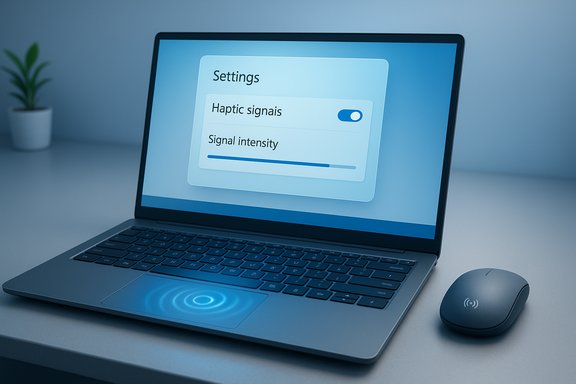
Microsoft’s Settings app in recent Insider preview builds contains an entry for “Haptic signals” that describes a system-level ability to “feel subtle vibrations when you snap windows, align objects, and more.” The entry appears alongside updated keyboard and touchpad controls in developer/beta builds, and it exposes a global toggle and an intensity slider for users. This UI fragment was first highlighted by community sleuths working with preview builds, and subsequent coverage confirms the string and screenshots in the Settings UI. The capability is not simply a device driver trick: it’s an operating-system feature that routes event-driven micro-haptic cues to supported hardware (haptic touchpads, pens, and some mice). The early evidence points to Microsoft building a generic API and Settings surface while leaving device-level implementation and calibration to OEMs and peripheral makers.
Source: Windows Latest Windows 11 is getting macOS-like subtle vibrations for UI-based actions, but only on haptic mouse or touchpad
 Background
Microsoft’s Settings app in recent Insider preview builds contains an entry for “Haptic signals” that describes a system-level ability to “feel subtle vibrations when you snap windows, align objects, and more.” The entry appears alongside updated keyboard and touchpad controls in developer/beta builds, and it exposes a global toggle and an intensity slider for users. This UI fragment was first highlighted by community sleuths working with preview builds, and subsequent coverage confirms the string and screenshots in the Settings UI. The capability is not simply a device driver trick: it’s an operating-system feature that routes event-driven micro-haptic cues to supported hardware (haptic touchpads, pens, and some mice). The early evidence points to Microsoft building a generic API and Settings surface while leaving device-level implementation and calibration to OEMs and peripheral makers. What Microsoft is testing: the basics
What "Haptic signals" does
- Sends short, discrete vibration pulses for UI milestones such as completing a snap layout, aligning objects, crossing drag boundaries, or encountering the end of a slider.
- Exposes a global toggle, plus separate controls for haptic clicks (simulated clicks on haptic touchpads) and haptic signals (event-driven vibrations) with user-adjustable intensity.
Where the controls live (preview behavior)
The Settings path shown in preview screenshots places the controls under Settings > Bluetooth & devices > Mouse (with related touchpad settings grouped under Bluetooth & devices as well). The control includes a slider labeled Signal intensity and per-class toggles, reflecting Microsoft’s plan for granular control.Which Windows builds showed the UI
The UI strings and images were observed in Dev/Beta preview builds — specifically reported in build 26220.x series in community reports. Those finds reflect code present in preview branches but not widely enabled across production releases.Hardware and ecosystem: who will actually feel it?
Haptic touchpads vs. traditional touchpads
A haptic touchpad uses a piezo or linear actuator and force/pressure sensing to create the sensation of a click or a tap without mechanically depressing the pad. It typically combines the following sensors:- Capacitive touch sensor (finger position and movement)
- Force sensor (pressure detection)
- Vibration/actuator element (piezo or other motor) to generate the tactile pulse
External mice and haptic motors
Haptics are not limited to laptop trackpads. Peripheral makers — notably Logitech — are shipping mice with dedicated haptic motors (for example, the MX Master 4 — a mainstream productivity mouse with an integrated haptic sense panel). These devices expose vibration intensity and actionable events through their vendor software, and manufacturers are already working with developers (e.g., Adobe) so in-app actions can trigger device haptics. If Microsoft’s OS-level signals expose a standard API, supported mice could also receive those system events.Hardware gating and OEM responsibility
Early reports emphasize the feature is hardware-gated. In other words:- The Settings UI only appears if the Windows build detects compatible haptic hardware (haptic touchpad or haptic mouse).
- Microsoft appears to provide the OS hooks and Settings surface, while OEMs and peripheral drivers must implement the low-level waveform support and calibration.
- Not all Windows laptops or mice have haptic actuators; most older and many budget devices will not show the setting at all.
Verification and cross-checks
- The preview UI strings and screenshots for “Haptic signals” were reported independently by community tipsters and covered by multiple outlets, confirming the setting exists in preview builds.
- The behavior is hardware-gated — authoritative coverage and hands-on reporting note that the underlying functionality is present in Settings but remains disabled or hidden unless a device reports haptic capabilities. This strongly suggests Microsoft has added the API/UI but is depending on OEM drivers for real-world activation.
User experience: what to expect
The promise
- Immediate, silent confirmation — tiny, non-intrusive vibrations can replace audio or visual confirmations for micro-interactions (snapping, alignment, hitting drag targets).
- Fine-grained control — OS-level toggles and intensity sliders give users the choice to enable or dial back sensations.
- Cross-device consistency — if the OS handles the signals, both built-in touchpads and compatible external mice could provide a unified tactile language.
The limitations
- Hardware dependency — without a haptic actuator, the feature is inert; many laptops and mice do not have the required hardware.
- App opt-in — for contextual cues (e.g., alignment in Adobe Photoshop), applications must trigger or honor the OS haptic signals or vendor-specific SDKs; the OS cannot force-apply cues inside third-party apps without developer support.
Accessibility considerations
For users with sensory differences, haptic cues can be both helpful and disruptive. Microsoft’s plan to include intensity controls and separate toggles for clicks vs. signals is necessary, but accessibility testing must ensure:- Haptics are optional and not the only feedback modality for important events.
- Vibrations remain short and unobtrusive to reduce sensory overload.
- System policies for enterprise deployments allow IT admins to centrally disable or configure haptics if needed.
Developer and OEM implications
For OEMs and peripheral manufacturers
- OEMs must expose device capabilities and implement the haptic waveform playback expected by Windows to participate. Piezo actuators, calibration curves, and driver-level waveform libraries are non-trivial engineering tasks and require per-device tuning.
- Peripheral makers with existing haptic APIs (Logitech, etc. could map the Windows system signals to vendor-specific haptic engines, enabling both OS-level and app-level integration.
For app developers
- Microsoft’s OS-level signals are best suited for event confirmation rather than continuous haptics. Apps that provide alignment, snapping, or other spatial interactions will benefit from opt-in use of small pulses.
- Developers should implement haptic support thoughtfully: brief pulses for confirmation, longer patterns only when necessary, and always provide alternative visual or audible feedback for accessibility.
Potential benefits — framed realistically
- Faster, quieter workflows: Subtle haptics can speed up workflows by giving tactile confirmation that an operation succeeded without needing to look at the screen.
- Reduced visual clutter: Designers and OS authors can use tactile cues to reduce reliance on transient on-screen animations and sound alerts.
- Cross-platform parity: Users who have experienced Apple's Force Touch or haptics on mobile devices may find Windows’ implementation familiar and productive, if done well.
Risks and downsides
- Fragmentation risk: If OEMs and peripheral vendors implement incompatible waveforms or poorly tuned intensities, the user experience will vary widely between devices. Microsoft’s API surface can mitigate this, but it requires cooperation.
- Battery and power: Actuators consume power; enabling system-wide event-driven haptics could have a measurable impact on battery life for ultraportable laptops and wireless mice if implemented aggressively. Vendors must optimize waveforms and duty cycles.
- Privacy and telemetry concerns: Any OS-level feature that sends more signals to peripherals raises questions about diagnostic telemetry and whether haptic events are logged; transparency around any metadata collection is essential. No evidence suggests Microsoft is sending haptic event telemetry, but users and admins should watch for related telemetry settings as the feature matures.
- Unwanted distractions: Poorly implemented haptics can be intrusive — too frequent pulses, excessive strength, or mismatches between event and feel will quickly annoy users.
How to check and test it on your PC (practical steps)
- Open Settings > Bluetooth & devices > Touchpad (or Mouse) and look for haptic-related entries. If your device reports a haptic touchpad, the Settings page will show haptic options and intensity controls.
- If you’re in an Insider Dev/Beta build and don’t see the setting but want to explore, community tools (e.g., ViveTool) have previously been used to reveal hidden features — however, hidden UI does not guarantee the underlying haptic engine is active; enabling hidden flags can cause instability and is not recommended for production machines. Use these tools only if you understand the risks.
- For external mice, check the vendor’s configuration software (Logitech Options+, Logi Options, etc. for haptic settings and firmware updates that enable tighter integration with OS signals.
Real-world examples and early hardware
- Surface and some premium Windows laptops: A small set of modern convertibles and premium notebooks include haptic touchpads and already ship with haptic click controls in Settings; these devices are the natural first beneficiaries of system haptics.
- Logitech’s MX Master 4: A mainstream productivity mouse with a dedicated haptic module, showing how peripheral vendors are incorporating tactile motors and software to expose contextual vibrations. Microsoft’s system signals could complement vendor SDK integrations for richer experiences.
What remains unclear (and what to watch)
- Rollout timing: While the UI strings exist in preview branches, Microsoft has not publicly committed to a release date or which production builds will carry the fully enabled feature. Reports that it “rolled out to everyone” are not substantiated by the wider evidence. Expect a staged rollout tied to hardware availability and OEM driver updates.
- API specifics: The call surface, waveform formats, and developer guidance for mapping app events to haptic patterns are not yet fully published in a consumer-facing way. Microsoft’s haptic pen implementation guidance shows the company’s approach to haptics on input devices, but an OS-wide haptics API for mice/touchpads will be the critical next piece.
- OEM adoption rate: The benefit of system-level haptics is proportional to device market penetration. If haptics remain confined to a few premium models or select mice, the feature will be a niche enhancement rather than a mass-market UX improvement.
Recommendations for stakeholders
For end users
- Try haptics on a supported device before committing; if available, adjust intensity low-to-high to find a comfortable level and keep haptics optional.
- When buying a laptop or mouse, check for explicit “haptic touchpad” or “haptic feedback” marketing if this capability matters to you.
For OEMs and peripheral makers
- Prioritize calibration and per-device waveform libraries; inconsistent or overly strong patterns will harm adoption.
- Provide firmware and driver updates to expose hardware capability flags to the OS and to accept Windows’ generic haptic signals.
For developers
- Treat haptics as a complement to visual and auditory feedback, not a replacement. Offer in-app toggles and map actions sensibly (confirmation pulses for alignment, not constant vibration).
- Test haptics with accessibility users and provide fallbacks.
Conclusion
Windows 11’s “Haptic signals” is a notable shift: Microsoft is moving beyond touch and sight to include feel as a first-class OS signal. The approach is sensible — tiny, event-driven haptic pulses can make snap layouts and alignment operations feel more immediate and intuitive — but the success of the feature hinges on sensible defaults, OEM cooperation, careful developer guidance, and broad hardware adoption. Early evidence confirms the UI and API groundwork in preview builds, while vendor momentum (e.g., haptic-enabled mice) suggests an ecosystem that could make systemic tactile feedback useful. That said, the rollout remains preview-bound and hardware-gated for now, so patience and careful testing on supported devices will determine whether haptics become a subtle improvement or an inconsistent novelty.Source: Windows Latest Windows 11 is getting macOS-like subtle vibrations for UI-based actions, but only on haptic mouse or touchpad
