

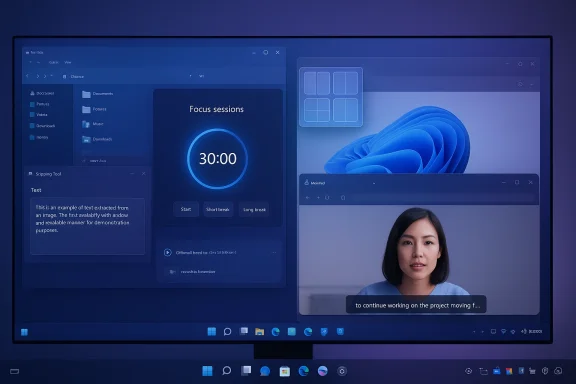
Windows 11 quietly ships a surprising arsenal of productivity features, accessibility tools, and small utilities that power users lean on every day — features that most people never discover because they’re tucked behind context menus, keyboard shortcuts, or optional Store updates.
Background / Overview
Windows 11 launched with a visible redesign: centered taskbar icons, rounded corners, and a new visual language. What didn’t make as many headlines were dozens of incremental improvements and modular feature updates that arrived via the Microsoft Store, cumulative updates, and optional provisioning packages. That delivery model has let Microsoft iterate rapidly, but it has also created a discoverability problem — powerful capabilities live on the system by default (or just a toggle away) and yet remain functionally invisible to most users.This article walks through the highest‑value, under‑used features that should be part of every power user’s toolkit, explains why they matter, highlights configuration and security trade‑offs, and gives practical steps for bringing them into daily workflows. Each major claim below is grounded in documentation and independent reporting so you can trust the facts — and get straight to using the features.
Snap Layouts and Snap Groups: reclaim your screen in seconds
Snap Layouts and Snap Groups are single‑click window management tools that transform messy multiwindow setups into predictable workspaces. Hover the maximize button or press Windows+Z to reveal layout presets (two‑pane, three‑pane, quadrants, and more) and drop your windows into a tiled arrangement.Snap Groups remembers those arrangements: once you build a layout, hovering a taskbar icon for any app in the group shows the entire layout so you can restore the whole workspace with a click. For users who rebuild the same workspace repeatedly — developers, analysts, designers — that single restoration saves minutes per session and compounds over weeks and months.
Why it matters
- Speed: Recompose complex layouts in one action rather than manually resizing and aligning windows.
- Context: Maintain task‑specific workspaces (coding, meetings, research) and switch between them quickly.
- Reliability: Works across multiple displays and ultrawide monitors where manual tiling becomes painful.
- Use Windows+Z to open the layout picker quickly.
- If you prefer precision, pair Snap Layouts with PowerToys FancyZones for custom zones.
Focus Sessions and Do Not Disturb: design your attention policy
Windows 11 treats attention as a first‑class OS concern with built‑in Focus Sessions and a robust Do Not Disturb system tied into Clock, Microsoft To Do, and the notifications stack. You can schedule automatic quiet hours, run timed focus blocks (with optional Spotify playlists), and allow only priority notifications to break through for truly urgent messages.These tools are more than a toggle — they’re a small behavioral platform for time‑boxed work. Focus Sessions encourages deliberate, measurable blocks of concentrated work and integrates task lists so your sessions aren’t just distraction‑free but also goal‑directed. Do Not Disturb adds scheduling and priority rules, which makes it enterprise‑friendly for users who need predictable notification behavior across work hours.
Benefits
- Improved concentration during deep work.
- Fewer context switches caused by incidental notifications.
- Consistency across devices when policies are standardized.
Live Captions: accessibility that benefits everyone
Live Captions provides system‑wide, real‑time captioning for any audio source on the PC. Originally designed for users who are deaf or hard of hearing, Live Captions has practical value for people in noisy environments, those who prefer reading to listening, and non‑native speakers following fast presentations. Several community and official write‑ups emphasize its usefulness and ongoing improvements to accuracy.Important note on processing and privacy
- Some reporting emphasizes local, on‑device processing as a privacy advantage for Live Captions, while other features in Windows may optionally use cloud services. If you handle sensitive audio, confirm the caption setting’s processing mode in system preferences before enabling. Treat claims about local neural processing carefully and validate them in your environment.
- Keep captions on during recorded meetings for fast note capture.
- Use captions in noisy public spaces to follow calls without headphones.
- Combine with screen recording for accessible documentation.
Voice Typing (Win+H) and Clipboard History (Win+V): two tiny tools that change workflows
Voice typing is available system‑wide and activated with Win+H. It supports automatic punctuation and works in any text field, providing dictation that rivals some paid solutions — a massive win for users with repetitive strain injuries or those who “think in speech.” Clipboard History (Win+V) stores up to 25 recent copied items, supports images and formatted text, and can sync across devices using a Microsoft Account. These two features together change how you capture and reuse content.Why this matters
- Voice Typing: removes typing as a bottleneck for drafts, emails, or long form text.
- Clipboard History: prevents the “lost clipboard item” problem and speeds copy/paste workflows across multiple documents and apps.
- Treat clipboard sync as a convenience and disable sync on devices that handle regulated or sensitive content. Clipboard data can include credentials or IP that you may not want replicated.
Virtual Desktops: multiple workspaces without extra monitors
Virtual Desktops in Windows 11 are more polished than their predecessors: you can set different wallpapers, invoke desktops with gestures, and maintain distinct app sets for different tasks. Power users who juggle coding, communications, and research find virtual desktops a mental and visual separator that reduces multitasking overhead. Despite the benefits, adoption remains low; many users don’t realize desktops exist or how to integrate them into daily habits.Practical setup
- Create dedicated desktops for recurring workflows.
- Use keyboard shortcuts (Windows+Ctrl+D to create, Windows+Ctrl+Left/Right to switch) for speed.
- Pair with Snap Groups to persist multi‑window setups on a given virtual desktop.
File Explorer tabs and the modernization of core utilities
Tabbed File Explorer finally arrived in Windows 11 after years of requests. Tabs let you open multiple folder locations inside a single window, drag to reorder tabs, and avoid taskbar clutter. Microsoft has also modernized context menus and OneDrive integration — showing cloud status icons inline and making file‑state management easier without a browser. These are significant quality‑of‑life improvements for anyone who spends visible time moving files or documenting steps.Why it matters
- Less clutter: fewer Explorer windows and better organization.
- Faster navigation: one window, multiple tabs for related folders.
- Cloud awareness: OneDrive status in‑line reduces accidental edits or uploads.
PowerToys: the official extension pack that became an ecosystem
PowerToys remains the canonical way Microsoft experiments with power‑user features. FancyZones gives granular, user‑defined window layouts beyond Snap Layouts. PowerToys Run is a Spotlight‑style launcher (Alt+Space) that finds files, runs commands, does quick math, and executes tasks faster than the Start Menu. Other utilities (color picker, bulk renamer, image resizer) are everyday tools for creators and administrators. Microsoft has been integrating PowerToys‑style functionality into Windows itself, shrinking the need for external utilities in many scenarios.Why use PowerToys
- Rapid prototyping of workflows without waiting for OS‑level changes.
- Consistent, open‑source tools maintained by Microsoft with enterprise‑grade controls.
The Snipping Tool: from screenshot utility to lightweight content studio
Snipping Tool now has screen recording, annotation, and OCR text extraction from images. Those capabilities replace multiple third‑party tools for documentation, bug reporting, and knowledge capture. The Snipping Tool’s evolution shows Microsoft’s strategy: fold common third‑party workflows back into the trusted OS layer to reduce software sprawl. Update the app from the Microsoft Store to access the newest features.Practical uses
- Record short tutorials and embed captions.
- Extract text from screenshots to eliminate manual retyping.
- Annotate and share captures quickly without leaving the OS.
Hidden power features and shell tricks every pro should know
There’s a small catalog of shell and Settings tricks that reduce clicks during troubleshooting:- God Mode (All Tasks) exposes a searchable shell namespace aggregating hundreds of settings. It’s not an exploit — it’s a convenience view that still respects UAC for elevated actions.
- Win+Number to launch pinned taskbar apps (1–9) and Shift+Win+Number to open a new instance.
- Win+V to open Clipboard History, Win+H for voice typing, and Win+Z for Snap Layouts.
Where Windows 11’s modular update model helps — and where it hurts
Microsoft’s approach of shipping features through Store app updates and optional OS packages has two clear strengths: rapid iteration, and the ability to deliver targeted improvements without a full OS upgrade. But it also fragments discoverability and availability: feature presence can vary by build, Insider channel, OEM image, or app version. That variability frustrates administrators and casual users alike and is a key reason these features stay “hidden.”Operational risks
- Inconsistent availability: a feature you rely on in one machine may not appear in another until an app or Store update lands.
- Surprising provisioning: some features arrive as provisioned packages Windows Update can re‑provision without explicit admin action, which complicates managed environments.
- Maintain a small, documented “baseline” build for your fleet.
- Use MDM/Group Policy to control feature rollout.
- Educate users about where features live and which behaviors are managed centrally to avoid confusion.
Security and privacy — practical cautions
Many hidden features touch data movement or system telemetry: clipboard sync, AI features, file OCR, and OneDrive status indicators are all convenience features with privacy implications. Treat them as configurable risk decisions, not defaults to accept blindly.Checklist for sensitive environments
- Disable clipboard syncing across devices on machines handling regulated data.
- Audit which features use cloud processing (Live Captions and generative edits may have cloud options).
- Use device provisioning policies in MDM to restrict proximity and developer features (Device Portal, Projecting to your PC) unless explicitly required.
- Keep the Snipping Tool, Photos, and Notepad updated from the Store to benefit from security patches while also validating any new cloud toggles.
Practical onboarding: how to get teams using these features
Adoption isn’t about installing software — it’s about habit formation and documentation. Here’s a simple 5‑step onboarding playbook that IT teams can use to surface hidden wins without compromising security:- Inventory: Identify which features are present across standard images and which require Store updates.
- Prioritize: Select 3 high‑impact features (Clipboard History, Snap Layouts + Groups, Snipping Tool OCR) to pilot.
- Secure: Disable cross‑device clipboard sync and cloud processing by default if handling sensitive data.
- Train: Run a 20‑minute “Power User Hour” showing keyboard shortcuts and workflows; distribute a one‑page cheat sheet.
- Measure: After 30 days, survey pilot users and measure time savings or reduced ticket volume for common tasks. Repeat and expand accordingly.
The strengths and the real trade‑offs
Strengths to celebrate- Windows 11 combines many small, practical improvements into an OS that rewards curiosity: Snap Layouts, Clipboard History, Snipping Tool OCR, Live Captions, and PowerToys all deliver immediate, tangible productivity gains when adopted.
- Discoverability: important features are buried, requiring documentation or external guides to find.
- Fragmentation and provisioning: feature availability depends on app updates and provisioning packages, complicating uniform deployment.
- Privacy: cross‑device sync and AI processing introduce data handling questions that must be gated in regulated environments.
Quick reference: essential shortcuts and where to find the toggles
- Snap Layouts: Hover the maximize button or press Windows+Z.
- Snap Groups: Hover any app in the group on the taskbar to restore the full layout.
- Clipboard History: Win+V (toggle on in settings). Sync off for sensitive machines.
- Voice typing: Win+H anywhere you’d type.
- Virtual Desktops: Windows+Tab to create/switch. Windows+Ctrl+D to create a new desktop.
- File Explorer tabs: available in recent Windows 11 builds — update File Explorer via Microsoft Store for latest improvements.
- Snipping Tool OCR/screen record: Win+Shift+S for captures; open Snipping Tool for recording and OCR tools.
Conclusion
Windows 11’s most transformative features are not always the loudest. For power users and IT teams willing to look beyond marketing headlines, the OS offers a deep toolkit of small, well‑engineered features that reduce friction and save time: Snap Layouts and Snap Groups for instant workspace restoration, Focus Sessions and Do Not Disturb for attention management, Live Captions and built‑in OCR for accessibility and documentation, and a growing set of PowerToys and built‑in utilities that replace third‑party sprawl.The practical path forward is simple: treat these tools as configurable assets, not defaults. Audit which ones matter for your users, lock down cloud‑connected behaviors where appropriate, and teach the shortcuts that let people use the OS the way it was quietly designed to be used. When discoverability improves and admins adopt a conservative rollout model, these “hidden” features will stop being hidden — and Windows 11 will feel, quietly but materially, faster and smarter for everyone.
Source: WebProNews The Hidden Arsenal: Windows 11 Features That Power Users Swear By but Most People Never Touch
