

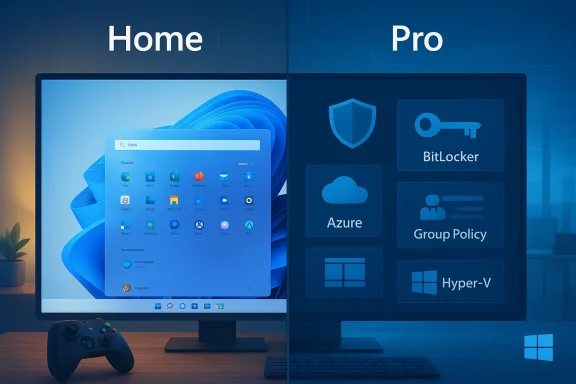
Windows 11’s two main consumer editions — Home and Pro — deliver the same modern desktop, Snap layouts, Widgets, Copilot integration, and gaming features, but they diverge sharply on security controls, management tools, virtualization, and update control; this comparison explains exactly what you get in each edition, verifies the important technical limits and costs, and gives clear, practical advice for which edition is right for specific PCs and workflows.
Windows 11 arrived as a single user experiesince with a refreshed UI and tighter security assumptions, yet Microsoft continues to sell multiple editions to match different audiences. Both Home and Pro include the modern Windows 11 core—centered Start, Taskbar refinements, File Explorer improvements, Microsoft Defender, Auto HDR, DirectStorage (hardware permitting), and Copilot integrations—so nce for most users is identical. The edition split is not about appearance or general performance; it’s about control. Pro targets power users, small businesses, and IT professionals who need encryption management, domain/cloud identity integration, hostable Remote Desktop, virtualization, and granular update and policy controls. Home targets consumers and gamers who want a simple, secure experience without enterprise tooling and complexity.
Windows 11 Home vs. Pro is not a contest of speed or interface — it’s a choice between ease and control. For most PCs, Windows 11 Home is the sensible, economical option. For professionals, IT administrators, and power users who need BitLocker, Hyper‑V, Group Policy, or Windows Update for Business, Pro offers tools that aren’t just convenient — they’re essential. The right pick depends on your workflows, your data sensitivity, and how much control you want over updates and policies. Plan carefully, buy legitimately, back up before you change editions, and manage encryption keys responsibly.
Source: ZDNET Windows 11 Home vs. Windows 11 Pro: I compared both versions, and this one's best for your PC
 Background / Overview
Windows 11 arrived as a single user experiesince with a refreshed UI and tighter security assumptions, yet Microsoft continues to sell multiple editions to match different audiences. Both Home and Pro include the modern Windows 11 core—centered Start, Taskbar refinements, File Explorer improvements, Microsoft Defender, Auto HDR, DirectStorage (hardware permitting), and Copilot integrations—so nce for most users is identical. The edition split is not about appearance or general performance; it’s about control. Pro targets power users, small businesses, and IT professionals who need encryption management, domain/cloud identity integration, hostable Remote Desktop, virtualization, and granular update and policy controls. Home targets consumers and gamers who want a simple, secure experience without enterprise tooling and complexity. What both editions share (the baseline)
Both Windows 11 Home and Pro provide the features that matter to most users:- The modern Windows 11 UI: centered Start, Snap layouts, Snap Groups, and Widgets.
- Security basics: Windows Security (Microsoft Defender), firewall, Secure Boot and TPM support, and device encryption on compatible hardware.
- Productivity and media: File Explorer tabs, Clipchamp, Auto HDR, Xbox integration, and WSL support for many developer workflows.
- AI features where available: Copilot and system-level AI features introduced in feature updates.
What Windows 11 Pro adds — the practical differences
Windows 11 Pro is a toolkit for control, management, and secure isolation. The Pro-only capabilities fall into four clear buckets: encryption and data protection; identity and enterprise management; virtualization and safe testing; and update & policy control.Security and data protection
- BitLocker — full-disk encryption with enterprise-style key management and support for encrypting removable drives. BitLocker gives administrators recovery options and integrates with TPM and corporate key escrow solutions. This is a foundational feature for protecting sensitive data on lost or stolen devices.
- Device Encryption vs. BitLocker — Windows 11 Home may provide device encryption on many consumer devices (automatically enabled when setting up with a Microsoft account on compatible hardware), but this is a simplified implementation and lacks BitLocker’s management depth and recovery controls. Users with regulated data or corporate obligations should prefer BitLocker on Pro.
Identity, network and device management
- Azure Active Directory (Azure AD) join, domain join, Group Policy, Windows Information Protection (WIP), and mobile device management (MDM) features are Pro-only. These are essential when you need centralized control, policy enforcement, or cloud identity integration for work devices.
- Remote Desktop (host) — Pro machines can accept inbound RDP connections so you can remotely control the PC. Home can initiate outbound connections but cannot host standard Remote Desktop sessions. This matters for remote administration and many small-business workflows.
Virtualization and isolated testing
- Hyper‑V and Windows Sandbox are Pro-only. Hyper‑V is Microsoft’s native hypervisor for running VMs; Windows Sandbox provides a disposable, isolated Windows instance to safely test untrusted executables. For developers, security researchers, and IT pros these tools are compelling reasons to choose Pro.
- Note: Home still supports many developer workflows (WSL, container tooling) but lacks the native hostable hypervisor and sandboxing features that make Pro convenient for VM-heavy tasks.
Update control and policy
- Windows Update for Business and Group Policy-based update controls allow Pro devices to defer feature updates for longer periods (administrators can defer feature updates up to 365 days using Windows Update for Business policies) and implement staged rollouts across device rings — a critical capability for businesses that value stability over bleeding-edge features. Home’s update controls are intentionally limited for consumer simplicity. Microsoft documentation outlines the deferral and pause limits and the policy mechanisms administrators use.
Hardware, performance and edition limits — what’s true and what’s not fully documented
A number of hardware ceilings are commonly cited in Windows 11 comparisons and material differences do exist for high-end workstation scenarios:- Reported common limits: Windows 11 Home typically cited as supporting up to 128 GB RAM, 1 physical CPU, and up to 64 CPU cores; Windows 11 Pro is commonly reported to support up to 2 TB RAM, 2 physical CPUs, and up to 128 cores; Pro for Workstations/Enterprise supports larger caps (e.g., 6 TB or more in some reports). These numbers are repeated across independent outlets and community documentation.
Pricing and licensing — real-world numbers and marketplace pitfalls
- Retail guidance: Microsoft’s store and major retailers historically list Windows 11 Pro retail around $199.99, and Home-to‑Pro upgrades commonly cost around $99 in the in‑OS Microsoft Store by region and promotions. Third‑party retailers sometimes sell OEM keys at lower prices.
- Grey‑market keys: Beware of websites advertising Pro product keys for $20–$30. Those keys often come from grey markets, may be OEM or volume keys intended for other channels, and can be revoked or already used. ZDNET and other reporting warn against these purchases as they frequently result in time wasted and no support from Microsoft. Buy from Microsoft or trusted retailers if you need a legitimate, supported license.
Real-world recommendations — who should pick Home, and who should pick Pro
Windows 11 Home is the right choice if:- You use your PC for everyday tasks: web browsing, streaming, office productivity, schoolwork, and casual gaming.
- You prefer simplicity and automated updates, and you don’t need enterprise device management, domain join, or BitLocker recovery policies.
- You want to avoid extra cost when Home already gives you the features that matter day to day.
- You manage sensitive or regulated data and need BitLocker with recovery key management.
- You need to host Remote Desktop, join a domain or Azure AD, or centrally manage policies with Group Policy or Microsoft Intune.
- You are a developer, IT pro, or tester who needs Hyper‑V, Windows Sandbox, or other virtualization/isolation features.
- You require Windows Update for Business controls to defer or stage updates.
How to decide and upgrade safely — a short checklist and steps
- Inventory: List the features you actually need (BitLocker, Hyper‑V, domain join, remote hosting, Group Policy).
- Verify hardware: Confirm your CPU, motherboard, and TPM support, and check maximum RAM & CPU support with hardware vendors if you plan a workstation build.
- Back up: Make a full image backup before any edition change or major update.
- Test path: If possible, test Pro-only features in a VM or on a spare machine before upgrading your production device.
- Buy a legitimate license: Purchase the in-OS upgrade or a retail key from Microsoft or trusted resellers to ensure support and future updates.
- Manage keys: If you enable BitLocker, store recovery keys securely (Microsoft account, Azure AD escrow, or an enterprise key management solution).
- Open Settings > System > Activation.
- Choose “Upgrade your edition of Windows” > Go to Store to buy Windows 11 Pro or enter a purchased product key.
- Follow the prompts and restart when rade, enable and configure Pro-only features (BitLocker, Hyper‑V) as needed and confirm recovery key backups.
Risks, gotchas and operational cautions
- Encryption key loss: BitLocker protects data strongly — but if you lose the recovery key, your data can be irretrievable. Always baca Microsoft account, Azure AD, or secure enterprise key manager before encrypting drives. This is not hypothetical; user mistakes and hardware changes routinely cause data loss without proper key escrow.
- Group Policy and power-user changes: The Group Policy Editor is powerful but dangerous in inexperienced hands. Misapplied policies can degrade security, block updates, or disable services. Use Group Policy with caution and document any changes.
- Update behavior can change with feature updates: Microsoft’s approach to automatic updates evolves. Recent feature updates (24H2 and later) introduced changes to deferral policy availability in fresh installs vs. upgrades. Administrators should test update behavior and confirm policy availability after major feature updates; sometimes workarounds (PowerShell, Windows Update for Business policies via Intune) are required for freshly imaged systems.
- Marketplace bargains have risks: Deep-discount Windows keys sold outside official channels can be invalid, unsupported, or revoked. Budget licensing via OEM channels can be cheaper but ties the license to hardware; volume licensing and Microsoft CSP programs are safer for businesses.
Case studies — concrete scenarios and the recommended edition
- Home laptop for browsing, streaming, and light work: Choose Windows 11 Home. You get the full consumer experience without extra cost. Back up with Microsoft OneDrive and rely on built‑in Defender and device encryption.
- Freelancer handling client contracts and PII: Windows 11 Pro is recommended — BitLocker and better control over identity and backup recovery keys lower breach and exposure risk. Use Azure AD or Intune if you manage multiple client machines.
- Developer or IT pro who runs VMs and tests untrusted apps: Windows 11 Pro for Hyper‑V and Windows Sandbox are practical time-savers and isolate risk. Test with Sandbox and use Hyper‑V for persistent VMs.
- Small business deploying 20–200 devices: Windows 11 Pro (or Enterprise under volume licensing) enables Group Policy, Windows Update for Business, Azure AD join, and centralized device management — all essential for scale and compliance.
Final analysis s and buying advice
Windows 11 Home offers an excellent, secure, and modern OS for most people. Its strengths are simplicity, lower cost, and inclusion of core Windows 11 features that matter to consumers and gamers. Pro’s strengths are control, encryption management, virtualization, and enterprise‑grade update and policy controls — the very features that justify its cost for businesses, developers, and security-conscious power users. Key trade-offs to weigh:- Cost vs. functionality: Don’t pay for Pro unless you will regularly use Pro-only features (BitLocker with escrow, Hyper‑V, RDP host, Group Policy, Azure AD/domain join).
- Complexity vs. simplicity: Pro grants power — but that power requires responsible management. Poorly configured policies or mismanaged encryption keys can cause data loss or operational headaches.
- Hardware planning: For unusually large RAM or multi-socket builds, confirm limits with both Microsoft guidance and your hardware vendor before relying on edition ceilings; community reporting shows Home and Pro differ in ceilings, but always verify before major purchases.
Windows 11 Home vs. Pro is not a contest of speed or interface — it’s a choice between ease and control. For most PCs, Windows 11 Home is the sensible, economical option. For professionals, IT administrators, and power users who need BitLocker, Hyper‑V, Group Policy, or Windows Update for Business, Pro offers tools that aren’t just convenient — they’re essential. The right pick depends on your workflows, your data sensitivity, and how much control you want over updates and policies. Plan carefully, buy legitimately, back up before you change editions, and manage encryption keys responsibly.
Source: ZDNET Windows 11 Home vs. Windows 11 Pro: I compared both versions, and this one's best for your PC
