• Thread Author
Microsoft has quietly moved one of the security community’s most trusted tools out of the Sysinternals download bucket and into Windows itself, delivering native Sysmon functionality as an optional Windows 11 feature that can be enabled, updated, and (crucially) supported through Microsoft’s servicing pipeline.

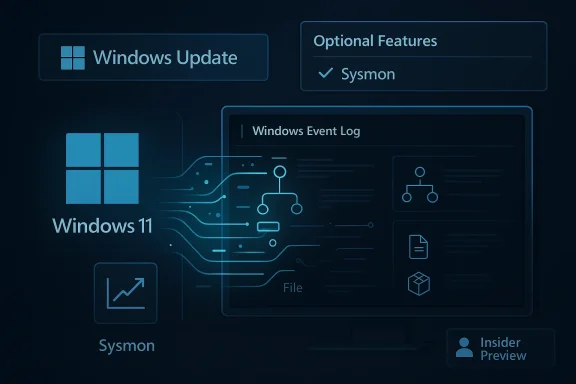
Futuristic Windows 11 UI with panels for Update, Sysmon, and Event Log.Background: why Sysmon matters and what changed​

Sysmon (System Monitor) has been a staple of Windows endpoint visibility for more than a decade. When installed, the Sysmon service and kernel driver provide high-fidelity telemetry — process creation with full command lines, parent/child process relationships, network connections attributed to processes, image and driver loads, file and registry activity, WMI events, and specialized signals for process tampering or code injection — all written to a dedicated Windows Event Log channel that SOCs, incident responders, and SIEM/EDR systems ingest for detection, hunting, and forensics.
For years, deploying Sysmon meant a separate lifecycle: download sysmon.exe from the Sysinternals site, push it with your packaging or automation, maintain XML configuration files to tune event volume, and keep binaries and drivers patched across thousands of endpoints. That model worked, but it created operational friction — version drift, missed updates, and no formal Microsoft servicing or customer support for enterprise production deployments. The new native option addresses these problems by pl Windows feature and Windows Update model while preserving the telemetry model defenders rely on.

What Microsoft announced and how you enable it​

Microsoft’s Insider release notes and support posts make the mechanics clear: Built‑in Sysmon is available in current Windows Insider Preview builds and is disabled by default. Administrators must explicitly enable it via the familiar Windows feature controls or by using DISM/PowerShell, and then finish installation with the same Sysmon command used historically. The official enablement steps are:
  • Turn on the optional feature: Settings > System > Optional features > More Windows features > check Sysmon, or run:
  • Dism /Online /Enable-Feature /FeatureName:Sysmon
  • Complete installation and start the service with:
  • sysmon -i
If you already have the standalone Sysmon installed, Microsoft’s guidance is to uninstall it before enabling the built‑in version to prevent conflicts. These instructions are published in the Windows Insider build notes and confirmed in the rollout reporting.

Technical fidelity: what stays the same (and what to verify)​

Microsoft has committed to preserving the existing Sysmon model — the same set of event IDs, XML configuration support, and output into the Windows Event Log under the Microsoft‑WiThat means detection rules, hunting playbooks, and SIEM parsers built around Sysmon event IDs should remain compatible, provided organizations validate schema parity and confirm the built‑in agent emits the exact fields they depend on.
Key technical claims verified across documentation aodel parity: event IDs such as Process Create (Event ID 1), Network Connection (Event ID 3), File Creation (Event ID 11), WMI events (20/21), and tampering alerts remain present.
  • Configuration via XML continues to be supported, meaning existing configuration files should remain usable.
  • Delivery and updates move to the Windows Update servicing channel, which eliminaribution for the native component.
Caveat: while Microsoft announces intent to “preserve” functionality, defenders should validate every field their detection logic consumes — small changes in schema, field names, or event enrichment can break downstream rules. Treat parity as a hypothesis to test, not as a guarantee until proven in your environment.

Where this helps: operational and security benefits​

Bringing Sysmon into Windows as an opure yields several immediate benefits for defenders and administrators:
  • Reduced deployment friction: no separate packaging/driver distribution; enablement becomes an OS feature rollout. This lowers the bar for wider adoption across large estates.
  • Consistent update cadence: updates for the integrated Sysmon flow through Windows Update, reducing version drift and the risk of endpoints running outdated driver or service binaries.
  • Formal support: enterprise teams gain the option to operate Sysmon under Microsoft’s production support model rather than relying solely on community channels. The promise of supported troubleshooting matters for compliance-bound organizations.
  • Compatibility with existing tooling: because events are written to the he same channel, existing SIEM, EDR and log collection pipelines should, in most cases, continue to function. Still, this requires explicit validation.
These are practical advantages that reduce operational overhead — a direct win for medium-to-large enterprises and managed service providers who manage thousands of endpoints.

The tradeoffs and risks to consider​

The native integration is not an unalloyed good. Several noteworthy risks and practical concerns should shape rollout plans:
  • Log volume and cost: Sysmon telemetry is verbose. Enabling rich capture without careful filtering or configurdly increase event volumes and ingestion costs in SIEMs and cloud log stores. Plan for sampling, filtering, and an event retention strategy before broad enabling.
  • Noise and detection drift: default configurations may be noisy for particular enengineering teams should test the built‑in defaults against their baselines to avoid alert fatigue and to preserve signal quality.
  • Centralized management: as of the initial rollout the native feature is optional and local — enterprise-grade centralized configuration, policy-driven rollouts, and group policy or MDM‑driven configuration management are roadmap items. Do not assume Microsoft’s longer‑term management capabilities are GA; treat them as prospective rather than present.
  • Backwards-compatibility assumptions: while event IDs and XML configs are supported in principle, small semantic changes or enrichment differences could impact parsing and detection logic. Every critical detection must be validated end-to-end.
  • Governance and privacy: richer telemetry may capture user or process details that raise privacy or regulatory concerns. Organizations must align Sysmon configurations with privacy policies, data retention requirements, and local laws before scaling. This includes ensuring proper role-based access to Sysmon logs and SIEM data. (Flagged as a governance requirement, not an implementation detail from Microsoft.)

Practical rollout guidance: pilot, tune, scale​

If your organization manages Windows fleets, follow a staged path rather than flipping the feature globally.
  • Pilot on a representative subset (50–200 endpoints) covering workstation, server, developer, and specialized systems. Use both Beta and Dev Insider notes only for testing; prefer staging builds that match your production servicing pattern.
  • Validate schema parity: ingest built‑in Sysmon events into your SIEM and compare every field against events previously produced by standalone Sysmon. Identify any missing fields, renamed attributes, or enrichment differences.
  • Tune configurations:
  • Start with a well-known community configuration as a baseline, then iterate to reduce noise.
  • Exclude high-volume benign actions (e.g., frequent updateent filter level rather than downstream in SIEM to save ingestion cost.
  • Assess performance: measure CPU, memory, and disk I/O impacts in the pilot. Kernel drivers and event logging are lightweight but not free. Record baseline performance metrics before and after enablement.
  • Governance checklist:
  • Confirm SIEM retention and access policies.
  • Ensure sensitive fields are masked or redacted where required.
  • Document who can enable/disable Sysmon, who modifies configs, and the chain of custody for logs.
  • Automate deployment: use your management tooling (ConfigMgr, Intune, Group Policy, desired-state automation) to enable the Windows feature and apply Sysmon configuration files consistently. Because updates come through Windows Update, integrate Windows servicing windows with Sysmon change windows to reduce surprises.

Detection engineering: immediate priorities​

Sysmon data powers a large class of detections. When you enable native Sysmon, concentrate on these early wins:
  • Command-line logging: detections for obfuscated command lines, living-off-the-land binaries invoking network activity, or suspicious parent-child process chains.
  • Process-to-networmon Event ID 3 to track which process opened which outbound connection — a linchpin for C2 detection.
  • Process tampering and driver loads: flag unexpected driver image loads or tampering events that can presage persistence or kernel-level attack techniques.
  • File and registry creation: track suspicious changes to autostart locations, scheduled task creations, and LNK/script artifacts often used for persistence.
  • WMI and PowerShell activity: correlate WMI events and PowerShell command lines to detect lateral movement and in-memory payload execution.
For each detection, maintain a mapping table showing the Sysmon event ID, the relevant event fields, test cases, and the expected benign exception list for your environment. This prevents alerts from degenerating into noise once Sysmon telemetry arrives at scale.

Enterprise management and the roadmap: what to expect next​

Microsoft’s messaging includes hints at future investments: enterprise management, centralized configuration, and even on-device AI that could surface behavioral signals locally. These are roadmap items, not immediate guarantees — organizations should not rely on them for initial rollout plans. Expect Microsoft to iterate on management features in line with other Windows Optional Features: incremental MDM/GPO templates, Group Policy ADMX updates, and possibly a centralized management console integrated with Microsoft Defender for Endpoint for policy visibility. Until those features are documented and GA, operational teams must rely on existing management tooling and automation.
Multiple independent industry observers have confirmed the staged Insider rollout (Dev and Beta channels) in specific builds — notably the Dev build 26300.7733 and Beta build 26220.7752 referenced in release notes and coverage — which aligns with Microsoft’s enablement strategy for staged feature gating. Validate the exact build numbers and KBs against your servicing channel before experimenting on production machines.

What this means for smaller organizations and home users​

For small businesses and advanced home users, the immediate practical effect is convenience and legitimacy: enabling Sysmon no longer requires piecing together a manual deployment, making advanced host telemetry accessible to more outfits. However, without a SIEM or a log‑analysis workflow, raw Sysmon logs are of limited value and may merely increase local log storage. Smaller teams should consider managed detection or cloud log services that can ingest Sysmon events, or adopt curated open-source dashboards for local triage. Remember: capturing telemetry is only the first step — you must also monitor and respond.

Industry reaction and independent corroboration​

Coverage from multiple outlets and the Windows Insider release notes corroborate the core points: Sysmon functionality is now an in‑OS optional feature in recent Insider builds, disabled by default, and activatable via the “Turn Windows features on or off” dialog or DISM/PowerShell, with final installation via sysmon -i. Observers note the operational upside and emphasize the need for pilot testing and governance before broad rollout.

Quick reference: commands and checks (verified)​

  • Enable feature (admin elevated):
  • Dism /Online /Enable-Feature /FeatureName:Sysmon
  • Or via Settings > System > Optional features > More Windows features > check “Sysmon”
  • Install/start Sysmon agent:
  • sysmon -i [config.xml]
  • Check event channel:
  • Event Viewer → Applications and Services Logs → Microsoft → Windows → Sysmon → Operational
These steps are published in the Windows Insider notes and in contemporary reporting about the rollout. Always check your target build and test the uninstall path if you have a previously deployed standalone Sysmon agent.

Bottom line: a meaningful operational win — with guardrails​

Microsoft’s decision to make Sysmon an optional, supported Windows feature is a pragmatic, operationally meaningful change for defenders. By moving telemetry into the OS servicing model, Microsoft reduces deployment friction, aligns updates with Windows Update, and offers enterprise-level support — all of which lower the opesic-grade host visibility.
That said, this is a platform change, not a drop‑in fix for detection problems. Organizations must:
  • Pilot the feature on representative systems,
  • Validate event and schema parity against existing detection pipelines,
  • Tune configurations to control volume and cost,
  • Lock down governance and privacy policies for telemetry,
  • And avoid assuming centralized management features or AI enhancements are immediately available until Microsoft documents them as GA features.
Enabled thoughtfully, native Sysmon can expand the reach of high‑fidelity telemetry and help shorten detection-to-response time. Enabled thoughtlessly, it will create noise, raise costs, and introduce governance headaches. The prudent course is the well-worn one: test, measure, tune, and automate — just as you would for any other foundational security capability.

Conclusion​

Making Sysmon part of Windows is one of those infrastructural changes that quietly shifts the whole operating model for security telemetry. It doesn’t invent new signals, but it reshapes how signals are delivered, maintained, and supported — and that can matter more than any single new detection rule. Expect defenders to benefit from lower operational complexity and stronger vendor support, but plan for the real work that follows: validating parity, controlling cost, and governing the flood of data so your SOC can find signal in the noise.

Source: PCWorld Microsoft bakes one of its best security tools right into Windows 11
Source: extremetech.com Microsoft Brings Built-In Sysmon Security Monitoring to Windows 11
 

Microsoft’s quiet decision to fold Sysmon into Windows 11 as an optional, in‑box capability is one of the most consequential changes to Windows endpoint telemetry in years — it removes a longstanding deployment hurdle for defenders while forcing IT teams to rethink piloting, governance, and detection validation before broad rollout.

Security dashboard showing Optional features with Sysmon on and CFR, plus a logs window.Background / Overview​

Sysmon (System Monitor) from the Sysinternals toolkit has long been a de facto standard for high‑fidelity host telemetry: a small user‑mode service combined with a kernel driver that emits rich, structured events for process creation, network connections, image and driver loads, registry and WMI activity, file events, and more. Thong, detection engineering, and post‑incident forensics across enterprise SIEMs and EDR pipelines.
In early February 2026 Microsoft began exposing a built‑in Sysmon capability to Windows Insiders in matched Dev and Beta channel preview packages (Dev: Build 26300.7733; Beta: Build 26220.7752). The Windows Insider blog explicitly documents the feature, confirms that built‑in Sysmon is disabled by default, and sets out the enablement and installation steps administrators will use.
Why this matters: historically Sysmon required separate downloads, per‑endpoint installs, and bespo Making Sysmon an optional Windows feature aligns its servicing and support with the OS lifecycle, reducing version drift and simplifying management at scale. That operational shift is the primary value proposition — not a new detection capability — but it has real security implications.

What Microsoft shipped (concrete facts)​

Supported builds and channels​

  • The capability is visible in Windows Insider Dev Channel074178) and Beta Channel Build 26220.7752 (KB5074177 / KB5074178 depending on channel). Exposure is staged via Microsoft’s Controlled Feature Rollout (CFR), so having the preview build doesn’t guarantee immediate visibility on every device.

Default state and activation model​

  • Disabled by default. Administrators must explicitly enable the feature before it runs.
  • Two supported enablement paths:
  • GUI: Settings → System → Optional features → More Windows features → check “Sysmon”.
  • CLI/scripted: Dism /Online /Enable-Feature /FeatureName:Sysmon (or the PowerShell equivalent).
  • After enabling the OS feature, complete installation with the familiar Sysmon installer command in aon -i (optionally sysmon -i config.xml to apply a configuration).

Compatibility and migration note​

  • If a machine already has the standalone Sysmon installed (the Sysinternals download), Microsoft requires that copy be uninstalled first to avoid driver/service conflicts with the built‑in variant.)

Event channel and schema​

  • The built‑in Sysmon writes events into the Microsoft‑Windows‑Sysmon/Operational log (Applications and Services Logs → Microsoft → Windows → Sysmon → Operational), preserving the event model and familiar Event IDs (for exaProcess Create, 3 for Network Connection, 11 for File Create, 20/21 for WMI, 25 for Process Tampering). Teams should still validate field‑level parity during pilots.

How Sysmon works when built into Windows​

Sysmon remains architecturally the same in its core model: a small service plus a kernel component that producrich events. The in‑box variant preserves the configuration model — XML rule sets — that detection teams already use to tune the signal-to-noise ratio. That means existing sysmon.xml configurations and detection rules should be reusable after validation, reducing migration friction.
Key operational differences introduced by native delivery:
  • Servicing and updates for the component are now handled via Windows servicing channels rather than separate Sysinternals binary updates. This reduces version fragmentation across fleets.
  • The feature is staged via CFR and the Insider toggles, giving Microsoft fine‑grained gating control of exposure during preview.
Important caveat: “Preserve the model” does not guarantee bit‑for‑bit parity with every historical Sysmon release. Detection engineers must validate the exact event fields (hash algorithms, field names, optional fields) their pipelines consume. Treat parity as a practical hypothesis to validate, not an absolute guarantee.

Practical enablement and migration playbook​

This section is a copy‑ready, operational checklist for security and IT teams preparing pilots or migration plans.

Pre‑pilot checklist​

  • Inventory: enumerate endpoints that currently run the identify the config XMLs they use.
  • Compatibility matrix: verify OS versions, driver signing policies, EDR/AV compatibility, and hardware models to catch driver conflicts early.
  • Backup: export existing Sysmon configurations and event logs for baseline comparison.

Pilot steps (recommended)​

  • Create a controlled pilot ring (≤5% of production fleet) covering representative hardware, EDR vendors, and work profiles.
  • On each pilot device:
  • Uninstall the standalone Sysmon installation if present.
  • Enable the OS feature: Dism /Online /Enable-Feature /FeatureName:Sysmon (or the GUI path). (blogs.windows.com)
  • Complete install in elevated shell: sysmon -i C:\path\to\config.xml.
  • Validate event flow: ensure you can collect and parse Microsoft‑Windows‑Sysmon/Operational logs into your SIEM or collector.
  • Functional parity test: run detection rules against both the standalone and built‑in outputs and validate matched fields and hashes.
  • Monitor performance: track CPU, memory, and disk I/O, and measure event volume and storage impact under representative workloads.

Rollout checklist​

  • Staged rollout: expand rings only after parity and performance thresholds are met.
  • Centralized config management: plan how to distribute and update XML configurations (Intune, Group Policy, SCCM, or custom orchestration).
  • Update policy: decide whether built‑in Sysmon updates will be accepted automatically via Windows Update or staged by device group policy.
  • Incident response playbooks: updaathways to reflect that Sysmon is now a supported OS component.

What to validate in lab and pilot rings (technical checklist)​

  • Schema parity: confirm presence and format of key fields (cessGUID, CommandLine, SHA1/SHA256 hashes, NetworkAddress fields).
  • Event IDs coverage: ensure Event IDs 1, 3, 8, 11, 20/21, 25 and any custom eventsent and populated as expected.
  • Hash algorithms: confirm configured hashing behavior (MD5/SHA1/SHA256) aligns with your detection rules.
  • CopyOnDelete and file backup behaviors: if you use CopyOnDelete for forensic collection, validate the behavior and storage implications.
  • SIEM ingestion: perform end‑to‑end tests of parsers and normalization pipelines and compare outputs against the standalone Sysmon baseline.
  • EDR/AV interactions: test for false positive blocking or in‑process tampering detection by endpoint protection stacks.

Benefits — what native Sysmon actually gives you​

  • Reduced operational friction: no more sing and distribution pipelines; the feature is included with the OS and updateable via standard servicing.
  • Higher baseline coverage: new or reimaged endpoints are more likely to ship ready for deep telemetry collection, improving first‑contact visibility.
  • *Offi running Sysmon as an OS feature brings it into Microsoft’s servicing and support model, lowering the “unsupported” anxiety for compliance‑sensitive organizations.
  • Preservation of prior investments: XML‑based configuration and the same event channel mean detection content can be reused with modest tuning.

Risks, pitfalls, and the hard trade‑offs​

Native delivery sional problems but introduces new governance, performance, and trust considerations.

1) Governance and accidental enablement​

Because Sysmon is now an OS optional feature, organizations must control who can enable optional features in their environment. A misconfigured pilot or an overzealous help desk action could enable broad Sysmon depln engineering and storage pipelines are ready, leading to noisy logs and storage overruns. Keep the default disabled state as your safety net and limit enablement rights using GPO/Intune.

2) Performance and logging volume​

Sysmon’s value is tied to how much it logs. Aggressive XML configs can generate large event volumes, affect disk I/O, and push storage retention costs. The built‑in variant does not remove the need for careful tuning: use conservative baseline configs in production and ramp up in specific detection rings where necessary. Monitor CPU/disk/IO and retention costs during pilots.

3) Field‑level parity and subtle behavioral diffesame Event IDs, field names and optional attributes can shift between releases. Detection rules that depend on exact field names or ordering may misfire. Validate every key field consumed by your SIEM. Treat the built‑in variant as a new source to be validated, not as a drop‑in replg.​

4) Driver and third‑party compatibility​

A kernel driver is part of Sysmon’s architecture. Driver signing, Secure Boot policies, and kernel protections may interact differently with a built‑in driver compared to a sysinternals‑distributed copy. Test EDR vendors and legacy drivers in your environment to avoid boot or compatibility issues.

5) Centralized management expectations​

Microsoft has signaled plans for enterprise management hooks and future investments, but do not assume immediate centralized configuration management in GA. Plan for configuration distribution via your existing tooling until Microsoft publishes supported enterprise management controls. Roadmap items (like on‑device inferencing) are planned, but not yet GA features.

Detection engineering: what changes and what stays the same​

  • Stay: core event types and the ingestion channel remain the same; reuse of existing sysmocted to be straightforward.
  • Change: assume you must re‑validate correlation rules, parent/child resolution, and field formatting. Pay special attention to the full command line, ProcessGUID/ParentProcessGUID values, and network attribution fields. Any rule that keys on non‑stable fields should be hardened.
Recommended detection engineering steps:
  • Maintain a canonical, versioned set of Sysmon XML configurations in source control.
  • Run dual ingestion in pilot rings: collect both standalone and in‑box Sysmon to compare outputs.
  • Automate schema checks that asf required fields and fail rollouts if parity slips.
  • Use lightweight prescoring tests to ensure that signature matching percentages remain within expected variance.

Privacy, legal, and compliance considerations​

Sysmon can capture high‑sensitivity data (full command lines, paths, and potentially user‑generated content). When rolling out native Sysmon:
  • Review privacy policies and data protection agreements to ensure telemetry collection is compliant with local laws and corporate policy.
  • Limit collection scope where necessary through XML filtering (avoid logging full file contents, PII, or clipboard events unless strictly necessary).
  • Update data retention and access controls in SIEMs to reflect new ingestion behavior and retention costs.

Operational recommendations (short checklist)​

  • Pilot first; never enable across production without validation.
  • Lock down who can enable the Optional Feature in your management fabric.
  • Use conservative configs in production; adopt more aggressive capture only in targeted detection rings.
  • Maintain versioned configs and automated schema validation tests.
  • Monitor resource usage and event volumes closely during rollout phases.
  • Keep a rollback plan: know how to uninstall the in‑box Sysmon and revert to baseline quickly if compatibility issues surface.

The longer roadmap: where this could lead​

Microsoft’s move to make Sysmon a first‑class OS feature is more than convenience; it’s foundational to a larger strategy of bringing deeper defensive signals into the core of Windows. The company has signaled potential future investments in:
  • Enterprise management hooks (Intune/GPO integration and centralized config distribution for XMLs).
  • On‑device n surface suspicious patterns from Sysmon telemetry without sending raw data off‑device, reducing noise and improving time‑to‑detection.
  • Tighter integration with Copilot and agentic OS components, enabling richer contextual analysis while managing access and security boundaries for agents. These items are roadmap ambitions rather than GA features today and should be treated as directional signals.

Final verdict and recommended next steps​

Embedding Sysmon into Windows 11 as an optional feature removes one of the most persistent operational blockers to achieving fleet‑wide, high‑fidelity host telemetry. For organizations that already rely on Sysmon for detection and forensics, this change will — when validated and governed properly — reduce version drift, simplify servicing, and improve initial telemetry coverage.
That said, the change swaps one set of operational problems for another: teams must now enforce governance, pilot thoroughly, and validate schema parity and resource impacts before broad deployment. Treat the built‑in Sysmon as an opportunity to standardize and harden endpoint telemetry practices — not as a magic bullet that removes the need for careful detection engineering, privacy review, and capacity planning.
Concrete next steps for security and IT leaders:
  • Approve a cross‑functional pilot (security, endpoint, SIEM, legal) and reserve a small set of representative devices.
  • Run parity and performance tests comparing standalone vs. in‑box Sysmon.
  • Lock down Optional Feature enablement rights in your management plane.
  • Version and automate Sysmon XML configuration deployment and schema validation.
  • Monitor the Windows Insider blog and official documentation for GA details, enterprise management controls, and servicing guidance before mass rollout.
The built‑in Sysmon story is an operational win for defenders — but only if organizations apply the same discipline to its rollout and governance that made Sysmon useful in the first place.

Source: Analytics Insight Microsoft Introduces Sysmon Support in Windows 11: What You Need to Know
 

Windows 11 packs a surprising number of mature, practical features under its polished shell — features that can materially speed workflows, harden authentication, and replace whole classes of third‑party utilities if you know where to look.

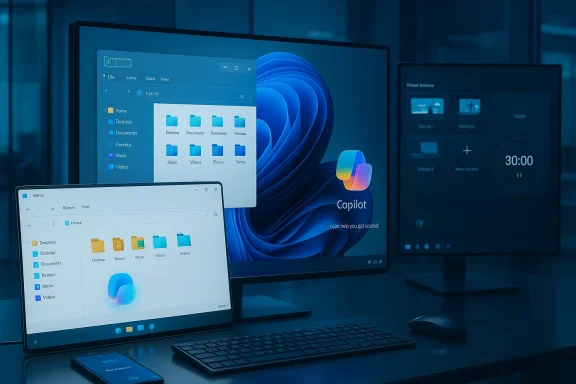
Modern desk setup with a large monitor displaying Copilot UI, plus a laptop, tablet, keyboard and mouse.Background / Overview​

Windows 11 launched as a visual and interaction refresh, but the real story of the last few update cycles is a long series of incremental, supported improvements that quietly reshape daily computing. Many of these capabilities are already installed on modern Windows 11 systems: they are stable, supported, and intended for everyday use — yet most users never find them because Microsoft distributes them across app updates, subtle UI affordances, and new entry points that aren’t stressed during setup.
This feature explains what those built‑in tools do, why they matter, and how to apply them in real workflows. Where practical, I cross‑checked multiple independent writeups and platform notes to verify behavior and limitations; when a claim could not be verified across sources I flag it explicitly. The aim is to move the conversation from “hidden gimmick” to “deployable capability”—and to surface the trade‑offs IT teams and privacy‑conscious users should weigh before flipping toggles.

Snap Layouts: reclaiming your display with a hover​

What it is and why it matters​

Snap Layouts replace repetitive manual window resizing with a single interaction: hover over a window’s maximize button (or use a keyboard shortcut) and Windows shows a set of preset grid arrangements designed for modern displays. This micro‑interaction is easy to miss — the affordance is intentionally compact — but it is a productivity multiplier on large, ultrawide, or multi‑monitor setups because it reduces dragging, pixel hunting, and the friction of restoring a workspace after reconnecting monitors.

Key benefits​

  • Faster arrangement of multiple windows without manual resizing.
  • Preset patterns (split, stacked, three‑column, quarter‑tile) that match common multitasking needs.
  • Snap Groups let Windows remember and reconstitute a set of snapped windows when monitors are disconnected/reconnected.

How to use it (quick steps)​

  • Hover over the maximize button on any window to surface the Snap Layout grid.
  • Click the target tile to snap the active app; Windows will suggest applications to fill remaining slots.
  • To restore a saved group, hover over the taskbar icon for the main app and choose the Snap Group entry.

Caveats and tips​

  • The hover UI is subtle; power users can rely on Win + Arrow keys or Win + Z for keyboard access.
  • Snap Layouts can be disabled if they collide with legacy window managers, but for most users leaving them enabled removes repetitive resizing tasks.

Virtual desktops: everyday separation, not just a niche trick​

Why virtual desktops matter now​

Virtual desktops in Windows 11 are intentionally aimed at daily workflows, not only niche power users. The Task View affordance is more discoverable via hover over the taskbar icon, and drag‑and‑drop between desktops is straightforward. Each desktop can even have its own background image, giving a quick visual cue to separate work, personal, and testing contexts while apps continue running in the background. This reduces context‑switch friction and keeps notifications scoped to the right environment.

Practical use cases​

  • Keep email and comms on one desktop while development or design tools live on another.
  • Create a dedicated “meeting” desktop with only conferencing apps and shared files.
  • Use a testing desktop for sandboxed installs and driver experiments without cluttering your main workspace.

Shortcomings​

Virtual desktops don’t isolate state the way VMs do; apps continue to run and use resources. They’re organizational, not security boundaries. For enterprises seeking stronger separation, containerization or VMs remain necessary.

File Explorer tabs: one window, many folders​

The problem it solves​

Windows users have long relied on multiple Explorer windows to move files, compare folders, or maintain contextual views. File Explorer tabs consolidate navigation into a single window with tabbed pages, mirroring modern web browsers. This reduces window sprawl and lets you drag files between active tabs without switching separate windows.

How this changes workflows​

  • Group related folders (project, assets, exports) into a single Explorer session.
  • Use tabs to avoid losing window positions and sizes when moving files between folders.
  • Benefit from browser‑like keyboard navigation (Ctrl + T for a new tab, Ctrl + W to close) for faster file management.

Limitations​

Some advanced file operations and context menu extensions still open separate windows or use background processes; tabs streamline navigation but don’t replace the full functionality of every third‑party manager. Verify your critical workflows (archiving, bulk rename tools) to confirm behavior on your build.

Copilot: more than chat — a system‑level assistant​

What Copilot does in Windows 11​

Copilot in Windows 11 is positioned as a contextual assistant that reaches beyond a single chat pane. It can summarize documents and PDFs, explain on‑screen content via vision features, assist with app workflows, and perform local semantic file searches on supported installations. On Copilot+ hardware, additional capabilities (on‑device models, richer vision, and deeper Settings guidance) appear. In effect, Copilot can replace or reduce the need for several third‑party productivity utilities by integrating AI into system surfaces.

Practical examples​

  • Ask Copilot to summarize a long PDF or extract action items from a meeting note.
  • Use Copilot Vision to get explanations of a screenshot or on‑screen dialog box.
  • Search for files semantically (conceptual search) on Copilot+ PCs where semantic indexing is enabled.

Risks, governance, and verifiability​

  • Some Copilot features require a Microsoft account or cloud connectivity; where on‑device models are available, privacy and latency benefits are meaningful, but cloud processing may be used for richer functions. Cross‑check whether your device uses on‑device inference or cloud services before using it on sensitive data.
  • Copilot is a convenient assistant but not an authoritative source for legal, medical, or high‑stakes decisions; treat outputs as draft suggestions requiring human verification.

Quick Settings: central control without digging through Settings​

What changed​

The legacy Action Center has been replaced with a vertically scrolling Quick Settings panel that consolidates audio, network, projection, and power controls into one place. The panel surfaces commonly toggled items and reduces the need to open Settings for routine adjustments.

How to customize​

  • Click the system icons area in the taskbar to open Quick Settings.
  • Use the edit (pencil) affordance to rearrange or add controls where supported.
  • For deeper customizations, registry edits or management policies are still required, but for everyday use Quick Settings makes frequent adjustments faster.

Practical note​

Customization is intentionally limited for consistency across devices; if you need very specific arrangements (for kiosks or managed devices), rely on MDM policies and configuration profiles rather than local edits.

Passkeys and Windows Hello: moving beyond passwords​

What are passkeys?​

Passkeys are a modern authentication standard that replaces passwords with cryptographic credentials tied to an authenticator — in Windows 11 this is commonly Windows Hello (facial recognition, fingerprint, or a local PIN). When sites and apps support passkeys, sign‑in becomes biometric and phishing‑resistant because there are no reusable passwords to steal.

Strengths​

  • Stronger security than passwords: passkeys are not sent to the server in plaintext and cannot be reused if stolen.
  • Convenience: biometric sign‑in is faster and reduces password fatigue and reuse across sites.
  • Integration: Windows Hello ties passkeys to the device’s secure environment.

Caveats and deployment notes​

  • Passkeys require vendor support on the website or app side; adoption is growing but not universal.
  • Recovery and account migration flows differ from password resets. Plan recovery paths (secondary authenticators, account recovery keys) when deploying passkeys in an organization.

Focus Sessions: built‑in concentration tooling​

What it offers​

Focus Sessions are baked into the Clock app and provide timed work intervals with automatic breaks, Do Not Disturb behavior, and integration with system notifications so that distractions are silenced during sessions. It is a native Pomodoro‑style assistant and can replace lightweight third‑party timers or browser extensions.

How to start​

  • Open the Clock app and choose Focus Sessions, or open Settings > System > Focus.
  • Configure session duration, break intervals, and allowed notifications.
  • Start the session and let the system silence non‑critical notifications.

Practical tips​

  • Include essential communication apps (e.g., your team’s emergency channel) in the allowed list so you don’t miss critical alerts.
  • Use Focus Sessions to enforce short bursts of concentrated work and schedule predictable break points.

Phone Link: extending your Android phone to the desktop​

Capabilities​

Phone Link connects Android devices to Windows 11 to access SMS, mirrored apps (on supported phones), file transfers through File Explorer, and shared clipboard features. Recent updates have moved persistent phone controls into the Start menu so the connection feels less app‑centric and more integrated to the desktop experience.

Useful workflows​

  • Reply to SMS and messaging apps directly from the desktop to keep typing speed and context.
  • Transfer photos and small files without cables via the integrated File Explorer entry.
  • Share the clipboard across devices for fast copy/paste workflows.

Limitations​

Mirroring and some controls depend on handset model and OS version; experience will vary by vendor and phone model. For large or sensitive file transfers prefer encrypted cloud sync or direct wired connections.

The security and privacy calculus: what to enable, what to consider​

Windows 11’s built‑in features tilt toward convenience and tighter platform integration, and that drives two parallel considerations:
  • Privacy surface: features that use AI, semantic indexing, or cloud services may send metadata or content to remote services unless they explicitly run on‑device. Always verify whether a feature uses on‑device models or cloud processing before using it with sensitive materials.
  • Manageability: many features are surfaced via app updates or optional packages that Windows Update can re‑provision. In enterprise environments, adopt MDM policy controls and use staged pilot rings to validate behavior before broad rollout. Community opt‑out tools exist for aggressive users but can interfere with servicing and support.
Be conservative with experimental Insider features on production machines. Use virtual machines or dedicated test devices to explore upcoming capabilities, and prefer supported settings or Known Issue Rollbacks where Microsoft provides them for enterprise mitigation.

Quick enablement checklist — try these five today​

  • Snap Layouts: hover over the maximize button or press Win + Z to try preset layouts.
  • File Explorer tabs: open multiple folders in one Explorer window and use Ctrl + T/W to manage tabs.
  • Focus Sessions: open the Clock app and start a session to silence notifications and enforce breaks.
  • Passkeys: enroll Windows Hello (face/fingerprint/PIN) and test passkey sign‑in flows where sites support them.
  • Phone Link: pair an Android phone to use SMS, file transfers, and clipboard sharing from the desktop.

Enterprise considerations: governance, telemetry, and user education​

For IT teams the primary practical tasks are governance and education. The platform includes many features that can change user behavior and data flows; these should be treated like any other platform capability:
  • Inventory which features are enabled by default on the targeted Windows build and whether they require Microsoft account sign‑in or cloud connectivity.
  • Use MDM to disable or configure features that conflict with policy (e.g., clipboard sync on regulated endpoints).
  • Educate users with short, actionable guides: teach Snap Layouts and virtual desktops in the first week of a rollout and include passkey recovery steps in join/onboarding material. Hands‑on demos drastically increase discoverability and reduce help desk volume.
When features rely on cloud models, review telemetry and data handling policies. Where possible, prefer on‑device models to reduce exposure of sensitive data. If features must be disabled, choose supported controls over blunt third‑party removals to preserve the ability to receive security updates.

Strengths, limits, and where third‑party tools still win​

Windows 11’s built‑in feature set has several clear strengths: deep system integration, broad availability across the platform, and iterative maturity that often matches the day‑to‑day needs of power users and knowledge workers. Many tasks that once required external software (screen OCR, quick edits, window tiling, timer apps, clipboard history) now have stable, supported alternatives inside Windows.
But limits remain:
  • Specialist or advanced functionality (complex batch automation, enterprise password vaulting with shared team secrets, forensic‑grade file operations) still requires dedicated third‑party or enterprise tools.
  • Feature behavior can vary by Windows build, device hardware (especially for Copilot+ or NPU‑accelerated features), and regional rollout schedules. Validate on your target images before assuming parity across an estate.
  • AI features produce useful drafts and assistance but must be treated as augmentations, not authoritative final outputs. Cross‑check important results and document when cloud processing is used.

Final recommendations​

Windows 11’s biggest productivity gains are not in dramatic new UI metaphors but in the accumulated effect of many modest, well‑integrated features. The practical path forward is simple:
  • Try the low‑risk features first (Snap Layouts, File Explorer tabs, Focus Sessions, Quick Settings) — they often deliver immediate time savings.
  • For security, enable Windows Hello and evaluate passkeys where your applications support them; plan recovery strategies before broad deployment.
  • Treat Copilot and AI features as productivity accelerants but perform a privacy review before using them with sensitive content; prefer on‑device models where available.
  • In enterprise rollouts, pilot features on a small ring, use MDM controls to set defaults, and build short user training that highlights where control has moved in Windows 11.
Windows 11 today is less a single redesign than a mature platform of integrated improvements. Using it like Windows 10 leaves much of that value untapped; a few minutes of exploration and a concise rollout plan can reclaim hours over the life of a machine and materially reduce reliance on external apps for everyday tasks.
Conclusion
Most performance gripes about Windows 11 aren’t about raw CPU or GPU power — they’re about underused platform features and a settings landscape that doesn’t surface its wins. Snap Layouts, virtual desktops, File Explorer tabs, Copilot, passkeys, Focus Sessions, Quick Settings, and Phone Link are examples of stable, supported tools already present on many installations. Discovering and governing these capabilities is an achievable, high‑impact win for both individual users and managed environments — and it’s the fastest way to make Windows 11 do more with what you already own.

Source: gHacks Windows 11 Has Powerful Built-In Features Most Users Never Touch - gHacks Tech News
 

Microsoft’s decision to bake Sysmon‑level telemetry directly into Windows 11 is not a minor UI tweak — it is a platform shift that changes the operational, detection‑engineering, and supply‑chain calculus for enterprise security teams. The capability, now appearing as an optional, disabled‑by‑default Windows feature in recent Insider preview builds, preserves the familiar Sysmon model (XML configuration, the same event channel) while bringing servicing, support, and lifecycle management into the Windows update pipeline.

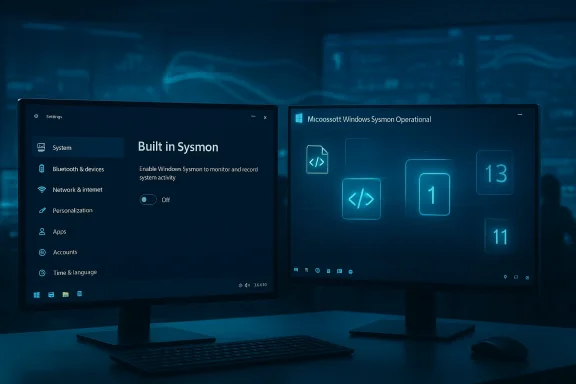
Two monitors glow blue, displaying Windows Sysmon settings and an operational dashboard.Background: why Sysmon became indispensable​

Sysmon (System Monitor), created by Mark Russinovich and historically distributed via the Sysinternals suite, filled a persistent gap in native Windows logging by providing high‑fidelity host telemetry: full command lines on process creation, parent/child relationships, process‑attributed network connections, image and driver loads, file and registry changes, WMI events, and other signals essential to hunting and forensic timelines. For years, SOCs and incident responders have relied on Sysmon events as a primary input to SIEM rules, Sigma detections, and ad‑hoc investigations. Thon of breadth, structure, and configurability made it a de‑facto endpoint instrumentation standard.
But the utility’s independence from Windows created operational friction: administrators had to package and distribute the Sysmon binary and driver to fleets, manage XML configurations across thousands of endpoints, test updates separately, and accept that the tool was community‑maintained rather than supported inside the Windows servicing model. That friction produced coverage gaps and version drift that directly harmed detection reliability during incidents.

What Microsoft shipped and where it lives​

Microsoft has exposed Sysmon functionality as an in‑box Optional Feature in recent Windows Insider preview builds. The Windows Insider release notes for Dev Channel Build 26300.7733 (KB5074178) explicitly list “Built‑in Sysmon,” show enablement steps via the Settings UI and DISM, and instruct administrators to run the familiar sysmon -i command to finalize installation. The feature is disabled by default and requires explicit enablement; any previously installed standalone Sysmon must be uninstalled first to avoid conflicts.
Independent reporting and community testing corroborate the same mechanics: the built‑in Sysmon writes events to the established event channel (Applications and Services Logs → Microsoft → Windows → Sysmon → Operational), supports XML configuration files for filters and tuning, and preserves the operational model admins already use — making it possible to reuse existing scripts and SIEM parsers with minimal change. However, Microsoft’s published notes also indicate this functionality is staged via Controlled Feature Rollout, so availability will vary across Insider devices.

What this means for enterprise defenders (the upside)​

  • Lower deployment friction. Packaging, distribution, and driver update tasks for Sysmon can be eliminated. Teams can enable the capability through existing OS management workflows — Settings, DISM, Group Policy, or Intune — and receive updates through Windows Update. That reduces configuration drift and the common problem of devices missing instrumentation at first contact.
  • Formal support and lifecycle alignment. Moving Sysmon into the servicing pipeline brings the capability under Microsoft’s support umbrella and aligns updates with OS servicing windows. For regulated or high‑availability environments, the vendor accountability this provides is meaningful.
  • Preservation of existing detection investments. Microsoft’s documentation and preview behavior preserve XML‑based configuration and the traditional Sysmon event channel, which should allow existing SIEM parsers, Sigma rules, and hunting playbooks to carry forward with less rework — provided teams validate parity.
  • Potentially higher baseline telemetry coverage. Organizations that historically couldn’t reach fleet‑wide Sysmon installation now have a clearer, supported path to broad adoption, improving the baseline visibility available for detection and investigation.

The crucial unknowns and why you must validate​

Despite clear operational benefits, several load‑bearing technical and governance questions remain unresolved or need early validation:
  • Feature parity vs. “preserve the model.” Microsoft promises to “preserve the Sysmon model,” but that is not the same as guaranteeing byte‑for‑byte parity with every historical Sysmon event field and enrichment. Small differences in field names, event schema ordering, or enrichment semantics can break detection logic and automated playbooks. Validate every critical event field your detection engineering depends on in a lab before decommissioning existing Sysmon deployments.
  • Configurability and filtering granularity. Sysmon’s XML configuration is powerful and widely used to tune noise and control ingestion volume. Microsoft’s preview supports XML configs, but large enterprises must confirm that the full set of filters, conditional logic, and include/exclude capabilities they rely on are preserved. If the built‑in implementation offers a narrower configuration surface, you may still need standalone Sysmon for fine‑grained tuning.
  • Servicing cadence and change control. Routing updates through Windows Update simplifies patching but also binds Sysmon changes to Microsoft’s servicing schedule. That can be a benefit, but it also means you must incorporate Sysmon behavior change management into OS update validation cycles to avoid unexpected detection regressions after a cumulative update.
  • Driver/compatibility risk. The Sysmon service is backed by a kernel driver. Enabling built‑in Sysmon introduces a kernel‑mode component onto endpoints. Testing for compatibility with third‑party drivers, virtualization stacks, and specialized enterprise software must be part of an early pilot.
  • Privacy and data governance. More telemetry shipped by default increases the need to define who can enable the capability, who has access to logs, and how long events are retained. Built‑in capabilities can be easier to enable accidentally at scale; governance controls should be explicit before broad rollout.
Each of these technical uncertainties is resolvable, but only through disciplined, measured validation in controlled rings.

Tactics: a pragmatic migration playbook​

Adopt this measured approach rather than ripping out proven telemetry immediately.
  • Pilot and validate (lab ring)
  • Enable built‑in Sysmon on representative hardware and run your canonical XML configs.
  • Compare event IDs, field names, and values against your existing standalone Sysmon baseline.
  • Validate SIEM ingestion, parser behavior, and rule results end‑to‑end.
  • Test compatibility (application ring)
  • Deploy to a set of business‑critical machines and test for driver or performance anomalies.
  • Confirm interoperability with endpoint agents, virtualization tools, and device drivers.
  • Tune and control volume (staging ring)
  • Evaluate log volume, storage costs, and SIEM ingestion rate with production configs.
  • Adjust sampling, retention, and event filters before broad rollout.
  • Automate migration (pre‑production)
  • Script idempotent uninstall of legacy Sysmon, enaal Feature, and sysmon -i with your config.
  • Add verification steps to ensure the event channel is present and schemas match expected values.
  • Roll out gradually (production rings)
  • Stage adoption across business units, measure telemetry health and detection fidelity, and keep a rollback plan ready.
  • Governance and auditing (ongoing)
  • Lock down who can enable Sysmon via Intune, GPO, or change control.
  • Ensure audit trails show when the feature was enabled and by whom, and define retention and access policies for Sysmon logs.
This stepwise plan preserves continuity for incident response while capturing the operational benefits of native delivery.

Detection engineering: migration, mapping, and test cases​

Detection teams should treat the change as a schema migration project.
  • Start by inventorying the Sysmon event types and specific fields your rules consume (Event ID 1: Process Create; Event ID 3: Network Connect; Event ID 11: File Create; Event ID 25: Process Tamper; etc.). Map out the handful of event fields that are most load‑bearing for your coverage.
  • Create signature test cases that generate those events in a lab environment and confirm they appear identically under the built‑in implementation. Tests should include:
  • Process creation with complex command lines and parent/child relationships.
  • Process‑attributed network connections that include DNS lookups and remote IPs.
  • WMI persistence and consumer/filter events.
  • Process tampering and image load scenarios.
  • Build transformation layers or parsers in your SIEM to accept both legacy and built‑in variants during the transition. This reduces risk as you move from one telemetry source to the other.
  • Expect and plan for minor field name or path differences; design detection logic that tolerates additional fields or optional values rather than strict equality when feasible.
  • Coordinate with the security community: the broader detection community will publish mapping guides and updated Sigma rules quickly once GA is public. But don’t rely exclusively on community content — your environment’s specifics matter.

Vendor and ecosystem impact​

  • EDR and EDR vendors will need to evaluate how built‑in Sysmon alters their telemetry posture. For some vendors, high‑fidelity Microsoft telemetry reduces the need for separate kernel drivers; for others it creates overlap and competitive friction. Vendors that rely on Sysmon as an input to enrich detections may adopt the built‑in source quickly to reduce agent complexity.
  • SIEM and MDR providers stand to benefit from more consistent, first‑contact coverage across Windows endpoints. Customers without the resources to deploy standalone Sysmon will gain richer telemetry by default, lowering the baseline risk for small and mid‑sized organizations.
  • Security tooling vendors should clarify interoperability, test ingest behavior, and update platform guidance to support the built‑in event channel and any schema variants.
Enterprises should proactively engage their EDR, SIEM, and managed service partners to confirm support for the built‑in Sysmon event stream and to coordinate migration timelines.

Risks and governance considerations​

  • Vendor lock and analytic coupling. Rich native telemetry makes Microsoft’s cloud and analytics offerings more compelling; organizations should carefully weigh operational convenience against vendor coupling. If you plan to centralize detection on third‑party platforms, validate long‑term integration and export paths.
  • Single‑vendor failure modes. Consolidating telemetry delivery and servicing with the OS increases the blast radius of a buggy update. Harden change control and recovery plans to minimize impact during a faulty OS servicing event.
  • Access control and privacy. Built‑in process command‑line capture and other detailed fields can contain sensitive data. Define roles and policies for access to Sysmon logs and implement redaction or masking policies where required by privacy or compliance regimes.
  • Adversary focus. Embedding telemetry in the OS raises the bar for attackers seeking to disable logging, but this does not make endpoints immune. Adversaries will adapt to attempt tampering at higher privilege levels or through supply‑chain techniques. Continue to enforce endpoint hardening and tamper protection best practices.

Quick checklist for security operations leaders​

  • Pilot built‑in Sysmon in a controlled test ring within 30 days.
  • Inventory Sysmon event types and identify the top 10 fields your detections rely on.
  • Validate event schema parity with existing standalone Sysmon in a lab.
  • Create automated migration scripts that uninstall standalone Sysmon, enable the Windows feature, and run sysmon -i with config.
  • Engage EDR/SIEM/MDR vendors to confirm ingest and support timelines.
  • Update change‑control playbooks to include Sysmon feature servicing and rollback procedures.
  • Define governance controls for who may enable or configure built‑in Sysmon and for log access/retention.

The longer view: platform telemetry and responsibility​

Embedding Sysmon‑class telemetry into Windows follows a broader industry trend of pushing more defensive capability into the operating system. Native telemetry can meaningfully raise enterprise baseline visibility and make advanced signals available to organizations that previously lacked the resources to operate full instrumentation at scale. But platformization also increases responsibility: vendors and customers must codify governance, auditing, and transparent controls for analytic models, on‑device inferencing, and telemetry retention. Microsoft has signaled roadmap ambitions — enterprise management hooks and on‑device AI inferencing tied to Sysmon signals — but those remain roadmap items that require explicit documentation, auditability, and governance before being trusted in regulated or high‑sensitivity environments.

Final assessment and recommended next steps​

Microsoft’s move to integrate Sysmon‑level telemetry natively into Windows 11 is fundamentally consequential for endpoint visibility. It resolves many operational headaches — distribution, servicing, and support — and it promises to raise the floor of telemetry available to defenders. At the same time, it replaces an operational decision (installing a community tool) with an architectural one (accepting an OS‑managed telemetry capability). That trade‑off is manageable, but only with disciplined validation, governance, and staged adoption.
Immediate actions for security teams:
  • Pilot the in‑box Sysmon in lab and constrained production rings now.
  • Validate schema parity and test critical detections against the built‑in event stream.
  • Build idempotent migration tooling and rollback procedures.
  • Update governance, privacy, and access policies to account for higher‑fidelity native logs.
  • Coordinate with vendors and internal stakeholders before any broad rollout.
Make no assumption that parity is perfect, and make your migration reversible until you have concrete, environment‑specific evidence that the built‑in implementation meets every operational need. Do this well, and your organization will capture better visibility with less operational weight; do it without disciplined testing, and you risk detection regressions at the worst possible time.
Microsoft has acknowledged what security teams have known for years: Sysmon‑class telemetry is not optional, it is essential. Making it native is a long‑overdue step. The promise is real — but the work to realize it responsibly belongs to defenders.

Source: WebProNews Microsoft Bakes Sysmon-Level Telemetry Directly Into Windows 11: What Enterprise Security Teams Need to Know
 

Microsoft hat Windows 11 zu Jahresbeginn 2026 nicht nur mit einer weiteren Schicht KI‑Funktionen ausgestattet, sondern zugleich auch mehrere restriktivere Sicherheitsbarrieren eingeführt — ein Update‑Mix, der Produktivität und Schutz gleichermaßen anhebt, aber auch neue Friktionen für Anwender und IT‑Organisationen schafft.

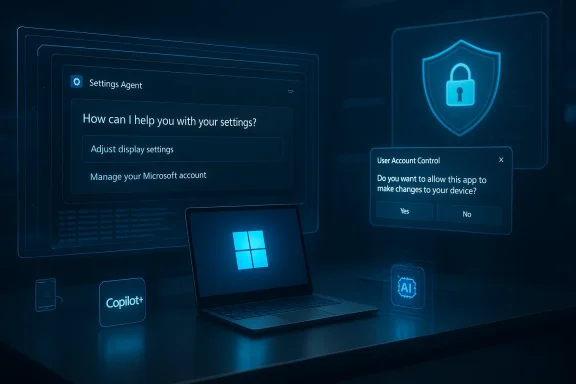
Futuristic Windows setup with holographic security prompts hovering above a glowing laptop.Hintergrund / Übersicht​

Seit dem Herbst 2025 verfolgt Microsoft die klare Strategie, Copilot‑Funktionen tiefer und kontextsensitiver in die Windows‑Ebenen zu integrieren: Settings Agent, Voice‑/Accessibility‑Verbesserungen und geräteoptimierte, On‑Device‑KI sind Kernbestandteile dieser Offensive. Die jüngsten Preview‑ und Insider‑Wellen bündeln viele dieser Änderungen im kumulativen Preview‑Paket KB5074105 und in den neuen Insider Builds 33), wobei Microsoft ein gestuftes Aktivierungsmodell (Controlled Feature Rollout, CFR) verwendet.
Parallel dazu hat Microsoft diverse Sicherheitsmaßnahmen verschärft: bestimmte System‑ und Storage‑Einstellungen erfordern künftig erhöhte Rechte (UAC‑Abfrage), Sysmon wird als in‑box optionales Feature angeboten, und vergangene January‑Regressions wie das Secure‑Launch‑Shutdown‑Problem wurden über Out‑of‑Band‑Fixes adressiert. Diese Änderungen sind sowohl präventiv als auch reaktiv — sie zielen auf härtere Härtung des Systems, haben aber spürbare Auswirkungen auf Administration, Benutzerführung und Integrationskosten.

Was bringt das große KI‑Update praktisch? (Funktionen und Technik)​

Settings Agent: natürliche Sprache, direkte Deep‑Links​

Microsoft erweitert ings Agent*: Anwenderinnen und Anwender können in Alltagssprache formulieren, welche System‑Optionen sie ändern möchten, und erhalten klickbare Deep‑Links, die die native Settings‑App an der richtigen Stelle öffnen. Dieses Verhalten reduziert Menü‑Hopping und macht ein zugänglich — die KI nimmt in den meisten Fällen jedoch nicht ohne Bestätigung selbst Änderungen vor, sondern führt zur passenden UI‑Stelle.
Wichtig für IT‑Verantwortliche: die Funktion ist kanal‑, account‑ und hardwareabhängig; allein das Einspielen des Preview‑KB garantiert nicht die sofortige Sichtbarkeit. Microsoft nutzt serverseitige Gates und Copilot+/NPU‑Erkennung, um Erlebnisse zu differenzieren.

Voice Access und Accessibility: geführte Erstkonfiguration​

Das Update enthält einen schlanken Setup‑Assistenten für Voice Access, der das erstmalige Herunterladen voofontests und eine kurze Einführung automatisiert. Die Sprachverarbeitung läuft in vielen Fällen lokal (On‑Device), wodurch Latenz sinkt und Audit‑Risiken minimiert werden — Microsoft verfolgt einen hybriden Ansatz: lokale Spotter‑/Wake‑Modelle plus Cloud‑Fallback für komplexen Kontext. Das ist ein Gewinn für Barrierefreiheit, sofern die Device‑Hardware und Sprachlokalisierung passen.

Copilot+ und On‑Device‑Ge KI‑Erlebnisse (niedrige Latenz, mehr lokal laufende Inferenz) sind häufig an Copilot+‑fähige Geräte gekoppelt — also PCs mit NPU/AI‑Beschleunigung und Microsoft‑zertifiziertem Stack. Das bringt schnellere Antworten und besseren Datenschutz‑Footprint für moderne Geräte, erzeugt aber gleichzeitig eine Zwei‑Klassen‑Erfahrung für ältere Hardwar Resume und Integrationspunkte​

KB5074105 baut auch Cross‑Device‑Funktionen aus — Resume‑Karten, erweitertet Handoff‑Szenarien (z. B. gestartete Smartphone‑Sessions, geöffnete Tabs oder M365‑Dokumente). Solche Features erhöhen den Workflow‑Wert, verlangen aber Cloud‑Konten, Telemetrie‑Zustimmung und passende App‑Integrationen.

Sicherheits‑ und Governance‑Änderungen​

Storage‑Settings nun UAC‑geschützt​

Eine auffällige Neuerung: die Storage‑Einstellungen werden im Rahmen des Preview‑Rollouts durch eine UAC‑Abfrage geschützt — der Zugriff erfordert Administratorenbestätigung. Microsoft hat diese Änderung in der Vorschau‑Welle (Beginn Verteilung Ende Januar / Februar 2026) eingeführt; unabhängige Berichterstattung weist darauf hin, dass dies für Benutzer in geteilten Umgebungen zunächst zu Verwirrung führen kann.
Kurz gesagt: die Maßnahme verhindert, dass nicht‑privilegierte Nutzer unabsichtlich oder böswillig systemrelevante Speicher‑Operationen ausführen. Für IT‑T: erhöhte Support‑Anfragen, mehr Helpdesk‑Interaktionen und gegebenenfalls Anpassungen an Gruppenrichtlinien‑Workflows.

Sysmon als inbox optional feature​

Microsoft bringt Sysinternals' Sysmon nativ in Windows 11 — standardmäßig deaktiviert, aber als optionales Feature verfügbar. Damit lässt sich systemnahe Telemetrie direkt in den Windows‑Eventlog schreiben, was Security‑Operations‑Center (SOC) und EDR‑Pipelines deutlich vereinfacht. Für Security‑Teams ist das ein strategischer Gewinn: weniger Drittanbieter‑Installationen, bessere Integrationspfade und standardisierte Events.
Wichtig: Built‑in‑Sysmon muss explizit aktiviert werden und ersetzt nicht automatisch vorhandene, bereits konfigurierte Sysmon‑Instanzen — bei paralleler Nutzung sind Migrations‑ oder Deinstallationsschritte erforderlich.

Rückblick: Secure‑Launch‑Shutdown‑Problem und OOB‑Fix​

Die Januar‑Sicherheitsupdates (z. B. KB5073455) führten bei einigen Systemen mit l Secure Mode zu einem Regressionssymptom: Statt Herunterfahren/Hybernation kam ein Neustart. Microsoft reagierte schnell mit einem Out‑of‑Band‑Update KB5077797 (veröffentlicht 17. Januar 2026), das diese Symptomatik und Remote‑Desktop‑Sign‑in‑Fehler adressierte. Administratoren sollten prüfen, ob ihre Maschinen das OOB‑Paket erhalten haben oder ob noch Workarounds nötig sind.

Vorteile: Was profitiert wirklich?​

  • Bessere Usability für Zielaufgaben: Deep‑Links aus dem Settings Agent reduzieren Klickwege und Lernaufwand bei wiederkehrenden Konfigurationen. Das ist ein klarer Produktivitätsgewinn für Endanwender.
  • Barrierefreiheit wird praktikabler: Ein geführter Voice‑Access‑Setup‑Flow senkt die Hürde für Nutzer*innen mit Bewegungseinschränkungen — On‑Device‑Modelle verbessern die Alltagstauglichkeit.
  • Sen mit messbarer Wirkung: Sysmon inbox und Storage‑UAC reduzieren Angriffs‑ und Missbrauchsflächen; die Plattform gewinnt an Auditierbarkeit.
  • Fehlerkorrektur‑Tempo: Microsofts OOB‑Updateprozess (z. B. KB5077797) zeigt die Fähigkeit, kritische Regressionsfälle innerhalb weniger Tage zu adressieren — ein wichtiges Signal für Betriebssicherheit. (support.microsoft.com)

Risiken, Nebenwirkungen und operative Herausforderungen​

Fragmentierung und Hardware‑Ungleichheit​

Die Festlegung, bestimmte KI‑Erlebnisse an Copilot+ bzw. NPU‑fähige Geräte zu knüpfen, erzeugt eine fragmentierte Nutzerbasis: neuere Geräte erhalten bessere, lokalere KI; ältere Geräte sind auf Cloud‑Fallback angewiesen. Für Unternehmen mit heterogener Hardware ist das ein Planungs‑ und Beschaffungsproblem — nicht alle Anwender sehen dieselben Funktionen zur selben Zeit.

UX‑Brüche durch Sicherheitsbarrieren​

Die neue UAC‑Abfrage für Storage‑Einstellungen erhöht zwar die Sicherheit, erzeugt aber auch unerwartete Unterbrechungen für Nicht‑Admin‑Nutzer. Haushalte, Schul‑ und Gemeinsysteme sind potenziell betroffen; IT‑Support‑Teams müssen Kommunikations‑ und Schulunen.

Datenschutz und Cloud‑Fallback​

Obwohl Microsoft verstärkt On‑Device‑Modelle einsetzt, bleibt in vielen Szenarien ein Cloud‑Fallback bichten, Kontextauswertung). Organisationen müssen daher prüfen, welche Telemetrie‑ und Cloud‑Datenflüsse akzeptabel sind und wie diese konfiguriert werden können. Transparente Einstellungen und Policy‑Guides sind erforderlich.

Regressionsrisiken und Rollout‑Unsicherheit​

KB5073455/K B5077797‑Vorfall zeigt: selbst mit intensiven Tests können kumulative Updates regressionsversursacheen. Microsofts CFR‑Modell mindert das Risiko für Großausbruch, aber IT‑Abteilungen dürfen sich nicht darauf verlassen, dass ein installiertes Update automatisch alle Features korrekt aktiviert. Pilottests bleiben Pflicht.

Vertrauen vs. Geschwindigkeit — das Wahrnehmungsproblem​

Features mit hoher Sichtbarkeit (Agenten, KI‑Assistenten) steigern mediale Aufmerksamkee Update‑Regressionsereignisse schwächen das Vertrauen. Microsoft kann die technische Roadmap vorantreiben, doch ohne verlässliche Upgrade‑Qualität bleibt die Nutzerakzeptanz fragil.

Konkrete Empfehlungen für Admins und Power‑User​

Für Administratoren (Enterprise / Bildung / SMB)​

  • Führen Sie ein Pilotprogramm mit repräsentativen Geräteklassen d4105 oder die neue Insider‑Builds freigeben. Achten Sie besonders auf Geräte mit und ohne Copilot+/NPU.
  • Validieren Sie, ob Sysmon inbox für Ihre Telemetrie‑Pipelines sinnvoll ist; erstellen Sie Migrations‑Pläne und Test‑Configs, bevor Sie die in‑box‑Option in Produktion aktivieren.
  • Aktualisieren Sie Richtlinien für lokale vs. Cloud‑Sprachverarbeitung; dokumentieren Sie Datenschutz‑Optionen und ommunikation (FAQ, Schulungsclips) bereit.
  • Passen Sie Helpdesk‑Playbooks an: Antworten für UAC‑Prompts bei Storage‑Zugriff, Kommandos für erzwungenes Shutdown (falls noch relevant) und Schritte zur Verifikation von Kfbereit sein.

Für IT‑Enthusiasten und Privatanwender​

  • Testen Sie den neuen Voice‑Access‑Setup‑Assistenten in einer isolierten Umgebung (Release Preview oder Insider), insbesondere wenn Sie auf lokale Spracherkennung angewiesen sind.
  • Prüfen Sie Zugriffsrechte auf Storage‑Seiten; bereiten Sie sich auf mögliche UAC‑Abfragen vor und lernen Sie, wie Sie diese administrativ steuern. (windowscentral.com)
  • Falls Sie ältere Hardware nutzen: Erwarten Sie, dass einige KI‑Funktionen aufgrund von Copilot+‑Gating nicht verfügbar sind — planen Sie Upgrade‑Pfad oder akzeptieren Sie Cloud‑Fallback.

Bewertung: Stärke, Nachhaltigkeit und mögliche Fallstricke​

Stärken​

  • Microsoft adressiert zwei kritische Anforderungen gleichzeitig: bessere Produktivität durch KI‑Assistenz und erhöhte Plattformsicherheit durch rgungen und native Sicherheits‑Tools. Diese Kombination ist strategisch sinnvoll und technisch kohärent.
  • Der On‑Device‑Ansatz für Sprachfunktionen ist langfristig vorteilhaft für Latenz und Datenschutz, sofern Microsoft die Lokalisierungs‑ und Hardwareunterstützung ausweitet.

Fallstricke​

  • Die Zweiklassen‑Erfahrung (Copilot+ vs. Nicht‑Copilot) könnte Nutzeund das Support‑Volumen erhöhen. Ohne klare, transparente Kommunikationen über Voraussetzungen droht Verwirrung.
  • Änderungen wie die Storage‑UAC sind aus Sicherheitssicht sinnvoll, können aber die Usability‑Wahrnehmung beeinträchtigen. Microsoft sollte begleitende UX‑Kommunikation liefern, damit Endnutzer nicht das Gefühl haben, „irritierende Popups“ verhindern nur einfache Aufgaben.
  • Manche öffentliche Zahlen und Headlines (etwa pauschale Angaben zu „hunderten Millionen nicht kompatibler Geräte“) sind Schätzungen und sollten mit Vorsicht behandelt werden — primär als Indikatoren, nicht als harte Inventarzahlen. Solche Angaben liefert auch BornCity, nennt sie aber als Schätzwert mit Vorbehalt.

Schlussfolgerung und Ausblick​

Microsofts Januar/Februar‑Welle 2026 ist ein Wendepunkt: Die Plattform wird intelligenter und härter zugleich. Die Kombination aus Settings Agent, Voice‑Access‑Erleichterungen und systemnahen Sicherheitsfeatures wie Sysmon‑inbox zeigt eine klare Produktstrategie — Copilot‑Funktionen sollen Alltagshürden senken, während gleichzeitig das Angriffsprofil des Systems reduziert wird.
Gleichzeitig bleibt die Umsetzung anspruchsvoll: Controlled Feature Rollouts, hardwareabhängige Gating‑Mechanismen und zwischendurch auftauchende Regressionsfälle bedeuten für jene, die Windows‑Ökosysteme betreiben, dass Disziplin in Testprozessen, klare Kommunikations‑Artefakte und schnelle Monitoring‑Feedback‑Schleifen unverzichtbar sind. Unternehmen sollten Pilotphasen, dokumentierte Policies und Notfallpläne (Rollback, OOB‑Patch‑Überprüfung) als Standardbestandteile ihres Update‑Prozesses pflegen.
Kurzfristig erwarten wir also einen Mix aus Begeisterung für neue, nützliche KI‑Hilfen und Nervosität bei Admins, die erhöhte Sicherheits‑Kontrollen und heterogene Feature‑Verfügbarkeit managen müssen. Langfristig hängt der Erfolg davon ab, ob Microsoft die Versprechen — zuverlässige Updates, transparente Privatsphäre‑Kontrollen und faire Hardware‑Support‑Regeln — kontinuierlich erfüllt. Die nächsten Monate werden zeigen, ob die Balance zwischen Innovation und Stabilität gelingt.

Wenn Sie in Ihrer Organisation diese Updates evaluieren: beginnen Sie mit einem kleinen Pilot, dokumentieren Sie Erfahrungen (vor allem mit Copilot+/NPU‑Geräten und Storage‑UAC‑Szenarien) und halten Sie Ihre Windows‑Servicing‑Pläne bereit — die jüngsten OOB‑Reaktionen zeigen, dass schnelle Reaktionswege genauso wichtig sind wie präventive Kontrollen.

Source: BornCity Windows 11: Microsoft startet 2026 mit massivem KI-Update - BornCity
Source: BornCity Microsoft verstärkt Windows 11 mit neuen Sicherheitsbarrieren - BornCity
 

Back
Top