

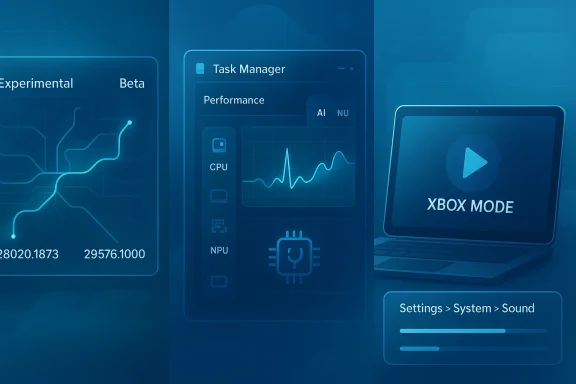
Microsoft’s latest Windows 11 Insider releases mark a broader shift than a routine weekly refresh: the company is using the new Experimental and Beta channel structure to push both visible UI changes and under-the-hood platform work into the hands of Insiders faster. On April 24, 2026, Microsoft began moving Dev and Beta users into the new channel model and paired that transition with new builds for the 28000-series and 29500-series Canary paths, including Build 28020.1873 and Build 29576.1000. The result is a release that touches sound settings, Task Manager, Xbox mode, voice typing, storage, and recovery, while also hinting at where Windows 11 is heading next.
The most important part of this week’s release is not any single feature, but the breadth of the changes. Microsoft is no longer treating the Insider program as a monolithic preview stream; it is now splitting experiences by development track, platform maturity, and feature intent. That matters because it gives the company more room to test features that are closer to shipping in one path while keeping more experimental platform work in another.
The new channel arrangement also clarifies Microsoft’s product strategy. The Beta channel is now intended to align more closely with what will reach retail in the near term, while Experimental absorbs more of the development churn. For users and IT admins, that should mean less ambiguity about what a build represents, even if the price of that clarity is a more complex Insider topology.
At the same time, the releases show Microsoft continuing its long-running campaign to migrate legacy Control Panel-style settings into the modern Settings app. In the new Canary build, audio controls that used to require a detour into older UI surfaces now appear directly under Settings > System > Sound. That is not just cosmetic. It is a sign that Microsoft wants Windows 11 to feel more coherent, more touch-friendly, and more consistent across consumer and enterprise usage patterns.
The build also reinforces a second theme: Windows is becoming increasingly aware of AI-capable hardware. Task Manager’s new optional NPU-related columns, plus the appearance of GPU-based neural engines on the Performance page, indicate that Microsoft expects users and administrators to want visibility into AI acceleration the same way they already want visibility into CPU, memory, disk, and network activity. That is a meaningful evolution in how Windows instruments the modern PC.
The company is also changing how it publishes release notes, moving build information into the Windows Insider Program Documentation Hub for better navigation, dark mode, localization, and deep linking. That may sound like an administrative detail, but it matters because release notes are part of the product for Insiders. When the documentation is easier to use, feedback can become more specific and more useful.
Microsoft’s own wording makes clear that the new channel model is about predictability. Beta should resemble retail more closely, while Experimental becomes a sandbox for features that may or may not ship. In practical terms, that should reduce confusion for power users who have been using the Insider program as a proxy for “latest Windows” rather than as a structured preview pipeline.
This is a subtle but important move. Microsoft is no longer treating the PC gaming experience as a collection of separate apps and overlays; it is trying to create a more coherent “lean back” state that works across form factors. On a handheld or compact laptop, that could make Windows feel less like a desktop OS pressed into gaming duty and more like a dedicated living-room platform.
It also has clear competitive implications. Valve’s SteamOS-style controller-first experience has become a talking point in portable gaming, and Microsoft knows that Windows must be easier to use in a couch-first context. Xbox mode does not erase Windows’ complexity, but it does suggest the company is serious about reducing friction for controller-driven play.
More importantly, several sound-management tasks are finally being surfaced in Settings instead of the old Control Panel. Users can now configure hardware acceleration, exclusive mode, and adaptive communication sound levels from the device properties area. The option to set a device as the default communication device also stays visible, even if it is already the default, which should reduce the “where did that setting go?” problem that has plagued Windows for years.
This is not just about convenience. Sound configuration is one of the places where Windows has historically felt fragmented, especially for gamers, podcasters, remote workers, and anyone using multiple audio devices. By centralizing these options, Microsoft reduces the gap between consumer expectations and pro-level audio management.
That change matters because the modern PC is no longer measured only by CPU and GPU usage. On Copilot+ and other AI-capable devices, the NPU is becoming part of the performance conversation, especially as more features shift on-device for latency, privacy, and battery life reasons. Microsoft is effectively teaching users to think about AI acceleration as a first-class resource.
The new Isolation column is also a smart addition. It lets users see which apps are running in an AppContainer, which can help distinguish tightly sandboxed processes from less isolated ones. That is useful for security-minded users and for administrators trying to understand how apps are behaving under Windows’ app isolation framework.
This lands in a broader recovery story. Microsoft already documents System Restore as a way to revert a PC to a previous point in time without affecting personal files, and Windows RE includes built-in recovery tools for startup repair, reset, and recovery media. Point-in-time restore looks like an attempt to modernize that toolbox for a world where users expect faster, more comprehensive rollback.
It also complements Microsoft’s more recent work on Quick Machine Recovery, which is designed to help Windows 11 devices recover from widespread boot issues by pulling remediations through Windows Update when a device is in Windows RE. That makes a lot of sense in a cloud-connected ecosystem where device recovery is increasingly a service, not just a local troubleshooting workflow.
The update fits with Microsoft’s broader work on voice input. Microsoft Support already documents voice typing as a feature that uses online speech recognition, with settings for automatic punctuation, profanity filtering, and default microphone selection. On newer Copilot+ PCs, the company has also added Fluid dictation, which uses on-device small language models to smooth grammar and punctuation.
That context matters because it shows voice input is evolving from a niche accessibility tool into a mainstream input mode. The touch-keyboard redesign makes sense on tablets and 2-in-1s, where overlay fatigue can be especially disruptive. A lighter UI also makes Windows feel more modern when paired with pen, touch, and hybrid workflows.
Those changes are easy to overlook, but they reflect a real pattern in modern Windows: Microsoft is steadily trying to reduce friction in Settings pages that can feel heavy on devices with large drives or lots of partitions. It has also fixed a bug that caused unrealistic values in Data Usage and improved startup app launch performance after boot. In plain English, the company is attacking the kinds of annoyances that make Windows feel slower than it should.
The value here is cumulative. Each individual improvement is modest, but users evaluate Windows through their day-to-day interactions, not through benchmark slides. Faster settings pages, fewer unnecessary prompts, and quicker startup app launch behavior all contribute to a system that feels more mature and less brittle.
The enterprise side is more interesting. Point-in-time restore, Task Manager NPU visibility, and policy-based app removal in the Xbox-mode-related build all suggest Microsoft is still balancing consumer experience with manageability. IT departments care less about visual flair and more about rollback, resource transparency, device policy, and how much of the modern UI can be centrally controlled.
That split explains why Microsoft keeps merging old and new paradigms rather than simply deleting the old ones. Enterprises still need predictable workflows, while consumers benefit from less clutter and fewer detours. The best Windows 11 updates are the ones that can satisfy both without making the system feel like two products stapled together.
There is also the danger of overpromising on recovery. Point-in-time restore sounds powerful, but users will judge it by real-world behavior, not naming. If it does not work cleanly across apps, settings, and files, it could become another promising feature that ends up living more as a concept than a practical tool.
Another concern is the tension between modernization and discoverability. Moving older controls into Settings is good, but only if users can still find the options when they need them. Microsoft has spent years trying to retire Control Panel without fully breaking the habits built around it, and sound settings are one of the places where that transition must be careful.
A lot will also depend on how Microsoft handles AI-era hardware support. The addition of NPU columns is significant because it implies future Windows releases will treat dedicated AI silicon as a normal resource class, not an exotic specialty. That has implications for telemetry, task management, troubleshooting, and even how OEMs talk about performance to buyers.
Source: Neowin Windows 11 gets improved sound settings, better Task Manager, and more in new builds
 Overview
The most important part of this week’s release is not any single feature, but the breadth of the changes. Microsoft is no longer treating the Insider program as a monolithic preview stream; it is now splitting experiences by development track, platform maturity, and feature intent. That matters because it gives the company more room to test features that are closer to shipping in one path while keeping more experimental platform work in another.The new channel arrangement also clarifies Microsoft’s product strategy. The Beta channel is now intended to align more closely with what will reach retail in the near term, while Experimental absorbs more of the development churn. For users and IT admins, that should mean less ambiguity about what a build represents, even if the price of that clarity is a more complex Insider topology.
At the same time, the releases show Microsoft continuing its long-running campaign to migrate legacy Control Panel-style settings into the modern Settings app. In the new Canary build, audio controls that used to require a detour into older UI surfaces now appear directly under Settings > System > Sound. That is not just cosmetic. It is a sign that Microsoft wants Windows 11 to feel more coherent, more touch-friendly, and more consistent across consumer and enterprise usage patterns.
The build also reinforces a second theme: Windows is becoming increasingly aware of AI-capable hardware. Task Manager’s new optional NPU-related columns, plus the appearance of GPU-based neural engines on the Performance page, indicate that Microsoft expects users and administrators to want visibility into AI acceleration the same way they already want visibility into CPU, memory, disk, and network activity. That is a meaningful evolution in how Windows instruments the modern PC.
Why this release matters
- It is one of the clearest signs yet that Windows Insider channels are being restructured into more purposeful lanes.
- It continues the trend of moving legacy control surfaces into Settings, reducing context switching.
- It reflects Microsoft’s increasing focus on AI hardware visibility and new device classes.
- It also shows a willingness to improve daily-use tools like Task Manager and voice typing, not just headline features.
The new Insider channel structure
The April 24 transition is the backdrop for everything else in these builds. Microsoft says Dev and Beta users will move into Experimental and Beta, while Canary users will be steered into different Experimental paths depending on whether they were on the 28000 series or the optional 29500 series. That creates a cleaner conceptual map, even if the naming is still a little dense for casual users.The company is also changing how it publishes release notes, moving build information into the Windows Insider Program Documentation Hub for better navigation, dark mode, localization, and deep linking. That may sound like an administrative detail, but it matters because release notes are part of the product for Insiders. When the documentation is easier to use, feedback can become more specific and more useful.
Microsoft’s own wording makes clear that the new channel model is about predictability. Beta should resemble retail more closely, while Experimental becomes a sandbox for features that may or may not ship. In practical terms, that should reduce confusion for power users who have been using the Insider program as a proxy for “latest Windows” rather than as a structured preview pipeline.
Channel implications
For enthusiasts, the change is mostly about choice. If you want smoother continuity, Beta is the safer bet. If you want the freshest platform experiments and are willing to accept volatility, Experimental is where the action is. For Microsoft, the upside is clearer segmentation and better telemetry on which ideas land with which audience.- Beta is now positioned as the more retail-like path.
- Experimental absorbs the riskier, faster-moving work.
- Release notes now live with better structure and deeper links.
- The model should make feature rollouts easier to explain, if not simpler overall.
Xbox mode arrives on more PCs
One of the headline additions in the 29570.1000 build is Xbox mode, now available on Windows 11 PCs including laptops, desktops, and tablets. Microsoft describes it as a streamlined, full-screen experience inspired by the Xbox console, and it is accessible from the Xbox app, Game Bar settings, or via Win + F11.This is a subtle but important move. Microsoft is no longer treating the PC gaming experience as a collection of separate apps and overlays; it is trying to create a more coherent “lean back” state that works across form factors. On a handheld or compact laptop, that could make Windows feel less like a desktop OS pressed into gaming duty and more like a dedicated living-room platform.
It also has clear competitive implications. Valve’s SteamOS-style controller-first experience has become a talking point in portable gaming, and Microsoft knows that Windows must be easier to use in a couch-first context. Xbox mode does not erase Windows’ complexity, but it does suggest the company is serious about reducing friction for controller-driven play.
What Xbox mode signals
The interesting question is whether Xbox mode becomes a genuine operating mode or simply a specialized shell. If Microsoft keeps polishing it, the feature could become especially valuable on devices where users bounce between desktop tasks and games in the same session. That makes it less of a novelty and more of a strategic layer for Windows gaming.- It broadens the console-like experience to more device categories.
- It is designed to reduce distraction and foreground games.
- It gives Microsoft another way to differentiate Windows gaming from rivals.
- It may matter most on handheld PCs and compact systems.
Sound settings finally catch up
The biggest quality-of-life upgrade in the Canary build may be the refresh to Settings > System > Sound. Microsoft has updated the volume slider so that if audio is playing, it appears on the side, making active playback easier to understand at a glance. That is a small visual cue, but small visual cues are often what make a control surface feel polished.More importantly, several sound-management tasks are finally being surfaced in Settings instead of the old Control Panel. Users can now configure hardware acceleration, exclusive mode, and adaptive communication sound levels from the device properties area. The option to set a device as the default communication device also stays visible, even if it is already the default, which should reduce the “where did that setting go?” problem that has plagued Windows for years.
This is not just about convenience. Sound configuration is one of the places where Windows has historically felt fragmented, especially for gamers, podcasters, remote workers, and anyone using multiple audio devices. By centralizing these options, Microsoft reduces the gap between consumer expectations and pro-level audio management.
Why these audio changes matter
The shift suggests Microsoft understands that audio is no longer a niche setting buried in a lab-like corner of Windows. It is a mainstream productivity concern, a content-creation concern, and a gaming concern all at once. Bringing these controls forward is the kind of change that will not generate big headlines, yet could meaningfully reduce support friction over time.- Hardware acceleration is now easier to expose for supported devices.
- Exclusive mode no longer requires a Control Panel detour.
- Communication sound levels are now directly configurable in Settings.
- The default-device display behavior is more transparent.
Task Manager becomes an AI dashboard
Task Manager has become one of the most interesting Windows utilities again, and the new build pushes it further into the AI era. Microsoft is adding optional NPU and NPU Engine columns on the Processes, Users, and Details pages, plus NPU Dedicated Memory and NPU Shared Memory on Details. Neural engines embedded in GPUs will now appear on the Performance page, giving users a more complete picture of how AI-related workloads are moving across the system.That change matters because the modern PC is no longer measured only by CPU and GPU usage. On Copilot+ and other AI-capable devices, the NPU is becoming part of the performance conversation, especially as more features shift on-device for latency, privacy, and battery life reasons. Microsoft is effectively teaching users to think about AI acceleration as a first-class resource.
The new Isolation column is also a smart addition. It lets users see which apps are running in an AppContainer, which can help distinguish tightly sandboxed processes from less isolated ones. That is useful for security-minded users and for administrators trying to understand how apps are behaving under Windows’ app isolation framework.
The bigger meaning of NPU visibility
This is one of those changes that looks minor until you imagine the next few years of hardware trends. If NPUs continue to spread into more Windows devices, administrators will need a way to identify whether AI features are consuming dedicated silicon or falling back to other resources. Task Manager becoming NPU-aware is Microsoft preparing the UI layer for a more heterogeneous PC architecture.- NPU visibility helps users understand AI workload placement.
- Dedicated vs. shared memory can reveal how workloads are balanced.
- GPU-integrated neural engines now surface more clearly.
- The Isolation column improves process-context awareness.
Point-in-time restore and recovery direction
The 29576.1000 build also previews point-in-time restore for Windows, a feature Microsoft describes as a way to roll a device back to a previous state, including apps, settings, and user files, to minimize downtime and simplify troubleshooting. That framing is ambitious. It suggests Microsoft is aiming beyond the familiar restore-point model and toward something that feels closer to a managed recovery snapshot for modern systems.This lands in a broader recovery story. Microsoft already documents System Restore as a way to revert a PC to a previous point in time without affecting personal files, and Windows RE includes built-in recovery tools for startup repair, reset, and recovery media. Point-in-time restore looks like an attempt to modernize that toolbox for a world where users expect faster, more comprehensive rollback.
It also complements Microsoft’s more recent work on Quick Machine Recovery, which is designed to help Windows 11 devices recover from widespread boot issues by pulling remediations through Windows Update when a device is in Windows RE. That makes a lot of sense in a cloud-connected ecosystem where device recovery is increasingly a service, not just a local troubleshooting workflow.
Recovery as a platform capability
Taken together, these features point to a bigger strategic idea: Windows recovery is becoming more network-aware, more automated, and more granular. Microsoft appears to be building a recovery stack that can help both consumers and IT teams survive disruption without full reimaging, though the exact enterprise mechanics of point-in-time restore still need to be watched closely as the feature matures.- Point-in-time restore aims to reduce the need for heavier recovery steps.
- Windows RE remains the foundation for deeper repair workflows.
- Quick Machine Recovery adds a cloud-assisted route for boot failures.
- Microsoft is clearly investing in faster rollback rather than only repair.
Voice typing and touch keyboard polish
Microsoft is also changing the voice typing experience when used with the touch keyboard. The older full-screen overlay is being replaced by animations that live directly on the dictation key, which should make the interaction feel more streamlined and less visually intrusive. That is the sort of change users notice immediately because it affects flow, not just appearance.The update fits with Microsoft’s broader work on voice input. Microsoft Support already documents voice typing as a feature that uses online speech recognition, with settings for automatic punctuation, profanity filtering, and default microphone selection. On newer Copilot+ PCs, the company has also added Fluid dictation, which uses on-device small language models to smooth grammar and punctuation.
That context matters because it shows voice input is evolving from a niche accessibility tool into a mainstream input mode. The touch-keyboard redesign makes sense on tablets and 2-in-1s, where overlay fatigue can be especially disruptive. A lighter UI also makes Windows feel more modern when paired with pen, touch, and hybrid workflows.
Input design is becoming less interruptive
Microsoft seems to be learning that assistive and alternative input tools work best when they do not dominate the screen. The direction here is toward ambient, embedded feedback rather than modal interruption. That is a better fit for how people actually type, dictate, and edit in 2026.- The dictation key now becomes the focal point for feedback.
- The experience should feel lighter on touch-first devices.
- Voice typing continues to gain smarter features on newer hardware.
- Microsoft is making input less modal and more contextual.
Storage, startup apps, and everyday speed
The 28200.1873 build in the 26H1 Experimental path is not as flashy, but it includes the kind of improvements that make a system feel snappier over time. Microsoft says it has improved performance when navigating large volumes under Settings > System > Storage > Advanced Storage Settings > Disks & Volumes, and it has delayed the UAC prompt for Storage until users access temporary files rather than loading the page itself.Those changes are easy to overlook, but they reflect a real pattern in modern Windows: Microsoft is steadily trying to reduce friction in Settings pages that can feel heavy on devices with large drives or lots of partitions. It has also fixed a bug that caused unrealistic values in Data Usage and improved startup app launch performance after boot. In plain English, the company is attacking the kinds of annoyances that make Windows feel slower than it should.
The value here is cumulative. Each individual improvement is modest, but users evaluate Windows through their day-to-day interactions, not through benchmark slides. Faster settings pages, fewer unnecessary prompts, and quicker startup app launch behavior all contribute to a system that feels more mature and less brittle.
Why small fixes matter
These are the updates that rarely get attention outside the Insider world, yet they help establish trust in the platform. If Settings becomes more responsive and less intrusive, users are more likely to view Windows 11 as coherent rather than inconsistent. That is especially important on large-capacity consumer and business devices where system management pages see frequent use.- Storage navigation is faster on large volumes.
- UAC prompts now appear at a more sensible moment.
- Data Usage reporting is more realistic again.
- Startup app launch after boot is improved.
Consumer and enterprise impact
The consumer side of this week’s release is straightforward: better sound controls, smoother voice typing, faster storage pages, and Xbox mode are all quality-of-life features that will make Windows 11 feel more refined. For home users, the gains are likely to be most visible in gaming, media playback, and hybrid laptop use. Microsoft is clearly trying to make Windows feel more polished without forcing users to think about the mechanics behind that polish.The enterprise side is more interesting. Point-in-time restore, Task Manager NPU visibility, and policy-based app removal in the Xbox-mode-related build all suggest Microsoft is still balancing consumer experience with manageability. IT departments care less about visual flair and more about rollback, resource transparency, device policy, and how much of the modern UI can be centrally controlled.
That split explains why Microsoft keeps merging old and new paradigms rather than simply deleting the old ones. Enterprises still need predictable workflows, while consumers benefit from less clutter and fewer detours. The best Windows 11 updates are the ones that can satisfy both without making the system feel like two products stapled together.
Two audiences, one operating system
The current Insider work is really an exercise in convergence. Microsoft is using the same Windows codebase to serve a gamer on a handheld, a corporate admin managing app policy, and a creator relying on audio and voice tools. That is a difficult balancing act, and it is why these updates matter beyond their surface-level feature list.- Consumers get the most visible quality-of-life gains.
- Enterprises gain better visibility and recovery concepts.
- Microsoft is still trying to modernize Settings without abandoning manageability.
- The OS is increasingly being tuned for both AI hardware and traditional workflows.
Strengths and Opportunities
The strongest thing about these builds is not any one feature, but the way they pull Windows 11 toward a more unified future. Microsoft is finally making Settings, Task Manager, and input surfaces feel like parts of one product rather than remnants of multiple eras. That gives the company room to improve usability without starting from scratch.- Sound settings are more capable without adding complexity.
- Task Manager now reflects the realities of AI-capable PCs.
- Xbox mode could strengthen Windows gaming on handhelds and hybrid devices.
- Voice typing becomes less visually distracting.
- Storage and startup improvements address everyday pain points.
- The new channel structure may make Insider feedback more actionable.
- Point-in-time restore hints at a more capable recovery story.
Risks and Concerns
The obvious risk is fragmentation. Microsoft may have simplified the channel story in theory, but the number of build lines, channel labels, and feature toggles still makes Insider participation complicated for anyone who is not following the program closely. The more granular the rollout, the easier it is for users to misunderstand what they are running.There is also the danger of overpromising on recovery. Point-in-time restore sounds powerful, but users will judge it by real-world behavior, not naming. If it does not work cleanly across apps, settings, and files, it could become another promising feature that ends up living more as a concept than a practical tool.
Another concern is the tension between modernization and discoverability. Moving older controls into Settings is good, but only if users can still find the options when they need them. Microsoft has spent years trying to retire Control Panel without fully breaking the habits built around it, and sound settings are one of the places where that transition must be careful.
What could go wrong
The new AI instrumentation in Task Manager also raises expectations. Once users can see NPUs, they will expect clearer explanations of what those resources are doing and why. If the telemetry is confusing, the feature may create more questions than answers.- Insider complexity could confuse less technical users.
- Recovery branding may outpace actual recovery reliability.
- Settings migrations can hide familiar controls if not executed carefully.
- AI performance metrics may overwhelm casual users.
- Xbox mode must prove itself beyond a novelty shell.
- Experimental-channel volatility remains inherent.
Looking Ahead
The next few Insider cycles will show whether Microsoft is using these builds as a proof point for a more stable Windows 11 design philosophy or simply as another batch of features under test. If the company keeps moving key settings into one place, extends Xbox mode sensibly, and makes recovery more dependable, the operating system will feel increasingly cohesive. If not, these changes risk becoming isolated improvements in an otherwise still-fragmented interface.A lot will also depend on how Microsoft handles AI-era hardware support. The addition of NPU columns is significant because it implies future Windows releases will treat dedicated AI silicon as a normal resource class, not an exotic specialty. That has implications for telemetry, task management, troubleshooting, and even how OEMs talk about performance to buyers.
Watch for these developments
- Whether point-in-time restore becomes broadly documented and enterprise-ready.
- Whether Xbox mode expands beyond a controlled preview concept.
- Whether more legacy settings move fully into Settings.
- Whether Task Manager gains richer AI, GPU, and isolation insights.
- Whether the new Experimental/Beta structure makes Insider participation easier to understand.
Source: Neowin Windows 11 gets improved sound settings, better Task Manager, and more in new builds
