

Microsoft’s latest Insider package, delivered as Windows 11 Insider Preview Build 26220.7070 (KB5070300), is a concentrated, practical update rather than a headline-grabbing feature release — but it contains several small changes that materially affect how users and IT teams interact with File Explorer, security controls, Widgets, and recovery tools. The package re-enables the people icons in File Explorer’s Activity column for some testers, temporarily pulls back a set of cloud-integration features while Microsoft completes reliability validation, and — notably — changes how Smart App Control (SAC) can be toggled on and off. These tweaks matter because they affect everyday workflows (who edited that shared doc?, security posture (SAC behavior), and cloud sync behavior (StorageProvider API changes), and they’re being rolled out under Microsoft’s staged Insider gating model rather than as a universal release.
Microsoft has increasingly used a modular, enablement-driven update model in the Windows Insider program: a single binary can hold multiple potential experiences, and Microsoft enables features for subsets of devices through server-side flags and telemetry gates. That approach reduces broad regressions but creates uneven experiences across devices and channels. Build 26220.7070 continues on this path: it’s a cumulative Insider preview package that ships to both Dev and Beta Channels in a parity window, exposing features selectively to Insiders who turned on the “get the latest updates as they are available” toggle.
This update focuses on three practical areas:
Source: Windows Report KB5070300 Makes it Easier for You to See Who Modified Files in File Manager
 Background / Overview
Microsoft has increasingly used a modular, enablement-driven update model in the Windows Insider program: a single binary can hold multiple potential experiences, and Microsoft enables features for subsets of devices through server-side flags and telemetry gates. That approach reduces broad regressions but creates uneven experiences across devices and channels. Build 26220.7070 continues on this path: it’s a cumulative Insider preview package that ships to both Dev and Beta Channels in a parity window, exposing features selectively to Insiders who turned on the “get the latest updates as they are available” toggle.This update focuses on three practical areas:
- File Explorer UX and cloud-integration toggles (people icons re-enabled; some cloud provider APIs temporarily disabled).
- Smart App Control (SAC) — the policy around when SAC can be switched on or off has been relaxed for Insiders.
- Widget dashboard small improvements and quick machine recovery (QMR) refinements.
What’s in KB5070300 — quick summary
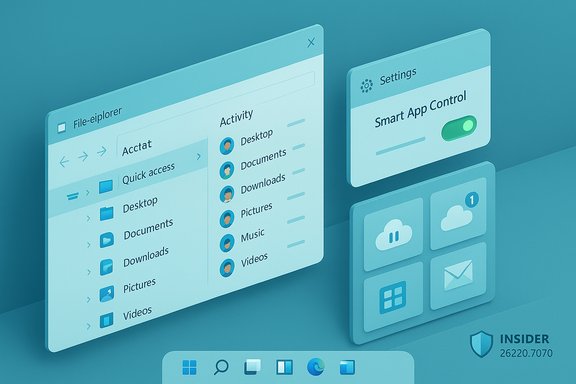
- Re-enables people icons under the Activity column in File Explorer Home (for a subset of Insiders). These avatars make it easier to identify who recently modified a shared file at a glance.
- Temporarily disables backend integrations used by File Explorer, including support for the StorageProvider APIs (used by cloud providers to surface cloud items directly) and the feature that surfaced frequently used and recently downloaded files in the recommended area. Microsoft says those pieces will return once additional reliability testing is complete.
- Updates Smart App Control (SAC) so it can be toggled on or off without requiring a clean OS reinstall; the toggle is exposed in Windows Security > App & Browser Control > Smart App Control settings. This is a behavior change from prior guidance where SAC availability and re-enablement had constraints.
- Widgets: new default dashboard selection, numbered badges on dashboard navigation icons to show alert counts, and more predictable behavior when the live weather card is shown.
- Quick Machine Recovery (QMR) improvements: QMR now runs a one-time scan by default under certain settings and surfaces alternate recovery options faster in Settings and WinRE.
- A collection of incremental reliability and UX fixes (taskbar behavior, File Explorer tab title bolding, Settings hangs, and known issues that Microsoft continues to investigate).
File Explorer: people icons return — and cloud features paused
What changed
- The Activity column in File Explorer Home has had people icons (avatars) re-enabled for some Insiders. These icons are tied to Microsoft 365 identities and are intended to help you quickly see who last modified a shared item without opening properties or switching to an external app. This is a small user-experience gain with outsized practical value in shared workspaces.
- At the same time, Microsoft has temporarily disabled certain backend integrations:
- StorageProvider APIs that let cloud providers integrate more deeply with File Explorer (e.g., richer inline cloud metadata, on-demand placeholders, and direct sync controls).
- The frequently used and recently downloaded file recommendations in File Explorer’s home area are also temporarily turned off while Microsoft completes reliability testing.
Why it matters
- The people icons are a clear productivity enhancement: in collaboration-heavy environments you no longer need to open the file’s details or check the version history to identify the last editor. That reduces friction for quick triage and handoffs in teams.
- Pulling the StorageProvider API integration and recommendation surfaces is conservative but pragmatic. Those features rely on a broad variety of cloud backends, OAuth flows, and background sync logic; flakiness there can produce data-surface mismatches, incorrect sync states, or excessive network/CPU activity. Temporarily pulling them reduces the blast radius while additional validation continues.
Practical impact and testing checklist
- If your workflow relies on seeing who edited a file straight in Explorer, verify whether your machine received the people icons (this is staged — not everyone will see it). Confirm by opening File Explorer Home and looking at the Activity column in the recommended/Shared areas.
- If you use OneDrive, SharePoint, or third-party cloud providers, test common flows:
- Do cloud files still show correct placeholders or errors?
- Are file thumbnails and metadata consistent between Explorer and the cloud web UI?
- Do sync clients report any unusual activity spikes?
- For enterprise admins: check any Group Policy or MDM provisioning that expects StorageProvider behaviors; be prepared for discrepancies while Microsoft revalidates the integration.
Smart App Control (SAC): toggle without a clean install — what changed and why it matters
The behavior change
- KB5070300 introduces an update that allows Insiders to turn Smart App Control on or off without performing a clean Windows installation. The toggle appears in Windows Security > App & Browser Control > Smart App Control settings. Microsoft frames this as making SAC more manageable for testing and deployment scenarios.
Context: what SAC used to be
- Official Microsoft guidance earlier described SAC as a feature that is evaluated and enabled primarily on clean installs of Windows 11, with certain telemetry and diagnostic prerequisites; re-enabling SAC after it was turned off typically required a reset or reinstallation in earlier guidance. That guidance remains available in Microsoft’s support FAQ and explains the reasons for those constraints (ensuring a clean baseline before SAC enforces stricter application controls).
Why the change is meaningful
- Allowing SAC to be toggled without reinstalling reduces friction for testers, developers, and IT teams who want to trial or troubleshoot SAC without rebuilding machines.
- Operationally, this makes SAC suitable for a wider set of pre-deployment validations: an admin can now flip SAC to test the organization’s app compatibility or to respond to a false positive without the overhead of reinstalling the OS.
Security trade-offs and recommended approach
- SAC is designed to block untrusted or potentially harmful apps. Giving administrators a quick toggle helps with testing but also lowers a safeguard that previously required a more deliberate action (reinstallation) to alter.
- Recommended approach:
- Evaluate SAC in a test environment before toggling on in production.
- Keep endpoint telemetry and App & Browser Control logging enabled while testing to capture any blocked app events.
- Use managed deployment tools and Group Policy / Intune policies to coordinate SAC behavior across fleets.
- Note: Microsoft’s support documentation still contains the historical constraints and caveats about SAC availability and behavior; the new toggle is a policy/UX change and you should treat it as such while Microsoft completes broader documentation updates. Treat this as a policy change in flight — verify on your target systems before broad rollout.
Widgets and Quick Machine Recovery — small but practical UX fixes
Widgets
- Widgets get modest polish: a full-page Widgets Settings UI to set a default dashboard, numbered badges on dashboard icons to indicate unread alerts, and more predictable opening behavior (e.g., when live weather content is present the board opens to the first dashboard rather than the most recently used one). These are low-risk, high-usability changes that make Widgets a more predictable glance surface.
Quick Machine Recovery (QMR)
- QMR has been refined to run a one-time scan by default in certain configurations (e.g., when QMR and “automatically check for solutions” are both enabled), and to surface alternate recovery options faster in Settings and WinRE. This reduces noisy, looping repair attempts and speeds diagnostics when an immediate fix isn’t available. For testers and IT pros this is a tangible reliability improvement.
Known issues and reliability notes
KB5070300 ships with a handful of known issues that Insiders should weigh before installing on primary devices:- Some Insiders report that the Start menu may not open on click (the Windows key still works). Microsoft is investigating this issue.
- System tray apps may not always appear reliably for some Insiders, and File Explorer copy/move progress dialogs can show visual glitches in Dark mode.
- A new Recall camera eligibility issue is being tracked (some devices report ineligible cameras when one is present).
- Because the update is delivered to both Dev and Beta Channels during the parity window, some features will be staged and may not appear unless your device was selected by Microsoft’s controlled rollout. Check Settings > Windows Update and Flight Hub for authoritative mapping for your device.
Verification and cross-checks
- Microsoft’s Insider channels have historically documented the people icons and related File Explorer work in multiple build notes, and the recent re-enabling is consistent with that history (see earlier Beta/Dev announcements that introduced people icons and persona cards). Where possible, verify the feature by checking File Explorer Home for the Activity column and live persona cards.
- Microsoft’s published SAC FAQ still describes SAC as primarily enabled on clean installs and subject to evaluation criteria; KB5070300’s change is therefore a notable deviation from that operational baseline and should be validated before broad use.
- Community summaries and Insider communications reflect the KB5070300 mapping to Build 26220.7070 and the feature notes; however, because Flight Hub and Windows Update toggles control who gets which feature, verify directly on target endpoints.
- Open Settings > Windows Update and view update history. The cumulative preview will appear as KB5070300 when installed.
- Run winver.exe to confirm the build: you should see a 26220.xxxx build string once the update is applied.
- If a feature is staged, enabling the insider toggle “Get the latest updates as they are available” increases your chance of exposure, but does not guarantee it because of server-side gating.
Practical guidance for Insiders, power users, and admins
- For Insiders who want the people icons: enable the Insider toggle and confirm the build in Settings > Windows Update. If the icons do not appear, the feature is simply not staged for your device yet.
- For IT administrators:
- Treat KB5070300 as an Insider preview package — don’t deploy it broadly in production without testing.
- If you rely on StorageProvider integrations (OneDrive / third-party cloud providers), test critical sync and file access flows in a controlled environment: the StorageProvider API integration may be temporarily disabled and could change behavior while Microsoft completes validation.
- For SAC: review policy and compliance implications before enabling SAC across managed devices. Because KB5070300 modifies the re-enablement behavior, update deployment playbooks and change-control documentation accordingly.
- For power users:
- If you rely on frequently used / recently downloaded recommendations in File Explorer, expect those lists to be invisible to some Insiders while Microsoft validates the element; keep local bookmarks as a fallback.
- If you want to toggle SAC for testing, use Windows Security > App & Browser Control > Smart App Control settings to change the setting and observe behavior; keep logs or Defender events enabled to review blocked app events.
Critical analysis — strengths, limits, and risks
Strengths
- The update shows Microsoft iterating on practical ergonomics rather than only aesthetic surface changes. Small touches like people icons and Widgets badges reduce cognitive load and directly improve daily workflows.
- The SAC toggle change reduces management overhead for testing and helps organizations validate compatibility without the heavy-handed step of reinstalling Windows. That lowers friction for adoption and evaluation.
- Microsoft’s conservative approach to temporarily disable StorageProvider integrations suggests a responsible rollout strategy: pulling unstable pieces reduces the risk of end-user data confusion and sync anomalies.
Limitations and risks
- The SAC toggle policy change is a double-edged sword: it makes testing easier but also reduces the deliberate barrier that formerly limited accidental disabling of a security control. That may increase the chance of SAC being turned off on managed devices unless governance is updated. Administrators should adjust policies and monitoring accordingly.
- Because File Explorer cloud features are temporarily disabled, workflows that rely on seamless cloud-native integration (searching cloud content directly from Explorer, frequent recommendation surfaces) could be impacted. Some users may mistakenly believe files are gone rather than temporarily undisplayed; clear user communication is essential.
- The staged rollout model means the user experience depends on Microsoft’s server-side flags and the specific telemetry profile of a device. That variability complicates testing matrices: two identical machines may show different behaviors. Admins should standardize pilot configurations and check Flight Hub mappings where possible.
Unverifiable or in-flight items (flagged)
- Precise return dates for the paused StorageProvider API features are not available in the release notes; Microsoft states the features will return after reliability testing, but an exact timeline was not provided at publication. Treat timelines as tentative and verify directly via Flight Hub and Windows Update for your device. This claim should be treated as "in flight" and is subject to change.
Final takeaway and recommended next steps
KB5070300 (Build 26220.7070) is an incremental but meaningful preview update aimed at improving everyday ergonomics (File Explorer and Widgets), making Smart App Control management more flexible, and tightening recovery workflows. The most actionable items:- Verify whether your device received Build 26220.7070 (KB5070300) by checking Settings > Windows Update and winver.
- If testing SAC behavior, use Windows Security > App & Browser Control > Smart App Control settings and gather logs to evaluate compatibility. Remember the security trade-offs and update change-control documentation accordingly.
- For cloud file workflows, validate key sync scenarios and be prepared for temporary differences while Microsoft validates StorageProvider API behavior.
- Use controlled pilot rings rather than broad deployment and watch Flight Hub and Windows Insider channels for updated release notes and the timeline for re-enabling paused features.
Source: Windows Report KB5070300 Makes it Easier for You to See Who Modified Files in File Manager
