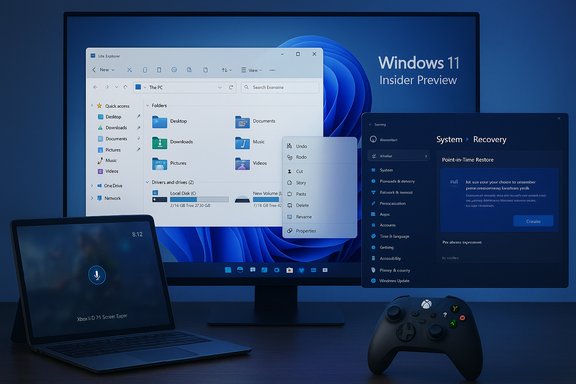
Windows 11 Insider Build 26220 7271: PITR, FSE, and Explorer Refresh

  • Thread Author
Microsoft’s latest Windows 11 Insider preview — Build 26220.7271 (KB5070307) — brings a mix of practical recovery tooling, controller‑first gaming polish, and usability tweaks that aim to reduce friction for both everyday users and IT pros, while also continuing Microsoft’s staged, device‑gated rollout strategy across the Dev and Beta channels.

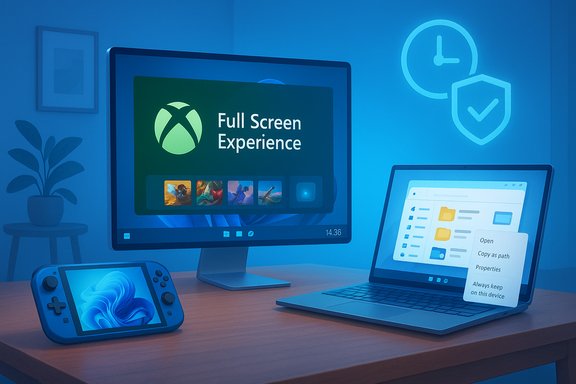
Blue-lit desk setup with a large monitor showing “Full Screen Experience,” plus a laptop and handheld gaming console.Background / Overview​

Microsoft delivered Build 26220.7271 as a matched preview package to both the Dev and Beta channels, part of the Windows 11 version 25H2 enablement stream. That delivery model places the same binary across channels while turning features on selectively by server‑side entitlements, hardware gating, or Insider toggles — which means having the build installed does not guarantee immediate access to every listed feature. The notable items in this flight are:
  • Expansion of the Xbox Full Screen Experience (FSE) to additional PC form factors (laptops, desktops, tablets) as a preview for Insiders and Xbox Insiders.
  • Introduction of Point‑in‑Time Restore (PITR) — a modern, VSS‑backed, short‑term system rollback available from WinRE.
  • A significant File Explorer context‑menu reorganization plus an experimental background preloading option to improve launch performance.
  • Microsoft Store improvements (uninstall Store‑managed apps from the Library), Fluid Dictation for NPU/Copilot+ devices, and a long list of targeted fixes and known issues.
Community discussions are already tracking the build’s practical implications for handheld gaming, IT recovery workflows, and context‑menu clutter; early impressions emphasize the staged nature of the rollout and the need for pilots before broad adoption.

What’s new — deep dive​

Xbox Full Screen Experience (FSE) for PC​

What it is​

The Xbox Full Screen Experience is a session posture — a layered, controller‑first shell that promotes the Xbox PC app to the device’s home surface and intentionally defers non‑essential desktop ornamentation and background processes to provide a console‑style UX. It does not alter kernels, drivers, or anti‑cheat/DRM fundamentals; it changes what userland components load at session start to reduce UI noise and reclaim user‑space resources.

How to access it (preview path)​

  • Join the Xbox Insider Program and opt into PC Gaming previews.
  • Join the Windows Insider Program (Dev or Beta channels while the matched window is open).
  • Update to Build 26220.7271 and install (or update) the Xbox PC app from the Microsoft Store.
  • Enable under Settings → Gaming → Full screen experience and choose Xbox (or another supported app) as the home app. Entry/exit is also possible via Task View, Game Bar, or Windows + F11.

Benefits​

  • Cleaner, controller‑friendly interface for small screens and living‑room setups.
  • Aggregated library view that surfaces Game Pass, Xbox purchases, and discovered titles from other storefronts.
  • Practical resource wins on tuned handhelds where deferring Explorer ornamentation can free RAM and reduce idle CPU wakeups — independent hands‑on reports have observed directional gains (often described in the ballpark of 1–2 GB on some devices), though results vary by device and setup.

Caveats & known issues​

  • The rollout is phased and entitlement‑gated; not every Insider will see the toggle immediately.
  • Some apps that assume fixed window sizes or spawn multiple windows may behave unexpectedly in FSE; Microsoft flags app compatibility as an active area of testing.
  • A current preview bug prevents the virtual keyboard from appearing for controller users on non‑touch devices — the physical keyboard is the workaround for now. This is documented in the build notes as a known issue.
Bottom line: FSE is a welcome, sensible evolution for controller‑first sessions and handhelds, but it’s a staged feature that benefits from OEM tuning and validation. Test on non‑critical hardware and expect device‑dependent outcomes.

Point‑in‑Time Restore (PITR)​

What PITR does​

Point‑in‑Time Restore is a modern, VSS‑based snapshot and recovery mechanism that captures periodic, full‑system restore points and enables fast rollback from the Windows Recovery Environment (WinRE). Microsoft positions PITR as a fast‑recovery layer — faster than reimaging and more comprehensive than classic System Restore — targeted at rolling back recent problematic updates, drivers, or misconfigurations.

Key technical specifics (preview defaults)​

  • Restore cadence: default every 24 hours (configurable; preview options include more frequent intervals).
  • Retention: restore points retained up to 72 hours by default in preview; older points are purged automatically.
  • Storage usage: preview exposes a configurable maximum VSS usage (default often cited as a percentage of disk with minimums; e.g., a 2%/2 GB minimum rule in preview docs).
  • Scope: restore points capture OS, apps, settings, and local files on the MainOS volume; cloud data (e.g., OneDrive) is not altered. Restores are initiated from WinRE and require BitLocker recovery keys on encrypted devices.

Practical implications​

  • PITR reduces Mean Time to Repair for many common failure modes and is especially useful for help desks and power users who need a fast rollback without full reimaging.
  • It is not a replacement for external backups — PITR can be destructive to any changes made after the selected restore point; local files modified post‑snapshot can be lost.
  • Enterprise management and remote triggering were not included in the earliest preview; Microsoft has signaled management integration intentions but admins should plan external backups and BitLocker key access before relying on PITR in production.
Security note: Restoring to a previous point will roll back security updates and policies as well; validate post‑restore remediation steps in any managed environment.

File Explorer: context menu redesign & preload experiment​

What changed​

Microsoft reorganized the File Explorer right‑click menu to reduce clutter and surface the most relevant actions more efficiently:
  • Frequently used actions such as Compress to ZIP, Copy as Path, Set as Desktop Background, and image rotations are moved to a new Manage file flyout.
  • Cloud provider options like Always keep on this device and Free up space are grouped under provider‑specific flyouts.
  • Send to My Phone and Open Folder Location were moved to more logical positions (closer to cloud entries and Open/Open with respectively).

Preloading File Explorer​

Microsoft is experimenting with background preloading of File Explorer to improve launch speed. A user‑toggle is available (Folder Options → View → “Enable window preloading for faster launch times”) so Insiders can disable the behavior if desired. Microsoft requests feedback through the Feedback Hub under File Explorer performance.

Why it matters​

  • Right‑click menu fat causes friction for power users and newcomers alike; grouping low‑frequency actions reduces visual noise and makes common commands easier to find.
  • Preloading can meaningfully reduce first‑launch latency for Explorer on some systems, but preloading uses system resources (RAM, preloaded UI threads), which could be undesirable on very constrained machines.
Practical caveat: The exact labels (“Manage file”) or menu placement may change during Insider flights; Microsoft often iterates on wording and placement before general release.

Microsoft Store: uninstall from Library​

The Microsoft Store’s Library page now includes an uninstall option for Store‑managed apps, streamlining app removal without opening Settings. This simplifies app management for users and admins who handle Store‑provisioned apps and reduces the friction of hopping between the Store and Settings to uninstall items. Admins should still verify store‑side management rules and provisioning behavior before relying on Library uninstall as a policy mechanism.

Fluid Dictation and on‑device models​

Microsoft extended Fluid Dictation — which uses on‑device small language models (SLMs) — to Voice Typing for NPU/Copilot+ devices, providing real‑time punctuation, grammar clean‑up, and filler‑word suppression. This reflects Microsoft’s continued push for on‑device AI inference to improve responsiveness and privacy for input features. Availability is device and hardware gated.

Fixes and known issues (high level)​

Build 26220.7271 bundles a range of reliability fixes across the taskbar, Settings, Display, Task Manager, and .NET/Visual Studio ARM64 crash scenarios. Notable fixes include addressing a taskbar hang caused by certain notifications and resolving Settings crashes when navigating Privacy & Security → Camera/Location/Microphone. Known issues documented by Microsoft include the virtual keyboard behavior in FSE, File Explorer UI flashes for some Insiders, Start menu not opening for some users on click (works with Win key), and Bluetooth battery level not showing for some devices. Testers should consult the full release notes in Settings → Windows Update → Release notes for the complete list.

Critical analysis — strengths, risks, and real‑world impact​

Strengths and practical wins​

  • Meaningful recovery tooling. PITR directly addresses a frequent support scenario: the need to roll back a machine quickly after a bad update or driver change. The fact that PITR is integrated into WinRE and configurable in Settings gives administrators and help desks a fast, local remediation path that can often avoid imaging.
  • Cleaner UX for a noisy desktop. The File Explorer context‑menu rework and Store Library uninstall are small but collectively valuable improvements that remove friction from everyday workflows.
  • Console‑style gaming posture on PC. FSE is a pragmatic solution for controller‑first use cases and handhelds; by deferring irrelevant desktop services, it offers a tangible user‑experience improvement without forking the platform.
  • On‑device AI where it makes sense. Fluid Dictation’s focus on local inference reduces latency and privacy exposure versus cloud speech models, which is valuable for users working with sensitive text or in low‑latency contexts.

Risks, caveats, and operational considerations​

  • Staged rollouts complicate testing. Because Microsoft gates feature visibility, two identical devices may behave differently on the same build. IT pilots must validate capabilities on every hardware SKU and be cautious about blanket assumptions when planning deployments.
  • PITR’s limits and data‑loss risk. PITR is a destructive rollback for changes after the restore point — it is not a substitute for backups. Organizations should retain external backups, maintain BitLocker recovery key management, and test restore behavior thoroughly before trusting PITR for business‑critical endpoints.
  • FSE compatibility hazards. Controller‑first sessions are a different interaction model; apps expecting free‑form windowed workflows may break. Additionally, unofficial registry or community hacks that force FSE onto unsupported devices can lead to unstable experiences and are not supported.
  • Performance claims are device‑dependent. Numbers quoted in early coverage (e.g., ~1–2 GB of RAM reclaimed) are observational and contingent on installed services, OEM tuning, and workloads. Treat those figures as directional rather than guaranteed wins.

Recommendations (for enthusiasts, IT pros, and administrators)​

  • Join the Insider + Xbox Insider programs only on test or non‑critical hardware if you intend to explore FSE or PITR before general availability.
  • Pilot PITR in a controlled lab:
  • Verify restore cadence, retention, and VSS space limits.
  • Test a full restore flow from WinRE, including BitLocker recovery scenarios.
  • Maintain external backups of critical data before enabling PITR.
  • Document remediation steps to re‑apply critical security updates post‑restore.
  • Evaluate FSE on handhelds or living‑room PCs that are explicitly supported by OEMs; avoid community unlocks on production devices.
  • For File Explorer preloading, enable the experiment on machines with adequate free RAM; if you encounter increased memory pressure, disable it via Folder Options → View.
  • Track feature visibility using telemetry and Microsoft’s Controlled Feature Rollout behavior; do not assume universal availability across a fleet.

Step‑by‑step: how to try the headline features safely​

  • Create a full system backup (image or cloud) for any device you plan to use for testing.
  • Enroll the device in Windows Insider (Dev or Beta while builds are matched) and install Build 26220.7271 (KB5070307).
  • For the Xbox Full Screen Experience:
  • Join Xbox Insider → PC Gaming preview.
  • Update the Xbox PC app via Microsoft Store.
  • Settings → Gaming → Full screen experience → choose Xbox as the home app.
  • For Point‑in‑Time Restore:
  • Confirm PITR is present under Settings → System → Recovery → Point‑in‑time restore.
  • Review and adjust the restore cadence, retention, and max VSS usage to match your test goals.
  • Initiate a test restore from WinRE and validate post‑restore integrity and update behavior.

Community and early reaction​

Community threads and forum commentary are echoing the official notes: Insiders appreciate PITR and the cleaner Explorer menus, while hobbyists are experimenting with FSE on a wider variety of devices. The staged rollout approach and known preview bugs are prominent themes shared across discussions. Those community observations underscore the point that feature presence and quality still depend on OEM entitlements and Microsoft’s staged enablement.

Final assessment​

Build 26220.7271 (KB5070307) is one of the more pragmatic Insider flights in recent memory: it pairs immediate, user‑visible productivity and management wins (File Explorer cleanup, Store uninstall, Fluid Dictation) with infrastructural improvements that matter for reliability at scale (Point‑in‑Time Restore) and a significant UX experiment in gaming posture (Xbox Full Screen Experience). The overall direction is sensible — modernize recovery, declutter daily workflows, and provide a controller‑first mode without forking Windows.
That said, the value of this build depends heavily on careful rollout and testing:
  • For power users and testers, it is worth installing on spare machines and providing feedback via the Feedback Hub.
  • For IT administrators and production fleets, the prudent approach is measured piloting, retention of external backups, and conservative adoption until management controls and broader GA guidance are available.
This flight is a clear example of Microsoft’s enablement‑style strategy: ship the binary broadly, then unlock scenarios selectively while gathering telemetry and feedback. For readers evaluating whether to test the new features now, the two operating principles should be: back up first and pilot conservatively.
Conclusion
Build 26220.7271 marks another incremental but meaningful step in Windows 11’s evolution: practical recovery via PITR, a streamlined File Explorer and Store experience, expanded controller‑first gaming with FSE, and more capable on‑device dictation. The features are thoughtfully scoped and generally useful — but they are also gated, device‑sensitive, and in a preview state. For enthusiasts and administrators alike, the advice remains the same: test rigorously, keep reliable backups, and apply feature toggles selectively while Microsoft continues to iterate in the Insider channel.
Source: BetaNews Microsoft releases Windows 11 Insider Preview Build 26220.7271 with new context menu, Xbox full screen experience for PC and more
 

Microsoft’s latest Insider preview—Windows 11 Insider Preview Build 26220.7271 (KB5070307)—arrives as a quiet workhorse update: modest on spectacle but significant in scope, bringing targeted File Explorer refinements, a modern Point‑in‑Time Restore recovery option, expanded Xbox integration, and smarter on‑device dictation. This matched release to both the Dev and Beta channels is part of Microsoft’s 25H2 enablement strategy and is being gate‑released to Insiders based on hardware, entitlements, and staged server flags, so availability may differ across identical devices.

Windows 11 Insider Preview desktop setup with a laptop, overlay window, and Xbox controller.Background / Overview​

Windows 11’s development cadence has shifted from monolithic feature upgrades to smaller enablement packages and staged rollouts. Build 26220.7271 is a representative example: the same binary is being delivered to multiple Insider channels while features are selectively unlocked by Microsoft through controlled feature rollouts, OEM entitlements, and hardware gating. That means installing the KB does not guarantee immediate access to all features; some capabilities remain server‑side gated or require additional components such as Copilot+ hardware or the Xbox Insider entitlement.
This flight prioritizes three practical themes:
  • Resiliency and recovery tooling for faster repair and lower downtime.
  • Everyday productivity and usability improvements (File Explorer, Store).
  • Continued crossover of console‑style gaming UX into PC scenarios (Xbox Full Screen Experience).
Below is a verified, hands‑on breakdown of each headline change, what to expect during preview, operational caveats, and practical guidance for enthusiasts and IT pros.

What landed in Build 26220.7271 (KB5070307)​

Headline features at a glance​

  • Point‑in‑Time Restore (PITR): a new short‑term rollback available from WinRE and Settings that captures recent system snapshots to rewind a device to a precise prior state.
  • File Explorer refinements: context‑menu reorganization to declutter the right‑click menu plus an experimental background preloading option to reduce first‑launch latency.
  • Xbox Full Screen Experience (FSE) expansion: controller‑first, console‑style shell for more Windows 11 PC form factors (handhelds, laptops, tablets, desktops) with entry points via Task View, Game Bar, or Win + F11.
  • Fluid Dictation: improved on‑device voice typing (real‑time punctuation, filler‑word suppression) targeted at NPU/Copilot+ devices.
  • Microsoft Store tweaks: faster app updates, better curation, and the ability to uninstall Store‑managed apps directly from the Library page (requires a recent Store version).
Each of these is intentionally scoped and staged; the release reads as refinement rather than revolution. The cumulative effect, however, is significant—especially for testers, help desks, and power users who juggle productivity and repair workflows.

File Explorer: declutter, preload, and practical impact​

What changed in the context menu​

The right‑click menu has been reorganized to reduce top‑level clutter. Frequently used commands like Open, Open with, and Open folder location are prioritized, while less‑used actions (Compress to ZIP, Copy as path, Set as desktop background, Rotate) are moved into a new Manage file flyout. Cloud‑provider actions such as OneDrive’s Always keep on this device are grouped into provider‑specific submenus, and Send to My Phone is repositioned closer to cloud entries for better logical grouping. The goal is to reduce visual noise and speed common tasks for both consumers and enterprise users.

Experimental preloading: what it likely does​

The experimental preload feature instantiates core File Explorer UI objects and caches visual elements in the background so that the first interactive launch appears near‑instant. Engineering analysis indicates the preload likely:
  • Initializes explorer.exe UI components and ribbon/command bars.
  • Builds thumbnail and preview caches for common file types.
  • Registers a subset of shell extension handlers so context actions respond faster.
    These steps trade a modest background memory footprint for a lower click‑to‑interactive latency—useful on machines where immediate responsiveness matters. The preload is user‑toggleable and can be disabled in Folder Options → View via “Enable window preloading for faster launch times.”

Practical pros and cons​

  • Benefits: faster perceived File Explorer launches, cleaner right‑click menus, and better grouping of cloud actions for discoverability—small wins that compound for power users.
  • Risks: third‑party shell extensions may surface differently or encounter timing regressions, and users with tight memory budgets (e.g., older laptops) may see higher idle RAM use when preloading is enabled. Admins should test shell integrations and extension behavior in a controlled ring.

Point‑in‑Time Restore (PITR): modern rollback for faster recovery​

What PITR claims to deliver​

PITR is framed as a modern, short‑term snapshot mechanism that uses Volume Shadow Copy Service (VSS) to capture system state—including OS, apps, settings, and some local files—so a device can be rolled back to a precise timestamp from WinRE or Settings. The feature is intended to act as a rapid remediation tool for regressions caused by driver updates, bad patches, or configuration errors. Preview notes and community testing report that PITR is surfaced under Settings → System → Recovery and in WinRE under Troubleshoot → Point‑in‑time restore for qualifying Insiders.

Defaults, limits, and operational caveats​

Early preview reporting indicates conservative defaults designed to protect disk capacity while providing quick restores:
  • Retention window: preview builds have shown short retention defaults (commonly reported as ~72 hours), though this is configurable in later releases.
  • Disk usage cap: snapshots are capped by default (early reports cite an observed 2% of disk capacity heuristic, subject to configurable limits); administrators will need to align caps with corporate backup policies.
  • Availability gating: PITR appears automatically on many Home/Pro preview devices that meet storage thresholds, but managed/enterprise environments will require Intune/MDM policy controls for cadence and retention when the feature reaches broader channels.
Important operational notes: PITR is not a replacement for off‑device backups. Restoring to a point can overwrite files created after that timestamp; organizations must continue to enforce external backup, DLP, and BitLocker recovery key management. The feature is best used as a fast remediation layer—paired with robust external backups for business‑critical data.

Recommended testing and validation​

  • Create a full system image backup before enabling PITR on test devices.
  • Validate default retention and disk use on hardware representative of your fleet.
  • Perform full rollback tests from WinRE and verify the behavior of security tooling (antimalware signatures, BitLocker, and MDM policies post‑restore).
  • Document re‑application steps for cumulative security updates after a rollback.

Fluid Dictation: on‑device voice typing moves forward​

What to expect​

Fluid Dictation improves Windows Voice Typing by using on‑device small language models (SLMs) to clean up punctuation, grammar, and filler words in near‑real time. The feature is aimed primarily at devices with NPUs or Copilot+ hardware, where on‑device inference reduces latency and avoids round‑trip cloud processing. Accessibility users and hybrid workers stand to benefit from faster, more fluid dictation integrated with Notepad, Word, and other input surfaces.

Performance and limitations​

Early Insider reports indicate smoother performance on mid‑range hardware, but specialized vocabularies or domain‑specific language (e.g., medical or legal jargon) still lag behind dedicated dictation suites that rely on extensive, domain‑tuned models. Privacy considerations should be evaluated: while on‑device processing reduces cloud exposure, some scenarios may still route data to cloud services depending on settings and feature telemetry—Insiders and IT admins should review privacy controls.

Xbox Full Screen Experience (FSE): console posture on PC​

The UX and the technical tradeoffs​

FSE is a session posture that promotes the Xbox app as a full‑screen home surface with controller‑first navigation, reduced desktop chrome, and deferred non‑essential background tasks to reclaim user‑space resources. It is accessible via Task View, the Game Bar, or the Win + F11 shortcut when available, and Settings → Gaming → Full screen experience exposes controls to enable Xbox as the home app. The mode is designed for handhelds and living‑room PCs but is being previewed on a broader set of PCs.

Empirical gains and compatibility caveats​

Hands‑on reports show directional memory savings on tuned handheld devices—often observed in the range of ~1–2 GB of reclaimed RAM on some configurations—but results vary substantially across devices, driver quality, overlays, and background services. Compatibility remains the primary caveat: apps that expect resizable windowing or spawn child windows may behave unexpectedly in FSE, and some previewed devices report virtual keyboard behavior issues on non‑touch machines when driven by a controller. These are active areas of investigation in the Insider notes.

Who should try FSE​

  • Enthusiasts and handheld owners who want a console‑like experience for Game Pass titles.
  • Living‑room PCs where a controller is the primary input.
    Do not enable FSE on production workstations or devices that run critical multi‑window workflows until app compatibility is validated.

Microsoft Store, Cross‑Device Resume, and continuity features​

Microsoft Store refinements​

The Store sees incremental but useful changes: faster app updates, improved curation, and the ability to uninstall Store‑managed apps directly from the Library page (requires a recent Store build). This small usability improvement reduces friction when managing Store apps and aligns with efforts to make the Store a more viable alternative to third‑party repositories.

Cross‑Device Resume and Phone Link integrations​

KB5070307 also expands Cross‑Device Resume capabilities between Android phones and Windows PCs, allowing handoff of certain app activities (browsing, Copilot file resume) from supported phones to desktop handlers. The underlying Continuity SDK and Phone Link plumbing enable these scenarios, but Microsoft is gating feature visibility and onboarding developers through a limited access process. IT teams should pilot before enabling broadly due to potential privacy or data exposure considerations.

Verification, independent reporting, and what we can confirm​

Key claims in Microsoft’s preview notes and early coverage align across multiple independent outlets: the matched Dev/Beta build release, the presence of PITR and Fluid Dictation in preview, Xbox FSE expansion, and File Explorer experiments are corroborated by community reporting and multiple news outlets covering Windows Insider posts. Independent community tests and hands‑on articles have reported memory savings in FSE and preprocessing behavior in Explorer preload experiments, but they consistently caution that these numbers are device‑specific and observational rather than guaranteed platform metrics. Where specific numeric defaults (e.g., retention windows or disk caps) are cited in preview coverage, they should be treated as provisional and subject to change before general availability.
Flagged or unverifiable claims:
  • Reports of specific thresholds (for example, a 200 GB free‑space trigger to enable PITR automatically) have appeared in early hands‑on threads, but these should be considered unverified preview observations until Microsoft publishes definitive system requirements or admin policy documentation. Treat such claims cautiously and validate in your test environment.

Risks, enterprise considerations, and deployment advice​

Risks and known issues​

  • Staged rollouts make fleet assumptions risky: Two identical devices may expose different features under the same build number because of Microsoft’s entitlement gating. Pilot on representative hardware.
  • PITR is not a substitute for backups: Restores can overwrite post‑snapshot files; organizations must maintain external backups and test rollback + recovery sequences.
  • Compatibility hazards for FSE and Explorer changes: Controller posture and new UI groupings expose apps and shell extensions to potential regressions; test critical applications and third‑party extensions thoroughly.

Operational recommendations (IT pros)​

  • Pilot PITR and FSE in isolated test rings before broad deployment.
  • Maintain external, off‑device backups and BitLocker key management prior to enabling PITR.
  • For File Explorer preloading, enable only where memory overhead is acceptable and provide a Group Policy or MDM control to disable if needed.
  • Track feature visibility via telemetry and Controlled Feature Rollout signals; do not assume uniform availability.

How to try the features safely (step‑by‑step)​

  • Create a full system image or external backup of any device you’ll use for testing.
  • Enroll the test device in Windows Insider (Dev or Beta while builds are matched) and update to Build 26220.7271 (KB5070307).
  • For Xbox Full Screen Experience: join Xbox Insider → opt into PC Gaming preview → update the Xbox PC app → Settings → Gaming → Full screen experience → choose Xbox as the home app. Entry via Task View, Game Bar, or Win + F11.
  • For PITR: check Settings → System → Recovery for Point‑in‑time restore and test a restore from WinRE to validate retention, BitLocker behavior, and post‑restore update workflows.
  • For File Explorer preload: open Folder Options → View and toggle “Enable window preloading for faster launch times” to experiment with perceived launch latency vs memory overhead.

Final assessment — why this matters​

Build 26220.7271 is emblematic of Microsoft’s current Windows strategy: ship a shared binary and enable features selectively while iterating fast on user‑facing polish and platform resiliency. The build contains pragmatic improvements that reduce friction in everyday workflows (a cleaner File Explorer, simpler Store management, smarter dictation) and introduces recovery tooling (PITR) that can materially reduce repair time for both consumers and managed fleets. The Xbox Full Screen Experience is a deliberate UX experiment to bring console posture to PC gaming and complements Microsoft’s push to blur the lines between PC and Xbox ecosystems.
For power users and enthusiasts, the update is worth exploring on non‑critical machines. For IT teams and administrators, the prudent path is conservative pilot deployments, validated backup policies, and careful testing of compatibility with enterprise applications and shell extensions. The build’s staged nature means that the ultimate value and behavior of these features will continue to crystallize as Microsoft collects Insider telemetry and addresses preview issues.

Conclusion​

Windows 11 Insider Preview Build 26220.7271 (KB5070307) is less about headline drama and more about practical momentum: targeted UX polish, stronger recovery primitives, and further convergence of Xbox and Windows experiences. The changes are thoughtful and focused, but their staged rollout, device sensitivity, and preview caveats mean that their true impact will be realized through careful testing and measured adoption. For those managing devices at scale, the message is straightforward—back up first, pilot conservatively, and treat these features as useful tools to add to your toolkit rather than immediate turnkey solutions.

Source: WebProNews Windows 11 Insider Build 26220.7271: File Explorer Tweaks, Xbox Upgrades
 

Back
Top