

Microsoft’s latest Windows 11 Insider work adds three File Explorer refinements in June 2026: middle-click tab opening from more locations, clearer screen-reader announcements in file conflict dialogs, and better behavior when users increase system text size. This is not a reinvention of Explorer, and that is precisely the point. After years of Windows 11 interface churn, Microsoft is now doing the less glamorous work of making the shell feel less like a migration project and more like a daily tool. The changes are small enough to miss in a changelog, but they land directly on the places where users actually lose time.
File Explorer tabs have always carried an implicit promise: the Windows file manager should behave more like the software people already use all day. Browsers taught users that middle-click means “open this elsewhere without destroying what I am doing now.” Explorer has been inching toward that model for years, but the experience has remained uneven depending on where the folder lived in the interface.
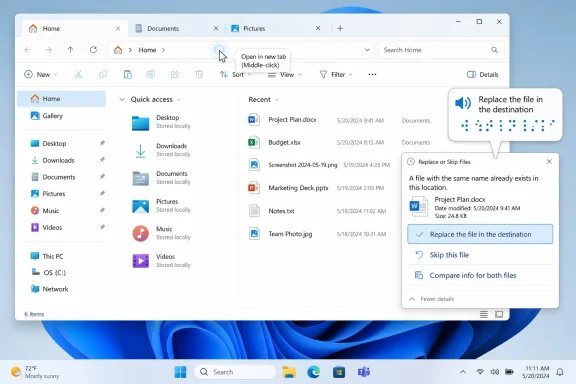
The latest Insider change matters because it extends that expectation to the Address Bar and the Home page. A folder shown in those locations can now be middle-clicked into a new tab, bringing two high-traffic parts of Explorer closer to the tab behavior users already expect from browsers and from other parts of the shell.
That sounds pedestrian until you think about the way many Windows users actually work. A developer jumps between a source tree, a build folder, a downloads directory, and a mounted network share. A photographer compares exports, RAW files, and cloud-synced folders. A sysadmin moves between logs, deployment media, scripts, and user profile directories. In each case, preserving the current folder while opening another is not a luxury; it is the basic unit of not losing your place.
The old Windows answer was usually another window. The newer Windows answer is increasingly a tab. Microsoft’s challenge is making that answer consistent enough that users do not have to remember which region of File Explorer supports which gesture.
That is why this File Explorer change is more than a convenience tweak. It closes a gap between the presence of tabs and the muscle memory of tabbed navigation. Right-clicking and choosing “Open in new tab” is functional, but it is not flow. Middle-clicking is a decision made in motion.
Microsoft has sometimes struggled with this distinction in Windows 11. The operating system’s early redesigns often prioritized visual simplification, sometimes at the cost of well-worn workflows. The context menu is the most obvious example: cleaner, yes, but initially less complete and more disruptive for users who relied on dense command access. File Explorer tabs followed the same pattern in miniature, arriving as a welcome modernization but not always matching the expectations they created.
The new behavior suggests Microsoft understands that tabs cannot be half a metaphor. If Explorer looks and feels partly like a browser, then users will judge it by browser rules. The middle-click convention is one of those rules.
Adding middle-click tab opening from Home acknowledges that users often begin a file task from that page, not from a carefully navigated directory tree. If Home surfaces the folder you need, opening it in a new tab should be as direct as opening a search result in a browser. Anything else turns Home into a prettier shortcut panel rather than a proper workspace.
The same logic applies to the Address Bar. Breadcrumbs are not just informational; they are navigational controls. If a parent folder appears there, a power user reasonably expects to branch into it without abandoning the current location. The new middle-click behavior makes the breadcrumb trail more useful as an active map of the file system.
This is where the update has its sharpest practical edge. File Explorer’s modern interface has sometimes been accused of using more space to provide fewer affordances. Giving existing interface elements richer behavior is one way to answer that criticism without adding more chrome.
Microsoft says the dialog now provides improved announcements for assistive technologies. That matters because file conflicts are not low-risk prompts. Choosing the wrong option can overwrite work, preserve the wrong version, or leave a folder in a state that the user does not intend. Accessibility here is not about polish; it is about agency.
Windows has made real progress in accessibility, especially with Narrator, live captions, voice access, and broader settings for visual comfort. But the operating system is only as accessible as its old corners. File Explorer is full of old corners. Dialogs that date back conceptually to earlier Windows eras still sit in the middle of modern workflows, and assistive technology has to bridge both worlds.
Improving the “Which files do you want to keep?” experience is a reminder that accessibility work often happens in the least glamorous windows. It is easier to market a new AI feature than a better spoken announcement in a duplicate-file prompt. But for users who rely on screen readers, the latter can be the difference between independence and friction.
File Explorer is particularly vulnerable because it is dense by nature. It contains navigation panes, command bars, tabs, breadcrumbs, search fields, file lists, metadata panes, status areas, and dialogs. A layout that looks clean at default text size can become cramped when the user chooses readability over Microsoft’s preferred proportions.
Better support for increased text scaling is therefore less about making words bigger and more about making the interface resilient. A truly modern shell should not punish users for using the accessibility settings the operating system provides. If Windows encourages users to customize readability, its first-party apps must not treat that customization as an edge case.
This is also relevant beyond traditional accessibility categories. High-resolution laptop displays, ultrawide monitors, aging eyes, remote desktop sessions, and multi-monitor setups all change what “comfortable” text looks like. A file manager used by hundreds of millions of people cannot assume one visual baseline.
The operating system does not suffer from a lack of ambition. If anything, Windows 11’s most controversial years came from too much ambition applied unevenly: redesigned shell components, new system requirements, revised taskbar behavior, a simplified context menu, new Settings pages, cloud hooks, Microsoft account nudges, and AI integration layered into more corners of the experience. Many of those moves had defensible goals, but users often felt the cost before they felt the benefit.
File Explorer sits at the center of that tension. It is one of the most-used Windows components, but also one of the hardest to modernize without angering people. Every pixel carries decades of muscle memory. Every removed option looks like regression to someone. Every added animation can feel like delay to a user who spends the day moving files.
That is why quality-of-life changes matter disproportionately. They signal a phase of product maturity where Microsoft is not merely asking users to accept a new design language, but is filling in the behavioral details that make that design livable.
That distinction matters for administrators. Consumer enthusiasts may jump channels to try a new Explorer behavior, but enterprise IT has to think in terms of deployment rings, cumulative updates, support windows, and help-desk predictability. A small Explorer behavior change can still affect training materials, accessibility validation, and user expectations.
The middle-click feature is unlikely to break a fleet, but it does change the navigation model in a visible way for users who already rely on tabs. The accessibility improvements are more straightforwardly beneficial, though they still deserve testing with the screen readers and workflows an organization actually supports. Text scaling changes should likewise be checked against custom shell extensions, line-of-business file locations, and remote environments.
For most organizations, the right reaction is not urgency. It is awareness. File Explorer changes tend to arrive as part of the broader Windows servicing stream, and when they do, they become part of everyday support reality almost immediately.
That alignment has been uneven. Windows 11’s Explorer has drawn criticism for sluggishness, wasted space, missing legacy affordances, and the sense that the shell sometimes prioritizes modern appearance over expert speed. Microsoft has addressed some of those issues over time, but the file manager remains a live construction site in a way that can frustrate users who simply want their tools to stop changing.
Still, this particular update points in the right direction. It improves actions that users already understand rather than inventing new ones. It helps assistive technology interpret a consequential dialog rather than adding a decorative accessibility badge. It makes text scaling work better rather than merely offering the setting and hoping the interface survives.
That is the kind of modernization Windows needs more of. Not every improvement has to announce a new era. Some simply need to make the existing era less annoying.
A power user wants to open a folder in another tab without a context menu detour. A screen-reader user wants a conflict dialog to describe the available choices clearly. A low-vision user wants larger text without broken layout. These are different needs, but they share a common demand: the operating system should not make the user negotiate with the interface before doing the task.
This is where Microsoft’s accessibility work and productivity work overlap. Good accessibility often improves software discipline for everyone because it forces the interface to be more explicit, more consistent, and more tolerant of varied use. Good power-user design often improves accessibility indirectly because predictable behavior is easier to learn, automate, document, and support.
File Explorer is a perfect test case because it is both ordinary and mission-critical. It is used by novices and administrators, by keyboard users and mouse users, by people managing vacation photos and people repairing servers. Any improvement that makes Explorer more predictable has a wider blast radius than its changelog entry suggests.
The concrete takeaways are refreshingly practical:
Microsoft’s next challenge is to keep doing this without losing patience and reaching again for spectacle. Windows users have lived through enough redesigns to know that new does not automatically mean better, and File Explorer is too central to be treated as a showcase for experiments alone. If Microsoft can make the shell faster, more consistent, more accessible, and less surprising one Insider build at a time, Windows 11’s most important upgrade may turn out not to be a new feature at all, but the slow restoration of trust in the tools people open every day.
 Microsoft Is Finally Treating File Explorer Like a Browser, Not a Filing Cabinet
File Explorer tabs have always carried an implicit promise: the Windows file manager should behave more like the software people already use all day. Browsers taught users that middle-click means “open this elsewhere without destroying what I am doing now.” Explorer has been inching toward that model for years, but the experience has remained uneven depending on where the folder lived in the interface.The latest Insider change matters because it extends that expectation to the Address Bar and the Home page. A folder shown in those locations can now be middle-clicked into a new tab, bringing two high-traffic parts of Explorer closer to the tab behavior users already expect from browsers and from other parts of the shell.
That sounds pedestrian until you think about the way many Windows users actually work. A developer jumps between a source tree, a build folder, a downloads directory, and a mounted network share. A photographer compares exports, RAW files, and cloud-synced folders. A sysadmin moves between logs, deployment media, scripts, and user profile directories. In each case, preserving the current folder while opening another is not a luxury; it is the basic unit of not losing your place.
The old Windows answer was usually another window. The newer Windows answer is increasingly a tab. Microsoft’s challenge is making that answer consistent enough that users do not have to remember which region of File Explorer supports which gesture.
The Middle Mouse Button Becomes a Quiet Power-User Contract
Middle-click is one of those desktop conventions that never became a headline feature but still defines the difference between casual and fluent PC use. It is not discoverable in the way a button or menu item is discoverable. It works because users learn it once, carry it across applications, and then expect the platform to honor the deal.That is why this File Explorer change is more than a convenience tweak. It closes a gap between the presence of tabs and the muscle memory of tabbed navigation. Right-clicking and choosing “Open in new tab” is functional, but it is not flow. Middle-clicking is a decision made in motion.
Microsoft has sometimes struggled with this distinction in Windows 11. The operating system’s early redesigns often prioritized visual simplification, sometimes at the cost of well-worn workflows. The context menu is the most obvious example: cleaner, yes, but initially less complete and more disruptive for users who relied on dense command access. File Explorer tabs followed the same pattern in miniature, arriving as a welcome modernization but not always matching the expectations they created.
The new behavior suggests Microsoft understands that tabs cannot be half a metaphor. If Explorer looks and feels partly like a browser, then users will judge it by browser rules. The middle-click convention is one of those rules.
Home Is No Longer Just a Landing Page
The Home page in File Explorer has become more important in Windows 11 than the old Quick Access view ever was. It is not merely a list of pinned locations and recent files; it is increasingly Microsoft’s attempt to make Explorer a starting point for local files, cloud files, favorites, recommendations, and organizational content. That makes consistency on Home especially important.Adding middle-click tab opening from Home acknowledges that users often begin a file task from that page, not from a carefully navigated directory tree. If Home surfaces the folder you need, opening it in a new tab should be as direct as opening a search result in a browser. Anything else turns Home into a prettier shortcut panel rather than a proper workspace.
The same logic applies to the Address Bar. Breadcrumbs are not just informational; they are navigational controls. If a parent folder appears there, a power user reasonably expects to branch into it without abandoning the current location. The new middle-click behavior makes the breadcrumb trail more useful as an active map of the file system.
This is where the update has its sharpest practical edge. File Explorer’s modern interface has sometimes been accused of using more space to provide fewer affordances. Giving existing interface elements richer behavior is one way to answer that criticism without adding more chrome.
Accessibility Fixes Are Infrastructure, Not Decoration
The second major improvement concerns the file conflict dialog, the familiar prompt that appears when copying or moving files with duplicate names. For sighted users, it is an interruption. For screen-reader users, it can be a moment where the system either explains a consequential choice clearly or turns a routine operation into guesswork.Microsoft says the dialog now provides improved announcements for assistive technologies. That matters because file conflicts are not low-risk prompts. Choosing the wrong option can overwrite work, preserve the wrong version, or leave a folder in a state that the user does not intend. Accessibility here is not about polish; it is about agency.
Windows has made real progress in accessibility, especially with Narrator, live captions, voice access, and broader settings for visual comfort. But the operating system is only as accessible as its old corners. File Explorer is full of old corners. Dialogs that date back conceptually to earlier Windows eras still sit in the middle of modern workflows, and assistive technology has to bridge both worlds.
Improving the “Which files do you want to keep?” experience is a reminder that accessibility work often happens in the least glamorous windows. It is easier to market a new AI feature than a better spoken announcement in a duplicate-file prompt. But for users who rely on screen readers, the latter can be the difference between independence and friction.
Text Scaling Exposes the Difference Between Designed and Merely Resized
The third change targets another accessibility-adjacent problem: increased text scaling. Windows lets users enlarge text for readability, but not every part of the shell has historically adapted gracefully. Larger text can expose brittle layouts, clipped labels, awkward spacing, and controls that were designed for a default scale rather than for real users with real displays.File Explorer is particularly vulnerable because it is dense by nature. It contains navigation panes, command bars, tabs, breadcrumbs, search fields, file lists, metadata panes, status areas, and dialogs. A layout that looks clean at default text size can become cramped when the user chooses readability over Microsoft’s preferred proportions.
Better support for increased text scaling is therefore less about making words bigger and more about making the interface resilient. A truly modern shell should not punish users for using the accessibility settings the operating system provides. If Windows encourages users to customize readability, its first-party apps must not treat that customization as an edge case.
This is also relevant beyond traditional accessibility categories. High-resolution laptop displays, ultrawide monitors, aging eyes, remote desktop sessions, and multi-monitor setups all change what “comfortable” text looks like. A file manager used by hundreds of millions of people cannot assume one visual baseline.
The Real Story Is Not the Feature Count
It is tempting to dismiss this Insider update because none of the changes produce a dramatic before-and-after screenshot. There is no new pane, no Copilot-branded file action, no sweeping visual redesign. But that misses the current moment in Windows 11’s evolution.The operating system does not suffer from a lack of ambition. If anything, Windows 11’s most controversial years came from too much ambition applied unevenly: redesigned shell components, new system requirements, revised taskbar behavior, a simplified context menu, new Settings pages, cloud hooks, Microsoft account nudges, and AI integration layered into more corners of the experience. Many of those moves had defensible goals, but users often felt the cost before they felt the benefit.
File Explorer sits at the center of that tension. It is one of the most-used Windows components, but also one of the hardest to modernize without angering people. Every pixel carries decades of muscle memory. Every removed option looks like regression to someone. Every added animation can feel like delay to a user who spends the day moving files.
That is why quality-of-life changes matter disproportionately. They signal a phase of product maturity where Microsoft is not merely asking users to accept a new design language, but is filling in the behavioral details that make that design livable.
Insider Builds Remain a Promise, Not a Delivery Date
The usual caveat applies: these improvements are in Insider Preview builds, not necessarily on every stable Windows 11 PC today. Microsoft uses the Insider program to test features, collect telemetry and feedback, and sometimes stage rollouts gradually even within the same channel. A feature appearing in an Insider build is a strong hint about direction, not a binding release schedule.That distinction matters for administrators. Consumer enthusiasts may jump channels to try a new Explorer behavior, but enterprise IT has to think in terms of deployment rings, cumulative updates, support windows, and help-desk predictability. A small Explorer behavior change can still affect training materials, accessibility validation, and user expectations.
The middle-click feature is unlikely to break a fleet, but it does change the navigation model in a visible way for users who already rely on tabs. The accessibility improvements are more straightforwardly beneficial, though they still deserve testing with the screen readers and workflows an organization actually supports. Text scaling changes should likewise be checked against custom shell extensions, line-of-business file locations, and remote environments.
For most organizations, the right reaction is not urgency. It is awareness. File Explorer changes tend to arrive as part of the broader Windows servicing stream, and when they do, they become part of everyday support reality almost immediately.
File Explorer’s Modernization Is Being Won in Inches
The broader arc is clear: Microsoft is still trying to finish the job of making File Explorer feel native to Windows 11. Tabs were a major step, but tabs alone do not create a modern file manager. The surrounding gestures, keyboard behavior, accessibility semantics, scaling logic, context menus, and performance all have to align.That alignment has been uneven. Windows 11’s Explorer has drawn criticism for sluggishness, wasted space, missing legacy affordances, and the sense that the shell sometimes prioritizes modern appearance over expert speed. Microsoft has addressed some of those issues over time, but the file manager remains a live construction site in a way that can frustrate users who simply want their tools to stop changing.
Still, this particular update points in the right direction. It improves actions that users already understand rather than inventing new ones. It helps assistive technology interpret a consequential dialog rather than adding a decorative accessibility badge. It makes text scaling work better rather than merely offering the setting and hoping the interface survives.
That is the kind of modernization Windows needs more of. Not every improvement has to announce a new era. Some simply need to make the existing era less annoying.
Where Power Users and Accessibility Advocates Meet
One of the more interesting things about this update is that it serves two groups often discussed separately: power users and accessibility users. The middle-click behavior is classic efficiency work. The screen-reader and text-scaling improvements are classic accessibility work. But in practice, both are about reducing unnecessary friction between intent and outcome.A power user wants to open a folder in another tab without a context menu detour. A screen-reader user wants a conflict dialog to describe the available choices clearly. A low-vision user wants larger text without broken layout. These are different needs, but they share a common demand: the operating system should not make the user negotiate with the interface before doing the task.
This is where Microsoft’s accessibility work and productivity work overlap. Good accessibility often improves software discipline for everyone because it forces the interface to be more explicit, more consistent, and more tolerant of varied use. Good power-user design often improves accessibility indirectly because predictable behavior is easier to learn, automate, document, and support.
File Explorer is a perfect test case because it is both ordinary and mission-critical. It is used by novices and administrators, by keyboard users and mouse users, by people managing vacation photos and people repairing servers. Any improvement that makes Explorer more predictable has a wider blast radius than its changelog entry suggests.
The Small Fixes Say More Than the Big Promises
This round of File Explorer work is a useful snapshot of what Windows 11 needs from Microsoft in 2026. The company can keep pursuing AI features, cloud integration, and new device experiences, but the credibility of the platform still depends on whether the everyday shell feels dependable. Explorer is where lofty platform strategy meets the user who just wants to move a folder without losing their place.The concrete takeaways are refreshingly practical:
- Middle-clicking folders from File Explorer’s Address Bar and Home page is being expanded in Insider builds to open those folders in new tabs.
- The change makes Explorer’s tab model more consistent with browser behavior and with user expectations around middle-click navigation.
- The file conflict resolution dialog is gaining better screen-reader announcements, which should make duplicate-file decisions clearer for users who rely on assistive technology.
- File Explorer is receiving more work around increased text scaling, reducing the chance that larger text will create clipped, crowded, or awkward interface elements.
- Stable release timing remains uncertain because Insider features can roll out gradually, change during testing, or arrive later through cumulative updates.
- The update is modest, but it targets daily friction points rather than chasing novelty for its own sake.
Microsoft’s next challenge is to keep doing this without losing patience and reaching again for spectacle. Windows users have lived through enough redesigns to know that new does not automatically mean better, and File Explorer is too central to be treated as a showcase for experiments alone. If Microsoft can make the shell faster, more consistent, more accessible, and less surprising one Insider build at a time, Windows 11’s most important upgrade may turn out not to be a new feature at all, but the slow restoration of trust in the tools people open every day.
References
- Primary source: thewincentral.com
Published: 2026-06-15T06:57:07.674813
Windows 11 File Explorer Gets New Tab Navigation and more- WinCentral
Microsoft is upgrading Windows 11 File Explorer with middle-click tab support, better screen reader announcements, & improved text scaling. - Read in Latest News on WinCentral thewincentral.com
- Official source: support.microsoft.com
File Explorer in Windows | Microsoft Support
Find and open File Explorer in Windows, and customize Quick access by pinning and removing files and folders.support.microsoft.com - Official source: learn.microsoft.com
When opening a new tab in File Explorer, how do I keep the original tab displayed? - Microsoft Q&A
On Windows 11 File Explorer has tabs which, much like a browser's tabs, can be opened through various means, including middle-mouse-click. When this happens, the focus of the window switches to the new tab. Most browsers allow this as an option, but the…learn.microsoft.com - Official source: answers.microsoft.com
When opening a new tab in File Explorer, how do I keep the original tab displayed? - Microsoft Q&A
On Windows 11 File Explorer has tabs which, much like a browser's tabs, can be opened through various means, including middle-mouse-click. When this happens, the focus of the window switches to the new tab. Most browsers allow this as an option, but the…answers.microsoft.com - Official source: blogs.windows.com
Announcing Windows 11 Insider Preview Build 22621.2050 and 22631.2050
Hello Windows Insiders, today we are releasing Windows 11 Insider Preview Build 22621.2050 and Build 22631.2050 (KB5028256) to the Beta Channel. Build 22631.2050 = New features rolling out.blogs.windows.com - Related coverage: windowscentral.com
Top File Explorer improvements in Windows 11 25H2 and 24H2 | Windows Central
File Explorer on Windows 11 gained several notable changes in 2025, including context menu improvements, AI Actions, redesigned Home page, and more.www.windowscentral.com
- Related coverage: publichealth.wvu.edu
</rdf:Alt> </dc:title> <dc:description> <rdf:Alt> <rdf:li xml:lang="x-default"/> </rdf:Alt> </dc:description> <dc:creator> <rdf:Seq> <rdf:li>Klishis
</rdf:Alt> </dc:description> <dc:creator> <rdf:Seq> <rdf:li>Klishis, Michellepublichealth.wvu.edu
