• Thread Author
Windows 11’s setup experience just reclaimed a small but persistent bit of dignity: Insider builds now let you pick the name of the C:\Users folder during Out‑of‑Box Experience (OOBE), while Microsoft simultaneously tightened the setup path by removing several local‑account workarounds that many power users relied on. This is a practical, visible fix to a long‑standing annoyance — your profile folder will no longer have to mirror a clumsy or private email address — but it arrives amid broader OOBE changes that deserve scrutiny from home users, IT pros, and anyone who builds or images Windows machines.

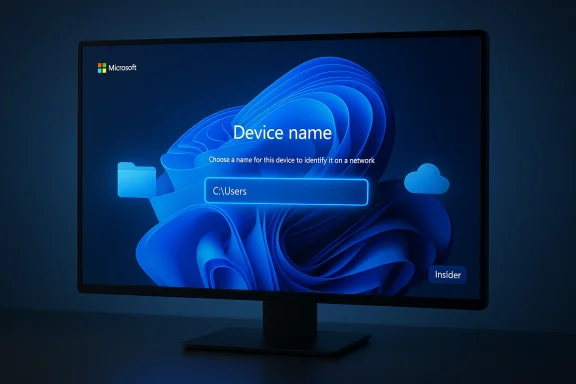
A Windows setup screen on a monitor prompting to name the device.Background: why the C:\Users name mattered more than Microsoft expected​

For decades, Windows used local accounts and conventional user names, and the name you chose during setup became both your display name and the name of your profile folder under C:\Users. When Microsoft shifted the default setup path to a Microsoft account (MSA)‑first flow, the setup logic began deriving the profile folder name from the MSA identifier — commonly the first five characters of an email address or another shortened token — producing folder names that were:
  • too short, awkward, and inconsistent for human use;
  • long and inconvenient when the MSA contained your full given and family names; or
  • embarrassing when people reused old, informal, or corporate email addresses.
Those auto‑generated names have been more than cosmetic. They show up in command prompts, in PowerShell scripts, in developer toolchains, and in installer default paths. Power users and system builders long adopted workarounds — creating local accounts offline, using command tricks during OOBE, or renaming profile folders post‑install — to avoid messy folder names. That cat‑and‑mouse dance between convenience and control is now changing.

What changed in the Insider builds (short summary)​

Microsoft rolled out OOBE updates to the Windows Insider channels that add an explicit place to set a custom user folder name while you’re still in setup, and also removed several known in‑setup commands and scripts that produced local (offline) accounts without an MSA. The practical effects are:
  • You can choose a custom C:\Users folder name on the Device Name page during setup instead of accepting the automatically generated one. The option is available only during OOBE; if you skip it, Windows will default back to the generated folder name.
  • Microsoft has neutralized known local‑account bypasses in recent Insider flights (the company says some mechanisms "inadvertently skip critical setup screens" so they’ve been removed). That means the default consumer path during OOBE now expects an internet connection and an MSA sign‑in unless you use supported provisioning or enterprise flows.
  • Insider build identifiers mentioned in the recent notes include Beta Channel Build 26220.8062 and Dev Channel Build 26300.8068; these builds are rolling out to Insiders and contain the described OOBE changes.
These are deliberate UX changes: Microsoft is conceding a small, frequent annoyaile hardening the account‑first intent of modern Windows installs. For many users the net result will be reduced friction; for others (privacy‑minded, refurbishers, IT technicians) it requires updated playbooks.

Why this matters: practical benefits and everyday scenarios​

This is a seemingly small change, but it affects several common workflows:
  • Scripting and automation: Short, consistent profile names reduce fragile scripts that assume or parse user folder names. When profile folders contain full names or long emails, scripts that build paths or assume a username token fail. Setting a concise profile namat problem.
  • Installers and configuration: Many legacy installers and configuration files include user profile paths. A predictable folder name prevents mistakes and accelerates deployment.
  • Privacy and ergonomics: Users who prefer not to expose a full real name or old email address in visible file paths — for screenshots, public demos, or shared systems — can choose a neutral short name at install time.
  • Refurbishing and imaging: Technicians who reimage multiple PCs can use a consistent naming convention during setup rather than applying a post‑install rename utility or registry hack.
Put bluntly: this removes a repeated annoyance that pushed many power users into convoluted workarounds. It doesn’t change core identity handling, but it makes life easier.

Exactly how the new option works (what Insiders are seeing)​

Microsoft exposed the folder‑naming option in OOBE in two forms depending on the build and rollout:
  • A visible input field on the Device Name page during OOBE where you can type a preferred profile folder name. If you complete the step, Windows will use that name; if you skip it, the system uses the default auto‑generated name. The release notes explicitly say the naming option is available only during setup.
  • For users who prefer keyboard methods or if the UI is not available, Microsoft previously documented — and community guides confirmed — a command‑line method during OOBE: press Shift + F10 to open a Command Prompt, switch to the oobe directory, and run a helper script or command such as SetDefaultUserFolder.cmd NewFolderName to specify the name to use for the profile folder. This command approach was documented in earlier Insider notes and covered in community writeups. Be aware the helper enforces standard Windows naming rules and may limit length (community reporting indicates safe practice is to keep names short; some previews suggested common limits like 16 characters in demonstrations).
Important constraints and behavior:
  • The name is applied at account creation during OOBE; you cannot set it later through the same UI. If you skip the step and allow Windows to create the default folder, changing it afterward requires manual migration or risky registry edits.
  • Microsoft says user folder names must follow standard Windows naming requirements (no reserved characters such as \ / : * ? " < > |, and avoid trailing spaces or periods). Use alphanumeric characters for the greatest compatibility.

Step‑by‑step: set your C:\Users folder name during setup (Insider builds)​

If you’re running an Insider flight that includes this feature, here’s a concise checklist to set a custom profile folder name during OOBE:
  • Start a clean install or reset so you reach OOBE (Welcome / Device name / Account screens).
  • On the Device Name page, look for the expanded option that includes an input box labeled for user folder name. Type your desired folder name (short, alphanumeric, under typical length limits). Complete the next screens to create your account.
  • If the UI is not present or you prefer a keyboard method, press Shift + F10 to open Command Prompt in OOBE, navigate to the oobe folder, and run the helper command: SetDefaultUserFolder.cmd YourName (replace YourName with your chosen folder name). Then continue setup. Note: this command is a helper available in Insider builds and may require exe release notes or community documentation.
  • If you skip this step, Windows will create the profile folder using its default generation logic (usually derived from your Microsoft account/email). There is no supported, UI‑based way later to retroactively set the original profile name for the existing account — you’d need to create a new account with the desired name or use manual profile migration techniques.
Note: The exact prompt labels and the helper command name may vary slightly between builds and rollout waves; Insiders report seeing the label and helper in these recent flights, and Microsoft’s release notes advise checking the Reminders/Flight Hub details for channel‑specific information.

When you can’t or shouldn’t use the in‑setup option​

There are legitimate scenarios where the new setup option will not solve your problem, or where you should avoid relying on it:
  • Existing installations: If Windows is already installed and you’re signed into an account, this OOBE option is not available; renaming an active user profile requires a manual migration and registry change and can break installed apps. Use caution.
  • Managed/enterprise images: Organizations using imaging, Autopilot, or provisioning packages typically control profile naming with their deployment tools. The OOBE UI may be irrelevant in automated enterprise workflows; check your management tooling first.
  • Compatibility with apps: Some third‑party installers, legacy software, or scripts hardcode profile paths. Changing the folder name still means you must move or reconfigure these references. Test important apps in a non‑production image before wide rollout.

What to do if you missed your chance (how to rename a profile safely)​

If you finished setup and Windows created an undesired folder name, you have these safe and risky options:
  • Safer approach: Create a new account with the desired folder name (create a second local/admin account, then create a new user with the correct profile name by using the OOBE helper or during a fresh install). Migrate data from the old profile to the new one and remove the old account. This is the lowest‑risk method. (makeuseof.com)
  • Supported enterprise approach: Use provisioning or imaging to enforce naming during deployment if you manage multiple devices.
  • Riskier approach (manual rename): You can edit the registry (HKLM\SOFTWARE\Microsoft\Windows NT\CurrentVersion\ProfileList → ProfileImagePath) and move the folder, followed by permission fixes. This can break user state, some Microsoft Store apps, and settings; always back up, create a system restore point, or image the disk before attempting. Documentation and community guides walk through the full sequence but treat it as a last resort.
If you plan the manual route, perform these safeguards in order: make a full backup, create a temporary admin, sign into that admin and rename/move the original folder in Safe Mode, update ProfileImagePath in the registry th, fix ACLs, and reboot. Even then, some app registrations or Store app behavior may be unpredictable.

The tradeoff: Microsoft’s account‑first OOBE and why the timing matters​

Microsoft’s OOBE changes are two‑edged. The new user folder naming option is simple and widely applauded, but it comes as Microsoft doubles down on an account‑first, connected setup model that closes many of the in‑OOBE local‑account escape hatches. Practically:
  • Microsoft says it removed "known mechanisms for creating a local account in the Windows Setup experience (OOBE)" because those workarounds could cause users to skip critical setup screens and end up with partially configured devices. That means default consumer installs now expect an internet connection and an MSA sign‑in on the standard path.
  • In short: the company fixed a UX annoyance while also reducing ways to avoid the account model. For many mainstream users this is normal — sign in with your Microsoft account, enjoy cross‑device syncing and OneDrive — but for privacy‑minded or offline users the pathway just got narrower. Community threads show debate and frustration as lount workflows get pushed into provisioning and post‑setup steps.
This is important because it changes the calculus for home tinkerers, refurbishers, and IT pros who used those escape hatches to set up local users quickly. If you relied on them, update your installation runbooks: either plan for the MSA path or use enterprise‑grade provisioning tools that support local accounts or automation.

Recommendations: how to adopt this change safely​

For home users, power users, and IT pros, here’s a concise playbook:
  • If you like the feature: use it during OOBE. Pick a short, alphanumeric name (no spaces or special characters) and finish setup. That’s the supported path and the least risk.
  • If you administer many PCs: revisit imaging and provisioning. Managed deployments should set profile naming consistently via your existing tools rather than relying on OOBE UI. Document the process and test app compatibility.
  • If you value offline/local accounts: adopt a supported post‑setup flow. Create a local account after setup, or deploy with tools that create local accounts cleanly. Expect the free consumer OOBE path to prefer MSAs going forward.
  • If you missed the chance: create a new account and migrate data rather than applying registry hacks unless you have a reliable backup and know the risks.

Risk analysis and potential pitfalls​

The change is sensible, but not risk‑free. Consider these cautions:
  • Partial fixes don’t solve identity dependency: letting users name the folder doesn’t undo the fact that the primary setup flow is tied to an MSA and cloud features. For those determined to avoid MS services, this is a cosmetic improvement, not a privacy win.
  • Post‑install renames remain fragile: Microsoft and community documentation repeatedly note that renaming a signed‑in user’s profile is nontrivial and can break Store apps or user settings. The supported, lowest‑risk route is creating a new profile and migrating data.
  • Enterprise and OEM workflows must adapt: organizations and OEMs that automated local accounts or relied on older OOBE tricks need to update scripts and imaging practice to avoid failures in updated Insider builds. Failure to do so could cause incomplete provisioning on new installs.
  • Controlled rollout and unknown GA timing: Insider changes often land in Dev/Beta channels weeks or months before they reach the general public. There’s no guaranteed date when the feature will reach stable Windows Update channels; expect gradual rollouts and possible iteration. That uncertainty matters for administrators planning mass deployments.

What this change signals about Microsoft’s direction​

This is a classic Microsoft compromise. The company continues to prioritize cloud identity and device management integration — important for OneDrive, settings sync, Copilot features, and enterprise management — while acknowledging and addressing frequent, small annoyances that affect daily productivity.
  • The profile‑naming concession is a user‑facing polish: low risk, high perceived value for many customers.
  • The simultaneous removal of local‑account workarounds shows a long‑term commitment to account‑first workflows and to preventing in‑setup states that Microsoft considers unsupported or risky.
For the Windows community — enthusiasts, admins, and privacy‑conscious users — the right takeaway is pragmatic: celebrate the UI fix, update your deployment playbooks, and stop relying on brittle in‑setup hacks that Microsoft explicitly removed. If you manage fleets, plan an alternative provisioning method now rather than depending on an undocumented escape hatch.

Final verdict: small UX win, bigger operational implications​

The ability to name your C:\Users folder during Windows setup is a welcome, practical improvement that solves a frequent pain point for power users and developers. It’s a tidy example of Microsoft listening to a specific usability complaint and delivering a targeted fix. At the same time, the move sits within a broader tightening of OOBE that reduces local‑account workarounds and nudges more users toward the Microsoft account and cloud‑first model.
If you plan to adopt this feature:
  • Use the in‑setup option where available and choose a short, clean name.
  • Update automation and imaging scripts to reflect the new behavior.
  • Avoid risky post‑install profile renames unless you’re comfortable with backups and manual recovery steps.
This is a rare instance where a small, visible improvement improves the daily experience for many while also forcing a reexamination of installation and provisioning methods for advanced users and organizations. That tension — convenience versus control — is the real story here, and Microsoft’s incremental approach suggests we’ll see more user‑level polish delivered alongside stricter, centrally governed setup flows in the months to come.

Conclusion: Expect fewer awkward C:\Users names in future clean installs, and expect administrators and privacy‑focused users to update their setup playbooks accordingly — this is a small UX victory delivered at a larger strategic moment for Windows’ identity and provisioning story.

Source: How-To Geek Windows 11 is fixing my biggest complaint with user accounts
 

Microsoft’s latest shift on Copilot marks more than a product tweak — it’s a public course correction that exposes where Microsoft’s AI ambitions for Windows collided with user trust, privacy anxieties, and the hard engineering work of keeping a decades‑old OS stable and useful. Over the last 18 months Microsoft rolled Copilot into the fabric of Windows: a new Copilot key, a family of “Copilot+ PCs,” and a vision of ambient, proactive AI woven into Settings, File Explorer, notifications and the core shell. Those plans have now been pulled back, rebranded, or paused as the company responds to high‑profile missteps (most notably the controversial Recall feature) and shifts engineering priorities toward reliability and performance.

Blue-toned laptop screen displaying AI cloud, security icons, and a Copilot button.Background / Overview​

From the start of the recent AI push Microsoft positioned Copilot as the company’s next-generation assistant across Windows and Microsoft 365. In January 2024 Microsoft added a physical Copilot key to keyboards and began to promote a future where Copilot wasn’t a single app but a platform-level assistant. That messaging framed Copilot as a pervasive presence — a digital aide that could proactively suggest actions, edit content, and even act on behalf of users.
By mid‑2024 Microsoft launched the Copilot+ PC program — a hardware and software bundle that paired specific silicon and local AI models with exclusive features such as Windows Recall, Click to Do, and enhanced local processing to keep some AI workloads on device. Copilot+ was marketed as an on‑device AI experience that would bring new capabilities to Windows while preserving user privacy through local processing promises.
At the same time, Microsoft publicly previewed a broader roadmap: Copilot integrations into Settings, File Explorer, and notifications; proactive suggestions that would appear contextually in the OS; and agentic Copilot workflows that could interact with apps and files to complete tasks. But the rollout was incremental and, as it became clear in 2024 and 2025, uneven — some Copilot features shipped, others didn’t, and the flagship Recall preview was delayed amid concern and scrutiny.

What changed: the reported “backtrack”​

Recent reporting from Windows Central — corroborated by other outlets covering Microsoft’s Windows beat — says several of the deeper Copilot integrations that had been in active development are now “on the back burner” or were quietly de‑scoped. Specifically, the proactive Copilot suggestions that were expected to appear inside Settings, File Explorer, and the system notifications stream have been paused or removed from public roadmaps. The reason cited internally is that work to salvage or rethink Recall drew resources and raised questions about expanding Copilot’s surface area across the OS.
Microsoft’s public messaging to reporters also reflects this recalibration. When asked about Copilot’s shifting presence across Windows, the company told outlets that it previews features with customers and evolves them based on feedback; some previews are private, some public, and features may change, be removed, or be replaced as input is gathered. That language signals an official willingness to step back from features that create controversy or don’t test well in preview.
Why does this matter? Because the Copilot strategy moved from optional, opt‑in assistants to a baked‑in approach that touched multiple system surfaces. Pulling back that approach is not the same as shelving a single app update — it changes how Microsoft will present AI as an OS capability going forward, and it will affect OEM positioning, enterprise governance, and how consumers perceive Windows itself.

The Recall controversy: the proximate cause​

Recall was the most visible and contested Copilot+ capability. Designed as a system‑level “memory,” Recall would take periodic snapshots of the user’s screen and index activity so the OS could later surface what you had “seen” or “done” — effectively giving Windows a form of photographic memory to help with search, context, and continuity. That feature triggered immediate privacy and security questions: how often were snapshots taken, where were they stored, who could access them, and could sensitive data be inadvertently captured? Major news outlets and public interest reporting flagged these concerns, and Microsoft delayed Recall for further work.
The delay morphed into a larger reputational issue. Recall’s optics — an always‑on indexing of screen contents — collided with users’ baseline expectations for privacy on personal computers. Even if Microsoft designed strong local encryption, asked for consent, or offered controls, the concept itself was difficult to communicate without raising alarm. The pushback around Recall appears to have been a decisive factor in Microsoft pausing or rethinking other Copilot expansions, at least temporarily.

What Microsoft shipped — and what was quietly de‑branded​

There’s an important nuance: Microsoft continued to add AI features to Windows apps during this period, but many of those were released without explicit Copilot branding. Improvements to Search, new AI tooling in Paint, Notepad, and small contextual helpers in Settings and Explorer arrived in Windows 11 updates, yet Microsoft positioned those features as app‑level enhancements rather than part of a single Copilot umbrella. That shift — from “Copilot everywhere” to a more modular, tactful deployment of AI features — appears intentional and strategic.
There are practical reasons for this: brand dilution, consumer sentiment, and enterprise governance. The “Copilot” label carries expectations and baggage; by decoupling features from the Copilot brand, Microsoft can ship useful AI‑assisted functionality while limiting the perception that Windows as a whole is being transformed into an intrusive assistant. It’s a subtle but meaningful pivot in messaging and product architecture.

The engineering and governance reality​

Microsoft’s Windows organization is enormous and accountable for two competing goals: innovate rapidly (especially on AI) and maintain backward compatibility and reliability for billions of devices. Those goals often require different engineering models. The aggressive Copilot roadmap demanded cross‑team coordination between kernel, shell, telemetry, privacy, and UX groups — all while addressing OEM constraints and diverse hardware capabilities.
When a high‑profile feature like Recall provokes national press and regulatory attention, the natural engineering response is to re‑gate — to slow the rollout, harden privacy controls, and reassess where AI should have direct system access. Exactly this happened: teams reallocated work, and leadership publicly signaled a renewed focus on core platform reliability and performance rather than expanding Copilot’s surface area indiscriminately. That shift was summarized by Microsoft’s Windows leadership as a priority to fix “pain points” such as performance and reliability.
For enterprises, Microsoft also introduced more explicit controls for Copilot components (for example, new Group Policy tools in Insider builds that allow narrow uninstall or management of consumer Copilot components on managed devices). Those tools are conservative by design — often one-time, gated operations rather than sweeping deletions — reflecting Microsoft’s attempt to reconcile enterprise governance needs with its continued Copilot investments. This is a stopgap, not a final architecture.

Strengths of Microsoft’s repositioning​

  • Reduced risk exposure: Pausing certain integrations after Recall’s backlash was a responsible risk mitigation step. It gives Microsoft time to redesign features that could otherwise create regulatory or PR blowback.
  • Focus on fundamentals: Reallocating engineering effort to performance and reliability addresses long‑standing pain points that directly affect day‑to‑day users, and may repair trust damaged by buggy updates. This is the kind of “value first” work that enterprise customers and regular consumers often value more than flashy AI features.
  • Modular deployment: Shipping AI features without a unifying Copilot brand reduces brand risk and allows Microsoft to test features discreetly, collect feedback, and iterate without tying every outcome to a single marketing narrative.
  • Local processing emphasis: Copilot+ PCs and Microsoft’s repeated statements about on‑device processing for certain workloads provide an architectural path that can (if executed well) satisfy privacy‑conscious users while still delivering powerful features.

Risks, trade‑offs, and unresolved questions​

  • Reputation vs. momentum: Pausing integrations protects reputation but slows the company’s momentum in differentiating Windows on AI. Competitors — notably Apple and Google — are also racing to define assistant experiences, and Microsoft risks ceding narrative leadership if it over‑corrects.
  • Incomplete governance: The current admin controls and Group Policy tooling for Copilot are narrow and conditional. Enterprises that want a durable way to opt out may find the tooling insufficient or operationally awkward. Microsoft needs to deliver clearer, stronger governance primitives for organizations that must meet compliance and data residency requirements.
  • Product coherence: De‑branding AI features reduces user confusion in the short term, but it also raises product‑management complexity. How will Microsoft ensure consistent privacy standards, telemetry opt‑ins, and discoverability when AI features are scattered across apps and are not unified under a single platform contract? Without a coherent surface, users could experience inconsistent controls and unpredictable behavior.
  • Regulatory and legal scrutiny: Even if Recall and similar features are reworked with stronger guarantees, regulators and privacy advocates may still demand transparency about what’s captured, retained, and how retrieval works in practice. Microsoft will need auditable guarantees, clear consent flows, and robust documentation to satisfy regulators.
  • User trust: Perhaps the hardest problem to solve is reputational. Once users feel an OS can snapshot everything on their screen, technical fixes won’t immediately restore trust. Transparent defaults, easy-to-find controls, and clear educational UI will be required to rebuild confidence.

What users and IT admins should expect​

  • Incremental, testable rollouts: Expect Microsoft to continue previewing AI features to Insiders, but with a higher bar for public launches. Some features will debut as app‑level enhancements rather than system‑wide Copilot experiences.
  • More explicit admin controls: For managed environments, Microsoft will expand governance tooling slowly but deliberately. Admins should watch Insider channel notes for Group Policy additions and test removal/uninstall flows before broad deployment. These controls will likely remain conservative — surgical rather than sweeping.
  • Transparency and opt‑ins: Where features risk capturing user data (even locally), Microsoft will likely add clearer consent dialogs and settings. Users who are privacy‑minded should actively check AI/diagnostics settings and account privacy dashboards during rollout windows.
  • Performance and reliability improvements: Microsoft’s leadership has publicly pledged to prioritize core platform quality across 2026; users should expect some reallocation of feature development time toward bug fixes, “swarming” squads for high‑impact regressions, and tighter gating for major updates.

Tactical recommendations for Microsoft (what should the company do now)​

  • Harden privacy defaults: Make the default behavior conservative — local indexing should be off by default, with transparent, granular opt‑ins for specific use cases and time windows. Present clear examples of what’s captured and why.
  • Publish an audit plan: Release technical, auditable documentation (ideally third‑party audited) showing what data is captured, how it’s stored, and how it can be purged. This reduces regulatory and customer uncertainty.
  • Consolidate governance APIs: Deliver enterprise‑grade controls that allow IT to assert durable policies across the OS, not just one‑time uninstall tools. Make these controls discoverable in existing management consoles.
  • Keep branding flexible: Continue landing useful AI features into products without forcing a Copilot label where it raises expectations or backlash. Use the Copilot brand for features that unequivocally require the assistant metaphor and put other intelligent features under discrete product names.
  • Measure and publish UX outcomes: If the company is serious about rebuilding trust, publish measurable progress on performance, reliability, and user satisfaction — not just feature roadmaps. Independent metrics restore credibility faster than marketing claims.

SEO‑friendly takeaways for Windows users and IT decision makers​

  • Microsoft has paused or de‑scoped several planned Copilot integrations in Windows 11, especially those intended for Settings, File Explorer, and notifications.
  • The Recall feature for Copilot+ PCs was delayed because of privacy and security concerns; that delay contributed to reshuffling priorities across the Windows roadmap.
  • Microsoft is now publicly prioritizing system performance, reliability, and user experience over an aggressive “AI everywhere” rollout — a pivot that will shape Windows development through 2026.
  • Enterprises should monitor Insider channels for governance controls (Group Policy changes) that allow managed removal or configuration of Copilot components; these tools are conservative and conditional at present.
  • Many AI features will still ship, but expect them to be more modular and less branded as Copilot; Microsoft appears willing to let the marketplace evaluate AI features on their merits rather than insisting on a single integrated Copilot identity across every experience.

Final analysis: a necessary realignment, not an abandonment​

Microsoft’s retreat from the “Copilot everywhere” posture is notable because it shows a large vendor responding to real‑world constraints: public concern about privacy, the complexity of integrating AI into an OS used by billions, and the operational need to prioritize core quality. This is not necessarily a failure — it is a course correction that acknowledges the difference between capability and suitability.
The company still believes in on‑device AI and Copilot+ hardware differentiation, and some AI features continue to land in Windows apps. But the playbook is changing: expect more conservative defaults, clearer governance, modular feature deployment, and a heavier emphasis on fixing what’s broken. For users and admins, the short term will be one of cautious testing and careful configuration; for Microsoft, the long term will test whether it can rebuild trust while remaining an AI leader on the desktop.
If Microsoft executes this pivot well — by delivering transparent controls, measurable reliability gains, and thoughtful, opt‑in AI experiences — it can salvage the original promise: an assistant that amplifies productivity without undermining privacy or platform stability. If it fails to deliver, the move will be remembered as a tactical retreat and a lesson about how not to ship system‑level AI features without earning consent and confidence first.

Conclusion
The Copilot saga is a vivid case study in product strategy under public scrutiny: fast innovation collides with fundamental platform responsibilities. Microsoft’s backpedal is a pragmatic response to those tensions. The next chapters will be defined by execution — how transparently Microsoft communicates the limits of its AI, how robustly it builds admin and privacy controls, and whether it can restore user trust while still delivering meaningful, local AI features that actually improve day‑to‑day computing.

Source: Thurrott.com Microsoft Has Reportedly Backtracked on Some Copilot Integrations on Windows 11
 

Microsoft quietly delivered a long‑requested quality‑of‑life fix to Windows setup: Insiders can now choose the name of their C:\Users profile folder during OOBE instead of letting Windows auto‑generate a truncated, email‑derived folder name — and the change arrives alongside a tightening of the setup flow that removes many of the old local‑account workarounds.

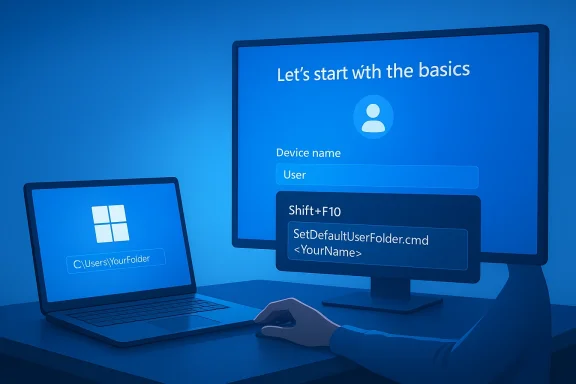
Blue-toned workstation showing a Windows login screen, a laptop, and a hand on the mouse.Background / Overview​

For years Windows has created a user profile folder automatically during first sign‑in. When you sign in with a Microsoft Account (MSA), Windows typically derives the profile folder from your account name or email address — often trimming or sanitizing it, which can leave users with a puzzling five‑character folder like C:\Users\joesm or C:\Users\alex. That behavior has been a persistent annoyance for consumers, hobbyists, and enterprise admins alike because many applications, scripts, and provisioning processes assume predictable, readable profile names.
The new change — introduced in recent Windows Insider preview updates and surfaced in Microsoft’s release notes for the Dev/Beta builds — gives installers, admins, and power users an opportunity to set a friendly, deterministic folder name during the Out‑of‑Box Experience (OOBE). Microsoft packaged the capability as a small OOBE helper and later expanded how surface area in setup can present or accept a custom name. The same set of preview notes also explicitly says Microsoft is removing “known mechanisms for creating a local account in the Windows Setup experience (OOBE),” a separate but related change that has significantly altered the setup workarounds the community relied on.

What changed in Windows Setup (the short version)​

  • Microsoft added a supported helper for naming the default user folder during OOBE. The easiest documented flow is opening a command prompt in OOBE and running the SetDefaultUserFolder.cmd helper.
  • The helper and the OOBE behavior first appeared in specific Insider builds (Dev: Build 26220.6772 / KB5065797; Beta: Build 26120.6772 and later), and Microsoft has been rolling related improvements into subsequent flights.
  • Microsoft concurrently removed several community‑discovered shortcuts that let users avoid signing in with an MSA during setup; OOBE now enforces the default path of a connected Microsoft account in many preview builds. That change is deliberate and intended to prevent incomplete or improperly configured devices after setup.
These moves together constitute a pragmatic tradeoff: restore a small but tangible piece of control (profile folder naming) while closing paths that have been used to run the entire experience offline or to create local accounts without Microsoft’s intended flows.

How the feature works — technical details and step‑by‑step​

There are two ways this capability has been exposed during Insider flights: a command‑line helper available from the OOBE environment, and — in later builds — a more visible input on the Device Name page in setup.
The command‑line method (first publicly documented):
  • During OOBE, when you reach the Microsoft account sign‑in page, press Shift + F10 to open a Command Prompt window.
  • In the command window type:
  • cd oobe
  • SetDefaultUserFolder.cmd <YourFolderName>
    Replace <YourFolderName> with the single name you want used under C:\Users for the new account.
  • Continue the setup flow. If the name is accepted, Windows will create the primary profile under C:\Users\<YourFolderName> when the account is finalized.
Notes and constraints observed in the preview builds:
  • Character limit and sanitization: community reporting and third‑party writeups indicate the helper accepts names up to 16 characters, supports Unicode, and strips or normalizes special characters. If the helper rejects a name, the installer will fall back to the default generation behavior. Always test in a lab before rolling out at scale.
  • Timing: the helper runs only during OOBE; it cannot retroactively rename an existing profile once the first sign‑in has completed without manual, error‑prone registry and profile edits.
  • GUI evolution: later Insider flights expanded the setup UI so that the Device Name page can expose a field for a custom user folder name, making the experience more discoverable and removing the need to use the Shift+F10 trick for many testers. That GUI exposure was deployed as part of newer enablement packages and is rolling out gradually.

Why this matters — benefits for users and IT​

This isn’t a flashy consumer feature, but it addresses a persistent, practical pain point.
  • Predictable paths. A readable and deliberate C:\Users folder name reduces confusion for end users and makes path‑dependent scripts, installers, and shortcuts more reliable. Enterprise imaging and helpdesk workflows benefit when profile folder names are standardized.
  • Privacy and surface cleanup. Many users dislike seeing a truncated, email‑like folder name derived from an MSA. Allowing a non‑email folder name helps separate local UX from cloud identity presentation at the filesystem level.
  • Easier handoffs for refurbishers and OEMs. For device refurbishers and small system builders who still do manual installs, the helper makes it possible to produce cleaner first‑run experiences without post‑install profile surgery.
  • A lightweight fix without heavy rework. Instead of rearchitecting profile creation, Microsoft added a small, reversible hook that applies only during the setup window — minimizing systemic risk while restoring choice.
These are incremental but meaningful improvements for users who repeatedly reinstall Windows, manage multi‑user devices, or deploy many systems in small shops.

Risks, limitations, and edge cases​

The feature is narrow by design, and that brings both constraints and risk vectors you should understand before relying on it:
  • Not a retroactive rename. The helper only works during OOBE. Renaming a user profile after setup still requires careful registry edits, SID reassignment, and application testing; that process can break installed programs and user data paths if done incorrectly.
  • Requires being in the supported OOBE path. Because Microsoft is removing many offline/local account tricks, this helper is intended for the default MSA‑first flow. If you use nonstandard unattended install images or an image with precreated accounts, the helper either won’t run or may not apply as expected. Test any provisioning pipeline thoroughly.
  • Character rules and internationalization. The preview builds enforce name limits and sanitize special characters. For multilingual environments, check Unicode behavior and localized validation rules to avoid rejected names during setup. Community notes report a 16‑character quota and that special characters are stripped; Microsoft’s release notes say the name will be applied only if valid, but they don’t enumerate every validation rule. Treat any strict character‑policy statements as provisional until confirmed in your localized build.
  • Supportability implications. Because OOBE is designed to run a set of provisioning tasks — BitLocker, device registration, telemetry, and security enrollments — the removal of local account bypasses is intended to reduce devices that exit OOBE in an incomplete state. However, this also removes a convenient path for privacy‑concerned users and third‑party refurbishers; those groups must adapt by using supported provisioning methods or managed images. Expect pushback and tooling adjustments from the community.

Enterprise and deployment considerations​

For IT pros, the change is small in scope but worth accounting for in your deployment playbook.
  • Image‑first vs. OOBE‑first workflows. Many organizations use image‑first processes that provision local accounts or apply answer files (unattend.xml) before OOBE. If you rely on such images, this OOBE helper is unlikely to change your workflow. However, if your environment uses OOBE runs or end‑user self‑provisioning, you can add a step to the provisioning checklist to set the user folder name where desired.
  • Unattended installs and Autounattend. For fully automated deployments, continue to use Autounattend and provisioning packages. The SetDefaultUserFolder flow is a manual/interactive concession — it’s not a replacement for large‑scale unattended tools and should not be treated as such.
  • Documentation and support scripts. Update internal runbooks, support KBs, and imaging documentation to reflect:
  • The supported command and where to run it (Shift+F10 → cd oobe → SetDefaultUserFolder.cmd <name>).
  • The validation limits and fallback behavior.
  • Potential interactions with device registration and OneDrive/Enterprise state capture.
  • Testing matrix. Add scenarios to your prelaunch checklist:
  • OOBE with MSA, with and without SetDefaultUserFolder invoked.
  • OOBE in different languages and input locales to confirm Unicode handling.
  • Migrations from local accounts to MSA when a custom folder was set during OOBE.
  • Recovery and WinRE interactions when provisioning keys or BitLocker during OOBE run the standard flows.

Guidance for consumers and enthusiasts​

If you care about the name under C:\Users, here’s how to approach the change safely:
  • Use the helper during a fresh install if you want a clean, readable profile folder. This is the only supported moment to set the folder name without manual post‑install fixes.
  • Observe the character guidance (keep names short and alphanumeric when possible). Community reporting suggests a 16‑character cap and stripping of special characters; err on the side of simple ASCII to avoid unexpected validation issues.
  • Don’t rely on it as a privacy workaround to avoid MSAs. Microsoft’s stated reason for removing bypasses is to ensure OOBE completes required steps; this helper is a UX concession, not a privacy escape hatch. If you must avoid MSAs, choose supported offline provisioning or local‑account deployment methods sanctioned by your organization.
  • If you already have a system and want a different profile folder, consider creating a new account with the desired name and migrating files, rather than attempting registry renames unless you’re comfortable with low‑level Windows support procedures.

Community reaction and the symbolic meaning​

The feature has prompted a familiar mixture of relief and annoyance in the Windows community. Many users greeted the change as a small but overdue correction to a longstanding UX irritation; others see it as a half measure that comes bundled with a heavier enforcement of the account‑first model that removes offline setup options. Technical forums and Insiders have reproduced the helper and documented the exact command flow, while also highlighting the removal of the classic BYPASSNRO and other tricks that had been used to create local accounts during OOBE.
That split reaction makes sense: Microsoft is nudging Windows toward a cloud‑connected, account‑centric future while giving back a sliver of control. For everyday users the change will usually be invisible; for power users, IT pros, and refurbishers it’s one more thing to add to the compatibility checklist.

Practical examples and short workflows​

  • Consumer fresh install (GUI path, when available):
  • During Device Name page in OOBE, if your preview build exposes the input, type the desired user folder name in the user folder field. Skip if you prefer the default behavior.
  • Power user / technician (command prompt OOBE method):
  • At the Microsoft account sign‑in screen, press Shift + F10.
  • Type: cd oobe
  • Type: SetDefaultUserFolder.cmd MyNameHere
  • Proceed with account creation; Windows should apply the folder name.
  • Enterprise imaging (recommended path):
  • Continue using Autounattend/MDT/Intune provisioning for deterministic profile creation; if you rely on OOBE for final personalization, incorporate the helper into the OS prep documentation and add automated verification steps to confirm the folder naming behavior.

Final analysis — strengths, tradeoffs, and what to watch​

Strengths
  • The change addresses a widespread, low‑friction usability complaint with a surgical fix rather than an invasive rework.
  • It gives admins and power users a supported hook to set deterministic profile folder names without risky post‑install edits.
  • Microsoft documented the helper in Insider notes and rolled the change through Dev/Beta channels, enabling lab validation before broader release.
Tradeoffs and risks
  • The feature is intentionally limited — it is an OOBE‑only, small helper with validation rules rather than a full GUI setting for all users (though later Insider flights have begun exposing a Device Name page field). Expect the experience to remain gated and controlled.
  • The simultaneous removal of local‑account bypasses reduces the flexibility previously available to privacy‑conscious users and hobbyists; that raises legitimate concerns about discoverability and choice even as it improves supportability for the majority.
  • File‑path assumptions in legacy apps still make post‑install renames dangerous — so while the helper helps new installs, it doesn’t solve technical debt for existing systems.
What to watch next
  • How Microsoft documents exactly what characters and encodings are allowed (the 16‑character guidance appears in outlets and community tests, but full validation rules and localization behavior deserve confirmation).
  • Whether the GUI field on the Device Name page becomes the primary method for most users or whether Microsoft keeps the helper primarily targeted to technicians and Insiders.
  • How OEMs and enterprise provisioning vendors react: expect updated guidance from imaging tool vendors, and watch for new entries in corporate best‑practice documentation.

Conclusion​

This Windows setup change is a pragmatic little victory: it restores a measure of control over the filesystem identity that Windows historically assumed for you, and it does so in a way that’s easy to test and explain. It is not a sweeping retreat from Microsoft’s account‑centric direction for Windows setup — far from it — but it demonstrates that the company will sometimes concede small, user‑facing fixes to smooth day‑one experiences.
For IT teams and power users the takeaway is simple: update your test plans, document the new helper (or GUI field) in your provisioning playbooks, and don’t assume the old local‑account shortcuts will work in future builds. For everyday users, the new option will spare a handful of awkward folder names and make file paths slightly less mysterious. The change is modest, but those modest changes add up — and in Windows, small improvements to setup can yield outsized gains in day‑one usability.

Source: GIGAZINE Windows 11 will implement a feature that allows users to freely set their user folder name during setup.
 

Microsoft has quietly taken aim at one of Windows setup’s most annoying idiosyncrasies: the automatic creation of a C:\Users profile folder that, when you sign in with a Microsoft Account, defaults to the first five characters of your email address — and now Insiders can choose a different name during the Out‑of‑Box Experience (OOBE).

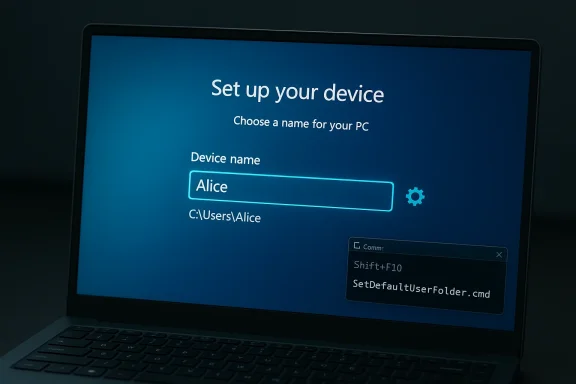
Windows setup screen prompting to name the PC, with the device named “Alice.”Background​

For years, Windows has created the local profile folder during first sign‑in and derived its name from the sign‑in identity. When you use a Microsoft Account (MSA) during OOBE, Windows historically built the C:\Users\<profile> name from a truncated portion of the account string. That behavior produces awkward and often cryptic folder names; for example, an address like [email protected] could become C:\Users\patri. That shorthand made sense to the installer logic but not to people who live in File Explorer, write scripts, or switch into the Command Prompt to reach commonly used folders. The complaint has been long standing among enthusiasts and IT pros alike. testing a fix in Insider builds that adds a proper UI affordance to OOBE: a User folder name field on the Device Name page where you can type the local profile folder you prefer. This change expands work Microsoft first rolled out to Insiders months earlier and packages it into newer Dev/Beta builds, including the most recent flights referenced by Insider release notes and community testing. Community reports and writeups show the new option appearing below the Device name text box during setup.

What changed (short version)​

  • Windows 11 Insider Preview builds now include an option in OOBE to set the default user folder name at setup time.
  • The option appears on the Device Name pageide a custom folder name, Windows uses it. If you skip the field, Windows falls back to the automatic generation behavior (the first five letters of your MSA username).
  • The OOBE helper can also be used from the command prompt in setup: press Shift+F10 → cd oobe → SetDefaultUserFolder.cmd <YourFolderName>. That method existed already in earlier Insider flights and remains supported for advanced users who prefer the command line.

Why this matters​

This is a small change on the surface, but it addresses several practical, recurring problems:
  • Usability: People expect theirct their name or a recognizable shorthand. A randomly truncated email fragment creates friction when navigating file paths, typing commands, or reproducing instructions for others. The new UI eliminates the guessing game at setup.
  • Scripting and tooling: Many scripts and development workflows make assumptions about profile paths or require human-readable paths for documentation. Predictable folder names reduce friction for automation and tutorials.
  • Privacy and professionalism: Email-derived folder names can reveal private or corporate account information in screenshots, videos, or when sharing logs. Allowing users to pick a neutral or professional folder name reduces accidental exposure.
  • Parity with other OSes: macOS and most Linux distributions have long allowed explicit selection of the local home-folder name during account creation; this update brings Windows closer to parity on that basic expectation.

What Microsoft added — technical details​

Based on Insider notes, community analysis, and step‑by‑step reports, here’s what we can verify about the change today:
  • The User folder name option is presenteDevice Name page. It is visible below the device name textbox and accepts a name up to 16 Unicode characters. If you choose not to set a name, the old generation rules still apply.
  • Microsoft included a command‑line helper in OOBE — SetDefaultUserFolder.cmd — that can be run from the OOBE command prompt (Shift+F10) by navigating to the OOBE folder and running:
  • cd oobe
  • SetDefaultUserFolder.cmd <YourFolderName>
    This replicates the UI behavior for people who prefer or need the commup.
  • Microsoft has also added a curious “Hide user folder name” option in the UI on some flights; its presence suggests additional experimentation with how visible the setting should be to consumers. If the setting is skipped, the installer uses the default email‑derived scheme.
Because these changes are implemented in Insider Preview builds (Dev/Beta), they are considered testing channel features and m general release.

How to use the new option (for Insiders and early adopters)​

If you’re running an Insider build that includes the feature, here’s the flow during setup:
  • When OOBE presents the Device name screen, look for the new User folder name field beneath the device name box. Type your preferred folder name (up to 16 Unicode characters).
  • If you prefer a command-line approach, at the OOBE sign‑in page press Shift + F10 to open Command Prompt. Type:
  • cd oobe
  • SetDefaultUserFolder.cmd YourFolderName
    Then close the prompt and proceed with Microsoft Account sign-in.
Note: The UI method is the cleaner path for mainstream users; the command-line approach is maintained primarily for technicians and power users who use scripted or offline workflows.

Rollout and availability — where we stand​

The feature has been observed in Dev and Beta channel flights and in the most recent Insidered by community channels. Because Microsoft is testing the change in Insider builds, it won’t appear on stable releases immediately; Microsoft typically assesses feedback and telemetry from Insiders before broad rollout. Community reporting and multiple hands‑on guides confirm the helper script and the Device Name UI, showing the company is converging on a supported experience rather than a one-off hack.

Critical analysis — strengths and immediate benefits​

  • User-first correctness: Microsoft is addressing a high‑visibility yet low‑effort usability bug. Letting people name their profile folder during setup meets user expectations, reduces confusion, and aligns Windows with long‑established practices on other platforms. The fix is exactly the sort of small, high‑value tweak that improves day‑one ergonomics.
  • Supported command-line path: The presence of SetDefaultUserFolder.cmd gives technicians and imaging engineers a supported, reproducible way to set profile names during automated deployments or when custom setup steps are required. This is simpler and safer than undocumented registry hacks or post‑install folder renames.
  • Insider-first iteration: Rolling the feature through the Insider channels means Microsoft can observe how the change interacts with diverse hardware, OEM customizations, and third‑party software installed during OOBE. The staged approach reduces the chance of a widespread regression at scale.

Potential risks and edge cases​

This improvement is welcome, but it does not solve — and in some cases may complicate — several deeper issues around user profiles:
  • Post‑setup renames remain hazardous. Renamfile> folder after Windows has created users is complicated and error‑prone. Registry entries (HKLM\SOFTWARE\Microsoft\Windows NT\CurrentVersion\ProfileList), hard-coded paths in third‑party apps, file permissions, and service configurations can all break if you rename an active profile folder without performing a complete and careful migration. The long-standing advice remains: pick the right name at setup or create a new account and migrate data. Community forums and technical threads have repeated warnings about resmatches, and app breakage resulting from post‑fact renames.
  • Installer complexity and test surface. Changing what OOBE asks can alter user flows and timing. OOBE is already stretched by online-only sign‑in requirements, large post‑install updates that delay first boot, and subscription upsells that clutter setup. Adding yet another prompt — even a useful one — contributes to a longer, more complex first‑run experience for non‑technical buyers. Some users already criticize the OOBE as too slow and too “sales-y”; Microsoft must balance feature additions with simplification.
  • Enterprise and imaging implications. Organizations that rely on automated provisioning, imaging, or profile redirection must validate that the new step does not interfere with their unattended answer files, provisioning packages, or OEM OOBE customizations. Although the command-line helper supports scripted invocations, administrators will need to test deployment scenarios — especially when using offline images or custom Sysprep/OOBE sequences.
  • Third‑party integrations can fail. File‑sync clients, backup tools, or apps that reference absolute paths under C:\Users may require reconfiguration if a nonstandard folder name is chosen. Dropbox and some older sync services, for example, have been known to break or require reauthorization after profile pathors and advanced users should plan for potential re-linking work.

Practical guidance — what you should do today​

If you’re buying a new PC, reinstalling Windows, or testing Insider builds, follow these practical rules:
  • For new installs (recommended): Use the OOBE field to pick a clear, short profile name — preferably your first name, a nickname, or a predictable two‑ or three‑letter shorthand. Keep it alphanumeric and within the 16‑character limit. Avoid characters disallowed by Windows filename rules (like < > : " / \ | ? *).
  • For technicians and imaging teams: Use the SetDefaultUserFolder.cmd helper as part of your OOBE scripts if you need consistent names across devices. Because the helper runs from the OOBE environment, it is suitable for automated flows as long as you can invoke it safely in your provisioning process.
  • If you already have a machine with an undesired profile name:
  • Do not attempt a file‑system rename while logged into that account. Create a new local or MSA account with the desired name, make it an Administrator, and migrate your data and settings, or use exported registry/profile migration tools. That is the safest approach to avoid broken references.
  • Alternatively, perform a clean install and set the folder name during OOBE if the machine is eligible for reinstallation.
  • For enterprise admins: Update and test your deployment scripts, answer files, and imaging processes. Validate your endpoint configuration management and backup/restore tools against different profile folder names to ensure compatibility.

Broader context — OOBE and the account‑first shift​

This feature sits inside a larger trend: Microsofghtened OOBE to favor Microsoft Account sign-in and online provisioning, and to reduce local-account bypasses and offline installation tricks. That shift creates friction for power users and privacy‑minded buyers, and it removes some of the simple escape hatches technicians used to skip online sign‑in during provisioning. The user‑folder naming concession looks like a limited gesture to ease a specific pain point while Microsoft doubles down on the account‑first default. Several community reports and forum threads show both sides of that trade‑off; while the folder name option is appreciated, the broader OOBE experience still draws user ire for mandatory online steps, subscription upsells, and protracted update downloads before the first desktop.

Cross‑reference and verification​

The behavior described above is corrindependent sources and hands‑on community reporting:
  • Community writeups and hands‑on guides detail the OOBE command-line helper and the UI field introduced in Insider builds, including the Shift+F10 → cd oobe → SetDefaultUserFolder.cmd sequence. These guides reproduce the steps that testers used to choose a profile name during setup.
  • Insider release notes and community reporting confirm the Device Name page contains the new User folder name option in recent Dev/Beta flights and that if the user skips it, Windows falls back to the automatic generation (first five letters of the MSA name). Forums and community posts show screenshots and walkthroughs from testers. ([reddit.com]( Microsoft documentation for the specific build number is lacking in visible search results, the combined weight of Insider release posts, multiple community hands‑on reports, and technical how‑tos provides strong corroboration for the feature’s behavior during testing.


What Microsoft should do next​

This is a welcome, pragmatic fix, but to deliver the full value and avoid confusion, Microsoft should consider the following follow‑ups:
  • Move the User folder name field into the mainstream stable channel with clear documentation and a visible explanation during OOBE about why choosing a name matters.
  • Provide a supported migration tool or guided workflow to rename a profile safely after setup for users who missed the prompt during OOBE. Microsoft could automate common registry, permission, and path updates to reduce the reliance on manual registry edits or full reinstall.
  • Reduce OOBE friction elsewhere: shorten the time spent downloading large post‑install updates, streamline subscription prompts, and give a clear, supported path for users who want a local account while preserving configuration integrity.
  • Publish official guidance for enterprise imaging and deployment teams explaining how the new OOBE field interacts with unattended answer files, provisioning packages, and Sysprep — including sample scripts for SetDefaultUserFolder.cmd invocation in automated flows.

Conclusion​

What Microsoft added in Insider builds is the right kind oprovement: letting users name their own C:\Users folder during setup reduces friction, improves clarity, and brings Windows closer to the account creation norms that other platforms have long provided. The new option — surfaced in OOBE on the Device Name screen and mirrored by a supported SetDefaultUserFolder.cmd helper — gives both mainstream users and technicians a reliable, supported way to avoid the old five‑letter email truncation.
That said, it is not a panacea. Renaming profiles post‑setup remains risky, OOBE is still cluttered with online‑first prompts and subscription upsells, and administrators must validate deployments to ensure compatibility. For now, the best advice is simple: if you’re setting up a new PC or reinstalling Windows, take two seconds at OOBE to pick a clear profile name — it will save you hours of fiddling and complicated recovery later.

Source: Windows Latest Windows 11 uses five letters of your email for the user folder, but Microsoft is fixing it
 

Microsoft has quietly answered one of the small but persistent usability complaints about Windows setup: Insider builds now give you the option to choose the name of the profile folder created under C:\Users during the Out‑of‑Box Experience (OOBE), instead of forcing a truncated, email‑derived folder name.

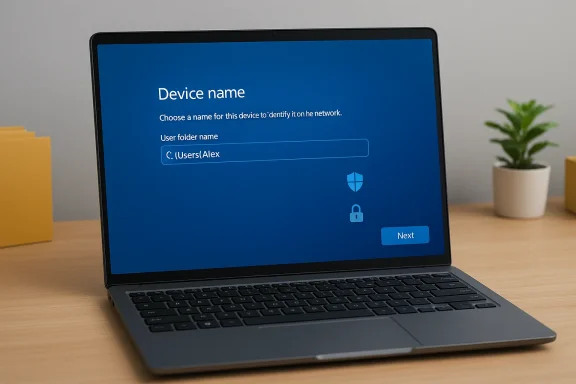
A laptop on a wood desk shows a Windows device-name setup screen.Background / Overview​

For years Windows' first‑boot flow has generated the user profile folder automatically and often awkwardly. When you sign into a device with a Microsoft account during setup, Windows typically generates the local profile name from your account identity — historically using a short, deterministic slice of your email address. That approach solved a provisioning problem but produced unwanted outcomes: folder names that look like halves of private email handles, clash with existing local accounts, or break scripts and shortcuts that assume a consistent, readable username. Community discussion around this gripe has been steady, and Microsoft’s recent Insider flights show the company is listening.
The change appears in the Windows Setup Experience (OOBE) for recent Insider preview channels: setup now surfaces a User folder name field on the Device Name page so that when you complete initial setup you can specify the local folder name that will be created under C:\Users. The update is small in function but large in practical impact for anyone who cares about clean paths, privacy, or deterministic provisioning. Insider community threads and recent activity in Windows forums captured this development as a welcome quality‑of‑life fix.

Why this matters: practical and human reasons​

This is not a flashy feature, but it addresses a very human friction point that affects everyday usability.
  • Privacy and embarrassment: When your user folder name is created from fragments of an email address, it can reveal personal or embarrassing handles on a shared machine. Allowing a custom name during setup preserves privacy and appearance.
  • Predictability for scripts and apps: Many deployment scripts, installers, and third‑party apps assume conventional profile folder names. A predictable, administrator‑chosen folder reduces failures caused by unexpected names.
  • Cleaner file system organization: Power users who keep many machines or who reimage frequently benefit from consistent naming conventions across devices.
  • Fewer post‑setup hacks: Previously, power users resorted to workaround steps — creating a local account with a preferred name, copying profiles, or running elaborate renaming procedures — to get the folder name they wanted. Exposing the choice at OOBE removes the need for those fragile workarounds. Community reporting highlights both the practical nature of the fix and how it arrives alongside a tightening of the OOBE flow.

What changed in the Windows Setup Experience (OOBE)​

The new control: User folder name on the Device Name page​

In recent Insider previews, the Device Name page in OOBE gained an additional field labeled User folder name (or similar), enabling you to type the exact name you want the setup process to create under C:\Users. This field enforces the usual Windows naming rules (no reserved characters, not empty, etc.), and it appears during the account creation/sign‑in flow when using a Microsoft account on the consumer path. Forum posts and thread summaries from the Insider community document the appearance of this UI element and how it behaves during initial setup.

What this does not (and cannot) do​

  • It does not retroactively rename an existing profile folder after setup without manual, potentially risky operations.
  • It does not change how Windows maps profiles to SIDs (security identifiers) — the OS still ties a user account to a profile path by SID, as always.
  • It does not eliminate the broader identity requirements in modern OOBE flows — recent Insider flights have been tightening the consumer path toward an internet/Microsoft account by default, which has its own implications for provisioning choices.
These caveats matter because while the new field fixes the naming choice going forward, it does not fix legacy setups and does not change core identity plumbing.

Technical perspective: how profile folders are created and why naming matters​

Windows stores user profiles under C:\Users and maps them to accounts by SID. The profile folder is a directory that houses AppData, Documents, Desktop, and the standard user shell folders that Windows and applications rely on.
  • When a new account is created during setup, Windows chooses a folder name for that profile and creates the directory.
  • The system stores that path in the registry under the profile list keyed by the account's SID, and numerous applications read/write to those subfolders.
  • A mismatch between expected and actual profile paths can break installers, scheduled tasks, application data routing, and file references.
Being able to set the folder name at setup gives administrators and users direct control over that mapping at the moment it matters — when the registry entries and folder structure are first created. That ensures the path used by the system and apps is the one the user or admin intended, removing a recurring class of post‑install fixes and fragile renaming operations. Insider reporting and forum commentary document the relief this change brings to imaging and script reliability.

Impact on different user groups​

Home users and enthusiasts​

Home users will appreciate the cosmetic and privacy benefits. A short, readable name such as "Alex" or "WorkPC" looks better in paths and on shared machines than a truncated email fragment. Community threads highlight the frequent annoyance of path fragments exposing parts of email addresses and the satisfaction users feel at finally being able to choose.

Power users and tinkerers​

Power users who reimage machines, create custom images, or rely on scripts will find the change reduces the number of brittle, post‑setup operations. For those who previously used local account creation as a workaround to force a preferred profile name, this is a cleaner, supported approach. However, forum reports also indicate that Microsoft is reducing some of the previous in‑setup workarounds that allowed local account creation on the consumer path — something power users should be aware of.

IT administrators and imaging teams​

Enterprise and small‑business IT teams care about deterministic builds. The choice to let setup create the preferred profile folder name may simplify image management and onboarding scripts, but enterprises should not treat it as a replacement for proper image‑building practices.
  • For managed deployments, proper use of provisioning packages, unattend files, and imaging tools remains the recommended path.
  • IT teams should test how their existing deployment tooling reacts to this new field and whether it interacts with automation (for example, Autopilot, MDT, or SCCM task sequences).
  • Some organizations may prefer to maintain their own controlled naming conventions via provisioning scripts rather than rely on user input during OOBE.
Insider commentary notes that the new option is primarily a consumer/Insider convenience; large organizations will still want centrally controlled provisioning workflows.

Deployment and troubleshooting considerations​

Existing systems: you cannot safely rename the C:\Users folder without careful steps​

If you already have a Windows installation with an undesired profile folder name, renaming it post‑facto is nontrivial. The safe approaches typically involve:
  • Creating a new account with the desired name and migrating data, or
  • Using image-based reinstallation with the correct name selected during OOBE, or
  • Advanced registry and SID re‑mapping techniques (risky, unsupported for most users).
The new OOBE option prevents the need for these operations in the future, but it does not magically fix already‑deployed systems. Several forum threads and community posts repeatedly warn that post‑install renames can break application registrations and user‑specific service configurations, reinforcing the idea that this should be treated as a preventative improvement rather than a corrective tool.

Imaging and automated setup​

If you use unattended installs or custom images, consider these steps:
  • Test how your unattend.xml or imaging scripts interplay with the new field — automated installs should either set the name explicitly or ensure the OOBE UI is bypassed cleanly.
  • Confirm that your provisioning system populates any required registry or configuration values after setup, especially where applications expect a particular profile path.
  • Update documentation and support guidance to instruct helpdesk staff to verify the profile folder name at first login when guiding users through OOBE.
Community guidance emphasizes testing — small changes in OOBE can interact subtly with automation.

Security and privacy analysis​

The change reduces accidental exposure of email fragments in local folder names, which is a tangible privacy improvement for many users. However, it sits alongside broader OOBE changes that push consumers toward an internet‑connected, Microsoft‑account‑centric setup flow — a shift that has privacy and trust tradeoffs of its own.
  • Positive: Choosing a neutral folder name prevents leakage of identifiers that appear in file paths, screenshots, or diagnostics.
  • Neutral / Cautionary: Requiring or encouraging sign‑in with an online account during setup centralizes identity and recovery options, which may be beneficial for backup and device recovery but raises privacy considerations for users who prefer strictly local accounts.
  • Administrative: For organizations that manage devices centrally, exposure of account details in profile names was rarely an intended practice; the new field helps avoid that but does not change the underlying identity model. Forum discussion highlights both relief at the fix and concern that Microsoft is tightening in‑setup paths, making some local‑only workflows harder to execute.

Strengths of the change​

  • User‑centric: It addresses a real, frequently voiced annoyance with an elegant UI fix.
  • Low‑risk: Adding a setup field that adheres to existing naming rules is a conservative, low‑complexity change unlikely to destabilize the system.
  • Reduces hacks: It removes the need for clumsy local‑account workarounds used by enthusiasts to control profile names.
  • Immediate benefit: The change is visible to users on first boot and removes a repetitive support issue. Insider discussions and forum threads underline the immediate, tangible value of the tweak.

Potential risks and limitations​

  • Not retrospective: It does nothing for existing machines with awkward profile names.
  • Automation friction: If not coordinated with deployment automation, the UI field could be another variable to manage in enterprise rollouts.
  • Verification gap: At the time of community reporting, the exact build number and any formal Microsoft statement were not consistently available in community files; admins and power users should verify the specific preview flight and the official release notes before relying on the change in production contexts. Community summaries reference Insider builds and OOBE changes, but authoritative confirmation from Microsoft’s release notes is recommended.

How to use the feature (for testers and early adopters)​

If you are running Windows Insider preview builds and want to try the new OOBE behavior, here’s a simple test plan that keeps risk low.
  • Enroll a test device in the appropriate Insider channel and ensure it receives the preview build reported to include the feature. (Insider builds change rapidly; confirm the build number in your Dev/Beta channel before proceeding.)
  • Boot the device to OOBE (fresh install or reset) and proceed to the Device Name / account sign‑in steps.
  • Look for a field labeled User folder name (or similar) on the Device Name page.
  • Enter the desired folder name, adhering to Windows folder naming rules (no <>:"/|?* and avoid trailing spaces).
  • Complete setup and log in. Verify the profile folder was created at C:\Users\<your-chosen-name> and that AppData and shell folders were populated as expected.
  • Test common applications and installers to ensure they reference the expected profile path.
Be cautious on production machines: use test devices first and update deployment documentation accordingly. Forum posts from Insider participants underscore the importance of verifying builds and behaviors in a controlled environment before broad rollout.

Best practices and recommendations​

  • For home users: Take advantage of the option during setup — pick a short, neutral name that’s easy to type and remember.
  • For power users: Use the feature to avoid post‑install renames; if you manage multiple devices, agree on a naming convention and apply it consistently.
  • For IT admins: Do not rely on end‑user input for enterprise naming conventions. Instead, update your imaging and provisioning workflows to set the desired profile path explicitly, or document how the new OOBE option should be used in company‑issued systems.
  • For support teams: Train helpdesk personnel to ask for the profile folder path when troubleshooting user profile issues, and update KB articles to reflect that the folder name can now be set during OOBE for insiders and future builds.

Verification, sources, and cautionary notes​

Community threads and recent forum activity provide the primary public evidence for this change, documenting the new OOBE field and its behavior. The Windows Insider community has discussed this as a small but meaningful UX fix, and multiple posts confirm that the new option appears on the Device Name page during setup.
However, details such as the precise preview build number circulated in press summaries require verification in the official Windows release notes and Microsoft announcements. Community files referenced above discuss the change in Insider flights, but if you need to rely on the exact build identifier (for example, Build 26300.8068) for testing or rollout gating, verify that number against the official Windows Insider release documentation before using it as a deployment dependency. The community reporting is reliable for describing the user experience, but authoritative confirmation is the prudent next step.

Final analysis: small change, outsized value​

On paper the feature is tiny: an extra text field during setup. In practice it removes a recurring annoyance, reduces the need for fragile workarounds, and makes first‑boot outcomes more predictable and professional looking.
This is exactly the sort of incremental, user‑centred polish that modern desktop OSes need: not revolutionary, but cumulatively significant. It improves privacy hygiene by default and reduces needless technical debt created by post‑install renames and improvised fixes.
At the same time, it sits within a broader evolution of Windows setup that is steering consumer installs toward cloud‑connected, Microsoft‑account‑centric flows. That trend brings benefits — recovery, sync, and continuity — but also requires users and admins to think about identity, privacy, and automation differently. The best approach for teams is to test, document, and harmonize this new OOBE option with existing provisioning practices rather than treating it as a substitute for controlled deployment strategies. Community threads reflect both the relief at this thoughtful usability fix and the caution warranted when OOBE itself is changing.

Quick checklist: what to do next​

  • If you are an individual user: When upgrading or clean‑installing, use the User folder name field during setup to pick a clear, neutral profile folder.
  • If you are a power user or enthusiast: Test the feature on a non‑critical device and update any personal setup scripts that assume a default folder name.
  • If you manage deployments: Validate the behavior in your Insider/dev test rings; update unattended scripts and documentation; do not rely on the feature to replace automated naming policies.
  • If you need exact build or release‑note confirmation: Check the official Windows Insider release notes before treating a specific preview build as your source of truth. Community reporting documents the feature, but authoritative verification is recommended for production decisions.
This change demonstrates Microsoft is still listening to long‑standing quality‑of‑life requests, and that even modest UX fixes can have a measurable impact across home and professional users.

Source: PCWorld Windows 11 finally lets you name your own Home folder
 

Back
Top