

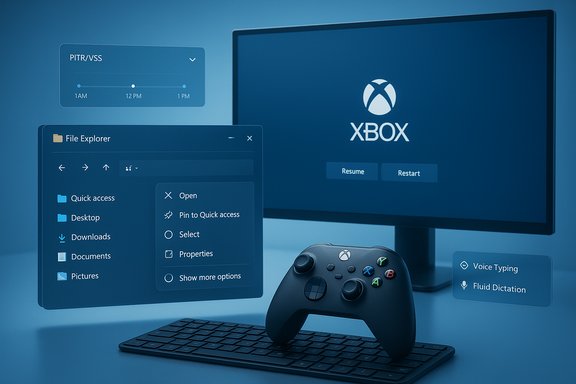
November’s Insider preview wave quietly reshaped several core parts of Windows 11 — from a console‑style gaming shell and a modern, VSS‑based rollback tool to a tidier File Explorer, smarter on‑device dictation, and even a convenience tweak to the Microsoft Store — all arriving in build 26220.7271 and companion previews for the 25H2/26H1 streams.
Background
Microsoft continues to move away from monolithic, once‑a‑year OS updates and toward smaller enablement packages and staged rollouts, using Insider channels and server‑side gating to test features on real hardware. The November previews (notably Windows 11 Insider Preview Build 26220.7271 / KB5070307) are part of that strategy: the same binary is being delivered to both Dev and Beta channels while features themselves are selectively enabled for eligible devices. That delivery model is central to understanding why some Insiders see features immediately while others — even on identical builds — may not. These flights bundle several small but consequential changes across gaming, recovery, input, File Explorer, and the Microsoft Store. Below is a practical, verify‑first rundown of the most important items, what they do, how to access them, and what they mean for everyday users and IT professionals.Xbox Full Screen Experience (FSE): console mode for more PCs
What it is now
The Xbox Full Screen Experience transforms the desktop into a console‑like shell that boots the Xbox app as the primary interface, designed for controller‑first navigation and a distraction‑free gaming posture. Initially limited to handheld gaming PCs, FSE is now being previewed on a broader set of Windows 11 devices (desktops, laptops, tablets) to give players a faster path from power‑on to game launch and fewer desktop interruptions.Where to find and enable it
When available on an Insider device the experience can be enabled from Settings > Gaming > Full screen experience or invoked via Task View, the Game Bar, or the Win + F11 shortcut. Microsoft is also initially gating access behind the Xbox Insider program for the earliest testers.Performance claims and verification
Microsoft and several independent outlets report that FSE reduces the desktop overhead — by deferring the normal Windows shell (explorer.exe) and non‑essential services — and can free up roughly 1–2 GB of RAM in favorable scenarios. Multiple hands‑on tests and community measurements place the savings in the same ballpark, but the number is situational: it depends heavily on installed background agents, OEM utilities, and how the device is configured. Treat the “~2 GB” figure as an order‑of‑magnitude estimate, not a guaranteed outcome for all systems.Practical strength and tradeoffs
- Strengths:
- Faster boot‑to‑game flow for handhelds and controller‑centric PCs.
- Reduced background services may help thermally constrained APUs sustain frame stability.
- Simpler UI for non‑keyboard inputs; aggregates Game Pass / Xbox / installed titles.
- Tradeoffs:
- Some keyboard shortcuts and desktop behaviors intentionally change in FSE.
- Not every desktop user will gain meaningful FPS or battery improvements — bigger wins show up on low‑power handhelds with limited RAM.
- Early preview may have integration quirks (virtual keyboard, overlays, third‑party utilities).
Bottom line
FSE is a pragmatic step toward treating Windows handhelds like first‑class gaming devices while offering desktop users a console‑style mode. Enthusiasts and OEMs will welcome the option; enterprises should regard it as optional — useful for demos and kiosk‑style gaming rigs, not a desktop standard.Point‑in‑time Restore (PITR): modern local rollback built on VSS
What it does
Point‑in‑time Restore is a short‑term, full system rollback mechanism that uses Volume Shadow Copy Service (VSS) to capture comprehensive restore points (OS, apps, settings, and local user files) and allow the system to be restored to a precise prior timestamp via WinRE (Windows Recovery Environment). The intent is fast remediation for bad updates, driver regressions, misconfigurations, and some malware scenarios without reimaging. This feature appears in the November Insider preview and is documented by Microsoft as a preview feature.Defaults, storage and retention (what Microsoft sets today)
Microsoft’s documentation for the preview is explicit:- PITR uses VSS and captures restore points automatically (default frequency: every 24 hours).
- Retention is purposely short — default maximum retention for restore points is 72 hours (three days).
- On systems with at least 200 GB total disk size, the feature is enabled by default; smaller disks can opt in manually.
- Maximum VSS usage defaults to 2% of disk (with a configurable floor and ceiling; preview allows 2 GB minimum and up to 50 GB equivalent).
How to use and manage it
- Settings path: System > Recovery > Point‑in‑time (toggle on/off, adjust creation frequency, retention, and maximum storage usage).
- Restore execution: Initiated from WinRE — Troubleshoot > Point‑in‑time restore — and requires BitLocker recovery key when volumes are encrypted.
- Command‑line: VSSAdmin remains available for low‑level inspection and management by administrators.
Strengths and risks
- Strengths:
- Rapid rollback to a known good state can dramatically reduce downtime for desktop and workstation users.
- Modern management UI and scheduled automatic captures reduce reliance on ad‑hoc System Restore points.
- Local, on‑device implementation avoids cloud transfer latency for quick restores.
- Risks:
- PITR is explicitly destructive regarding local changes: any local files or settings created after the chosen restore point will be lost — Microsoft warns this clearly.
- Restore operations require free disk space equivalent to the restore point set and BitLocker access; failures can occur on low‑space systems, EFS‑encrypted files, or corrupted volumes.
- Because PITR uses shared VSS storage, it competes with System Restore and other VSS consumers; aggressive retention settings may increase local storage pressure.
Operational guidance for IT
- Treat PITR as a short‑term rescue tool — maintain standard backup policies (off‑device, long‑term retention).
- Inventory disk sizes and BitLocker management before enabling PITR fleet‑wide (feature auto‑enables only on ≥200 GB devices).
- Pilot with standard endpoint protections (EDR, backup agents) to validate VSS interaction with other software and shell extensions.
- Ensure BitLocker recovery keys are centrally accessible to helpdesk prior to enabling PITR broadly.
File Explorer: decluttered context menus and experimental preloading
Context menu redesign
Microsoft is reorganizing File Explorer’s right‑click menu to reduce top‑level clutter by moving less‑used actions into a new Manage file submenu and grouping cloud provider actions (OneDrive’s “Always keep on this device”, “Free up space”) into provider‑specific submenus. The aim is a shorter, faster menu that surfaces common verbs first while preserving access to advanced actions one click deeper. This change is rolling out as an experimental UI refinement in the Insider build.Preloading File Explorer (what to expect)
The build experiments with preloading a lightweight Explorer instance in the background to improve perceived first‑open latency. When the experiment appears on a device it exposes a simple opt‑out toggle in Folder Options labeled “Enable window preloading for faster launch times.” Microsoft frames this as a telemetry‑driven experiment: it can improve cold‑open responsiveness at the cost of a modest background memory footprint.Practical pros and cons
- Pros:
- Noticeably faster cold starts of File Explorer on HDDs and lower‑spec devices.
- Cleaner context menus improve discoverability for everyday tasks.
- Cons:
- Background preloading consumes additional memory; on memory‑constrained devices the tradeoff may be negative.
- Third‑party shell extensions or context menu handlers could behave differently with a preloaded Explorer instance; compatibility testing is advised for managed environments.
Fluid Dictation in Voice Typing: on‑device cleanup for dictation
What changed
“Fluid Dictation,” a mode that automatically applies punctuation, grammar fixes, and filler‑word suppression, has been extended from Voice Access into Voice Typing (Win + H). On Copilot+ or NPU‑equipped machines the feature runs on‑device using small language models (SLMs), improving latency and privacy; it is enabled by default on supported hardware but remains hardware‑gated.Why it matters
For heavy dictation users and accessibility workflows, Fluid Dictation reduces manual editing and makes voice typing far closer to immediately usable text. On‑device inference also reduces cloud dependency and helps avoid sending raw audio for routine punctuation corrections. The hardware gating means the best experience is reserved for modern Copilot+ devices; other machines may rely on cloud fallbacks where local models aren’t available.Caveats
- Language and locale coverage in preview is limited; performance varies by microphone, accent, and ambient noise.
- Secure input fields (passwords/PINs) intentionally disable dictation to prevent leakage.
- Enterprises with strict data policies should evaluate the local vs. cloud inference behavior for compliance reasons.
Microsoft Store: uninstall directly from the Library
A small but practical UX fix: the Microsoft Store now shows an Uninstall option for Store‑managed apps directly in the Library three‑dot menu. This removes a friction point for removing trial apps or housekeeping during testing. The feature is available to Insiders running updated Store versions and is a straightforward usability improvement rather than a platform‑level change. Administrators should remember that MDM/Intune provisioning can still re‑deploy managed apps even after local uninstall.Cross‑reference and verification notes
Several of the claims reported in community and press previews are corroborated by Microsoft’s Insider release notes and platform documentation:- The Xbox FSE expansion, access paths (Task View, Game Bar, Win + F11), and staged rollout are documented in the Windows Insider blog announcement for build 26220.7271.
- The Point‑in‑time Restore implementation, defaults (24‑hour frequency, 72‑hour retention), VSS usage settings, and the 200 GB automatic enable threshold are documented in Microsoft Learn. This is the authoritative technical reference for the preview.
- Fluid Dictation’s extension to Voice Typing and its on‑device SLM approach are described in Microsoft’s Insider notes; independent outlets and community testing align with those claims.
- File Explorer context menu grouping and the Folder Options preload toggle are included in Microsoft’s release notes and corroborated by hands‑on community reporting.
Recommendations for enthusiasts, power users and IT pros
For enthusiasts and gamers
- If you own a Windows handheld (ROG Ally, MSI Claw, Legion Go, etc., test FSE on a non‑critical machine and measure differences for your most common titles. Pay attention to memory headroom and controller integration.
- Try Fluid Dictation on a Copilot+ device for longer dictation tasks — it can materially reduce cleanup time for notes and drafts. Expect better results on updated NPUs and in supported locales.
For power users and IT administrators
- Pilot PITR in a controlled ring before enabling widely. Validate BitLocker recovery key availability, backup coverage, and VSS interactions with third‑party backup/restore utilities.
- Test File Explorer preloading with representative shell extensions and automation tools; disable the preload toggle on devices where background memory pressure creates regressions.
- Document and communicate the staged nature of these features; installing the cumulative update (KB) does not guarantee immediate access because of server‑side gating and hardware entitlements.
For helpdesks
- Add WinRE > Troubleshoot > Point‑in‑time restore to standard troubleshooting flows where PITR is enabled; train staff on the data‑loss implications and BitLocker steps.
- Update support scripts to account for the new File Explorer Folder Options toggle and the Store library uninstall flow.
Risks, unknowns and things to watch
- Telemetry‑gated rollouts: Microsoft’s server‑side gating means feature exposure will be inconsistent; expect a period of fragmentation where two devices on the same build show different behavior. That complicates support and user education.
- Data loss from PITR: Point‑in‑time Restore is explicitly a destructive rewind for local files created after the restore point. Users relying on local-only copies of critical documents should continue to use traditional backups or cloud sync.
- Third‑party compatibility: Explorer preloading and the context menu reshuffle may expose timing and integration differences with vendor shell extensions; test those in pilot rings.
- Hardware gating for AI features: Fluid Dictation’s best experience is on NPU/Copilot+ hardware. Organizations that standardize on older hardware will not benefit immediately.
How to try these features today (quick steps)
- Join the Windows Insider Program and opt into the Dev or Beta channel (when Microsoft is shipping the same 25H2 build to both channels you can move between them during the parity window).
- For FSE: join the Xbox Insider Program (PC Gaming preview), update the Xbox app, and look for Settings > Gaming > Full screen experience or enter via Task View / Game Bar / Win + F11.
- For PITR: open Settings > System > Recovery > Point‑in‑time and verify the toggle and retention settings; remember the feature is enabled by default only on devices with >=200 GB. Initiate restores from WinRE if needed.
- For Fluid Dictation: place the cursor in a text field and press Win + H to open Voice Typing; check the Fluid Dictation toggle in the voice typing flyout.
- For File Explorer preload and the new context menu: open File Explorer → View → Options → Folder Options → View and look for “Enable window preloading for faster launch times” and explore the reorganized right‑click menu.
- For Store uninstall: open Microsoft Store (update to the latest Insider Store build), go to Library, open the three‑dot menu on an installed app, and select Uninstall.
Conclusion
November’s Insider builds aren’t flashy single‑feature releases; they are a collection of pragmatic, user‑facing experiments and durable platform investments. The Xbox Full Screen Experience extends Microsoft’s console posture into more PCs, Point‑in‑time Restore brings modern, VSS‑backed rollback to client Windows, Fluid Dictation moves on‑device SLM power into everyday dictation, and File Explorer and Store changes shave friction from common tasks. Each item is meaningful on its own, but taken together they reveal Microsoft’s current priorities: performance‑sensible gaming, fast local recovery, privacy‑forward on‑device AI, and cleaner day‑to‑day UX. For enthusiasts the new features are exciting; for IT pros they are manageable — provided teams pilot, validate, and maintain conservative backup and BitLocker practices. As these preview features continue to be telemetered and refined, measured testing and clear user communication will be the keys to harvesting benefits without surprises.Source: Windows Central https://www.windowscentral.com/micr...tures-microsoft-has-been-testing-in-november/
