

Microsoft is rolling out Windows 11 Insider Preview Build 26220.7070 (KB5070300) to both the Dev and Beta Channels, continuing the enablement-package approach to 25H2 previews and widening the set of staged features and reliability fixes available to Insiders. This flight preserves the temporary parity between Dev and Beta builds—meaning Dev Insiders have a limited window to move to Beta without reinstalling—while introducing a mix of user-facing widget improvements, a streamlined Quick Machine Recovery flow, Smart App Control behavior changes, selective File Explorer adjustments, and a set of targeted bug fixes and known issues that Insiders should weigh before installing. The release doubles down on Microsoft’s controlled feature rollout model and the Copilot/AI-era experimentation we’ve seen across 26220.xxxx flights.
Microsoft’s Insider servicing model for the Windows 11 25H2 track uses enablement packages and staged feature gates: the same binary can be shipped across channels while features are turned on selectively with server-side flags or client toggles. That lets Microsoft validate features at scale while reducing the risk of broad regressions, but it also creates uneven device experiences—two machines on the same build can show different capabilities depending on entitlement, telemetry, region, and the user’s “get the latest updates as they are available” toggle setting. The 26220.xxxx family is the 25H2 preview line used for Dev and, temporarily, Beta channel parity. Insiders should treat builds in this family as preview-quality: useful for testing and feedback, not for production work. This build continues that pattern and is delivered as a cumulative preview update in the same way Microsoft has deployed recent 26220 flights—small enablement packages combined with controlled rollouts for select UI and AI-driven features. The immediate effect for Insiders is more polish and a handful of incremental features, but with the usual trade-offs: staged availability, hardware gating for on-device AI experiences, and a short timeframe in which Dev-to-Beta switching remains straightforward.
The most important operational takeaways are:
Microsoft’s Insider program continues to be the best place to preview where Windows is headed—especially the incremental, daily quality improvements that make the OS feel smoother and more predictable. Insiders who test these builds responsibly (backing up first, piloting in controlled rings, and reporting issues with clear repro steps) will continue to provide the feedback Microsoft needs to land these features safely for everyone.
Source: Microsoft - Windows Insiders Blog Announcing Windows 11 Insider Preview Build 26220.7070 (Dev & Beta Channels)
 Background / Overview
Microsoft’s Insider servicing model for the Windows 11 25H2 track uses enablement packages and staged feature gates: the same binary can be shipped across channels while features are turned on selectively with server-side flags or client toggles. That lets Microsoft validate features at scale while reducing the risk of broad regressions, but it also creates uneven device experiences—two machines on the same build can show different capabilities depending on entitlement, telemetry, region, and the user’s “get the latest updates as they are available” toggle setting. The 26220.xxxx family is the 25H2 preview line used for Dev and, temporarily, Beta channel parity. Insiders should treat builds in this family as preview-quality: useful for testing and feedback, not for production work. This build continues that pattern and is delivered as a cumulative preview update in the same way Microsoft has deployed recent 26220 flights—small enablement packages combined with controlled rollouts for select UI and AI-driven features. The immediate effect for Insiders is more polish and a handful of incremental features, but with the usual trade-offs: staged availability, hardware gating for on-device AI experiences, and a short timeframe in which Dev-to-Beta switching remains straightforward.What’s new in Build 26220.7070 (KB5070300) — headline changes
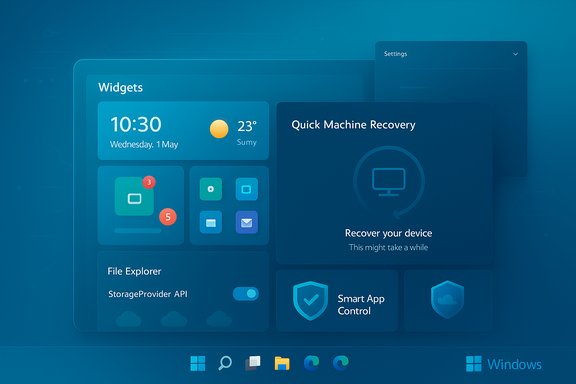
Below is a concise, practical summary of the most notable changes called out in the release notes and the blog announcement:- Widgets: new default dashboard selection in the full-page Widgets Settings, and numbered badges in the Widget Board navigation bar to show alerts per dashboard. Opening the Widget Board when live weather content is shown now opens the first dashboard in the navigation bar rather than the most recently used dashboard. These are designed to make widgets more predictable and scannable.
- Quick Machine Recovery (QMR): QMR in Settings and WinRE has been streamlined. On systems with both “quick machine recovery” and “automatically check for solutions” enabled, QMR now runs a one-time scan by default instead of looping scans, and it more quickly surfaces alternate recovery options when an immediate fix isn’t available. This is a usability and clarity improvement for troubleshooting boot or stability problems.
- Smart App Control (SAC): SAC can now be toggled off and on without requiring a clean OS reinstall. The toggle is available under Windows Security > App & Browser Control > Smart App Control settings. When enabled, SAC helps block untrusted or potentially harmful apps; giving users the ability to flip SAC without reinstalling removes a major friction point in testing and deployment scenarios.
- File Explorer adjustments: people icons under the “Activity” column in File Explorer Home are being re-enabled for some Insiders, while the StorageProvider API integration for cloud providers and the frequently used / recently downloaded recommended files features are temporarily turned off (these are staged or pulled to reduce risk while Microsoft continues validation).
- Quality fixes: a set of incremental fixes rolling out (some immediately, others via toggle) that address issues such as Task View unexpectedly opening when interacting with the desktop, Shift+Click middle-click behavior for File Explorer taskbar icons, taskbar auto-hide settings toggling off unexpectedly, and Settings hanging on certain pages.
- Known issues remain: Start menu not opening for some Insiders on click (works with the Windows key), apps not appearing in the system tray for some Insiders, copy progress dialog visual glitches in dark mode, and a new Recall camera-eligibility issue where some Insiders are told they lack an eligible camera when one is present. These are under investigation.
Deep dive: key features and technical verification
Widgets: default dashboard and numbered badges
Microsoft is making Widgets slightly more predictable by letting users choose a default dashboard and by surfacing numbered badges on dashboard icons in the Widget Board navigation bar. The change addresses two daily friction points: inconsistency when the Weather live tile forces the Widgets panel to open a specific dashboard, and the lack of at-a-glance indication of how many alerts or updates live on each dashboard.- What changed:
- A full-page Widgets Settings lets you rearrange dashboards and place your preferred dashboard first to make it the default.
- Dashboard icons on the navigation bar now show a numerical badge for the number of alerts, and those badges clear automatically when you leave a dashboard.
- Practical impact:
- For users who rely on Widgets for glanceable information (calendar, sports scores, stocks), this reduces cognitive load and the “where did that alert go?” problem.
- Because these changes are staged, expect gradual visibility across devices—turning on “get the latest updates as they are available” increases the chance you’ll see the features sooner.
Quick Machine Recovery: faster, less noisy repair attempts
Quick Machine Recovery is being updated to be clearer and faster. On eligible PCs where both QMR and “automatically check for solutions” are enabled, QMR will run a single scan by default rather than repeating scans in a loop. If a fix is not immediately available, the system surfaces the most appropriate recovery options more quickly instead of leaving the user waiting for a repeated scan.- Why this matters:
- Repeated scans can confuse or prolong a recovery session, especially for consumers who are not comfortable with manual troubleshooting flows.
- The change favours quicker triage and action routing (repair, refresh, external recovery), which should improve time-to-repair for common scenarios.
- Verification:
- The QMR behavior aligns with Microsoft’s broader Resiliency initiative and previous 25H2 preview notes that introduced QMR and cloud-assisted recovery options. Confirm the behavior on device and consult Windows Recovery Environment (WinRE) notes in the updated Settings pages.
Smart App Control (SAC) can be switched without reinstall
A practical quality-of-life update: you no longer need to clean-install Windows to toggle SAC. The change removes a severe friction point for testers and admins who want to validate app compatibility or demonstrate enterprise deployment scenarios without reimaging.- Security implication:
- Allowing SAC to be turned off and on is user-friendly, but enterprises should treat SAC state changes as a security event for policy compliance and telemetry, and ensure endpoint protection policies account for the toggle.
File Explorer: selective re-enables and temporary disabling of APIs
Microsoft is selectively re-enabling people icons under the Activity column while temporarily turning off StorageProvider API integration for third-party cloud providers and the recommended files features tied to “frequently used” and recent downloads. This is a measured rollback of higher-risk integrations to reduce instability while continuing to test core experiences.- Developer and admin impact:
- Cloud-storage vendors using StorageProvider APIs should pause reliance on the newest integration surfaces until the APIs are re-enabled broadly.
- IT teams deploying custom File Explorer integrations should validate their flows in a controlled ring.
What was fixed (selected fixes)
Several fixes are being rolled out either immediately or gradually to toggle opt-ins. Key examples include:- TaskView: fixed an underlying issue that could cause Task view to open unexpectedly when interacting with the desktop.
- File Explorer: Shift+Click or middle-click on File Explorer in the taskbar now opens a new instance again; active tab title bolding display bug fixed.
- Taskbar: corrected a condition where “Automatically hide the taskbar” could unexpectedly turn off.
- Settings: fixed an issue causing Settings to hang when navigating to Network & Internet.
Known issues and risk assessment
Every Insider flight ships with a set of known issues. Build 26220.7070 lists these items; the salient issues and practical mitigations are below.Known issues called out in this flight
- Start menu not opening on click for some Insiders (works with the Windows key). This may also affect Notification Center (WIN + N).
- System tray / systray app icons not appearing for some apps.
- Copy dialog in dark mode: the copy progress UI can flash when toggling details and a scrollbar/footer can appear as a white block when text scaling is applied.
- Recall: new camera eligibility message for some Insiders incorrectly stating the camera is not eligible. Microsoft has acknowledged and is working on a fix.
Risk analysis — who should install and who should not
- Install if:
- You are an active Windows Insider and expect preview instability in exchange for early access.
- You are testing Copilot / widgets / Quick Machine Recovery workflows or validating device-specific features (e.g., handheld/console experiences for Xbox app).
- You maintain a lab, VM images, or non-critical test machines where you can afford troubleshooting.
- Avoid on production machines if:
- You require stable uptime or rely on mission-critical apps that are intolerant of UI regressions.
- You depend on third-party cloud integrations for File Explorer in production (those APIs are temporarily turned off).
- Your management or security controls treat SAC state changes as mandated—flip only after confirming policy impact.
Mitigations and best practices
- Back up before installing: create a full image or restore point and ensure BitLocker keys are recorded.
- Test in a pilot ring first: enroll a small set of test devices and exercise critical workflows (updates, AV, management agent behavior).
- If you rely on SAC for security posture, evaluate the new toggle behavior and adjust endpoint detection rules or auditing accordingly.
- If you encounter the Start menu or system tray issues, use the Windows key and WIN + N as short-term workarounds while Microsoft investigates.
Channel parity and the Dev→Beta window — practical guidance
Microsoft is offering the same 25H2-based update to Dev and Beta for a limited time. That temporary parity creates a short window where Dev Insiders can switch to Beta without requiring a clean install later—once Dev jumps ahead to a newer build line, switching back to Beta may require reinstalling or imaging. This behavior has been part of the 25H2/26220 rollout pattern and was explicitly noted in previous 26200/26120 family announcements. Confirm the exact build number on-device (Settings > Windows Update or winver) before switching channels. If you want to move from Dev to Beta while parity remains:- Pause updates temporarily in Settings > Windows Update.
- Go to Settings > Windows Update > Windows Insider Program and switch the channel to Beta.
- Un-pause updates and check for new updates; the matched 25H2 enablement package will remain available without a re-install while parity is maintained.
- Confirm the device’s winver output matches the target Beta build before resuming normal update cadence.
Cross-checks, verification status, and cautionary notes
- Cross-referencing Microsoft’s own Insider blog posts for the 26220 family confirms the enablement-package model, Controlled Feature Rollout behavior, and the overall themes of staged AI/Copilot integration and quality updates seen in this flight. These patterns have been consistently documented across multiple 26220 announcements.
- The specific KB identifier KB5070300 and build 26220.7070 were included in the Insider communication provided and in community preview notes. Public search indexes and aggregated blog lists sometimes lag for very recent posts; if you cannot find the KB on Microsoft’s public blog index immediately, verify the build on-device or consult Flight Hub for authoritative mapping. If you rely on the exact KB number for deployment scripts, confirm it via device-level metadata or Microsoft’s update catalog once the item is widely indexed.
- Cross-reference principle: when making operational decisions (image creation, driver rollouts, security policy enforcement), validate features and regressions on a local test machine rather than relying solely on the published notes—Controlled Feature Rollout means features may be gated and not visible on all machines even after installing the same update.
Actionable checklist for Insiders and IT admins
- For Insiders who want the earliest staged features:
- Turn ON Settings > Windows Update > Get the latest updates as they are available (toggle). This increases the chance of receiving Controlled Feature Rollouts.
- For admins planning pilots:
- Build a validation image based on the current 25H2 enablement package.
- Update OEM drivers (chipset, GPU, NPU if Copilot+), firmware, and management agents in a lab.
- Back up BitLocker keys and create a full disk image before upgrading test endpoints.
- If you hit regressions:
- Reboot, check WinRE/QMR options, and use the Feedback Hub (WIN + F) to submit repros under Desktop Environment > Widgets or the appropriate category. Include logs and repro steps.
Final assessment — why this build matters
Build 26220.7070 (KB5070300) is emblematic of Microsoft’s current Insider strategy: incremental, practical refinements that improve daily productivity (Widgets polish, QMR clarity, more flexible SAC toggling) together with cautious platform rollbacks where needed (temporary disabling of StorageProvider API integration). For Insiders, it presents tangible improvements without being transformational—yet it signals continuing evolution toward an AI-first Windows shell where Copilot integrations and on-device features are staged carefully.The most important operational takeaways are:
- Expect uneven experiences across devices due to gated rollouts.
- Use test rings and pilot devices for validation before broader deployment.
- Treat the Dev→Beta parity window as ephemeral—plan channel moves promptly if you want to avoid reinstallation later.
Microsoft’s Insider program continues to be the best place to preview where Windows is headed—especially the incremental, daily quality improvements that make the OS feel smoother and more predictable. Insiders who test these builds responsibly (backing up first, piloting in controlled rings, and reporting issues with clear repro steps) will continue to provide the feedback Microsoft needs to land these features safely for everyone.
Source: Microsoft - Windows Insiders Blog Announcing Windows 11 Insider Preview Build 26220.7070 (Dev & Beta Channels)
