

Microsoft’s latest Beta Channel roll‑out, Windows 11 Insider Preview Build 26220.7934 (KB5077242), is a focused quality and capability update that continues the company’s long march toward a polished 25H2 platform while seeding targeted feature experiments to Insiders. Delivered February 27, 2026, this release emphasizes reliability, incremental usability improvements, and a pair of technically notable additions — a new security/performance control for batch file processing and enhanced shared audio controls for Bluetooth LE Audio — alongside accessibility and app refinements that make the build worth testing for both power users and administrators.
Windows Insider Preview builds in 2026 are predominantly distributed as enablement-package–style updates on top of the Windows 11 25H2 servicing baseline. Build 26220.xxxx has been the platform number for this series of flights, and the February 27 push — published by the Windows Insider team and available to Beta Channel Insiders — arrives as KB5077242. This is a controlled, incremental update: many items are being rolled out gradually using Microsoft’s Controlled Feature Rollout (CFR) mechanism, meaning not every Insider will see every feature immediately even after installation.
The engineering emphasis for 26220.7934 is twofold:
Why it’s practical
For Insiders and IT teams, the build is worth validating in a pilot environment. Focus testing on automation scenarios and accessibility features, and be mindful of Controlled Feature Rollout behavior when tracking what’s available on which devices. As always with Insider builds, treat this release as a staging ground: valuable for feedback and early access, but not yet the final word for broad enterprise deployment.
Source: thewincentral.com Windows 11 Insider Preview Build 26220.7934 Released
 Background / Overview
Windows Insider Preview builds in 2026 are predominantly distributed as enablement-package–style updates on top of the Windows 11 25H2 servicing baseline. Build 26220.xxxx has been the platform number for this series of flights, and the February 27 push — published by the Windows Insider team and available to Beta Channel Insiders — arrives as KB5077242. This is a controlled, incremental update: many items are being rolled out gradually using Microsoft’s Controlled Feature Rollout (CFR) mechanism, meaning not every Insider will see every feature immediately even after installation.The engineering emphasis for 26220.7934 is twofold:
- Push small surface‑area improvements that directly affect daily workflows (audio sharing, Narrator commands, Storage cleanup, Paint improvements).
- Introduce a security/performance configuration for legacy automation mechanisms (batch files/CMD) with an eye to enterprises that use code integrity and application control tooling.
What’s included in Build 26220.7934 — feature checklist
- Platform identifier: Build 26220.7934 (Windows 11, version 25H2)
- Package: KB5077242
- Notable new controls and features
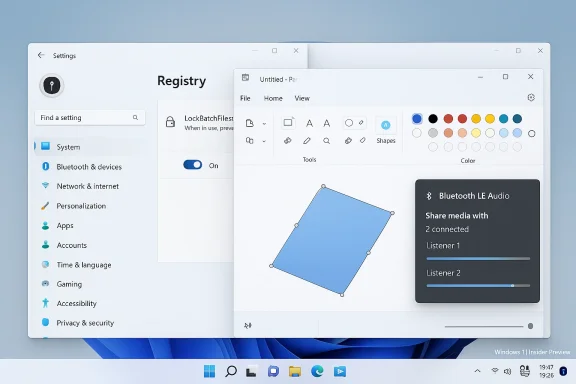
- A new registry / manifest control to lock batch files while in use (LockBatchFilesWhenInUse) to improve batch file security and performance under code integrity.
- Shared audio (preview) improvements: per‑listener independent volume sliders and a taskbar indicator for LE Audio sharing sessions.
- Narrator command: a new Narrator key + \ shortcut to read app status bar content (counts, summaries in Office apps).
- Taskbar stability work: paused rollout of improved autohide animations and improved taskbar component reliability in safe mode.
- Storage reliability improvements: more consistent removal of Windows Update files and large windows.old payloads via Settings > System > Storage.
- Input fixes: improved typing reliability for ADLaM keyboard users.
- Paint update: version 11.2601.391.0 introduces freeform rotate for selections, shapes, and text.
- Rollout model: Controlled Feature Rollout (toggle controlled, subset of Insiders)
Deep dive: the headline changes explained
Locking batch files: LockBatchFilesWhenInUse
One of the most consequential additions in 26220.7934 for IT administrators and security teams is the introduction of a mechanism to ensure batch files and CMD scripts do not change while being executed. The build exposes:- A registry toggle at:
- HKEY_LOCAL_MACHINE\Software\Microsoft\Command Processor\LockBatchFilesWhenInUse (DWORD, 0 or 1)
- An application manifest control (LockBatchFilesWhenInUse) that developers and policy authors can include for stronger, declarative enforcement.
- Batch files are ubiquitous in enterprise automation; they often run with elevated privileges and may be invoked by orchestration and deployment systems.
- When code integrity or similar policies are active, older behavior could require repeated signature validation for each executed statement inside a batch file. Locking the file for the duration of execution reduces repeated validations and the associated runtime overhead.
- From a security perspective, preventing on‑disk modification of a batch while it runs reduces a class of race‑condition and tamper‑in‑flight attacks (e.g., replacing or injecting commands during execution).
- Enabling LockBatchFilesWhenInUse changes runtime semantics; scripts that intentionally or inadvertently rewrite themselves mid‑execution will fail or behave differently.
- Administrators should validate critical automation workflows in a staging environment before enabling this globally.
- The manifest control gives developers a way to opt into the mode per‑application; policy authors can also adopt group policy or MDM controls to align behavior across fleets.
Shared audio (LE Audio) — per‑listener sliders and taskbar indicator
Bluetooth LE Audio’s “shared audio (preview)” receives a straightforward but meaningful usability upgrade: independent volume sliders for each listener and a taskbar indicator that clarifies when audio sharing is active and provides a quick path to sharing settings. For users of modern earbuds and headsets that support LE Audio, this is an immediate UX win.Why it’s practical
- When two users share the same audio source (for example, a presentation or video on a laptop), it’s common for listeners to prefer different loudness. Per‑listener sliders eliminate the awkward compromise or the need to adjust device volumes directly.
- The taskbar indicator acts as an always‑visible reminder that audio is being shared — useful for privacy and context.
- Microsoft lists device support expansion as part of the rollout; LE Audio accessory support continues to grow across vendor ecosystems.
- Because this is still a preview capability, experiences may change and wired workarounds remain available.
Accessibility: Narrator improvements
Narrator users gain a new quick read command: Narrator key + \ reads the contents of status bars in apps such as Microsoft Word, Excel, and PowerPoint. The practical outcome is faster access to on‑screen status details (page/word counts, selection sums) without changing focus — a meaningful productivity improvement for users relying on screen readers.Storage and input reliability fixes
The build includes pragmatic fixes: improved reliability of removing Windows Update and windows.old data via the Settings storage UI and improved typing reliability for ADLaM keyboard layouts. These aren’t flashy, but they materially reduce friction for people freeing disk space after updates and for native language input users.Paint: freeform rotate
A notable app‑level improvement ships with Paint (version 11.2601.391.0): freeform rotate for selections, shapes, and text. This is an incremental productivity feature for creative editing workflows and signals Microsoft’s ongoing maintenance of legacy productivity apps through Store/WinGet updates.Bug fixes, stability and the “soft” improvements
This build focuses strongly on reliability across small but high‑impact areas:- Taskbar loading components and autohide animations saw targeted reliability work.
- Storage cleanup operations are more reliable through the Settings UI.
- Accessibility and input fixes for Narrator and ADLaM keyboards.
- Paint gets a capability update with freeform rotate.
What the official rollout does — and does not — claim
What Microsoft explicitly documented in the official announcement:- Build identity and that the update is available to Beta Channel Insiders.
- The LockBatchFilesWhenInUse control and manifest option.
- Shared audio per‑listener sliders and a taskbar indicator.
- Narrator command to read status bar contents.
- Taskbar stability adjustments, storage reliability improvements, ADLaM keyboard typing fixes, and Paint freeform rotate.
- A note that the desktop watermark is normal for Insider pre‑release builds.
- Rollouts are done via Controlled Feature Rollout; not all features are immediately available to all devices.
- Third‑party summaries and social posts occasionally list additional items (Widgets tweaks, Start menu reorganization, Snap layout changes, or fixes for Bluetooth, Wi‑Fi pairing, and notifications) that may not be explicitly enumerated in Microsoft’s official post for this build. Those items may either be:
- Present because of an earlier or separate flight.
- Planned for another build and conflated by secondary reporting.
- Part of gradual rollouts that are enabled only for specific Insiders or devices.
- Always verify the authoritative release note and Flight Hub for build‑specific feature lists before assuming any unlisted change.
Recommended testing checklist for Insiders and IT teams
Before installing the build, follow a short checklist to avoid surprises and to maximize the usefulness of your testing:- Backup first — at minimum, create a restore point or a full system image if you depend on the machine for production tasks.
- Verify Insider channel enrollment:
- Settings > Windows Update > Windows Insider Program: confirm you’re on the Beta Channel and (optionally) the toggle for getting the latest updates is set if you want early feature exposure.
- Confirm free disk space — cumulative enablement updates can be large; updates that create a sizable windows.old or require offline steps will need additional free space.
- If you run critical automation or scheduled scripts:
- Test LockBatchFilesWhenInUse in a sandbox prior to enabling on production endpoints.
- Audit if any automation rewrites running scripts — those may break under the new lock behavior.
- For shared audio testing:
- Ensure devices support Bluetooth LE Audio.
- Test per‑listener sliders and the taskbar indicator behavior in real sessions.
- Check accessibility scenarios:
- Try Narrator key + \ in supported apps (Word, Excel, PowerPoint) and file an issue if behavior differs from expectations.
- After update, validate storage cleanup via Settings > System > Storage and check Paint for freeform rotate availability.
Enterprise impact and policy guidance
For IT administrators, the build is primarily a maintenance and control update — not a feature revolution. Still, several operational implications are worth noting:- LockBatchFilesWhenInUse provides a defensive control that integrates with Application Control for Business and code integrity frameworks. This is meaningful for regulated environments and organizations that restrict or audit script execution.
- Before deploying the lock setting broadly, conduct a compatibility assessment for deployment tooling, failover scripts, on‑call automation, and third‑party imaging workflows that may rely on dynamic script behavior.
- The Controlled Feature Rollout model means not all Insiders will see the same surface area. Enterprises using the Beta Channel for evaluation should maintain a small pilot group in which new toggles are enabled to catch regressions early.
- Desktop watermarking is expected for pre‑release builds and should be communicated to any non‑technical stakeholders.
Known installation considerations and troubleshooting tips
- Update size and install time: community reports indicate that cumulative Insider updates of this generation can be substantial and may take long to complete on some hardware. Plan for maintenance windows.
- Desktop watermark: visible and expected — not a bug.
- If the update fails:
- Retry the update after a reboot.
- Use Settings > Windows Update > Update history for error codes; Microsoft’s Feedback Hub and the Microsoft Q&A forums have active threads where community troubleshooting is shared.
- If needed, consider acquiring the standalone package (when available) or using the Insider recovery and reinstall guidance.
Strengths and risks — critical analysis
Strengths- Targeted, practical improvements: The build focuses on real‑world usability and reliability problems rather than adding a broad set of experimental UI changes. That’s the right move for this stage of the servicing cycle.
- Administrative control for batch processing: Introducing a lock for batch files addresses a subtle but important performance and security issue in environments that enforce code integrity. It’s a technically sound mitigation that reduces repeated signature validation overhead and introduces a clearer security posture for script execution.
- Accessibility attention: Improvements to Narrator are incremental but impactful for users dependent on screen‑reading technology. Accessibility fixes signal an ongoing commitment to inclusive design.
- LE Audio progress: Per‑listener controls and indicators show Microsoft and partners gradually maturing the LE Audio experience, which will matter as LE Audio gains wider hardware adoption.
- Behavioral change for scripts: Locking batch files changes execution semantics. Script authors or legacy tooling that relied on self‑modifying batch files, or that expected file changes during execution, will encounter breakage unless carefully tested.
- CFR complexity: Controlled Feature Rollout is powerful, but it adds complexity for Insiders trying to reproduce issues. Lack of immediate availability may frustrate testers or lead to misattribution of problems to updates that weren’t actually enabled on a device.
- Incomplete third‑party reporting: Secondary news summaries sometimes bundle unrelated fixes under a single build announcement; relying on them without verifying the official release note can cause confusion.
- Preview instability: Although this flight is clearly maintenance‑oriented, Insider builds remain pre‑release and may carry regressions. Backup and pilot testing remain essential for risk mitigation.
Practical recommendations
- Administrators: Create a targeted pilot group to test LockBatchFilesWhenInUse against your automation estate. Use MDM or Group Policy to stage rollout, and make sure to test long‑running scheduled tasks and deployment scripts.
- Power users and creatives: Try Paint’s freeform rotate — it’s a small but welcome usability win for quick edits.
- Accessibility testers: Exercise Narrator’s new command across Office apps to validate behavior and file accessibility feedback via the Feedback Hub if you encounter inconsistencies.
- Everyone: Keep a recovery plan and expect the desktop watermark. Reserve machines dedicated to early preview testing rather than primary productivity devices.
How to get Build 26220.7934
- Enroll in the Windows Insider Program and select the Beta Channel.
- Optional: enable “Get the latest updates as soon as they’re available” if you want faster access to features that are being rolled out via toggle.
- Path: Settings > Windows Update > Check for updates — the build will appear as the KB5077242 update when it is available to your device.
- After installation: verify feature availability (some items may be blocked behind the CFR toggle), check Settings > System > Storage for cleanup reliability, and confirm Narrator and Paint updates are present.
Final appraisal
Build 26220.7934 is a conservative, technically thoughtful update that advances Windows 11’s stability, accessibility, and administrative control without introducing sweeping UI changes. The most consequential change — the ability to lock batch files while in use — addresses a niche but important intersection of performance and security for enterprises running code integrity and application control. Paired with practical user improvements (shared audio controls, accessibility hotkeys, storage cleanup fixes, and Paint enhancements), this release is a clear example of Microsoft balancing developer/IT needs with incremental user experience polish.For Insiders and IT teams, the build is worth validating in a pilot environment. Focus testing on automation scenarios and accessibility features, and be mindful of Controlled Feature Rollout behavior when tracking what’s available on which devices. As always with Insider builds, treat this release as a staging ground: valuable for feedback and early access, but not yet the final word for broad enterprise deployment.
Source: thewincentral.com Windows 11 Insider Preview Build 26220.7934 Released
