

Microsoft released a new Insider Preview for Windows 11 today that refines the Widgets experience, eases Smart App Control management, streamlines Quick Machine Recovery, and reintroduces people activity indicators in File Explorer — all delivered under update KB5070300 which moves qualifying systems to Build 26220.7070.
Windows 11’s ongoing evolution inside the Insider program continues to favor small, iterative improvements that target usability and manageability across consumer and enterprise scenarios. The latest flight is part of the 25H2 enablement-line releases and is distributed to the Dev and Beta channels while a parity window remains open between them. This update is notable for a cluster of targeted UX tweaks in Widgets and File Explorer, a practical operational change to Smart App Control, and important recovery behavior adjustments — changes that matter for testers, IT pros, and power users who rely on predictable behavior and low-friction recovery tools.
Practical benefits:
From a product design perspective, adding numbered badges and a predictable default dashboard acknowledges common attention-management problems. From a security and operations perspective, the SAC toggle makes life easier for testers and administrators but requires commensurate policy controls. From a reliability perspective, QMR’s one-time scan default is a user-friendly correction to an experience that could otherwise feel stuck in an automated loop.
The controlled feature rollout model remains central: features may appear slowly and may be altered or withdrawn based on feedback and telemetry. IT teams and testers benefit most by validating these changes in controlled environments, treating SAC toggles as security events, and by confirming recovery workflows that now assume a one-time diagnostic pass. For individual Insiders, these changes are a net win for usability — small updates that smooth everyday Windows interactions without radical disruption.
This build is a reminder that iterative UX work, operational adjustments, and modestly improved diagnostics can materially improve the daily experience of millions of Windows users when they are thoughtfully implemented and balanced against security and enterprise manageability.
Source: Windows Report Windows 11 KB5070300 Updates Widget Board & Adds Numbered Badges to Dashboard Icons
 Background
Windows 11’s ongoing evolution inside the Insider program continues to favor small, iterative improvements that target usability and manageability across consumer and enterprise scenarios. The latest flight is part of the 25H2 enablement-line releases and is distributed to the Dev and Beta channels while a parity window remains open between them. This update is notable for a cluster of targeted UX tweaks in Widgets and File Explorer, a practical operational change to Smart App Control, and important recovery behavior adjustments — changes that matter for testers, IT pros, and power users who rely on predictable behavior and low-friction recovery tools.What KB5070300 (Build 26220.7070) delivers — quick summary
- Installs as KB5070300 and advances eligible Insider devices to Build 26220.7070.
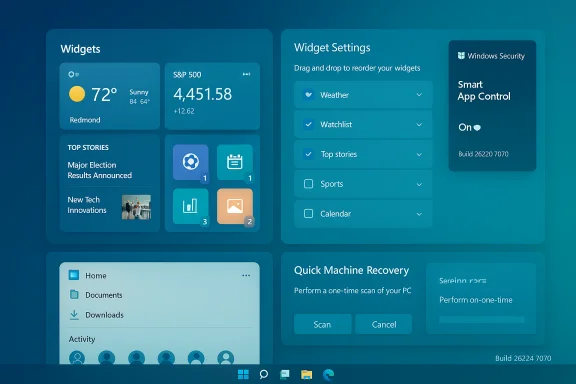
- Widgets: adds a full-page Widget Settings screen where a default dashboard can be chosen and dashboards reordered; opens the Widget Board to the first dashboard when live weather is present; adds numbered badges to dashboard icons indicating alert counts.
- Smart App Control (SAC): introduces an on/off toggle that no longer requires a clean reinstall to change SAC state.
- Quick Machine Recovery (QMR): changes QMR to run a one-time scan by default (when paired with the automatic-check setting) to avoid repeated looped scans and to surface alternate recovery options faster.
- File Explorer: re-enables people icons under the Activity column in File Explorer Home for some Insiders; temporarily disables certain cloud StorageProvider integrations and recommended-files surfaces while validation continues.
- Multiple quality fixes and a short list of known issues remain active in the build.
Widgets: small UX changes with outsized daily impact
A more predictable Widget Board
Widgets were designed to be a glance surface: quick, scannable, and predictable. The update shifts the Widget Board’s focus towards predictability in two main ways:- The Widget Board now defaults to the first dashboard in the navigation bar when live weather content is being shown, instead of restoring the most recently used dashboard. The intent is to avoid the common annoyance where the weather dashboard — which can be contextually promoted when live weather cards appear — causes users to land in an unexpected widget view.
- A new full-page Widget Settings screen (accessible via the gear icon at the bottom of the Widget navigation bar) lets users choose and reorder dashboards. Reordering is drag-and-drop; moving a dashboard to the top makes it the default landing dashboard.
Numbered badges: glanceability improved
A simple but effective addition is the introduction of numbered badges that appear on each dashboard icon in the Widget navigation bar. These badges show the count of new alerts for each dashboard and clear automatically when leaving the dashboard — a behavior designed to align badges with what was actually seen, not what remains unread across sessions.Practical benefits:
- Faster triage of where new items live across multiple dashboards.
- Reduced cognitive load when Widgets aggregate feeds from weather, sports, news, or third-party integrations.
- Compatibility with the glanceable philosophy of Widgets: small signals that encourage a short follow-up rather than prolonged attention.
UX walkthrough — how to set a default dashboard
- Open the Widgets Board.
- Click the gear icon at the bottom of the navigation bar to open the full-page Widget Settings experience.
- Drag the dashboard you want to be the default to the top of the list.
- Close Settings; the Widget Board will now land on that dashboard when live weather content would otherwise change behavior.
Smart App Control: practical toggle, meaningful consequences
The change
Smart App Control (SAC) now exposes an on/off toggle in Windows Security > App & Browser Control that can be used without the previous requirement to perform a clean OS reinstall. SAC remains a capability intended to block untrusted or potentially harmful applications by applying intelligent rules to execution, but the ability to toggle its state without reinstalling Windows removes a major operational barrier for testers, developers, and IT teams.Why this matters
Historically, disabling SAC required a fresh install — a heavy-handed approach that discouraged legitimate testing and complicated remediation when SAC produced false positives for known-good applications. The new toggle significantly reduces friction for:- Application compatibility testing and pilot deployments.
- Rapid recovery from false-positive blocks without reimaging devices.
- Training and demonstration scenarios where SAC behavior needs to be toggled on and off.
Security and policy implications
The toggle reduces operational friction but does introduce policy considerations:- Enterprises should treat SAC toggles as security-relevant events. Turning SAC off increases the attack surface and may bypass protections that were previously enforced centrally.
- Endpoint management systems and audit pipelines should be configured to log SAC changes and potentially block the toggle where compliance requires a fixed state.
- Security teams must consider how telemetry and threat-detection systems will account for environments where SAC is frequently toggled.
Quick Machine Recovery: less looping, faster direction
The change explained
Quick Machine Recovery (QMR) has been adjusted so that when both “Quick Machine Recovery” and “Automatically check for solutions” are enabled, QMR will perform a one-time scan by default instead of repeatedly scanning in a loop. If an immediate fix isn’t available, QMR now more quickly surfaces alternative recovery options rather than leaving the user waiting for additional scans.Practical effect
- Users dealing with boot or stability problems will see faster fall-through to recovery paths that don’t rely on a single automated solution.
- The one-time scan behavior avoids the user-facing symptom of endless progress without direction — a common source of frustration during automated diagnostics.
- The updated flow is surfaced both in Settings > System > Recovery and inside WinRE, aligning the recovery UX between the desktop and pre-boot environments.
Operational guidance
- Keep the “Automatically check for solutions” and QMR toggles enabled only if automatic scanning is desired in managed environments.
- For troubleshooting, note that the scan will be a single pass by default; follow-up diagnostic steps may be required if the initial pass doesn’t resolve the problem.
- For enterprise deployment, test how QMR interacts with other recovery tools (e.g., manufacturer recovery media) to ensure policies don’t conflict.
File Explorer: people activity returns, some cloud features paused
Reintroduction of people icons
File Explorer Home is seeing a partial re-enabling of people icons under the “Activity” column, which show who last modified or interacted with a file. This is a straightforward productivity signal for collaboration-heavy contexts and helps users identify recent editors at a glance.Temporary removal of some cloud and recommendations surfaces
At the same time, the build temporarily disables certain StorageProvider API integration points for cloud providers and removes the frequently used / recently downloaded recommended files surfaces while Microsoft validates stability. This is a conservative risk-reduction move that pauses features with external dependencies until the experience proves reliable in the field.Impact and recommendations
- Collaboration scenarios benefit from the people activity markers, especially for shared OneDrive or network-sourced documents.
- Administrators and cloud-storage providers should be aware that StorageProvider integrations might not be available for some Insiders until validation resumes.
- Users who relied on the recently downloaded/ frequently used recommendations should expect that those surfaces may not appear while the temporary suspension is in effect.
Fixes, known issues, and the controlled feature rollout caveat
Notable fixes included in the flight
- Prevented an issue where interacting with the desktop could unexpectedly open Task View.
- Restored behavior for Shift + Click or middle-click on File Explorer taskbar icons to open new instances.
- Addressed issues where the active File Explorer tab title might not display bold until hovered.
- Fixed an issue that could toggle off the “Automatically hide the taskbar” preference after certain toolbar interactions.
- Resolved a hang in Settings when navigating to Network & Internet for some devices.
Known issues that remain
- Some Insiders may find the Start menu does not open on click (it remains accessible via the Windows key).
- Some apps may fail to appear in the system tray for certain configurations.
- Visual quirks in copy progress dialog in dark mode (white block or missing scrollbar) when text scaling is applied.
- A Recall-related issue where some devices incorrectly report no eligible camera when one is present is under investigation.
Controlled rollout and parity window
Features in this build are subject to Controlled Feature Rollout which means:- Not every Insider will see every feature immediately, even after updating.
- Microsoft may change, remove, or never ship previewed features to broader audiences.
- A parity window currently allows Dev-channel Insiders to move to Beta while both channels receive this 25H2 line, but that window will close once the Dev Channel advances again.
Risk analysis and enterprise considerations
Strengths of this release
- The Widget improvements increase predictability and reduce superficial churn when live content (like weather) forces a context change.
- The SAC toggle is a high-value operational improvement for testing and remediation.
- QMR adjustments reduce user confusion and improve recovery flow clarity.
- The reappearance of people icons in File Explorer restores a useful collaboration signal.
Potential risks and downsides
- The SAC toggle can be misused or toggled inadvertently; this could weaken endpoint defenses if not governed by policy.
- Controlled rollouts add complexity for admins testing features across a fleet; not all devices will match experiences observed in Insider blogs or sample screenshots.
- Temporary removal of StorageProvider and recommendation surfaces may break workflows relying on cloud thumbnails, quick access recommendations, or third-party integrations.
- Known Start menu and system tray issues could disrupt daily productivity for some Insiders; organizations should avoid letting early builds reach production devices.
Recommendations for IT teams
- Treat the SAC toggle as a policy-controlled setting: log toggles, monitor telemetry, and consider blocking the toggle for production endpoints.
- Use a dedicated test ring to pilot QMR changes and verify recovery procedures with manufacturer tools and existing disaster recovery playbooks.
- Expect controlled-feature variability and validate behaviors on multiple devices before rolling out any dependent application or training adjustments.
How to get this build and test responsibly
- Enroll test machines in the Insider Dev or Beta Channel (as appropriate) and confirm the parity window is still open if moving channels is required.
- Turn on the “Get the latest updates as soon as they’re available” toggle to receive the gradual rollouts that include the Widget, SAC, and QMR changes.
- Back up system state before significant experiments: create system images or ensure reliable restore points exist.
- Validate Smart App Control behavior in a sandbox prior to enabling or disabling on a production-anchored device.
- Exercise QMR on test devices to confirm coordinated behavior with OEM recovery and imaging workflows.
Troubleshooting tips for Insiders
- If the Start menu fails to open on click, use the Windows key or WIN + X shortcuts to access essential menus until a fix rolls out.
- If File Explorer behaves oddly after updating, restart the explorer process or reboot; persistent issues may require rolling back to a previous restore point.
- If Smart App Control blocks a legitimate app after the toggle change, capture logs from Windows Security and feedback via the Feedback Hub before toggling SAC off.
- For missing StorageProvider integrations or recent-file recommendations, verify whether the feature is toggled as part of the controlled rollout — temporary suspension is expected for some devices.
Final analysis: subtle but pragmatic
This Insider release is not transformative in a headline-grabbing sense, but it is valuable precisely because it targets real user friction: unpredictability in Widget behavior, the operational pain of SAC reinstalls, and noisy or looping recovery diagnostics. The changes show a pattern of refining day-to-day interactions rather than adding big new surfaces.From a product design perspective, adding numbered badges and a predictable default dashboard acknowledges common attention-management problems. From a security and operations perspective, the SAC toggle makes life easier for testers and administrators but requires commensurate policy controls. From a reliability perspective, QMR’s one-time scan default is a user-friendly correction to an experience that could otherwise feel stuck in an automated loop.
The controlled feature rollout model remains central: features may appear slowly and may be altered or withdrawn based on feedback and telemetry. IT teams and testers benefit most by validating these changes in controlled environments, treating SAC toggles as security events, and by confirming recovery workflows that now assume a one-time diagnostic pass. For individual Insiders, these changes are a net win for usability — small updates that smooth everyday Windows interactions without radical disruption.
This build is a reminder that iterative UX work, operational adjustments, and modestly improved diagnostics can materially improve the daily experience of millions of Windows users when they are thoughtfully implemented and balanced against security and enterprise manageability.
Source: Windows Report Windows 11 KB5070300 Updates Widget Board & Adds Numbered Badges to Dashboard Icons
