

Microsoft’s quiet Friday drop of three Windows 11 Insider preview builds is a reminder that progress in the Windows ecosystem is often evolutionary rather than headline-grabbing: the Canary Channel received Build 28020.1685 with small but practical fixes, while matched Dev and Beta Channel updates (Build 26300.7965 in Dev and Build 26220.7961 in Beta) focus on tighter security controls, File Explorer polish, and interaction refinements. These releases are incremental on the surface, but they continue a pattern of staged rollouts and platform alignment that matters for IT teams, accessibility advocates, and power users testing the future of Windows. ([blogs.windows.com]s.com/windows-insider/2026/03/06/announcing-windows-11-insider-preview-build-28020-1685-canary-channel/)
Windows Insider releases in early March 2026 follow Microsoft’s multi-track preview strategy: Canary remains the experimental testbed, Dev hosts more stable feature experimentation that often maps to upcoming platform baselines, and Beta is the staging area for changes intended for broader distribution. Recently Microsoft reshaped Canary into parallel paths—the 28000-series for certain feature previews and a higher-numbered stream for deeper platform experiments—so context matters when interpreting what appears in each channel. That channel design influences how quickly items graduate or are rolled back, and explains why today’s changes are intentionally conservative.
Before we dive into specifics, two verification points are worth stating explicitly and with dates: Microsoft published the Canary build announcement on March 6, 2026 as KB 5079381, and the matched Dev/Beta flight notes were also circulated the same week as part of the regular Insider updates. Those primary Microsoft blog posts are the canonical references for what is documented in these previews.
Build 28020.1685 aims to improve the reliability of that cleanup flow in Settings: the documented change is intentionally narrow and does not claim a complete rewrite of Storage Sense, but it targets real-world failure modes Insiders have repeatedly reported. Microsoft’s staged feature rollout means the change is toggled and will appear for a subset of Insiders while telemetry validates the fix. That staged approach reduces blast radius but also means the improvement may not be visible to every Insider immediately. Administrators who test this should collect Setup and Windows Update logs to validate behavior across different storage setups (encrypted volumes, third-party filter drivers, network shares, OneDrive files-on-demand).
Why this matters:
Practical implications:
Key operational notes:
File Explorer also received cosmetic and performance fixes in these builds:
Why this matters:
Cross-reference highlights:
For Insiders and IT teams the immediate work is straightforward: test, log, and report. For Microsoft, the challenge remains the same—move quickly enough to innovate while preserving stability and compatibility across a vast ecosystem of hardware and management tools. These builds do not answer all those questions, but they offer small, concrete steps toward better, more secure, and more accessible Windows experiences.
End of article.
Source: Thurrott.com Microsoft Drops New Canary, Dev, and Beta Insider Builds
 Background
Windows Insider releases in early March 2026 follow Microsoft’s multi-track preview strategy: Canary remains the experimental testbed, Dev hosts more stable feature experimentation that often maps to upcoming platform baselines, and Beta is the staging area for changes intended for broader distribution. Recently Microsoft reshaped Canary into parallel paths—the 28000-series for certain feature previews and a higher-numbered stream for deeper platform experiments—so context matters when interpreting what appears in each channel. That channel design influences how quickly items graduate or are rolled back, and explains why today’s changes are intentionally conservative.Before we dive into specifics, two verification points are worth stating explicitly and with dates: Microsoft published the Canary build announcement on March 6, 2026 as KB 5079381, and the matched Dev/Beta flight notes were also circulated the same week as part of the regular Insider updates. Those primary Microsoft blog posts are the canonical references for what is documented in these previews.
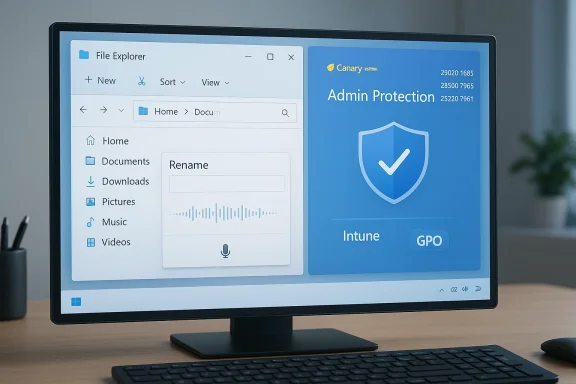
What shipped today: quick summary
- Canary Channel — Windows 11 Insider Preview Build 28020.1685 (KB 5079381)
- Improved reliability when removing Windows Update files / Windows.old through Settings > System > Storage.
- Voice typing (Windows key + H) now works when renaming files in File Explorer.
- Dev Channel — Windows 11 Insider Preview Build 26300.7965
- Beta Channel — Windows 11 Insider Preview Build 26220.7961
- Both channels received the same set of changes in this flight:
- Administrator Protection (a preview security control to prevent “free‑floating” admin rights). This feature is disabled by default and must be enabled by Intune (OMA-URI) or Group Policy.
- Drag Tray refinements: the drag-to-top sharing UI will now show a smaller peek view that’s harder to invoke accidentally and easier to dismiss.
- Voice typing added to File Explorer rename boxes (matching the Canary change).
- Fixes for white flashes when opening or resizing new File Explorer windows/tabs.
Deep dive: Canary build 28020.1685 — small changes, practical impact
Improved Storage cleanup reliability
Removing Windows.old or leftover Windows Update files via Settings > System > Storage is a long-standing maintenance task that can reclaim tens of gigabytes on upgrade-heavy machines. When that experience fails—because a file is locked, a filter driver blocks deletion, or a permissions edge-case appears—users are left confused and with unexpectedly full disks.Build 28020.1685 aims to improve the reliability of that cleanup flow in Settings: the documented change is intentionally narrow and does not claim a complete rewrite of Storage Sense, but it targets real-world failure modes Insiders have repeatedly reported. Microsoft’s staged feature rollout means the change is toggled and will appear for a subset of Insiders while telemetry validates the fix. That staged approach reduces blast radius but also means the improvement may not be visible to every Insider immediately. Administrators who test this should collect Setup and Windows Update logs to validate behavior across different storage setups (encrypted volumes, third-party filter drivers, network shares, OneDrive files-on-demand).
Why this matters:
- Devices with small SSDs or aggressive storage usage patterns see meaningful benefit if Windows.old cleaning runs reliably.
- In enterprise imaging scenarios, improved reliability reduces help-desk tickets and manual cleanup steps post-upgrade.
- Edge cases remain: locked files, encryption, and third-party security drivers can still block deletions; adequate logging and repro scenarios are needed during testing.
Voice typing when renaming files in File Explorer
The ability to press Windows + H and dictate a filename while renaming a file in File Explorer might sound minor, but it’s a significant accessibility and productivity tweak. Historically, the inline rename control in Explorer has been a thin, stateful UI element that didn’t always accept system-wide overlays gracefully. Getting voice typing to work there required attention to focus handling, extension preservation, and invalid-character handling (filenames cannot contain characters like “/” or “:”).Practical implications:
- Accessibility gain: users with motor impairments or those relying on voice-first input can rename files more quickly.
- Workflow boost: power users who batch-rename or annotate files can save keystrokes and time.
- Caveats: spoken punctuation mapping to invalid filename characters, preservation of file extensions, and behavior on network/OneDrive locations should be tested. Expect follow-up tweaks based on Feedback Hub reports.
Dev & Beta builds: Administrator Protection and File Explorer polish
Administrator Protection — what it is and why it matters
One of the headline items in the Dev and Beta matched flight is Administrator Protection. In plain terms, Microsoft is experimenting with a model that prevents administrators from running with permanent, unmoderated elevated privileges—what the company describes as “free-floating admin rights.” Instead, the admin account can perform administrative tasks through a just-in-time (JIT) elevation model that reduces the window of elevated risk.Key operational notes:
- The feature is off by default in these Insider previews.
- It must be enabled centrally—via Intune OMA-URI policy or by Group Policy—so it’s controlled and auditable for organizational testing.
- The model is aimed at reducing persistent attack surface where admin accounts are continuously elevated, which has been a vector for post‑compromise escalation in many incident investigations.
- Changing elevation models can break legacy scripts, installers, and administrative tooling that assume administrators run with full-time elevated rights.
- Pilot-testing in an isolated group is essential before broad rollout; consider automation for privilege elevation flows and audit logging to detect failures.
- Microsoft’s decision to gate this behind management tooling (Intune, GPO) shows an enterprise-first approach to minimize accidental behavior changes. That control also means admins will decide the pace of adoption.
- Some third-party management and deployment systems make assumptions about admin context; compatibility testing is essential.
- Lost productivity can occur if applications assume elevation without prompting.
- The feature’s UX and failure modes will likely evolve; expect refinements in subsequent Insider flights.
Drag Tray refinements and File Explorer visual fixes
The Drag Tray experiment (a UI that presents a choice of target apps when you drag a local file to the top of the screen) is being tweaked. Microsoft notes the tray will now show a smaller peek view, designed to reduce accidental invocation and make dismissal easier. This is a classic UX tuning exercise: reduce false positives and make the affordance less intrusive without losing discoverability for users who rely on it.File Explorer also received cosmetic and performance fixes in these builds:
- Voice typing while renaming files (matching the Canary feature).
- Fixes for visual artifacts—white flashes—when launching new windows or tabs or resizing elements. These polish items may feel minor but matter for perceived performance and quality.
- Exercise drag-and-drop sharing flows using local files, cloud-synced files, and network shares to check for consistent behavior.
- Test rename-with-voice flows across languages and locales; verify extension preservation and invalid-character handling.
- Validate that the white-flash fixes deliver a smoother resize and window open experience across integrated graphics and discrete GPU configurations.
Copilot for Windows: the app begins to host web content
Earlier in the week Microsoft began testing a notable change in the Copilot for Windows app: the ability to open a web tab inside the Copilot app itself, bringing a browser-like web pane next to the conversational AI. The update also ports features from Copilot.com—like Podcasts and Study & Learn mode—into the desktop Copilot experience. Microsoft’s blog frames this as a preview for Insiders and emphasizes opt-in and permission controls for web access inside the app. Independent reporting confirms the rollout is staged to Insiders and highlights privacy and UX trade-offs.Why this matters:
- It reduces context switching between a browser (typically Edge) and the Copilot app, enabling side-by-side browsing and chat.
- Microsoft retains an opt-in permission model for web access, which scopes web-reading privileges per conversation. That design mitigates some privacy concerns, but IT and privacy teams should still audit how web permissions are granted and logged.
- Consolidating browsing and AI in one app blurs browser boundaries. Some outlets have labeled the change “Copilot-as-a-browser,” and users may worry about which engine or privacy rules apply when web content is displayed and processed inside a chat app. Microsoft’s permission model attempts to isolate that risk, but the implementation details matter.
- Enterprise environments should review whether Copilot’s in-app browsing introduces new data exfiltration paths or changes default telemetry. The staged Insider rollout gives teams time to evaluate before general availability.
Cross-checks, sources, and verification
I verified the Windows Insider announcements for the specific builds directly against Microsoft’s Windows Insider Blog posts published the week of March 2–6, 2026. The Canary announcement for Build 28020.1685 is the authoritative note for the two Canary changes (Storage cleanup reliability and voice typing in rename), while Dev/Beta notes describe Administrator Protection, Drag Tray refinements, and the File Explorer fixes. Independent coverage from outlets and Insider community posts match the Microsoft notes, giving confidence that the documented changes are accurate for Insiders on the relevant channels.Cross-reference highlights:
- Microsoft Windows Insider blog post confirming Build 28020.1685 and KB 5079381.
- Microsoft blog post announcing Copilot’s in-app web tab and the addition of Podcasts and Study & Learn mode.
- Independent tech reporting and analysis (Windows Central, WinBuzzer, Thurrott) that describe the same feature list and rollout model for Insiders.
Practical guidance for Insiders, power users, and IT admins
For Insiders who want to test these builds
- Back up: create a full system image before using Canary builds, and prefer test devices rather than primary work machines.
- Use Feedback Hub: if you encounter regressions or UX issues (especially with rename-with-voice, storage cleanup, or the Drag Tray), provide reproducible steps and attach logs.
- Localization: expect incomplete localization and model coverage for voice typing features in Canary; test in non-English locales carefully.
For IT administrators and deployment teams
- Pilot Administrator Protection in a controlled group before broad adoption. Review automation scripts, installer expectations, and signed package flows that assume elevated contexts.
- Treat Dev/Beta matched builds as candidates for QA labs; validate printing, driver installs, and legacy management tooling which may be sensitive to changes in elevation and Explorer behaviors.
- Monitor Microsoft’s formal KB and update catalog entries if you need offline packages for controlled installs—preview KB documentation can lag blog posts.
For privacy and compliance teams
- Evaluate Copilot’s new in-app web access: confirm logging, consent flows, and whether opt-in permissions meet organizational data-handling requirements.
- If your organization uses Copilot or Copilot-enabled features, set an approval and monitoring policy for Insiders to prevent accidental data exposure.
Strengths, limitations, and the strategic picture
Strengths
- Incremental, testable improvements: Microsoft continues to favor small, measurable changes delivered under Control Feature Rollout, which reduces risk and can accelerate iterative improvement based on telemetry.
- Accessibility and user-focused fixes: enabling voice typing in rename flows is a concrete accessibility win and demonstrates Microsoft’s attention to everyday friction points.
- Enterprise-minded controls: Administrator Protection’s gated nature (Intune/GPO) reveals Microsoft is thinking about enterprise adoption pathways rather than forcing abrupt changes.
Limitations and risks
- Narrow scope: for mainstream users, these builds will feel incremental rather than transformative. That’s normal for Insider channels but worth noting for readers expecting sweeping new features.
- Compatibility risk for admin workflows: any shift away from persistent admin contexts requires careful compatibility testing for legacy tooling and scripts.
- Privacy and UX questions with Copilot’s in-app web integration: while opt-in permissions exist, blending web-browsing with a conversational AI raises questions around data visibility, caching, and access scopes that organizations should probe.
What to watch next
- Graduation of voice-typing and Storage cleanup reliability from Canary to Dev/Beta and then to general release. The speed of that progression will indicate how robust Microsoft judged the changes after telemetry.
- Administrator Protection: whether Microsoft adjusts the default state or expands management control granularity (for example, per-role or per-task exceptions), and how many enterprise partners report compatibility issues.
- Copilot in-app browsing: adoption signals, privacy audits, and whether Microsoft extends the capability to surf-and-action across authenticated sites within the Copilot app. This will reshape how some users interact with web content in an assistant-first workflow.
Final assessment
This week’s builds are a tidy example of Microsoft’s current cadence: incremental fixes and conservative experiments aimed at reducing friction, improving accessibility, and tightening security posture for administrative users. The Canary build’s storage and voice-typing tweaks are practical improvements that respond to persistent user pain points, while the matched Dev/Beta flight’s Administrator Protection and Explorer refinements signal earnest progress on enterprise-grade privilege management and desktop UX polish.For Insiders and IT teams the immediate work is straightforward: test, log, and report. For Microsoft, the challenge remains the same—move quickly enough to innovate while preserving stability and compatibility across a vast ecosystem of hardware and management tools. These builds do not answer all those questions, but they offer small, concrete steps toward better, more secure, and more accessible Windows experiences.
End of article.
Source: Thurrott.com Microsoft Drops New Canary, Dev, and Beta Insider Builds
