

Microsoft is quietly rolling out two deceptively simple changes in recent Windows 11 Insider preview builds that materially improve day‑to‑day control for both privacy‑conscious users and developers: a refreshed top‑level Privacy overview that surfaces app permission use at a glance, and a straightforward Windows Subsystem for Linux (WSL) toggle placed inside the Settings app so you no longer need command‑line steps to flip WSL on or off. These are not headline features, but together they point to a larger trend — a Settings experience that’s becoming more discoverable, less arcane, and better aligned with modern workflows.
Windows has been evolving incrementally toward better privacy controls and easier developer tooling for several releases. Historically, privacy controls were spread across pages and dialog boxes; WSL started as a developer preview that required PowerShell or DISM commands to enable. Over the past couple of years Microsoft has moved many formerly hidden toggles into the graphical Settings app and iterated on WSL’s integration, adding GUI components, networking improvements, and WSLg for GUI apps. Those efforts are visible in the Insider flight notes and community testing reports that document ongoing refinements to privacy settings and WSL’s usability.
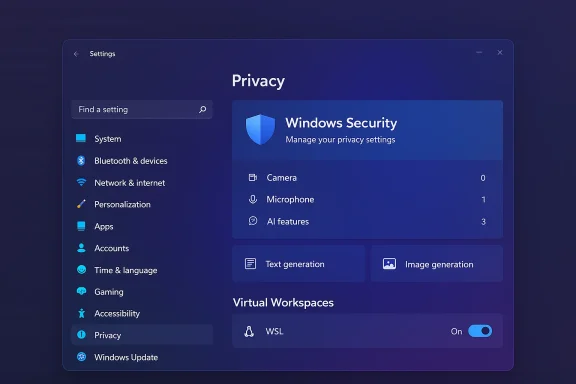
Even more practical is the addition of at‑a‑glance permission summaries beside each privacy category. Instead of clicking into Camera, Microphone, or new AI‑related categories to see which apps have access, the Settings list now shows counts and usage summaries — for example, how many apps can interact with text generation or image generation features. This is particularly timely as AI capabilities are embedded in more apps; the new layout reduces clicks and gives immediate context about which apps are allowed to use sensitive capabilities. The approach is consistent with recent privacy‑first refinements Microsoft has been trialing in Insider builds.
Source: thewincentral.com These Upcoming Hidden Windows 11 Changes Make Privacy and WSL Much Easier - WinCentral
 Background
Windows has been evolving incrementally toward better privacy controls and easier developer tooling for several releases. Historically, privacy controls were spread across pages and dialog boxes; WSL started as a developer preview that required PowerShell or DISM commands to enable. Over the past couple of years Microsoft has moved many formerly hidden toggles into the graphical Settings app and iterated on WSL’s integration, adding GUI components, networking improvements, and WSLg for GUI apps. Those efforts are visible in the Insider flight notes and community testing reports that document ongoing refinements to privacy settings and WSL’s usability.What’s changing: Privacy made visible
A new L1 Privacy “hero” and at‑a‑glance permission counts
One of the preview build tweaks shows a redesigned top section on the primary Privacy page — a “hero” control visually linked to Windows Security that acts as an immediate privacy overview rather than a simple list of toggles. The hero makes protections and the system’s privacy stance more visible the moment you open Settings, giving users an instant sense of what the OS is protecting and where to look next. This change is mostly UI/UX, but it lowers the barrier for non‑technical users to understand their device’s privacy posture.Even more practical is the addition of at‑a‑glance permission summaries beside each privacy category. Instead of clicking into Camera, Microphone, or new AI‑related categories to see which apps have access, the Settings list now shows counts and usage summaries — for example, how many apps can interact with text generation or image generation features. This is particularly timely as AI capabilities are embedded in more apps; the new layout reduces clicks and gives immediate context about which apps are allowed to use sensitive capabilities. The approach is consistent with recent privacy‑first refinements Microsoft has been trialing in Insider builds.
Why this UX matters more than you might think
- It increases discoverability: users see problematic permissions without hunting through nested pages.
- It reduces accidental consent: quicker visibility encourages audit and revocation of unnecessary accesses.
- It frames AI permissions as first‑class citizens: showing counts for text/image generation recognizes that these capabilities are now privacy‑relevant sensors in their own right.
What’s changing: WSL gets a proper toggle in Settings
A simple on/off for WSL in Settings → System → Advanced → Virtual Workspaces
For years, enabling WSL required command‑line steps or running the optional Windows Features UI. Insider builds are experimenting with a dedicated WSL toggle inside Settings — reported to live under System → Advanced → Virtual Workspaces — that allows you to enable or disable WSL without PowerShell. Alongside the toggle, related virtualization settings and networking options become easier to find and tweak in the same pane. This is a meaningful quality‑of‑life improvement for developers who switch between “regular” Windows use and Linux‑centric workflows.Why this is a developer productivity win
- No terminal required: toggle WSL without administrator console commands.
- Faster context switching: turn off WSL for non‑dev sessions to reduce background services or attack surface.
- Centralized virtualization controls: WSL management is now discoverable in the system settings tree alongside other VM and container controls.
Deep dive: What each change actually does — and what it doesn’t
Privacy dashboard — practical capabilities and limits
- What it does:
- Presents a high‑level privacy state tied visually to Windows Security.
- Shows permission counts and recent usage for categories (camera, mic, AI features).
- Encourages quick audits and revokes by surfacing which apps have access.
- What it doesn’t (and why to be cautious):
- The counts are summary indicators; they do not replace an audit log or a full telemetry ledger showing where data flows externally. For instance, a single app allowed to use a text‑generation API may still offload data to cloud services depending on its design — the Settings count won’t show that data path. Users and admins should continue to rely on app‑level privacy docs and network monitoring for forensic detail. If you need a human‑readable, auditable privacy ledger, that still requires either Microsoft exposing more telemetry detail or third‑party tools.
WSL toggle — practical capabilities and caveats
- What it does:
- Lets you enable/disable WSL from Settings without command‑line commands.
- Exposes related virtualization toggles (Virtual Machine Platform, Hyper‑V components) in the same workflow.
- Shortens the path from clean Windows desktop to developer environment.
- What it doesn’t:
- It does not magically resolve all WSL networking edge cases or filesystem semantics; WSL still has tradeoffs (e.g., cross‑OS file I/O performance, differences between wsl: and Windows paths) that are intrinsic to the architecture. Complex dev setups will still require readme‑style configuration and possible .wslconfig tuning.
- Security and networking implications:
- Some WSL networking modes (notably mirrored networking) alter how Linux services are exposed to the host network. That’s powerful for local dev servers and VPN scenarios — but it also increases the chance of accidentally exposing services beyond the device if firewall rules aren’t tightened. Microsoft’s GUI is reducing friction for enabling these features; power users should reciprocate by validating firewall and port rules after enabling mirrored networking or other network modes.
Cross‑referencing the claims: what we can verify
The summary points above are drawn from multiple Insider build notes and community analyses:- Insider build reporting shows Microsoft removing or consolidating legacy privacy options and adding better discovery to the Privacy area, which is consistent with the new hero/dashboard approach. These preview notes emphasize privacy streamlining and UI rearrangements in the Privacy & Security area.
- WSL has been receiving GUI settings and networking improvements in Insider channels for some time, including the addition of Settings UI for WSL networking and mirrored mode controls; the notion of a WSL toggle inside Settings is consistent with these incremental UI placements. Independent WSL documentation and community testing also document WSL’s evolving feature set (WSLg, AF_UNIX, .wslconfig), which supports the claim that Microsoft is moving WSL management into more discoverable, Settings‑based controls.
Risks, gaps, and things Microsoft should still clarify
These small UI improvements are valuable, but they leave a few important gaps that Microsoft and administrators should address:- Permission counts vs. telemetry flows: the new counts can give a false sense of completeness. Users need better, easily accessible documentation of whether “app X can access text generation” implies local processing or outbound cloud calls, and what data is transmitted. Windows would benefit from an exportable privacy ledger that maps toggles to telemetry endpoints. Until then, assume summary counts are high‑level indicators and follow up with network or app‑level audits for sensitive cases.
- Enterprise controls and MDM policy parity: adding toggles to Settings helps individuals but enterprises depend on Group Policy and MDM to enforce configuration. Microsoft must ensure the new UI maps cleanly to policy controls so admins can script and audit settings centrally. Insider notes and community recommendations emphasize exposing policy equivalents and MDM controls alongside UI changes to avoid management drift.
- WSL network exposure: as WSL’s networking gains mirrored and DNS tunneling modes, those features solve painful developer problems but widen the host’s attack surface. Organizations should document recommended firewall rules, and Microsoft should clearly label the security consequences of toggles in the UI. Community testing suggests mirrored mode is a net win for many developers, but it requires explicit hardening for production or shared networks.
Practical advice: how to approach these features safely (for power users and admins)
- Confirm your environment:
- If you’re on the Insider channel, assume features are experimental and keep a test machine for early builds. For production devices, wait for general release.
- Backup before flipping:
- Create a system image or at least a restore point before changing virtualization or privacy settings that could affect workflows or application behaviour.
- Audit Privacy dashboard regularly:
- Use the new Privacy overview to identify unexpected permissions (especially AI/text/image generation ones). Where a permission is unnecessary, revoke it from this page and follow up with app‑specific checks.
- When enabling WSL via Settings:
- Review dependent Windows features (Virtual Machine Platform, Hyper‑V), then validate firewall settings and port exposures. If you rely on VPNs or specific DNS behaviour, test mirrored networking and .wslconfig keys (dnsTunneling, networkingMode) in a controlled environment.
- For enterprises:
- Map the new Settings toggles to Group Policy / MDM policies before broadly enabling, and update documentation for help desks so they can reproduce or revert changes reliably.
- Monitor Microsoft Release Notes:
- Insider builds can change feature names, locations, and capabilities. Watch official release health notes for canonical behaviour and rollback options.
Short technical checklist for developers who rely on WSL
- Check build/version: Ensure you’re running an Insider build that shows the new WSL toggle if you want the GUI path; otherwise enable WSL via PowerShell as before.
- Validate virtualization stack: Confirm Virtual Machine Platform and optional Hyper‑V components if required by your distro or tools.
- Configure .wslconfig for networking: Use networkingMode and dnsTunneling fields when you depend on VPNs or need mirrored networking behaviour.
- Restart reliably: After toggling WSL, run wsl --shutdown and restart your distro to avoid cached state issues.
- Test local dev servers: Confirm services are reachable from Windows using ip a and ip route inside WSL, and adjust firewall rules to lock inbound access to needed ports.
The strategic takeaway: small refinements, big signals
Individually, a hero panel in Privacy or a toggle for WSL feels minor. Together, they signal Microsoft's broader product intent: make control discoverable, treat privacy as a first‑class scenario, and modernize tooling so Windows is less reliant on command lines for critical toggles. For users this means less friction when auditing how apps use AI features and a simpler path to switch development contexts. For IT and security teams, it means there will be more convenience to manage — but also a need to ensure those conveniences are mapped to policy and hardened appropriately. Insider notes and community analysis both show these changes are consistent with Microsoft’s iterative approach, and that they’re being refined before any wide release.Bottom line
Windows 11’s upcoming UI tweaks aren’t flashy, but they are consequential. The L1 Privacy dashboard reframes privacy as an at‑a‑glance activity rather than a settings scavenger hunt, and the WSL toggle brings developer features into the same predictable Settings surface modern users expect. Both moves reduce friction and increase clarity — which, in an era of embedded AI features and hybrid development workflows, is exactly the kind of pragmatic progress users want. Treat Insider appearances as previews, validate behaviour in a test environment, and for enterprise rollouts insist on policy mappings and firewall hygiene before enabling broader access. Microsoft is quietly cleaning up the OS’s control plane; if the company continues down this path, Windows will be easier to manage and more transparent — two wins that power users and administrators will welcome.Source: thewincentral.com These Upcoming Hidden Windows 11 Changes Make Privacy and WSL Much Easier - WinCentral
