

Microsoft’s latest Insider flights deliver a quiet but consequential round of polish to Windows 11: context menus that are shorter, smarter, and developer-friendly; refreshed “spec cards” surfaced on the Settings home so you can see CPU, RAM, GPU and storage at a glance; and a handful of reliability and UI fixes that together make everyday interactions feel less fragile. These changes are rolling out in recent Dev and Beta builds and are being delivered as gradual, telemetry‑backed experiments rather than a single big launch — meaning you may see different bits at different times depending on your Insider toggles and channel. //www.neowin.net/news/windows-11-beta-build-226214800-introduces-new-pc-spec-cards-in-settings/)
Windows 11 launched with a redesigned shell that emphasized visual refresh and modern controls, but the right‑click (context) menu quickly became one of the most persistent user complaints: long, repetitive, inconsistent, and sometimes hard to scan. Microsoft has responded in stages — evolving the Shell, polishing File Explorer, and introducing new developer controls in WinUI and the Windows App SDK — and the latest Insider builds continue that effort with both user‑facing tweaks and developer‑facing APIs. Early experiments (and developer previews) laid the groundwork years ago for grouped actions and “show more options” faleing now is the practical application of those ideas across the platform.
At the same time Microsoft preserves compatibility: the “Show more options” entry still loads the legacy Windows 10 style menu for cases where apps haven’t migrated or where power users require low‑use verbs. This hybrid approach protects legacy workflows while nudging the ecosystem toward tidier menus.
For administrators and power users the advice is straightforward: test these changes in non‑production environments, watch for toolchain updates (WinUI / Windows App SDK previews), and prepare to adopt the new controls where they make sense. For mainstream users, expect the system to feel a little cleaner and a touch faster as these refinements land more broadly.
If you want a single takeaway: Microsoft is listening and pivoting from purely aesthetic updates toward pragmatic, usability‑first improvements — and the current Insider flights show that the company is finally tackling the small annoyances that make a big day‑to‑day difference.
Source: Neowin Windows 11 gets improved context menus, better spec cards, and more in new builds
 Background
Windows 11 launched with a redesigned shell that emphasized visual refresh and modern controls, but the right‑click (context) menu quickly became one of the most persistent user complaints: long, repetitive, inconsistent, and sometimes hard to scan. Microsoft has responded in stages — evolving the Shell, polishing File Explorer, and introducing new developer controls in WinUI and the Windows App SDK — and the latest Insider builds continue that effort with both user‑facing tweaks and developer‑facing APIs. Early experiments (and developer previews) laid the groundwork years ago for grouped actions and “show more options” faleing now is the practical application of those ideas across the platform.What’s in the new builds (high level)
- Improved context menus: shorter top‑level lists, grouped flyouts for less‑used commands, and split menu items that combine a primary action with a compact secondary menu.
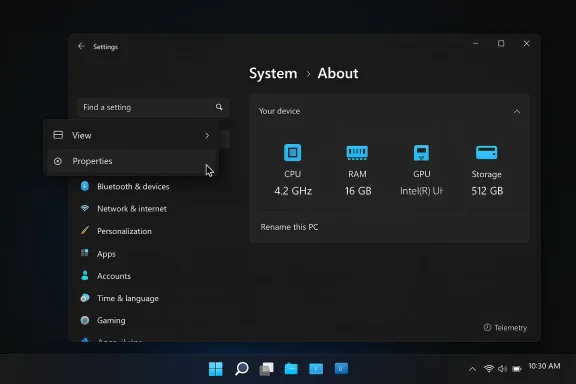
- Device/spec “cards” in Settings: top cards on Settings > System > About and a “Your device info” card on Settings home that surface CPU, memory, GPU and storage summary data.
- File Explorer refinements: optional preloading for faster launches, dark‑mode polish, and positioning fixes for context submenus.
- Miscellaneous UI and reliability fixes: taskbar icon reliability with auto‑hide, Cls for supported webcams, and updated emoji sets.
- Rollout method: features are being delivered via enablement packages and Controlled Feature Rollout (CFR), meaning not every Insider sees everything at once.
Deep dive: context menus and the split‑menu pattern
The problem Microsoft is solving
The classic Windows context menu decades: many shell verbs, numerous third‑party app inserts, and little enforced structure. That resulted in long vertical lists where the most common verbs weren’t always near the pointer, and unrelated items could interrupt core commands. The UX hit was real: slower scanning, more mouse travel, and confusing duplication. Microsoft’s earlier documentation and developer guidance explicitly called out these problems and sketched the remedies.What changed in these builds
Recent Dev/Beta builds reorganize the context menu to reduce vertical length and make the most common actions immediately visible. The core tactics are:- Grouping lower‑priority actions behind a single flyout (reported as “Manage file” in early notes) so rarer items like Compress to ZIP, Copy as path, or Rotate are available but not crowding the primary list.
- Moving cloud‑provider actions (OneDrive hydration/dehydration controls, Free up space, etc.) into dedicated provider flyouts so cloud features don’t interrupt shell verbs.
- Introducing a split menu pattern (a new WinUI control sometimes shown as SplitMenuFlyoutItem in developer previews) that allows a single row to represent both a default action and a compact list of related alternatives. Click the left side to perform the default; click the chevron on the right to expand related choices. This collapses multiple near‑duplicate rows (e.g., several “Open with” entries) into one compact control.
Developer implications: new controls and legacy compatibility
Microsoft is shipping developer tooling in tandem with the UI changes. The WinUI team’s SplitMenuFlyoutItem (exposed in previews of the Windows App SDK) provides a native control developers can adopt instead of inventing inconsistent custom menus. For app authors that need to surface multiple verbs, this control simplifies UI consistency across WinUI apps and reduces the tendency for third‑party shell extensions to fragment the menu.At the same time Microsoft preserves compatibility: the “Show more options” entry still loads the legacy Windows 10 style menu for cases where apps haven’t migrated or where power users require low‑use verbs. This hybrid approach protects legacy workflows while nudging the ecosystem toward tidier menus.
Accessibility and discoverability — progress and concerns
Consolidating commands into grouped flyouts raises legitimate concerns about discoverability and keyboard access. Microsoft’s approach includes:- Keeping keyboard fallbacks: the full legacy menu can be loaded with Shift+F10 or the keyboard menu key.
- Ensuring primary verbs remain immediately available without extra clicks.
- Documenting “context menu best practices” for developers so they place Open, Edit and similar verbs in expected places.
Spec cards and Settings redesign: hardware at a glance
What the new “top cards” show
Microsoft is surfacing concise hardware summaries directly in Settings. The “top cards” under Settings > System > About (and the “Your device info” card that can appear on the Settings home) present:- Processor model and base information
- Total installed RAM
- Primary storage usage and free capacity
- Discrete GPU / video memory summary
Where the feature sits and enterprise caveats
Microsoft is rolling these UI changes gradually and has signaled that some “cards” will be withheld on managed commercial PCs until IT admins opt in. The Settings homepage redesign for managed devices includes enterprise‑relevant cards (Recommended settings, device info, accessibility preferences), and the rollout prioritizes enterprise stability over immediate exposure. In short: consumers and unmanaged Insiders will see the fuller spec card experience earlier; managed corporate fleets will follow a more cautious path.Practical value and limitations
For most users the cards provide immediate utility: quick identification of memory bottlenecks, easy reference for GPU when checking gaming compatibility, or a snapshot for support calls. Limitations remain:- The cards are summary‑level — you still need Device Manager or third‑party tools for deep diagnostics (temperatures, per‑core clocks, S.M.A.R.T. details).
- OEM customization and driver mismatches can sometimes mislabel hardware; Microsoft’s UI will need to account for corner cases.
- Controlled rollouts mean not every Insider or consumer will see the cards the day the builds ship.
File Explorer: preload, dark mode polish, and context positioning fixes
File Explorer has been under steady refinement in Windows 11 preview builds. Recent changes include:- Optional “Explorer preload” experiments that keep a lightweight part of File Explorer warmed so the app paints and becomes interactive faster on launch.
- Dark mode consistency improvements across dialogs and copy/move progress UIs, improving visual cohesion for users on dark themes.
- Fixes for submenu positioning so context submenus no longer appear partially offscreen or far away from the parent, and fewer flicker/crash scenarios when invoking right‑click menus on certain file types (zip files reported previously).
Other notable touches in the builds
- Camera pan/tilt controls: For webcams that support PTZ, Microsoft has exposed basic pan/tilt controls in Settings so you don’t necessarily need vendor software for core adjustments. This centralizes common camera controls.
- Emoji refresh: Emoji 16.0 glyphs are being added to Windows’ emoji set in recent flights, bringing the OS up to modern emoji versions.
- Taskbar icon reliability: Several fixes target missing system tray icons when the taskbar is set to autohide, plus minor animation and preview improvements.
Rollout model and what to expect as an Insider (and as an admin)
Microsoft’s modern update practice for Insider flights now relies heavily on two mechanisms:- Enablement packages and build numbering that separate the Dev stream from released version numbers (e.g., Build 26220.xxxx for Dev Channel experimental flights).
- Controlled Feature Rollout (CFR) that gates features to subsets of Insiders and ramps them by telemetry and feedback.
Critical analysis — strengths
- Measurable UX wins: Shorter, grouped menus address one of the most widely cited friction points in Windows 11. The split‑menu pattern is an elegant way to retain deep functionality while simplifying the surface area.
- Developer tooling: Shipping a first‑party WinUI control removes incentive for inconsistent third‑party menu hacks and should speed more consistent adoption across WinUI apps.
- Practical system info: Spec cards reduce support friction and serve as a helpful, immediate reference for non‑technical users who previously had to dig through multiple panels or run third‑party tools.
- Incremental risk control: CFR and enablement packaging protect the user base by limiting blast radius; Microsoft can iterate on feedback before a broad rollout.
Critical analysis — risks and unanswered questions
- Migration friction for legacy shell extensions: The context menu ecosystem includes many third‑party shell extensions written to old APIs. Unless Microsoft provides clear migration paths and compatibility shims, some apps may lose visibility or break in subtle ways during the transition. The legacy Windows 10 menu fallback helps, but it’s not a long‑term substitute for maintained integrations.
- Discoverability vs. decluttering tradeoff: Grouping rarer commands risks hiding features power users rely on. Microsoft must keep keyboard, screen‑reader, and discoverability parity rigorous, or accessibility complaints will mount.
- Rollout opacity: CFR is sensible, but it can create disparate experiences across similar machines. Support teams and helpdesk staff may face difficulty triaging issues that only appear for a subset of users. Microsoft’s documentation about CFR is robust, but admins must be aware of when enablement toggles are used.
- Unclear timeline for full shell adoption: Many articles and developer previews show the split menu control in WinUI apps first. Whether the full Windows shell will migrate wholesale (and on what schedule) remains partially ambiguous in public messaging. Early reports show WinUI app surfaces adopting the control first; the shell may follow depending on engineering prioritization and compatibility testing. Treat rollout timing as tentative unless Microsoft publishes concrete schedules.
What developers and power users should do now
- If you’re a developer targeting Windows 11 UX: evaluate the SplitMenuFlyoutItem in the Windows App SDK previews and update your app’s context menu patterns to avoid duplicate verbs. Prioritize accessibility semantics for keyboard and Narrator.
- If you’re a sysadmin or support lead: be aware of the CFR model and counsel end users about possible UI differences. Confirm your imaging and update policies account for enablement toggles so you don’t surface experimental UI to production machines inadvertently.
- If you’re a power user or Insider: try the new menus and spec cards on an Insider test machine first. Use the “Show more options” fallback while you and your apps migrate. Report regressions via Feedback Hub with repro steps and accessibility notes.
Verifiability and notes of caution
- The builds referenced in recent community summaries and changelogs include Dev build 26300.7877 and Beta build 26220.7872, which were noted in Insider channels around February 20, 2026. Controlled Feature Rollout means not all Insiders will see the changes immediately. If you don’t see a feature, check your Windows Update toggle and your channel.
- Some early reporting focuses on the developer preview control (SplitMenuFlyoutItem) and WinUI samples — those previews indicate the API direction but do not guarantee identical behavior in the shell or across all contexts. Treat SDK previews as a leading indicator, not final behavior.
- A few third‑party coverage pieces include screenshots from WinUI community calls or leaked previews. Those are valuable for illustration, but they’re not substitutes for Microsoft’s official release notes and the Windows Insider blog entries that document rollout mechanisms and known issues. Always cross‑check with the Windows Insider Blog and the Flight Hub if you need exact build numbers for compliance or enterprise planning.
Final verdict
The recent Windows 11 Insider builds are a welcome course correction: they address real, practical UX complaints about context menus while giving developers a supported path to modernize their integrations. The device/spec cards in Settings are an understated but useful addition for the majority of users who need quick hardware visibility. Will these changes transform Windows overnight? No — they are incremental and rolled out cautiously — but they’re meaningful because they target high‑frequency touchpoints (right‑click menus and System > About) that affect millions of interactions every day.For administrators and power users the advice is straightforward: test these changes in non‑production environments, watch for toolchain updates (WinUI / Windows App SDK previews), and prepare to adopt the new controls where they make sense. For mainstream users, expect the system to feel a little cleaner and a touch faster as these refinements land more broadly.
If you want a single takeaway: Microsoft is listening and pivoting from purely aesthetic updates toward pragmatic, usability‑first improvements — and the current Insider flights show that the company is finally tackling the small annoyances that make a big day‑to‑day difference.
Source: Neowin Windows 11 gets improved context menus, better spec cards, and more in new builds
