

Microsoft is quietly testing a string of small but practical Windows 11 features that, taken together, show a continued focus on everyday convenience rather than only flashy AI headlines—think a dedicated emoji taskbar icon, richer Snipping Tool controls (including trimming and GIF export), Start menu smart snap suggestions, and an in‑settings PC specs FAQ to help novices. These are rolling out to Insiders in staggered flights and experimental rollouts, and while none are earth‑shattering alone, they matter because they target the real‑world irritations and micro‑tasks that shape most users’ daily workflows.
Microsoft has been using the Windows Insider channels to pilot a steady stream of iterative improvements across UI, accessibility, and small productivity details. Unlike a major feature update where a single headline change dominates, these Insider‑level experiments are modular: some are gated behind control‑feature rollouts, others appear as optional updates in Beta/Dev/Canary channels. That means most users will encounter them gradually (if at all) while enterprise admins and power users will want to track which changes could affect workflows, policies, or end‑user education.
Windows’ testing cadence now mixes three paths:
Why this matters: discoverability and discoverability fatigue are real. Many users don’t discover the emoji panel, so a visible button lowers the activation energy and could increase usage in chatting, editing, and informal documents.
Strengths:
Source: BornCity Windows 11: Microsoft testet neue Features für mehr Komfort - BornCity
 Background / Overview
Microsoft has been using the Windows Insider channels to pilot a steady stream of iterative improvements across UI, accessibility, and small productivity details. Unlike a major feature update where a single headline change dominates, these Insider‑level experiments are modular: some are gated behind control‑feature rollouts, others appear as optional updates in Beta/Dev/Canary channels. That means most users will encounter them gradually (if at all) while enterprise admins and power users will want to track which changes could affect workflows, policies, or end‑user education.Windows’ testing cadence now mixes three paths:
- Canary/Dev: early experiments and prototypes.
- Beta: more stable previews and controlled rollouts.
- Release Preview/Optional: near‑release validation before mainstream deployment.
What’s being tested (facts & verification)
Below I summarize the most relevant items Microsoft is testing now, verified against official Insider messaging and independent coverage.Dedicated Emoji/taskbar icon
Microsoft is testing a new system tray icon that exposes the emoji, GIF, and Kaomoji palette directly from the taskbar, in addition to the classic Win + . shortcut. The tray icon is intended to increase discoverability and make it easier to insert expressive content across apps without keyboard shortcuts. The behavior can be changed via Taskbar settings, and the feature is being rolled out progressively to Insiders.Why this matters: discoverability and discoverability fatigue are real. Many users don’t discover the emoji panel, so a visible button lowers the activation energy and could increase usage in chatting, editing, and informal documents.
Snipping Tool—Trim, Auto‑save, GIF export and window recording
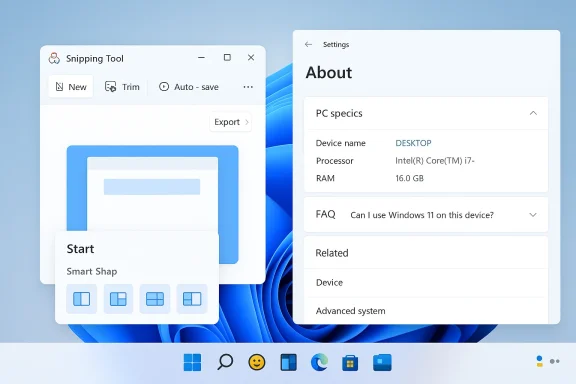
The Snipping Tool continues its evolution from a simple screenshot utility into a compact capture, annotate, and short‑video editor. Recent Insider updates introduce:- A Trim button for screen recordings so users can cut start/end segments without re‑recording.
- Automatic saving of screen recordings to a default folder (configurable).
- A new option to convert recordings into GIFs (reported by multiple Insiders and covered by German outlets).
- Window mode screen recording, which constrains the capture area to a specific window.
Start menu: Smart snap suggestions and recommendation tweaks
Microsoft has tested augmenting the Start menu Recommendations area to show smart snap suggestions—shortcuts to commonly paired or frequently snapped apps that help users launch multitasking workflows directly from Start. This builds on Windows’ Snap/Groups model and aims to shorten the time between launching apps and arranging them in productive layouts. WindowsLatest documented the discovery and screenshots of this test.Settings > System > About: PC specs FAQ
A small but user‑friendly addition: a FAQ section inside the About page of Settings to explain PC specs and common questions in simple language—e.g., “Is my GPU memory enough for gaming?” or “How much RAM do I need for typical productivity?” The FAQ is meant as a primer for absolute beginners and is currently a non‑interactive placeholder in some builds.Miscellaneous tests seen in Insider builds
Multiple small items are being piloted, including:- Gamepad keyboard layout support (allowing Xbox controllers to act as keyboard input in certain contexts).
- Inline image editing and compression options in the Share dialog (helpful for emailing or uploading).
- Additional Snap hints and keyboard help in the Snap UI.
- Accessibility and text‑to‑speech improvements in Narrator and Live Captions.
Why these changes are strategically sensible
Microsoft’s focus on micro‑improvements is a pragmatic strategy. Three factors explain the approach:- Real productivity is an accumulation of small frictions removed. Trimming a screen recording, easily finding emoji, or quick Snap suggestions shave seconds off routine tasks and reduce cognitive load over time.
- Feature rollout at scale means subtle changes are lower risk. A new taskbar icon or a small editing control is less likely to break enterprise policies or third‑party integrations than a radical backend overhaul.
- Accessibility and discoverability matter commercially. Making core tools easier to use widens Windows’ appeal to non‑technical users and supports inclusion efforts with improvements like Live Captions and Narrator upgrades.
Risks, downsides, and unanswered questions
No rollout is risk‑free. Here are the main concerns IT and privacy‑conscious users should consider.1) Fragmented visibility and inconsistent user experience
Because features are being rolled out gradually via Control Feature Rollouts and across multiple Insider channels, users in different rings may have very different experiences. That leads to:- Support overhead for enterprises (helpdesk scripts need multiple branches).
- Confusion among users who see features appear and disappear.
- Documentation lag: official help pages often trail actual rollouts.
2) Telemetry and data collection questions
Any feature that collects usage data (emoji palette launches, Snipping Tool uploads, or GIF export telemetry) raises privacy questions. Microsoft publishes telemetry policies and Insider program terms, but organizations that need strict data controls should audit telemetry settings and test updates in a staged lab before broad deployment. If a feature requires cloud services (e.g., content suggestions powered by online lookups), admins must confirm data residency and consent. If telemetry details for a specific experimental feature are not documented, treat related claims as unverifiable until Microsoft publishes full telemetry notes.3) Potential for UI bloat and discoverability problems
Adding more icons to the system tray and more buttons to apps risks clutter. While the emoji button is intended to increase discoverability, it also consumes taskbar real estate. Microsoft mitigates this by allowing users to hide or right‑click to change behavior, but default visibility decisions will influence adoption and complaints.4) Feature reliability across hardware/regions
Some features are region‑gated or hardware‑dependent (e.g., HDR handling in Snipping Tool, dynamic refresh rate on specific displays). That means:- Users on unsupported hardware may see degraded or inconsistent behavior.
- Regional differences (such as GIF provider integrations or EU regulatory adjustments) may cause feature disparities. Test results from Insiders show region‑specific rollout patterns.
5) Workflow disruption for power users
Power users who rely on scripted workflows or third‑party utilities may find subtle changes — e.g., altered default save locations, new keyboard shortcuts, or taskbar icon semantics — break automation. Administrators should test upgrades on representative devices before wide deployment.Practical implications for users and IT teams
Here’s a compact playbook for handling these incremental changes.For regular users
- Try features in a controlled way: if you’re an Insider, flip the “get the latest updates” toggle only if you want early access and are willing to tolerate rough edges.
- If you rely on Snipping Tool workflows, check the app’s settings for new defaults like automatic save locations and Trim options—the functionality can save editing time for quick tutorials or bug reports.
- Keep an eye on keyboard shortcuts and new taskbar icons; a short learning investment yields faster interactions.
For IT administrators and helpdesk leads
- Establish a pilot cohort: test updates on a subset of machines that represent different hardware profiles (laptops, docking stations, HDR displays, TPM‑enabled vs non‑compliant devices).
- Audit telemetry defaults: verify what’s collected and whether it complies with internal policies and local regulations. When in doubt, enforce stricter group policy or MDM controls for enterprise rings.
- Update internal KBs: document new UI elements (emoji taskbar icon, Snipping Tool Trim/GIF options, FAQ pages in Settings) and add screenshots for helpdesk triage.
- Monitor feature flags and control‑rollout settings: Microsoft’s Control Feature Rollout can be toggled per‑device ring; coordinate with Microsoft Update management to control who gets what and when.
Deep dive: Snipping Tool—why the incremental edits matter
The Snipping Tool is an excellent case study in product evolution: a formerly single‑purpose utility has become a versatile capture, annotate, and quick‑editing app. The new capabilities show Microsoft thinking about the entire capture workflow.- Trim and auto‑save reduce friction for short screencasts: no external editor needed to cut start/end artifacts from recordings. That helps content creators and support teams produce concise clips faster.
- GIF export targets lightweight communication—GIFs are smaller, easier to embed in documentation or email, and widely supported on older publishing platforms. CHIP’s reporting on GIF export proves the feature exists in Insider builds and outlines two quality tiers for GIF outputs.
- Window recording mode is a small but precise feature for UX reporting: recording a single app window prevents accidental exposure of other desktop content. This matters for security‑sensitive captures.
How Microsoft is balancing experimentation and stability
Microsoft uses a combination of tactics to limit the risk of wide disruption:- Control Feature Rollout: features are toggled server‑side for a subset of Insiders, enabling gradual exposure and measured telemetry.
- Multiple channels: Canary/Dev/Beta separate high‑risk prototypes from near‑release code.
- Insider feedback loop: Feedback Hub entries are actively encouraged for new features (Snipping Tool, emoji tray) and Microsoft triages that input as it scales rollouts.
What to watch next (timelines and signals)
Predicting precise GA dates for these experiments is unreliable—Microsoft often incubates features in Insider channels for months. That said, watch these signals for likely public rollouts:- Feature appearing in Beta channel AND Release Preview with explicit documentation in the Windows Insider blog: strong signal of near‑release.
- Documentation appearing in Microsoft support/KB articles and the update "In This Update" summary: administrative cue to prepare deployment plans.
- Third‑party coverage with reproducible screenshots and tests (WindowsLatest, CHIP, PC‑WELT): practical verification that the feature is reaching a broader audience.
Final verdict: incremental, useful, and worth attention
Microsoft’s latest Insider experiments are unglamorous but user‑centric: they target discoverability, editing convenience, and decision support for non‑technical users. The changes are sensible from a product design perspective and, crucially, aligned with everyday tasks users perform dozens of times a day.Strengths:
- Practical productivity wins (Snipping Tool trim, GIF export).
- Improved discoverability (emoji tray, Start menu Snap suggestions).
- Accessibility and educational support (PC specs FAQ, Live Captions/Narrator upgrades).
- Rollout fragmentation creates support and training overhead.
- Telemetry and cloud dependencies require scrutiny for privacy‑sensitive environments.
- Default UI changes may generate complaints if introduced without user choice.
Quick checklist: what to do now
- If you’re an Insider: enable the “get the latest updates” toggle to see experiments, but confine use to non‑critical devices.
- If you’re an admin: prepare a pilot group, audit telemetry defaults, update helpdesk KBs for new Snipping Tool behaviors, and monitor the Insider blog for escalation notices.
Source: BornCity Windows 11: Microsoft testet neue Features für mehr Komfort - BornCity
