

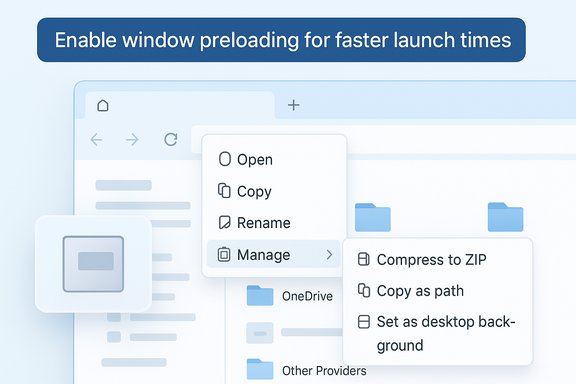
Microsoft has quietly begun testing two pragmatic fixes that aim to make File Explorer in Windows 11 both faster to open and easier to use: an optional background preloading mechanism that keeps a lightweight Explorer process warmed for near‑instant launches, and a streamlined right‑click context menu that tucks seldom‑used commands into a new “Manage file” flyout and groups cloud actions under provider submenus.
Background
File Explorer is the single most frequently used UI surface for Windows users, and it has been a recurring source of friction since the first Windows 11 builds. Many users noticed that Explorer’s first‑open latency and context‑menu clutter made everyday tasks feel slower or harder to scan compared with the older Windows 10 shell. Over the last three years Microsoft has taken an incremental approach to shell improvements — adding visual polish, new features such as tabs, and accessibility updates — but the basic problem of perceptual latency and menu bloat has persisted for a meaningful subset of users, especially on low‑spec hardware and devices with slower storage.The changes now being trialed in Windows Insider channels are deliberately modest and reversible. Rather than rewrite the shell or replace Explorer with a new app, Microsoft is experimenting with small, targeted interventions that address two high‑impact pain points: the time it takes for the first Explorer window to paint, and the vertical length / scanability of the context menu after third‑party extensions and cloud providers have added entries.
What Microsoft is testing now
The builds and where you’ll see it
Microsoft rolled these experiments into a recent Insider preview — identified by the build metadata used in Insider announcements — and they are currently visible to devices in the Dev and Beta rings. If you’re in the Insider program and have received the flight, the new options and menu layout will appear immediately in File Explorer. The company describes these changes as explorations rather than final decisions; Microsoft will refine scope and defaults based on telemetry and Feedback Hub input before any broad public rollout.Preloading File Explorer: what the option does
A new toggle labeled “Enable window preloading for faster launch times” appears in File Explorer’s Folder Options (View → Options → Folder Options → View). When enabled, Windows will keep a small, lightweight portion of File Explorer resident in memory during idle time so that the first visible paint of a new Explorer window is noticeably faster.Key points about the preload experiment:
- It is toggleable per‑device and can be switched off by users who prefer the legacy behavior.
- Microsoft enables the toggle by default on Insider devices that receive the experiment, but that default can change before wider rollout.
- The change is framed as a warm‑start optimization: parts of the Explorer UI are pre‑initialized while the system is idle to reduce cold‑start latency when the user next opens a window.
Context menu reorganization: “Manage file” and provider submenus
The right‑click menu in File Explorer has grown taller and harder to scan over time as cloud providers, device‑linking features, OEM tools, and third‑party shell extensions populate the same vertical list. To address this, Microsoft is trimming the top level of the context menu by grouping less‑frequently used commands into a new flyout labeled Manage file.Examples of actions moved into the Manage file flyout include:
- Compress to ZIP
- Copy as path
- Set as desktop background
- Rotate left / Rotate right
Microsoft also reorganized neighboring entries (for example, moving Open Folder Location closer to Open and Open with) and repositioned some items — such as Send to My Phone — nearer to cloud options for logical grouping.
The overarching goal is simple: reduce vertical clutter so users can scan and act faster, especially on small screens and touch devices.
How these changes work in practice
What a preload likely warms up
Microsoft hasn’t published low‑level implementation details for the preload experiment — and exact memory budgets and thread counts are not part of public insider notes — but the expected targets for warming include:- The UI skeleton (address bar, toolbar, command bar)
- Small caches for icons and thumbnails used to paint the initial view
- Minimal registration of common preview and thumbnail handlers so the first interactions don’t stall
- Preinitialized COM/WinRT plumbing that Explorer commonly needs on first use
Why it helps certain devices more
Preloading will show the largest benefit on devices where the Explorer cold start — reading renderer components, initializing thumbnail handlers, and populating icons — is expensive. That includes:- Tablet‑class devices and ARM handhelds
- Laptops with spinning HDDs or slow eMMC storage
- Machines with heavy third‑party shell extensions
- Low‑end or older hardware with fewer CPU cores
Why the context menu reshuffle matters
The traditional context menu is a scan‑heavy affordance: users visually parse a vertical list for the action they need. When dozens of entries (especially vendor and provider entries) are inserted, the cost of scanning grows and users misclick or take extra time. By surfacing core verbs and grouping ancillary actions into a single Manage file flyout, Microsoft reduces the visual search space at the top level and preserves discoverability — users can still access advanced or provider‑specific options with one additional click.This balance preserves compatibility (the classic “Show more options” still expands to the full menu) while improving day‑to‑day ergonomics.
The benefits: what users and admins stand to gain
- Faster perceived File Explorer launches on devices where cold starts were previously noticeable, improving everyday productivity.
- Cleaner context menus that surface the most common actions first, reducing visual clutter and the number of misclicks.
- Better tablet and handheld UX, as shorter menus are easier to tap and scan on small displays.
- Opt‑out control for users and administrators, which preserves choice for people who prefer legacy behavior or have specific compatibility needs.
- Incremental rollout model, meaning Microsoft can iterate quickly based on telemetry and real usage without forcing a disruptive, one‑size‑fits‑all change.
The risks and trade‑offs
Every convenience optimization carries trade‑offs. The most important to consider:- Background resource usage: Keeping a warmed Explorer process resident will consume some RAM and occasionally CPU cycles when it does background work. While Microsoft frames this as a light footprint, specific memory usage numbers are not published; organizations with strict memory budgets or devices with 4GB of RAM or less should test impact before enabling fleet‑wide.
- Battery life on portable devices: Idle background processes can contribute to cumulative battery drain, particularly on devices that are rarely plugged in.
- Boot‑time or restart interactions: In some situations preloading components at sign‑in can slightly lengthen startup time or change the sequence of background activity. Microsoft’s past experiments (for example, Edge Startup Boost) show these trade‑offs are often minimal, but they exist.
- Third‑party shell extension compatibility: Some legacy shell extensions assume Explorer starts from zero; warming certain handlers could change timing or reveal race conditions in poorly authored extensions. This could cause functional glitches for niche third‑party integrations.
- Telemetry and control concerns: These experiments rely on telemetry to decide whether to roll out more broadly. Enterprises may want explicit policy control or measurable opt‑in thresholds before accepting telemetry‑driven behavior changes.
- Discoverability for power users: Power users who relied on quick access to buried verbs (for example, Compress to ZIP or Copy as path) will need to adjust muscle memory one click deeper, or continue using the classic full menu via “Show more options.”
Enterprise and IT operations perspective
Admins will want to treat this like any other UI experiment: evaluate, measure, then decide.Recommended steps for IT teams:
- Identify a pilot cohort that matches your device mix: low‑end laptops, tablet fleet, and representative desktops.
- Enable the Insider preview or replicate setting changes on pilot devices, ensuring telemetry and Feedback Hub pathways are available to collect issues.
- Measure objective performance: time to first paint for Explorer windows, memory usage of Explorer processes before and after enabling preload, and boot time differences.
- Monitor battery telemetry on mobile devices and examine interaction with power‑saving policies.
- Validate third‑party shell extensions and legacy tools that integrate with Explorer, particularly backups, antivirus context items, and corporate file‑management utilities.
For power users and alternatives
Power users who want faster file management already have choices. If Explorer still doesn’t meet expectations even after these fixes, consider:- Third‑party file managers (dual‑pane managers, lightweight alternatives) that prioritize speed and offer fine‑grained controls.
- Using the classic context menu via Show more options or keyboard shortcuts for frequently used advanced verbs.
- Disabling Unnecessary shell extensions using tools like ShellExView for better baseline performance.
Critical analysis: incremental change vs. architecture overhaul
Microsoft’s approach is conservative and practical: implement small, reversible changes that address specific, measurable problems rather than perform a heavy rewrite of the shell. This method produces quick wins for many users while containing risk.Strengths of this approach:
- Reduced rollout risk: Small experiments deployed through the Insider Program can be measured and rolled back or tuned quickly.
- User control: The toggle gives users immediate control, which is important for trust and for enterprise governance.
- High impact for low effort: Surface‑level improvements like menu reorganization and a light preload can materially improve day‑to‑day workflows with little disruption.
- Transparency of resource costs: Microsoft has not published exact resource budgets for the preload. Without that, organizations must test on representative hardware to quantify impact.
- Reliance on telemetry: Telemetry‑driven decisions are efficient but can feel opaque to security‑ or compliance‑focused organizations; clearer admin controls would help.
- Power‑user friction: Users who relied on deep context‑menu verbs will need to adapt; Microsoft preserves access but changes muscle memory.
- Compatibility edge cases: The shell’s ecosystem includes many older extensions; warming previously dormant subsystems could expose latent bugs in third‑party code.
Measured rollout and testing checklist (for enthusiasts and IT)
- Confirm your device is enrolled in the Windows Insider Dev or Beta channel and has received the build.
- Record baseline metrics:
- Time from click to first visible Explorer window (50+ samples recommended).
- Explorer process memory usage and CPU at idle and during open.
- Battery discharge rate on a representative portable device.
- Toggle “Enable window preloading for faster launch times” on and collect the same metrics for parity.
- Test common workflows: navigate directories with large thumbnails, right‑click on files with many cloud provider entries, and use frequently used shell extensions.
- Note any compatibility issues, crashes, or regressions and file feedback through Feedback Hub categorized under File Explorer performance or Right‑Click Context Menu.
- Decide on a pilot expansion only after confidence that performance and compatibility meet expectations.
What to watch next
- Whether Microsoft publishes a Group Policy or registry setting for enterprise control as the feature moves beyond Insider preview.
- Independent benchmarks that quantify memory impact and first‑paint improvements across a range of hardware, especially devices with 4GB–8GB of RAM and HDD storage.
- Feedback from enterprise customers about shell extension compatibility issues or battery impact on portable fleets.
- Whether Microsoft makes the Manage file label configurable or exposes additional customization to keep advanced verbs closer for power users.
- The company’s broader shell roadmap: these small fixes could be a precursor to larger, more modernized file‑management features — including deeper AI assistance and Copilot‑driven file actions — in future releases.
Conclusion
This latest Insider work on File Explorer is a welcome example of pragmatic product stewardship: targeted, reversible changes that solve everyday annoyances rather than sweeping design flips that risk breaking workflows. The optional preload offers a sensible way to hide perceived lag on slower devices, and the context‑menu reorganization improves scanability for most users while preserving access to advanced commands. The key for both consumers and IT teams will be measured testing: quantify the actual gains on your device mix, verify compatibility with enterprise tools and shell extensions, and decide whether the trade‑offs (slight background resource use and potential battery impact) are acceptable.Microsoft’s experiment shows that small UX and performance wins remain possible within the existing Windows shell — and that, when handled with user control and an iterative rollout, they can deliver immediate value to millions without a disruptive overhaul.
Source: BusinessGhana https://www.businessghana.com/site/...and-decluttering-File-Explorer-in-Windows-11/
