

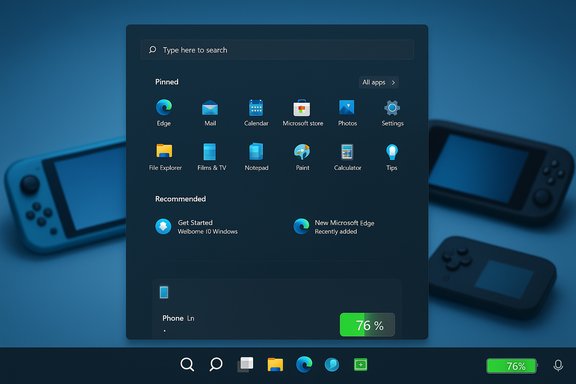
Microsoft’s November Patch Tuesday cumulative, published as KB5068861, finally moves a long-tested Start menu redesign out of preview and into broader circulation while delivering practical Taskbar, Task Manager, and handheld-power fixes that improve everyday Windows 11 usability. The package is rolling out via Windows Update and the Microsoft Update Catalog and brings a single, vertically scrollable Start surface with three new app-list views, more pin controls and a Phone Link toggle; a larger, color-coded battery icon with an optional persistent percentage; and a Task Manager shutdown repair that prevents background instances from lingering and consuming resources.
Windows 11’s Start menu has been the focal point for user feedback since the OS first shipped: Microsoft’s minimalist centered design prioritized aesthetics but sacrificed density and direct access to the full app list, prompting repeated requests for greater discoverability and customization. Over the last several months Microsoft tested a revised Start experience in the Insider and Release Preview channels and used optional preview packages and server-side feature flags to stage its rollout. KB5068861 consolidates that preview work into the November Patch Tuesday cumulative and begins enabling the updated Start experience more broadly, though visibility is still controlled and may appear gradually after the update is installed.
This delivery approach — shipping binaries in the servicing channel while gating features server-side — reduces the blast radius for regressions but introduces short-term variability: two identical machines might run the same build yet display different Start behavior until Microsoft flips the server-side enablement flag for each device cohort. Administrators and power users should therefore interpret KB5068861 as both a quality rollup and a feature-enablement vehicle rather than a single-step toggle that instantly changes every PC it touches.
Source: Digital Trends You can finally customize Windows 11’s Start menu, update now
 Background / Overview
Windows 11’s Start menu has been the focal point for user feedback since the OS first shipped: Microsoft’s minimalist centered design prioritized aesthetics but sacrificed density and direct access to the full app list, prompting repeated requests for greater discoverability and customization. Over the last several months Microsoft tested a revised Start experience in the Insider and Release Preview channels and used optional preview packages and server-side feature flags to stage its rollout. KB5068861 consolidates that preview work into the November Patch Tuesday cumulative and begins enabling the updated Start experience more broadly, though visibility is still controlled and may appear gradually after the update is installed.This delivery approach — shipping binaries in the servicing channel while gating features server-side — reduces the blast radius for regressions but introduces short-term variability: two identical machines might run the same build yet display different Start behavior until Microsoft flips the server-side enablement flag for each device cohort. Administrators and power users should therefore interpret KB5068861 as both a quality rollup and a feature-enablement vehicle rather than a single-step toggle that instantly changes every PC it touches.
What KB5068861 Changes — High Level
- Redesigned Start menu: a single, vertically scrollable canvas that integrates Pinned, Recommended, and All apps, plus three view modes — Category, Grid, and List. The Start menu remembers your selected view and adapts layout density to screen size.
- More pin controls and the option to hide Recommended content entirely from Settings, making Start less noisy and faster to navigate.
- Phone Link toggle inside Start for quick access to paired phone content (messages, calls, photos) without launching a separate app.
- Taskbar battery UX: the battery icon is larger, color-coded by state (charging/healthy, low, critical), and a persistent percentage can be enabled.
- Task Manager reliability: closing Task Manager now ends the process and avoids lingering background instances that could degrade performance over time.
- Handheld and gaming refinements: fixes for low-power behavior and controller responsiveness on handheld devices after sign-in.
Deep Dive: The Redesigned Start Menu
Single, scrollable surface
The most visible change is the Start canvas itself. Instead of the earlier two-step flow (Pinned area + a separate All apps page), Start is now a single vertically scrollable surface where pinned shortcuts, recommended items (if enabled), and the full All apps list live together. That design reduces clicks and makes app discovery faster — especially for users with many installed apps or on large displays where vertical scrolling is natural. Early hands-on coverage indicates this reduces cognitive switching and speeds launch times for common tasks.Three All apps views: Category, Grid, List
Users can choose how the All apps section is presented:- Category view — system-generated groupings (Productivity, Games, Creativity, Communication, etc. with frequently used apps surfaced inside buckets.
- Grid view — a denser, tile-like alphabetical grid optimized for horizontal scanning on widescreen and high-DPI displays.
- List view — the classic A→Z vertical list preserved for keyboard-centric workflows.
Pin and Recommendation controls
Start now gives you more control over pinned items and recommendation clutter. You can pin more apps in the visible area and enable a setting to show all pins by default, removing the extra click to reveal hidden pins. Crucially, Microsoft added explicit toggles under Settings → Personalization → Start to disable features that many users found intrusive: recently added apps, recommended files, and promotional suggestions. When those toggles are off, Recommended disappears and your pinned/all-apps surface becomes the primary focus. This is one of the practical wins for users who preferred yesterday’s cleaner, less-suggestive launcher.Phone Link integration
A subtle but useful change: a Phone Link button sits near Start’s search box and expands a collapsible Phone Link panel to surface messages, recent calls and phone photos. This brings basic phone continuity into the Start surface for quicker cross-device actions without forcing a full context switch to the Phone Link app. Availability may depend on device pairing and regional gating.Taskbar Battery UX and Power Readability
The Taskbar battery icon gets practical polish that reduces guesswork:- Larger glyph for improved visibility across scaling levels.
- Color-coded states: green for normal/charging, yellow for low/battery saver, red at critical levels.
- An optional persistent battery percentage can be enabled in Settings → System → Power & battery to show numeric remaining charge adjacent to the icon.
Task Manager Fix: Why It Matters
A small reliability fix in KB5068861 resolves a long-standing Task Manager issue where closing the Task Manager window could leave background process instances running. That behavior could gradually slow systems over time, especially on machines where users opened Task Manager frequently to inspect processes. Fixing Task Manager so that closing it truly ends the process avoids subtle resource leaks and keeps desktop responsiveness consistent during longer uptime windows. This is one of the quieter but objectively valuable changes in the rollup.Handhelds, Gaming and Low-Power Behavior
KB5068861 also includes fixes intended for handheld gaming PCs and other portable Windows devices. The patch improves low-power state behavior so handhelds remain in intended low-power modes, and addresses controller responsiveness right after sign-in — an issue reported by users of Windows-based handheld gaming hardware. These changes help reduce battery drain and improve input reliability for players using controller peripherals. While not headline-grabbing, these adjustments are important to users of specialized hardware.Deployment and Rollout Considerations
Staged feature enablement
Microsoft has consistently used a two-step pattern: ship binaries via optional or cumulative updates and then enable features gradually with server-side flags to monitor telemetry before broad activation. That means:- Installing KB5068861 is often necessary but not always sufficient to see the new Start and battery visuals immediately.
- Exposure varies by device, region, hardware configuration and telemetry signals.
- Administrators must expect variability across identical hardware during the rollout window.
Recommended approach for IT and power users
- Pilot the update in a controlled ring before a wide deployment.
- Test Start layout management policies and pin scripts to confirm they still behave as expected in your environment.
- Validate any accessibility or assistive technology workflows that rely on Start layout assumptions (keyboard navigation, screen readers).
- Keep the servicing stack updates (SSU) and LCU order in mind when deploying to managed machines; follow standard update sequencing practices.
When and how you’ll see the changes
- If you want to try the Start update sooner, install optional preview packages when available (the October preview surfaced many Start binaries). Installing the November cumulative moves the preview work into the mainstream servicing pipeline, but you may still wait for Microsoft to flip the server-side feature flag for your device.
How to Check, Enable, or Troubleshoot
- Press Windows+R, type winver and press Enter to view your current Windows build. Preview builds associated with the Start package were tied to build families in the 26100.x / 26200.x range during testing; cumulative builds from November will increment beyond those numbers. Presence of the build indicates you have necessary bits, but not necessarily that the UI is enabled.
- Open Settings → Windows Update → Check for updates and install available optional updates (if you accept preview changes) or apply the cumulative when delivered. The Update Catalog also offers .msu installers for offline deployment.
- If Start hasn’t changed after applying KB5068861, be patient: the visible experience may arrive in the following days as the staged rollout completes.
- To hide Recommended content: Settings → Personalization → Start and toggle off the relevant options to remove recently added apps, recommended files, and suggestions.
Benefits — What Users Gain
- Faster app discovery for users with many installed apps thanks to the single-scroll canvas and multiple app-list views.
- Reduced friction from recommendation noise because you can now hide Recommended entirely.
- Immediate battery clarity via color-coded icons and an optional percentage readout.
- Cleaner resource behavior with Task Manager properly ending its process.
- Improved handheld behavior — better low-power retention and controller responsiveness for portable gaming devices.
Risks, Unknowns, and Unverified Claims
- Server-side enablement means timing unpredictability: you may not see features immediately after installing KB5068861, and that variability is intentional from Microsoft’s risk-management perspective. Users who try to force enablement with unsupported tools may encounter regressions.
- Some community-discovered implementation details remain unverified — for example, claims about locally stored JSON manifest sizes or specific file artifacts used to map apps into categories. Treat these numeric claims with caution until Microsoft publishes formal engineering notes.
- Copilot+ and other on-device AI experiences still involve hardware and licensing gating; not every machine will be eligible for the expanded Copilot behaviors that sometimes appear alongside Start changes. That creates feature fragmentation for mixed-hardware environments.
- Using third-party enablement tools (ViVeTool, registry hacks) to flip feature flags is unsupported and can create update-management complications or instability; organizations should avoid unsupported modifications in managed fleets.
Practical Tips and Keyboard Workflows
- For keyboard-first users, use Windows key + type the app name to jump quickly; the new Start still respects familiar keyboard navigation and the List view preserves deterministic A→Z ordering.
- If you rely on pin groups, consider the new “Show all pins by default” option to avoid extra clicks.
- For administrators scripting Start layout provisioning, test any JSON or XML-based provisioning artifacts and confirm that the updated Start surface still accepts configured pins or whether minor adjustments to deployment scripts are necessary. Pilot groups will reveal differences early.
Conclusion
KB5068861 is an unusually user-focused Patch Tuesday: it bundles sensible usability changes that affect how users launch and manage their apps, along with reliability fixes that remove subtle performance drains. The redesigned Start menu reclaims discoverability without sacrificing modern visual design, the Taskbar battery changes make power status easier to read at a glance, and the Task Manager repair eliminates a creeping resource issue many users never noticed until it mattered. Because Microsoft continues to gate the experience server-side, patience — and a small pilot-first deployment strategy for organizations — remain the pragmatic routes forward. Install the cumulative when convenient, expect staged enablement over the following days, and use the new Settings toggles to tailor Start and battery behavior to your workflow.Source: Digital Trends You can finally customize Windows 11’s Start menu, update now
