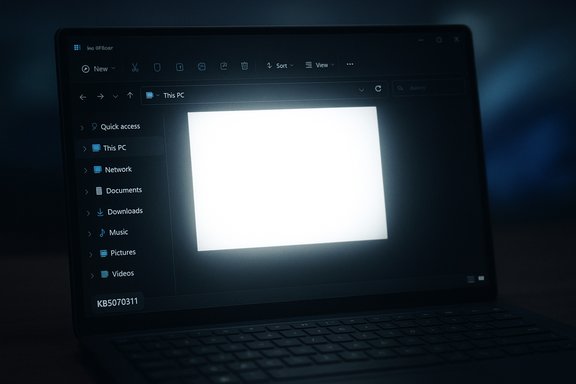
Windows 11’s December preview update has introduced an ironic new hazard for dark‑mode devotees: File Explorer can briefly flash a bright white screen — a literal “flashbang” — after installing KB5070311, and Microsoft has acknowledged the problem while engineers work on a fix.
Microsoft released KB5070311 as a non‑security preview cumulative update on December 1, 2025, paired with a servicing stack update reported as KB5071142. The stated intent of the package is to extend and polish dark‑theme coverage across File Explorer and a number of legacy dialog surfaces so Windows 11’s dark mode feels consistent and less jarring during common file operations. The update targets Windows 11 builds 26100.7309 and 26200.7309, and Microsoft’s official release notes list the File Explorer visual changes alongside a short “Known issues” section that explicitly documents the white‑flash regression. The change is a welcome one in principle. For years, File Explorer and other legacy Win32 dialogs sometimes defaulted to bright white even when the system theme was Dark, producing high‑contrast interruptions for users working in dim environments. KB5070311 aims to remove those mismatches. But in the process of modernizing paint/order and theming older UI paths, a timing‑sensitive regression was introduced that can expose a white background briefly before the dark UI finishes rendering. Independent reporting and community reproductions confirm the symptom and match Microsoft’s description.
Key technical factors that make this brittle:
Quick, safe options for home users:
The appropriate short‑term posture is conservative: treat the December preview as a pilot, avoid broad deployment in production rings, and prefer either deferring the update or using the Light theme in sensitive environments until Microsoft publishes a tested remediation. For power users who insist on the immediately available dark improvements, test on non‑critical hardware and be ready to roll back via Settings or DISM if the flash proves disruptive.
The white‑flash bug is an instructive reminder that cosmetic improvements can have outsized operational and accessibility consequences when they intersect with decades of legacy rendering behavior. Microsoft has acknowledged the problem, the company’s support documentation explains the symptoms and rollback mechanics, and a fix is in progress — but until that fix ships, dark‑mode users who cannot tolerate sudden white bursts have sensible, conservative options: defer the preview, switch to Light mode, or test alternate file managers on non‑critical hardware.
Source: XDA Dark mode users, beware: a Windows 11 bug is causing File Explorer to flashbang people
 Background / Overview
Microsoft released KB5070311 as a non‑security preview cumulative update on December 1, 2025, paired with a servicing stack update reported as KB5071142. The stated intent of the package is to extend and polish dark‑theme coverage across File Explorer and a number of legacy dialog surfaces so Windows 11’s dark mode feels consistent and less jarring during common file operations. The update targets Windows 11 builds 26100.7309 and 26200.7309, and Microsoft’s official release notes list the File Explorer visual changes alongside a short “Known issues” section that explicitly documents the white‑flash regression. The change is a welcome one in principle. For years, File Explorer and other legacy Win32 dialogs sometimes defaulted to bright white even when the system theme was Dark, producing high‑contrast interruptions for users working in dim environments. KB5070311 aims to remove those mismatches. But in the process of modernizing paint/order and theming older UI paths, a timing‑sensitive regression was introduced that can expose a white background briefly before the dark UI finishes rendering. Independent reporting and community reproductions confirm the symptom and match Microsoft’s description. What users are seeing: symptoms and reproduce points
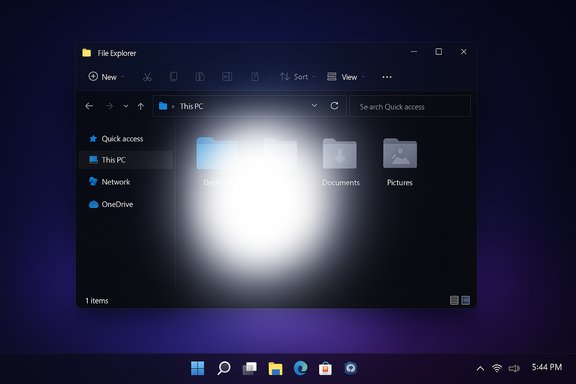
The bug’s behavior is simple to describe and easy to notice in low light: when Windows 11 is set to Dark mode and File Explorer is opened or refreshed, the main Explorer content area can display a bright white screen for a fraction of a second before the dark content paints. The white flash is short, but intense — users have described it as camera‑flash‑fast to as long as a second on some machines. Microsoft lists the specific actions that can reproduce the white flash:- Launch File Explorer (including launching directly to Home or Gallery).
- Create a new tab in File Explorer.
- Navigate to or from Home or Gallery.
- Turn the Details pane on or off.
- Select “More details” while copying files (expanding copy/move dialogs).
Microsoft’s official position and timeline
Microsoft’s support article for the December 1, 2025 preview explicitly records the white flash under “Known issues in this update” and states engineers are working to resolve the issue. The support page also explains how the update is packaged (LCU + SSU) and gives guidance for removing the LCU portion if rollback is necessary, noting that the SSU component generally cannot be removed once installed. That guidance is important for anyone considering uninstalling the preview while waiting for a patch. There is no permanent, documented user‑side workaround published by Microsoft at the time of writing; the vendor’s public guidance is limited to acknowledging the problem and promising a fix in a future update. Given the optional preview nature of KB5070311, Microsoft’s practical message to most users is implicit: treat this as a test build and avoid broad production deployment until the Known Issues entry is cleared.Why this probably happened: a technical analysis
Styling legacy UI surfaces to match modern dark themes is not a one‑line color swap. File Explorer is a composite of modern XAML/WinUI surfaces and long‑standing Win32/COM code paths. Extending dark palette resources into those legacy paths changes the window creation order, initial paint timing, and the way frames are handed off between the application, the Desktop Window Manager (DWM), and the GPU driver. If the first visible frame clears to a default background (historically white) before the themed content is fully initialized and painted, users will see a brief white frame.Key technical factors that make this brittle:
- Desktop Window Manager and GPU driver handoffs schedule frame composition; a late theme application can expose a default background for one frame.
- Mixed rendering stacks (Win32 + XAML/WinUI) have different initialization and paint lifecycles; aligning them is non‑trivial.
- Third‑party shell hooks, theme injectors, and driver idiosyncrasies can alter paint order and make race conditions more likely on some hardware. Community reports indicate larger or HDR/OLED displays and certain GPU driver versions seem more prone to visible flashes; those correlations remain anecdotal until Microsoft publishes root‑cause telemetry. Flag: treat hardware correlations as unverified community observations unless Microsoft confirms them.
Scope, variability, and what we don’t yet know
The issue is demonstrably real and acknowledged by Microsoft, but several aspects remain open:- How widespread is it? Microsoft’s Known Issue entry confirms the regression exists but does not publish telemetry scope or percentage. Independent media and forum reproductions show it’s intermittent and environment‑sensitive.
- Which hardware/drivers are most affected? Community reports point to higher likelihood on certain GPU drivers, external displays, and machines running third‑party UI injectors, but this is anecdotal and not vendor‑verified. Mark these claims as unverified until Microsoft issues a technical postmortem or driver partners publish confirmations.
- Could other apps be affected? In theory, any app that mixes legacy and modern rendering paths could exhibit similar timing artifacts; at the moment the documented issue is confined to File Explorer. Administrators should nevertheless be alert for other visual regressions after installing preview builds.
Accessibility and real‑world impact
A short white flash might sound trivial, but it has tangible accessibility and usability implications:- Photosensitive users: Sudden high‑luminance spikes can be painful or dangerous for people with photic sensitivity. The community raised this concern early and rightly pressed Microsoft to prioritize remediation.
- Low‑light workflows: Creators working in dim studios, night‑shift operators, or those who rely on dark mode to reduce eye strain will experience repeated jarring interruptions.
- Helpdesk burden: Cosmetic regressions drive support calls. For large organizations, a spike in “the machine flashed white” tickets could significantly increase workload and create confusion on whether the problem is a security event.
Practical mitigation: what you can do right now
There is no single magic workaround that preserves dark mode while fixing the paint ordering at the OS level. Microsoft’s support article lists no permanent user workaround other than rolling back the LCU; however, practical mitigations exist and have tradeoffs.Quick, safe options for home users:
- Do not install KB5070311 on machines where a consistent dark experience is required. The update is optional and preview‑oriented; skipping it is the easiest way to avoid the problem.
- Switch to Light theme until a patch is available. This avoids the dark‑mode paint path that triggers the race condition, but it defeats the purpose of using dark mode. Steps: Settings → Personalization → Colors → set Default Windows mode and Default app mode to Light.
- Open Settings → Windows Update → Update history → Uninstall updates and look for the KB5070311 LCU entry. Use the GUI uninstall if available.
- If the combined package prevents GUI uninstall, use DISM to remove the LCU package only:
- Open an elevated Command Prompt.
- Run: dism /online /get-packages (identify the LCU package name).
- Run: dism /online /remove-package /PackageName:<exact‑LCU‑package‑name>.
- Reboot.
Caveat: DISM operates on the component store — use with caution and verify system health first (for example, DISM /online /cleanup‑image /scanhealth). The SSU is generally not removable once installed.
Recommendations for IT administrators and enterprise teams
For production environments, adopt a conservative, methodical approach:- Pause optional preview updates in production rings; treat KB5070311 as test/pilot only.
- Add KB5070311 to a small pilot ring that represents the variety of hardware profiles in your environment (OLED/HDR, discrete GPUs, common driver versions). Validate Explorer workflows and accessibility requirements there prior to any wider rollout.
- Update helpdesk guidance and KBs with symptom descriptions, mitigation steps (switch to Light theme, uninstall LCU via Settings or DISM), and a clear rollback plan.
- Monitor Microsoft’s official support page and release notes for the fix and for any follow‑on guidance from GPU vendors. Apply the fix in pilot first and then proceed with normal ring deployments.
- Capture and submit reproducible logs and short screencasts to Microsoft (Feedback Hub) if you encounter consistent reproductions; this speeds diagnostics and prioritization.
Alternatives: which File Explorer replacements to consider
If the white flash is intolerable and you want a dark file‑manager experience immediately, there are third‑party and open‑source alternatives that can substitute for File Explorer. Caveat: replacing the default shell or introducing third‑party file managers has operational tradeoffs (integration gaps, support overhead, potential security considerations). The most commonly discussed options:- Explorer++ — a lightweight, open‑source file manager with tabs and a classic Explorer‑style UI. Actively maintained on GitHub and distributed under GPL‑3.0; can be run portably or installed. It is not a drop‑in replacement for all Explorer shell behaviors, but it’s a solid light‑weight alternative for many power users.
- Files (Files Community) — a modern, touch‑friendly, open source File Explorer alternative that aims to provide a modern UI with tabs, previews, and themeing. Community builds and Insider releases are available; user experiences vary and performance differences have been reported in some configurations (test before deploying). Community projects carry the usual caveats (support, update cadence, telemetry differences).
- XYplorer (commercial) — a mature, feature‑rich file manager favored by power users. Not open source, but a stable paid alternative with a long history. Consider this for advanced workflows that require robust features and supported releases.
- Dark theme fidelity and absence of the flash symptom.
- Integration with your file share and enterprise policies.
- Performance on your typical hardware.
- Supportability and update cadence (critical for managed fleets).
What to expect next and how Microsoft is likely to respond
Given the severity from an accessibility and UX perspective, there are two realistic remediation paths:- Microsoft issues an out‑of‑band cumulative or targeted patch that corrects paint/timing ordering for File Explorer dark mode; or
- Microsoft bundles the fix into the next scheduled Patch Tuesday after additional validation.
Final analysis — balancing progress with polish
KB5070311 is an important step toward a more cohesive dark mode experience in Windows 11: extending dark palettes into legacy File Explorer surfaces addresses a long‑standing usability complaint and — when it works — improves comfort for night‑shift users, creators, and people with ocular sensitivity. But the white‑flash regression is a blunt demonstration of the engineering tradeoffs involved: modernizing deeply embedded UI code paths can introduce brittle timing regressions that erode trust and create real accessibility risk.The appropriate short‑term posture is conservative: treat the December preview as a pilot, avoid broad deployment in production rings, and prefer either deferring the update or using the Light theme in sensitive environments until Microsoft publishes a tested remediation. For power users who insist on the immediately available dark improvements, test on non‑critical hardware and be ready to roll back via Settings or DISM if the flash proves disruptive.
Checklist: immediate actions (condensed)
- If you are a home user who values a stable dark experience: do not install KB5070311.
- If you already installed it and the flash is unacceptable: switch to Light theme or uninstall the LCU (Settings → Windows Update → Update history → Uninstall updates) or use DISM to remove only the LCU component.
- If you manage devices: pilot the update only on representative hardware, update support templates, and block or delay optional previews in production rings.
- Capture logs and submit reproducible feedback to Microsoft (Feedback Hub) if you hit the bug frequently; include short screencasts to help prioritize the fix.
The white‑flash bug is an instructive reminder that cosmetic improvements can have outsized operational and accessibility consequences when they intersect with decades of legacy rendering behavior. Microsoft has acknowledged the problem, the company’s support documentation explains the symptoms and rollback mechanics, and a fix is in progress — but until that fix ships, dark‑mode users who cannot tolerate sudden white bursts have sensible, conservative options: defer the preview, switch to Light mode, or test alternate file managers on non‑critical hardware.
Source: XDA Dark mode users, beware: a Windows 11 bug is causing File Explorer to flashbang people