Microsoft has shipped KB5070312 — Windows 11 Build 22631.6269 — to the Release Preview channel, and the headline fix is simple but significant: File Explorer should stop becoming unresponsive to mouse clicks until you close and reopen it.
File Explorer is the single most frequently used UI in Windows for managing files, folders and common workflows. Yet over the past year, intermittent regressions — from sluggish context menus to situations where the Explorer window stops responding to mouse clicks — have dogged users and administrators alike. Microsoft’s Release Preview notes for Build 22631.6269 (KB5070312) list a targeted fix for one of these reliability problems: an issue where File Explorer “sometimes didn’t respond to mouse clicks until you closed and reopened it.” That symptom — a window that appears fine but ignores clicks on its body or UI elements until it is restarted — is the kind of regression that stops workflows cold. It’s also been reported in many community threads and troubleshooting posts over the last several Insider flights and public updates, documenting users restarting explorer.exe or rebooting as the common workaround.
(Key load-bearing references used in this article: Microsoft’s Windows Insider announcement for Build 22631.6269 confirming KB5070312, community mirrors and forum summarizations of the same release, and WindowsForum/Insider threads documenting historical Explorer regressions and common troubleshooting practices.
Source: Neowin KB5070312: Windows 11 File Explorer to become responsive again with new build 22631.6269
 Background
File Explorer is the single most frequently used UI in Windows for managing files, folders and common workflows. Yet over the past year, intermittent regressions — from sluggish context menus to situations where the Explorer window stops responding to mouse clicks — have dogged users and administrators alike. Microsoft’s Release Preview notes for Build 22631.6269 (KB5070312) list a targeted fix for one of these reliability problems: an issue where File Explorer “sometimes didn’t respond to mouse clicks until you closed and reopened it.” That symptom — a window that appears fine but ignores clicks on its body or UI elements until it is restarted — is the kind of regression that stops workflows cold. It’s also been reported in many community threads and troubleshooting posts over the last several Insider flights and public updates, documenting users restarting explorer.exe or rebooting as the common workaround.Overview of KB5070312 (Build 22631.6269)
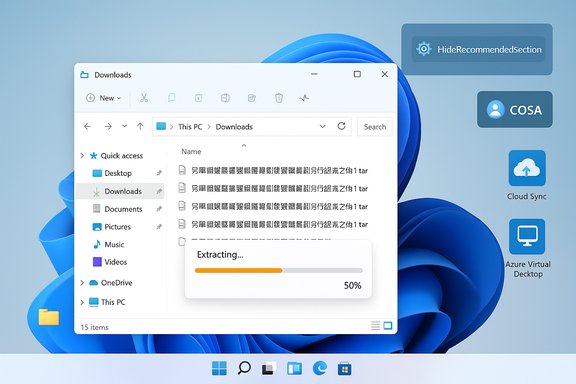
Microsoft’s official Windows Insider post describes KB5070312 (Build 22631.6269) as a non-security, quality update for Windows 11, version 23H2. The release notes highlight three main areas of fixes:- Country and Operator Settings Asset (COSA) refreshes for certain mobile operator profiles.
- File Explorer: Fixes for the unresponsiveness-to-mouse-clicks bug and a separate fix addressing extraction of .tar archives when file or folder names contain more than 34 commonly used Chinese characters.
- Group Policy / Configuration: Fix for the HideRecommendedSection policy not honoring the setting in Windows 11 Enterprise multi-session environments (Azure Virtual Desktop), where recommendations still appeared.
Why this matters: the real-world impact of Explorer becoming unresponsive
File Explorer is the hub for daily file operations. When it becomes non-responsive to mouse clicks the consequences are immediate and practical:- You lose the ability to interact with the UI (selecting files, opening folders, invoking context menus), which interrupts even the simplest tasks.
- The primary workaround — closing and reopening File Explorer or restarting explorer.exe — breaks the user’s context (open tabs/windows, selected items) and can be disruptive in the middle of work.
- In managed environments, repeated manual workarounds scale into helpdesk tickets and lost productivity.
Technical context and probable causes (analysis)
Microsoft’s release notes do not disclose the precise root cause code changes for the Explorer responsiveness fix. That’s typical for cumulative quality updates — they describe symptoms and affected areas rather than deep implementation details. The community and prior changelogs, however, let us assemble a reasoned technical context:- File Explorer’s responsiveness can be affected by several subsystems that interact with the shell UI: shell extensions (third-party context menu handlers), cloud-storage integrations (OneDrive and other Storage Provider extensions), search/indexing routines, and the recommended-files surface. Past regressions have surfaced in the right-click context menu when interacting with cloud-backed OneDrive entries, and in the “Recommended” area and Home view where cloud signals and local indexing can interplay.
- Heavy or blocking I/O operations (for example, while resolving cloud file metadata or unpacking archives with non-standard filename lengths or unusual character sets) may have put Explorer into a state where the UI thread was momentarily unresponsive. The new .tar extraction fix for names containing many Chinese characters suggests Microsoft addressed at least one file-handling edge case that could trigger thread stalls.
- The cumulative effect of multiple small regressions — UI composition changes, asynchronous cloud callbacks, and third-party shell hooks — can convert into hard-to-reproduce symptoms like “clicks are ignored.” Fixing these bugs may involve adding additional thread-safety checks, bounding time spent on synchronous operations in the UI thread, or improving error-handling during file enumeration. Those are plausible engineering patterns, but Microsoft has not published the exact code fixes. Where the precise details are not provided, treat the technical root cause as partially unverified and subject to revision if Microsoft later publishes a deeper engineering post.
What to expect after installing KB5070312
- For Release Preview Insiders who install Build 22631.6269, File Explorer should no longer exhibit the specific unresponsiveness bug described in the notes; the fix is aimed at the symptom of clicks being ignored until the window is reopened.
- The update is a staged roll-out: Release Preview users will see the package via Windows Update, and the update will be progressively offered depending on Microsoft’s Control Feature Rollout and telemetry gating. Community mirrors and forum posts confirm the Release Preview post and early appearances.
- If your organization blocks Release Preview or manages updates centrally, coordinate an appropriate pilot group to validate the change before broad deployment — as with any quality update. Forum discussion of previous builds underscores the wisdom of staged deployments in enterprise environments.
How to get the update (practical steps)
- Windows Update (recommended for most users):
- Settings → Windows Update → Check for updates. The KB5070312 package for Build 22631.6269 should appear for devices configured to receive Release Preview updates or for those on the 23H2 servicing branch where Microsoft has staged the flight.
- For managed or offline installations:
- Organizations can expect an MSU or catalogue entry to be available through Microsoft channels once the preview package is published to the update catalog; confirm with your patch management tooling or Microsoft Update Catalog entries as they appear.
- If you can’t install the update immediately and need a quick fix:
- Restart File Explorer (Task Manager → right-click Windows Explorer → Restart) or reboot the PC. Many community threads show this as the routine workaround for transient Explorer hangs.
Troubleshooting advice and best practices
- Restart Explorer.exe as a temporary workaround:
- Press Ctrl+Shift+Esc → select Windows Explorer → Restart. This usually recovers an unresponsive shell without a full reboot and is the fastest user-level fix.
- Check third-party shell extensions:
- Use a shell extension manager (ShellExView or similar) to temporarily disable non-Microsoft context menu extensions and test whether unresponsiveness persists. Third-party extensions are common causes of Explorer instability.
- Update cloud sync clients:
- Ensure OneDrive and other synchronization clients are up to date. Several Explorer regressions have involved cloud file interactions; updating sync clients reduces the surface of incompatibility.
- Collect useful logs before contacting support:
- When reporting residual Explorer hangs after KB5070312, include Steps to Reproduce, Event Viewer logs (Application / System), and the exact build reported in Settings → System → About. Community posts show variability across builds, so exact build numbers matter when diagnosing regressions.
Enterprise considerations and policy changes
KB5070312 doesn’t only fix a frustrating UX problem — it also resolves a policy-related issue affecting multi-session environments:- The update fixes the HideRecommendedSection policy in Windows 11 Enterprise multi-session (for example, Azure Virtual Desktop), where recommendations were previously shown despite being configured to hide them. That’s an important operational detail for VDI administrators who rely on strict UI controls for user experience or compliance reasons.
- Administrators should:
- Validate the KB in a test pool, particularly if running multi-session images or if Group Policy-driven UI lockdowns are in place.
- Keep an eye on company imaging and provisioning processes; the update includes localization/operator profile adjustments (COSA) which can affect OOBE or operator-specific behavior on some devices.
Strengths of the update
- Focused, practical fix: The patch targets a high-impact symptom (unresponsive Explorer) that affects almost every user. Fixing it delivers immediate usability gains with minimal behavior changes.
- Additional edge-case fixes: The .tar extraction fix for long Chinese-character names addresses a non-trivial internationalization bug that could otherwise result in failed extractions or errors for affected users. This shows attention to global file-handling edge cases.
- Policy correctness: Fixing the HideRecommendedSection policy in multi-session environments restores administrator control in enterprise scenarios — an important governance improvement.
Risks and caveats
- Staged rollout and variability: The package is being rolled to the Release Preview channel, not directly to the general public stable channel. That means many users will have to wait until Microsoft promotes changes more broadly. Insiders may see the fix earlier, while other users must rely on Microsoft’s deployment schedule.
- New regressions are always possible: Historically, fixes to Explorer and shell behavior occasionally surface new edge cases on particular hardware or with specific third-party extensions. The Windows Insider program’s staged approach and community reporting help catch these, but organizations should pilot the update before a broad rollout. Community threads on previous builds document how some patches fixed one regression but introduced minor new issues elsewhere.
- Undisclosed internal changes: Because Microsoft doesn’t publish source-level diffs for cumulative updates, exact implementation details of the fix are not public. For high-assurance environments that need deterministic behavior, the lack of deep technical detail can be a constraint; treat the fix as validated by Microsoft’s testing and community feedback rather than as a fully transparent engineering change. Where claims are not individually verifiable, those elements should be considered cautionary.
Community reaction and corroboration
Independent community mirrors, forums and Insiders’ posts have reproduced the Windows Insider announcement and confirmed the stated fixes. ElevenForum and various update aggregators have posted the same KB summary immediately after Microsoft’s announcement, and early Insider posters on Reddit echoed the rollout. These independent cross-postings corroborate Microsoft’s release notes and help confirm that the change is rolling to the Release Preview channel as described. Community reporting is useful for two reasons:- It validates that Microsoft’s notes match end-user experience for those who installed the preview.
- It surfaces additional context, such as workarounds users employed prior to the fix and related symptoms that may or may not be resolved by the update.
Recommended action plan
- For casual users:
- If you’re enrolled in Release Preview and you see KB5070312 offered, install it via Windows Update. Expect the specific Explorer responsiveness bug to be fixed for most users. If you’re not in Release Preview, you’ll likely get a broader rollout after Microsoft validates telemetry from this preview release.
- For power users and enthusiasts:
- Validate the fix on your machine after updating. If you previously relied on workarounds (restart explorer.exe), test whether the behavior is resolved across a range of folders, cloud files and archive operations. Report residual problems via Feedback Hub so Microsoft can track any remaining edge cases.
- For enterprise IT and VDI administrators:
- Test KB5070312 in a representative pilot ring (including multi-session images and machines with common third-party shell integrations).
- Confirm Group Policy behavior for HideRecommendedSection in multi-session images to ensure the fix aligns with your configuration requirements.
Conclusion
KB5070312 (Build 22631.6269) is a targeted Release Preview update that addresses one of the more frustrating user-facing regressions in recent months: a File Explorer that becomes unresponsive to mouse clicks until it’s restarted. The package also includes a couple of useful ancillary fixes for archive extraction and Enterprise/VDI policy behavior. While Microsoft has not published low-level implementation details, the official notes and community mirrors corroborate the change and make this a pragmatic update for users enrolled in the Release Preview channel or for those managing pilot deployments. If symptoms persist after installing KB5070312, use the standard troubleshooting steps — restart Explorer, check for third-party shell extensions, ensure cloud sync clients are updated, and gather logs (Event Viewer, exact build string) before escalating — and report back through the Feedback Hub so Microsoft and the community can track and triage any remaining edge cases.(Key load-bearing references used in this article: Microsoft’s Windows Insider announcement for Build 22631.6269 confirming KB5070312, community mirrors and forum summarizations of the same release, and WindowsForum/Insider threads documenting historical Explorer regressions and common troubleshooting practices.
Source: Neowin KB5070312: Windows 11 File Explorer to become responsive again with new build 22631.6269