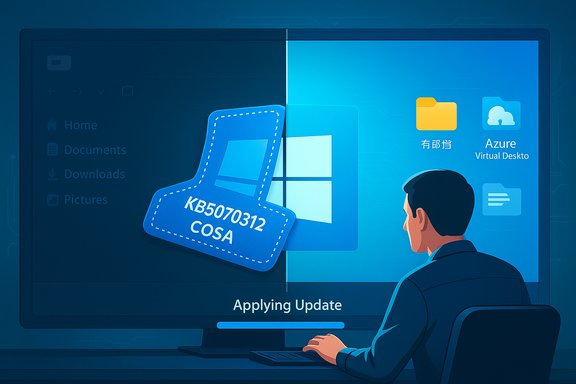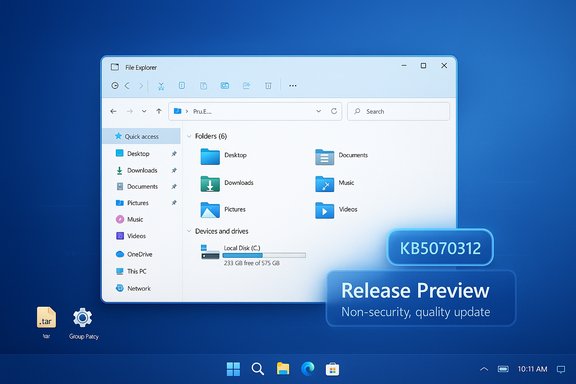
Microsoft quietly pushed an optional Windows 11 update — surfaced as KB5070312 for version 23H2 — that addresses a persistent and widely reported File Explorer responsiveness bug along with a handful of smaller, but useful, quality fixes.
Background / Overview
Windows 11 follows a staged servicing model in which feature updates are released annually and monthly cumulative updates are delivered on a Patch Tuesday cadence. Microsoft separates security fixes (the monthly security rollups) from non‑security, quality‑focused updates (the so‑called C‑release or monthly non‑security previews). KB5070312 is a non‑security, quality update published for Windows 11 version 23H2 and surfaced first in the Release Preview channel as build22631.6269. The package is intended to provide small functional and reliability improvements rather than new features.The timing is notable: version 23H2 reached the end of servicing for Home and Pro editions in November, which means consumer SKUs no longer receive routine security cumulative updates for that version. Enterprise and Education SKUs continue to receive updates for a longer window under Microsoft’s servicing policy, and this update was explicitly targeted to those still‑supported commercial channels as well as Release Preview testers.
This article summarizes what is fixed, evaluates the technical implications for end users and IT administrators, explains how the update is being distributed, and offers practical recommendations for deployment and rollback strategies.
What KB5070312 changes — quick summary
The update is a focused, non‑security release that contains quality improvements across a few areas. The most prominent fixes are:- File Explorer responsiveness: Addresses an issue where File Explorer sometimes did not respond to mouse clicks; the window would remain effectively unresponsive until the user closed and reopened the app.
- Archive extraction (.tar): Fixes a problem that could prevent extracting
.tararchives when file or folder names contained more than 34 commonly used Chinese characters. - Group Policy / AVD behavior: Corrects a Group Policy/Configuration Service Provider (CSP) issue where the
HideRecommendedSectionpolicy did not suppress the Recommended section in File Explorer for Windows 11 Enterprise multi‑session environments (for example, Azure Virtual Desktop). - Country and Operator Settings Asset (COSA): Updates profiles for certain mobile operators so carrier‑driven settings and operator data are current.
Deep dive: the File Explorer responsiveness bug
What users experienced
The File Explorer problem reported by users had a common symptom: after certain interactions (often involving the context menu), the main body of the File Explorer window would stop responding to mouse clicks. Left and right clicks would appear to have no effect until the user closed and relaunched File Explorer. This made basic file operations — selecting, opening, or right‑clicking items — awkward and, for some workflows, effectively blocked productivity until the app was restarted.Likely technical cause (analysis)
While Microsoft’s release notes do not go into low‑level root cause detail, the behavior is consistent with an event‑handling or UI thread deadlock scenario:- File Explorer is a user‑mode shell process that relies on multiple threads and message pumping for UI events. If the thread that processes mouse messages becomes blocked while handling a context menu or an associated shell extension, subsequent clicks can be ignored until the blocking condition clears.
- Third‑party shell extensions and context‑menu handlers are a frequent source of intermittent File Explorer hangs. A race condition introduced by recent internal changes to context menu flow or to the timing of extension callbacks could manifest as non‑responsiveness after the menu is invoked.
- The fact the problem intermittently self‑resolves after a restart suggests the fix likely adjusts internal synchronization, message pumping, or error handling around context‑menu operations to prevent the UI thread from entering a blocked state.
Why this matters
File Explorer is the central user interface for file management in Windows. Even occasional hangs or click blindness degrade perceived reliability and increase support calls. Fixing this behavior improves the everyday experience and reduces the likelihood of user attempts to forcibly terminate or restart shell processes (which can have knock‑on effects like closing open file dialogs, losing clipboard context, or breaking other shell extensions).What the update does functionally
The update’s release notes state the bug has been addressed; while the exact code changes are not public, users should expect:- Restored responsiveness in the File Explorer body following context‑menu interactions.
- Reduced need to restart File Explorer or log out to recover normal operation.
- Better tolerance when interacting with context‑menu extensions and when opening folders from other apps.
Other fixes and their practical impact
.tar extraction with long Chinese filenames
The.tar extraction problem was a niche but real interoperability issue: extracting archives that contained file or folder names made up of more than 34 commonly used Chinese characters could fail. That threshold behavior points to a string‑length or encoding handling bug in the archive extraction code path.Impact: Users who rely on built‑in archive extraction, or IT teams who distribute archives containing long Chinese filenames, will see improved extraction reliability after installing the update.
Group Policy: HideRecommendedSection in multi‑session environments
Enterprise admins had reported that theHideRecommendedSection Group Policy or CSP setting failed to hide the Recommended section in multi‑session environments like Azure Virtual Desktop (AVD), even when correctly configured.Impact: For organizations using multi‑session Windows 11 images, especially in managed desktop environments, this fix restores a consistent policy outcome — administrators can control the appearance of the Recommended section as intended. That matters for compliance, user experience consistency, and minimizing distractions in shared desktop deployments.
COSA profiles
Carrier profile updates affecting Country and Operator Settings Asset (COSA) ensure mobile devices and tethering scenarios behave correctly with operator‑provided settings. This is a routine but necessary update for operator compatibility.Impact: Users who rely on mobile operator provisioning profiles or network configuration items should experience fewer operator‑specific configuration issues.
Distribution and rollout: what to expect
The update was first observed in the Release Preview channel as build22631.6269. Microsoft typically uses Release Preview as the last testing ring before pushing non‑security fixes wider via the optional monthly C‑release or the next Patch Tuesday.Typical servicing path:
- Preview ring (Release Preview) — early testers and Insiders receive the build.
- Optional install (C‑release) — offered to all users as an optional, non‑security preview in Windows Update (manual install).
- Patch Tuesday (B‑release) — fixes that pass testing are rolled into the next monthly security update if applicable.
- Insiders and testers in Release Preview can install immediately.
- For broader audiences, Microsoft may later publish the update as an optional cumulative update (the non‑security preview) that can be installed manually from Windows Update or through the Microsoft Update Catalog.
- If the fix is deemed appropriate for general release, it will be incorporated into the next regular Patch Tuesday cumulative update.
22631.6276 for the optional release). That specific incremental build observation could not be independently confirmed against official update history at the time of writing and should be treated as unverified until Microsoft’s update catalog and support pages show the final, public build identifier. Administrators should confirm the exact KB/build numbers through their internal update metadata or the Microsoft Update Catalog before mass deployment.How to get KB5070312 (practical steps)
If immediate remediation is required, there are a few paths to obtain the update:- Enroll in Release Preview (Insider) channel and check Windows Update:
- Open Settings > Windows Update > Windows Insider Program.
- Enroll the device in the Release Preview channel.
- Return to Windows Update and click Check for updates.
- Install the preview build when it appears.
- Wait for the optional (C‑release) listing in Windows Update:
- Microsoft typically lists non‑security previews under “Optional updates” in Windows Update when they are offered broadly. This requires the user to manually select and install.
- Manual download from the Microsoft Update Catalog:
- When Microsoft publishes the KB to the Update Catalog, administrators can download the standalone MSU or CAB file and deploy via WSUS, SCCM, Intune, or scripting.
- For organizations, use managed deployment tools:
- Import the update into WSUS/SCCM or assign via Intune once it’s available in the catalog and approved for distribution.
Enterprise considerations and the servicing window
Because Home and Pro SKUs of Windows 11 version 23H2 reached the end of servicing for consumer editions in November, the importance of updates like KB5070312 differs between audiences:- Home / Pro users on 23H2: These consumer SKUs will not receive further security servicing for 23H2; installing quality-only preview updates is possible but does not alter the end‑of‑servicing reality. Users should plan to move to a supported feature update (24H2 or 25H2) to continue receiving monthly security updates.
- Enterprise / Education on 23H2: These SKUs have an extended servicing window. Quality updates released for 23H2 remain relevant for managed environments; fixes that address AVD or Group Policy behavior are particularly valuable to administrators.
- Multi‑session and virtual desktop infrastructures (VDI/AVD): The
HideRecommendedSectionGroup Policy fix restores predictable policy enforcement in multi‑session images, which matters for shared image consistency and compliance.
Risk, testing, and rollback
Non‑security preview updates are lower risk than feature updates, but they are not risk‑free. Common prudence steps include:- Pilot: Install the update on a representative set of endpoints (including devices running third‑party shell extensions and AV products).
- Test: Verify File Explorer workflows, archive extraction paths for
.tarwith non‑ASCII filenames, and policy behavior in lab AVD images. - Monitor: Use telemetry and helpdesk triage to catch regressions early.
- Rollback: If problems occur, the update can be uninstalled from Settings > Windows Update > Update history > Uninstall updates, or by using the appropriate MSU uninstall command and system restore as needed.
- Compatibility with third‑party shell extensions or context‑menu handlers.
- Unexpected interactions with file managers or file‑type handler software.
- Policy enforcement quirks in heavily customized multi‑session images.
Recommendations
For most users:- If you are seeing the File Explorer non‑responsiveness problem, installing the Release Preview or optional KB5070312 update is a reasonable step to try — but make sure to back up important data first and check whether your workflow is affected by third‑party shell extensions.
- If you rely on
.tarextraction of files with long Chinese filenames, the update addresses a specific extraction failure.
- Pilot the update in a controlled test group that mirrors your production environment, including multi‑session AVD images.
- Validate Group Policy and CSP behavior in multi‑session images (specifically
HideRecommendedSection) post‑install. - Prefer to wait for the Patch Tuesday cumulative update for broader enterprise rollout unless the fix addresses an immediate, high‑impact problem for users.
- Plan upgrades: consumer SKUs on 23H2 have reached the end of servicing and should be upgraded to a supported version to keep receiving security updates.
- Consider scheduling migrations to 24H2 or 25H2 using Windows Update for Business or established deployment tooling.
What to watch next
- Official Microsoft update history and the Microsoft Update Catalog should be checked for final build numbers and the published KB entry. Exact incremental build identifiers for the optional release were reported in some outlets but at the time of writing not all variants were verifiable through the official catalog — confirm the KB/build numbers against Microsoft’s published metadata before automating deployment.
- Monitor Windows Insider and enterprise forums for early reports of regressions, particularly around shell extensions, AV interaction, and multi‑session policy enforcement.
- Expect any fixes that pass validation in Release Preview to be rolled into the next Patch Tuesday bundle if they are applicable and relevant for the broader user base.
Conclusion
KB5070312 is a pragmatic, quality‑focused update that targets pain points many Windows 11 users and IT administrators have experienced — especially the frustrating File Explorer click‑responsiveness issue. For users affected by the bug, the update promises a tangible improvement in day‑to‑day file management. For enterprises, the Group Policy fix for multi‑session images restores predictable policy behavior in hosted desktop scenarios.That said, because Windows 11 version 23H2 is in a staggered servicing state (consumer editions out of support, commercial editions still supported for a limited time), administrators must weigh the immediate benefits of the preview fix against the operational discipline of staged testing and conservative deployment. Confirm the exact KB/build metadata in the Microsoft Update Catalog and your management tooling before wide rollout, pilot on representative systems, and only proceed to broad deployment once you have validated the update in your own environment.
Source: Neowin KB5070312: Windows 11 gets optional update that fixes annoying File Explorer bug