• Thread Author
Microsoft released its January cumulative for Windows 11 (KB5074109) on January 13, 2026 — and within days a series of serious regressions began surfacing, from brief black screens on some Nvidia-equipped machines to full startup failures that print UNMOUNTABLE_BOOT_VOLUME (Stop Code 0xED) and leave devices unable to reach the desktop. Microsoft has acknowledged a limited number of boot-failure reports, published out‑of‑band patches to address several related regressions, and advised affected users to recover through the Windows Recovery Environment (WinRE) until a confirmed remediation ships.

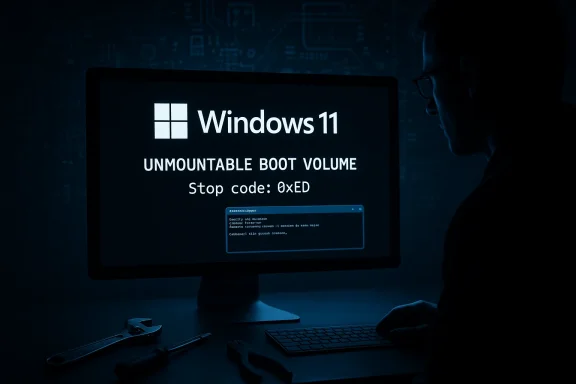
Dark computer lab with a screen displaying UNMOUNTABLE_BOOT_VOLUME error and a Windows Troubleshoot menu.Background / Overview​

The January 13, 2026 update — delivered as a combined Servicing Stack Update (SSU) and Latest Cumulative Update (LCU) and tracked under KB5074109 — advanced Windows 11 to builds reported as 26200.7623 (25H2) and 26100.7623 (24H2). The rollup bundled a large set of security fixes and servicing changes, but soon after deployment multiple regressions were reported by consumers and enterprise admins. Those issues included:
  • Shutdown/hibernate and Remote Desktop credential failures (addressed by an earlier out‑of‑band update).
  • App hangs and file I/O problems with cloud‑backed storage (mitigated in a later out‑of‑band update).
  • Display black screens or transient display losses on some systems — frequently reported on machines with discrete Nvidia GPUs.
  • The most severe: early‑boot failures showing UNMOUNTABLE_BOOT_VOLUME that prevent affected machines from completing startup.
Microsoft has described the boot problem as “a limited number of reports” and said the incidents observed to date appear to be confined to physical devices rather than virtual machines. That qualification matters: physical-only incidents typically point to interactions with firmware, early-loading drivers, disk controllers, or pre‑boot security primitives rather than to purely hypervisor or cloud issues.

What the update changed — and why some changes break early boot​

The January rollup combined an SSU and LCU. That package type improves security posture and reduces reboots in many scenarios, but the SSU+LCU offline servicing path also makes certain rollback and offline repair scenarios more complex. When failures occur in the very early stages of startup, the operating system cannot mount the system volume and standard in‑OS tools are unavailable — creating a high‑impact support burden for affected machines.
UNMOUNTABLE_BOOT_VOLUME (Stop Code 0xED) is an old, well‑understood symptom: it indicates Windows could not mount the boot/system volume during kernel initialization. Historically, causes include:
  • NTFS metadata or file system corruption on the system partition.
  • Damaged or misconfigured Boot Configuration Data (BCD).
  • Faulty or incompatible early‑load storage drivers or file system filter drivers.
  • Interactions between pre‑boot security features (Secure Boot, System Guard Secure Launch, BitLocker) and driver load ordering/timing.
When such a stop code appears immediately after a cumulative update, plausible mechanisms expand to include update-driven replacements of early‑loading components, offline servicing commits that left disk metadata transiently inconsistent, or timing/order changes introduced by the update that interact poorly with specific firmware or controllers. Microsoft’s engineering teams are collecting telemetry and investigating but have not yet published a definitive root-cause postmortem. Treat any precise causal claim as provisional until Microsoft releases a full engineering analysis.

Timeline and Microsoft’s public response​

  • January 13, 2026 — Microsoft ships KB5074109 for Windows 11 24H2 and 25H2. The update contains security fixes and servicing changes and moves affected builds to 26100.7623 / 26200.7623.
  • January 14–17, 2026 — Community reports surface shutdown/hibernate, Remote Desktop, and cloud‑file I/O regressions. Microsoft issues an out‑of‑band update (KB5077744) on January 17 to address certain Remote Desktop and shutdown issues.
  • January 24, 2026 — Microsoft releases a second out‑of‑band cumulative patch (KB5078127) to address cloud storage and Outlook PST hang scenarios and to consolidate fixes from prior updates. That patch addresses many app-level regressions but does not resolve the UNMOUNTABLE_BOOT_VOLUME boot failures under investigation.
  • Mid‑to‑late January 2026 — Microsoft publishes release‑health guidance acknowledging a limited number of devices failing to boot with UNMOUNTABLE_BOOT_VOLUME after the January servicing wave and offers manual WinRE recovery guidance while engineers investigate.
Microsoft’s release notes and the Windows release-health dashboard provide the canonical advisories and workarounds; the company’s guidance for affected customers is to gather diagnostic telemetry via Feedback Hub and, where necessary, use WinRE to remove the latest quality update until an engineered fix is validated.

Symptoms reported in the field (what users are actually seeing)​

  • Early boot failure: a black screen that reads “Your device ran into a problem and needs a restart” and the UNMOUNTABLE_BOOT_VOLUME stop code (0xED). These machines cannot reach the Windows desktop and typically fall into WinRE after repeated restarts.
  • Graphics/display regressions: temporary blackouts or momentary black screens, particularly on some systems with discrete Nvidia GPUs. In several reports the desktop later recovers; in others, users have needed driver reinstalls or driver rollbacks.
  • Outlook/Cloud‑file hangs: classic Outlook (POP/PST) configurations that store PSTs on OneDrive or other cloud‑synced folders may hang or fail to save/close, resulting in repeated re‑downloads or lost sent items until app behavior is corrected by the out‑of‑band fix.
  • File Explorer oddities: some users noticed File Explorer ignoring desktop.ini LocalizedResourceName entries or other localization anomalies after the update. These are lower severity but were widely reported alongside the other regressions.
Not every machine with KB5074109 is affected. Multiple community reports and independent checks show that many systems boot and run normally after applying the update; the problems are configuration‑dependent rather than universal. Nevertheless, the most disruptive symptom — machines that fail to boot — is high impact for anyone affected.

Immediate mitigation and recovery — step‑by‑step (practical guidance)​

If you or your organization encounter these problems, follow this prioritized flow. These steps are technical; if you’re not comfortable performing them, contact IT support or Microsoft Support and do not rush into destructive repairs.

1. If the PC still boots normally​

  • Pause updates immediately: Settings → Windows Update → Pause updates. This prevents the system from re‑applying the problematic patch while you triage.
  • Check installed build: Settings → System → About → OS build to confirm whether KB5074109 (build 26200.7623 / 26100.7623) is present.

2. If the PC shows transient black screens or display issues​

  • Update graphics drivers: install the latest Nvidia/AMD driver from your vendor or use Device Manager to roll back to a known‑good driver version. Some display resets look like driver resets.
  • If problems persist, consider uninstalling KB5074109 while you wait for guidance (see next step).

3. If the PC fails to boot (UNMOUNTABLE_BOOT_VOLUME)​

  • Enter WinRE (Windows Recovery Environment). Repeatedly force a hard shutdown during boot three times; Windows should boot into Automatic Repair → Advanced options, or boot from Windows installation media and select Repair your computer → Troubleshoot → Advanced options.
  • In WinRE choose Troubleshoot → Advanced options → Uninstall Updates → Uninstall latest quality update. This is the non‑destructive recommended first attempt and often restores bootability where the update is the proximate cause.
  • If Uninstall Updates isn’t available or fails (error 0x800f0905 is a reported blocker in multiple threads), use Command Prompt from WinRE and try repair utilities:
  • chkdsk C: /f /r
  • bootrec /fixmbr; bootrec /fixboot; bootrec /scanos; bootrec /rebuildbcd
  • If bootrec /fixboot returns Access Denied, use bcdboot C:\Windows /s X: /f ALL (X: = EFI system partition letter assigned in WinRE).
  • If you must remove the package via DISM offline: from WinRE’s command prompt mount the offline image and run DISM /Image:C:\ /Get-Packages and then remove the offending package with DISM /Image:C:\ /Remove-Package:PackageIdentity (advanced). Note: the SSU portion of combined packages may not be removable via wusa.exe; DISM is the correct tool when offline servicing is required.
  • BitLocker caveat: if your drive is encrypted you must have the BitLocker recovery key available before performing offline fixes — otherwise you risk permanently losing access. Enterprise users should grab the escrowed key from Azure AD / Intune or AD before proceeding.

4. If WinRE recovery fails​

  • Back up data from the recovery Command Prompt to external media where possible (copy files to USB). If backup isn’t possible or fails, prepare to reinstall Windows from installation media and restore from backups or system images. In the most extreme cases a clean reinstall may be the only path forward.
Practical note: a small but vocal set of users have reported uninstall failures and errors while attempting these steps; those error paths often require more advanced DISM/manually‑interpreting package IDs — and in edge cases a technician’s help. Always back up before destructive recovery steps.

How Microsoft has tried to limit fallout​

Microsoft moved quickly to issue emergency out‑of‑band fixes for several early regression clusters:
  • KB5077744 (released January 17) addressed Remote Desktop and shutdown regressions in some environments.
  • KB5078127 (released January 24) targeted app hangs when saving to cloud‑based storage and Outlook PST issues, consolidating prior fixes for the 24H2/25H2 branches. This update is offered to devices that already installed KB5074109 or KB5077744.
Microsoft has also published Known Issue Rollback (KIR) and Group Policy mitigation guidance for administrators to temporarily revert problematic behavioral changes without a full package uninstall — a vital tool for managed fleets where mass WinRE intervention is impractical. Microsoft continues to communicate via its Windows release health and support pages while engineering investigates the boot failures.

Critical analysis — what went wrong, and why this matters​

Strengths in Microsoft’s response​

  • Rapid triage and OOB delivery: issuing two out‑of‑band packages in short order demonstrates an operational willingness to push fixes outside the regular Patch Tuesday cadence. That helped mitigate many of the app-level regressions.
  • Transparent interim guidance: Microsoft’s release‑health messaging and published recovery steps gave administrators actionable mitigations (WinRE uninstall, KIR/Group Policy rollbacks) rather than leaving organizations flying blind.

Weaknesses and systemic risks​

  • SSU+LCU complexity: bundling SSU with LCU complicates removal and offline servicing. When an offline commit path interacts with firmware or pre‑boot components, recovery can be both time‑consuming and data‑risky for affected customers.
  • Insufficient pre‑deployment surface coverage: the pattern — serious Patch Tuesday rollup, followed by rapid OOB fixes, then a fresh, severe regression — suggests gaps in test telemetry for certain firmware/driver combinations and pre‑boot toolchains. Physical device diversity (OEM firmware, storage controllers, encryption) creates a large combinatorial test matrix; when an update touches early‑load code or servicing behavior this matrix must be robustly validated. The field evidence suggests some combinations slipped past validation.
  • Recovery friction for non‑technical users: manual WinRE recovery, DISM offline package removal, and BCD repairs are outside the comfort zone for casual customers. Without easy revert tooling or automated rollback, a minority of devices are at disproportionate risk of data loss or prolonged downtime.

Business and reputational fallout​

Public reaction to repeated update regressions is visible and vocal across social networks and tech forums; the meme “Microslop” captures part of the sentiment — an online shorthand for low‑quality AI-driven output and, more generally, frustration with perceived decline in product quality. That perception risks emboldening platform migration discussions for both developers and end users and increases scrutiny on Microsoft’s testing practices, especially as the company flows more AI into product pipelines. The CEO’s public remarks about AI’s role in Microsoft’s codebase (see below) add another layer to public debate about automation’s impact on software quality.

Context: AI, code generation, and the “Microslop” meme​

In late 2025 and early 2026 Microsoft leaders publicly discussed expanding AI’s role across development workflows. In a widely reported on‑stage conversation at Meta’s LlamaCon, CEO Satya Nadella said that in some Microsoft projects “maybe 20 to 30 percent” of code in repos is written by software (i.e., AI) and that this number is increasing. Separately, Nadella urged the tech community to move beyond labeling AI output as mere “slop” in a year‑end “Looking Ahead to 2026” post. Those comments became focal points for criticism and memes — shorthand like “Microslop” — that mix skepticism about AI code quality with frustration at recent product regressions. Both claims and public sentiment are verifiable in contemporary reporting and widely circulated coverage.
Important caveat: Nadella’s number was an estimate for “some projects” and Microsoft’s internal measurements vary by team and language; treat the 20–30% figure as descriptive of certain workloads and acceptance rates rather than a blanket statement about every Microsoft product. Likewise, public memes are a reactionary cultural signal — not a technical diagnosis.

Recommendations — what readers and administrators should do now​

  • If your machine hasn’t installed KB5074109 yet, pause updates until your organization confirms remediation or until Microsoft publishes a permanent fix. For home users, consider postponing non‑security updates for a short window and avoid manual installs until the situation stabilizes.
  • For IT admins: stage the January rollups in a representative test ring that includes the same OEM firmware, disk controllers, encryption (BitLocker), and storage drivers you use in production. If you already deployed broadly, evaluate Known Issue Rollback Group Policies and the out‑of‑band updates from Microsoft before sweeping further LCU installs.
  • Document and escrow BitLocker recovery keys for all devices; if WinRE access is required you will need those keys to avoid being locked out during offline servicing.
  • Maintain up‑to‑date backups and verify recovery procedures regularly. In the current environment the risk isn’t a universal bricking of Windows but rather a non‑zero chance of landing in a recovery scenario where a clean install or image restore is the final recourse. Regular verified backups reduce the consequence of that outcome.
  • If a machine is affected: follow Microsoft’s WinRE uninstall path first (preferred, least destructive). Only escalate to offline DISM or clean reinstall after careful data preservation steps. Consult Microsoft Support or a trusted technician if you are unsure.

Longer‑term implications and closing analysis​

This incident underscores two broader trends shaping Windows reliability in 2026.
First, Windows is increasingly a system of distributed dependencies: AI‑assisted tooling in development pipelines, richer agentic features, and more integrated cloud experiences all raise the bar for test coverage across firmware, drivers, and ecosystem clients. That interdependence makes targeted validation—and clear, fast rollback mechanisms—more crucial than ever.
Second, the interplay between automation and quality is evolving. AI can accelerate code production and improve developer productivity, but it also shifts where defects surface and how they are found. The 20–30% AI‑code figure Nadella referenced highlights that companies are already relying on automation to produce meaningful chunks of shipped software; that amplifies the need for robust human review, increased testing investment, and conservative rollout patterns for changes that touch early‑boot or platform security components.
For now the practical reality is simple: if your Windows 11 device has KB5074109 and is running well, it likely will remain fine — but administrators and risk‑averse users should pause mass deployments until Microsoft releases a confirmed, widely tested remediation for the UNMOUNTABLE_BOOT_VOLUME reports. If you are unlucky enough to hit the boot failure, WinRE uninstall of the latest quality update is the recommended first recovery step; keep BitLocker keys and backups handy, and escalate to support if offline repair attempts land you in error states.
Microsoft’s rapid issuance of out‑of‑band fixes for several related symptoms is positive, but the episode highlights that even well‑resourced vendors struggle with the brittleness of early‑boot and offline servicing paths across a wildly heterogeneous hardware ecosystem. Expect more updates, more mitigations, and continued scrutiny of both Microsoft’s testing pipeline and the broader role of AI in the software development lifecycle as engineers and product leaders reconcile speed, automation, and stability in production software.

Conclusion: KB5074109’s rollout has revealed a painful but manageable class of failures — high‑impact for a limited number of devices, widespread in attention, and resolvable with manual recovery in most reported cases. Pause wide rollouts, protect your BitLocker keys and backups, and follow Microsoft’s WinRE uninstall guidance or the out‑of‑band patches as your risk posture dictates. The technical and organizational lessons here are clear: when changes touch the OS’s earliest life cycle stages, conservative testing and reversible deployments are not optional; they’re essential to preventing a few broken installs from becoming many broken PCs.

Source: SlashGear This Windows 11 Update Could Seriously Screw Up Your PC - SlashGear
 

If your old dial‑up modem, fax‑modem, or legacy serial modem stopped working after this month's Windows 11 update, that's because Microsoft deliberately removed several in‑box modem drivers from the OS image—by design, not by accident. The January 13, 2026 cumulative update (KB5074109, OS Builds 26200.7623 and 26100.7623) lists the removal of four legacy files—agrsm64.sys, agrsm.sys, smserl64.sys, and smserial.sys—and warns that modem hardware dependent on those exact drivers will no longer function on patched systems.

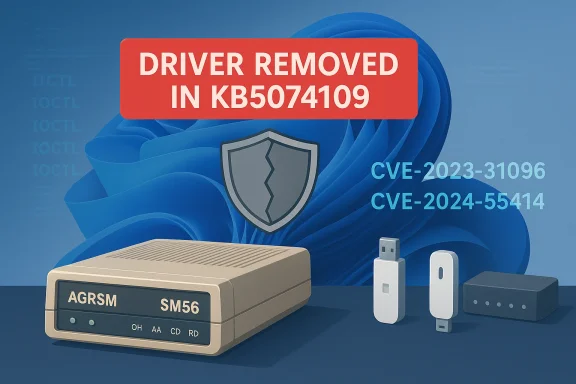
Windows-style illustration showing a “Driver Removed in KB5074109” banner, shield icon, USB drives, and CVE codes.Background / Overview​

For decades Windows shipped a collection of legacy modem and serial drivers in the default image to preserve backward compatibility with analog telephony, fax appliances, and a class of "soft" modems that implement much of the modem logic in software. Those drivers include code that runs at kernel privilege and exposes IOCTL interfaces to user‑mode processes—interfaces that have been the target of security research and, in some cases, tracked as CVEs. Microsoft’s January 2026 rollup is the latest instance of the vendor removing u kernel drivers from the in‑box Windows image rather than trying to patch abandoned third‑party code.
From a practical standpoint, the result is immediate: machines that relied on those specific, in‑box driver binaries will show a nonfunctional modem after installing KB5074109. Multiple communityurprise breakage because the change was noted only in the release notes rather than pushed to affected device owners through targeted telemetry or vendor notices. Independent coverage and user reports confirm the behavior and the drivers involved.

What Microsoft changed (the facts)​

  • Microsoft’s KB5074109 release notes explicitly state the removal of these modem drivers from the Windows image: agrsm64.sys (x64), agrsm.sys (x86), smserl64.sys (x64) and smserial.sys (x86). Modem hardware that depends on these drivers “will no longer work in Windows.”
  • These removals were bundled with other changes in the January 13, 2026 update, which also addressed NPU (Neural Processing Unit) power behavior and introduced staged Secure Boot certificate provisioning. The modem driver removal is a compatibility/security change rather than a functional bug introduced by the cumulative patch.
  • The drivers removed correspond to legacy Agere/LSI soft‑modem families and Motorola SM56 soft‑modem drivers; the decision follows publicized vulnerabilities in those driver families (CVE‑2023‑31096 and CVE‑2024‑55414 among related records). Security databases document these kernel vulnerabilities, with descriptions of how malformed IOCTLs or unsafe memory operations could permit local privilege escalation or mapping of physical memory into user space.

Why Microsoft removed them: the security rationale​

At the kernel level, drivers are powerful and risky. A single unchecked IOCTL handler or a memory‑copy bug in a kernel driver can let a local process escalate to SYSTEM or otherwise subvert endpoint protections. Two concrete CVE families are relevant here:
  • CVE‑2023‑31096: an Agere/LSI PCI‑SV92EX soft‑modem driver (AGRSM64.sys) vulnerability that can be triggered via a stack corruption in an IOCTL code path, enabling local privilege escalation. (nvd.nist.gov)
  • CVE‑2024‑55414: a Motorola SM56 WDM driver (SmSerl64.sys) weakness that allows crafted IOCTLs to map physical memory and escalate privileges or read/write kernel memory. Multiple vulnerability trackers classify this as high‑impact, and several security vendors flagged the risk.
Microsoft’s engineering judgment—reflected in the release notes—is straightforward: when a class of in‑box drivers is both vulnerable and effectively abandoned by upstream vendors, removing the binaries from the shipped Windows image removes the immediate attack surface for millions of devices. That improves baseline platform security at the cost of breaking a set of legacy hardware that still depends on those in‑box drivers. The company has used this approach before for similar legacy components.

Who is affected?​

Short answer: a small but nontrivial set of users and organizations that still rely on analog modems, fax‑modems, or embedded devices that dbox driver binaries removed by KB5074109.
  • Home users who never replaced an old dial‑up or fax device: low probability, but possible.
  • Small businesses that operate phone‑answering, logging, fax-to-email, POS or legacy telemetry systems using internal modems or serial‑to‑phone adapters.
  • Specialized or vertical hardware (medical, manufacturing, legacy POS peripherals) that shipped with or depended on Windows’ preinstalled modem drivers and for which the hardware vendor has not released a signed modern driver.
Community threads and vendor support queues show overwhelmed help desks and alarmed small businesses finding telephony services stopped working after the update. The issue is not a software regression in the traditional sense—it's an intentional compatibility change that was insufficiently announced to the ecosystem.

Short‑term mitigations and operational guidance​

If a modem or telephony appliance stopped working after installing KB5074109, you have a few practical options to regain functionality or reduce downtime. Each option carries trade‑offs—most importantly, the security trade‑off of running an unpatched system or an unsupported driver.
  • Check whether the modem actually depends on the removed drivers
  • Open Device Manager and inspect the modem’s driver details. Look for driver filenames; if the device is using agrsm64.sys, agrsm.sys, smserl64.sys, or smserial.sys, it is directly impacted.
  • You can also inspect the driver store (C:\Windows\System32\drivers) and filter by name to confirm absence or presence.
  • Contact the modem or hardware vendor
  • Ask whether a signed, modern driver is available. If the vendor can supply a driver that replaces the in‑box binary, install that driver instead of relying on the removed in‑box driver.
  • If no update exists and the vendor indicates they will not supply one, plan for hardware replacement or a software migration (for example, moving to VoIP or a modern USB modem that includes vendor drivers).
  • Temporary rollback or pause updates (short‑term only)
  • You can uninstall KB5074109 to restore the previous in‑box image that included the drivers, then pause updates to pr This restores functionality but exposes the device to the security fixes in KB5074109 and the CVEs it addressed.
  • Document this as a temporary emergency measure and schedule replacement/upgrade as soon as feasible.
  • Isolate or segment affected systems
  • If reverting the update is necessary, isolate those endpoints from untrusted networks, harden local policies, and reduce local attack surface (least privilege, application allow‑listing, restrict local file execution).
  • Replace the hardware where practical
  • For persistent operations, retiring legacy analog modem hardware in favor of modern alternatives (USB modem with vendor drivers, cellular‑to‑IP gateways, or VoIP services) is the most sustainable path.
Be explicit: uninstalling the update is a stopgap and should not be considered a long‑term solution. It reintroduces the attack surface Microsoft intended to remove for security reasons. Plan to replace or upgrade devices rather than rely on indefinite rollbacks.

How to check and, if necessary, roll back KB5074109 (practical steps)​

Below are high‑level, sequential steps administrators and power users can follow. Test procedures in a controlled environment before applying broadly in production.
  • Identify affected devices
  • Use Device Manager or vendor management tools to locate devices with modem/serial drivers and note their driver file names.
  • Verify the KB is installed
  • In Settings → Windows Update → Update history, confirm the presence of KB5074109 (January 13, 2026). On managed sysgMgr records.
  • Roll back (uninstall) KB5074109 if necessary
  • Settings → Windows Update → Update history → Uninstall updates → select KB5074109 → Uninstall.
  • For bulk or offline rollback, use DISM to service an offline image or to remove the cumulative package on a target image. Note: the package includes a Servicing Stack Update (SSU), and SSU changes can complicate rollback; test carefully.
  • Pause updates and plan remediation
  • Pause updates temporarily and schedule a migration plan—vendor drivers where available, or hardware replacement.
  • Re‑enable updates once you have a permanent fix or after migrating hardware
  • Don’t leave endpoints permanently unpatched; treat the rollback as an emergency measure only.
If you are unsure how to proceed or you manage many endpoints, pilot the rollback on a small group and coordinate with security and asset teams to map out remediation. The SSU+LCU packaging used by KB5074109 can make offline servicing more complex, so involve imaging/OS deployment teams where needed.

Long‑term options: replacement and architecture decisions​

The removal of these drivers is also a signal to reassess telephony and legacy hardware strategies.
  • Move to modern, vendor‑supported hardware: consider USB modems or PCIe cards with actively maintained, signed drivers.
  • Migrate to VoIP and SIP‑based solutions: VoIP removes the dependency on analog‑modem stacks entirely and provides long‑term maintainability.
  • Use external gateways or appliances: analog‑to‑IP gateway devices can decouple legacy endpoints from Windows driver dependencies.
  • Vendor engagement and contract language: for specialized systems, require vendor commitment to driver maintenance or provide plans for replacement toailures during OS hardening cycles.
These steps reduce systemic risk and avoid reintroducing unpatched drivers as a maintenance strategy.

Security trade‑offs and the big picture​

Microsoft faces a genuine engineering trade: preserving compatibility for long‑tail hardware vs. minimizing the shipped attack surface. In this case, the company chose security hardening after public CVEs surfaced for multiple modem driver families. Removing in‑box drivers prevents an entire class of preinstalled attack vectors—binaries present on the image and usable to local attackers—even on devices that never attached the hardware.
  • Strengths of Microsoft’s approach:
  • Immediate elimination of a shipped, supported attack surface for all patched systems.
  • Prevents BYOVD (bring‑your‑own‑vulnerable‑driver) scenarios where signed, vulnerable drivers facilitate local exploitation or kernel compromises.
  • Simplifies future security posture by refusing to carry unsupported third‑party kernel blobs indefinitely.
  • Risks and downsides:
  • Operational disruption for users and organizations that legitimately rely on legacy hardware with no vendor updates.
  • Community backlash and the operational overhead of emergency rollbacks and helpdesk spikes.
  • The potential for inconsistent messaging and insufficient notice to vendors and integrators, which exacerbates the impact. Community threads show help desks being swamped and end users surprised by the change.
Overall, Microsoft’s decision makes technical sense from a threat‑model perspective, but it could have been executed with more upfront communication, vendor coordination, and clear migration guidance for impacted verticals.

Cross‑checks and verification​

This analysis verifies and cross‑references key claims against multiple authoritative sources:
  • Micros109 release notes explicitly list the removed drivers and the impact statement.
  • Independent reporting and testing (Windows Central) summarized the compatibility change and captured user reports about broken modems and overwhelmed vendor support lines.
  • Public vulnerability databases (NVD, Rapid7, CVE trackers) document the kernel‑level vulnerabilities associated with AGRSM and SmSerl driver families and explain the exploitable IOCTL and physical memory mapping concerns that motivated removal.
  • Community and forum snapshots preserved in local forum archives corroborate user impacts and operational guidance being shared among administrators.
Where third‑party vendor support availability was asserted in community posts, that claim is difficult to verify universally. If a specific modem model or vendor is critical to your operations, contact the vendor directly and insist on a signed driver or a migration timeline. Any claims about a particular vendor’s plans that are not officially published should be treated as provisional.

What users should do now (clear checklist)​

  • Inventory: find all machines that host analog or serial modems and record driver filenames. If the driver file is one of the four removed binaries, flag the device as impacted.
  • Vendor contact: request modern signed drivers or a supported migration path.
  • Emergency rollback (only if business‑critical): uninstall KB5074109, then pause updates and isolate the endpoint. Document and execute a replacement plan.
  • Plan replacement or migration to modern telephony (VoIP, USB modem, gateway appliance).
  • Treat the rollback as temporary—restore security posture promptly once alternate drivers or hardware are in place.

Final assessment — pragmatic, necessary, but disruptive​

Microsoft removed legacy modem drivers in KB5074109 because those in‑box binaries presented a credible kernel‑level attack surface that upstream vendors no longer maintained. The action is defensible from a security posture point of view and consistent with pasten vendor code is abandoned and exploitable. At the same time, the execution lacked the ecosystem communications needed to minimize surprise and downtime for organizations that still depend on these legacy devices.
For most users, this is a non‑event. For a meaningful minority running specialized telephony, POS, or logging systems, it's an operational event that requires rapid remediation: contact vendors, roll back only as an emergency measure, and plan hardware or architecture changes that replace fragile dependencies on deprecated kernel drivers. The long‑term lesson is clear: when hardware relies on in‑box legacy drivers, expect eventual platform hardening to remove unsupported code, and plan migrations accordingly.

Quick reference: the four removed driver files​

  • agrsm64.sys (x64)
  • agrsm.sys (x86)
  • smserl64.sys (x64)
  • smserial.sys (x86)
If your device uses any of the above, treat it as impacted by KB5074109 and follow the remediation checklist in this article.
Conclusion: the modem breakage many users saw after installing KB5074109 is not a classic regression—it’s an intentional security hardening step. That makes the disruption avoidable only through vendor updates or hardware migration; temporary rollbacks are possible but risky. Plan accordingly, prioritize security, and accelerate migration of any critical systems still tied to these legacy drivers.

Source: Windows Central Windows 11 update removes modem support for certain PCs?
 

Microsoft’s January 13, 2026 Windows 11 cumulative update (KB5074109) intentionally removed four legacy modem drivers from the in‑box Windows image — agrsm64.sys, agrsm.sys, smserl64.sys and smserial.sys — and that change has left a measurable group of users and small businesses with nonfunctional modems and telephony appliances, prompting emergency rollbacks, vendor calls, and heated forum threads. This is not a silent bug: Microsoft documented the removal in the KB release notes as a compatibility/security change, but the practical effect — severing support for devices that still rely on those drivers — has created avoidable operational pain for a nontrivial “long tail” of legacy hardware users.

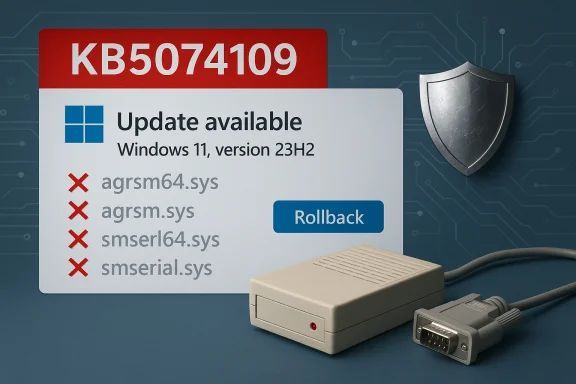
Windows 11 update 23H2 (KB5074109) available; several sys drivers fail, rollback option included.Background / Overview​

For decades Windows included a set of legacy modem and serial driver binaries in its default image to preserve backward compatibility with analog telephony devices, internal PCI soft‑modems and some fax/point‑of‑sale peripherals. Over the last few years security researchers and vulnerability databases flagged multiple kernel‑level defects in several of those driver families — notably Agere/LSI (AGRSM) and Motorola SM56 (SmSerl) soft‑modem drivers — that can be exploited by local, low‑privilege actors to escalate to SYSTEM or map physical memory. Those vulnerabilities are recorded in public ed by Microsoft as part of the rationale for removing the drivers from the shipped image.
Microsoft’s KB5074109 (January 13, 2026) bundles a collection of fixes and quality improvements — from an NPU idle power correction to staged Secure Boot certificate provisioning — and also explicitly lists the four modem drivers removed and warns that hardware relying on those exact files “will no longer work in Windows.” The company framed this as a security hardening step: removing legacy kernel code that is demonstrably vulnerable and, in many cases, not maintained by upstream vendors.

What changed technically​

The removed drivers (the facts)​

  • agrsm64.sys (x64) — Agere / LSI soft‑modem driver
  • agrsm.sys (x86) — Agere / LSI soft‑modem driver (32‑bit)
  • smserl64.sys (x64) — Motorola SM56 / serial modem driver
  • smserial.sys (x86) — Motorola SM56 / serial modem driver (32‑bit)
These four files were removed from the Windows image as part of the KB5074109 cumulative update; Microsoft’s release notes call out the removal under “Compatibility” and plainly state that modem hardware dependent on those specific drivers will stop working. That change is intentional and is classified as a compatibility/security decision rather than a transient bug.

Why Microsoft removed them​

The removed drivers run in kernel mode and expose IOCTL interfaces to user processes. Public CVE records describe real, high‑impact weaknesses:
  • CVE‑2023‑31096: an Agere/LSI PCI‑SV92EX soft‑modem kernel driver (AGRSM family) contains an IOCTL‑triggered stack‑corruption/RTLCopyMemory issue that can enable local privilege escalation.
  • CVE‑2024‑55414: a Motorola SM56 modem driver (SmSerl family) contains weaknesses allowing crafted IOCTLs to map physical memory to user space, again enabling privilege escalation and kernel memory disclosure.
In plain terms: the drivers presented an exploitable kernel‑mode attack surface and, in many vendor cases, the upstream authors no longer provided supported, fixed, signed replacements. Removing the in‑box binaries eliminates that shipped attack surface immediately, but causes compatibility breakage for the hardware that relied on the in‑box files. Microsoft made the tradeoff explicit in the KB notes.

Who is affected — and why the impact matters​

The number of directly impacted end users is small relative to the entire Windows install base, but the functional impact can be severe for those affected. Typical affected scenarios include:
  • Home users with older internal dial‑up modems or fax modems that used Agere or Motorola- still run legacy phone‑answering, fax‑to‑email, logging, point‑of‑sale or telemetry systems which depend on internal modems or serial‑to‑phone adapters using the removed drivers.
  • Vertical hardware (medical instruments, manufacturing controllers, legacy POS terminals) that shipped with drivers expecting Windows’ in‑box binaries and for which vendors have not issued modern, signed replacements.rt threads show people reporting overnight loss of telephony services and the need to roll back updates urgently to restore connectivity. Several forum threads and aggregated reports chronicle users who restored functionality by uninstalling KB5074109 and pausing updates until a vendor fix or hardware change was arranged.

User experiences and community reaction​

The reaction has three recurring themes:
  • Surprise: Manyered their devices stopped working after installing what they believed to be a routine security update. The removal was mentioned in release notes, but it did not reach many downstream owners of older hardware. That communication gap generated shock and frustration.
  • Rapid rollbacks: A common remedial step reported by users was uninstalling KB5074109 and pausing updates. That sequence often restored modem operation because the earlier in‑box drivers were presage, but it left systems without the security fixes contained in the update — effectively trading immediate functionality for latent security exposure. Community posts include multiple accounts of such rollbacks.
  • Vendor silence / no modern drivers: A number of impacted users reported that their modem or peripheral vendor did not publish updated, signed drivers, leaving hardware replacement or long‑term rollbacks as the only practical options. This is especially acute for devices in small businesses where replacing a single specialized modem or gateway can require purchasing and integrating a replacement chain that includes configuration and potentially new software.
Independent outlets and tech press have covered the problem, including advice that affected users may need to uninstall the patch pending vendor updates and that Microsoft itself has published workarounds and emergency fixes for some of the other problems in KB5074109. The broader conversation has reignited long‑running debates about Windows Update transparency and the balance between security and compatibility.

Verifying whether you are affected (step‑by‑step)​

If you suspect your modem or telephony device stopped working after installing the January 13, 2026 update, follow these checks. Test in a controlled environment before rolling steps out to production.
  • Confirm the update is installed
  • Settings → Windows Update → Update history. Look for KB5074109 (January 13, 2026) and the OS Build (for affected Windows 11 branches the update produces builds such as 26200.7623). Microsoft’s KB page lists the package.
  • Check the modem’s driver files in Device Manager
  • Open Device Manager, locate the modem (under “Modems” or “Ports (COM & LPT)”), right‑click → Properties → Driver → Driver Details. If the device lists agrsm64.sys, agrsm.sys, smserl64.sys or smserial.sys, it was using an in‑box legacy driver that KB5074109 removed. If the driver filename is different (vendor‑specific .sys), you may be using a vendor driver and could be unaffected.
  • Inspect the driver store manually
  • Look in C:\Windows\System32\drivers for the four filenames. Their absence after KB5074109 is expected. If the files are missing and your modem was dependent on them, the device will not function until a replacement driver is installed or the update removed.
  • Contact the device vendor
  • Ask whether they provide a signed, modern driver that replaces the in‑box binary. If they do, follow vendor instructions to install the new driver. If they do not, the vendor should provide a migration/retirement plan or recommend replacement hardware.

How to roll back or mitigate (clear, safe procedures)​

If you must restore modem functionality urgently, the options below are practical but have important security tradeoffs. Treat any rollback as temporary and plan for a permanent upgrade or replacement.
  • Uninstall KB5074109 (temporary emergency measure)
  • Microsoft’s KB explains that the combined package includes an SSU and LCU; removing the combined package requires using DISM witremove the LCU portion. Running wusa.exe /uninstall on the combined package will not work because the SSU cannot be removed. Follow Microsoft’s documented guidance when removing the package. Uninstalling restores the previous in‑box image (and the removed drivers) but also removes the security fixes in KB5074109. Do this only as a short‑term emergency measure.
  • Pause Windows Update to avoid immediate reinstallation
  • After rollback, pause automatic updates or use Windows Update for Business controls to avoid immediate reinstalls. Document exceptions in your change control system. Remember this leaves the system unpatched for the vulnerabilities fixed by KB5074109.
  • Isolate and harden rolled‑back systems
  • If you must run a rolled‑back endpoint, apply compensating controls: restrict network access (segment or isolate), increase logging/monitoring, enforce strict local account policies, remove unnecessary local accounts, and apply application whitelisting. Treat the device as a higher‑risk asset until replacement. Community guidance repeats this point: rollback is a stopgap, not a solution.
  • Replace or migrible
  • The most sustainable approach is to retire hardware that depends on deprecated in‑box drivers and move to modern alternatives: vendor‑supported USB modems, cellular‑to‑IP gateways, or VoIP solutions with maintained drivers and firmware.
  • Demand vendor action
  • If a third‑party device remains widely sold but depends on removed in‑box drivers, pressure the vendor for a signed replacement driver or validated firmware. Document interactions and timelines.

Safety and compliance considerations​

  • Security vs. availability: Uninstalling KB5074109 restores functionality for affected hardware but reintroduces the attack surface Microsoft removed for security reasons. The unpatched system is at higher risk for local privilege escalation and kernel compromise. Balance the need for operations against the elevated risk and document the risk acceptance with appropriate stakeholders.
  • Regulatory and insurance impacts: Running unpatched systems may affect compliance with regulatory frameworks. Organizations should consult legal/compliance teams and risk managers before long‑term operation on rolled‑back builds. The broader removal decision by Microsoft was explicitly a security hardening step; undoing it should be treated as a controlled exception.
  • Auditing and mitigations: If rollback is unavoidable, implement compensating technical controls (network segmentation, restricted administrative access, endpoint detection and response) and increase monitoring for suspicious activity.

Analysis — Microsoft’s trade‑offs, strengths and communication gaps​

The security argument is strong​

Removing abandoned, vulnerable kernel drivers from the shipped Windows image is a practical, defensible move from a platform security perspective. Kernel drivers run at ring‑0; a single unpatched IOCTL bug can allow local or coordinated attacks to achieve SYSTEM privileges, bypass protections such as PPL or driver signing thresholds, and enable persistence. The historical CVE set for Agere/LSI and Motorola SM56 drivers demonstrates real, high‑impact weaknesses and justifies proactive hardening by removing the binaries.

Operational impact was predictable and, to some degree, avoidable​

Microsoft documented the change in the KB, but this type of compatibility removal targets a niche subset of users who are unlikely to be reached by generalized release notes alone. The result was predictable: operators of legacy telephony systems with limited IT resources were surprised and required emergency remediation. Better vendor ometry notifications to systems actually using those drivers, and pre‑deployment guidance to ISVs could have softened the impact. Community threads reflect frustration about insufficient Execution and messaging could improve
  • Targeted communication: Microsoft could have used telemetry to notify admins before broad rollout to devices with the affected drivers installed, giving organizations a window to schedule controlled patching or hardware replacement.
  • Vendor coordination: Encouraging or requiring affected hardware vendors to provide signed replacements before the driver removal phase would reduce emergency rollbacks and upset customers.
  • Clearer mitigation guidance: The KB does include rollback instructions and known issue workarounds for unrelated bugs in the same package, but succinct migration playbooks for impacted verticals (telephony gateways, POS, medical) would have been helpful.
Overall: the security rationale is compelling; the ecosystem execution and end‑user communication were imperfect. The likely long‑term outcome is improved platform security at the cost of short‑term operational disruption for those still bound to legacy hardware — a tradeoff that now must be managed by affected organizations.

Practical checklist for admins and power users (quick reference)​

  • Inventory: locate all endpoints with modems or serial modem devices; note driver filenames and vendor IDs.
  • Verify KB presence: confirm KB5074109 is installed via Update history; consult Microsoft’s KB for package details and OS build numbers.
  • Contact vendors: ask for signed, modern drivers. If unavailable, schedule replacement of the hardware or migration to a supported gateway or VoIP stack.
  • Temporary emergency response: if business‑critical, uninstall the LCU portion using DISM and pause updates, then isolate the endpoint and harden controls. Document the exception and timeline for remediation.
  • Long term: replace unsupported analog modem dependencies with supported equipment or services.

What Microsoft and vendors should do next​

  • Microsoft should evaluate more precise pre‑deployment notifications when removing in‑box drivers that are still present on customer devices, using safe telemetry to give affected operators advance notice and mitigation windows.
  • Vendors of legacy telephony and soft‑modem hardware should publish modern, signed drivers where feasible or offer clear migration pathways and documented end‑of‑life timelines.
  • For critical verticals where replacement is costly or slow (medical, manufacturing, regulated infrastructure), vendors and Microsoft should provide explicit remediation guidance and extended support options where feasible.

Final assessment and takeaways​

KB5074109 illustrates a hard reality in platform maintenance: as attack surfaces age and upstream vendor support wanes, platform vendors must sometimes remove code rather than patch it forever. Microsoft’s removal of agrsm64.sys, agrsm.sys, smserl64.sys and smserial.sys in the January 13, 2026 update is a defensible step to eliminate known kernel‑level attack vectors, but the ecosystem impact was real and painful for those with legacy dependencies. Administrators who rely on decades‑old telephony or POS hardware should treat this as a wake‑up call — inventory your estate, demand vendor timelines for driver support, and budget to replace fragile legacy components that implicitly relied on Windows’ long compatibility guarantees.
If you are impacted: verify the device’s driver files, contact the vendor for a modern driver, and treat an uninstall of KB5074109 as an emergency-only stopgap while you plan a secure migration. Community threads show many users restoring service this way, but they also highlight that the rollback is not a long‑term fix.
The broader lesson for Windows stewardship remains unchanged: security hardening is essential, but execution must include targeted communication and vendor coordination to avoid turning good security decisions into operational crises.

Source: filmogaz.com Windows 11 Update KB5074109 Disrupts Modems for Select Users
 

Microsoft has warned that its January 2026 cumulative for Windows 11 — distributed as the security update identified by KB5074109 — is associated with a small but serious set of failures that can leave some PCs unable to boot. Affected systems are reporting the classic stop code UNMOUNTABLE_BOOT_VOLUME and either fall into a boot loop or stop early in startup with a black error screen. Microsoft has acknowledged the problem, issued targeted out‑of‑band fixes for several collateral regressions, and is investigating the boot‑failure reports; for now the safest course for many users and administrators is to delay installing KB5074109 until the engineering investigation is complete or confirmed fixes are distributed.

Windows 11 error screen: “Unmountable Boot Volume” with stop code 0xED.Background​

Microsoft issued the January 13, 2026 cumulative security update for Windows 11 (tracked as KB5074109) for the mainstream servicing branches (Windows 11 24H2 and 25H2). The update bundled a servicing stack update (SSU) and the latest cumulative rollup (LCU) and addressed over one hundred security vulnerabilities plus a number of quality items, including an NPU power‑idle problem and changes to Secure Boot certificate targeting.
Within days of release, multiple, independent community and media reports described a range of regressions: Remote Desktop credential failures, apps hanging when saving to cloud storage (notably certain Outlook Classic configurations), trouble with sleep/hibernate on older S3 systems, and GPU/black‑screen behaviours on some devices. Microsoft shipped two emergency out‑of‑band (OOB) packages to address the most urgent issues: KB5077744 (released mid‑January) to restore Remote Desktop authentication flows and KB5078127 (released later in January) to mitigate application hangs with cloud‑backed storage and Outlook PST scenarios.
Despite those OOB releases, Microsoft has stated it has received a limited number of reports of devices failing to boot after installing KB5074109 (and later updates). The symptomatic stop code is UNMOUNTABLE_BOOT_VOLUME (Stop Code 0xED), which indicates that the Windows kernel could not mount the boot volume during early startup. Microsoft and multiple independent outlets are investigating; the majority of reported incidents have been observed on physical hardware rather than virtual machines.

What the UNMOUNTABLE_BOOT_VOLUME stop code means​

The technical basics​

UNMOUNTABLE_BOOT_VOLUME is an early‑boot error that indicates Windows failed to mount the system’s boot volume. Practically, that means the kernel either could not read the disk structures it needs to continue booting, or a driver/interaction in the pre‑kernel or kernel initialization sequence prevented access to the storage device.
Common technical root causes for this stop code include:
  • Filesystem corruption or damaged boot configuration data (BCD).
  • Storage driver failures or incompatible storage filter drivers loaded early in boot.
  • Firmware/UEFI interactions that change device enumeration order or access timing.
  • A failed update commit step that leaves the boot volume in an inconsistent state.
When a cumulative update coincides with this stop code, plausible mechanisms include an altered early‑load driver, changes in servicing stack behaviour, or a timing/ordering regression that only surfaces on specific hardware or firmware configurations.

Why this is more serious than a typical app bug​

Because this failure happens before most higher‑level OS services initialize, standard troubleshooting from the desktop is impossible. Recovery requires Windows Recovery Environment (WinRE), offline servicing tools, or — in the worst case — a full image re‑deployment. That makes the handful of reported cases disproportionally disruptive; even if the incident rate is small, the impact on an affected device can be high.

How Microsoft responded (and what’s been fixed)​

Microsoft’s public guidance and engineered fixes so far follow a two‑track pattern:
  • Immediate emergency patches for specific regressions (OOB updates).
  • An active investigation into the boot‑failure reports, with guidance to use WinRE to roll back the problematic quality update when necessary.
Key facts confirmed by Microsoft’s bulletins and vendor notes:
  • KB5074109 was released on January 13, 2026 for Windows 11 24H2 and 25H2. It incremented OS builds to 26100.7623 and 26200.7623 respectively.
  • Two out‑of‑band fixes have been deployed:
  • KB5077744 — an OOB cumulative that fixes Remote Desktop credential prompt failures (builds 26100.7627 / 26200.7627).
  • KB5078127 — a second OOB cumulative to address apps becoming unresponsive when saving to cloud storage (builds 26100.7628 / 26200.7628).
  • Microsoft described the boot‑failure reports as a limited number and said the reports appear restricted to physical devices; virtual machines have not shown the same failure pattern so far.
  • Neither of the two OOB fixes above reliably eliminates the reported UNMOUNTABLE_BOOT_VOLUME boot failures — the boot issue remains under investigation.
These confirmations matter: Microsoft’s OOB work has remediated several high‑impact issues, but the root cause driving the boot failures has not yet been completely mitigated by the emergency releases.

Real‑world reports and the scale of the problem​

Independent reporting from major Windows outlets and user‑community boards has corroborated Microsoft’s advisory. The broad picture from multiple sources is:
  • Large numbers of users installed KB5074109 without incident.
  • A smaller set — primarily on physical machines, and comprising both consumer and enterprise images — reported severe symptoms: black screens, repeated restarts, and a Stop Code UNMOUNTABLE_BOOT_VOLUME.
  • Anecdotal reports vary in severity: some devices recovered after a System Restore or uninstalling the update in WinRE; others required reinstallation of Windows or a full image restore. A few threads report claims of disk corruption, but those are anecdotal and the relative frequency of irrecoverable damage is not publicly quantified.
  • Enterprise admins are especially concerned because the failure removes remote troubleshooting options and can cause unplanned downtime across fleets.
It’s important to stress that Microsoft continues to call the number of affected devices “limited.” However, because the consequence of encountering the bug is severe, even a small rate of occurrence is material for IT managers and cautious home users.

Immediate, practical guidance for home users and IT admins​

If you manage Windows 11 systems (home or enterprise), here’s a prioritized checklist to reduce your chance of encountering the boot failure and to recover safely if you’re impacted.

1. If you have not installed KB5074109 yet​

  • Delay installation. If your device hasn’t received the January cumulative (KB5074109), pause updates until Microsoft releases a confirmed remediation for the boot issue or until your testing validates it in your environment.
  • Use the Pause updates UI in Settings > Windows Update, or configure deferral policies via Group Policy / MDM for managed fleets.
  • For enterprises, stage the update in a test ring and observe telemetry before broad deployment.

2. If you have installed the update and your PC behaves normally​

  • No immediate action is required beyond standard caution: ensure you have current backups and a recent system image.
  • Consider deferring the next quality update for a short period (7–30 days), giving Microsoft time to publish KIR (Known Issue Rollback) or another fix.

3. If you’re already experiencing the boot failure (UNMOUNTABLE_BOOT_VOLUME)​

  • Do not repeatedly force‑power your device; persistent restarts can complicate recovery.
  • Enter Windows Recovery Environment (WinRE):
  • Force shutdown the device, power on and off three times to trigger Automatic Repair, or boot from Windows installation media and choose Repair your computer.
  • In WinRE: Troubleshoot > Advanced options > Uninstall Updates > Uninstall the latest quality update (this removes the last installed cumulative without touching user data in most cases).
  • If Uninstall Updates fails, try System Restore (if a restore point exists): Troubleshoot > Advanced options > System Restore.
  • If those options are not available or fail, boot to Command Prompt in WinRE and gather logs (bootrec /scanos, bootrec /rebuildbcd, chkdsk C: /f) — but be careful: chkdsk can take a long time and will operate on the detected volume.
  • After successful recovery, pause updates and wait for Microsoft’s clear remediation before re‑applying the January cumulative.

4. If you manage large fleets (WSUS / Intune / SCCM)​

  • Block or exclude KB5074109 from automatic deployment until validated in a pilot group.
  • Use feature update rings and quality update deferrals to stage rollout.
  • Collect telemetry and apply Known Issue Rollback (KIR) policies if Microsoft publishes them; KIR often surfaces as a Group Policy artifact in enterprise guidance.
  • Prepare a recovery plan: pre‑stage WinRE USB tools, enable offline image restores, and ensure out‑of‑band support channels are staffed.

Step‑by‑step: How to uninstall the latest quality update from WinRE​

  • Power on the PC and interrupt the boot by holding the power button to force‑shutdown. Repeat this three times to trigger Automatic Repair. Alternatively, boot from Windows installation media and choose Repair your computer.
  • In the Windows Recovery Environment, select:
  • Troubleshoot > Advanced options > Uninstall Updates.
  • Choose Uninstall latest quality update and follow the prompts.
  • After the uninstall completes, reboot and confirm the system boots normally.
  • Once recovered, immediately create a fresh backup and pause Windows Updates from Settings > Windows Update to prevent immediate reinstallation.
If GUI uninstall fails, use WinRE > Troubleshoot > Advanced options > Command Prompt and collect logs and disk state for diagnosis. Advanced offline removal using DISM is possible but error‑prone; only experienced admins should attempt dism /image:C:\ /remove-package on offline images.

Assessing the risk: security vs. availability tradeoffs​

Security updates patch vulnerabilities — some of them actively exploited — and skipping them indefinitely raises an ongoing security risk. But when a security update introduces an availability risk that can brick machines, administrators face a genuine tradeoff.
  • The January cumulative fixed a number of vulnerabilities; for some environments those patches may be essential.
  • Microsoft’s pattern of delivering targeted OOB fixes demonstrates an attempt to balance rapid vulnerability mitigation with compatibility fixes.
  • For many home users, the practical approach is simple: delay the January cumulative until Microsoft publishes a clear remediation for the boot issue or until your particular hardware vendor confirms compatibility.
  • For enterprise systems, use a staged rollout and rely on Microsoft’s release health dashboards, KIR artifacts, and telemetry to make informed decisions. Where possible, force‑apply emergency fixes (e.g., KB5077744 and KB5078127) in a controlled manner without re‑introducing KB5074109 until safe.
Be cautious about blanket advice. Some administrators will accept the security risk for endpoints that cannot afford to be unpatched; others will prioritize availability and avoid the January rollup. Both choices are defensible when documented and communicated to stakeholders.

Root cause analysis: what might have gone wrong?​

Microsoft has not publicly confirmed a single root cause for the boot failures. Based on the failure mode and available vendor notes, plausible contributing factors include:
  • Changes in the servicing stack or early-boot driver ordering that interact badly with specific firmware or storage drivers.
  • Edge cases introduced by Secure Boot certificate updates or Secure Launch/Virtualization‑based protections that alter early boot behavior on particular OEM firmware.
  • A corrupted update commit on select media/firmware combinations that left a transient inconsistency in the boot metadata.
Until Microsoft publishes a technical post‑mortem or a fix is rolled out that explicitly documents the root cause, the above remain informed hypotheses consistent with the symptoms and with historical patterns when early‑boot regressions occur.
Note: user claims of irrecoverable disk corruption following this update are currently anecdotal. Microsoft’s statements and broader reporting highlight a mix of recoverable uninstall cases and reports requiring full reinstalls, but the precise incidence of permanent data loss is not yet quantifiable — proceed with caution and assume data could be at risk on affected systems.

Why this should matter to gamers and consumers​

Recent Windows 11 updates have already been scrutinized for regressions that affect gaming performance and system stability. For gamers and power users:
  • Boot failures are a worst‑case scenario — a non‑booting PC prevents play altogether.
  • Other collateral issues observed with the January rollup — black screens on certain GPU setups and app crashes — directly impact game compatibility and the user experience.
  • For users who rely on Windows for both gaming and productivity, the practical advice is to defer non‑urgent quality updates until at least one successful OOB remediation is widely available and your hardware vendor confirms compatibility.
Longer‑term, the situation underscores the value of system images and regular backups for enthusiasts who prioritize minimal downtime. A fast image restore may be the difference between an inconvenient afternoon and a day lost to reinstalling and patching.

Broader implications: quality assurance, update telemetry, and trust​

This episode highlights several systemic tensions:
  • Microsoft must balance rapid security patching (especially for actively exploited vulnerabilities) with broad hardware compatibility testing across a huge matrix of devices, drivers, and firmware.
  • The scale of Windows and the frequency of third‑party drivers mean that some regressions are unavoidable; the critical requirement is how regressions are detected and remediated.
  • The increasing use of out‑of‑band fixes and Known Issue Rollbacks shows Microsoft can respond quickly — but repeated rollbacks and emergency patches erode user trust and increase operational overhead for IT teams.
For Microsoft to restore confidence, the company should:
  • Publish a clear technical post‑mortem for the boot failures and the eventual fix.
  • Improve pre‑release testing on common OEM firmware combinations and storage driver stacks.
  • Expand telemetry channels for early detection in the enterprise while preserving privacy.
  • Provide clearer enterprise‑level controls (e.g., more granular deferral or selective patching for security vs. quality items).

Final recommendations (short checklist)​

  • Home users: If you haven’t installed KB5074109, pause updates for now and ensure you have a recent backup and a recovery USB.
  • If you see UNMOUNTABLE_BOOT_VOLUME, use WinRE to uninstall the latest quality update or restore from a system image; seek support if you cannot recover.
  • IT admins: Stage updates in test rings, deploy Known Issue Rollback artifacts where provided, and prepare recovery plans (WinRE media, image restores, on‑site support).
  • Gamers and enthusiasts: Defer the rollup until fixes are validated by the community and hardware vendors; keep full disk images for fast restores.
  • Everyone: Keep backups, document your update policy, and follow Microsoft’s release health communications and update advisories.

Microsoft is investigating and has already issued targeted fixes for several severe regressions introduced in the January 13 cumulative. The boot failures tied to KB5074109 remain under investigation; because the impact is significant for affected machines, cautious delay and staged testing are prudent. In the meantime, treat claims of widespread permanent disk damage as unverified anecdote pending Microsoft’s technical findings, but plan for the worst in remediation workflows: build backups, prepare WinRE media, and ensure support channels are ready if the worst happens.

Source: Club386 Avoid installing the latest Windows 11 updates, or your PC might not boot afterwards | Club386
 

Microsoft’s January Patch Tuesday has become a crisis for some Windows 11 users: the security rollup delivered as KB5074109 is now linked to systems that won’t boot, showing the dreaded stop code UNMOUNTABLE_BOOT_VOLUME and a black screen that leaves affected machines unusable without manual recovery.

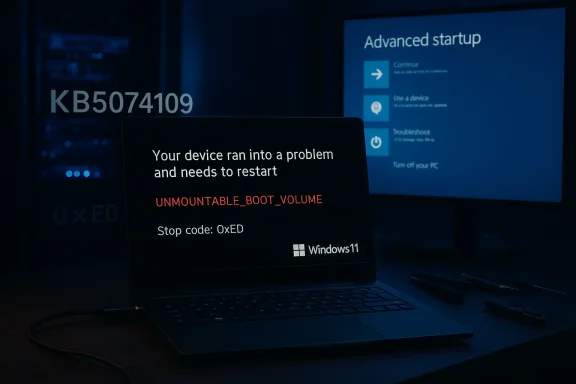
A Windows 11 laptop displays a blue error screen: UNMOUNTABLE_BOOT_VOLUME during advanced startup.Background and overview​

The January 13, 2026 cumulative update for Windows 11—packaged under KB5074109 and delivered as combined Servicing Stack Update (SSU) + Latest Cumulative Update (LCU) for the 24H2 and 25H2 branches—was intended to close a wide range of security flaws and polish the platform. Instead, the post-release timeline quickly filled with high-impact regressions: some systems could not shut down or hibernate properly, Remote Desktop sign-ins failed, classic Outlook (POP/PST) hung for a subset of users, and now an even more severe problem has emerged where physical devices fail to fully boot after applying the update.
Microsoft has publicly acknowledged the boot issue and described it as a “limited number of reports” of devices failing to boot with stop code UNMOUNTABLE_BOOT_VOLUME after installing the January cumulative update and, in some reports, after subsequent updates. The symptoms are dramatic and early: the OS kernel cannot mount the system volume, the machine stops during startup and shows a black “Your device ran into a problem and needs a restart” screen, and the system requires manual recovery steps to return to service.
This article lays out what happened, how to diagnose and recover affected machines, what IT admins should do now, and the broader implications for patch management and Windows reliability.

What we know so far​

Timeline in brief​

  • January 13, 2026: Microsoft ships the January cumulative update (KB5074109) for Windows 11 versions 24H2 and 25H2.
  • January 17, 2026: Microsoft issues an out‑of‑band patch (KB5077744) to address some regressions (including Remote Desktop sign-in failures and other issues).
  • January 24, 2026: A second out‑of‑band update (KB5078127) is released to fix additional problems such as Outlook (POP/PST) hangs and unresponsive behavior when working with cloud‑stored files.
  • Late January 2026: Reports surface that some physical devices are failing to boot with UNMOUNTABLE_BOOT_VOLUME after installing KB5074109 (and in a few reports, after later emergency updates). Microsoft confirms investigation and requests feedback/diagnostics, noting that virtual machines have not shown the symptom.

Affected systems​

  • Reported on devices running Windows 11 25H2 and 24H2.
  • Microsoft characterizes reports as limited and tied to physical devices rather than virtual machines, suggesting an interaction with hardware, firmware, or platform drivers.
  • Precise numbers of impacted systems have not been released publicly; Microsoft’s statement and vendor dashboards describe the issue as under investigation.

Symptoms and immediate impact​

  • Boot fails early with a black screen and a message: “Your device ran into a problem and needs a restart.”
  • The stop code reported is UNMOUNTABLE_BOOT_VOLUME (commonly associated with the Windows stop code 0xED).
  • Because the system volume cannot be mounted, the OS cannot get to an interactive desktop—WinRE or external installation media are required for recovery.
  • Some users attempting to uninstall the problematic update have encountered servicing errors (error 0x800f0905), which block clean rollback through the usual UI.

Why UNMOUNTABLE_BOOT_VOLUME matters (technical anatomy)​

The UNMOUNTABLE_BOOT_VOLUME stop code is serious because it indicates that Windows could not mount the boot/system volume early in the kernel initialization sequence. Typical root causes for this stop code include:
  • Corrupted or damaged filesystem metadata on the system volume.
  • Broken or incompatible disk or storage drivers loaded during early boot (e.g., NVMe, RAID controllers, third‑party storage filters).
  • Broken Boot Configuration Data (BCD) or corrupted boot records.
  • Firmware/UEFI/drive firmware interactions that prevent block‑device access.
  • In rare cases, hardware failure (drive defects) or other environmental faults.
When an update touches low‑level platform components—especially when a combined SSU and LCU is delivered in one package—it can do more than tweak userland APIs. Updates that change servicing stacks, disk/filter drivers, boot path code, or platform security features can reveal latent incompatibilities with OEM firmware or third‑party drivers that previously passed testing. Microsoft’s note that the issue has only been reported on physical hardware (and not VMs) reinforces the possibility that the regression depends on hardware/firmware/driver interactions rather than a pure OS logic bug.

What to do now: step‑by‑step recovery guidance​

If your PC will not boot and shows the UNMOUNTABLE_BOOT_VOLUME screen after installing the January 2026 updates, here are prioritized, practical steps to recover. These instructions are written for experienced end users and IT pros; if you’re not comfortable with recovery procedures, consider an expert technician or your vendor’s support line.

First‑response checklist (do this before you try anything destructive)​

  • Stay calm and document what happened: which updates were applied and when.
  • If you haven’t yet rebooted, try a single reboot—sometimes a transient failure resolves (but don’t repeatedly power‑cycle without purpose).
  • If the machine is under warranty or managed by IT, open a support case with the vendor / Microsoft and reference the update KB number.

Recovery Option A — Use Windows Recovery Environment (WinRE) to uninstall the latest quality update​

  • Force WinRE to start:
  • Power on the PC. When Windows starts to boot, hold the power button to force a shutdown. Repeat this cycle two or three times until you see Preparing Automatic Repair or the WinRE options menu.
  • From WinRE choose: Troubleshoot > Advanced options > Uninstall Updates.
  • Select Uninstall latest quality update.
  • Follow prompts and reboot. If uninstall succeeds, observe system behavior.
  • If system returns to normal, pause updates immediately from Settings > Windows Update to prevent automatic reinstall while waiting for an official fix.
Notes:
  • The Uninstall Updates option removes the latest quality update from the offline image and is the supported first step when you cannot reach a desktop.
  • If the update was installed as a combined SSU + LCU, the standard uninstall path may not remove the LCU; see Option C (DISM) below.

Recovery Option B — Bootable installation media and Recovery​

  • Create a Windows 11 USB installer on a second working PC (Windows Media Creation Tool or official ISO + Rufus-style tool). If you cannot create media, ensure you have vendor recovery media.
  • Boot the affected PC from the USB drive (UEFI boot menu).
  • Choose Repair your computer > Troubleshoot > Advanced options > Uninstall Updates, or open Command Prompt to run offline DISM commands.
  • Try the Uninstall latest quality update path from the installer’s repair menu if WinRE is inaccessible.

Recovery Option C — DISM remove-package (when GUI uninstall fails)​

If the combined SSU+LCU prevents GUI uninstall (or you encounter errors like 0x800f0905), you can attempt the supported DISM method to remove only the LCU portion:
  • From a working Windows or WinRE Command Prompt (or WinPE from installer media), use:
  • dism /image:C:\ /get-packages
  • (If you are running offline repair via a mounted image, replace C:\ with the image mount point; if in WinRE, you may need to identify the offline OS volume letter.)
  • Search the output for the package identity that corresponds to the KB number (look for an LCU entry containing KB5074109).
  • Run:
  • dism /image:C:\ /remove-package /packagename:<PackageIdentity>
  • Reboot and test.
Caveats:
  • DISM manipulates the component store and can fail if the component store is unhealthy. If DISM errors, consider running DISM /RestoreHealth on the offline image first or proceed to a repair install.
  • Removing the LCU leaves the SSU in place (you cannot remove SSU), but removing the LCU often restores previous behavior.

Recovery Option D — System Restore or Repair Install keeping files​

  • If you have a System Restore point from before the update, use WinRE > Troubleshoot > Advanced options > System Restore to roll back to a prior configuration.
  • If System Restore isn’t available or fails, use Windows 11 installer media and choose Reinstall now > Keep personal files and apps or use the Settings app’s Fix problems with Windows Update (if you can reach the desktop), which effectively performs an in-place repair keeping user files and installed apps.

If recovery fails​

  • If WinRE and bootable media cannot mount the system volume, drive corruption may have occurred. Consider imaging the drive for forensic/salvage purposes before a clean install.
  • A clean install (reformat and reinstall) will fix software corruption but destroys the local system state—ensure you have backups of user data, or remove the drive to image it externally before proceeding.

Practical recommendations for end users​

  • If you have not installed the January update yet: pause updates for at least one week while vendors and Microsoft finish investigation and publish fixes. Use Settings > Windows Update > Pause updates.
  • If your system is currently stable: don’t panic—monitor vendor advisories, create a full system image or backup now, and defer the update to a maintenance window.
  • If the update is installed but your PC still boots: create a recovery drive and backup immediately, then consider uninstalling KB5074109 if you experience any of the known regressions (but weigh security implications—see below).
  • If your machine stops booting: follow the recovery steps above, and if you must uninstall the update, pause updates after recovery to prevent auto‑reinstallation.

What IT administrators should do right now​

This incident has obvious enterprise implications. Recommended actions for IT teams:
  • Halt rollout: Immediately stop and rollback any staged deployment of KB5074109 in your patching toolchain (WSUS, SCCM/MDT, Intune/Windows Update for Business). Block the KB by using decline/approval settings.
  • Communicate: Notify users and helpdesk staff about the issue and provide recovery guidance and escalation paths. Provide instructions for creating backups and recovery media.
  • Test in lab: Reproduce the issue on lab hardware representative of your fleet—physical devices only have reported symptoms, so virtualized test beds may not reveal the bug.
  • Use Known Issue Rollback (KIR) and vendor guidance: Monitor Microsoft’s release health dashboard and affected update pages for KIR or targeted mitigations. If Microsoft issues KIR or a replacement update, test carefully in a pilot group before broad deployment.
  • Prepare remediation playbooks: Assemble step‑by‑step recovery scripts (WinRE guidance, DISM commands, imaging scripts) and pre‑stage recovery media for at‑risk hardware models.
  • Collect telemetry: If you have a managed telemetry pipeline, gather feedback and diagnostic logs to share with Microsoft and OEM partners; use Microsoft support and partner channels for priority escalation.

Risk tradeoffs: security vs. reliability​

Uninstalling a security update is not risk‑free. KB5074109 patches numerous vulnerabilities; removing it will open an attack surface that Microsoft intended to close. That means you must weigh two competing risks:
  • Keep the patch and accept possible system instability (and the risk of mission‑critical system interruption).
  • Remove the patch to restore stability but reintroduce security exposures.
For most organizations and power users, the pragmatic path is:
  • If the patched vulnerability exposure is low (no active exploitation indicators) and the update breaks critical assets, roll back the update and isolate affected systems from untrusted networks until a fix is available.
  • If rollback is not feasible, mitigate exposure by tightening network controls, restricting remote access, and applying compensating controls (endpoint detection, enhanced monitoring).
  • For single‑user consumer systems, the choice is harder: restoring a non‑booting machine is often the immediate priority; once recovered, pause updates and await a vendor fix.

Why this happened: root cause analysis (what we can reasonably infer)​

Microsoft’s public comments and the pattern of affected systems suggest the problem is not a simple UI regression but a low‑level incompatibility introduced by the January servicing wave. Reasonable inferences, based on the available data and historic precedents:
  • The issue likely involves platform/driver/firmware interaction: Microsoft’s mention that virtual machines are unaffected points to physical hardware—firmware or pre‑boot drivers may be involved.
  • The combined SSU+LCU delivery model increases complexity when uninstalling; the presence of SSUs complicates rollback and can mask LCU symptoms.
  • Third‑party storage filter drivers or OEM RAID/NVMe drivers could be triggering a condition where the OS cannot initialize storage early in boot.
  • There have been prior incidents where early Windows updates exposed OEM firmware bugs or outdated drivers that then required either a driver/firmware update from the OEM or a remedial Microsoft patch.
These are plausible technical narratives, but the exact root cause remains unverified until Microsoft publishes a formal post‑mortem or a fix identifies the specific failing component. Treat any single hypothesis as provisional.

Microsoft’s response so far—and what to expect​

Microsoft has acknowledged the reports, documented earlier out‑of‑band fixes for other regressions, and is investigating the boot failures. Historically, Microsoft follows this pattern when complex regressions appear:
  • Acknowledge and classify the incident (reported/known issue).
  • Ask affected customers to submit diagnostics through Feedback Hub and open support cases for enterprise customers.
  • Release targeted out‑of‑band fixes (emergency updates) if a reproducible fix is available.
  • If the problem is hard to reproduce or depends on vendor firmware, Microsoft may co‑ordinate with OEMs and issue a KIR or a subsequent cumulative update.
Given the severity (non‑bootable systems), we should reasonably expect a fix or mitigation steps in the coming days to weeks. However, timing depends on the ability to reproduce the failure across hardware permutations and to craft a patch that avoids causing further regressions.

The bigger picture: testing, trust, and process​

This incident underscores several persistent realities of modern OS maintenance:
  • Windows runs on a vastly heterogeneous ecosystem of firmware and third‑party drivers. Even rigorous testing cannot fully replicate every vendor+hardware+OEM software configuration in the wild.
  • Combined SSU+LCU packages streamline servicing but make rollback more complex; that complexity can hinder recovery when something goes wrong.
  • The economics of rapid emergency patching creates pressure to ship fixes quickly, but accelerated updates can propagate new regressions.
  • For enterprise customers, layered testing, conservative ring deployments, and pre‑staged recovery plans remain essential defenses against unexpected update breakage.

Final recommendations — a practical checklist​

  • If you haven’t installed KB5074109: pause updates and delay installation until Microsoft confirms a fix or the update has been validated on representative hardware.
  • If you installed it and your PC is stable: create a full backup, build recovery media, and pause updates until a fix is confirmed.
  • If your PC won’t boot: use WinRE > Troubleshoot > Advanced options > Uninstall latest quality update, or boot from USB repair media. If GUI uninstall fails, use DISM to remove the LCU by package name or perform a repair install while preserving files.
  • Enterprise: stop deployments, notify users, create recovery playbooks, and coordinate with Microsoft and OEM support.
  • Keep an eye on official vendor dashboards and support pages for confirmed fixes and KIRs; don’t rely solely on third‑party anecdotes for high‑stakes remediation decisions.
  • When you recover, pause updates and monitor for a Microsoft-supplied replacement patch. Re-enable updates only after validation in a test cohort.

Closing analysis​

The January 2026 Windows 11 servicing wave has proven unusually turbulent: Microsoft shipped a large, security‑focused cumulative update, followed by two out‑of‑band patches to fix emergent problems, and is now investigating a regression that prevents some physical machines from booting. The combination of a severe symptom (non‑bootable systems), the appearance across multiple Windows 11 branches (24H2 and 25H2), and blocked uninstall paths (servicing errors like 0x800f0905 for some users) raises the urgency for admins and power users to take defensive action.
This event is a reminder that even widely tested platforms can encounter corner‑case failures when diverse hardware, firmware, and third‑party drivers interact. The pragmatic approach is straightforward: backup, pause, test, and follow documented recovery procedures when needed. Microsoft’s engineering teams typically prioritize fixes for this class of failure; in the meantime, careful containment and measured remediation are the safest paths forward.
If you’re affected and uncertain about the next step, collect system diagnostics, escalate to vendor support, and—if possible— preserve an image of the affected disk before attempting destructive repairs. Patience, preparation, and well‑rehearsed recovery playbooks will minimize downtime until a definitive fix arrives.

Source: wklw.com Inside Story | WKLW 94.7 FM | K 94.7 | Paintsville-KY
 

Some Windows 11 systems are failing to boot after Microsoft’s January 2026 cumulative update, leaving affected PCs stuck at an early black error screen with the stop code UNMOUNTABLE_BOOT_VOLUME and forcing manual recovery or — in worst cases — a reinstall. Microsoft has acknowledged a limited number of these reports and is advising that affected users use the Windows Recovery Environment (WinRE) to remove the most recent quality update until engineers produce a targeted fix.

Windows laptop in recovery mode shows UNMOUNTABLE_BOOT_VOLUME with Troubleshoot and Advanced options.Background / Overview​

January’s Patch Tuesday wave (the cumulative update commonly tracked as KB5074109) shipped security fixes and servicing updates for Windows 11 versions 24H2 and 25H2. Within days, administrators and end users began reporting multiple regressions tied to the rollup: shutdown and hibernation failures, Remote Desktop authentication problems, application hangs when working with cloud‑backed files, and — most seriously — machines that will not complete startup and instead display the UNMOUNTABLE_BOOT_VOLUME stop code. Microsoft publicly acknowledged these boot failures and opened an engineering investigation while issuing out‑of‑band (OOB) updates aimed at other regressions.
Key timeline highlights:
  • January 13, 2026: Main cumulative update released (KB5074109) for Windows 11 24H2/25H2.
  • January 17, 2026: Emergency OOB fix released to address some regressions (e.g., Remote Desktop issues).
  • January 24, 2026: Additional emergency update issued to mitigate other problems (for example, cloud‑file and Outlook PST hangs); however, the boot failures remained under investigation.
Microsoft’s advisory frames the problem as limited in scope and restricted to physical hardware (not virtual machines) in the field reports received so far, but the company has not published telemetry counts or a formal root‑cause analysis at the time of writing. That absence of quantitative data complicates risk assessment and operational planning for IT teams.

What UNMOUNTABLE_BOOT_VOLUME actually means​

The stop code UNMOUNTABLE_BOOT_VOLUME historically indicates Windows cannot mount the system or boot volume early in startup — typically because of file system corruption, missing or damaged boot configuration data (BCD), or driver-level problems that prevent the kernel from accessing storage during pre‑kernel or early kernel initialization.
Why this error is especially disruptive after an update:
  • The failure occurs very early in the boot sequence, so the OS cannot load normal diagnostic tools or drivers. Recovery generally requires WinRE or external boot media.
  • When the symptom follows a cumulative update, plausible technical mechanisms include an incompatible early‑load driver or storage filter introduced or replaced by the update, an incomplete offline commit left by the servicing stack, or interaction with low‑level security features such as Secure Boot or System Guard Secure Launch. These interactions can expose race conditions or ordering issues that prevent the volume from being mounted.
These are informed hypotheses based on how early‑boot failures typically behave; Microsoft’s engineering investigation is required to confirm any single root cause, and any definitive claim about the precise failing component should be treated as unverified until Microsoft publishes its post‑mortem.

Who’s affected and how to tell​

Reported characteristics of affected systems:
  • OS: Windows 11 versions 24H2 and 25H2, builds tied to the January cumulative.
  • Platform: Incidents reported on physical devices (desktop/laptop) rather than virtual machines.
  • Symptom: System powers on but fails early in the boot process, shows a black error screen and the message “Your device ran into a problem and needs a restart,” and reports Stop Code: UNMOUNTABLE_BOOT_VOLUME (0xED). The device typically enters a restart loop or drops into WinRE.
Caveat: Microsoft has described the issue as a “limited number” of reports. That wording is significant — while the absolute count may be small compared with the global Windows install base, each unbootable device is a severe outage for the affected user or business. Microsoft has not yet shared precise telemetry numbers, so scale remains uncertain and any external tally should be considered anecdotal until Microsoft confirms figures.

Immediate, practical recovery steps (what you can try now)​

If your PC is unbootable and shows UNMOUNTABLE_BOOT_VOLUME after the January updates, Microsoft recommends manual recovery via WinRE to remove the latest quality update until a remedial fix ships. The steps below are distilled from vendor guidance and community‑verified procedures; they are written for experienced users and IT staff. If you are uncomfortable performing these tasks, seek professional support.
Important preliminary warnings:
  • If BitLocker is enabled, locate your BitLocker recovery key before attempting offline repairs. Without it, you risk permanent data loss.
  • Document the updates installed and the exact symptoms before attempting remediation; if you open a vendor or Microsoft support ticket, those diagnostics are valuable.
  • Force WinRE to appear (three forced shutdowns method):
  • Power on until the Windows or OEM logo appears, then hold the power button to force shutdown.
  • Repeat this power on–force off cycle two or three times until you see “Preparing Automatic Repair” or WinRE options.
  • If this fails, boot from Windows 11 installation media or vendor recovery media and choose Repair your computer → Troubleshoot → Advanced options.
  • Try Startup Repair first:
  • In WinRE: Troubleshoot → Advanced options → Startup Repair. This automated tool may fix some boot issues without removing updates.
  • If Startup Repair fails: uninstall the latest quality update (preferred, non‑destructive):
  • In WinRE: Troubleshoot → Advanced options → Uninstall Updates → Uninstall latest quality update. Reboot and test. If recovery succeeds, immediately pause updates to avoid automatic reinstallation until Microsoft releases a fix.
  • If the GUI uninstall is unavailable or fails, use WinRE Command Prompt for offline servicing:
  • Identify the offline Windows volume drive letter (it may not be C: in WinRE).
  • Get the package list: dism /image:C:\ /get-packages (replace C: with the correct offline volume).
  • Locate the package corresponding to KB5074109 (or the most recent LCU) and remove it with:
    dism /image:C:\ /remove-package /packagename:<PackageIdentity>
  • Run dism /image:C:\ /cleanup-image /restorehealth if component store issues appear.
  • Traditional boot / filesystem repairs (when applicable):
  • From WinRE Command Prompt: run chkdsk C: /f /r to repair filesystem inconsistencies; then try bootrec /fixmbr, bootrec /fixboot, bootrec /scanos, and bootrec /rebuildbcd. If bootrec /fixboot returns Access Denied, try bcdboot C:\Windows /s X: /f ALL where X: is the EFI system partition. These commands can remedy classic UNMOUNTABLE_BOOT_VOLUME causes unrelated to the update itself.
  • System Restore or image recovery:
  • If you have a system image or restore points predating the update, restore from those WinRE options to roll the system back to a known‑good state.
  • Last resort: back up what you can from WinRE, then reinstall:
  • Use Command Prompt or a Linux live USB to copy user data to external media before wiping drives. Then reinstall Windows using verified installation media and restore your data from backups.
Follow each step carefully and escalate to vendor or Microsoft support if you encounter errors you cannot resolve. Community reports indicate that the WinRE uninstall path restores bootability for many, but not all, affected machines.

Commands and details IT pros need to know​

When you’re working with offline servicing and DISM, the combined packaging of Servicing Stack Updates (SSU) and Latest Cumulative Updates (LCU) complicates uninstall semantics. In many cases:
  • The SSU portion cannot be uninstalled with the GUI uninstaller, and removing the LCU via DISM is the supported route for offline rollback when the GUI fails.
Key DISM sequence (offline image):
  • dism /image:C:\ /get-packages — identify package identity names.
  • dism /image:C:\ /remove-package /packagename:Package_for_KB5074109~31bf3856ad364e35~amd64~~version — remove the LCU.
  • dism /image:C:\ /cleanup-image /restorehealth — repair the component store if necessary.
  • Reboot and verify.
Note: manipulating the component store and offline images is powerful and risky. Always confirm the offline mount letter for the OS partition and preserve backups. If BitLocker is present, decrypt or suspend it where possible before offline servicing, and ensure keys are escrowed for enterprise fleets.

How Microsoft responded — strengths and shortcomings​

Strengths:
  • Microsoft identified multiple high‑impact regressions quickly and issued multiple emergency OOB updates to address some of them. This shows a responsive detection and mitigation pipeline that can ship rapid fixes when necessary.
Shortcomings and risks:
  • Lack of transparency: Microsoft’s public messaging uses phrases like “limited number of reports” but has not published telemetry counts or a root‑cause analysis; that opacity leaves admins and home users unable to quantify risk precisely.
  • Complexity of SSU + LCU packaging: combined servicing stacks complicate rollback and WinRE semantics, leaving administrators to perform delicate offline servicing steps or live with reduced protections while waiting for a fix.
  • Heterogeneity of hardware: modern Windows devices vary widely in firmware and storage controllers. A small compatibility regression in an early‑load component can cascade into an unbootable device on particular OEM/SSD combinations, making thorough hardware‑in‑the‑loop testing more important than ever.
In short: Microsoft’s immediate engineering responses were appropriate, but the incident exposes structural challenges in large‑scale OS servicing — especially the need for better telemetry transparency, broader hardware testing matrices, and clearer rollback tooling for administrators.

Practical advice: what home users should do now​

  • If your PC is currently booting normally: pause updates temporarily using Windows Update’s pause feature or metered connection controls until Microsoft confirms a remediation for the boot cases. Keep regular backups and ensure your BitLocker recovery key is accessible (e.g., saved to your Microsoft account or printed).
  • If your PC will not boot: follow the WinRE uninstall steps above or take the machine to a professional technician. Preserve any accessible data first.
  • If you store critical files in cloud storage or use Outlook PSTs kept under OneDrive paths, be especially cautious; related cloud‑file regressions were observed in the January rollup and addressed by separate OOB updates. Applying those targeted OOB fixes where appropriate is advisable once device stability is confirmed.

Practical advice: what IT admins and organizations should do now​

  • Immediately pause broad rollout of the January rollup to your production fleet and move to conservative staging. Pilot the update against representative physical hardware, including devices with modern firmware, Modern Standby endpoints, and systems with Secure Launch enabled.
  • Use Known Issue Rollback (KIR) artifacts and Group Policy controls when Microsoft provides them to limit exposure on managed systems. Test KIR behavior in lab rings before deploying to production.
  • Escrow BitLocker keys centrally and test WinRE-based recovery workflows. Ensure recovery media and runbooks are available for technicians and on‑site staff.
  • Maintain full disk image backups or rapid imaging workflows for critical endpoints — these reduce downtime if manual rollback does not work and reimaging becomes necessary.
Top‑priority checklist for admins:
  • Pause KB5074109 installations on production rings.
  • Stage the update in isolated pilot rings using representative hardware.
  • Prepare and test WinRE recovery media and DISM uninstall runbooks.
  • Ensure BitLocker keys are escrowed and easily retrievable.
  • Communicate to end users: don’t install the January rollup manually if they aren’t experiencing issues; provide support paths if their device fails to boot.

What remains unknown — and what to watch for​

  • Telemetry and scale: Microsoft has not published the number of affected devices or an estimated failure rate. This is critical for organizations trying to quantify exposure; continue to watch Microsoft’s Release Health updates for telemetry or follow‑up advisories. Treat public counts from third parties as anecdotal until confirmed by Microsoft.
  • Final root cause: engineering is still investigating whether the failure is a driver, a storage controller interaction, an SSU/L RU servicing artifact, or a Secure Launch ordering problem (or a combination). Microsoft’s post‑mortem will be decisive.
  • Remediation timing and semantics: watch for a remedial cumulative or SafeOS refresh that explicitly states it resolves the UNMOUNTABLE_BOOT_VOLUME cases and clarifies whether uninstall/rollback semantics are changed for combined SSU+LCU packaging.
If you run fleets of physical Windows 11 devices, treat the situation as a high‑priority operational risk until Microsoft publishes a definitive fix and telemetry that lets you quantify residual exposure.

Final assessment — strengths, risks, and a sober takeaway​

Strengths:
  • Microsoft’s rapid OOB responses to other, related regressions showed the company can move quickly when critical regressions surface. Quick fixes for Remote Desktop and cloud‑file hangs reduced some immediate impact.
Risks and structural issues:
  • When a cumulative security update triggers early‑boot failures on even a small subset of machines, the operational cost is high: users are locked out of their systems and recovery demands WinRE expertise, BitLocker readiness, and potentially mass support interventions. The complexity of modern servicing (SSU+LCU) and the hardware heterogeneity of Windows devices increase the risk surface for such regressions.
Sober takeaway:
  • Security and stability must coexist. The January 2026 servicing wave contained important security mitigations, but it also reinforced that patching is a change event that demands preparation: conservative staging, robust backups, tested recovery workflows, and centralized key management. Until Microsoft publishes the post‑mortem and a definitive fix, cautious update governance and recovery preparedness are the most effective defenses against becoming one of the machines that won’t boot.

If your system is currently unbootable after the January updates, follow the WinRE uninstall and offline DISM guidance above, collect diagnostic logs if possible, and pause updates until Microsoft confirms a resolution for your Windows 11 branch. For IT teams, treat this as a reminder to test recovery flows regularly and to treat Patch Tuesday as an operational exercise — not a background convenience.
Conclusion: the January cumulative update delivered essential security fixes but exposed a brittle intersection between servicing logic and early‑boot storage/firmware interactions. Microsoft’s interim guidance — manual removal via WinRE — is an effective short‑term mitigation for many, but it is blunt and operationally expensive. Administrators and users must prioritize recovery readiness and conservative rollout policies until a targeted remediation and full engineering post‑mortem close the loop.

Source: blue News Windows 11 patch paralyzes PCs - what you can do now
 

Microsoft has confirmed that some Windows 11 machines are failing to boot after installing the January 2026 security update, and administrators and enthusiasts are still left picking up the pieces while Microsoft’s engineering teams investigate.

Gloved hand plugs in a USB as Windows Recovery shows UNMOUNTABLE_BOOT_VOLUME error.Background​

Microsoft shipped its January 13, 2026 cumulative update for Windows 11—tracked in the release notes as KB5074109 and delivered as OS builds 26200.7623 (25H2) and 26100.7623 (24H2). That update bundled a Servicing Stack Update (SSU) with the Latest Cumulative Update (LCU), shipped a set of security fixes and platform changes, and was followed by multiple emergency out‑of‑band (OOB) releases as new regressions surfaced. Microsoft’s official KB page documents the update’s contents and the known issues it was tracking as the incident unfolded.
Within days of the rollout several distinct regressions were reported by IT pros and users: shutdown/hibernate failures on Secure Launch‑enabled devices, Remote Desktop authentication issues, cloud‑storage file‑I/O hangs affecting apps such as OneDrive and Outlook, and — most seriously — some physical PCs that refused to boot and showed the stop code UNMOUNTABLE_BOOT_VOLUME. Independent coverage across multiple outlets corroborated Microsoft’s acknowledgement that it had received reports of boot failures and that engineering was investigating. (theverge.com)
Community reporting and forum threads have tracked the sequence in detail, summarizing the KB IDs, affected builds, recovery steps recommended by Migency patches that followed. Those community summaries and troubleshooting threads have been aggregated in specialist forums and knowledge posts, which contextualize Microsoft’s guidance for home users and administrators.

What Microsoft has said — the public facts​

  • Microsoft acknowledged that it has “received a limited number of reports” of devices that fail to boot with stop code UNMOUNTABLE_BOOT_VOLUME after installing the January 13, 2026 update (KB5074109) or later updates. The company described the symptom set and said affected devices may present a black screen stating “Your device ran into a problem and needs a restart.”
  • The vendor’s public guidance has identified the issue primarily on physical devices running Windows 11 versions 24H2 and 25H2 (the builds tied to KB5074109), and noted that there have been no confirmed reports of the same boot‑failure pattern in virtual machines in field telemetry to date.
  • Microsoft recommended that affected customers use the Windows Recovery Environment (WinRE) to perform manual recovery steps, including uninstalling the most recent quality update (the LCU), until an engineering fix is available. The company also asked impacted customers to submit diagnostic telemetry and Feedback Hub reports to help correlate telemetry with hardware/firmware signatures.
  • Microsoft has already shipped out‑of‑band updates in the same servicing window to address other high‑impact regressions (for example, Remote Desktop credential prompts and cloud file I/O hangs), but those emergency fixes did not explicitly resolve the UNMOUNTABLE_BOOT_VOLUME boot failure and the boot problem remained under investigation.
These are the verified, load‑bearing points you should treat as factual until Microsoft publishes a formal post‑mortem or a remedial KB with root‑cause analysis.

The symptom: UNMOUNTABLE_BOOT_VOLUME (what you’ll see)​

The stop code in question — UNMOUNTABLE_BOOT_VOLUME (stop code 0xED) — represents a failure in the very early boot sequence: the kernel cannot mount the system (boot) volume. When that happens immediately after an update, the OS never reaches a point where normal troubleshooting utilities or user interfaces are available, and the device typically falls into WinRE or becomes inaccessible without external recovery media.
Reported symptoms observed by administrators and users include:
  • A black screen with the message “Your device ran into a problem and needs a restart” that never completes startup.
  • The machine repeatedly reboots or drops into Windows Recovery Environment.
  • In some cases, WinRE automatic repair or chkdsk has recovered the device; in others, the only practical resolution was uninstalling the LCU in WinRE or, worst case, clean installation from external media.
Why this matters: a relatively small number of unbootable devices is still a serious operational failure when it affects business endpoints or a user’s primary machine. The problem is not only that affected machines are offline; it is that the usual update rollback and servicing semantics are complicated by the combined SSU+LCU packaging and by pre‑OS security features such as Secure Boot and System Guard Secure Launch.

Technical anatomy — plausible mechanisms​

Microsoft has not yet published a definitive root cause, but the pattern of early boot failures tied to a cumulative update suggests a small set of plausible mechanisms that engineers and analysts are investigating:
  • The LCU or SSU may have modified or replaced an early‑loading driver, storage filter, or SafeOS component that the pre‑OS boot path depends on. If that replacement regresses on certain firmware/driver combos, the boot volume may become inaccessible.
  • The offline update commit process (the multi‑phase sequence that applies combined SSU+LCU packages during shutdown/reboot) could have left the disk or WinRE/SafeOS content in a transient or inconsistent state, preventing normal volume mounting during the next boot. Combined packages make uninstall semantics more complex because the SSU portion is not removable by standard wusa /uninstall flows. Microsoft documents the need for DISM /Remove‑Package in these cases.
  • Interactions with pre‑boot security primitives (Secure Boot, System Guard Secure Launch) or device firmware might have changed device enumeration or driver loading order in a way that breaks early storage access on some hardware. Community reports show incidents across multiple OEMs, which indicates a compatibility interaction rather than a single‑model firmware bug — though a final engineering root cause is required to confirm that. (theverge.com)
These mechanisms explain why the failure appears in the earliest phases of startup and why recovery often requires offline servicing or uninstalling the most recent LCU via WinRE.

How Microsoft and the ecosystem responded so far​

  • Microsoft published and updated the KB5074109 support article, adding known issues and workarounds as new problems were identified and as OOB fixes were released. The KB contains the build IDs and links to guidance on removing quality updates and on Known Issue Rollback (KIR) artifacts.
  • Microsoft issued out‑of‑band (OOB) fixes during the same window to address specific regressions: one mid‑January OOB to address Remote Desktop sign‑in and unexpected restarts, and another later OOB to address application hangs with cloud‑backed storage and Outlook PST scenarios. These emergency packages addressed several severe regressions but did not definitively fix the boot failures under investigation.
  • Microsoft asked affected customers to file Feedback Hub items and submit diagnostic telemetry; for business customers, it advised contacting enterprise support channels for assisted recovery. Community forums and specialist sites aggregated the guidance and produced step‑by‑step recovery instructions for users who needed to roll back the LCU from WinRE.
  • Independent outlets and community threads reproduced and documented the symptom and recovery steps, and they repeatedly urged cautious rollout and pilot deployments until the issue was resolved. This amplified the vendor guidance and provided practical troubleshooting notes for admins facing unbootable endpoints.

What to do now — practical guidance for users and IT teams​

If your machine is currently working:
  • Pause or defer installing KB5074109 (or later updates that include the same LCU) until Microsoft publishes a remedial fix and the community confirms stability.
  • Ensure you have verified backups, tested recovery images, and accessible BitLocker recovery keys before applying any significant servicing updates.
  • For managed environments, stage the update in pilot rings and confirm KIR/out‑of‑band fixes on a representative sample of hardware and firmware versions.
If your device won’t boot after the January update:
  • Enter the Windows Recovery Environment. If you can reach WinRE, try the automatic repair and then use “Uninstall latest quality update” from the advanced options; Microsoft lists this as the standard interim mitigation.
  • If uninstall via WinRE fails, use DISM offline commands (DISM /Image:<path> /Remove‑Package …) or boot from verified installation media and attempt offline package removal; these paths are more advanced and require care, especially when BitLocker is enabled.
  • If WinRE does not recover the device and offline removal is impossible, prepare to reinstall from a verified ISO. Before wiping, attempt to recover critical data by mounting the drive from external media or contacting vendor support.
  • Escalate to your OEM or Microsoft support if you are a business customer and engage your incident response playbooks for endpoint recovery and telemetry collection.
For administrators:
  • Deploy Known Issue Rollback (KIR) Group Policy artifacts where Microsoft has published them, and test those artifacts in pilot rings before broad rollout. KIR can neutralize specific behavioral changes without requiring a full uninstall in some cases.
  • Validate your BitLocker key escrow policy and ensure that recovery keys are available in Azure AD or your centralized key store before performing recovery operations.
  • Prepare hotlines and WinRE recovery checklists for help‑desk staff: uninstall instructions, DISM offline commands, provider OEM recovery tooling, and when to escalate to vendor support.

Why this episode matters — bigger operational lessons​

  • Packaging complexity (combined SSU+LCU) reduces the friction of updates but increases rollback complexity. When the SSU portion touches WinRE or SafeOS artifacts, uninstall semantics become more involved and administrators need to use offline DISM commands or external tooling to restore previous states. That makes recovery harder for infrequent incidents and for less experienced support staff.
  • Pre‑OS security features such as Secure Boot and System Guard Secure Launch raise the bar for platform security but also widen the testing matrix. Fine‑grained platform changes can interact with OEM firmware and third‑party drivers in ways that standard functional tests might not catch; that increases the chance of configuration‑dependent regressions. The January incidents illustrate how early‑boot and pre‑OS protections can magnify a servicing regression into a bricking event for a subset of configurations.
  • Transparency and telemetry are crucial. Microsoft’s messaging uses the phrase “limited number of reports,” which is helpful, but enterprises need prevalence metrics (telemetry counts, OEM hardware fingerprints) to properly quantify risk. The lack of granular, public telemetry makes conservative rollout and pilot testing more important than ever. Community consolidation of cases helps but cannot replace quantified vendor telemetry.

Where the reporting diverges from the facts (claims to treat cautiously)​

Several early summaries and social posts attributed specifics to Microsoft that are not present in Microsoft’s public KB or corporate advisories. Two points to be cautious about:
  • “Commercial only” or “commercial PCs” limitation: some reports and summaries implied the boot failures were limited to commercial or enterprise SKUs. Microsoft’s public language specifies physical devices and cites specific servicing branches (24H2/25H2), but it does not use a simple “commercial‑only” label in the public KB text we reviewed. The advisory Microsoft published and the KB wording focus on affected builds and physical vs virtual devices rather than using the marketing category “commercial.” Treat any claim that Microsoft said only commercial PCs are affected as unverified unless the vendor publishes that exact language.
  • “December 2025 update failed to install leaving PCs in an ‘improper state’”: that narrative appears in some community posts as a hypothesis about the mechanism, but a definitive link — that a December 2025 update failed to install in a way that left machines in an “improper state” and that this directly caused the January boot failures — is not supported by Microsoft’s published KB or the vendor’s release health messaging at the time of writing. Microsoft’s KB does note that the January LCU contains fixes and platform changes that reference prior updates, but an explicit causal admission tying the incident to a December update failing to install was not present in the public KB content and has not been confirmed in Microsoft’s engineering statements we have located. Treat such causal narratives as plausible but unverified until Microsoft publishes a root‑cause analysis.
When uncertain or when a claim is repeated across outlets without quoting a primary Microsoft notice, label it provisional and await an engineering post‑mortem from Microsoft or OEM firmware vendors.

Critical assessment — strengths and risks in Microsoft’s handlingoft moved quickly to acknowledge multiple regressions, publish known‑issue guidance, and ship out‑of‑band updates for high‑impact problems. Rapid OOB fixes and KIR artifacts made it possible for administrators to mitigate several of the most disruptive regressions in short order.​

  • The vendor’s release‑health model and KB pages provided a centralized place for administrators to check symptoms and follow Microsoft’s recommended mitigations and rollback instructions. That coordination matters in enterprise environments.
Risks and weaknesses:
  • The combined SSU+LCU packaging model complicates rollback and increases the risk that uninstalling the LCU alone will not restore earlier SafeOS/WinRE behavior. That complexity makes recovery trickier for help desks and can prolong downtime.
  • The “limited number of reports” phrasing is accurate but insufficient for risk quantification. Enterprises require telemetry counts and hardware/firmware patterns to decide whether a patch should be blocked or pilot‑tested. Microsoft’s initial public messaging did not provide prevalence metrics, forcing admins to infer scale from community reports and vendor channels.
  • The cascading nature of out‑of‑band fixes within a single month underscores an operational vulnerability: rapid patching is necut the cadence and breadth of platform changes increase the chance that edge configurations will be affected. The ecosystem needs better pre‑release validation across OEM firmwares, drivers, and representative enterprise configurations.

What to watch next​

  • A Microsoft remedial KB or Release Health update that explicitly states the root cause and enumerates the affected OEMs/firmware combinations and the remedial build(s). That update will be the definitive measure of scope and the official guidance for re‑enabling updates.
  • OEM firmware and driver advisories that either confirm a firmware interaction or provide updated firmware to remediate the issue on affected devices. Historically, early‑boot regressions sometimes require firmware updates or BIOS revisions in addition to OS fixes. (theverge.com)
  • Community validation (pilot ring telemetry and large‑scale sanity checks) and independent reproducibility reports that help quantify the true failure rate across different hardware families. The more detailed the telemetry Microsoft publishes, the more confidently enterprises can plan their rollout cadence.

Bottom line — pragmatic advice​

  • If your PC is currently stable: pause applying the January 13, 2026 cumulative update (KB5074109) until Microsoft confirms the remedial build or your hardware vendor confirms compatibility with an OEM firmware update. Back up your data, escrow BitLocker recovery keys, and ensure you have tested recovery media ready.
  • If you’ve already applied the update and the PC is working: consider deferring reboots until remedial patches are available; test updates in a controlled pilot ring before wide deployment.
  • If you’re affected and unbootable: follow Microsoft’s WinRE uninstall guidance and, where necessary, escalate to OEM or Microsoft enterprise support. Collect logs and Feedback Hub items to aid Microsoft’s telemetry correlation.
  • For enterprises: apply Known Issue Rollback artifacts where provided, validate OOB fixes in pilot devices, ensure help‑desk WinRE and offline DISM recovery skills are current, and keep a conservative, test‑first update policy until the ecosystem confirms stability.

This incident is a sharp reminder that OS servicing remains a change event: security, stability, and compatibility must be balanced through disciplined staging, robust recovery readiness, and clear telemetry. Microsoft’s rapid acknowledgement and emergency fixes address part of the problem, but recovery complexity and incomplete telemetry make cautious rollout and verified backups the prudent course for both consumers and organizations until a full engineering post‑mortem and permanent remediation are published.

Source: The Verge Microsoft confirms boot issues with its latest Windows 11 update.
 

Microsoft has acknowledged a troubling regression in its January 2026 Windows 11 cumulative update: a limited but serious set of physical PCs can fail to complete startup after installing the update, presenting the stop code UNMOUNTABLE_BOOT_VOLUME and a black “Your device ran into a problem” screen. Affected machines require manual recovery — typically via the Windows Recovery Environment (WinRE) to uninstall the most recent quality update — until Microsoft supplies a targeted fix.

Windows 11 laptop beside a monitor showing a blue crash screen about an unmountable boot volume.Background / Overview​

Microsoft shipped the January 13, 2026 cumulative security update for Windows 11 — tracked as KB5074109 — which raised OS builds to 26200.7623 (25H2) and 26100.7623 (24H2). The package combined security fixes, servicing stack changes and targeted platform modifications intended to harden pre-boot behaviors, Secure Boot, and other low-level services. Within days of rollout, multiple regressions were reported by end users and enterprise administrators; Microsoft has since confirmed an engineering investigation into boot failures tied to the January update.
The vendor described the symptom set as aports” and emphasized that, based on telemetry and field reports to date, the failures have been observed on physical hardware rather than in virtual machines — an important distinction that points toward interactions with firmware, native drivers, or the pre-OS SafeOS environment rather than a hypervisor artifact. Microsoft’s interim guidance asks affected customers to use WinRE to remove the most recent quality update while diagnostics continue.

What users are seeing: the symptom and its immediate impact​

  • Symptom: on affected systems, bood the device shows a black screen that reads “Your device ran into a problem and needs a restart,” often accompanied by the stop code UNMOUNTABLE_BOOT_VOLUME (Stop Code 0xED).
  • Immediate impact: the kernel cannot mount the system (boot) volume during early initialization; the OS never reaches the interactive desktop and in‑OS troubleshooting is not available.
  • Practical consequence: recovery typically requires booting into WinRE (or using external recovery media) to uninstall the latest quality update, run offline repairs (DISM / SFC), or — in worst cases — perform a clean install.
Multiple outlets and community threads have corroborated the visible symptoms; independent reporting from mainstream tech press confirms Microsoft’s public advisory and the WinRE uninstall workaround. That reporting includes step-by-step community reproductions and enterprise help-desk notes that show the problem spans several OEMs and hardware combinations, though nts have not been published.

Technical anatomy: why UNMOUNTABLE_BOOT_VOLUME matters​

The stop code UNMOUNTABLE_BOOT_VOLUME historically means Windows failed to mount the boot volume at an early stage of kernel initialization. Typical causes include:
  • NTFS metadata corruption or damaged filesystem structures on the system volume.
  • Broken or incompatible storage drivers (NVMe, RAID controllers) or third‑party filesystem filters loaded during early boot.
  • Corrupted or malformed Boot Configuration Data (BCD) or other pre-boot artifacts.
  • Interactions with pre-boot security featuements, Secure Boot, System Guard Secure Launch) that alter device enumeration or early load ordering.
When a cumulative update touches low-level components — especially when an SSU (Servicing Stack Update) is bundled with the LCU (Latest Cumulative Update) in a single package — several risk vectors open up:
  • The update may replace or change the behavior of early-loading modules (storage filters, filesystem drivers) that WinRE or SafeOS expects to find, creating compatibility regressions on certain firmware/driver combinations.
  • The servicing process during shutdown/reboot can leave the disk or SafeOS image in a transient state if any part of the offline commit sequence fails or races with device initialization.
  • Changes to Secure Boot certificate logic or pre-boot measurements can shift platform state in ways that trigg or alter driver trust semantics.
Because the failure occurs before the full OS is running, it is more disruptive than a typical application or driver crash: users cannot reach the desktop to run normal repairs and must rely on WinRE or offline tools.

Timeline and related remediation attempts​

  • January 13, 2026 — Microsoft releases the January 2026 cumulative update KB5074109 for Windows 11 24H2 and 25H2. The package bundled security fixes and servicing stack updates.
  • January 14–24, 2026 — Ff multiple regressions tied to the January rollup: shutdown/hibernate anomalies, Remote Desktop/Azure Virtual Desktop authentication failures, cloud-file I/O and Outlook (PST) hangs, and graphical or shell regressions. Microsoft issued two out-of-band emergency updates addressing several of those problems in short order.
  • Late January 2026 — Reports emerge and multiply of devices failing early in boot with UNMOUNTABLE_BOOT_VOLUME after installing KB5074109 or related follow-up packages. Microsoft publishes a support advisory acknowledging a limited number of reports and advising WinRE-based manual uninstall for affected devices while the engineering investigation continues.
The key point: Misued emergency OOB (out‑of‑band) updates to fix certain high-impact regressions in the same servicing wave, but those emergency patches have not been reported to resolve the boot-failure symptom specifically; the boot failure remains under active investigation.

Who’s affected — scope and caveats​

Microsoft characterizes the incident as a limited number of reports. That laperational terms, even a small failure rate can create outsized harm if it hits primary productivity devices or devices that lack recent backups.
  • Affected branches: Windows 11 versions 24H2 and 25H2 (builds tied to KB5074109).
  • Platform: primarily physical devices, not virtual machines, in room-reporting and vendor telemetry so far; that suggests firmware/driver interactions rather than a hypervisor-caused issue.
  • Scale: Microsoft has not released telemetry counts or a quantified failure rate publicly; community threads and help-desk reports indicate multi‑OEM incidents bul failure picture. Treat numbers reported in forums as anecdotal until Microsoft publishes telemetry details.
Important caution: some community poste outcomes (corrupted boot drives or required clean reinstall). Those accounts are credible as field anecdotes but remain unverified at a platform scale; Microsoft’s public advisory and available KB text do not claim widespread permanent data destruction. Exercise caution in treating isolated anecdotes as representative.

How to recover an affected PC (practical, verified steps)​

Microsoft’s interim guidance — and what experienced technologists have recommended in community reproductions — is to use WinRE to remove the most recent quality update until an engineering fix ships. The high-level steps (for experienced users or IT staff) are:
  • Force WinRE to appear by interrupting normal boot three times: powtarts loading hold the power button to force a shutdown; repeat until WinRE loads.
  • In WinRE choose: Troubleshoot → Advanced Options → Uninstall Updates. Select Uninstall the latest quality update to remove the LCU (the problematic January patch).
  • If the GUI uninstall fails, use Command Prompt in WinRE and DISM to remove the package offline (DISM /Image:<moor DISM /Online /Remove-Package when possible). Microsoft documents DISM-based removals for combined SSU + LCU scenarios.
  • If BitLocker is enabled, have your recovery key available — WinRE and offline repairs may require unlocking the drive before changes can be made.
  • If uninstall is blocked with servicing errors such as 0x800f0905, Microsoft and community guidance recommend repairing the component store first (DISM /Online /Cleanup-Image /RestoreHealth) and running SFC (sfc /scannow) before retrying an uninstall or performing an in-place repair.
Important caveats:
  • These steps are non-trivial and can be risky for casual the device for work or lack backups, seek professional assistance or contact Microsoft Support rather than experimenting.
  • In some reported cases WinRE automatic repair or chkdsk recovered the device; in others, a clean install from external media was ultimately required. Results vary by configuration and severity.

Enterprise guidance: staging, KIR, and tactical mitigations​

Enterprises face different tradeoffs: security vs. availability. Microsoft has published mitigation options that enterprises can use to limit exposure while preserving broader security posture:
  • Known Issue Rollback (KIR) and Group Policy controls are Microsoft’s primary enterprise tools for remotely disabling a problematic change or blocking targeted updates; administrators should evaluate KIR artifacts Microsoft publishes and use their deployment pipelines to stage fixes.
  • Conservative rollout: hold updates in pilot rings longer, test across representative hardware/firmware/driver combinations (including docks and peripherals that can affect boot behavior), and only promote updates after pilot telemetry is clear.
  • Prepare recovery playbooks: ensure recovery media, BitLocker recovery keys, and documented DISM/SFC/WinRE flows are available to hrse these flows in a controlled test group so that frontline teams can execute them under pressure.
For managed fleets, the tradeoff of deferring the January LCU until a stable remedial build is published may be acceptable; the January update contained many security fixes, so any deferment should be accompanied by compensating controls (network-level protections, endpoint detection, or isolation of vulnerable assets).

Root causes and architectural analysis — what probably happened​

Microsoft has not e root-cause postmortem. Based on available evidence and historically similar incidents, plausible mechanisms include:
  • A combined SSU+LCU package altered SafeOS or WinRE components or replaced an early-loading storage/filter driver with a variant that regresses on particular firmware or controller combinationit process for the combined package left the system volume or SafeOS image in a transient/invalid state on reboot for some configurations, preventing the kernel from mounting the volume.
  • Pre-boot security and certificate targeting logic introduced by the update changed the pre-OS environm caused an ordering/race condition that impacted device enumeration and disk access.
All of these are evidence-backed hypotheses: they match observed behavior, community reproductions, and the fact that physical devices (not VMs) are affected. However, until Microsoft publishes an engineering root-cause analysis, any specific driver name, call trace, or single defective binary claim should be treated g such claims as unverified.

Strengths of Microsoft’s response — and the risks it exposes​

Strengths:
  • Rapid acknowledgement and guidance: Microsoft publicly acknowledged reports and published interim guidance recommending WinRE uninstalls and telemetry submission — the right first step for incidents that can render machines unusable.
  • Emergency OOB updates: Microsoft issued out-of-band fixes for related, high-impact regressions during the same servicing wave, demonstrating responsiveness to field telemetry.
Risks / weaknesses:
  • Bundled SSU+LCU complexity: shipping SSU and LCU together reduces reboots but complicates rollback semantics; once an SSU is applied, simple uninstalls may not restore a machine to a pre-update state without additional offline DISM work. That raises recovery friction for help-desk teams.
  • Patch cadence vs. heterogeneity: the Windows ecosystem is extraordinarily heterogeneous; updates that change pre‑boot or driver behavior require broad hardware and vendor validation. Rapid release cycles increase the chance of configuration-specific regressions slipping through testing.
  • Visibility and telemetry transparency: Microsoft’s “limited number of reports” phrasing is accurate but opaque; enterprises and trust-sensitive organizations need better telemetry numbers to make informed risk decisions, especially for updates that alter pre-boot components. Until Microsoft provides clearer impact metrics, administrators must assume worst-case business impact for critical endpoints.

Practical recommendations for Windows users and administrators​

For home users:
  • If you depend on your PC for critical work, pause non-essential updates and wait for Microsoft’s remedial update or clearer guidance. If you already installed the January 2026 update and are not seeing symptoms, maintain a strong backup regimen and create a full system image before applying further servicing waves.
  • If your PC won’t boot after the update, follow the WinRE uninstall steps described earlier or seek professional help; do not attempt invasive recovery steps without a backup.
For IT administrators:
  • Deploy KB5074109 cautiously. Use pilot rings that reflect the full diversity of your fleet, including docked laptop scenarios and legacy peripherals.
  • Prepare recovery media, BitLocker keys, and a documented offline DISM rollout plan for affected endpoints.
  • Monitor Microsoft’s Release Health and the vendor advisories for KIR artifacts or remedial hotfix KBs; apply fixes to pilot groups first.
  • Treat each Patch Tuesday as a change event: validate backups, define rollback windows, and rehearse emergency remediation scripts with your help-desk teams.

Final analysis — what this episode teaches us​

This incident is a reminder of the fragility of the pre-OS boundary and the operational risk of combining security, servicing, and pre-boot certificate logic into a single cumulative package. Microsoft’s responsiveness — acknowledging the issue, issuing targeted OOB updates for related regressions, and publishing interim guidance — is appropriate. But the incident also illustrates systemic tensions:
  • Security updates are necessary; skipping them exposes systems to exploitable vulnerabilities. Yet broad cumulative packages that touch low-level components can, in rare cases, create high-impact regressions for a subset of configurations.
  • Recovery complexity is rising: when pre-boot and SafeOS components are changed, recovery often requires WinRE competence, offline DISM knowledge, or clean reinstall workflows that are beyond many casual users.
  • The industry and Microsoft must keep improving targeted rollout controls (KIR), telemetry transparency, and vendor cross-testing so that security and availability do not repeatedly trade off in this way.
Treat the current situation as a cautionary, actionable lesson: for critical endpoints, prioritize tested, staged deployments and robust backups; for Microsoft, the event underscores the need for deeper pre-release validation for changes that touch SafeOS, storage stacks, and pre-boot security.

Microsoft’s investigation is ongoing. The immediate, verifiable facts are these: KB5074109 tied to January 13, 2026, is associated with UNMOUNTABLE_BOOT_VOLUME boot failures on a limited set of physical Windows 11 devices; Microsoft advises WinRE-based manual uninstall as the interim mitigation; and the company has requested diagnostic submissions while engineering works on a permanent remedial update. Until Microsoft publishes a formal root-cause analysis or a dedicated hotfix, administrators and end users should act conservatively, follow documented recovery procedures if impacted, and avoid treating isolated community anecdotes as definitive evidence of scale or permanent damage.

Source: Neowin https://www.neowin.net/news/microso...t-after-recent-update-explains-what-happened/
 

Microsoft’s January cumulative update for Windows 11 (KB5074109) deliberately removed four legacy modem driver binaries from the in‑box Windows image, and that change has left a small but consequential group of users — from remote dial‑up households to businesses running legacy telephony, POS, and instrumentation systems — with nonfunctional modems overnight.

Windows shows a KB5074109 warning for legacy drivers, with a glowing shield icon.Background​

For decades Windows shipped a set of legacy modem and serial modem drivers inside the operating system image to preserve backward compatibility with analog telephony, fax machines, and a variety of soft‑modem and serial‑to‑phone adapters. In the January 13, 2026 servicing wave, Microsoft documented the intentional removal of four specific driver files — agrsm64.sys, agrsm.sys, smserl64.sys, and smserial.sys — and warned that hardware dependent on those files “will no longer work in Windows.”
Those removed binaries map to historic modem driver families:
  • agrsm64.sys / agrsm.sys — Agere/LSI (Broadcom/LSI lineage) soft‑modem drivers.
  • smserl64.sys / smserial.sys — Motorola SM56 / serial modem drivers.
Microsoft included the driver removals in the KB release notes as a compatibility/security decision rather than as a regression or accidental breakage; the company’s rationale centers on the drivers’ kernel‑mode attack surface and documented vulnerabilities that have persisted in those code families.

What actually changed in KB5074109​

The concrete facts​

  • The cumulative update published in mid‑January 2026 removed the in‑box copies of the four legacy modem driver files from the Windows image. Systems that relied exclusively on those in‑box binaries lost modem functionality after the update.
  • The change was deliberate and described in the update’s compatibility notes; it is not the typical “unexpected bug” that many monthly patches occasionally produce.

Why these files were targeted​

  • The affected drivers operate at kernel privilege (ring‑0) and expose IOCTL interfaces to user processes — a common pattern that has historically produced high‑impact vulnerabilities. Several public CVE records and third‑party vulnerability trackers documented unsafe memory and IOCTL handling in the Agere and SM56 driver families, including a notable elevation‑of‑privilege issue tied to the AGRSM family (CVE‑2023‑31096) and related weaknesses in the SM56 family.
  • When upstream vendors are no longer maintaining or signing modern replacements for third‑party kernel code, Microsoft has in recent years preferred to remove unsupported binaries from the shipped image to eliminate a ready attack surface. The January removals continue that trend.

Who is affected — the operational picture​

The headline — “dial‑up modems no longer work” — is accurate for devices that depended on the specified in‑box files. But the impact distribution is important to understand.
  • Most modern endpoints are unaffected. Today's typical consumer PC does not attach an analog modem, and most peripheral vendors ship and sign their own driver packages. For the majority of users, this will be a non‑event.
  • The affected population includes:
  • Home users with older internal dial‑up or fax modems that never received vendor‑supplied signed drivers and therefore relied on Windows’ in‑box files.
  • Small businesses that still use analog modems for transaction fallback, telemetry uploads, or remote logging systems, particularly verticals where replacing validated hardware is expensive or requires regulatory recertification (medical devices, certain manufacturing equipment, niche POS systems).
  • Industrial and embedded systems where a modem is embedded in the appliance and the vendor never provided a modern signed driver.
Community reporting and forum threads show two recurring reactions: surprise at losing functionality after a routine cumulative update, and emergency rollbacks by administrators who uninstalled the KB to restore immediate operations — a stopgap that leaves systems without the security fixes the update contained.

Security rationale: defensible but disruptive​

Microsoft’s decision is defensible on a platform‑security basis. Kernel drivers with exploitable IOCTL handlers are a high‑impact risk: a local exploit against such a driver can lead to SYSTEM privileges, kernel memory disclosure, or a trusted signed binary being misused as a persistence vector. Several public analyses and CVE entries tied to the Agere/LSI and SM56 families documented these exact concerns, and some PoCs emerged in the wild, elevating urgency.
Benefits of removal:
  • Immediate reduction of shipped attack surface — removing vulnerable kernel code from the OS image prevents attackers from trivially wielding those on‑disk binaries.
  • Simplicity for future maintenance — fewer obsolete, unmaintained drivers in the shipped image reduces recurring security debt.
Risks and trade‑offs:
  • Operational disruption for the long tail. Systems in niche verticals or remote homes can lose essential connectivity.
  • Visibility and notification shortfalls. Although Microsoft called out the removal in KB notes, many downstream hardware owners never received direct vendor notifications; in practice, release‑note text often doesn’t reach the people who need it.
  • Temporizing workarounds carry their own risk. Rolling back the update restores functionality but also reintroduces the very vulnerability Microsoft removed, producing a trade‑off between immediate availability and longer‑term security posture.

Verifying whether you're affected — a safe checklist​

If you suspect your modem stopped working after January updates, follow these steps before you panic. Each step is short and reversible; test carefully.
  • Confirm the update is installed:
  • Settings → Windows Update → Update history; look for KB5074109 (January 13, 2026).
  • Inspect Device Manager:
  • Open Device Manager → Modems or Ports (COM & LPT) → right‑click device → Properties → Driver → Driver Details. If you see agrsm64.sys, agrsm.sys, smserl64.sys, or smserial.sys listed, the device relied on the in‑box binary that KB5074109 removed.
  • Check the driver folder:
  • Look in C:\Windows\System32\drivers for the four filenames; their absence after KB5074109 is expected for impacted systems.
  • If unsure, inventory drivers via pnputil:
  • Use pnputil /enum‑drivers to find OEM INF packages that might contain vendor drivers; if a vendor driver is present, you may be able to rebind the device to it.
If the driver details show vendor‑supplied .sys files instead of the removed names, your modem may already be using a supported vendor driver and likely remains functional.

Immediate remediation options (pros, cons, and steps)​

When business functions are interrupted, IT teams and end users have three practical escape paths. Choose with awareness of security and business consequences.
  • Roll back the KB (emergency measure)
  • 1.) Pros: Restores immediate modem functionality in most cases.
  • 2.) Cons: Reintroduces the vulnerable kernel code that Microsoft removed; exposes the host to local privilege escalation and related risks.
  • 3.) When to use: Only as a short‑term emergency workaround for critical operations while you pursue a safer long‑term fix.
  • Obtain a vendor‑supplied, signed driver or firmware update
  • 1.) Pros: Restores functionality without reintroducing a known vulnerable in‑box binary; clean and supported path.
  • 2.) Cons: Some small vendors or very old hardware never published modern signed drivers; procurement may be infeasible for discontinued devices.
  • 3.) Action: Contact the hardware vendor or check the vendor’s driver downloads for an INF/.sys package that explicitly supports modern Windows 11 signing and the current OS build.
  • Replace the modem with a modern device or architectural alternative
  • 1.) Pros: Long‑term reliability and security; modern USB modems, VoIP gateways, or cellular gateways avoid legacy kernel driver exposure.
  • 2.) Cons: Cost, integration work, and possible revalidation of regulated systems; not always feasible for devices embedded in medical or industrial appliances.
Short step‑by‑step for rolling back (if you must):
  • Create a tested backup and capture BitLocker recovery keys if BitLocker is enabled.
  • Settings → Windows Update → Update history → Uninstall updates → select KB5074109 → Uninstall.
  • Reboot and validate modem functionality.
  • Pause automatic updates on the affected machine while you pursue a safer remediation; document the compensating risk and timeline.
Caution: Uninstalling the KB buys time, not a final fix. Track the rollback hosts separately and apply additional hardening controls (application whitelisting, reduced administrative access, network segmentation) while the vulnerable code is present.

Practical advice for consumers and small businesses​

  • Check before you update: If your household or business depends on an analog modem for essential services (banking fallbacks, telemetry uplinks, faxing), inventory that hardware and drivers before applying cumulative updates. This small effort prevents sudden outages.
  • Contact your hardware vendor: Ask whether a signed driver exists for Windows 11 and the specific OS build you run; many vendors can offer guidance or replacement hardware options. If the vendor is unresponsive, factor that into your migration timeline.
  • If you’re a technician helping seniors or remote households: consider sending a brief notice that Windows updates in mid‑January removed legacy modem drivers and that a small number of dial‑up modems may no longer work without vendor drivers or hardware changes. A short heads‑up reduces panic and explains the remediation path.

For IT administrators: inventory, triage, and replacement planning​

Large‑scale remediation requires a pragmatic, documented plan. The forum and community intelligence converge on a practical checklist:
  • Inventory and classification:
  • Use driver inventories, pnputil, and Device Manager scans to find devices referencing the removed driver names. Classify devices by business criticality.
  • Pilot and prioritize:
  • Patch high‑risk internet‑exposed hosts first. For hosts that absolutely require the legacy modem, schedule a controlled rollback only for those endpoints while applying compensating controls.
  • Engage vendors and procurement:
  • For vertical hardware (medical, POS, industrial), contact OEMs immediately to request signed drivers or a hardware replacement plan. If no vendor support is available, evaluate replacement or architectural mitigation (e.g., use a modern cellular gateway or VoIP gateway).
  • Document and communicate:
  • Communicate the security trade‑off to stakeholders. If a rollback is necessary, produce a risk acceptance with a clear remediation deadline.
  • Longer term: eliminate in‑box legacy dependencies
  • Where possible, migrate devices away from relying on in‑box OS binaries. Vendor‑provided, signed drivers or external gateway appliances reduce exposure and give your patching cadence a fighting chance.

Broader implications: Windows update policy, vendor notification, and the long tail​

This incident crystallizes a recurrent tension in platform maintenance: the balance between security hardening and compatibility preservation. Microsoft’s policy of removing abandoned, exploitable kernel code is a defensible strategy to protect the majority of users. Still, the shock for a nontrivial subset of users who rely on decades‑old hardware highlights failures in the ecosystem:
  • Release‑note visibility is insufficient. Stating an intentional removal in KB text is not the same as targeted outreach to vendors and customers who depend on the affected components. Many downstream owners of legacy hardware never saw the note before their device stopped working.
  • Vendors and regulated verticals may lack resources to revalidate and ship newly signed drivers — particularly for discontinued product lines. That leaves hardware owners with only rollbacks or expensive replacements as realistic options.
  • The event underscores why organizations should avoid brittle dependencies on in‑box legacy drivers and why procurement decisions that extend the life of old hardware should include driver‑support risk assessments.

What we still can’t verify (and why that matters)​

Several claims circulating in social and press summaries are plausible but not fully verifiable from the available community reporting:
  • Whether Microsoft proactively notified every known vendor whose hardware depended on these specific in‑box files before the update rollout. Community threads suggest many downstream users were surprised, but direct proof of Microsoft’s vendor outreach to all impacted OEMs is not publicly documented in the materials reviewed. Treat any assertion of universal vendor silence as unverified until vendors publish their own timelines.
  • Reports that brand‑new consumer modems sold at retail were delivered without modern drivers and therefore failed post‑update should be scrutinized on a case‑by‑case basis. Some newly purchased devices may ship with vendor drivers, while others may rely on Windows’ legacy drivers for initial functionality — that variability depends on OEM decisions and was not uniformly recorded in the community data. Flag such claims and require vendor confirmation.

Bottom line and recommendations​

This is a textbook example of a security‑first platform hardening move that produces unavoidable short‑term pain for a small but important long tail of users and organizations. Microsoft’s action reduces a real kernel‑level attack surface tied to historically exploitable modem drivers, but the update exposed gaps in communication and supply‑chain readiness for legacy hardware owners.
For Windows users and IT teams affected by KB5074109, prioritize as follows:
  • Immediate: Inventory affected endpoints and take emergency actions (rollback only where essential, and document the compensating risks).
  • Short term: Contact hardware vendors for signed drivers or procurement options; consider USB or networked modem/telemetry gateways as drop‑in replacements.
  • Medium term: Migrate away from dependencies on in‑box legacy binaries; replace or encapsulate legacy devices behind modern gateways or service adapters.
  • Long term: Treat discontinued driver support as a procurement and risk item; build inventory and notification workflows that catch these edge cases before they become outages.
The January 2026 update is a useful reminder that platform security and compatibility are in constant tension. For the majority of Windows users, removing antiquated, vulnerable kernel code increases safety. For those still running legacy modems, the incident is a practical nudge to modernize — or to establish robust compensating controls and vendor relationships so that modernization can proceed without operational emergencies.

In short: KB5074109 removed four legacy modem driver binaries by design; the move strengthened platform security but created an operational headache for a defined set of legacy modem users. Inventory, vendor engagement, and a measured migration plan are the only durable fixes — rolling back the update is only a temporary and risk‑laden stopgap.

Source: PCWorld Latest Windows update kills dial-up modems... intentionally
 

Microsoft has confirmed that the Windows 11 January 2026 cumulative update (tracked as KB5074109) is associated with a small but serious set of machine failures that can leave some physical PCs unable to boot, showing the UNMOUNTABLE_BOOT_VOLUME stop code and a black screen that requires manual recovery via the Windows Recovery Environment (WinRE).

A technician uses a USB drive to repair a Windows Recovery screen showing UNMOUNTABLE_BOOT_VOLUME.Background / Overview​

Microsoft shipped the January 13, 2026 Patch Tuesday cumulative update for Windows 11 — KB5074109 — which updated OS builds for supported branches and included both security fixes and servicing stack changes. Within days of the rollout, multiple regressions were reported by users and IT teams: shutdown and hibernate problems, Remote Desktop sign‑in failures, application hangs when saving to cloud storage, and the most disruptive issue — a pre‑boot failure that prevents the OS from mounting the system volume.
The company acknowledged a limited number of reports of devices failing to boot with the stop code UNMOUNTABLE_BOOT_VOLUME (Stop Code 0xED) after installing the January update or subsequent follow-ups. Microsoft’s guidance for impacted systems has been to use WinRE (Windows Recovery Environment) to perform manual recovery steps, including uninstalling the most recent quality update, while engineering investigates and works toward a broader remediation.
Several out‑of‑band (OOB) fixes were also issued during the same servicing window to address other regressions. Those emergency updates addressed problems such as Remote Desktop credential prompts and responsiveness issues when saving to cloud storage, but they did not explicitly resolve the boot failures reported by some customers.

What the failure looks like — symptoms and immediate impact​

  • Affected devices power up, but the boot sequence halts very early.
  • The screen goes black and the system shows a message similar to, “Your device ran into a problem and needs a restart,” with the UNMOUNTABLE_BOOT_VOLUME stop code.
  • Reboots loop or drop to WinRE; the device does not reach the desktop.
  • Standard in‑OS diagnostics are unavailable because the error occurs before the system volume can be mounted.
  • Recovery typically requires manual intervention via WinRE or bootable external media; in some instances a clean install was necessary.
This is a higher‑severity class of regression than a crashing app or a driver failure after logon because it happens before the kernel has full access to the file system. The consequence is an unusable endpoint until it’s repaired offline or the update is rolled back.

Who is affected — scope, channels, and caveats​

  • Microsoft characterizes the issue as affecting a limited number of devices. Telemetry details and a quantified failure rate have not been published publicly.
  • Reports and Microsoft’s public guidance point to physical hardware rather than virtual machines — indicating firmware, driver, or pre‑boot interactions rather than hypervisor issues.
  • The problem appears in devices that installed the January 13, 2026 update (KB5074109) and, in some reported cases, on devices that subsequently installed other updates in the same servicing wave.
  • Multiple outlets and enterprise community threads indicate the symptom is concentrated on Windows 11 versions 24H2 and 25H2 builds associated with the January update.
  • Microsoft’s public wording emphasizes that individuals using consumer Home or Pro devices are very unlikely to experience some of the related known issues, which suggests the highest real‑world risk is for managed or enterprise fleets — but home users are not excluded entirely.
  • Some community reports speculate a link to failed December 2025 update rollbacks that left devices in an “improper state” before the January update applied; this narrative has circulated widely but should be treated as plausible but unverified until Microsoft publishes a formal root‑cause analysis.

Technical anatomy — why UNMOUNTABLE_BOOT_VOLUME matters​

UNMOUNTABLE_BOOT_VOLUME historically means the kernel cannot mount the boot (system) volume in the earliest phase of startup. Typical technical causes include:
  • Corrupted NTFS metadata or file system structures on the system partition.
  • Damaged, missing, or misconfigured Boot Configuration Data (BCD).
  • Faulty or incompatible early‑loading storage drivers or storage filter drivers (NVMe, RAID, vendor filters).
  • Pre‑boot security systems (Secure Boot, System Guard Secure Launch, virtualization‑based protections) altering device ordering or visibility during early init.
  • A servicing/commit race or incomplete offline servicing operation that left the disk or SafeOS artifacts in a transient state.
When a cumulative update bundles a Servicing Stack Update (SSU) with the Latest Cumulative Update (LCU), the servicing flow touches very low‑level components used for offline servicing and pre‑boot activities. If the system’s baseline state is inconsistent (for example, because an earlier update failed and rolled back incompletely), subsequent servicing can push the platform over a threshold where the pre‑kernel environment can no longer mount the system volume.
Put simply: updates assume a clean baseline. When that assumption is violated — because of prior failed installs, half‑applied metadata, or storage driver/firmware oddities — an update that changes low‑level components can reveal or trigger a no‑boot condition.

Microsoft’s interim explanation and the partial resolution (what we know and what remains provisional)​

According to Microsoft’s support messaging, investigations indicate the boot problem (UNMOUNTABLE_BOOT_VOLUME) has been observed on devices that were already in a degraded or “improper” state after failing to install a prior update and rolling it back. Attempting to install the January 2026 update while in that state can, in some cases, leave the device unable to boot.
Microsoft says it is working on a partial resolution that will prevent additional devices from becoming unbootable if they try to install an update while in this improper state. That said, the company notes this partial resolution will not:
  • Repair devices that are already unable to boot.
  • Prevent devices from getting into the improper state in the first place.
Those are important caveats: the fix being staged is a protective measure to stop new devices from hitting the same failure mode during update, not a retrospective repair for already‑bricked systems.
Caution: the precise causal chain (for example, whether the December 2025 rollback is the universal trigger) has not been confirmed publicly in a detailed engineering post‑mortem at the time this article was prepared. Treat specific causal narratives as provisional and expect Microsoft or OEMs to publish technical follow‑ups when the investigation concludes.

Practical recovery: step‑by‑step guidance for affected desktops and laptops​

If your PC has already displayed UNMOUNTABLE_BOOT_VOLUME after KB5074109, or is stuck on the black error screen and won’t reach desktop, the community and vendor guidance converge on these recovery steps. These are operational instructions — proceed carefully, and if data is irreplaceable, consider involving professional support.
Important preface: if the system is encrypted with BitLocker, keep your BitLocker recovery key handy before attempting offline recovery or rolling back updates; WinRE rollback prompts can require that key.
  • Force WinRE to start:
  • Power the machine on; when you see the Windows logo, hold the power button to force a shutdown. Repeat this 2–3 times until the recovery options appear.
  • Alternatively, boot from Windows installation or recovery media and choose Repair your computer.
  • In the Windows Recovery Environment:
  • Select Troubleshoot > Advanced options > Uninstall Updates.
  • Choose “Uninstall latest quality update” (this targets the LCU) and follow the prompts. This is the safest first step because it attempts to revert to the pre‑update state.
  • If uninstall succeeds:
  • Reboot and verify the system can enter Windows.
  • If the device boots, pause updates for a short period while you monitor Microsoft's guidance and wait for a remedial release.
  • Run SFC and DISM in elevated Command Prompt to validate component health:
  • sfc /scannow
  • DISM /Online /Cleanup‑Image /RestoreHealth
  • If uninstall fails or WinRE options are missing:
  • Use Command Prompt in WinRE to run diagnostics and repair commands:
  • chkdsk C: /f /r (replace C: with your system drive letter in WinRE if needed)
  • bootrec /fixmbr
  • bootrec /fixboot (may require additional steps on some systems)
  • bootrec /rebuildbcd
  • Attempt DISM offline servicing if the servicing store is damaged (this is advanced).
  • If nothing recovers the system volume:
  • Boot from Windows installation media and attempt Startup Repair.
  • If repair fails, back up the system drive using external OS or imaging tools if possible, then perform a clean install.
  • For critical data, create a forensic image and consult data recovery specialists rather than continuing risky repair attempts.
  • Enterprise escalation:
  • If you’re an IT admin, open a support case with Microsoft and provide Feedback Hub/dump logs per Microsoft’s guidance. Microsoft has asked administrators to submit diagnostic telemetry to assist their engineering correlation.
Notes and caveats:
  • Uninstalling a security update temporarily reduces protection. Treat rollback as a triage step and reapply the corrected update when Microsoft releases it.
  • Some machines won’t show the Uninstall Updates option if the rollback artifacts were removed or if the SSU/LKU combination prevents conventional uninstall. In those situations, more advanced DISM offline servicing, image recovery, or clean installs are necessary.

Recommendations for enterprise IT teams — containment, hunting, and recovery playbooks​

This incident underscores the unforgiving tradeoff in enterprise patching: security vs. availability. For enterprise administrators, these are practical steps to reduce blast radius and preserve uptime:
  • Immediately place a temporary hold on KB5074109 and related monthly LCUs for pilot and broad rings until the remedial update is verified in test environments.
  • Use Known Issue Rollback (KIR) artifacts, Group Policy, WSUS/Intune controls, or feature/quality update deferrals to block or pin endpoints to a known working baseline while Microsoft releases remediation.
  • Create a recovery playbook and run tabletop exercises that include:
  • WinRE rollback steps and BitLocker key retrieval procedures.
  • Prebuilt boot media and offline DISM/BCDEdit scripts in a central repository.
  • Escalation templates to open Microsoft support cases with a packaged set of telemetry and dump files.
  • Inventory endpoints for their update history to identify devices that failed earlier updates or show servicing errors — those may be higher risk for this issue.
  • Validate backups and ensure that critical endpoints have recent images; where imaging is available, restore may be faster and safer than attempting complex offline repairs.
  • Communicate with users: advise caution, provide helpdesk scripts, and offer stepwise instructions for manual recovery where appropriate.

Guidance for consumers and prosumers — what to do now​

  • If your PC is working normally: you do not need to panic. Microsoft has described the issue as limited, and many consumers will not be affected.
  • However, given the severity of reported cases, it’s prudent to:
  • Ensure you have a recent full backup or system image, and confirm your restore process works.
  • Store your BitLocker recovery key safely if you use device encryption.
  • Delay installation of the January 2026 quality update by pausing updates for 7–14 days, or until Microsoft publishes a remedial release and community testing shows it’s safe. Balanced against this, remember that security updates close important vulnerabilities, so apply compensating protections if you defer (e.g., network segmentation, increased monitoring).
  • If you must update — and especially for critical systems — perform the update on a small test machine first.

Risk analysis — strengths and weaknesses in Microsoft’s response and update model​

Strengths:
  • Microsoft recognized the problem quickly and publicly acknowledged reports while opening an engineering investigation.
  • The company issued targeted out‑of‑band fixes for other severe regressions in the same month, demonstrating rapid operational response for multiple failure modes.
  • Microsoft provided WinRE uninstall guidance and requested telemetry to speed diagnosis.
Weaknesses and risks:
  • Combining SSUs and LCUs in a single package can complicate uninstall processes on affected machines; when an SSU is involved, rollback windows and the ability to remove updates can be restricted.
  • The servicing flow assumes a consistent baseline; prior failed updates or partial rollbacks can create fragile device states that later updates expose — a broader process and telemetry gap.
  • Public messaging and technical transparency: while Microsoft has acknowledged the issue and published guidance, detailed root‑cause analysis and numbers about scope were not immediately available. Enterprises rightly demand precise telemetry and a post‑mortem that names the chain of events — only such an analysis will restore full confidence across IT teams.
  • The incident is another reminder that large, mandatory security rollups can have outsized operational risk on fleets composed of diverse OEMs, storage controllers, and firmware versions.

How this fits into a bigger pattern — history and context​

This is not the first servicing wave to cause post‑update fallout. Over the past 18 months, Windows servicing has had several high‑visibility regressions affecting boot, storage visibility, or recovery environment behavior. Those episodes have highlighted:
  • The increased complexity of modern pre‑boot security features (Secure Boot, Secure Launch, virtualization‑based protections) that interact at early boot stages.
  • The fragility of offline servicing sequences when driver stacks, firmware, or third‑party filter drivers are present.
  • The need for more robust pre‑release coverage across diverse hardware and storage vendor ecosystems, and for better automated telemetry to spot early warning signals in pilot rings.
For enterprises, the prudent response is not to avoid patching altogether — that introduces its own security risk — but to adopt staged deployment models, maintain clean imaging and backup practices, and validate remediation playbooks.

What to watch for next​

  • A Microsoft remedial update that explicitly addresses the boot failure path and the rollout plan for that fix.
  • A published post‑mortem from Microsoft or OEMs detailing the root cause, affected device signatures, and the precise mechanics by which devices become “improperly” staged after a failed rollback.
  • Updated guidance about how to detect devices that may already be in the higher‑risk state (for example, servicing error codes, specific event log signatures, or package‑store inconsistencies).
  • OEM firmware updates or storage driver updates if the final engineering analysis points to vendor‑specific interactions.
  • Community and enterprise reports on the success rate of WinRE rollback steps and whether any additional Microsoft tools (e.g., an offline repair tool) are released.

Bottom line and practical checklist​

This is a high‑impact, narrowly scoped Windows servicing regression that can produce an early boot halt with UNMOUNTABLE_BOOT_VOLUME on some physical Windows 11 devices after KB5074109. Microsoft’s approach is to contain further impact with a partial resolution and to require manual recovery for already affected systems. For now, administrators should treat this as a critical operational risk for managed fleets and follow containment and recovery best practices.
Immediate checklist:
  • If your PC boots normally: back up now, store BitLocker keys, and consider pausing automatic updates for a short period while waiting for Microsoft’s fix.
  • If your PC will not boot and shows UNMOUNTABLE_BOOT_VOLUME: boot into WinRE and attempt “Uninstall latest quality update.” Use chkdsk, SFC, DISM, and bootrec as needed. If in doubt or facing critical data, escalate to professional recovery before attempting risky repairs.
  • Enterprise teams: hold broad deployments, use KIR/Intune/WSUS to control the wave, prepare recovery playbooks, and open Microsoft support cases with detailed telemetry.
Microsoft must still publish a thorough post‑mortem and a clean remediation path. Until then, cautious staging, solid backups, and tested recovery procedures are the best protection for both home users and enterprise fleets facing the aftershocks of the January 2026 update.

Source: Windows Latest Microsoft confirms Windows 11 KB5074109 January 2026 Update causes BSOD, boot issues on some PCs (commerical)
 

Microsoft has confirmed a disturbing failure mode in its January 2026 security roll‑up: a limited but real set of Windows 11 devices can fail to boot after installing KB5074109, arriving as a black-screen stop with the historic UNMOUNTABLE_BOOT_VOLUME error and requiring manual recovery from the Windows Recovery Environment (WinRE).

A technician faces a Blue Screen of Death showing UNMOUNTABLE_BOOT_VOLUME in a dark data center.Background / Overview​

January’s Patch Tuesday delivered KB5074109 for Windows 11 — the cumulative security and quality update that updated OS builds to 26200.7623 (25H2) and 26100.7623 (24H2). Within days, administrators and community researchers reported a wide range of regressions: remote desktop sign‑in failures, app hangs saving to cloud storage, modem driver removals, and in the worst cases, systems that would not complete startup and displayed a black screen with the stop code UNMOUNTABLE_BOOT_VOLUME. Microsoft escalated the advisory and has acknowledged a limited number of reports of devices failing to boot after installing this update.
Microsoft’s public guidance narrows the most severe incidents to devices that were already in a fragile state after a failed attempt to install the December 2025 security update and a subsequent rollback. According to the vendor, those devices were left in an “improper state” and the January update (or subsequent updates) pushed some systems into a no‑boot condition. The company says it is working on a partial resolution that will prevent additional devices from becoming unbootable when they attempt to update while in that improper state — but critically, Microsoft warns that the partial fix:
  • will not stop devices from getting into the improper state in the first place, and
  • will not repair machines that are already unable to boot.
That combination — a protective, forward‑looking mitigation without a retroactive repair — is what makes this advisory particularly painful for affected organizations and users.

What’s happening technically: UNMOUNTABLE_BOOT_VOLUME explained​

What the stop code means​

UNMOUNTABLE_BOOT_VOLUME is not a new or decorative error; it is a kernel‑level symptom indicating Windows cannot mount the system (boot) volume during the earliest phase of startup. When that happens, the kernel cannot access essential files needed to hand control to the rest of the OS, so boot stops immediately.
Common root causes historically include:
  • Corrupted NTFS metadata or file system structures on the OS partition.
  • Damaged or missing Boot Configuration Data (BCD).
  • Faulty, missing, or incompatible early‑loading storage drivers (NVMe, RAID, vendor filter drivers).
  • Interactions between pre‑boot security systems (Secure Boot, System Guard, virtualization‑based security) and storage or driver initialization timing.
  • Incomplete or inconsistent offline servicing operations (where servicing metadata is partially applied or rolled back).
The January incident looks like a servicing‑related failure: devices that had previously failed a December 2025 update (and rolled back) were left with inconsistent servicing state, and subsequent offline servicing performed by the January update could not complete cleanly — leaving the OS unable to find or mount its boot volume.

Why updates can expose preexisting problems​

Windows updates make low‑level changes: servicing stack updates (SSU), low‑level driver replacements, and offline servicing of the Windows image. Those operations assume the system starts from a valid baseline. If a prior update fails and a rollback left data structures or metadata inconsistent — for example, partially replaced drivers, partial BCD changes, or disk metadata left in a transient condition — a later update that touches the same components can create a race or commit failure that prevents the system from mounting the volume.
Put plainly: the January update didn’t “suddenly” break healthy systems at random. In the worst incidents Microsoft describes, the affected devices were already in an unstable, partially serviced condition before January’s package tried to modify the same low‑level components.

Who is affected — and who likely isn’t​

Microsoft and multiple independent outlets emphasize that the reports are limited in number and have been observed primarily on physical devices, not virtual machines. Community reporting has also suggested that a disproportionate share of affected machines are in enterprise or commercial environments — though claims that only “commercial PCs” are impacted should be treated cautiously until Microsoft or affected OEMs publish a formal engineering post‑mortem.
Broadly:
  • Home users: the majority will not see the worst (no‑boot) scenario, but many have still reported lesser regressions (app hangs, modem driver removal, shutdown/hibernate anomalies). Home users should remain attentive but less alarmed than administrators running large fleets of machines.
  • Businesses and commercial devices: more likely to encounter devices standing in a fragile servicing state (for example, after tightly controlled deployment rings or staged installs). Enterprises frequently run heterogeneous hardware and custom drivers, increasing the chance a failed update or rollback leaves a device in a precarious state.
  • Virtual machines: so far, VMs appear less affected, plausibly because their storage and driver stack differ from physical hosts and because cloud/virtual images are more regularly homogenized and reimaged.
Until Microsoft publishes a definitive root‑cause report, absolute claims assigning the bug only to one customer segment are provisional. Administrators should assume risk for any device that shows evidence of previous failed updates.

Verified facts you should know right now​

  • The update in question: KB5074109, released on January 13, 2026, producing OS builds 26200.7623 and 26100.7623.
  • Symptom for the worst cases: black screen + stop code UNMOUNTABLE_BOOT_VOLUME requiring manual recovery through WinRE.
  • Microsoft’s admission: some devices that previously failed to install the December 2025 security update and were left in an improper state after rollback can become unbootable when later updates are applied.
  • Microsoft is rolling a partial resolution intended to stop new devices in the improper state from becoming unbootable when they attempt an update; that resolution will not repair devices that are already unable to boot.
  • Microsoft has released separate out‑of‑band patches addressing other regressions (for example, credential prompt failures and app hangs), but those OOB fixes do not erase the boot failure incidents tied to servicing state.
  • Best current recovery path for affected machines: manual repair via Windows Recovery Environment (WinRE) using uninstall of recent updates, System Restore, or other WinRE tools; in some cases full reimage may be required.
These facts have been verified against Microsoft’s public KB and multiple independent technology outlets and community reports. Claims about specific OEM driver interactions or a single causal chain remain provisional until Microsoft publishes a full engineering post‑mortem.

Practical checks: How to tell if your PC might be at risk​

If you run Windows 11 24H2 or 25H2, do these checks now:
  • Check your OS build. Open Settings > System > About and verify the OS build number. If you’re on 26200.7623 or 26100.7623, you have the January LCU installed.
  • Review recent update history. Settings > Windows Update > Update history lists recently installed updates; confirm whether KB5074109 appears and whether any December 2025 updates show failed installs or rollbacks.
  • Inspect Windows Update logs and servicing history. For IT staff, querying the update compliance and deployment reports in tools like Microsoft Endpoint Manager, WSUS or your patch management system can surface devices that rolled back or show update errors.
  • Look for signs of prior failed updates: repeated reboots during patching, entries in the Event Viewer under WindowsUpdateClient or the Servicing log, or the presence of servicing errors (0x800f0905 or similar) when attempting an uninstall.
  • If you’re an IT admin, isolate any devices that reported failed December updates and consider holding them out of the next update wave until they are validated or remediated.
If the December update rollbacks are visible in your telemetry, treat the affected devices as higher risk for boot failure.

Immediate actions for home users​

  • Don’t panic, but be cautious. If your PC is currently working normally, you’re statistically unlikely to hit the catastrophic UNMOUNTABLE_BOOT_VOLUME case — but the update has produced other headaches for many users.
  • Create a backup now: enable File History, copy critical files to an external drive, or create a full disk image. If you haven’t already, create a Windows recovery USB drive so you can boot to WinRE if required.
  • Check your build and update history. If KB5074109 has already installed and everything functions normally, keep your machine under observation and delay any forced reboots or additional servicing until Microsoft publishes further guidance.
  • Pause updates temporarily. Open Settings > Windows Update > Pause updates for 7 days (or use Advanced options to pause longer). This reduces the chance of a subsequent update causing trouble while Microsoft deploys its mitigation.
  • If you rely on legacy modem hardware or other old drivers, note that the January package intentionally removed several legacy modem drivers. If that matters for your setup, do not force the update and check with your hardware vendor.

Immediate actions for enterprise administrators​

  • Treat affected machines as high priority. Use deployment tools (WSUS, Microsoft Endpoint Manager, or Intune) to block or decline KB5074109 from your distribution rings until you can validate fixes.
  • Use Known Issue Rollback (KIR) and Group Policy mitigations where Microsoft has provided them for lesser regressions; but be aware KIR is not a repair for systems already in an improper servicing state.
  • For devices showing evidence of failed December update installs or servicing errors, plan for on‑device recovery windows; these may require WinRE intervention or full reimage for some machines.
  • Build a recovery playbook now: include WinRE steps, bootable media procedures, and pre‑staged backup images so you can restore a machine quickly without lengthy data recovery.
  • Communicate to your users and help desk staff: provide scripted recovery instructions and ensure the service desk can triage UNMOUNTABLE_BOOT_VOLUME situations and route them to imaging/repair as needed.

How to recover a machine that won’t boot (WinRE guide)​

If a machine displays a black screen with UNMOUNTABLE_BOOT_VOLUME and won’t boot into Windows, the primary path is WinRE. The sequence below is a practical, conservative procedure — proceed carefully and always attempt data backup if you can access the disk from another environment.
  • Try automatic entry to WinRE: force shutdown and power the system on, then interrupt the boot by holding the power button to force three failed boot attempts; Windows should automatically present a “Preparing Automatic Repair” and offer WinRE.
  • If automatic WinRE doesn’t appear, use external media: boot the machine from a Windows recovery USB or installation media and choose “Repair your computer.”
  • In WinRE, choose Troubleshoot > Advanced options. You’ll see a set of tools: Startup Repair, System Restore, Uninstall Updates, Command Prompt, and Go back to previous build (as available).
  • First try Uninstall Updates from Advanced options: opt to uninstall the latest quality update (this will target KB5074109). This is a non‑destructive first step and can restore a system to a bootable state.
  • If Uninstall Updates fails, use System Restore (if restore points exist) to roll back to a pre‑update snapshot.
  • As a next step, open Command Prompt in WinRE and run chkdsk on the system volume (for example, chkdsk c: /f /r) to repair NTFS metadata; be aware this can take significant time on large drives.
  • Use bootrec to repair boot records if BCD appears corrupted: bootrec /fixmbr, bootrec /fixboot, bootrec /rebuildbcd. Combine with bcdboot if necessary to rebuild system boot files.
  • If the disk is healthy but the OS image is inconsistent, consider using DISM and SFC from WinRE to repair the offline image (mount the offline image and point DISM to the Windows directory). These commands are advanced and require careful path selection to target the offline Windows installation.
  • If all else fails or you lack confidence in manual repair, proceed with a reimage from your backup or restore a disk image. As a last resort reinstall Windows and restore files from backup.
Important cautions: Do not attempt aggressive fixes without backups; WinRE operations can be safe but misusing bootrec or running image repair on the wrong volume can make recovery harder. If the machine is managed by an organization, escalate to your PC imaging team.

Mitigation: how to reduce future risk​

  • Pause updates until Microsoft’s mitigation is broadly available and validated in your environment.
  • For enterprises, avoid wide deployment of January LCU to devices that previously showed servicing errors or failed updates. Use pilot rings and carefully monitor update health before broad rollouts.
  • Ensure servicing stack updates (SSU) are applied in the proper sequence and that your patch management tool enforces update application order (SSU before LCU). Microsoft bundles SSU with many LCUs, but managed deployments must still respect order.
  • Keep firmware and storage drivers current. Faulty storage drivers and out‑of‑date firmware can increase the chance of boot‑time driver incompatibilities. Request vendor‑signed drivers for any NVMe, RAID or third‑party storage filter.
  • Maintain regular backups and enable System Restore and drive‑image recovery points on critical endpoints. A robust backup plan mitigates the worst outcomes of a no‑boot event.
  • Collect update telemetry and failing update artifacts alongside Event Viewer logs. That data is essential to correlate incidents and support vendor investigations.

What Microsoft is doing — and what it has acknowledged​

Microsoft has:
  • Updated its KB notice and public guidance acknowledging limited reports of boot failures tied to the January cumulative update.
  • Stated that the problem can occur on devices that failed to install the December 2025 security update and were left in an improper state after rollback.
  • Announced work on a partial resolution designed to prevent additional devices in that improper state from becoming unbootable when they try to install an update.
  • Warned the partial fix will not repair devices already unable to boot and will not prevent devices from getting into the improper state in the first place.
Those are sobering admissions: Microsoft’s immediate focus is stopping new incidents; remediation for already‑bricked devices remains manual and, in some cases, destructive (reimage).

Why this matters: operational and reputational impact​

A small number of bricked devices can still translate to large operational costs:
  • Service downtime for knowledge workers and frontline staff.
  • Helpdesk and imaging workload spikes during a crisis period.
  • For verticals reliant on legacy hardware (medical devices, industrial control, point‑of‑sale) the removal of legacy drivers or a no‑boot event can create critical outages.
  • Damage to trust in Microsoft’s release quality and to IT governance practices: many admins will now insist on longer dog‑food periods and stricter pilot rings before approving security rollups.
From a reputational perspective, Microsoft has been repeatedly tested in recent months: emergency updates, out‑of‑band fixes, and regressions have increased scrutiny on their QA and release processes. The company’s engineering communications and eventual post‑mortem will be essential to restoring confidence.

What to expect next​

  • Microsoft will continue its engineering investigation and should publish additional guidance or an engineering root‑cause analysis when available. Expect an updated KB or out‑of‑band protective patch that Microsoft describes as a “partial resolution” to reach general availability.
  • Administrators should watch for follow‑up updates that explicitly state whether the partial resolution is provided via Windows Update, Known Issue Rollback, or an SSU/LCU combination.
  • Vendors and OEMs may publish firmware or storage‑driver updates if the issue is traced to an interaction with specific vendors’ drivers or storage controllers.
  • IT teams will likely increase conservative deployment windows and require broader pre‑release testing. The need for predictable, stable cumulative updates is back in focus.

Bottom line and practical guidance​

This is an avoidable pain point if approached carefully: the worst cases appear tied to devices already left in a fragile servicing state. That means prevention and preparation are the most effective controls.
  • If you’re a home user: back up, pause updates temporarily, create a recovery USB, and watch for Microsoft’s follow‑up. If you’re currently healthy, do not rush to reinstall or aggressively tinker; be conservative.
  • If you’re an IT admin: block or delay KB5074109 across vulnerable rings, identify devices that reported failed December installs, prepare WinRE and reimage playbooks, and communicate clearly with end users. Use pilot rings and telemetry to validate fixes before wide deployment.
  • For everyone: maintain backups, recovery media, and a clear escalation path to restore systems quickly without data loss.
Microsoft’s partial resolution is an important step, but it is not a cure‑all. The company must now close the loop with a detailed engineering note, and IT teams must adopt even more conservative update practices until that note arrives and fixes are validated in the wild.

Final assessment: strengths, weaknesses and risk outlook​

Strengths​

  • Microsoft responded publicly and updated its KB rapidly, acknowledging the issue and providing guidance for recovery and mitigation.
  • The company is deploying targeted fixes for specific regressions and working on a forward‑looking mitigation to stop additional devices from becoming unbootable.
  • Community and independent reporting have helped surface the pattern quickly, enabling administrators to take protective steps.

Weaknesses and risks​

  • The partial resolution does not repair already bricked devices and does not stop devices from entering the improper state — it is preventive, not restorative.
  • Lack of an immediate, automated repair path means some organizations will incur manual recovery and reimage costs.
  • The incident highlights fragility in offline servicing and rollback logic — problems in that area can produce severe operational impacts.
  • Ongoing uncertainty around the precise root cause (firmware, driver, servicing stack, or another interaction) means OEMs and admins must prepare for a range of remediation steps.

Risk outlook​

  • Short term: moderate-to-high risk for enterprise fleets that applied December 2025 updates and have complex device diversity. The operational cost is real but constrained to a limited number of devices.
  • Medium term: if Microsoft publishes a robust mitigation and administrators apply it carefully, risk will decline.
  • Long term: expectation that IT teams will demand stronger staging practices for cumulative updates and that Microsoft must strengthen its end‑to‑end servicing validation to avoid repeat incidents.

This episode is a sober reminder: even security updates can be disruptive when they touch low‑level components on systems that are already inconsistent. The right combination of conservative deployment, strong backups, recovery preparation, and prompt vendor communication will blunt the worst effects. Administrators and home users should treat the rest of January and February as a window for cautious patching, recovery readiness, and careful validation of Microsoft’s follow‑up mitigations.

Source: Forbes ‘Crashing’—Microsoft Issues Critical Warning For Windows Users
 

Microsoft has confirmed that a subset of Windows 11 devices can fail to boot after installing the January 2026 Patch Tuesday cumulative update (KB5074109), and the vendor now links those no-boot incidents to systems that previously failed to install a December 2025 security update and were left in an improper state after an automatic rollback. The problem manifests as a hard startup failure with the Blue Screen stop code UNMOUNTABLE_BOOT_VOLUME (0xED), leaving affected PCs unable to mount the system volume and requiring manual recovery through the Windows Recovery Environment (WinRE) or, in the worst cases, a full reimage.

A technician in a data center faces a Windows blue screen: UNMOUNTABLE_BOOT_VOLUME.Background​

Microsoft shipped the January 13, 2026 cumulative update for Windows 11—catalogued as KB5074109—to addresses a range of security and platform issues for Windows 11 versions 25H2 and 24H2. Within days of that deployment, multiple users and administrators began reporting serious regressions: application hangs, remote desktop credential failures, and, most alarmingly, a set of boot failures that produced the classic UNMOUNTABLE_BOOT_VOLUME stop code.
Over the following week Microsoft released out‑of‑band updates to address several of the regression categories (notably KB5077744 and KB5078127), but those emergency fixes did not eliminate reports of the boot failure. Subsequent investigation by Microsoft and independent reporting led to an updated advisory: a subset of devices that had failed to install the December 2025 security update—and were left in an inconsistent state after rolling that update back—can hit an unrecoverable boot condition when the January update is applied.
This timeline matters because it reframes the January failures not as a single, random regression introduced by KB5074109, but rather as a fragility that can be triggered on systems already compromised by a prior failed servicing operation. In other words, the January update didn’t “brick” healthy devices at scale; it exposed and pushed a preexisting, unstable servicing baseline over the edge on some machines.

What the error means: UNMOUNTABLE_BOOT_VOLUME (0xED)​

The stop code UNMOUNTABLE_BOOT_VOLUME (commonly presented as 0xED) indicates that Windows could not mount the system (boot) volume during early startup. That failure can be caused by several technical conditions, including:
  • Corrupted file system metadata or damaged NTFS structures.
  • A broken or misconfigured Boot Configuration Data (BCD) store.
  • Faulty early-load storage or filter drivers (NVMe/RAID/vendor drivers).
  • Pre-boot protections or firmware interactions that alter device visibility.
  • Incomplete or inconsistent servicing operations that leave the system in a transient state.
When Windows performs cumulative updates—especially those that include a Servicing Stack Update (SSU) bundled with the Latest Cumulative Update (LCU)—the update path touches low-level components and offline servicing operations. If the service baseline is inconsistent (for instance, because an earlier update failed and the rollback left half‑applied metadata), subsequent servicing can result in an environment where the pre‑kernel init cannot find or mount the boot volume.
Microsoft’s investigation points at that precise servicing fragility: devices left in an “improper state” following December 2025 rollback operations were at risk of a no‑boot condition after a later update attempted to touch the same low‑level components.

Scope and affected systems​

Key facts about the incident as established by vendor communications and independent reporting:
  • The January cumulative update in question is KB5074109, released on January 13, 2026, which advanced Windows 11 to builds 26100.7623 (24H2) and 26200.7623 (25H2).
  • Microsoft has received a limited number of reports of affected devices. The company describes the problem as not widespread but serious for those impacted.
  • The failure has been observed primarily on physical devices—virtual machines have not demonstrated the same failure mode in reported cases to date.
  • The subset of devices Microsoft flagged were ones that previously failed to install the December 2025 security update and ended up in an improper state after rollback.
  • Microsoft is developing a partial resolution intended to prevent additional devices in that improper state from becoming unbootable when they attempt updates in the future. Critically, Microsoft says this partial fix will not repair devices already unable to boot, nor will it prevent occurrences where devices become improperly stateful in the first place.
This combination of limitations—partial protection only for future update attempts, and no retrospective repair—frames the incident as one that leaves affected users with manual recovery responsibilities.

What Microsoft has done so far​

Microsoft’s response has followed a familiar fast‑footed pattern for serious update regressions:
  • Issued out‑of‑band updates to address several regressions observed after the January 13 rollout (for example, Remote Desktop sign‑in issues and application hangs).
  • Published updated advisory language acknowledging the link between earlier (December 2025) failed installations and the January boot failures, and announcing work on a partial resolution.
  • Repeatedly urged affected customers to use recovery options such as WinRE to uninstall problematic updates and to hold off on reapplying them while the investigation continues.
Those actions are necessary and appropriate, but they do not alter the hard reality: once a device is left in the low‑level inconsistent state that prevents the OS from mounting the boot volume, automated fixes delivered through Windows Update will not bring it back. Recovery becomes a manual, sometimes time‑consuming operation.

Practical impact: who should worry most​

  • Enterprises and IT administrators with centralized update deployments are the most exposed. A failed December install across many endpoints followed by a mass push of the January update can produce multiple simultaneous no‑boot incidents, creating significant operational risk.
  • Managed workstations running physical hardware—especially with vendor‑specific storage drivers, early‑loading security drivers, or older firmware—appear more likely to hit the failure. Virtualized environments are less affected in reported cases.
  • Home users are not immune, but the limited reports suggest that the problem is more concentrated in commercial/managed device populations.
  • Organizations that rely on automated patching without staggered rollout, testing rings, or adequate image backups are at higher operational risk.

Recovery and mitigation guidance​

While Microsoft’s partial resolution is intended to reduce new occurrences, it cannot unbrick systems that already fail to boot. Administrators and power users should act now to reduce exposure and to prepare for manual rescue operations.
Immediate mitigation steps
  • Pause or block the January update on systems that show signs of previous failed updates in December 2025. In managed environments, use update deferral policies, WSUS, Intune, or your patch management tool to prevent KB5074109 from installing until you have validated the device baseline.
  • Identify candidate devices that may be at risk by examining Windows Update history and logs for failed December 2025 installations and subsequent rollbacks.
  • Ensure you have recent, verified backups and a tested image recovery path for physical devices. A system image or full disk backup substantially reduces downtime risk if a reimage is required.
If a device already fails to boot (UNMOUNTABLE_BOOT_VOLUME)
  • Attempt WinRE-based rollback:
  • Power the machine to trigger automatic repair or force entry into the Windows Recovery Environment by repeatedly powering off during boot.
  • In WinRE, choose Troubleshoot > Advanced options > Uninstall Updates, then select Uninstall the latest quality update. This uninstalls the LCU and can allow the system to boot again if the bad update is the proximate cause.
  • Use System Restore (if available):
  • In WinRE: Troubleshoot > Advanced options > System Restore. Pick a restore point from before the December/January installs.
  • Run filesystem and BCD repair tools:
  • From WinRE’s Command Prompt, run standard diagnostics such as:
  • chkdsk C: /f
  • sfc /scannow /offbootdir=C:\ /offwindir=C:\Windows
  • bootrec /fixmbr; bootrec /fixboot; bootrec /rebuildbcd
  • Note: these commands are appropriate for skilled users and administrators. Use caution and ensure you have backups.
  • If WinRE fails, boot from Windows installation media:
  • Use a USB recovery drive or Windows Setup media, select Repair your computer, and repeat the steps above.
  • As a last resort, perform a clean install or reimage from a known-good image.
Important caveats:
  • Uninstalling KB5074109 may restore bootability, but it also removes security fixes and other important patches. After recovery, do not immediately reinstall updates without first verifying the device baseline and applying Microsoft’s recommended mitigations or newer safe updates.
  • Some users report that uninstall may fail in specific servicing scenarios; in such cases, reimage may be the only reliable path.

Best practices for IT teams: reduce exposure to update-induced breakage​

This incident is a timely reminder that even mature update processes can interact with partial failures in surprising ways. IT teams should consider the following steps to harden update deployment practices:
  • Implement phased rollouts and test rings. Use pilot and pre-production rings to surface problems on a small cohort of devices before broad deployment.
  • Validate device baseline health before applying major cumulative updates. Devices that show a history of failed updates, servicing errors, or nonstandard servicing stack versions should be isolated and remediated before receiving major LCUs.
  • Maintain up‑to‑date images and full-disk backups for quick recovery. Verify backups regularly with test restores.
  • Use Known Issue Rollback (KIR) and Group Policy where appropriate to mitigate known regressions for managed fleets while a vendor fix is prepared.
  • Communicate clearly with end users and stakeholders about the tradeoffs between immediate security patching and staged, tested deployment approaches—particularly in large organizations where downtime carries outsized costs.
  • Audit firmware and driver update channels with OEMs. Some service failures are exacerbated by outdated firmware or vendor drivers that behave poorly during servicing; coordinate driver/firmware updates into your patch cycles.

Why rollback operations can leave systems fragile​

Rollback is an essential safety mechanism in Windows servicing: when an update fails during an offline servicing step, the system attempts to return to the previous known-good state. But rollback is not always perfectly atomic. Depending on when the failure occurred, the rollback can leave behind partially-applied metadata, altered servicing adapters, or mismatched offline staging artifacts.
When subsequent updates assume a clean baseline, they may touch the same low-level components that were left inconsistent. The result: an update flow that expects to commit or replace components runs into inconsistent preconditions and can leave the pre-boot environment (SafeOS) unable to mount the system partition.
This class of problem is difficult for vendors to catch in pre-release testing because it requires a two-step failure scenario: (1) an earlier install must fail in a way that leaves inconsistent state, and (2) a later update must exercise a code path that interacts with that inconsistent state. Those scenarios can be rare in controlled test rings but present in diverse real-world hardware and driver configurations.

Why this is especially painful for businesses​

  • Scale multiplies risk. One workstation failing is disruptive; dozens or hundreds failing in a narrow window increases remediation overhead and can overwhelm help desks.
  • Managed deployment tooling can propagate failure fast. Automation is powerful—until it pushes a fragile image or patch across many endpoints quickly.
  • Recovery costs add up. Manual WinRE recovery, technician time, and potential reimages all consume time and budget.
  • Compliance tension. Pulling security updates to avoid breakage leaves organizations temporarily less secure; applying updates risks disruption. The right balance depends on exposure, risk tolerance, and the ability to recover quickly.

What Microsoft’s partial resolution means — and what it doesn’t​

Microsoft’s stated partial resolution aims to prevent additional devices that are already in the improper state from entering a no‑boot condition during future update attempts. That is a mitigation to avoid repeating the same failure pattern, but it is not a fix that retroactively repairs bricked machines.
In practical terms:
  • Positive: Fewer new devices already stuck in that exact improper state should become unbootable while the vendor continues to investigate the underlying mechanics that created the improper state in the first place.
  • Negative: If your device or fleet already experienced the failed December installation and was left in the inconsistent state, the partial resolution will not repair them. Manual recovery is still required for those endpoints.
  • Unknowns remain: Microsoft has not yet published a full engineering post‑mortem describing the precise sequence of servicing operations and components that create the improper state, nor a timeline for a comprehensive fix that prevents the improper state from occurring at all.
Until Microsoft publishes deeper technical findings, administrators must treat any claim about a single causal chain as plausible but not fully verified.

How to detect potentially vulnerable machines in your environment​

  • Review Windows Update history on endpoints for failed December 2025 installations and subsequent rollbacks. Look for entries that show a failed install followed by an automatic rollback in December 2025.
  • Inspect Windows event logs and the Windows Update log files (for example, the Windows update logs under C:\Windows\Logs\WindowsUpdate) for servicing errors or DISM/servicing stack failures.
  • Use endpoint management tools to query reported error codes and update states for a scalable inventory of at‑risk devices.
  • Identify devices with unusual or legacy storage drivers and devices running older firmware revisions—these can be correlated with servicing fragility in some incidents.

The takeaways: transparency, preparedness, and the tradeoffs in patching​

Microsoft’s acknowledgment and the intermediate out‑of‑band updates demonstrate that vendor response mechanics are working: when regressions appear, emergency fixes and advisories are produced quickly. That transparency is a strength. However, the incident also highlights persistent risks in modern OS servicing:
  • Updates require reliable baseline assumptions. When those assumptions are violated by failed installs and imperfect rollbacks, the update machinery can behave dangerously.
  • Partial fixes that prevent additional systems from failing are valuable, but they are not substitutes for robust root‑cause analysis and a corrective engineering patch that prevents the improper state from arising in the first place.
  • The operational cost of recovery still falls to administrators and end users. That cost can be resource‑intensive in business contexts.
For Windows 11 users and administrators, the immediate priorities are clear: inventory and isolate potentially affected machines, secure backups and recovery images, pause broad deployment until your staging ring validates the update path, and be prepared to execute WinRE recovery steps where necessary.

Final thoughts and recommended checklist​

Microsoft’s January 2026 servicing wave exposed a brittle interaction between multi‑stage servicing events. That brittleness is fixable—but fixing it requires careful engineering, transparent vendor communication, and disciplined patch management from administrators.
Recommended checklist for Windows 11 administrators and power users:
  • Pause deployment of KB5074109 across non‑pilot devices until your test ring confirms safe behavior.
  • Audit Windows Update history for December 2025 failed installs and flag those endpoints for remediation.
  • Ensure recent full-disk backups or verified system images are available for rapid recovery.
  • Prepare WinRE recovery media and train IT staff on safe rollback and repair workflows (uninstall quality update, System Restore, chkdsk/sfc and BCD repair).
  • Apply Microsoft’s out‑of‑band updates and mitigations only after confirming their relevance to your environment and after testing.
  • Monitor Microsoft’s release health and support communications for follow‑up engineering analysis and the eventual comprehensive fix.
This incident should also prompt a broader discussion in IT operations: the importance of staged update deployments, proactive backup hygiene, and the need for vendors to make servicing more resistant to partial‑state failures. Until those structural improvements are in place, organizations will continue to face hard tradeoffs between immediate patching for security and the operational risk of update‑induced downtime.
In the short term, stay cautious, validate devices thoroughly before rolling the January security update, and prepare recovery paths for any devices that show evidence of prior failed updates. Over the long term, demand clearer vendor post‑mortems and engineering fixes that remove the root conditions that allow an “improper state” to form in the first place.

Source: filmogaz.com Microsoft Identifies Windows 11 Boot Failures from December 2025 Update
 

Microsoft's recent update cycle has produced an unfortunate feedback loop: a failed December 2025 security update left some Windows 11 systems in an improper state, and when those systems later received the January 2026 cumulative update (KB5074109), a subset could no longer boot — showing a Black Screen of Death or a Blue Screen with the UNMOUNTABLE_BOOT_VOLUME stop code. Microsoft has acknowledged the connection and is rolling a partial resolution to prevent fresh devices from becoming unbootable while it continues to investigate why the December update failed or why rollbacks left systems inconsistent in the first place.

Blue Screen of Death: UNMOUNTABLE_BOOT_VOLUME (Code 0xED) with a recovery prompt and USB drive nearby.Background / Overview​

The problem first made widespread noise after users began reporting boot failures following the January 13, 2026 cumulative update for Windows 11, labeled KB5074109. Affected systems — running Windows 11 versions 25H2 and 24H2 — sometimes failed to start after the update and displayed the UNMOUNTABLE_BOOT_VOLUME stop code, which indicates Windows cannot mount the system/boot volume.
Microsoft's follow-up messaging explains that many of those affected devices had previously attempted to install the December 2025 security update, which failed and was rolled back. That rollback, according to Microsoft, left the system in an improper state. Attempting to install the January update while a device remained in that state could trigger the no-boot condition. The company says it is developing a partial resolution to prevent additional devices from reaching that no-boot outcome during future updates — but that patch does not repair machines already unable to boot or prevent the initial December failure from happening in the first place.
This is essentially a stacked-update failure: one update fails to complete cleanly, leaves metadata or low-level components inconsistent, and a subsequent update touches the same low-level areas and pushes the system beyond recoverability without manual intervention.

Why this matters: the practical picture​

The visible symptoms are dramatic: a machine that worked yesterday refuses to boot today after installing routine security updates. For individual users this means downtime, possible loss of productivity, and in the worst case the need for a full OS reinstallation. For businesses and IT departments, the stakes are higher: a single faulty update can cascade across a fleet if deployment controls aren’t applied, creating simultaneous outages and complicated recovery work.
This incident also highlights a perennial issue with Windows servicing: the complexity of update chains. Most modern cumulative updates are delivered as a combined Servicing Stack Update (SSU) plus a Latest Cumulative Update (LCU). That packaging makes uninstall and rollback behavior more complicated and in some scenarios prevents a clean uninstall — which can become critical if the rollback leaves the machine in a nonstandard state.

What we know (verified)​

  • The January 13, 2026 cumulative update for Windows 11 is KB5074109. It was distributed as a combined SSU+LCU package and includes fixes and quality improvements targeting multiple components, plus some purposeful changes (for example, removal of certain legacy modem drivers).
  • Reports began surfacing of machines failing to boot after installing KB5074109, sometimes with an UNMOUNTABLE_BOOT_VOLUME stop code.
  • Microsoft has confirmed that devices which had previously failed to install the December 2025 security update — and were left in an improper state after a rollback — can be pushed into a no-boot scenario when later updates (like KB5074109) are applied.
  • Microsoft is working on a partial resolution intended to prevent additional devices from becoming unbootable when they try to install updates while in the improper state. That partial fix does not repair already-unbootable machines and does not prevent the improper state from being created in the first instance.
  • The issue appears limited to physical devices; at the time of confirmation there were no reports that virtual machines are affected.
Note: Microsoft has not published full root-cause details or the exact metrics on how many devices are impacted. That lack of transparency around scale and technical specifics is an important unknown.

The technical anatomy: how a rollback can break boot​

To understand the fault, it helps to look at how Windows updates work at a lower level:
  • Windows updates touch both user-mode components and low-level platform elements like the boot configuration, system files, and servicing metadata (the records Windows uses to track which update packages are installed or partially installed).
  • When an update installation fails, Windows attempts an automatic rollback. A good rollback should restore all changed files and metadata to a consistent pre-update state.
  • If a rollback is incomplete or if servicing metadata becomes inconsistent, some components may be left partially changed. The system can remain usable — until another update or servicing action tries to modify the same low-level area and discovers the inconsistency.
  • If the later update writes or removes files the system expects for boot, the result can be an inability for Windows to mount the boot volume during early startup — hence UNMOUNTABLE_BOOT_VOLUME (0xED).
  • The combined SSU+LCU packaging complicates uninstallation because the SSU is not removable once installed, and the LCU may be tightly coupled to the current servicing stack. Some tools that historically allowed clean uninstalls no longer work the same way.
In short, the sequence is: December update fails -> rollback leaves system metadata or low-level files inconsistent -> January update touches the same low-level elements -> system can't mount boot volume -> no-boot condition.

Who is affected​

  • Primary targets: physical Windows 11 devices running 24H2 or 25H2 that attempted and failed to install the December 2025 security update and where the rollback left the system inconsistent.
  • Virtual machines: currently reported as unaffected.
  • Enterprises: organizations that deploy updates widely — via Windows Update for Business, WSUS, Intune, or commercial imaging processes — are especially vulnerable to broad impact if many machines share the same failed state.
  • Home users: any single device that had an update failure in December and later installed KB5074109 could be affected.
Important caveat: Microsoft has not published the number of affected devices, nor has it released a detailed root-cause analysis as of its initial advisory. Treat some narratives about the exact mechanism or scope as plausible but not yet fully verified until Microsoft or partner vendors publish a post-mortem.

Symptoms and how to detect the improper state before it bricks your machine​

If you want to proactively check whether a device might be at risk, watch for these precursors:
  • Windows Update history showing a failed installation for the December 2025 update, followed by an automatic rollback entry.
  • Repeated servicing or servicing stack errors in the Windows Update logs.
  • Error codes during uninstall attempts for KB5074109, such as 0x800f0905, which can indicate servicing stack or component store problems.
  • Unusual behavior around peripherals or drivers after December updates (for instance, modem drivers intentionally removed by KB5074109), as this might indicate low-level changes were applied partially.
Useful log locations and artifacts to inspect (for IT pros):
  • C:\Windows\Logs\WindowsUpdate — Windows Update operational logs.
  • C:\Windows\Logs\CBS\CBS.log — component-based servicing log.
  • C:\Windows\Panther\setupact.log — setup and update action log entries.
  • DISM logs (%windir%\Logs\DISM\dism.log) and Windows Event logs for Service Control Manager and Windows Update Agent.
If you find evidence of a failed December update rollback, treat the device as potentially at risk and consider holding off on subsequent cumulative updates until the partial resolution or a full fix is available.

Immediate mitigation and recovery options​

If a device is already unbootable with UNMOUNTABLE_BOOT_VOLUME, the following are the standard options; choose based on your comfort and backup state.
  • Enter Windows Recovery Environment (WinRE):
  • Boot to WinRE (hold Shift while clicking Restart from the login screen, or use the Automatic Repair options when the system fails to boot).
  • From WinRE, use Troubleshoot → Advanced options → Uninstall Updates → Uninstall the latest quality update (this attempts to remove KB5074109).
  • If that completes, reboot and confirm the system starts.
  • Use bootable installation media:
  • Boot from a Windows installation USB.
  • Choose Repair your computer → Troubleshoot → Uninstall Updates.
  • If WinRE is inaccessible, you can attempt to run command-line tools (DISM, sfc) from the recovery environment.
  • System Restore (if enabled):
  • If you have a System Restore point prior to the December update, use WinRE to roll back to that snapshot.
  • In-place repair (non-destructive reinstall):
  • If uninstall fails (for example due to errors like 0x800f0905), an in-place repair using the Windows setup media can reinstall Windows while preserving apps and files. This requires booting into the desktop first; if the machine won't boot, this is a last resort after recovering a desktop or using WinPE.
  • Advanced: Remove the LCU package with DISM (expert users and administrators):
  • Note: The SSU is not removable once installed; removing an LCU may be possible from an offline image with DISM and the exact package name, but this is complex and risky without a tested script.
  • When recovery is complete:
  • Pause updates until Microsoft publishes a full fix or until you have confirmed the machine's servicing stack and Windows Update history are clean.
  • Create a full backup or disk image immediately.
Important safety guidance:
  • Always back up data (image-level backups are best) before attempting repair operations.
  • If you lack confidence with low-level recovery, seek professional support. Mistakes during recovery can lead to permanent data loss.
  • Avoid aggressive registry edits or unverified scripts from forums — they can worsen the boot problem.

For IT administrators: prioritized steps to protect fleets​

  • Immediately pause or defer deployment of KB5074109 and subsequent cumulative updates for your managed devices until more clarity is available.
  • Audit update history centrally:
  • Query managed endpoints for failed update installs during December 2025. Devices reporting failed rollbacks are higher risk.
  • Apply strict staging:
  • Move updates through a canary group, QA group, then broad deployment — do not push to the entire fleet at once.
  • Prepare recovery plans:
  • Ensure system image backups are available for high-value endpoints.
  • Have WinPE/installation media and recovery scripts ready.
  • Train helpdesk staff on WinRE-based uninstall and recovery steps.
  • Use telemetry and logging:
  • Collect CBS.log and Setup logs from suspect endpoints for centralized triage.
  • Communicate with users:
  • Warn end users that devices might become unbootable if they install additional updates before remediation; provide instructions to contact helpdesk rather than attempting risky fixes.
If you run WSUS or SCCM, temporarily remove pending approvals for the January cumulative update or target only unaffected test groups until a validated fix ships.

Wider implications and risks​

This incident surfaces several larger concerns for Windows servicing and enterprise operations:
  • Complexity of servicing stacks and combined SSU+LCU packages reduces rollback flexibility and can increase recovery complexity.
  • Lack of precise public data from vendors about scale and cause slows the community’s ability to triage and build tools to detect or repair affected systems.
  • The removal of legacy components (e.g., certain modem drivers removed by KB5074109) can cause functional regressions for niche users, increasing pressure on patch documentation and pre-deployment testing.
  • For regulated industries and critical infrastructure that use legacy devices, the risk of sudden loss of function because of driver removals or boot failures is material.
Risk summary:
  • Data loss if recovery attempts fail.
  • Productivity impact and helpdesk surge if many devices are affected simultaneously.
  • Reputational risk for Microsoft and OEMs if the root cause or fix is not communicated transparently and quickly.
  • Potential downstream impact for third-party vendors (for example, antivirus or backup software that interacts with servicing paths).

What Microsoft needs to do (and what we should expect)​

At minimum, Microsoft should:
  • Publish a detailed post‑mortem or engineering note explaining the root cause, the exact mechanism by which the December rollback left systems in an improper state, and why the January update exacerbated it.
  • Release a full remediation that both prevents new devices from being left improper and includes repair tooling to safely recover already-unbootable devices without forcing a full reinstall.
  • Provide explicit detection guidance for administrators: how to find devices that failed December updates and what precise logs show the problematic state.
  • Update KB articles and enterprise messaging channels to include step‑by‑step recovery documentation and known error codes (for example 0x800f0905) with suggested remediation workflows.
  • Work with OEMs where firmware or platform-specific boot behavior could be a factor, especially if the issue is limited to physical devices.
Users and admins should expect staged updates: a partial mitigation (to prevent fresh breakages) followed by a more complete fix and repair tooling in a subsequent cumulative update or out-of-band patch.

Strengths in Microsoft’s response — and where it falls short​

Strengths:
  • Microsoft acknowledged the link between the December failed rollbacks and the January boot failures, rather than leaving customers guessing.
  • The company is working on mitigations and has used its enterprise messaging channels to warn administrators.
  • Microsoft has historically shipped out-of-band fixes when widespread issues are discovered — and we can expect a hard fix once root cause is fully analyzed.
Shortcomings:
  • Messaging called it a partial resolution and explicitly said it will not repair already-unbootable devices — leaving those victims on their own for potentially complex recovery steps.
  • No public estimate of affected device counts or clear technical explanation of the improper state. That opacity hinders administrators and third-party recovery-tool vendors.
  • The combined SSU+LCU model and limitations on uninstalling SSUs make recovery complicated in practice. Some users have reported uninstall failure errors (e.g., 0x800f0905) that block rollback attempts.

Practical checklist: what to do now​

  • If you manage a fleet: pause automatic deployments of the January cumulative update and audit your endpoints for failed December 2025 updates.
  • If your desktop/laptop is still bootable:
  • Check Windows Update history for failed December installs.
  • Create a full image backup immediately.
  • If you find failed December updates, delay installing further cumulative updates until Microsoft publishes the full fix.
  • If your device is unbootable:
  • Attempt WinRE recovery and uninstall the latest quality update.
  • If uninstall fails, consider an in-place repair or restore from a pre-update system image.
  • If unsure, escalate to professional support rather than attempting untested recovery scripts.
  • For everyone: maintain current disk backups and, if you’re in a critical environment, stage updates on canary systems first.

Final analysis: a cautionary inflection point for Windows servicing​

This is not the first time a Windows cumulative update introduced a severe regression, nor will it be the last. What makes the current situation particularly painful is the chained nature of the breakdown: a failed update created an invisible, latent “improper state” that lay dormant until the next update completed the failure mode. That interplay between partial rollbacks and subsequent updates exposes the fragility inherent in complex servicing pipelines.
The immediate risk is manageable for many users — the majority of Windows 11 devices will update without issue — but for IT teams and users with specialized hardware the combination of driver removals and servicing inconsistencies is a cautionary tale. Organizations should review their update staging practices, improve pre-deployment testing, and ensure complete image backups are available before major cumulative updates are rolled out.
At the same time, vendors — Microsoft included — must improve transparency and tooling. A robust fix is needed not only to stop new devices from becoming unbootable but also to restore the many already-affected machines without forcing a full reinstall and data loss. Until a full resolution and a thorough post‑mortem are published, the prudent approach for administrators is to pause, audit, stage, and backup.
For individual Windows users: keep calm, back up your data, and if you see failed December updates in your update history, hold off on the January cumulative update until the situation is clarified or a remediation tool is released. If your machine has already become unbootable, follow standard WinRE recovery steps and seek help from a trusted technician if needed.
The takeaway is uncomfortable but clear: in a world of continuous, cumulative updates, the weakest link in the chain — a failed rollback or incomplete uninstall — can turn routine maintenance into a major outage. The industry and its users need better detection, recovery, and communication practices to make that chain more resilient.

Source: PC Gamer Windows 11 appears to have a boot failure bug that's caused by an update failure bug, creating a circle of, err, bugs
 

Microsoft now says the January 13, 2026 cumulative Windows 11 update (KB5074109) isn’t randomly "bricking" healthy machines — instead it’s exposing a brittle servicing chain: devices that were left in an improper state after a failed December 2025 update can hit a no‑boot condition (UNMOUNTABLE_BOOT_VOLUME) once KB5074109 or later January fixes are applied. ([support.microsof.microsoft.com/en-us/topic/january-13-2026-kb5074109-os-builds-26200-7623-and-26100-7623-3ec427dd-6fc4-4c32-a471-83504dd081cb))

Blue-lit desk setup with a monitor displaying UNMOUNTABLE_BOOT_VOLUME error.Background / Overview​

The January 13 Patch Tuesday rollup for Windows 11 — tracked as KB5074109 and shipped as OS builds 26200.7623 (25H2) and 26100.7623 (24H2) — bundled a Servicing Stack Update (SSU) with the Latest Cumulative Update (LCU). That combination is common, but it increases the surface area for servicing regressions because the SSU portion changes how updates are applied and committed at a low level. (support.microsoft.com)
Within days of the rollout, multiple regressions were reported: shutdown/hibernate anomalies on some Secure Launch systems, Remote Desktop sign‑in problems, cloud‑file save hangs and crashes, modem driver removals, GPU/driver oddities — and the most disruptive: a subset of physical PCs failing to mount the boot volume and refusing to reach the desktop, usually showing the stop code UNMOUNTABLE_BOOT_VOLUME (0xED). Independent outlets and Microsoft’s own bulletin have documented the pattern.
Microsoft’s updated explanation is notable: the company now says the January boot failures are largely happening on machines that previously attempted a December 2025 security update, which failed and rolled back, leaving those systems in an inconsistent servicing state. When the January update later touched the same low‑level components, the stacked changes pushed the system past a recoverable point — resulting in an early boot failure. Microsoft characterizes the reports as a “limited number” and says the issue is primarily observed on physical, mostly commercial PCs rather than in virtual machines. (support.microsoft.com)

What happened, in plain terms​

  • KB5074109 was released on January 13, 2026 as a combined SSU+LCU package for Windows 11. (support.microsoft.com)
  • Some devices had previously attempted a December 2025 update that failed; the rollback left servicing metadata, component store state, or early‑boot components inconsistent.
  • When those already‑broken devices later installed KB5074109 (or later January fixes), Windows’ offline servicing steps touched the same fragile areas and the system failed to mount the boot volume at early kernel initialization, producing UNMOUNTABLE_BOOT_VOLUME and preventing normal startup. (support.microsoft.com)
This is fundamentally a chained‑update failure: not a single “bad patch” that independently corrupts a healthy installation, but a sequence in which a prior failure leaves latent damage and a later update triggers the visible failure.

Timeline (concise)​

  • December 2025 — One or more security updates deploy and fail on a subset of systems, leaving an inconsistent state. (Microsoft’s messaging and field telemetry point to this window.)
  • January 13, 2026 — Microsoft releases KB5074109 (SSU+LCU). Early after rollout, administrators and users report multiple regressions. (support.microsoft.com)
  • January 17 & January 24 — Microsoft issues out‑of‑band emergency packages to address specific regressions (shutdown, RDP, cloud‑file hangs), but those fixes do not directly resolve the UNMOUNTABLE_BOOT_VOLUME boot failures. (support.microsoft.com)
  • Late January — Microsoft confirms investigation and clarifies that the January boot failures can occur on devices left in an improper state after failed December updates; it announces a partial resolution to prevent new devices from entering the no‑boot state but warns that this will not repair already unbootable PCs. (support.microsoft.com)

The technical anatomy: why UNMOUNTABLE_BOOT_VOLUME matters​

UNMOUNTABLE_BOOT_VOLUME (Stop Code 0xED) is a kernel‑level symptom produced when Windows cannot mount the system/boot volume during the earliest part of startup. That early stage precedes user‑mode services and many standard diagnostics; when the kernel cannot access the disk/partition structures it needs, the boot process halts. Typical root causes include:
  • Corrupted NTFS metadata or file system structures.
  • Damaged or inconsistent Boot Configuration Data (BCD).
  • Early‑loading storage or filter drivers (NVMe, RAID, vendor filter drivers) being missing, incompatible, or blocked.
  • Incomplete offline servicing or a broken Servicing Stack Update/commit sequence.
  • Interactions with pre‑boot platform security (Secure Boot, System Guard Secure Launch) that change enumeration or driver load order. ([windowsforum.com](https://windowsforum.com/threads/wi...s-unmountable_boot_volume-explained.398897/In the January incident, the evidence and vendor statements point to problems in the servicing sequence and offline commit steps — the same code path that runs when SSU+LCU are applied and finalized. If the December rollback left the component store, servicing metadata, or SafeOS images inconsistent, a later update touching those areas could render the volume unmountable during the next boot. That’s what the Microsoft bulletin and independent reporting argue. (support.microsoft.com)

Scope and who’s at risk​

  • Affected OS branches: Windows 11 24H2 and 25H2 builds tied to KB5074109 (26100.7623 / 26200.7623) and later follow‑ups. (support.microsoft.com)
  • Platforms: Mostly physical (non‑virtualized) machines, with a concentration in commercial/managed endpoints. Virtual machines appear largely unaffected in telemetry to date. (support.microsoft.com)
  • Scale: Microsoft describes the incidents as a limited number of reports, but “limited” still can mean large operational impact for organizations with many similarly configured endpoints. Community threads and enterprise help desks recorded multiple corroborated incidents.
Important caveat: some community posts claimed complete drive corruption or hardware damagese remain anecdotal and unverified. Microsoft’s guidance focuses on servicing rollback and WinRE recovery rather than acknowledging physical drive failure as the common outcome. Treat isolated reports of hardware loss as unproven unless OEM or Microsoft diagnostics confirm physical device failure.

Micros​

  • Public acknowledgment and investigation of limited boot‑failure reports tied to KB5074109. (support.microsoft.com)
  • Release of several out‑of‑band (OOB) emergency fixes earlier in January to address other regressions (shutdown, RDP, cloud‑file hangs), but those did not fix the UNMOUNTABLE_BOOort.microsoft.com](https://support.microsoft.com/en-us...ilds-26200-7623-andfc4-4c32-a471-83504dd081cb))
  • Announcement of a partial resolution designed to prevent additional devices from entering the no‑boot state when they are already in an improper state. Microsoft explicitly clarified that this roll‑forward will not repair devices already unbootable nor retroactively fix the root December failure. Affected machines will still need manual recovery via WinRE or full reinstall. (support.microsoft.com)
That response is pragmatic but incomplete: it aims to stop new breakages rather than to restore already broken machines automatically.

Recovery and mitigation: immediate, practical steps​

Microsoft’s interim guidabooks converge on the same pragmatic paths:
  • Use the Windows Recovery Environment (WinRE) to uninstall the latest quality update (the LCU). This is the standard first‑line recovery when the system boots into WinRE. If the uninstall succeeds, the machine may return to a bootable baseline. (support.microsoft.com) inRE fails, use external recovery media (bootable USB with Windows Setup) to enter repair options and attempt offline servicing (DISM /Remove‑Package or component store repairs). Have BitLocker recovery keys available if the system is encrypted before attempting offline modifications.
  • In the worst cases, a clean reinstall may be necessary. That’s operationally painful but sometimes the only path if servicing metadata or early‑boot artifacts were irreparably corrupted. Community reports show both WinRE recoveries and fresh installs were required, depending on the exact failure pattern.
A short checklist for admins and power users:
  • Inventory endpoints that attempted the December 2025 updates and rolled back — these are at highest risk.
  • Delay pushing KB5074109 (or subsequent January rollups) to at‑risk fleets until Microsoft’s protective mitigation and final fix are confirmed. (support.microsoft.com)
  • Ensure recovery media and a tested WinRE recovery playbook are available for field technicians.
  • Keep BitLocker keys and full disk images off the device; verify backunding updates.

Enterprise implications and patch governance lessons​

This incident underscores classic patch management trade‑offs and offers several practical lessons for IT teams:
  • Pilot rings and phased rollout matter. A staggered deployment that includes older firmware and specialized hardware is the best defense against configuration‑dependent regressions. Community experience shows issues like these surface quickly when updates are broadly rolled to heterogeneous fleets.
  • Test recovery flows, not just installs. Teams often validate patch installs but neglect to rehearse recovery procedures such as WinRE uninstalls, offline DISM repairs, or rapid imaging. When multiple devices fail simultaneously, having practiced recovery playbooks dramatically reduces downtime.
  • Know your early‑boot surface. Features like Secure Launch, virtualization‑based security, OEM storage drivers, and third‑party filter drivers can alter early boot ordering and increase exposure to servicing changes. Include such features in pilot matrices.
  • Preserve backups and BitLocker keys. A device that needs offline servicing or a clean install becomes far harder to recover if encryption keys or backups are unavailable.

Strengthing — and where it falls short​

Notable strengths:
  • Microsoft quickly acknowledged the reports, documented known issues on its KB page, and shipped OOB patches for several regressions. The vendor also provided interim remediation guida for affected systems. (support.microsoft.com)
  • The company’s later clarification — linking January boot failures to a prior December failed update — is an important diagnostic update that narrows the investigative surface and helps admins triage exposure.
Risks and weaknesses:
  • A partial mitigation that prevents new devices from entering a no‑boot state is valuable, but Microsoft’s the fix will not repair already‑bricked machines leaves many organizations with heavy manual recovery costs. This is an operational gap when a patch chain can produce large‑scale outages. (support.microsoft.com)
  • Delivering an SSU+LCU combined package increases efficieates risk: when servicing stack changes are involved, uninstalls and rollbacks are more complex and less reliable. The industry trade‑off between packaging convenience and rollback safety becomes apparent in incidents like this.

For home users: what to do now​

  • If your PC is working: pause non‑critical updates for a short window and confirm Microsoft’s remediation or the next cumulative is safe before installing. Keep backups current.
  • If your PC won’t boot with UNMOUNTABLE_BOOT_VOLUME: boot into WinRE and follow the uninstall-the-latest‑update guidance; if that is unsuccessful, use external recovery media or reach out to OEM/Microsoft support. Have BitLocker keys handy.
  • If you depend on legacy hardware (modems, older telephony devices): note that KB5074109 intentionally removes certain legacy modem drivers for security reasons; plan for driver loss and test before deploying widely.

What remains unknown — and what to watch for​

  • Microsoft has not published a full engineering post‑mortem with call stacks, component deltas, or an exact root‑cause breakdown of why the December rollback left devices in a fragile state. Until that transparency appears, certain causal hypotheses — e.g., exactly which metadata entries or SafeOS blobs were corrupted — remain provisional. Community analyses and corporate telemetry help, but they are not a substitute for an engineering post‑mortem.
  • The absolute scale (telemetry counts) of affected devices remains unpublished. “Limited reports” is helpful but vague; organizations should assume non‑trivial risk if their fleet shares the same update history and hardware drivers.

Final assessment and actionable recommendations​

The KB5074109 episode is a vivid reminder that cumulative servicing in a heterogeneous ecosystem is fragile: a failed update can leave latent damage that a later, otherwise healthy patch will reveal as a catastrophic failure. Microsoft’s clarification — that January’s boot failures largely stem from devices left in an improper state after December failures — gives administrators the practical triage they need. But the partial mitigation Microsoft is deploying does not absolve IT teams from preparing for recoveries.
Recommended immediate actions:
  • Inventory: identify devices that attempted the December 2025 updates and rolled back. Those are highest risk.
  • Block or pause KB5074109 on at‑risk rings until you can validate the mitigation or the repaired KB build. (support.microsoft.com)
  • Prepare recovery kits: bootable Windows media, tested WinRE steps, BitLocker keys, and offline DISM/RestoreHealth scripts. Practice them.
  • Stagger deployments and expand pilot groups to include devices with older firmware and early‑boot security features.
  • Monitor Microsoft’s release health and KB updates for the definitive remediation and the post‑mortem; treat subsequent cumulative builds as the earliest safe redeployment point. (support.microsoft.com)
This chain‑of‑updates failure is avoidable at scale only by combining conservative rollout policies, robust recovery readiness, and vendor transparency. Until Microsoft ships a full fix and a transparent root‑cause analysis, the safest posture for critical endpoints is caution: don’t expose your fleet to a stacked servicing risk you cannot quickly recover from.
Conclusion
KB5074109’s fallout is not a single catastrophic patch but the visible consequence of a brittle servicing chain: a December failure left systems in an inconsistent state, and a later January update touched those fragile components and exposed the break. Microsoft’s public clarification and partial mitigation improve the picture, but the operational burden remains heavy for organizations and users who face manual recovery for already affected machines. The practical takeaway is straightforward: treat Patch Tuesday as a change event, not background maintenance; rehearse recovery flows; and only reapply patched builds after Microsoft confirms they fix both the symptom and the underlying servicing fragility. (support.microsoft.com)

Source: Notebookcheck Windows 11 boot failures officially blamed on a chain of bad updates
 

Microsoft has confirmed that a chain of problematic Windows updates — a failed December roll‑back followed by the January 13, 2026 cumulative update (KB5074109) and its follow‑ups — has left a limited but serious subset of Windows 11 PCs unable to boot, often showing the classic UNMOUNTABLE_BOOT_VOLUME (Stop Code 0xED) error and requiring manual recovery.

A Windows Recovery USB drive held by a gloved hand in front of a blue screen displaying UNMOUNTABLE_BOOT_VOLUME.Background / Overview​

The incident began with the normal January Patch Tuesday release on January 13, 2026: Microsoft shipped the combined Servicing Stack Update (SSU) + Latest Cumulative Update (LCU) tracked as KB5074109, which advanced affected Windows 11 builds to 26100.7623 and 26200.7623. Within days, admins and users reported multiple regressions across shutdown/hibernate behavior, Rfile operations, driver removals and — most alarming — devices that fail to complete boot, showing UNMOUNTABLE_BOOT_VOLUME.
Microsoft’s engineering follow‑up narrowed the worst cases to machines that previously attempted a December 2025 update that failed and rolled back, leaving those systems in an improper servicing state. When the January update (or subsequent emergency updates) already‑fragile systems, the layered changes pushed the device into a no‑boot condition. Microsoft characterizes the reports as a limited number and emphasizes the behavior has been largely observed on physical (non‑virtualized), often commercial/managed, endpoints.
This is not merely a single “bad patch” story. The failure mode is a chained servicing problem: a broken rollback left latent inconsistencies; a lateame low‑level components and the system could not recover. Microsoft says it will deliver a partial resolution that prevents additional devices from entering the no‑boot scenario during future update attempts — but that mitigation will not repair machines that are already unbootable nor prevent the initial improper state from being created in the first o

Timeline: what happened, step by step​

  • December 2025 — One or more security/servicing updates attempt to install on some devices and fail, with an automatic rollback leaving servicing metadata, component store state, or early‑boot components inconsistent. Community telemetry flagged failed installs during this window.
  • January 13, 2026 — Microsoft releases KB5074109 (Patch Tuesday) as a combined SSU+LCU for Windows 11 24H2 and 25H2. Reports of regressions begin to appear within days.
  • January 17, 2026 — Microsoft publishes an out‑of‑band (OOB) cumulative (KB5077744 for 24H2/25H2 and KB5077797 for 23H2) to address Remote Desktop sign‑in issues and Secure Launch shutdown regressions. These fixes do not resolve the UNMOUNTABLE_BOOT_VOLUME cases.
  • January 24, 2026 — Microsoft ships a second OOB/hotpatch (KB5078127) to address cloud‑file and certain Outlook PST hang scenarios; again, UNMOUNTABLE_BOOT_VOLUME incidents persist as an active investigation.
  • Late January 2026 — Microsoft updates advisory language acknowledging the link between the January boot failures and earlier failed December updates; engineering tracks a partial resolution to prevent further devices from being bricked by the same sequence.
Multiple independent outlets and community threads (PC Gamer, Windows Central, The Verge, and large forum threads) corroborated this sequence and the symptoms reported by administrators and repair technicians.

Technical anatomy — why UNMOUNTABLE_BOOT_VOLUME is the symptom​

The UNMOUNTABLE_BOOT_VOLUME stop code (0xED) is a kernel‑level failure indicating that Windows could not mount the system/boot volume during the earliest phase of kernel initialization. That early stage happens before user‑mode diagnostics are available, which makes recovery more intrusive. Typical root causes historically include:
  • Corrupted NTFS metadata or filesystem structures.
  • Damaged or inconsistent Boot Configuration Data (BCD).
  • Missing, incompaty‑loading storage or filter drivers (NVMe, RAID, vendor filters).
  • Incomplete offline servicing or a broken Servicing Stack Update/commit sequence.
  • Interactions with pre‑boot security features (Secure Boot, System Guard Secure Launch) that change driver load timing.
In this incident, the dominant hypothesis supported by Microsoft’s advisory and field telemetry is that a December failed installation left servicing metadata or component store state inconsistent (an improper state). When the January SSU+LCU landed, the offline servicing steps touched the same fragile areas and the system could nlume on reboot — hence the 0xED stop. The problem is fundamentally a fragility in the servicing pipeline rather than a single binary deliberately corrupting healthy disks.
Important nuance: early reports sometimes conflated software‑side failures with actual hardware/firmware faults (for example, SSD firmware anomalies). While firmware or controller bugs can present similar symptoms, Microsoft’s guidance centers on servicing/rollback inconsistencies as the proximate trigger in the reported cases. Community diagnostics continue to investigate firmware/driver intersections as contributing factors. Treat isolated claims of drive hardware loss as unverified unless OEM diagnostics or Microsoft telemetry confirm hardware failure.

What Microsoft has done so far​

Microsoft has taken a layered approach:
  • Published KB5074109 and then released emergency out‑of‑band fixes (e.g., KB5077744, KB5077797, KB5078127) to most visible regressions (shutdown/hibernate, Remote Desktop authentication, and cloud‑file/Outlook hangs). These OOB packages are documented on the Microsoft Support pages for the relevant KBs.
  • Publicly acknowledged a limited set of reports of devices failing to boot with UNMOUNTABLE_BOOT_VOLUME after the January update, and stated those incidents are mostly on physical, commercial devices. Microsoft asks affected customers to use Feedback Hub and support channels to submit diagnostics.
  • Annlution designed to prevent additional devices from becoming unbootable if they attempt to install updates while already in an improper state; crucially, Microsoft says this partial fix will not* repair machines that are already unbootable nor will it prevent the initial improper state from being reached in the first place.
  • Recommended manual recovery via the Windows Recovery Environment (WinRE), including uninstalling the most recent quality update (LCU) where possible, running repair steps, or restoring from backups. Microsoft’s KB and Release Health messaging outline these workflows. ([support.microsoft.com](January 13, 2026—KB5074109 (OS Builds 26200.7623 and 26100.7623) - Microsoft Support can block future installs from pushing additional healthy devices into the no‑boot state (for example, by stopping update distribution to at‑risk devices or delivering a guardrail). What it cannot do remotely, at present, is automatically repair the already‑bricked machines — those require local intervention or reimage. This practical limit is the core operational pain point for IT teams.

Who is at risk — scope, scale and caveats​

  • Affected OS branches: Windows 11 versions 24H2 and 25H2 (builds that received KB5074109 and later OOB packages). Microsoft has also published OOB guidance for 23H2 in separate KBs.
  • Platforms: Reports and Microsoft telemetry point to physical (non‑virtualized) consumer and commercial devices, with a concentration in managed/commercial fleets. Virtual machines appear largely unaffected to date.
  • Likely contributors to risk: diverse OEM drivers (early‑loading storage/filter drivers), older SSD firmware versions, and heterogeneous driverterprise fleets. However, the immediate trigger is the servicing/rollback state left by failed December installs.
  • Scale: Microsoft describes the incidents as a limited number of reports; community anecdotes and repair‑shop claims sometimes suggest much larger counts, but those are not corroborated by Microsoft telemetry and should be treated cautiously. Independent reporting corroborates the pattern but does not offer a precise worldwide count.
Bottom line: the probability of encountering this failure on any given home PC is low, but the consequence is high for affected devices. Enterprises running automated deployments across thousands of similarly configured endpoints are the highest‑risk group because a single failed December install across many machines, followed by a broad January push, multiplies the exposure.

Recovery options and practical steps (for admins and power users)​

If your device is currently unbootable and shows UNMOUNTABLE_BOOT_VOLUME after installing January updates, the standard recovery sequence is:
  • Preserve BitLockerre any attempt to repair disks or reinstall software. BitLocker will block access to the system volume in WinRE without the recovery key.
  • Boot to Windows Recovery Environment (WinRE). ers WinRE after failed attempts, use Troubleshoot → Advanced options. If not, use a Windows recovery USB or OEM recovery media.
  • Attempt the simple uninstall: Troubleshoot → Advanced options → Uninstall Updates → Uninstall the latest quality update (the LCU). This can restore bootability if the LCU is the proximate cause and uninstall succebined SSU+LCU packaging complicates uninstall semantics; when SSU is present the LCU may need to be removed via DISM /Remove‑Package. Microsoft documents these steps in the KB pages.
  • Run command‑line repairs if uninstall is not possible:
  • chkdsk C: /f
  • sfc /scannow /offbootdir=C:\ /offwindir=C:\Windows
  • bootrec /fixmbr; bootrec /fixboot; bootrec /rebuildbcd
  • DISM offline package removal (DISM /Image:C:\ /Remove‑Package /PackageName:<package>)
    These steps require technical skill and appropriate offline mounting; if BitLocker is eey is needed.
  • If manual recovery fails, restore from a full disk image backup or perform a clean reinstall using verified installation media. Keep backups of user data where possible before wiping.
If the hy but you identify failed December installs in Update History, do not apply the January updates until you validate the device or Microsoft provides a remediation tool. For managed environments, use WSUS, Intune, or other patch‑management tooling to hold KB5074109 and later January packages from at‑risk rings.

Enterprise mitigations and policy e Rollback (KIR): Microsoft provided KIR artifacts and Group Policy deployment guidance for targeted mitigations where possible. KIR can temporarily disable specific changes while preserving the security update baseline. Use KIR where your estate requires availability above immediate patching.​

  • Staggered deployment: Increase reliance on pilot rings (canary/staging deployments) and delay broad rollout until telemetry from pilot devices is validated. This incident is a reminder that fast patching raises availability risk when servicing behavior is brittle.
  • Backups and image recovery: Ensure full, tested disk images and reliable backup/restore processes are in place. For fleets, pre‑built recovery media and serviceable spare devices reduce mean time to recover.
  • Inventory and firmware‑level checks: Maintain an audited inventory of vendor storage controller firmware and early‑load driver versions; coordinate with OEMs for firmware updates if patterns implicate specific SSD models or cosoft’s advisory centers on servicing state, firmware remains a plausible co‑contributor in some incidents.

Critical analysis — strengths and failures in Microsoft’s response​

Strengths
  • Rapid triage and layered emergency fixes: Microsoft deployed multiple out‑of‑band packages within days to address high‑visibility regop, Secure Launch shutdown, cloud‑file hangs), demonstrating the ability to react quickly to field reports.
  • Public acknowledgment and targeted guidance: Microsoft updated Release Health and KB pages with advisory language, recovery steps, and an explicit note that the issue is under investigation, which helps administrators make risk decisions.
Weaknesses and risks
  • Servicing fragility exposed: The chained failure — a failed December rollback leaving an improper state that the January SSU+LCU later triggers — highlights fragility in offline servicinWhen rollback leaves latent inconsistencies, later updates can transform a recoverable failure into a bricked device. This indicates gaps in end‑to‑end validation of bundled SSU+LCU packaging across diverse hardwaron only: Microsoft’s announced mitigation prevents future devices from becoming bricked when updating while already improper, but it does not repair devices that are already unbootable nor fully prevent the initial improper state. That leaves much of the manual recins and repair shops.
  • Complexity of SSU+LCU bundling: Bundling Servicing Stack Updates wikes uninstall semantics more complex (wusa /uninstall no longer works cleanly). While the approach improves forward servicing, it complicates rollback when things go wrong and reduces simple undo options for admins. Microsoft KBs document DISM‑based uninstall paths, but these require expertise.
  • Communication vs. telemetry trlabels the reports “limited,” but community anecdotes about scope and repair shops’ claims of volume created confusion. Better, more granular telemetry disclosure (for example: counts by OEM, SSD model, or geography) would help admins triage at scale; Microsoft’s initial messaging was cautious and limited in diagnostic detail.

Practical recommendations (quick checklist)​

  • If you are an enterprise admin:
  • Pause deployment of KB5074109 and any related January packages to rings beyond pilot until your pilots show no problems.
  • Deploy Known Issue Rollback (KIR) settings where appropriate to mitigate specific regressions without uninstalling LCUs.
  • Audit devices for failed December installs and prioritize manual inspection or staged remediation for those endpoints.
  • Ensure recovery media, BitLocker keys, and image backups are validated and accessiblee user or power user:
  • Check Windows Update > Update history for failed December 2025 installs. If you see failed rollbacks, hold off on installing KB5074109 until Microsoft publishes a remediation or your device shows healthy update history.
  • If you already installed the January update but still boot, create a full disk image backup now beforpdates.
  • If your device fails to boot with UNMOUNTABLE_BOOT_VOLUME, follow WinRE uninstall guidance or contact a trusted repair technician; have your BitLocker recovery key ready.

What we still do not know — open questions and unverifiable claims​

  • Exact root cause: Microsoft’s engineering investigation is ongoing. While servicing/rollback inconsistencies are identified as the trigger, the precise low‑level failure chain that prevents volume mounting (e.g., which metadata, which offline commit sequence, or which early‑load driver interplay) remains to be publicly documented. Until Microsoft publishes a full post‑mortem, the detailed root cause is not verified.
  • True scale by OEM/model: Community claims of thousands of affected machines and anecdotal reports of SSD/controller firmware involvement are not yet corroborated with Microsoft telemetry and OEM diagnostics; treat such claims as anecdotal until validated.
  • Whether Microsoft will delilready‑bricked machines automatically: Microsoft’s announced partial fix is preventive, not curative. Whether a retroactive remediation tool (for example, a WinRE auto‑repair package targeted at the servicing metadata state) will be provided remains unknown and is a key ask from enterprise customers.

Longer‑term implications for Windows servicing strategy​

This incident will likely accelerate conversations inside Microsoft and across enterprise IT about:
  • The trade‑offs of bundling SSU and LCU packages versus providing better rollback tools and safer uninstall semantics.
  • Improved pre‑release validation for complex servicing scenarios, specifically the rollback path and offline commit equivalence across diverse OEM/firmware/driver matrices.
  • Investment in remediation tooling that can detect and correct inconsistent servicing metadata without requiring full reinstall or manual repair in WinRE.
  • Broader adoption of canary/pilot rings,ts, and stronger backup guarantees in enterprise patch policies.
Those conversations are consequential: as Windows servicing continues to evolve, the industry expects Microsoft to balance security cadence with robust rollback and recovery tooling that reduces the cost of edge‑case failures.

Conclusion​

January’s Windows 11 servicing wave exposed a brittle chain: a failed December update left devices in an improper state, and the January SSU+LCU (KB5074109) or subsequent OOB fixes pushed some of those devices into an unrecoverable boot state (UNMOUNTABLE_BOOT_VOLUME). Microsoft has acknowledged the link, shipped emergency patches for other regressions, and promised a partial mitigation to stop further devices from being bricked — but at present it cannot automatically repair machines that are already unbootable. Administrators and users must act defensively: pause broad rollouts, inspect update histories for failed December installs, validate backups and recovery keys, and be ready for manual WinRE recovery or reimaging if necessary. The episode is a hard reminder that update rollouts are a systems problem — not just a code problem — and that recovery tooling and rollback validation are as essential as the fixes themselves.

Source: XDA Microsoft confirms that a stack of bad Windows updates is causing boot issues
 

Back
Top