

Microsoft’s March 10, 2026 cumulative update for Windows 11 — KB5079466 (OS Build 28000.1719) — is a compact but consequential release that mixes traditional servicing fixes with targeted on‑device AI component updates and a multi‑MSU delivery model that deserves attention from both consumer power users and enterprise IT teams.
Windows 11’s servicing model has continued to evolve away from monolithic, one‑size‑fits‑all monthly packages toward a hybrid of cumulative servicing and discrete component updates for AI runtimes and model artifacts. Microsoft’s platform work around the 28000 build stream has been described as a platform‑first effort — a baseline intended primarily to support next‑generation Arm and AI‑centric silicon — rather than a normal consumer feature wave. That positioning matters because some KBs published against this platform behave differently: they are delivered as multi‑MSU packages, may include device‑targeted AI component payloads, and can be preinstalled on OEM images or pushed only to qualifying hardware.
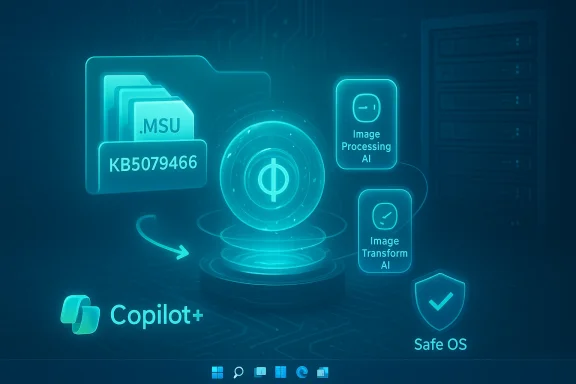
At the same time, Microsoft has continued componentizing on‑device AI into named pieces — for example Image Processing AI, Image Transform AI, and the local language model Phi Silica — which are versioned and delivered separately from the core cumulative update. These pieces are intended to enable low‑latency, offline Copilot experiences on Copilot+ hardware tiers and are managed with their own delivery rules.
Key takeaways:
Source: Microsoft Support March 10, 2026—KB5079466 (OS Build 28000.1719) - Microsoft Support
 Background
Windows 11’s servicing model has continued to evolve away from monolithic, one‑size‑fits‑all monthly packages toward a hybrid of cumulative servicing and discrete component updates for AI runtimes and model artifacts. Microsoft’s platform work around the 28000 build stream has been described as a platform‑first effort — a baseline intended primarily to support next‑generation Arm and AI‑centric silicon — rather than a normal consumer feature wave. That positioning matters because some KBs published against this platform behave differently: they are delivered as multi‑MSU packages, may include device‑targeted AI component payloads, and can be preinstalled on OEM images or pushed only to qualifying hardware.At the same time, Microsoft has continued componentizing on‑device AI into named pieces — for example Image Processing AI, Image Transform AI, and the local language model Phi Silica — which are versioned and delivered separately from the core cumulative update. These pieces are intended to enable low‑latency, offline Copilot experiences on Copilot+ hardware tiers and are managed with their own delivery rules.
What KB5079466 delivers — a clear summary
- A cumulative OS servicing rollup that advances Windows 11 to OS Build 28000.1719, packaging multiple fixes and quality improvements for the 28000 platform baseline.
- A multi‑MSU installer layout: the KB ships one or more .msu files that must be applied either together (DISM discovers and sequences prerequisites) or individually in a prescribed order. Microsoft documents two supported methods: install all MSU files by pointing DISM / PackagePath to the folder, or install each MSU sequentially.
- Included updates for on‑device AI components; however, these AI payloads are gated — they are applicable only to Windows Copilot+ PCs and will not install on generic Windows desktop or server SKUs. In other words, the AI component content is present in the KB but inert unless the target device meets Copilot+ eligibility.
Why the packaging and install model matter
Windows updates have long been delivered as CABs, MSUs and express packages. KB5079466’s multi‑MSU arrangement is important for several practical reasons:- Sequencing and prerequisites. When multiple MSU files are packaged, they can have implicit dependencies; installing them in the wrong order can leave the servicing stack in an inconsistent state. Microsoft’s recommended approach is to either let DISM discover and sequence all packages from a single folder, or to explicitly install packages in the order specified by the KB.
- Offline imaging and servicing. Because the update can be applied to mounted images with DISM /Image and Add‑WindowsPackage commands, system builders and IT pros can preload the update into images used for OEM flashing or corporate deployment. The KB also notes the interaction with the Dynamic Update process used during Setup/OOBE, so when building installation media administrators should ensure dynamic update packages align to the same month.
- Targeted delivery of AI components. The presence of AI components inside a cumulative KB doesn’t mean every device will receive or install them. Microsoft’s policy — repeated across several component updates and platform KBs — is to include the payload while gating installation on hardware capability (Copilot+ eligibility), servicing prerequisites and often the presence of a recent cumulative OS baseline. This improves flexibility but complicates patch verification.
Installation options and a practical walkthrough
Microsoft documents two supported installation methods for multi‑MSU KBs like KB5079466. Below is a practical, system‑administrator oriented walkthrough distilled from the KB notes and community operational guidance.Method 1 — Install all MSU files together (recommended for many admins)
This method is the simplest when you have all MSU files downloaded and want DISM to resolve ordering automatically.- Download every .msu associated with KB5079466 into a single folder on the target system (example: C:\Packages).
- Open an elevated Command Prompt and run:
- DISM /Online /Add‑Package /PackagePath:c:\packages\Windows11.0‑KB5079466‑arm64.msu
- Alternatively, in an elevated PowerShell session:
- Add‑WindowsPackage ‑Online ‑PackagePath "c:\packages\Windows11.0‑KB5079466‑arm64.msu"
Method 2 — Install each MSU individually, in order (when explicit ordering is required)
- Download the MSU files and note the order specified by the KB (the KB will list windows11.0‑kb5079466‑arm64 and any supporting packages).
- Use DISM or the Windows Update Standalone Installer (wusa.exe) to apply each MSU in the sequence indicated. This method is sometimes necessary for offline servicing or when a particular prerequisite must be installed before a dependent package.
Applying to a mounted image
If you manage images, use these commands from an elevated prompt:- DISM /Image:mountdir /Add‑Package /PackagePath:Windows11.0‑KB5079466‑arm64.msu
- Or: Add‑WindowsPackage ‑Path "c:\offline" ‑PackagePath "Windows11.0‑KB5079466‑arm64.msu" ‑PreventPending
Copilot+ machines and the AI components inside KB5079466
One of the most consequential parts of KB5079466 is the inclusion of AI component updates. But the KB is explicit: the AI components are applicable only to Windows Copilot+ PCs and will not install on regular Windows PC or Windows Server installations. That means:- Windows desktops, servers, and non‑Copilot hardware will receive the OS servicing portion of the KB but not the AI component payloads.
- Copilot+ machines — systems with vendor‑certified NPU/accelerator stacks and the Copilot+ SKU — may receive on‑device model updates such as Phi Silica (Microsoft’s on‑device transformer‑style language model), Image Processing AI, or Image Transform AI, depending on hardware vendor execution providers and installed prerequisites. These components are separately versioned and distributed via Microsoft’s componentized delivery.
- On‑device AI components directly affect local inference performance, feature availability in Copilot experiences (for example, image edit operations and local queries), and hardware runtime compatibility. Updating them can change behavior in AI‑enabled flows even when the rest of the OS appears unchanged.
- Because the components are delivered as separate, versioned artifacts, version skew between OS cumulative updates and component packages can occur; many component updates require the latest cumulative baseline before installation. Administrators must verify prerequisites before expecting the AI features to function.
Operational guidance for IT teams
KB5079466’s combination of cumulative fixes, MSU sequencing and gated AI components makes it a release that benefits from careful predeployment validation. Here are recommended practices:- Stage in a lab that mirrors target hardware. Include at least one Copilot+ device if any of your users or pilots have such hardware. Test both OS servicing and component payload behavior.
- Use DISM’s folder install for multi‑MSU packages when possible; it reduces human sequencing errors. Record the folder and package list for auditing.
- Verify the servicing stack and prerequisites. Many recent cumulative updates also require a current Servicing Stack Update (SSU) or previous cumulative to be present; the February 2026 rollups and related KB notes have repeatedly stressed SSU parity for smooth installs. Confirm SSU presence before large‑scale deployment.
- Align Dynamic Updates for media servicing. If you inject these patches into installation images, ensure the SafeOS and Setup Dynamic Update packages match the KB’s month or use Microsoft’s most recent equivalents as permitted by the KB. This avoids OOBE failures and WinRE inconsistencies.
- Monitor Update History and component versions. On Copilot+ PCs, check Settings > Windows Update > Update history to confirm Image Processing/Transform and Phi Silica component versions after patching. Microsoft lists component entries individually in Update history.
- Plan rollback and recovery paths. Multi‑MSU changes and model updates can be disruptive; ensure your imaging repository, system restore points (where appropriate), and offline images are up to date before deployment.
Potential risks, regressions, and caveats
No substantial update is risk‑free; here are the notable risks and caveats to watch when deploying KB5079466.- Hardware‑gated surprises. Because AI components are gated by Copilot+ hardware eligibility, administrators may see inconsistent feature behavior across otherwise identical machines if vendor drivers, NPUs or execution providers differ. Validate vendor driver versions (for example Intel OpenVINO, NVIDIA TensorRT, Qualcomm QNN providers) on Copilot+ units.
- Unclear telemetry/diagnostic changes. The Windows Diagnostic Data Processor configuration has evolved in recent updates as Microsoft prepares for regional data boundary capabilities; these telemetry changes can change how diagnostic data is collected or surfaced to the organization. Review diagnostic configurations if your org is sensitive to telemetry.
- Sequencing failures can brick servicing. Installing constituent MSUs out of order — or applying an AI component without the required cumulative baseline — can produce failed servicing operations, pending operations and the need for offline repair. Using DISM with the full folder is the safer option.
- Component version skew and feature regressions. Model updates (Phi Silica, image models) can change local Copilot behavior; while improvements are the typical objective, model changes can also result in altered outputs or performance characteristics. Where Copilot features are used in workflows, plan a short user‑acceptance period after patching.
- Targeted distribution means confusion. IT teams may be surprised to find the KB listed in update catalogs but with no visible change on non‑Copilot hardware. Communicate clearly with end users and stakeholders about why certain AI features may not appear post‑patch.
Testing checklist — quick reference for pilots and admins
- Validate OS baseline: confirm current cumulative rollup and SSU levels.
- Acquire all MSU files listed by the KB and place them in one folder for DISM discovery.
- On a Copilot+ test device, check for vendor execution providers (e.g., Qualcomm QNN, NVIDIA TensorRT, Intel OpenVINO) and current driver/firmware levels.
- Apply the update in a controlled manner: lab → pilot group → wider rollout. Monitor Update history and component version listings in Settings.
- Confirm fallback: ensure you can restore images or roll back if the patch produces service‑impacting issues. Record the MSU list for reinstallation or removal operations.
Broader significance: Windows servicing meets on‑device AI
KB5079466 is an example of how Windows’ update architecture is adapting to a dual reality: the OS remains a platform for classic reliability and security patches while also serving as a host for on‑device AI models and vendor‑specific execution providers.- Componentization gives Microsoft the agility to improve AI models, runtimes and hardware execution providers independently of core OS servicing. That reduces the lag between a model improvement and its availability on devices but increases deployment complexity for fleets.
- Targeted gating by Copilot+ eligibility is a pragmatic approach to avoid forcing AI artifacts onto devices that cannot use them, but it places the burden on IT to understand device entitlements and the vendor stack.
- For OEMs and system builders, multi‑MSU KBs that include both OS and AI payloads mean image generation workflows must be updated to account for dynamic updates and SafeOS alignment. The KB’s explicit instructions for Dynamic Update parity reflect operational lessons from earlier servicing cycles.
Final assessment and recommendations
KB5079466 (OS Build 28000.1719) is not a sweeping, feature‑packed consumer update — it is a focused, platform‑aware rollup that bundles OS fixes with targeted AI component artifacts. For most users and many organizations, the cumulative OS fixes are the immediate reason to install the update; for Copilot+ device owners and teams running pilot AI experiences, the included component updates are the real headline and should be approached with a testing‑first mindset.Key takeaways:
- Treat KB5079466 as two parallel deliveries: an OS cumulative update (broad applicability) and gated AI component updates (Copilot+ only).
- Use DISM folder installs to reduce sequencing errors, and confirm SSU/prerequisites before large‑scale rollouts.
- Validate vendor execution providers and driver stacks on Copilot+ hardware prior to installation to avoid runtime incompatibilities.
- Communicate to users and stakeholders that AI feature availability will vary by hardware and that the presence of AI payloads in the KB does not imply universal onboarding.
Source: Microsoft Support March 10, 2026—KB5079466 (OS Build 28000.1719) - Microsoft Support
