Microsoft released Windows 11 KB5094126 on June 9, 2026, as the June Patch Tuesday security update for Windows 11 versions 25H2 and 24H2, raising systems to builds 26200.8655 and 26100.8655 while beginning a wider rollout of performance, audio, camera, and Secure Boot changes. The update is mandatory in the usual Patch Tuesday sense: it will arrive through Windows Update unless the device is paused, managed, or otherwise blocked. But the headline feature is not a vulnerability fix or a new Settings page. It is Microsoft’s latest attempt to make Windows 11 feel less sluggish without asking users to understand why it felt sluggish in the first place.
KB5094126 is one of those Windows updates that looks routine from a servicing spreadsheet and more revealing when read as product strategy. Microsoft is trying to solve three long-running complaints at once: Windows 11 responsiveness, Bluetooth audio limitations, and the looming expiration of Secure Boot certificates that have quietly underpinned PC trust since the Windows 8 era. That makes this release less a bag of features than a snapshot of Windows in 2026: security debt coming due, AI-era hardware expectations rising, and the old desktop still judged by how quickly the Start menu opens.
The most marketable part of KB5094126 is the Low Latency Profile, a new Windows 11 behavior that temporarily pushes CPU frequency higher during short, interactive actions. In plain English, Windows can goose the processor for a second or three when the user opens the Start menu, invokes Quick Settings, brings up notifications, triggers Search, or right-clicks in the shell and File Explorer. It is not a new “performance mode” in the traditional sense, and it is not a user-facing turbo button. It is a background scheduling and power behavior meant to make the operating system feel snappier at the precise moments users notice delay.
That distinction matters. Windows has spent years being benchmarked on things that users do not experience directly, while being punished for delays they experience dozens of times a day. A menu that opens 200 milliseconds late is not a Cinebench problem, but it can make a modern laptop feel cheap. Low Latency Profile is Microsoft conceding that subjective responsiveness is a first-class performance metric.
The feature has been circling through preview channels and optional updates, with reporting indicating that the May 2026 optional release seeded some of the same work before June’s mandatory rollout. KB5094126 does not mean every supported PC will show the behavior instantly. Microsoft is using the same gradual rollout machinery it now applies to many Windows features, so two machines on the same build number may not behave identically on day one.
That will frustrate power users, because there is no clean Settings switch to check. The feature is observable more than administrable: users can watch CPU clocks in Task Manager or third-party monitoring tools while opening shell surfaces, but Windows is not presenting a friendly “Low Latency Profile is on” status page. Microsoft’s bet is that normal people will not care if the Start menu simply feels faster. Enthusiasts, being enthusiasts, will absolutely care.
That approach is defensible. A desktop operating system lives or dies by micro-interactions. Opening Start, invoking Search, expanding Quick Settings, and right-clicking in File Explorer are not exotic operations. They are the rituals by which people decide whether a system feels healthy.
The risk is that Microsoft will oversell the effect. High-end desktop systems and premium laptops may show little visible improvement because they were already fast enough. Budget machines, thin-and-light laptops, and systems with conservative power tuning may benefit more, but battery behavior and thermal consequences will need watching over time. A one-to-three-second boost is not the same as running the CPU flat out indefinitely, yet repeated boosts across a day are not free.
The deeper embarrassment is that Windows 11 needs this in the first place. Microsoft redesigned the shell, layered more web-adjacent components into the experience, expanded background services, and shipped hardware requirements meant to modernize the platform. Users were then left to complain that common UI operations sometimes felt slower than they should on hardware that is otherwise powerful. Low Latency Profile may be the right mitigation, but it is also an admission that perceived performance cannot be left to silicon alone.
The catch is Bluetooth LE Audio. This is not magic layered onto every old Bluetooth headset. The PC and the audio devices need the right hardware and protocol support, and users may need to check whether “Use LE Audio when available” appears for supported devices under Bluetooth settings. When the pieces line up, Quick Settings becomes the entry point for choosing two devices and starting a shared session.
This is a small feature with outsized symbolic value. Windows PCs have long been technically capable machines that still lag consumer devices in everyday polish. The OS can run enterprise workloads, virtual machines, and creative software, yet historically it has made simple living-room scenarios feel like workarounds. Shared Audio is Microsoft remembering that laptops are also screens people share on couches, trains, dorm rooms, and conference rooms.
For administrators, the feature is unlikely to be the first thing tested in a deployment ring. For consumers, it may be the most immediately understandable addition in the update. It is not a security control or a servicing milestone. It is just Windows doing something people already expected modern devices to do.
With the new option, Windows 11 can allow multiple applications to use the camera simultaneously. The setting is not enabled by default, which is the correct call. Camera access remains privacy-sensitive, and Microsoft should not silently broaden concurrent camera availability without user intent. But for users who need it, the new toggle under camera settings removes a limitation that has created needless friction for years.
There is also a basic camera troubleshooting mode intended to help isolate whether failures are coming from drivers, hardware, or software layers. That sounds mundane, but webcam troubleshooting in Windows has too often been a swamp of app permissions, vendor utilities, firmware oddities, browser prompts, and device-driver rituals. A basic diagnostic path is not glamorous; it is what an operating system should have had when webcams became essential infrastructure.
This change will matter most in professional environments where users stack apps around a meeting: Teams for the call, a browser for a client portal, a recording or accessibility tool, and perhaps a camera effects package. It also creates new policy questions for managed fleets. The feature is useful precisely because it expands what software can do with the camera, and that means IT departments will want to know how it behaves under existing camera privacy controls and endpoint management baselines.
Secure Boot is part of the chain of trust that helps ensure the system loads trusted boot components rather than malware before Windows starts. For years, that trust depended on certificates that were effectively invisible to most users. Now the certificates are no longer invisible, because expiration forces the ecosystem to update.
Microsoft has been phasing in the new certificates carefully, and for good reason. Boot trust is not an area where vendors want to discover a corner case after pressing the global button. A botched Secure Boot transition could strand machines, disrupt recovery media, or create support storms across OEMs and enterprises. The slow rollout may annoy users who want certainty, but caution is rational when the blast radius includes firmware, recovery environments, and virtual machines.
KB5094126 reportedly expands availability to more eligible PCs. Users can check Windows Security under Device Security for Secure Boot certificate status, where green, yellow, or red-style messaging may indicate whether the device is updated, limited by firmware, or unable to complete required changes. The important nuance is that not every failure means the PC will suddenly stop booting. Some machines may continue running while falling short of the desired security posture.
That nuance is also where the trouble begins. If a device cannot apply the certificate update because of firmware limitations, the fix may depend on the OEM rather than Microsoft alone. Older PCs, abandoned firmware lines, niche hardware, and poorly maintained fleets are where Secure Boot’s 2026 deadline becomes less an update and more an audit of the PC ecosystem’s long-term maintenance habits.
Offline installers are valuable in the right scenarios. They help when Windows Update fails, when an administrator needs to patch multiple disconnected systems, when a lab needs repeatable testing, or when a managed deployment pipeline requires local staging. They are less useful as a ritual for ordinary users who simply want to be current.
The build split is also worth noting. Version 25H2 moves to 26200.8655, while version 24H2 moves to 26100.8655. Microsoft’s feature delivery model means the visible difference between those branches may be smaller than the build numbers imply, especially while features are gated behind gradual rollout flags.
The .NET security updates and the Windows Malicious Software Removal Tool update accompanying the monthly cycle are part of the broader Patch Tuesday rhythm. They matter, but they are not the story. The story is that Microsoft’s monthly servicing vehicle is now carrying an increasingly complex mix of security fixes, feature gates, hardware enablement, firmware-adjacent trust work, and experience polish.
From Microsoft’s perspective, this is sensible risk management. The company can detect telemetry anomalies, pause problematic waves, and avoid pushing fragile changes to every machine simultaneously. For features touching Bluetooth stacks, camera access, power behavior, and firmware trust, that caution is not paranoia.
From the user’s perspective, it is maddening. Two people can install the same KB number and have different experiences. A help article can describe a feature that does not appear. An IT admin can validate a build and still need to account for feature enablement drift. The update number no longer tells the whole truth.
This is the modern Windows bargain. Microsoft gets safer rollout control; users lose some determinism. The more Windows behaves like a cloud-connected product, the less Patch Tuesday resembles the old model of one package producing one predictable state on every PC.
The Low Latency Profile is less likely to break line-of-business applications, but it does touch power and responsiveness behavior. Enterprises with strict battery-life expectations, thermal constraints, or specialized kiosk and industrial deployments may want to watch telemetry rather than assume the consumer benefit is universally positive. The absence of a simple user-facing control makes documentation and policy clarity more important.
Shared Audio is probably low risk in most fleets, but Bluetooth behavior is notoriously hardware-dependent. Support desks may start hearing questions from users who see the feature on one laptop and not another. The answer will often be hardware capability, driver support, or rollout state rather than user error.
The multi-app camera mode deserves a privacy and compliance review. It is off by default, which lowers immediate risk, but organizations that tightly control camera use should verify how the new setting interacts with existing policies. In regulated environments, the fact that multiple apps can share a camera stream is not merely a convenience; it is a behavior that may need explicit governance.
There is a pattern here. Microsoft is trying to make Windows 11 feel more immediate without abandoning its security and compatibility obligations. That is hard because Windows is not a single device line with a single Bluetooth stack, a single firmware supplier, or a single performance profile. It is an ecosystem stitched together by OEMs, silicon vendors, driver teams, IT policies, and decades of user expectation.
The result is messy but meaningful. Low Latency Profile may be invisible when it works. Secure Boot certificate updates may be noticed only when they fail. Shared Audio may be limited by hardware many users do not yet own. Multi-app camera support may become indispensable only after people discover the old limitation is gone. This is not the kind of update that sells a new PC, but it may make the one already on the desk feel less compromised.
KB5094126 is one of those Windows updates that looks routine from a servicing spreadsheet and more revealing when read as product strategy. Microsoft is trying to solve three long-running complaints at once: Windows 11 responsiveness, Bluetooth audio limitations, and the looming expiration of Secure Boot certificates that have quietly underpinned PC trust since the Windows 8 era. That makes this release less a bag of features than a snapshot of Windows in 2026: security debt coming due, AI-era hardware expectations rising, and the old desktop still judged by how quickly the Start menu opens.
 Microsoft Turns Patch Tuesday Into a Responsiveness Pitch
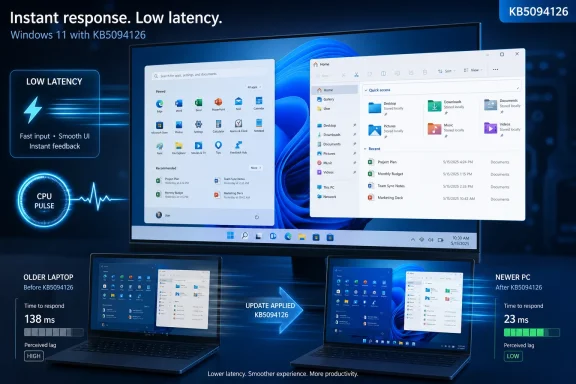
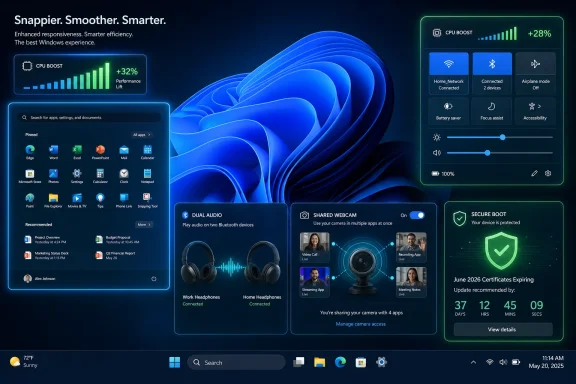
The most marketable part of KB5094126 is the Low Latency Profile, a new Windows 11 behavior that temporarily pushes CPU frequency higher during short, interactive actions. In plain English, Windows can goose the processor for a second or three when the user opens the Start menu, invokes Quick Settings, brings up notifications, triggers Search, or right-clicks in the shell and File Explorer. It is not a new “performance mode” in the traditional sense, and it is not a user-facing turbo button. It is a background scheduling and power behavior meant to make the operating system feel snappier at the precise moments users notice delay.That distinction matters. Windows has spent years being benchmarked on things that users do not experience directly, while being punished for delays they experience dozens of times a day. A menu that opens 200 milliseconds late is not a Cinebench problem, but it can make a modern laptop feel cheap. Low Latency Profile is Microsoft conceding that subjective responsiveness is a first-class performance metric.
The feature has been circling through preview channels and optional updates, with reporting indicating that the May 2026 optional release seeded some of the same work before June’s mandatory rollout. KB5094126 does not mean every supported PC will show the behavior instantly. Microsoft is using the same gradual rollout machinery it now applies to many Windows features, so two machines on the same build number may not behave identically on day one.
That will frustrate power users, because there is no clean Settings switch to check. The feature is observable more than administrable: users can watch CPU clocks in Task Manager or third-party monitoring tools while opening shell surfaces, but Windows is not presenting a friendly “Low Latency Profile is on” status page. Microsoft’s bet is that normal people will not care if the Start menu simply feels faster. Enthusiasts, being enthusiasts, will absolutely care.
The CPU Boost Is a Bandage, but Not a Cheap Trick
It is tempting to dismiss Low Latency Profile as a hack: if Windows is slow, throw more frequency at the problem. That reading is too glib. Modern CPUs already bounce between power states aggressively, and operating systems have always shaped how quickly hardware wakes up, boosts, idles, and parks cores. The novelty here is not that Windows can ask for more performance; it is that Microsoft appears to be targeting tiny moments of UI friction rather than broad workloads.That approach is defensible. A desktop operating system lives or dies by micro-interactions. Opening Start, invoking Search, expanding Quick Settings, and right-clicking in File Explorer are not exotic operations. They are the rituals by which people decide whether a system feels healthy.
The risk is that Microsoft will oversell the effect. High-end desktop systems and premium laptops may show little visible improvement because they were already fast enough. Budget machines, thin-and-light laptops, and systems with conservative power tuning may benefit more, but battery behavior and thermal consequences will need watching over time. A one-to-three-second boost is not the same as running the CPU flat out indefinitely, yet repeated boosts across a day are not free.
The deeper embarrassment is that Windows 11 needs this in the first place. Microsoft redesigned the shell, layered more web-adjacent components into the experience, expanded background services, and shipped hardware requirements meant to modernize the platform. Users were then left to complain that common UI operations sometimes felt slower than they should on hardware that is otherwise powerful. Low Latency Profile may be the right mitigation, but it is also an admission that perceived performance cannot be left to silicon alone.
Shared Audio Finally Treats the PC Like a Modern Media Device
KB5094126 also begins the broader rollout of Shared Audio, a Windows 11 feature that allows system audio to be sent to two compatible Bluetooth audio devices at the same time. The idea will be instantly familiar to anyone who has used similar sharing features in Apple’s ecosystem: two people can watch a movie, listen to music, or share a game session from one machine without resorting to speakers or a headphone splitter.The catch is Bluetooth LE Audio. This is not magic layered onto every old Bluetooth headset. The PC and the audio devices need the right hardware and protocol support, and users may need to check whether “Use LE Audio when available” appears for supported devices under Bluetooth settings. When the pieces line up, Quick Settings becomes the entry point for choosing two devices and starting a shared session.
This is a small feature with outsized symbolic value. Windows PCs have long been technically capable machines that still lag consumer devices in everyday polish. The OS can run enterprise workloads, virtual machines, and creative software, yet historically it has made simple living-room scenarios feel like workarounds. Shared Audio is Microsoft remembering that laptops are also screens people share on couches, trains, dorm rooms, and conference rooms.
For administrators, the feature is unlikely to be the first thing tested in a deployment ring. For consumers, it may be the most immediately understandable addition in the update. It is not a security control or a servicing milestone. It is just Windows doing something people already expected modern devices to do.
The Camera Change Fixes a Very Old Assumption
The multi-app camera feature addresses another Windows limitation that felt increasingly out of step with how people actually work. Traditionally, if Teams had the webcam, another app often could not use it at the same time. That model made sense when camera use was occasional and single-purpose. It makes less sense in a world of hybrid meetings, browser-based conferencing, streaming tools, identity verification workflows, and camera utilities.With the new option, Windows 11 can allow multiple applications to use the camera simultaneously. The setting is not enabled by default, which is the correct call. Camera access remains privacy-sensitive, and Microsoft should not silently broaden concurrent camera availability without user intent. But for users who need it, the new toggle under camera settings removes a limitation that has created needless friction for years.
There is also a basic camera troubleshooting mode intended to help isolate whether failures are coming from drivers, hardware, or software layers. That sounds mundane, but webcam troubleshooting in Windows has too often been a swamp of app permissions, vendor utilities, firmware oddities, browser prompts, and device-driver rituals. A basic diagnostic path is not glamorous; it is what an operating system should have had when webcams became essential infrastructure.
This change will matter most in professional environments where users stack apps around a meeting: Teams for the call, a browser for a client portal, a recording or accessibility tool, and perhaps a camera effects package. It also creates new policy questions for managed fleets. The feature is useful precisely because it expands what software can do with the camera, and that means IT departments will want to know how it behaves under existing camera privacy controls and endpoint management baselines.
Secure Boot’s 2011 Trust Chain Reaches Its Deadline
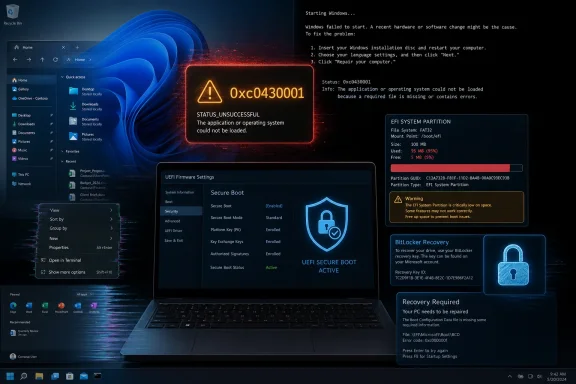
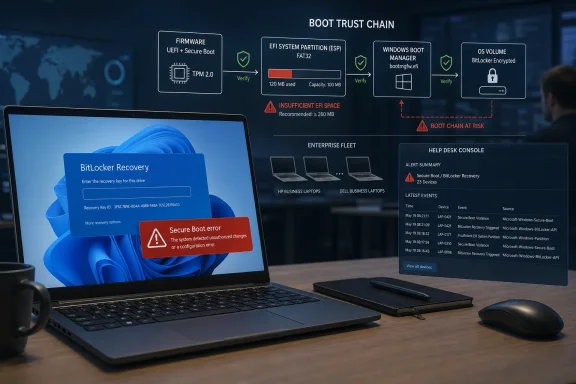
The most consequential part of KB5094126 may be the least flashy: Microsoft’s continued rollout of Secure Boot certificate updates. The old Secure Boot certificates, originally issued in 2011, begin expiring in June 2026 and continue aging out over the following months. That makes this year’s certificate transition one of the rare Windows maintenance events where the background plumbing has a real deadline.Secure Boot is part of the chain of trust that helps ensure the system loads trusted boot components rather than malware before Windows starts. For years, that trust depended on certificates that were effectively invisible to most users. Now the certificates are no longer invisible, because expiration forces the ecosystem to update.
Microsoft has been phasing in the new certificates carefully, and for good reason. Boot trust is not an area where vendors want to discover a corner case after pressing the global button. A botched Secure Boot transition could strand machines, disrupt recovery media, or create support storms across OEMs and enterprises. The slow rollout may annoy users who want certainty, but caution is rational when the blast radius includes firmware, recovery environments, and virtual machines.
KB5094126 reportedly expands availability to more eligible PCs. Users can check Windows Security under Device Security for Secure Boot certificate status, where green, yellow, or red-style messaging may indicate whether the device is updated, limited by firmware, or unable to complete required changes. The important nuance is that not every failure means the PC will suddenly stop booting. Some machines may continue running while falling short of the desired security posture.
That nuance is also where the trouble begins. If a device cannot apply the certificate update because of firmware limitations, the fix may depend on the OEM rather than Microsoft alone. Older PCs, abandoned firmware lines, niche hardware, and poorly maintained fleets are where Secure Boot’s 2026 deadline becomes less an update and more an audit of the PC ecosystem’s long-term maintenance habits.
Offline Installers Are a Safety Net, Not the Preferred Road
As usual, KB5094126 is available through Windows Update and the Microsoft Update Catalog, with offline .msu packages for those who need them. Windows Latest reported package sizes in the multi-gigabyte range, with 25H2 packages around 5.2GB and 24H2 packages around 4.7GB for x64 and Arm64 variants. That size alone explains why most users should avoid manual downloading unless they have a reason.Offline installers are valuable in the right scenarios. They help when Windows Update fails, when an administrator needs to patch multiple disconnected systems, when a lab needs repeatable testing, or when a managed deployment pipeline requires local staging. They are less useful as a ritual for ordinary users who simply want to be current.
The build split is also worth noting. Version 25H2 moves to 26200.8655, while version 24H2 moves to 26100.8655. Microsoft’s feature delivery model means the visible difference between those branches may be smaller than the build numbers imply, especially while features are gated behind gradual rollout flags.
The .NET security updates and the Windows Malicious Software Removal Tool update accompanying the monthly cycle are part of the broader Patch Tuesday rhythm. They matter, but they are not the story. The story is that Microsoft’s monthly servicing vehicle is now carrying an increasingly complex mix of security fixes, feature gates, hardware enablement, firmware-adjacent trust work, and experience polish.
The Gradual Rollout Model Keeps Winning, Even When Users Hate It
Microsoft’s controlled feature rollout strategy is now central to Windows 11, and KB5094126 shows why. Low Latency Profile, Shared Audio, camera changes, and Secure Boot certificate updates are not necessarily binary “you installed the patch, therefore you have the feature” events. The update supplies the code and servicing baseline; Microsoft’s rollout systems decide when many users actually see the behavior.From Microsoft’s perspective, this is sensible risk management. The company can detect telemetry anomalies, pause problematic waves, and avoid pushing fragile changes to every machine simultaneously. For features touching Bluetooth stacks, camera access, power behavior, and firmware trust, that caution is not paranoia.
From the user’s perspective, it is maddening. Two people can install the same KB number and have different experiences. A help article can describe a feature that does not appear. An IT admin can validate a build and still need to account for feature enablement drift. The update number no longer tells the whole truth.
This is the modern Windows bargain. Microsoft gets safer rollout control; users lose some determinism. The more Windows behaves like a cloud-connected product, the less Patch Tuesday resembles the old model of one package producing one predictable state on every PC.
Where Enterprise IT Should Pay Attention First
For managed environments, KB5094126 should not be treated as just another cumulative update, even if the deployment mechanics are familiar. The Secure Boot certificate transition deserves deliberate validation across representative hardware, especially if the organization has older devices, mixed OEM fleets, custom imaging practices, virtual desktop infrastructure, or recovery workflows that depend on known boot behavior.The Low Latency Profile is less likely to break line-of-business applications, but it does touch power and responsiveness behavior. Enterprises with strict battery-life expectations, thermal constraints, or specialized kiosk and industrial deployments may want to watch telemetry rather than assume the consumer benefit is universally positive. The absence of a simple user-facing control makes documentation and policy clarity more important.
Shared Audio is probably low risk in most fleets, but Bluetooth behavior is notoriously hardware-dependent. Support desks may start hearing questions from users who see the feature on one laptop and not another. The answer will often be hardware capability, driver support, or rollout state rather than user error.
The multi-app camera mode deserves a privacy and compliance review. It is off by default, which lowers immediate risk, but organizations that tightly control camera use should verify how the new setting interacts with existing policies. In regulated environments, the fact that multiple apps can share a camera stream is not merely a convenience; it is a behavior that may need explicit governance.
The June Patch Is Really About Trust and Feel
KB5094126 is not a revolutionary Windows update, and that is precisely why it is interesting. It targets the parts of computing that usually remain invisible until they fail: the boot certificates that define whether the platform trusts itself, the power-state decisions that shape whether the UI feels fast, the audio plumbing that determines whether two people can watch together, and the camera model that decides whether modern workflows are possible.There is a pattern here. Microsoft is trying to make Windows 11 feel more immediate without abandoning its security and compatibility obligations. That is hard because Windows is not a single device line with a single Bluetooth stack, a single firmware supplier, or a single performance profile. It is an ecosystem stitched together by OEMs, silicon vendors, driver teams, IT policies, and decades of user expectation.
The result is messy but meaningful. Low Latency Profile may be invisible when it works. Secure Boot certificate updates may be noticed only when they fail. Shared Audio may be limited by hardware many users do not yet own. Multi-app camera support may become indispensable only after people discover the old limitation is gone. This is not the kind of update that sells a new PC, but it may make the one already on the desk feel less compromised.
The KB5094126 Checklist Belongs on the Deployment Desk
The practical read on KB5094126 is that users should install it, but not confuse installation with instant access to every advertised feature. Microsoft’s staged rollout model means patience and verification are now part of the Windows update experience.- Windows 11 25H2 systems move to build 26200.8655, while Windows 11 24H2 systems move to build 26100.8655 after installing KB5094126.
- Low Latency Profile is designed to improve short shell interactions by briefly raising CPU frequency during moments such as opening Start, Search, Quick Settings, notifications, and context menus.
- Shared Audio depends on Bluetooth LE Audio support, so unsupported PCs or headsets will not gain the feature merely by installing the update.
- Multi-app camera access is available as an opt-in setting, which makes it useful for complex workflows without silently changing camera privacy behavior for everyone.
- Secure Boot certificate status deserves attention now, because the 2011-era certificates begin expiring in June 2026 and some devices may require OEM firmware updates.
- Offline .msu installers are best reserved for failed Windows Update scenarios, disconnected machines, labs, or managed deployment workflows, not casual manual updating.
References
- Primary source: Windows Latest
Published: Tue, 09 Jun 2026 16:51:04 GMT
Windows 11 KB5094126 out with CPU boost for performance, direct download links for offline installer (.msu)
Windows 11 KB5094126 is now rolling out with Low Latency Profile, Shared audio, Secure Boot certificate update, and more. www.windowslatest.com
- Related coverage: windowscentral.com
Here are the 6 biggest features and improvements coming to Windows 11 in the June 2026 update on Tuesday | Windows Central
Microsoft's June 2026 Windows 11 update boosts responsiveness, adds Shared Audio, expands NPU metrics, and improves OOBE.www.windowscentral.com - Related coverage: techtimes.com
Windows 11's June 2026 Update Lands June 9 With Shared Audio And NPU Monitoring: The 6 Features Worth Knowing
Microsoft is set to begin rolling out the June 2026 update for Windows 11 on Tuesday, June 9, and unlike a routine security patch, this one carries a handful of consumer features worth turning on.www.techtimes.com - Official source: learn.microsoft.com
Update Secure Boot Certificates for Windows Devices - Windows Client | Microsoft Learn
Update your Windows devices to maintain Secure Boot protection with 2023 certificates before they expire in June 2026.learn.microsoft.com - Related coverage: notebookcheck.net
Windows 11 update KB5089573: Shared audio & partition fix - Notebookcheck News
Microsoft's KB5089573 preview adds Shared Audio and NPU tracking to Windows 11, while flagging an EFI partition install failure on older OEM hardware. www.notebookcheck.net
- Related coverage: pureinfotech.com
KB5094126 (build 26200.8655) for Windows 11 drops as part of the June 2026 update - Pureinfotech
KB5094126 (build 26200.8655) for Windows 11 brings Shared Audio, NPU tracking in Task Manager, and faster app launch improvements for 25H2 and 24H2. pureinfotech.com
- Related coverage: pcworld.com
Windows 11 restarts several times after a recent update? Don't panic | PCWorld
Microsoft says it's normal if Windows 11 restarts two or three times after recent or upcoming updates. Here's what you should do afterwards.www.pcworld.com - Official source: techcommunity.microsoft.com
Act now: Secure Boot certificates expire in June 2026 - Windows IT Pro Blog
Get tips to prepare for the rollout of updated certificates across your organization. techcommunity.microsoft.com
- Related coverage: techradar.com
Microsoft's rumored 'Low Latency Profile' CPU trick could make Windows 11's menus and apps load up to 70% faster | TechRadar
A brief turbo mode for apps and menuswww.techradar.com - Related coverage: pcgamer.com
'Apple does this and y’all love it': Microsoft defends new Low Latency feature in Windows 11 | PC Gamer
The new mode is reportedly snappier.www.pcgamer.com