

Windows 11 ships with a deceptively simple tool that quietly solves a surprising number of everyday problems: Live Captions. Flick it on with Windows + Ctrl + L and your PC will generate on‑screen subtitles for almost any audio playing on the machine — from browser videos and podcasts to Zoom calls and local media — and it does so on your device, without streaming your audio to the cloud. What began as an accessibility feature has become one of the most useful, low‑friction productivity hacks in Windows 11, and it deserves far more attention than it gets.
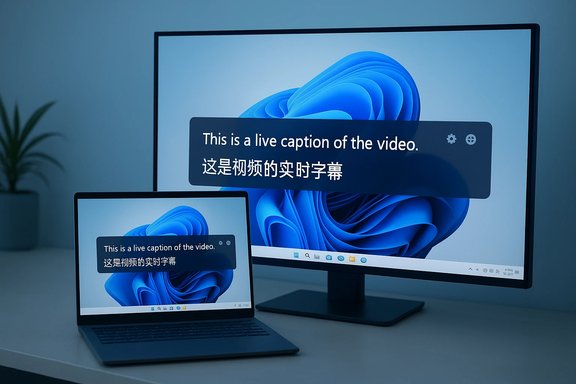
Live Captions is a system‑level captioning overlay that listens to any audio routed through your Windows 11 PC and displays real‑time text in a movable, resizable bar. The feature is available in Windows 11 (22H2 and later) and is designed to be opt‑in: the first time you enable it Windows downloads language packs for on‑device speech recognition. That architecture makes Live Captions fast, private, and usable offline — a deliberate contrast to cloud‑first transcription services. Beyond basic transcription, Microsoft has layered translation and hardware‑accelerated capabilities into Live Captions under the Copilot+ umbrella. On Copilot+ PCs (devices with supported NPUs and firmware), Live Captions can translate spoken audio from dozens of languages into English — and on select hardware it can also output Simplified Chinese — turning a subtitle overlay into a live translation layer for meetings, streaming, and recorded media. That rollout began in Insider channels and has been extended to Intel and AMD Copilot+ devices following its initial Snapdragon focus.
Hardware‑accelerated Copilot+ experiences will also broaden as chip vendors add NPUs to mainstream mobile‑class processors; this will reduce dependency on cloud fallback and increase availability of translation on more devices. Users should watch Windows update notes and Copilot+ announcements for shipping timelines and language expansions.
That said, it is not a silver bullet: it’s best used as an assistive overlay rather than a definitive record. For high‑stakes transcription, exportable logs, or guaranteed translation fidelity, pair Live Captions with purpose‑built services. For everything else — quick comprehension, accessibility, and cross‑language understanding — it’s worth keeping Live Captions a keyboard shortcut away.
Live Captions is a textbook example of inclusive design that benefits everyone: a built‑in, privacy‑respecting, and remarkably practical feature you can use right now. Enable it for a day, make a couple of small style tweaks, and see how often you reach for the toggle. For many Windows users, Live Captions will move from “handy trick” to a regular part of the workflow — and once that happens, turning it off starts to feel like losing something unexpectedly useful.
Source: MakeUseOf This built-in Windows feature is shockingly useful — and nobody talks about it
 Background / Overview
Live Captions is a system‑level captioning overlay that listens to any audio routed through your Windows 11 PC and displays real‑time text in a movable, resizable bar. The feature is available in Windows 11 (22H2 and later) and is designed to be opt‑in: the first time you enable it Windows downloads language packs for on‑device speech recognition. That architecture makes Live Captions fast, private, and usable offline — a deliberate contrast to cloud‑first transcription services. Beyond basic transcription, Microsoft has layered translation and hardware‑accelerated capabilities into Live Captions under the Copilot+ umbrella. On Copilot+ PCs (devices with supported NPUs and firmware), Live Captions can translate spoken audio from dozens of languages into English — and on select hardware it can also output Simplified Chinese — turning a subtitle overlay into a live translation layer for meetings, streaming, and recorded media. That rollout began in Insider channels and has been extended to Intel and AMD Copilot+ devices following its initial Snapdragon focus. How Live Captions Works
On‑device speech recognition and privacy
At its core, Live Captions runs a speech‑to‑text pipeline locally. When you enable the feature, Windows asks for permission to process voice data on the device and downloads language models that perform the recognition without sending audio to Microsoft. Microsoft’s documentation is explicit: audio processing and caption generation occur on the PC, captions are not uploaded to the cloud, and generated captions aren’t stored persistently. That design reduces telemetry and privacy concerns that accompany third‑party cloud transcription services.Copilot+ and hardware acceleration
Live Captions’ translation capabilities and the lowest‑latency transcription paths use hardware acceleration where available. Copilot+ is Microsoft’s certification for PCs with an NPU or other AI acceleration and optimized drivers; those machines can run heavier inference locally and therefore support the system’s translation layer and faster recognition. Microsoft has documented and publicized the expansion of Copilot+ features from Qualcomm Snapdragon devices to Intel Core Ultra and selected AMD platforms. The practical effect is that translation is most responsive and broadly available on Copilot+ hardware, while basic captioning remains available on standard Windows 11 setups.Supported languages and translation scope
Microsoft reports support for more than 40 input languages for translation into English on Copilot+ devices, and a smaller set (about 27 languages) for translation into Simplified Chinese on qualifying hardware. Non‑translation captioning supports a wide set of languages for transcription when language packs are installed. Note that translation availability and exact language lists have been evolving as the feature matures in Insider builds and general updates.Turning Live Captions On and Customizing It
Quick start (three fast ways)
- Press Windows key + Ctrl + L — the built‑in keyboard shortcut toggles Live Captions.
- Open Quick Settings (click network/battery/volume area) → Accessibility → Live captions.
- Go to Settings > Accessibility > Captions and toggle Live Captions on.
Positioning and style
Live Captions offers three position modes: Top, Bottom, or Floating. Docking to the top or bottom reserves screen space so the captions don’t overlay content; floating mode lets you drag the caption window anywhere. Caption style is highly configurable: text size, colors, background opacity, and more can be adjusted under Preferences → Caption style. These options are designed to improve legibility and reduce cognitive load across different workflows.Microphone inclusion and in‑person captioning
A neat trick is Include microphone audio: enable this to have the system caption what your PC’s microphone hears — useful for in‑person conversations, presentations, or when you want to verify your own spoken pronunciation. Only one audio source is captioned at a time, and if multiple speakers overlap, Live Captions generally prioritizes the external audio source (e.g., the meeting audio).Why Live Captions Is More Than an Accessibility Tool
1. Productivity in noisy or shared spaces
Live Captions immediately fixes a common problem: noisy environments and imperfect audio hardware. Whether you’re in a café or a busy open office, captions let you follow a meeting or tutorial without turning your volume up or wearing headphones. Dock the caption bar near the speaker’s face in a video call and keep working with other windows open; the system‑level overlay preserves context without demanding constant app switching. This reduces the friction of multitasking and helps maintain meeting flow.2. Better comprehension and retention
Reading while listening leverages multiple cognitive channels. With captions visible you can catch jargon, exact command names, or numerical values in technical tutorials — often more reliably than relying on audio alone. For many users, captions increase comprehension and reduce the need to replay content for clarity. This is especially valuable in instructional video workflows.3. Lightweight transcription aid
Live Captions is not a full transcript generator, but it’s an excellent quick‑reference tool. Because it runs live and overlays any audio, it’s ideal for capturing fleeting details — names, dates, or URLs — that you can screenshot or quick‑note. For deeper transcription needs, pair Live Captions with an app that saves text or with manual note capture; but for quick capture, it’s invaluable.4. Language learning and cross‑language meetings
The Copilot+ translation mode transforms Live Captions into a live translator. For multilingual meetings, global webinars, or foreign‑language media, translated captions let participants follow along in real time without third‑party apps. This democratizes comprehension across teams and casual viewing alike. However, translation quality is variable and depends on audio clarity and domain vocabulary.Practical Tips and Best Practices
- Make the shortcut a habit: Keep Win + Ctrl + L in muscle memory. Because the toggle is instant, you can briefly enable captions for a specific segment and then hide them.
- Tune caption style before long sessions: Spend two minutes setting text size, contrast, and background opacity — readability increases dramatically with a tailored style.
- Use floating mode for tutorials: Position the floating caption window close to a code block or a tutorial’s area of interest to capture commands and exact spellings.
- Enable microphone inclusion for rehearsals: When practicing a presentation or language pronunciations, turn on Include microphone audio to get immediate feedback on what the system transcribes from your speech.
- Combine with note apps and screenshots: Since you can’t currently copy/paste text from the caption bar, use quick screenshots and OCR or take brief notes during key moments.
- Check hardware requirements for translation: If you need on‑the‑fly translation, verify your device’s Copilot+ status and NPU support before relying on translated captions in critical meetings.
Clear Strengths
- Universal coverage: Works with any audio played on the PC — browser videos, streaming apps, VOIP calls, game dialogue — unlike app‑specific captions.
- Privacy‑forward: On‑device processing keeps audio local and mitigates cloud exposure or uploading of private meeting audio. This matters for compliance‑sensitive environments.
- Zero sign‑up, minimal setup: No account, no subscription, and the keyboard shortcut makes the feature immediately accessible.
- Accessibility by design: A tool built for inclusivity that benefits everyone — not only those with hearing loss but also people in noisy places, multitaskers, and learners.
Limitations, Risks, and Caveats
Accuracy and timing
Automatic speech recognition and translation are impressive but far from perfect. Accuracy depends on audio quality, speaker accents, background noise, and technical vocabulary. Captions can jump ahead or fall behind if latency spikes, and translation can produce awkward or ambiguous text — especially with domain‑specific terminology. For legal, medical, or other high‑stakes meetings, relying on Live Captions as the sole record is risky.Readability for some users
The caption stream is designed to reflect real‑time speech; for users who need more time to read text, the transient nature of the captions can be frustrating. There’s currently no built‑in way to export a transcript, slow the caption flow, or copy/paste text from the overlay, which limits accessibility for users who require textual review or searchable records. These are reasonable feature requests for future updates.Hardware and translation constraints
Real‑time translation is tied to Copilot+ hardware profiles. Not all Windows 11 PCs will deliver the same performance or translation availability. Users should confirm Copilot+ compatibility and Windows build versions; translation was rolled out initially via Insider channels and then gradually to stable builds. Assume availability is hardware‑ and build‑dependent until your device shows the feature.No persistent storage / audit trail
Microsoft’s privacy design avoids storing generated captions, which is great for privacy but means Live Captions is not a replacement for a record‑keeping system. If you need a searchable transcript for compliance or knowledge management, pair Live Captions with a dedicated, auditable transcription service instead.Edge cases and known issues
Insider reports and release notes have flagged occasional crashes, language pack errors, or glitches when switching translation languages mid‑session. While Microsoft continues to patch these, users should avoid relying on Live Captions for mission‑critical workflows until their environment is validated.How Live Captions Compares with Alternatives
- Cloud transcription services (Otter.ai, Rev, Microsoft Teams Cloud Transcription): These often offer higher accuracy, exportable transcripts, and speaker separation, but they send audio to servers — raising privacy and latency considerations. Live Captions trades the export and advanced features for on‑device speed and privacy.
- Browser-based captions or platform subtitles: Sites like YouTube provide native captions when content creators include them or when platforms auto‑generate them. However, Live Captions fills the gaps where subtitles don’t exist or where you need a universal overlay across apps.
- Mobile OS live caption features: Android and some handset vendors offer system captions, but Windows’ Live Captions is unique in being a desktop, system‑wide solution that integrates with productivity workflows and external displays.
Future Prospects and What to Watch
Microsoft’s strategy is clear: fold AI and accessibility into the OS so that features like Live Captions are always available, seamless, and under user control. Expect incremental improvements in accuracy, wider language coverage, and better UX—features users commonly request, such as transcript export, slower caption flow, and copyable text, are natural next steps.Hardware‑accelerated Copilot+ experiences will also broaden as chip vendors add NPUs to mainstream mobile‑class processors; this will reduce dependency on cloud fallback and increase availability of translation on more devices. Users should watch Windows update notes and Copilot+ announcements for shipping timelines and language expansions.
Verdict: Why You Should Try It Today
Live Captions is a rare Windows feature that delivers immediate, tangible benefits with almost no setup: faster comprehension, better meeting resilience in noisy environments, and surprising utility as a lightweight transcription aid. For users who attend many meetings, follow technical tutorials, or consume media while multitasking, the feature is a small, powerful productivity multiplier.That said, it is not a silver bullet: it’s best used as an assistive overlay rather than a definitive record. For high‑stakes transcription, exportable logs, or guaranteed translation fidelity, pair Live Captions with purpose‑built services. For everything else — quick comprehension, accessibility, and cross‑language understanding — it’s worth keeping Live Captions a keyboard shortcut away.
Quick Checklist: How to Get the Most Out of Live Captions
- Enable with Windows + Ctrl + L or Settings > Accessibility > Captions.
- Download language packs when prompted for offline use.
- Customize caption style, text size, and position before long sessions.
- Use Include microphone audio for in‑person captioning and practice sessions.
- Verify Copilot+ status and hardware if you rely on real‑time translation.
- Pair with screenshot/OCR tools or a transcription service when you need exportable text.
Live Captions is a textbook example of inclusive design that benefits everyone: a built‑in, privacy‑respecting, and remarkably practical feature you can use right now. Enable it for a day, make a couple of small style tweaks, and see how often you reach for the toggle. For many Windows users, Live Captions will move from “handy trick” to a regular part of the workflow — and once that happens, turning it off starts to feel like losing something unexpectedly useful.
Source: MakeUseOf This built-in Windows feature is shockingly useful — and nobody talks about it
