Windows 11 March 2026 Update Adds Bing Web Speed Test via Taskbar

  • Thread Author
Microsoft’s March 2026 update quietly added a one‑click internet speed test to the Windows 11 taskbar — but the new “Perform speed test” entry is not a native diagnostics tool inside the operating system; it simply opens your default browser and runs Bing’s web‑based speed test (which, in turn, relies on Speedtest infrastructure). com]

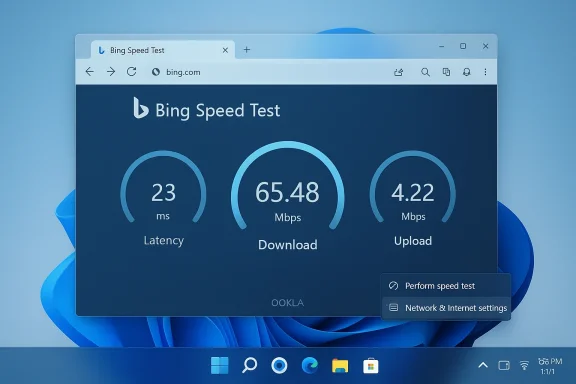
Bing Speed Test results display 23 ms latency, 65.48 Mbps download, and 4.22 Mbps upload.Background / Overview​

Windows has long mixed local diagnostics with web‑backed utilities, and the most recent Patch Tuesday cycle (March 10, 2026) continued that trend. The cumulative update KB5079473 — which upgrades Windows 11 to builds 26200.8037 and 26100.8037 — bundled security fixes and a set of non‑security improvements, including the taskbar speed‑test shortcut first previewed in the Release Preview channel via KB5077241.
The new control appears in two places where users already look for connectivity information: the network icon’s right‑click context menu in the system tray and the Wi‑Fi/Cellular quick‑settings flyout. Selecting the entry launches a browser session that lands on Bing and presents a compact speed‑test widget with the familiar trio of metrics: latency (ping), download throughput, and upload throughput. Independent reporting and community captures confirm the flow opens Bing rather than invoking a local measurement service.

What Microsoft actually shipped (and where it came from)​

KB5077241 (preview) and KB5079473 (Patch Tuesday)​

Microsoft seeded the taskbar shortcut through Insider channels before folding the change into the March cumulative update. The Release Preview announcement shows builds 26100.7918 and 26200.7918 carrying the feature into staged rollout, while the official March 10, 2026 security update (KB5079473) consolidated prior preview fixes and shipped the same convenience to more users. These KB identifiers and build numbers are the authoritative way to track which devices will (or already have) received the change.

It’s a browser launcher, not an OS engine​

Despite early headlines that suggested Windows 11 “gained a built‑in speed test,” the implementation is intentionally lightweight: the UI element in Windows produces a standard HTML navigation to Bing, where a web widget performs the measurements. This is an important distinction — the operating system is providing a fast path to a web tool, not embedding measurement code or managing test servers itself. Multiple independent outlets and community logs confirm the exact behavior: right‑click the network icon → choose “Perform speed test” → default browser opens Bing and runs the test.

How the Bing speed test works (and why Microsoft relies on a web backend)​

Backend and measurement mechanics​

Bing’s in‑search speed test is effectively a web UI that leverages established testing infrastructure to produce its numbers. Historically and in modern implementations, that web tool delegates measurements to Speedtest’s infrastructure (Speedtest by Ookla) or a comparable provider, which:
  • Downloads a small, randomized data sample from a nearby test server to estimate download throughput.
  • Uploads a similar sample to estimate upload throughput.
  • Measures round‑trip time to estimate latency (ping).
  • Optionally runs multiple parallel streams and server selections to reduce jitter and produce stable results.
This web‑hosted approach simplifies maintenance for Microsoft — the company can offer a consistent experience without operating thousands of geographically distributed test servers itself. Independent coverage and technical inspection of the Bing widget show the UI invoking Speedtest/Ookla’s engine in many regions, which explains the familiar presentation and results layout users expect.

Why use a third‑party backend?​

There are two practical reasons Microsoft relies on third‑party testing infrastructure:
  • Scale and accuracy: Companies like Ookla operate large, global server networks designed specifically for last‑mile throughput measurement. Integrating that infrastructure offers more reliable server selection, lower test bias, and better geographic coverage.
  • Maintenance and agility: A web widget can be updated independently from Windows servicing cycles, letting the provider patch measurement logic, change server lists, or roll out regional improvements without requiring OS updates.
Accenture’s recent acquisition of Ookla further consolidates the network‑measurement ecosystem under a major consulting and services firm, changing who controls the underlying measurement infrastructure that many web‑based speed tests use. The acquisition highlights how sensitive infrastructure and data stewardship can migrate into corporate portfolios that serve enterprise customers.

A contrast with earlier native Windows tools​

In the early 2010s Microsoft shipped a true native speed testing experience: the Network Speed Test app for Windows 8. That XAML‑based app included a touch‑friendly UI, connection type detection, historical logging of prior tests, and more granular network metadata. For power users and administrators who needed reproducible measurements or a record of historical performance, that native approach was more functional than a single web launch.
By comparison, the current taskbar shortcut is:
  • Focused on instant convenience rather than historical diagnostics.
  • Lacks built‑in measurement logs inside Windows.
  • Governed by the web tool’s privacy and telemetry model rather than the OS’s telemetry controls.
Put simply: Microsoft reclaimed convenience but deferred measurement control to the web. For many casual users this trade‑off is acceptable; for technicians and network engineers it is a step backwards in terms of auditability and local control.

Strengths: what this shortcut does well​

  • Immediate discoverability: The new entry is visible where users already check their connection, reducing the friction of running a test when troubleshooting.
  • Respects default browser choice: The shortcut relies on standard URL handling, so it opens whichever browser the user has configured as default instead of forcing Edge. That small detail preserves user preference and enterprise browser policies.
  • Uses proven measurement infrastructure: By leveraging Speedtest/Ookla’s backend, the test benefits from mature server selection and long‑tested measurement techniques.
  • Low system overhead: No native service, no background agent — the feature keeps Windows footprint small and avoids embedding a potentially brittle measurement subsystem.

Risks, limitations, and unanswered questions​

Privacy and telemetry​

When you run the test you are effectively interacting with a web property. That means:
  • Test traffic and metadata (server selection, timestamps, IP addresses) are governed by the web provider’s privacy policy and may be logged outside your organization’s control.
  • Browser extensions, cookies, or enterprise web filters can modify the behavior or visibility of the test.
  • There is no native Windows log that captures repeated results or test metadata for offline auditing.
These are non‑trivial concerns for privacy‑conscious users and enterprises concerned about telemetry leaving the corporate perimeter. Community reporting emphasizes that data handling is performed by the web provider — in this case Bing and the Speedtest backend — and not by an internally managed Microsoft service.

Enterprise manageability and policy control​

At the time of reporting there is no documented Group Policy or MDM policy specifically to remove or redirect the “Perform speed test” menu entry. That means:
  • Administrators cannot centrally force the menu item to vanish across managed fleets through a known registry or ADMX setting yet.
  • Organizations that require strict control over what services are launched from managed endpoints must either monitor policies for forthcoming controls or implement workflow‑level restrictions (such as browser policies and web filtering).
Multiple community tracking posts and technical writeups flag the lack of a dedicated enterprise toggle; Microsoft historically adds policy controls for widely used UI surfaces if enterprise demand warrants it, but there is no guarantee and no published timeline at present. Administrators should treat this feature as a staged, optional convenience while watching for forthcoming management controls in the Microsoft policy catalog.

Accuracy and reproducibility​

Because the web widget inherits the measurement rules of its backend provider, server selection, parallelization, and connection handling are out of the OS’s control. That introduces variability when:
  • Comparing results between different test providers (e.g., Speedtest vs. Fast.com).
  • Attempting to reproduce measurements for customer support, SLAs, or service‑level disputes.
For reproducible, auditable testing, network pros will still prefer dedicated tools such as the Speedtest desktop app, Speedtest CLI, iperf3 (to a known IP and port), or router/gateway counters that provide sustained throughput and error statistics.

Practical implications for different users​

Casual users and gamers​

If you want a quick sanity check — for example, to confirm whether a sudden lag spike reflects your ISP or an application — the taskbar shortcut is a win: it’s fast, obvious, and returns the three metrics most lay users care about. The convenience is exactly what Microsoft intended: fewer clicks to a browser-based test.

Power users, help‑desk technicians, and network engineers​

If you need:
  • Historical test logs,
  • Scriptable automation,
  • Controlled server selection or test scheduling,
  • Or guaranteed measurement reproducibility,
then the taskbar shortcut is insufficient. You’ll want to keep or deploy dedicated tools (Speedtest CLI, native desktop clients, iperf) that give you the control and logging required for diagnostics and SLA verification. Community posts and technical notes consistently recommend native or CLI clients for reproducible results.

Enterprises and privacy officers​

Enterprises should:
  • Evaluate whether the test’s web provider and underlying backend satisfy corporate data handling requirements.
  • Consider enforcing web filtering or blocking the specific Bing test page if necessary.
  • Monitor Microsoft’s enterprise policy releases for an administrative control to hide or disable the launcher.
At present, the absence of explicit Group Policy support makes the taskbar shortcut a potentially awkward addition for locked‑down environments.

Alternatives and workarounds​

If you aren’t satisfied with the taskbar launcher, here are practical alternatives and steps you can take:
  • Use a dedicated CLI or desktop client for repeatable tests:
  • Speedtest CLI for scripted, repeatable tests.
  • Speedtest desktop app for a native UI with some history.
  • Iperf3 to a known test host for deterministic throughput checks.
  • Bookmark trusted testing sites and pin them to your browser for faster access without relying on OS UI.
  • For administrators: enforce browser or web‑filter policies that block the Bing speed‑test page if corporate rules require it.
  • If the lack of a native tool is a blocker, raise the issue through Microsoft’s feedback channels (Insider Hub/Feedback Hub) and through your enterprise support contract — Microsoft sometimes exposes management controls after enterprise feedback accumulates.

How to run the test (what users will actually see)​

  • Right‑click the network (Wi‑Fi or Ethernet) icon in the taskbar, or open Quick Settings and click the small speedometer “Test internet speed” control in the Wi‑Fi pane.
  • Select “Perform speed test” (or “Test internet speed”).
  • Your default browser opens and Bing loads a compact speed‑test widget.
  • Click the central button on the widget to start the measurement. Results will show latency, download, and upload numbers when the test completes.

The broader context: web‑first OS services​

This feature is a neat microcosm of a broader architectural choice: modern operating systems increasingly surface web‑hosted capabilities inside the desktop shell to reduce maintenance surface area and speed iteration. The trade‑offs are clear:
  • Pros: faster updates, centralized fixes, smaller OS surface area, and integrated user flows.
  • Cons: decreased local control, potential privacy/telemetry shifts, and less suitability for deterministic, audited workflows.
For many consumer features the trade is acceptable — OS developers can improve the UX faster and keep the platform lighter. But for diagnostic tools that matter to IT and enterprise support, relying exclusively on a web widget may be suboptimal.

Verification and sources​

The rollout and build numbers are published in Microsoft’s updates and the Windows Insider blog, which document the preview and Patch Tuesday releases carrying the taskbar change. Independent reporting and hands‑on testing from Windows‑focused outlets demonstrate the exact behavior: the Windows control opens Bing and runs a web‑hosted speed test instead of executing native code. The Bing web test demonstrates behavior consistent with Speedtest/Ookla’s measurement model, and industry reporting corroborates that Bing’s widget leverages Speedtest infrastructure. The acquisition of Ookla by Accenture — announced publicly — further underlines who operates the underlying measurement backbone today.
If a reader wants the precise Microsoft KB and the Insider build numbers to verify whether their device should already be receiving the change, those identifiers (KB5077241 for the Release Preview preview and KB5079473 for the March 10, 2026 cumulative update) are the most reliable markers to consult in corporate patch logs and WSUS inventories.

Final analysis: convenience vs. control​

Microsoft’s “Perform speed test” taskbar shortcut is a deliberate, low‑friction convenience: it removes two or three clicks to run an internet speed check and surfaces the tool where users already look for connectivity. For the average consumer or gamer, that will be a welcome usability tweak. The decision to implement it as a browser launcher rather than a native tool reflects a broader strategy of surfacing web‑backed tools in the OS to accelerate iteration and reduce maintenance.
That convenience comes with trade‑offs that matter to power users, privacy‑conscious individuals, and enterprises:
  • No local logging or native audit trail.
  • Telemetry and test artifacts are governed by the web provider (Bing/Speedtest) rather than Windows policy alone.
  • No documented Group Policy or MDM toggle yet to remove or redirect the menu entry.
Microsoft’s approach is pragmatic — use established infrastructures rather than replicate them — but it is not a drop‑in replacement for a managed, auditable native measurement capability. For those who require control, reproducibility, or local logging, the right solution remains dedicated tools and CLI clients.
Users and administrators should view the taskbar shortcut as a quick convenience: excellent for a fast sanity check, insufficient for forensic or enterprise‑grade diagnostics. Watch Microsoft’s policy catalog and subsequent cumulative updates for potential enterprise controls and refinements; in the meantime, keep a trusted set of measurement tools on hand for anything beyond a casual speed check.

Source: Outdoor Enthusiast magazine Windows 11 Internet Speed Test Tool Simply Redirects Users to Bing
 

Microsoft’s new one‑click internet speed check in Windows 11 is live in recent preview and staged updates — but it isn’t a native diagnostic: the Taskbar control simply opens Bing’s web‑based speed test in your browser, a choice that has sparked a sharp debate about convenience, control, and what “built‑in” should really mean.

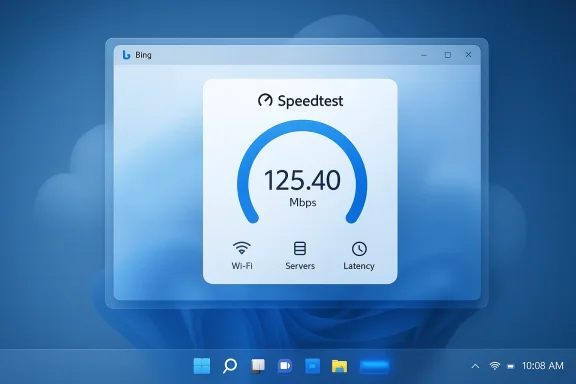
Blue Windows desktop displaying a Speedtest panel showing 125.40 Mbps.Background / Overview​

Windows 11 has continued its post‑launch evolution through small, highly discoverable updates delivered via Insider and Release Preview channels. One of the latest additions, surfaced in previews and included in recent optional servicing waves, adds a “Perform speed test” or “Test internet speed” control to the Taskbar’s network menu and the Wi‑Fi quick‑settings flyout. Clicking that control launches your default web browser and lands you on Bing’s prepopulated speed‑test UI rather than running measurements inside Windows itself.
Multiple outlets and community threads tracking the preview rollouts report the change as part of Microsoft’s preview servicing in late winter / early spring 2026, bundled with other small improvements. Reported packaging and rollout identifiers vary between previews and cumulative updates (Release Preview updates under KB5077241 were mentioned in early reporting, while subsequent staged updates later consolidated the feature in March servicing waves). There is some inconsistency in the exact KB and build numbers across sources; treat specific build claims with caution until Microsoft’s official release notes are consulted.

What the Taskbar Speed Test Actually Does​

Short, practical answer: it launches a browser and opens Bing’s speed‑test widget.
  • The Taskbar or Wi‑Fi quick settings now shows a Perform speed test control. Clicking it opens your default browser and directs you to the Bing results page with the speed‑test widget ready to run. The measurement itself runs on the web widget, not inside Windows.
  • The Bing widget currently surfaces a Speedtest‑style measurement experience and, in practice, relies on established third‑party measurement backends (reports indicate the Speedtest / Ookla engine is used by the Bing widget). That means the actual test uses the familiar browser‑based methodology for throughput and latency checks rather than any local kernel‑level measurement engine built into the OS.
This is an important nuance: Microsoft added a one‑click convenience to reach an existing web tool, not a new native measurement service that logs tests or stores a local history inside Windows.

Why the Reaction Has Been Mixed​

The feature is a textbook case of a trade‑off between discoverability and depth. Reactions fall into two broad camps.

Everyday users and helpdesk technicians​

For many non‑technical users the new affordance is useful: it places an already‑familiar troubleshooting flow one click away from where people look first for connectivity problems — the Taskbar. Helpdesk agents and less technical customers benefit from a fast, consistent starting point for troubleshooting without instructing users to open a browser and search for a speed test. Several outlets framed this as a sensible UX convenience.

Power users, IT admins, and privacy‑minded users​

Criticism centers on three recurring themes:
  • Not a “native” tool: Enthusiasts expected a diagnostic that executes inside the OS (like an expanded Network Troubleshooter or an integrated telemetry‑free measurement), not a web shortcut. The perception is that Microsoft rebranded a bookmark as a system feature.
  • Promotion and platform lock‑in: Because the control directs users to Bing, some see the choice as product placement rather than a neutral UX improvement. This is especially sensitive given Microsoft’s long push to integrate its services (Edge, Bing) into Windows surfaces.
  • Privacy and enterprise concerns: A browser‑hosted test implies data flows to a cloud backend. IT admins worry about telemetry, corporate proxy interactions, and whether results or metadata are logged outside local control. Enterprises frequently prefer on‑premise tools or command‑line utilities for repeatable diagnostics.
These views reflect broader tensions about where utility and diagnostics should live — inside the OS or in web services maintained and updated independently.

Technical Reality: How Browser Speed Tests Work (and Why That Matters)​

To understand the implications, it helps to know what browser speed tests measure and how.
  • Browser‑based speed tests initiate TCP/UDP flows between your client (the browser) and a remote measurement server. They measure download throughput, upload throughput, and round‑trip latency by saturating the connection and analyzing transfer times.
  • The test’s accuracy depends on server selection, midpoint peering, local network buffers, and client CPU/network stack behavior. Browser tests are effective for quick sanity checks but can be influenced by background processes, Wi‑Fi interference, or proxy/transparency layers.
Why this makes a difference for Windows’ Taskbar shortcut:
  • A native measurement tool could, in principle, run lower‑level diagnostics (e.g., pcap‑level packet traces, multiple server tests, local NIC counters) and provide historical logs or localized troubleshooting steps. The browser approach delegates the heavy lifting to a third‑party web experience, which is easier to ship and update but less capable for deep diagnostics.
  • Browser tests are subject to the browser’s networking stack and any user browser extensions or privacy settings, which can affect repeatability.

Privacy, Telemetry, and Enterprise Implications​

When measurement is performed by a web widget, data flows to a third‑party server. That raises operational questions:
  • Where does the telemetry go? The web widget (Bing’s UI, backed by Speedtest infrastructure in practice) interacts with remote servers. Enterprises must assume that at least some metadata about the test (IP, ISP, server selected, timestamps) reaches the measurement provider. For organizations with sensitive policies or strict data residency requirements, this may be unacceptable.
  • Proxies, captive portals, and corporate networks: Browser redirection and web widgets behave differently behind transparent proxies, TLS interceptors, or captive portals. Tests may fail or return misleading results in these environments. IT admins prefer deterministic tools (for example, iperf3 between controlled endpoints) to eliminate such variables.
  • Management and policy control: At scale, IT teams want the ability to disable or control features via Group Policy or MDM. If Microsoft surfaces the speed test as a simple launcher with no policy controls, administrators may have limited options without blocking updates or modifying user browser behavior. Reporting from preview channels indicates this rollout came via optional servicing waves, which complicates immediate enterprise policy decisions. Administrators should monitor their update channels and change management policies.
Cautionary note: some reporting lists different KB and build numbers for the preview versus staged rollouts. IT teams should confirm exact KB identifiers in Microsoft’s official release notes or the enterprise update catalogs before making deployment decisions.

Why Microsoft Likely Chose a Web Shortcut (Design Rationale)​

Understanding Microsoft’s probable motivations helps contextualize the decision:
  • Low development and maintenance cost: A web widget lets Microsoft ship a useful capability without building and maintaining a measurement engine across Windows’ many SKUs and driver environments.
  • Fast, centralized updates: Service improvements, server selection tweaks, and UI changes can be rolled out on the web side without requiring OS patches.
  • Consistency across devices: The same Bing experience is available across platforms (PC, mobile), providing a consistent user journey.
  • Product integration strategy: Surface‑level integrations with Bing and Edge remain a strategic priority; surfacing the Bing speed test from the Taskbar increases usage of Microsoft services. Reporters have noted this strategy in previous Windows 11 feature additions.
These are pragmatic reasons from a product and operations standpoint — they are compelling for reducing engineering burden — but they carry trade‑offs that power users and enterprise customers will feel more acutely.

Accuracy: Browser Test vs. Native Diagnostic — What to Expect​

If you rely on speed tests to validate ISP claims, the Taskbar shortcut is usable as a quick sanity check but not a replacement for controlled benchmarking.
Key differences:
  • Repeatability: Native tools under controlled conditions (same server, no background traffic, direct wired connection) yield more repeatable numbers.
  • Depth of diagnostics: Native tools can perform multi‑server comparisons, jitter analysis, or packet captures to isolate problems. Browser tests are single‑session and intended for fast confirmation.
  • Interference sensitivity: Browser tests can be skewed by background browsers tabs, extensions, or other apps. Native tools closer to the kernel or using raw sockets can avoid some of these influences.
For power users needing authoritative results (for ISP disputes or SLAs), the recommended approach is a controlled test sequence using tools such as iperf3 between known endpoints, an official Speedtest CLI or app, or using the ISP’s own testing endpoints. These methods provide better reproducibility and allow for logs and packet captures that an enterprise can audit.

Practical Guidance: What Users and IT Pros Should Do​

Whether you welcome the convenience or see it as an unnecessary shortcut, here are practical steps for different audiences.

Everyday users​

  • Use the Taskbar shortcut for a quick check when things feel slow: it’s fast and easy.
  • If the result looks wrong, repeat the test using a wired connection and close background apps or other devices that might be saturating the link.
  • For a second opinion, run tests on multiple services (Speedtest, Fast.com) to compare results.

Power users and home‑lab enthusiasts​

  • Use iperf3 between two endpoints you control to obtain precise throughput metrics.
  • Consider the official Speedtest app or Speedtest CLI for reproducible server selection and logs.
  • For latency and jitter analysis, run sustained tests and capture packets using Wireshark if you need to diagnose underlying issues.

IT administrators and enterprise teams​

  • Confirm the exact update and KB identifiers in your corporate update catalog before deploying the preview or cumulative updates that introduce the feature. Reporting lists multiple KBs and build numbers across preview waves; validate against Microsoft’s official channels.
  • Evaluate whether browser‑based tests are acceptable under your privacy and compliance rules. If not, provide internal tooling or documented procedures for sysadmins to run internal tests (iperf, internal Speedtest servers).
  • If the inclusion of Bing’s web UI is a concern, consider standardizing the default browser behavior or blocking the feature via update deferral until Microsoft provides policy knobs (monitor Microsoft docs for Group Policy / MDM controls).

Alternatives and Workarounds​

If the Taskbar shortcut isn’t adequate for you, there are clear alternatives:
  • Speedtest by Ookla (web or app): Widely used, many ISPs trust its readings. The Bing widget often delegates to this backend, so using Speedtest directly is nearly identical but gives you more explicit control.
  • Fast.com: Simple, Netflix‑centric measurement that focuses on download throughput.
  • Speedtest CLI / apps: Run from command line, scriptable, and useful for automated monitoring.
  • iperf3: The gold standard for controlled throughput tests between two endpoints you control; requires a server endpoint you trust.
  • Network Performance Counters and packet captures: For deep troubleshooting, combine NIC counters, perfmon data, and packet captures to isolate problems.
These methods give you greater control over servers, sampling duration, and logging than a quick browser widget.

Strengths and Weaknesses: A Balanced Assessment​

Strengths​

  • Discoverability: The Taskbar is where users expect to check connectivity; surfacing the test there reduces friction for basic troubleshooting.
  • Low friction for end users: No need to remember a URL or install extra software for a quick check.
  • Easy to update: Web‑based tests let Microsoft iterate without OS patches.

Weaknesses and risks​

  • Not a true native diagnostic: Power users and IT pros will miss deeper, locally run diagnostics that can be audited and logged.
  • Privacy and telemetry questions: Web widgets imply cloud trips and possible metadata logging that enterprises may object to.
  • Perception of product promotion: Directing the test to Bing fuels the narrative that the OS is increasingly a vehicle for Microsoft services. That perception can erode trust among users who expected neutral system tools.

Who Should Care Most​

  • Home users who want fast checks will likely appreciate the convenience and can ignore the nuance.
  • Helpdesk and frontline IT will find the shortcut a useful stopgap for quick triage with nontechnical customers.
  • Network engineers, enterprise IT, and privacy officers should treat it skeptically and rely on controlled tooling for formal diagnostics and compliance reporting.

Final Takeaway​

The Windows 11 Taskbar speed test is a pragmatic, low‑friction convenience: a one‑click path to a web‑hosted speed‑testing experience that many users will find handy. At the same time, calling it a “built‑in internet speed test” stretches the meaning of built‑in — the operating system does not run the measurements natively, and the implementation delegates the work to a web widget (Bing’s UI, which in practice uses Speedtest infrastructure). That design choice deliberately prioritizes discoverability and ease of maintenance over depth, repeatability, and local control.
For casual users this is a welcome convenience; for power users and organizations, it’s a reminder that not every OS feature needs to run in the kernel to be useful — but when diagnostics and compliance matter, you’ll still want your own tools. Administrators should verify the exact KB/build details reported in preview coverage before making policy decisions, because early reports cite a variety of preview KB identifiers and build numbers across the staged rollouts.
Ultimately, Microsoft solved an immediate usability gap — and reignited an important conversation about how much of Windows should be a gateway to cloud services versus self‑contained functionality. The Taskbar speed test is small, but it’s illustrative: the direction of Windows 11 remains web‑first, convenience‑driven, and increasingly tied to the cloud. Whether you see that as smart engineering or product promotion depends on what you expect a modern operating system to be.

Source: thewincentral.com Windows 11 Internet Speed Test Feature Is Just a Bing Shortcut
 

Back
Top