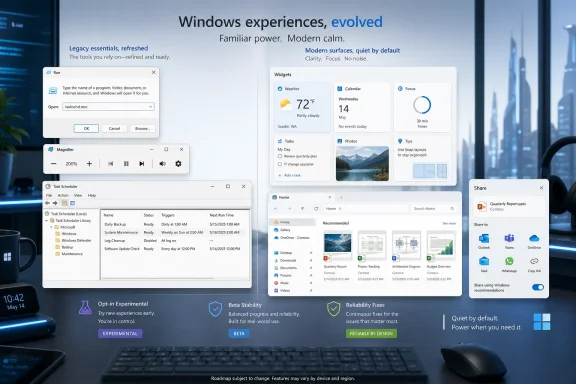
Microsoft’s May 1 Windows 11 Insider flights deliver Experimental build 26300.8346 and Beta build 26220.8340, adding an opt-in redesigned Run dialog, quieter default Widgets behavior, File Explorer polish, Magnifier zoom controls, smarter sharing for AAD users, storage-unit fixes, and several reliability repairs. The headline is not any single feature; it is Microsoft’s continuing attempt to make Windows 11 feel less like two operating systems stitched together. The deeper story is that the company is now spending Insider-channel capital on the small, old, highly visible surfaces that power users touch every day. That is exactly where Windows 11 still has the most reputational debt.
The redesigned Run dialog is the sort of change that will look minor in a changelog and disproportionately important on a real desktop. Run is ancient, blunt, and beloved: a small box summoned with Windows+R by people who know exactly what they want and do not want the Start menu, search index, Copilot, or a web suggestion getting in the way.
That makes it a dangerous thing to modernize. Microsoft can repaint a Settings page every year and most users will grumble briefly. Touch Run too aggressively, and the company risks annoying the exact audience that still knows the difference between
The company appears to understand that risk, at least for now. The refreshed Run dialog is opt-in, confined to the Experimental channel, and enabled through Settings > System > Advanced. That placement matters because it frames the feature as a controlled modernization rather than an ambush.
The larger point is that Windows 11’s design project has reached the layer where nostalgia and utility overlap. Microsoft has already replaced or softened many visible shells of the operating system. What remains are the compact, old-school tools that make Windows feel like Windows.
That simplicity is why a redesign is not cosmetic in the ordinary sense. A cleaner interface can help, especially on high-DPI displays and systems where Windows 11’s modern visual language makes old dialogs look like museum pieces. But the contract must remain intact: no delay, no reinterpretation, no unwanted recommendations, no webby middle layer.
Microsoft’s wording emphasizes “updated visuals,” a “cleaner interface,” and new controls to manage the experience from Settings. That sounds sensible, but it also hints at the central tension of modern Windows. Every old tool that becomes configurable through Settings becomes easier to discover, but also more likely to be absorbed into Windows 11’s sprawling preference architecture.
The best version of this change is boring: Run looks more consistent, scales better, exposes a toggle, and otherwise behaves like Run. The worst version would be Run as yet another surface for suggestions, account nudges, or delayed shell experiences. The opt-in Experimental rollout suggests Microsoft is not ready to bet the house on it, which is the right posture.
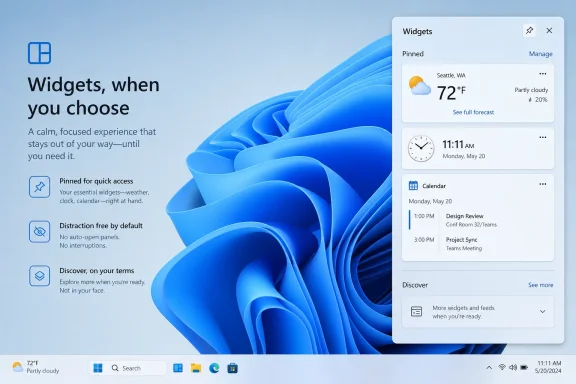
That is a small admission with large implications. Widgets have always suffered from a credibility problem on Windows 11 because they sit at the intersection of utility, news feed, personalization, and distraction. The feature asks for trust, but too often behaves like a surface trying to win attention rather than earn it.
Quiet-by-default is the right inversion. If Widgets are useful, users will open them. If the feed is valuable, the habit will form. If the taskbar badge has to tug the sleeve constantly, the feature is not winning on merit.
This also aligns with a broader shift in desktop UX: the operating system is no longer judged only by what it can show, but by what it can refrain from showing. A modern desktop has to compete with browsers, chat apps, Teams, Slack, Outlook, social feeds, security prompts, sync clients, and AI assistants. Silence is now a feature.
For IT administrators and power users, the promise is not merely aesthetic. Fewer surprise openings and fewer taskbar interruptions mean fewer support questions, fewer accidental clicks, and fewer users assuming their PC is trying to sell them something. That may sound petty until you have managed a fleet of machines where every unexplained badge becomes a ticket.
None of that is glamorous. All of it matters.
File Explorer is one of the places where Windows 11’s ambitions have most often outrun its muscle memory. Microsoft has been trying to make Explorer feel more modern, cloud-aware, recommendation-driven, and visually consistent. But Explorer is also the tool people use when they are already trying to get something done. A flash, a jump to the top, a duplicated cloud file, or a fuzzy thumbnail is not a mere polish bug; it is a break in trust.
The OneDrive duplication fix is particularly telling. Microsoft wants cloud storage to feel native rather than bolted on, but native experiences cannot look like duplicates or synchronization artifacts. When Favorites shows the same OneDrive file more than once, the user does not see an ambitious cloud shell. The user sees a file manager that has lost track of the files.
The sharper Recommended thumbnails point in the same direction. Explorer Home is increasingly a dashboard rather than a simple directory view. If Microsoft insists on making it a recommendations surface, then the recommendations must at least look intentional, crisp, and legible.
This is a good example of accessibility work that also reflects mature product thinking. Zoom is not merely a slider; for many users it is a working condition. Approximate magnification may be fine for occasional use, but exact percentages matter when someone is trying to read comfortably, maintain layout predictability, or switch between tasks without constantly fiddling.
The preset increments are equally practical. A user who needs a slight enlargement does not want to overshoot into a cartoonishly magnified workspace. A user who needs 400 percent should not have to drag through a vague control and hope the system lands where intended.
Microsoft often talks about accessibility as a principle, but the most valuable accessibility changes are frequently mundane. They reduce friction. They preserve control. They turn “possible” into “comfortable.”
There is a genuinely useful idea here. Sharing is a moment of intent. If Windows knows a user is trying to send, open, convert, or hand off something, surfacing a relevant app at that moment can be more useful than forcing a trip to the Microsoft Store.
But this is also where enterprise skepticism is justified. A ShareSheet that recommends apps is not just an interface improvement; it is a policy, procurement, compliance, and trust question. In a managed environment, “relevant” is not enough. The app must be approved, licensed, secure, appropriate for the tenant, and aligned with whatever controls the organization has built around software installation.
The opt-out setting for promotional app recommendations is therefore not a minor control. It is the line between a helpful workflow and another consumer-style monetization surface creeping into business Windows. Microsoft’s challenge is to make the feature feel like productivity rather than advertising.
AAD support also underscores Microsoft’s long-running effort to collapse the gap between consumer Windows and workplace Windows without erasing the differences. A Microsoft account user and an Entra-joined employee may use the same Share button, but the governance expectations around that click are completely different.
This is the kind of fix that makes one wonder why the old behavior survived as long as it did. Megabytes are technically precise, but they are the wrong default mental model for modern volume sizing. Users think about 50GB, 100GB, 1TB, and 2TB partitions; they do not want to convert everything into five-digit MB values while managing storage.
For Dev Drive specifically, the improvement is even more welcome. Dev Drive is aimed at developers who may be carving out space for repositories, package caches, build outputs, virtual environments, and toolchains. These users are technical enough to survive MB-only sizing, but that is not an argument for wasting their time.
The broader Settings app has been slowly absorbing storage management that once lived in older MMC-style tooling. If Microsoft wants Settings to become the default administrative surface, it must respect the habits and units real administrators use. Supporting GB is a small but necessary concession to reality.
Task Scheduler persisting column widths is the kind of fix only a daily Windows user could love. But that is precisely why it matters. Administrative tools are not judged by launch-day screenshots; they are judged by whether they remember the operator’s workspace after the tenth, hundredth, or thousandth use.
The Task Manager VM CPU-speed fix is similarly prosaic. Unrealistically high CPU speed readings after hibernation are not just a visual glitch; they can send admins chasing phantom performance problems. In virtualized environments, observability has to be boringly accurate or it becomes noise.
This is where Beta channel updates often reveal the more important trajectory. Experimental gets the shiny opt-in Run redesign. Beta gets the fixes that reduce paper cuts in the workday. Both matter, but the latter is what determines whether Windows 11 feels less irritating six months from now.
That matters because Microsoft’s old Insider taxonomy often trained users to misunderstand risk. Dev sounded like the place for developers, Beta sounded like the place for beta testers, Canary sounded dangerous, and Release Preview sounded nearly done. In practice, features could appear, disappear, move sideways, or remain half-hidden behind staged rollout mechanisms.
Experimental is at least more honest. It tells users that the feature may not ship, may change substantially, or may simply be a probe for feedback. A redesigned Run dialog belongs there, because Microsoft needs to learn whether modernizing a sacred old box triggers delight or revolt.
The difficulty is that Windows enthusiasts have become experts at reading feature flags, staged rollouts, hidden IDs, and partial deployments. Microsoft can rename the channels, but it cannot fully control the culture of discovery around them. The second a feature appears in the bits, it becomes news, even if Microsoft would prefer to treat it as a lab sample.
That is not a bad thing. Insider channels are part engineering pipeline and part public theater. The community finds what Microsoft hides, Microsoft watches the reaction, and the operating system inches forward through a negotiation neither side fully admits is happening.
This is the work Windows 11 needs more than another banner feature. Microsoft’s problem has rarely been a lack of new ideas. It has been the unevenness of the experience: a beautiful pane beside a legacy dialog, a cloud-aware recommendation beside a duplicate file, an accessibility promise beside an imprecise control.
The company’s design debt is especially visible because Windows is used by people who move between decades of interface history in a single minute. A sysadmin might open Settings, Run, Event Viewer, Task Scheduler, File Explorer, Windows Terminal, and Task Manager during one troubleshooting session. If half of those surfaces feel modern and the other half feel abandoned, the whole system feels unfinished.
Modernization therefore cannot mean merely replacing old UI. It has to mean preserving the speed and density that made old UI valuable while making it legible and reliable on current hardware. That is harder than repainting buttons.
That does not make the changes bad. It does mean Microsoft is still trying to decide where Windows ends and Microsoft’s service layer begins.
Users have learned to be wary because Windows 11 has too often blurred helpfulness with promotion. A suggested app can save time, or it can feel like an ad. A widget badge can surface useful information, or it can feel like a feed demanding attention. A recommended file can reduce friction, or it can make Explorer feel less like a file manager and more like a dashboard someone else controls.
The best signal in these builds is that Microsoft is adding off switches and quieter defaults. That suggests the company recognizes that trust is now a product feature. Windows does not need to win every glance. It needs to be there when called.
The concrete changes are worth separating from the broader message:
If Microsoft can keep that discipline, the next meaningful version of Windows 11 may not be defined by a single marquee feature at all. It may be defined by the absence of small irritations: a Run box that looks current without getting in the way, Widgets that wait to be invited, Explorer that stops second-guessing the user, and administrative tools that remember the person sitting in front of them.
Source: Neowin Windows 11 gets redesigned 'Run,' cleaner Windows Widgets, and more in new builds
 Microsoft Finally Turns Its Attention to the Plumbing Users Actually See
The redesigned Run dialog is the sort of change that will look minor in a changelog and disproportionately important on a real desktop. Run is ancient, blunt, and beloved: a small box summoned with Windows+R by people who know exactly what they want and do not want the Start menu, search index, Copilot, or a web suggestion getting in the way.That makes it a dangerous thing to modernize. Microsoft can repaint a Settings page every year and most users will grumble briefly. Touch Run too aggressively, and the company risks annoying the exact audience that still knows the difference between
appwiz.cpl, devmgmt.msc, cmd, and shell:startup.The company appears to understand that risk, at least for now. The refreshed Run dialog is opt-in, confined to the Experimental channel, and enabled through Settings > System > Advanced. That placement matters because it frames the feature as a controlled modernization rather than an ambush.
The larger point is that Windows 11’s design project has reached the layer where nostalgia and utility overlap. Microsoft has already replaced or softened many visible shells of the operating system. What remains are the compact, old-school tools that make Windows feel like Windows.
The Run Dialog Is Small Because Its Contract Is Big
Run has never needed to be beautiful. Its value is that it is predictable, immediate, and almost impossible to misunderstand. A user types a command, path, URI, executable, or control panel applet, and Windows tries to open it.That simplicity is why a redesign is not cosmetic in the ordinary sense. A cleaner interface can help, especially on high-DPI displays and systems where Windows 11’s modern visual language makes old dialogs look like museum pieces. But the contract must remain intact: no delay, no reinterpretation, no unwanted recommendations, no webby middle layer.
Microsoft’s wording emphasizes “updated visuals,” a “cleaner interface,” and new controls to manage the experience from Settings. That sounds sensible, but it also hints at the central tension of modern Windows. Every old tool that becomes configurable through Settings becomes easier to discover, but also more likely to be absorbed into Windows 11’s sprawling preference architecture.
The best version of this change is boring: Run looks more consistent, scales better, exposes a toggle, and otherwise behaves like Run. The worst version would be Run as yet another surface for suggestions, account nudges, or delayed shell experiences. The opt-in Experimental rollout suggests Microsoft is not ready to bet the house on it, which is the right posture.
Widgets Learn the Most Important Desktop Trick: Staying Quiet
The more consequential change for ordinary users may be that Widgets are becoming quieter by default. Microsoft says it is testing default settings that reduce unexpected alerts and visual interruptions, including disabling open-on-hover, turning off taskbar badging, opening the Widgets experience on first launch, and limiting taskbar alerts until the user chooses to engage.That is a small admission with large implications. Widgets have always suffered from a credibility problem on Windows 11 because they sit at the intersection of utility, news feed, personalization, and distraction. The feature asks for trust, but too often behaves like a surface trying to win attention rather than earn it.
Quiet-by-default is the right inversion. If Widgets are useful, users will open them. If the feed is valuable, the habit will form. If the taskbar badge has to tug the sleeve constantly, the feature is not winning on merit.
This also aligns with a broader shift in desktop UX: the operating system is no longer judged only by what it can show, but by what it can refrain from showing. A modern desktop has to compete with browsers, chat apps, Teams, Slack, Outlook, social feeds, security prompts, sync clients, and AI assistants. Silence is now a feature.
For IT administrators and power users, the promise is not merely aesthetic. Fewer surprise openings and fewer taskbar interruptions mean fewer support questions, fewer accidental clicks, and fewer users assuming their PC is trying to sell them something. That may sound petty until you have managed a fleet of machines where every unexplained badge becomes a ticket.
File Explorer’s Fixes Show the Cost of Endless Reinvention
The File Explorer changes in this flight are classic Insider-channel housekeeping: Microsoft says it has eliminated a gray flash on load, fixed unexpected scrolling to the top of Home in some cases, cleaned up duplicated OneDrive files in Favorites, and sharpened thumbnails in the Recommended section.None of that is glamorous. All of it matters.
File Explorer is one of the places where Windows 11’s ambitions have most often outrun its muscle memory. Microsoft has been trying to make Explorer feel more modern, cloud-aware, recommendation-driven, and visually consistent. But Explorer is also the tool people use when they are already trying to get something done. A flash, a jump to the top, a duplicated cloud file, or a fuzzy thumbnail is not a mere polish bug; it is a break in trust.
The OneDrive duplication fix is particularly telling. Microsoft wants cloud storage to feel native rather than bolted on, but native experiences cannot look like duplicates or synchronization artifacts. When Favorites shows the same OneDrive file more than once, the user does not see an ambitious cloud shell. The user sees a file manager that has lost track of the files.
The sharper Recommended thumbnails point in the same direction. Explorer Home is increasingly a dashboard rather than a simple directory view. If Microsoft insists on making it a recommendations surface, then the recommendations must at least look intentional, crisp, and legible.
Magnifier Gets Precision Because Accessibility Is Not Approximation
The Magnifier update is one of the more straightforward improvements in these builds. Users can now type an exact zoom percentage directly into the Magnifier toolbar, and Microsoft has added preset increments including 5 percent, 10 percent, 25 percent, 50 percent, 100 percent, 150 percent, 200 percent, and 400 percent.This is a good example of accessibility work that also reflects mature product thinking. Zoom is not merely a slider; for many users it is a working condition. Approximate magnification may be fine for occasional use, but exact percentages matter when someone is trying to read comfortably, maintain layout predictability, or switch between tasks without constantly fiddling.
The preset increments are equally practical. A user who needs a slight enlargement does not want to overshoot into a cartoonishly magnified workspace. A user who needs 400 percent should not have to drag through a vague control and hope the system lands where intended.
Microsoft often talks about accessibility as a principle, but the most valuable accessibility changes are frequently mundane. They reduce friction. They preserve control. They turn “possible” into “comfortable.”
The Share Sheet Is Becoming a Storefront, and That Needs Guardrails
The Windows Share change extends app discovery and installation suggestions to AAD users. Previously available only to Microsoft account users, the experience can now show relevant apps directly inside the ShareSheet for work or school accounts, with a setting to turn promotional app recommendations on or off.There is a genuinely useful idea here. Sharing is a moment of intent. If Windows knows a user is trying to send, open, convert, or hand off something, surfacing a relevant app at that moment can be more useful than forcing a trip to the Microsoft Store.
But this is also where enterprise skepticism is justified. A ShareSheet that recommends apps is not just an interface improvement; it is a policy, procurement, compliance, and trust question. In a managed environment, “relevant” is not enough. The app must be approved, licensed, secure, appropriate for the tenant, and aligned with whatever controls the organization has built around software installation.
The opt-out setting for promotional app recommendations is therefore not a minor control. It is the line between a helpful workflow and another consumer-style monetization surface creeping into business Windows. Microsoft’s challenge is to make the feature feel like productivity rather than advertising.
AAD support also underscores Microsoft’s long-running effort to collapse the gap between consumer Windows and workplace Windows without erasing the differences. A Microsoft account user and an Entra-joined employee may use the same Share button, but the governance expectations around that click are completely different.
Storage Gets a Human Unit of Measurement
The storage change is almost comically sensible: when creating a Dev Drive, the dialog now supports specifying size in GB instead of only MB. The same improvement has been added when changing volume sizes under Settings > System > Storage.This is the kind of fix that makes one wonder why the old behavior survived as long as it did. Megabytes are technically precise, but they are the wrong default mental model for modern volume sizing. Users think about 50GB, 100GB, 1TB, and 2TB partitions; they do not want to convert everything into five-digit MB values while managing storage.
For Dev Drive specifically, the improvement is even more welcome. Dev Drive is aimed at developers who may be carving out space for repositories, package caches, build outputs, virtual environments, and toolchains. These users are technical enough to survive MB-only sizing, but that is not an argument for wasting their time.
The broader Settings app has been slowly absorbing storage management that once lived in older MMC-style tooling. If Microsoft wants Settings to become the default administrative surface, it must respect the habits and units real administrators use. Supporting GB is a small but necessary concession to reality.
The Beta Channel Gets the Practical Half of the Flight
The Beta build 26220.8340 receives some of the same practical work, including the Windows Share change for AAD users and the storage unit improvement. It also includes fixes that are easy to overlook but important in daily administration: Task Scheduler now persists column width adjustments across sessions, and Task Manager’s Performance page should more accurately display CPU speed for virtual machines after resume from hibernation.Task Scheduler persisting column widths is the kind of fix only a daily Windows user could love. But that is precisely why it matters. Administrative tools are not judged by launch-day screenshots; they are judged by whether they remember the operator’s workspace after the tenth, hundredth, or thousandth use.
The Task Manager VM CPU-speed fix is similarly prosaic. Unrealistically high CPU speed readings after hibernation are not just a visual glitch; they can send admins chasing phantom performance problems. In virtualized environments, observability has to be boringly accurate or it becomes noise.
This is where Beta channel updates often reveal the more important trajectory. Experimental gets the shiny opt-in Run redesign. Beta gets the fixes that reduce paper cuts in the workday. Both matter, but the latter is what determines whether Windows 11 feels less irritating six months from now.
The New Experimental Channel Is a Signal, Not Just a Label
These builds also arrive during Microsoft’s transition toward new Insider channel naming and structure. The Experimental channel is now the home for features that are more exploratory, while Beta continues to represent changes closer to the mainstream Windows 11 path.That matters because Microsoft’s old Insider taxonomy often trained users to misunderstand risk. Dev sounded like the place for developers, Beta sounded like the place for beta testers, Canary sounded dangerous, and Release Preview sounded nearly done. In practice, features could appear, disappear, move sideways, or remain half-hidden behind staged rollout mechanisms.
Experimental is at least more honest. It tells users that the feature may not ship, may change substantially, or may simply be a probe for feedback. A redesigned Run dialog belongs there, because Microsoft needs to learn whether modernizing a sacred old box triggers delight or revolt.
The difficulty is that Windows enthusiasts have become experts at reading feature flags, staged rollouts, hidden IDs, and partial deployments. Microsoft can rename the channels, but it cannot fully control the culture of discovery around them. The second a feature appears in the bits, it becomes news, even if Microsoft would prefer to treat it as a lab sample.
That is not a bad thing. Insider channels are part engineering pipeline and part public theater. The community finds what Microsoft hides, Microsoft watches the reaction, and the operating system inches forward through a negotiation neither side fully admits is happening.
Microsoft Is Still Cleaning Up the Windows 11 Design Debt
The through line in these builds is not innovation in the grand sense. It is debt service. The Run dialog gets a modern coat. Widgets stop shouting. Explorer Home behaves better. Magnifier becomes more precise. Storage speaks in GB. Task Scheduler remembers what the user changed.This is the work Windows 11 needs more than another banner feature. Microsoft’s problem has rarely been a lack of new ideas. It has been the unevenness of the experience: a beautiful pane beside a legacy dialog, a cloud-aware recommendation beside a duplicate file, an accessibility promise beside an imprecise control.
The company’s design debt is especially visible because Windows is used by people who move between decades of interface history in a single minute. A sysadmin might open Settings, Run, Event Viewer, Task Scheduler, File Explorer, Windows Terminal, and Task Manager during one troubleshooting session. If half of those surfaces feel modern and the other half feel abandoned, the whole system feels unfinished.
Modernization therefore cannot mean merely replacing old UI. It has to mean preserving the speed and density that made old UI valuable while making it legible and reliable on current hardware. That is harder than repainting buttons.
The Risk Is That Quiet Improvements Become Another Attention System
There is a tension inside this flight. Microsoft is making Widgets less distracting while making the ShareSheet more capable of recommending apps. It is modernizing Run while exposing more shell behavior through Settings. It is polishing Explorer Home while continuing to treat Home as a place for recommendations and cloud intelligence.That does not make the changes bad. It does mean Microsoft is still trying to decide where Windows ends and Microsoft’s service layer begins.
Users have learned to be wary because Windows 11 has too often blurred helpfulness with promotion. A suggested app can save time, or it can feel like an ad. A widget badge can surface useful information, or it can feel like a feed demanding attention. A recommended file can reduce friction, or it can make Explorer feel less like a file manager and more like a dashboard someone else controls.
The best signal in these builds is that Microsoft is adding off switches and quieter defaults. That suggests the company recognizes that trust is now a product feature. Windows does not need to win every glance. It needs to be there when called.
The May 1 Flight Rewards the Users Who Notice the Small Stuff
This is not a blockbuster Insider release, and that is its virtue. The people most likely to care about build 26300.8346 and 26220.8340 are the people who know that a gray flash in Explorer, a forgotten Task Scheduler column, or a noisy Widgets badge can be more annoying than a missing headline feature.The concrete changes are worth separating from the broader message:
- The redesigned Run dialog is currently an opt-in Experimental channel experience, not a guaranteed change for all Windows 11 users.
- Widgets are being tested with quieter defaults, including no open-on-hover behavior and no taskbar badging by default.
- File Explorer Home is getting fixes for visual flashing, unexpected scrolling, duplicated OneDrive items in Favorites, and softer-looking Recommended thumbnails.
- Magnifier now supports exact zoom percentages and a clearer set of preset zoom increments.
- Windows Share app recommendations are expanding to AAD users, with a setting to disable promotional recommendations.
- Storage dialogs for Dev Drive creation and volume resizing now support GB values instead of forcing users to think only in MB.
If Microsoft can keep that discipline, the next meaningful version of Windows 11 may not be defined by a single marquee feature at all. It may be defined by the absence of small irritations: a Run box that looks current without getting in the way, Widgets that wait to be invited, Explorer that stops second-guessing the user, and administrative tools that remember the person sitting in front of them.
Source: Neowin Windows 11 gets redesigned 'Run,' cleaner Windows Widgets, and more in new builds