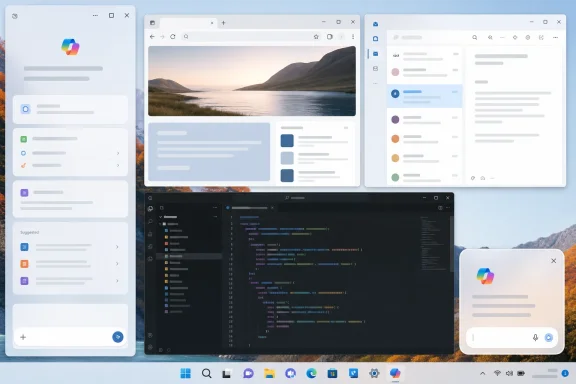
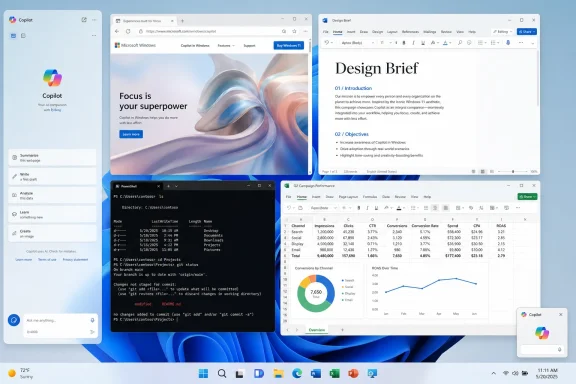
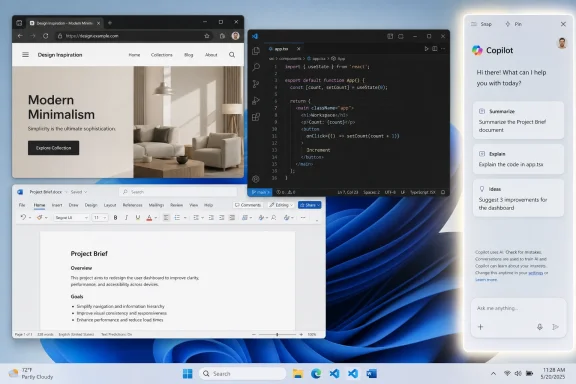
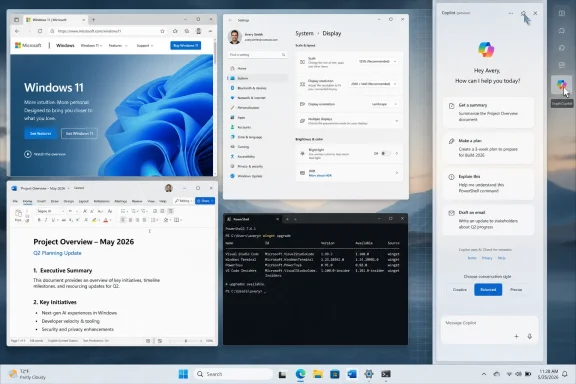
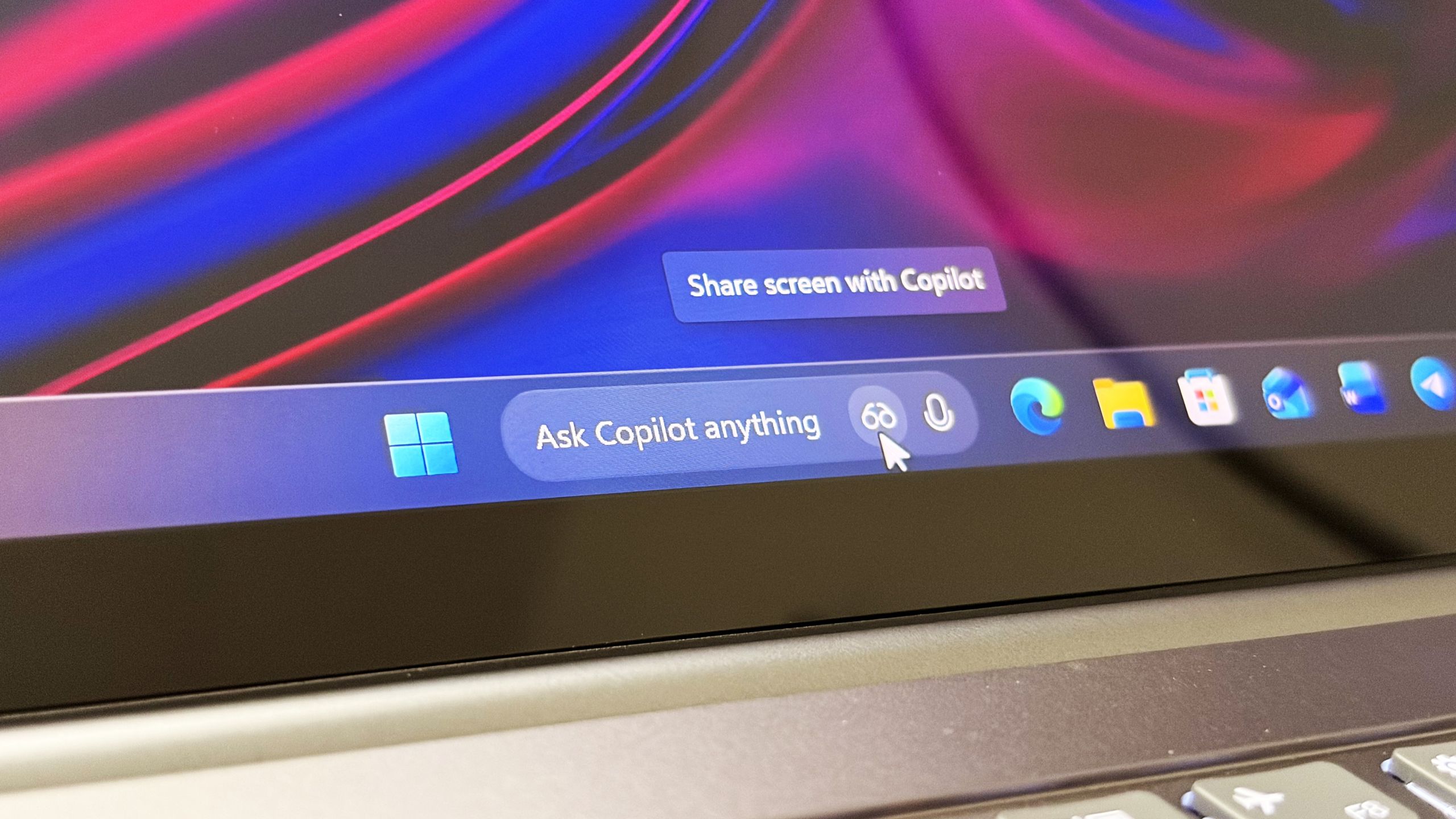
Microsoft is testing a new Windows 11 Copilot interface that can dock the AI assistant to the left or right edge of the desktop, resizing open apps around it, according to a May 24 report from Windows Latest based on hands-on testing. The move matters because it effectively brings Copilot back to the place Microsoft first imagined for it: not as a conventional app, but as an ambient panel beside the work users are already doing. That is both the most coherent version of Copilot on Windows and the one most likely to irritate people who already think the operating system has become too eager to rearrange itself around Microsoft’s AI strategy.
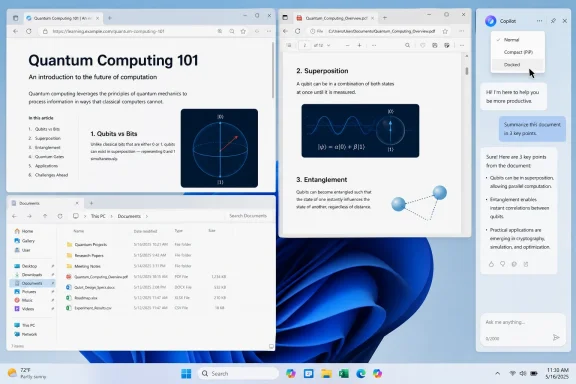
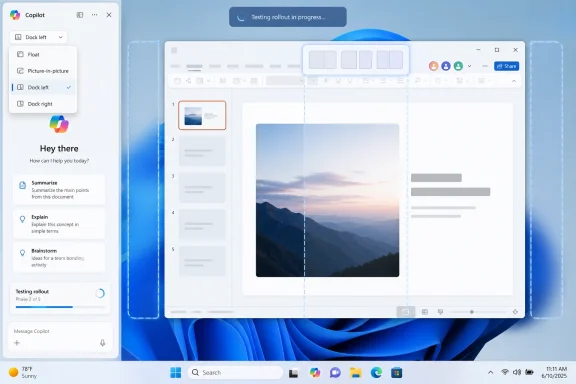
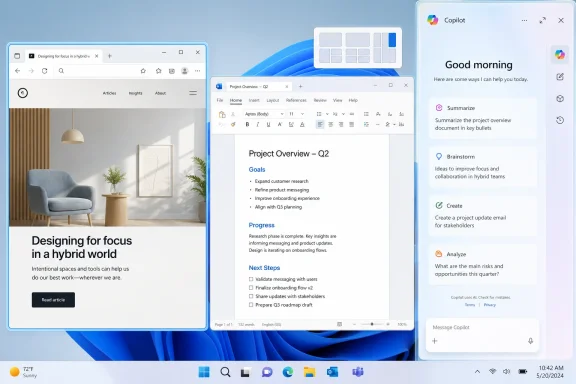
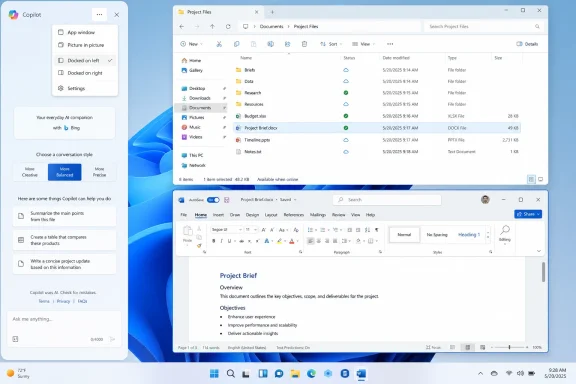
The reported feature is optional for now. Copilot still opens as an app by default, but a new title-bar menu exposes layout choices that include the existing app window, a picture-in-picture style mode, and left- or right-docked panels. Once docked, Copilot behaves less like another window in the stack and more like a reserved slice of the desktop, pushing File Explorer or other full-screen windows into the remaining space.
That sounds like a small user-interface experiment. It is not. It is Microsoft revisiting one of the central unresolved questions of the AI PC era: whether an assistant belongs inside the operating system as a spatial layer, or whether it should remain just another app with a shiny icon and a subscription funnel behind it.
The original Windows Copilot pitch was conceptually simple. Put a conversational assistant at the side of the desktop, let users ask questions, change settings, summarize what they are looking at, and keep their apps visible while the assistant answers. It was Windows Sidebar reborn for the generative AI age, only with a chat model instead of gadgets.
The problem was that the first implementation never lived up to the implied intimacy of that placement. A sidebar that feels native has to understand the desktop, respect window management, and perform system tasks quickly enough that it feels like part of Windows. Early Copilot in Windows too often felt like a web service wearing an operating-system costume.
Microsoft then did what Microsoft often does when a Windows shell idea hits friction: it moved the experience out of the shell and into an app. With Windows 11 version 24H2 and related updates, Copilot’s integration was loosened, and the assistant became something users could pin, resize, move, or ignore more like a normal application. That change had real advantages. It made Copilot less presumptuous, reduced the sense that AI had been bolted into the taskbar, and gave Microsoft a cleaner way to update the experience through the Store.
But it also quietly weakened the case for calling Copilot a Windows feature. If Copilot is just a web app, users judge it like any other web app. If it cannot control Windows, understand the current context, or offer a materially better workflow than opening a browser tab, the desktop icon becomes more marketing than utility.
The new docking test is therefore not just a nostalgic return to the sidebar. It is an admission that Copilot as a floating app does not fully answer the question Microsoft itself created. An assistant that is supposed to help with what is on your PC needs a durable relationship to the workspace, and the desktop edge remains the most obvious real estate Microsoft can claim without inventing an entirely new interaction model.
That is why a floating Copilot window feels conceptually weak on a desktop operating system. It competes with the work instead of inhabiting the margin around it. Users either cover their content with the assistant, shrink their work manually, or Alt-Tab between the thing they are doing and the tool supposedly helping them do it.
A docked Copilot panel solves that spatial problem by making the trade explicit. The user gives up part of the display, and Windows gives the assistant a stable place to live. The rest of the desktop adapts. In theory, that is cleaner than having an AI window wander across the screen, obscure a dialog box, or fight with Snap Layouts.
The Windows Latest screenshots and description suggest Microsoft is treating this as separate from the standard Snap Layouts feature, even though the menu visually echoes Windows 11’s snap affordances. That distinction matters. Snap is about arranging ordinary windows. Docked Copilot is about reserving space for a privileged interface that is not quite an app and not quite part of the shell.
That in-between status is exactly where Microsoft keeps getting into trouble. If Copilot is a normal app, it should behave like a normal app. If it is part of Windows, it should earn the privileges and consistency users expect from the shell. The docked sidebar tries to split the difference, which may be practical engineering but is also a reminder that Microsoft still has not settled the product grammar.
The trouble is that Microsoft’s recent history gives users reason to scrutinize every AI surface for signs of future default behavior. The company has repeatedly inserted Copilot into places where users did not necessarily ask for it: the taskbar, the keyboard, Edge, Microsoft 365 apps, Windows Search-adjacent experiences, and now, increasingly, contextual flows around screen content and agents. Even when individual features are defensible, the aggregate effect can feel like an operating system being reorganized around an upsell.
That perception is not solved by saying a feature is optional during testing. Windows users have learned that preview options can become defaults, defaults can become recommendations, and recommendations can become nagging surfaces. If Microsoft wants the docked Copilot panel to be received as a useful layout mode rather than another annexation of desktop space, it needs to keep user control visible and durable.
That means no surprise docking after updates. No “recommended” first-run tour that makes declining feel like dismissing a security warning. No auto-opening panel because an Outlook link, Edge page, screenshot, or copied paragraph looks like something AI could summarize. The fastest way to ruin a potentially useful sidebar is to make it feel like a roommate who keeps moving the furniture.
There is a defensible version of this feature. It is one where the user chooses Copilot’s placement, Windows remembers that choice, admins can govern it, and nothing in the OS treats the assistant as more important than the app the user actually opened.
If Microsoft wants to reserve a strip of the Windows desktop for an AI assistant, the assistant has to behave with the predictability of the shell. It must launch quickly, remember its state, scale properly across DPI settings, respect multiple monitors, avoid janky resizing, and survive network hiccups gracefully. It also has to feel like it belongs next to File Explorer, Settings, Terminal, and the Office apps that Microsoft wants it to augment.
A private Edge instance or WebView-backed wrapper may help Microsoft ship faster and keep the Copilot service consistent across platforms. It may also simplify account handling, isolation, or feature delivery. But users do not experience architecture diagrams. They experience lag, memory use, inconsistent title bars, odd focus behavior, and whether a panel feels like part of Windows or a web page that escaped the browser.
This is where Microsoft’s “native” messaging around Copilot has repeatedly run into skepticism. To a developer, “native” may mean access to platform APIs, packaging, windowing, notifications, or an installed app model. To a user, native means it opens instantly, follows Windows conventions, and does not feel like a website with a close button.
Docking raises the bar. A floating web app can be mediocre and merely ignored. A docked assistant that resizes the desktop becomes part of the workspace contract. If it stutters, crashes, or redraws like a browser tab, the irritation is amplified because it is occupying a fixed part of the screen.
That is why this test is more interesting than yet another Copilot button. The button is a distribution mechanism. The dock is a workflow claim. Microsoft is saying, implicitly, that AI should be persistent enough to deserve the same kind of spatial treatment as a productivity pane in Outlook or a properties panel in a creative app.
The risk is that Windows becomes crowded with semi-persistent surfaces. Edge has its sidebar. Widgets have their board. Teams and Outlook have their own Copilot panes. Microsoft 365 apps have contextual Copilot experiences. Windows itself has taskbar entry points, hardware keys, and system-level AI features on Copilot+ PCs. Users can only tolerate so many panels before “assistance” becomes visual debt.
A coherent system would define when Copilot is global, when it is app-specific, and when it should disappear. A global dock makes sense for cross-app help, general chat, PC guidance, and tasks that span files or windows. It makes less sense when the user is already in Word, Excel, Outlook, Teams, or Edge, where Copilot’s value depends on deep application context.
Microsoft’s challenge is not adding another surface. It is deciding which surface wins when they overlap. If the answer is “all of them,” Windows will feel less intelligent, not more.
Microsoft has spent the last two years trying to separate consumer Copilot from Microsoft 365 Copilot, Copilot Chat, and managed enterprise experiences. That distinction is meaningful on paper, but it can become blurry on a shared Windows desktop if the same brand appears in multiple places with different capabilities and compliance assumptions. Users do not always know which Copilot they are talking to.
The reported docked mode does not, by itself, create a new data policy problem. A panel can be governed like any other app surface if Microsoft exposes the right controls. But the more system-adjacent Copilot feels, the more administrators will want certainty that it can be disabled, removed, redirected, or configured according to organizational policy.
This is especially true in regulated environments, education, government, health care, and companies still working through whether generative AI may touch sensitive material. A docked panel that resizes apps may be harmless in a home office. On a locked-down fleet, it is another visible reminder that Microsoft’s AI roadmap can alter the desktop faster than procurement, security review, and user training cycles can absorb.
For admins, the best version of this feature is boring. It is documented, policy-controlled, removable where appropriate, and quiet by default on managed devices that have not opted in. Microsoft’s consumer ambitions should not become another help desk ticket category.
A docked Copilot panel gives that key a more plausible destination. Pressing a dedicated AI key to reveal a stable side panel beside your work makes more sense than launching a floating window that users may immediately resize or close. The gesture maps better to the mental model: summon the assistant, keep working, dismiss it when done.
Microsoft has also moved toward more flexible handling of the Copilot key, including ways for organizations or users to remap or configure behavior. That flexibility is wise. Hardware outlives software experiments, and the worst outcome for Microsoft would be a generation of keyboards bearing a key that users associate with clutter rather than utility.
The sidebar can help rehabilitate that hardware bet, but only if it is fast and contextually useful. If pressing the key opens a panel that can reason about the active window, help with a setting, summarize selected text with permission, or guide a workflow without hijacking focus, users may come to see it as a legitimate input method. If it opens a generic chat box with branding, the key will remain a punchline.
The lesson is simple: hardware affordances magnify software confidence. Microsoft should not ask OEMs and users to make permanent room on keyboards for an experience whose basic windowing model keeps changing.
The docked Copilot panel sits between these stories. It is a Windows surface, but not necessarily a local AI feature. It feels like the face of the AI PC, but much of its intelligence may still depend on cloud services, account state, regional availability, and licensing. That makes the user experience hard to explain.
For an enthusiast, these distinctions are manageable. For normal users, they are not. They see a Copilot button, a Copilot app, Microsoft 365 Copilot, Copilot Chat, Copilot+ PC features, Copilot in Edge, Copilot in Office, and possibly a Copilot key. Some of these things are free, some are paid, some are local, some are cloud, some are managed by IT, and some change depending on region.
A docked Windows sidebar could become the organizing layer that makes this sprawl understandable. It could be the place where the OS-level assistant explains what it can do, which account it is using, and what data it can access. But that requires restraint and clarity. If it becomes merely another promotional surface for whatever Copilot SKU Microsoft wants to push this quarter, it will deepen the confusion.
The irony is that the old sidebar idea may be the cleanest way to simplify the AI PC message. But only if Microsoft stops treating Copilot as a brand to scatter everywhere and starts treating it as an interaction model with rules.
The objection is not that Copilot can occupy the side of the screen. The objection is that Microsoft has too often acted as if occupying the side of the screen is a product victory in itself. Presence is not usefulness. A button is not integration. A panel is not context.
The docked Copilot mode becomes valuable only when it does things that justify its space. It should understand the active app when permitted. It should help with Windows settings better than a search box. It should handle files in a way that respects local and enterprise boundaries. It should make multitasking easier, not merely rearrange windows to accommodate a chat transcript.
There is also an accessibility and ergonomics dimension. A stable side panel can be useful for users who benefit from persistent assistance, dictation, reading support, translation, or step-by-step guidance. But those benefits depend on predictable behavior. If the panel appears unexpectedly or steals focus, it becomes another obstacle.
Agency is the dividing line. A user-invoked dock is a feature. An auto-summoned dock is an intrusion. Microsoft should know by now that Windows users can tolerate almost any advanced feature if they believe they are the ones driving.
That loop is not necessarily incompetence. Modern Windows is developed in public through Insider builds, Store updates, staged rollouts, and A/B tests. Microsoft should experiment, and Copilot is too new a category for every interaction pattern to be obvious in advance.
But there is a difference between iteration and churn. Users can feel when a company is refining a product toward a stable destination. They can also feel when the destination keeps moving because the company’s strategic urgency is ahead of its design clarity.
Copilot on Windows has often felt like the latter. The service is important to Microsoft’s business strategy, so it must be visible. The operating system is the most valuable real estate Microsoft controls, so Copilot must appear there. But the exact reason it belongs in Windows, rather than Edge or Microsoft 365, has not always been obvious in daily use.
The docked sidebar is promising because it finally aligns form and ambition. If Copilot is supposed to be a helper beside your work, then put it beside your work. The danger is that Microsoft may mistake that alignment for completion. The sidebar is a container, not the product.
Microsoft also needs to be careful about how docked Copilot interacts with Windows 11’s existing windowing system. If it creates a special reserved area, users should understand when that area is active and how to reclaim it. If it imitates Snap Layouts visually, it should not confuse users about whether Copilot is part of a standard snap group. If it can sit on the left or right, it should behave consistently with taskbar placement, accessibility settings, and right-to-left language environments.
These are not pedantic concerns. Windows succeeds or fails on millions of tiny expectations. A sidebar that moves desktop icons strangely, breaks full-screen assumptions, or fights with games and remote desktop sessions will quickly turn from “AI productivity” into “disable this thing.”
There is also the question of performance on ordinary PCs. Microsoft’s AI marketing increasingly leans on Copilot+ hardware, but most Windows 11 machines in the field are not shiny new NPU-forward laptops. A docked Copilot panel must not make midrange business laptops feel like they are carrying an always-on browser tax. If the assistant wants permanent screen space, it needs to be modest with memory, CPU, and attention.
The implementation can be web-backed. It cannot feel cheap.
The less charitable reading is that Microsoft is circling the same idea because it never solved the hard part: making Copilot truly useful inside Windows. The sidebar was not the mistake. The mistake was assuming that a chat service in a sidebar would automatically become a Windows assistant.
A genuinely Windows-native Copilot would not merely answer questions. It would help diagnose why Bluetooth is failing, explain which startup apps are slowing boot, create a sensible Focus session, compare two folders, summarize a local PDF with permission, draft a PowerShell command safely, and hand off tasks to apps without pretending everything is a chatbot conversation. Some of that future is visible in Microsoft’s broader Windows AI work, especially on Copilot+ PCs. Much of it is still unevenly distributed across apps, services, and previews.
Docking is therefore best understood as infrastructure for a better assistant, not evidence that the better assistant has arrived. It gives Copilot the right physical place on the desktop. Now Microsoft has to justify the rent.
The reported feature is optional for now. Copilot still opens as an app by default, but a new title-bar menu exposes layout choices that include the existing app window, a picture-in-picture style mode, and left- or right-docked panels. Once docked, Copilot behaves less like another window in the stack and more like a reserved slice of the desktop, pushing File Explorer or other full-screen windows into the remaining space.
That sounds like a small user-interface experiment. It is not. It is Microsoft revisiting one of the central unresolved questions of the AI PC era: whether an assistant belongs inside the operating system as a spatial layer, or whether it should remain just another app with a shiny icon and a subscription funnel behind it.
 Microsoft Has Returned to the Scene of Its First Copilot Bet
The original Windows Copilot pitch was conceptually simple. Put a conversational assistant at the side of the desktop, let users ask questions, change settings, summarize what they are looking at, and keep their apps visible while the assistant answers. It was Windows Sidebar reborn for the generative AI age, only with a chat model instead of gadgets.The problem was that the first implementation never lived up to the implied intimacy of that placement. A sidebar that feels native has to understand the desktop, respect window management, and perform system tasks quickly enough that it feels like part of Windows. Early Copilot in Windows too often felt like a web service wearing an operating-system costume.
Microsoft then did what Microsoft often does when a Windows shell idea hits friction: it moved the experience out of the shell and into an app. With Windows 11 version 24H2 and related updates, Copilot’s integration was loosened, and the assistant became something users could pin, resize, move, or ignore more like a normal application. That change had real advantages. It made Copilot less presumptuous, reduced the sense that AI had been bolted into the taskbar, and gave Microsoft a cleaner way to update the experience through the Store.
But it also quietly weakened the case for calling Copilot a Windows feature. If Copilot is just a web app, users judge it like any other web app. If it cannot control Windows, understand the current context, or offer a materially better workflow than opening a browser tab, the desktop icon becomes more marketing than utility.
The new docking test is therefore not just a nostalgic return to the sidebar. It is an admission that Copilot as a floating app does not fully answer the question Microsoft itself created. An assistant that is supposed to help with what is on your PC needs a durable relationship to the workspace, and the desktop edge remains the most obvious real estate Microsoft can claim without inventing an entirely new interaction model.
The Sidebar Was Always the More Honest Interface
There is a reason the docked panel keeps coming back. For all the groaning that accompanies Microsoft’s AI branding, the sidebar metaphor actually fits the job better than a conventional app window. A chat assistant is not a document, a spreadsheet, or a browser. It is a companion surface, something users consult while doing something else.That is why a floating Copilot window feels conceptually weak on a desktop operating system. It competes with the work instead of inhabiting the margin around it. Users either cover their content with the assistant, shrink their work manually, or Alt-Tab between the thing they are doing and the tool supposedly helping them do it.
A docked Copilot panel solves that spatial problem by making the trade explicit. The user gives up part of the display, and Windows gives the assistant a stable place to live. The rest of the desktop adapts. In theory, that is cleaner than having an AI window wander across the screen, obscure a dialog box, or fight with Snap Layouts.
The Windows Latest screenshots and description suggest Microsoft is treating this as separate from the standard Snap Layouts feature, even though the menu visually echoes Windows 11’s snap affordances. That distinction matters. Snap is about arranging ordinary windows. Docked Copilot is about reserving space for a privileged interface that is not quite an app and not quite part of the shell.
That in-between status is exactly where Microsoft keeps getting into trouble. If Copilot is a normal app, it should behave like a normal app. If it is part of Windows, it should earn the privileges and consistency users expect from the shell. The docked sidebar tries to split the difference, which may be practical engineering but is also a reminder that Microsoft still has not settled the product grammar.
Optional Is Doing a Lot of Work Here
The most important word in the current report is “optional.” If Copilot docking remains a user-invoked layout choice, it is much easier to defend. Windows already offers users many ways to allocate space: Snap Layouts, virtual desktops, taskbar pinning, widgets, Edge sidebars, PowerToys FancyZones, and app-specific panes. A Copilot dock can be another tool in that toolbox.The trouble is that Microsoft’s recent history gives users reason to scrutinize every AI surface for signs of future default behavior. The company has repeatedly inserted Copilot into places where users did not necessarily ask for it: the taskbar, the keyboard, Edge, Microsoft 365 apps, Windows Search-adjacent experiences, and now, increasingly, contextual flows around screen content and agents. Even when individual features are defensible, the aggregate effect can feel like an operating system being reorganized around an upsell.
That perception is not solved by saying a feature is optional during testing. Windows users have learned that preview options can become defaults, defaults can become recommendations, and recommendations can become nagging surfaces. If Microsoft wants the docked Copilot panel to be received as a useful layout mode rather than another annexation of desktop space, it needs to keep user control visible and durable.
That means no surprise docking after updates. No “recommended” first-run tour that makes declining feel like dismissing a security warning. No auto-opening panel because an Outlook link, Edge page, screenshot, or copied paragraph looks like something AI could summarize. The fastest way to ruin a potentially useful sidebar is to make it feel like a roommate who keeps moving the furniture.
There is a defensible version of this feature. It is one where the user chooses Copilot’s placement, Windows remembers that choice, admins can govern it, and nothing in the OS treats the assistant as more important than the app the user actually opened.
A Web App Can Dock, but It Still Has to Feel Native
The recurring complaint around Copilot on Windows is not simply that it uses web technologies. Windows users already live with WebView2, Electron, PWAs, and browser-backed app shells across the modern desktop. The problem is that Copilot’s strategic importance has often exceeded its native polish.If Microsoft wants to reserve a strip of the Windows desktop for an AI assistant, the assistant has to behave with the predictability of the shell. It must launch quickly, remember its state, scale properly across DPI settings, respect multiple monitors, avoid janky resizing, and survive network hiccups gracefully. It also has to feel like it belongs next to File Explorer, Settings, Terminal, and the Office apps that Microsoft wants it to augment.
A private Edge instance or WebView-backed wrapper may help Microsoft ship faster and keep the Copilot service consistent across platforms. It may also simplify account handling, isolation, or feature delivery. But users do not experience architecture diagrams. They experience lag, memory use, inconsistent title bars, odd focus behavior, and whether a panel feels like part of Windows or a web page that escaped the browser.
This is where Microsoft’s “native” messaging around Copilot has repeatedly run into skepticism. To a developer, “native” may mean access to platform APIs, packaging, windowing, notifications, or an installed app model. To a user, native means it opens instantly, follows Windows conventions, and does not feel like a website with a close button.
Docking raises the bar. A floating web app can be mediocre and merely ignored. A docked assistant that resizes the desktop becomes part of the workspace contract. If it stutters, crashes, or redraws like a browser tab, the irritation is amplified because it is occupying a fixed part of the screen.
Window Management Is the Real Product Surface
Windows 11’s most successful interface work has often been mundane. Snap Layouts, better window grouping, virtual desktops, and incremental taskbar refinements are not glamorous, but they shape how people actually use PCs. A docked Copilot panel belongs to that lineage more than to the chatbot hype cycle.That is why this test is more interesting than yet another Copilot button. The button is a distribution mechanism. The dock is a workflow claim. Microsoft is saying, implicitly, that AI should be persistent enough to deserve the same kind of spatial treatment as a productivity pane in Outlook or a properties panel in a creative app.
The risk is that Windows becomes crowded with semi-persistent surfaces. Edge has its sidebar. Widgets have their board. Teams and Outlook have their own Copilot panes. Microsoft 365 apps have contextual Copilot experiences. Windows itself has taskbar entry points, hardware keys, and system-level AI features on Copilot+ PCs. Users can only tolerate so many panels before “assistance” becomes visual debt.
A coherent system would define when Copilot is global, when it is app-specific, and when it should disappear. A global dock makes sense for cross-app help, general chat, PC guidance, and tasks that span files or windows. It makes less sense when the user is already in Word, Excel, Outlook, Teams, or Edge, where Copilot’s value depends on deep application context.
Microsoft’s challenge is not adding another surface. It is deciding which surface wins when they overlap. If the answer is “all of them,” Windows will feel less intelligent, not more.
The Enterprise Angle Is Control, Not Curiosity
Consumer reaction to Copilot tends to revolve around annoyance, usefulness, and whether the AI features justify their prominence. Enterprise IT sees a different problem: governance. A docked assistant that sits beside work documents, browser sessions, customer data, and internal tools immediately raises questions about data boundaries, identity, logging, and policy.Microsoft has spent the last two years trying to separate consumer Copilot from Microsoft 365 Copilot, Copilot Chat, and managed enterprise experiences. That distinction is meaningful on paper, but it can become blurry on a shared Windows desktop if the same brand appears in multiple places with different capabilities and compliance assumptions. Users do not always know which Copilot they are talking to.
The reported docked mode does not, by itself, create a new data policy problem. A panel can be governed like any other app surface if Microsoft exposes the right controls. But the more system-adjacent Copilot feels, the more administrators will want certainty that it can be disabled, removed, redirected, or configured according to organizational policy.
This is especially true in regulated environments, education, government, health care, and companies still working through whether generative AI may touch sensitive material. A docked panel that resizes apps may be harmless in a home office. On a locked-down fleet, it is another visible reminder that Microsoft’s AI roadmap can alter the desktop faster than procurement, security review, and user training cycles can absorb.
For admins, the best version of this feature is boring. It is documented, policy-controlled, removable where appropriate, and quiet by default on managed devices that have not opted in. Microsoft’s consumer ambitions should not become another help desk ticket category.
The Copilot Key Needs a Better Destination
The hardware Copilot key was supposed to symbolize a new era of Windows PCs. In practice, it also exposed the awkwardness of launching a half-settled software experience with a physical keycap. A key is a promise. If pressing it opens something that feels like a web app in flux, the promise feels premature.A docked Copilot panel gives that key a more plausible destination. Pressing a dedicated AI key to reveal a stable side panel beside your work makes more sense than launching a floating window that users may immediately resize or close. The gesture maps better to the mental model: summon the assistant, keep working, dismiss it when done.
Microsoft has also moved toward more flexible handling of the Copilot key, including ways for organizations or users to remap or configure behavior. That flexibility is wise. Hardware outlives software experiments, and the worst outcome for Microsoft would be a generation of keyboards bearing a key that users associate with clutter rather than utility.
The sidebar can help rehabilitate that hardware bet, but only if it is fast and contextually useful. If pressing the key opens a panel that can reason about the active window, help with a setting, summarize selected text with permission, or guide a workflow without hijacking focus, users may come to see it as a legitimate input method. If it opens a generic chat box with branding, the key will remain a punchline.
The lesson is simple: hardware affordances magnify software confidence. Microsoft should not ask OEMs and users to make permanent room on keyboards for an experience whose basic windowing model keeps changing.
Microsoft’s AI PC Story Still Has Two Competing Centers
Part of the confusion around Copilot on Windows comes from Microsoft trying to tell two AI PC stories at once. One story is cloud Copilot: a service reachable from Windows, Edge, Microsoft 365, mobile apps, and the web. The other is local AI on Copilot+ PCs: Recall, Click to Do, semantic search, Studio Effects, Live Captions, image generation and editing features, and Settings agents backed by NPUs and system integration.The docked Copilot panel sits between these stories. It is a Windows surface, but not necessarily a local AI feature. It feels like the face of the AI PC, but much of its intelligence may still depend on cloud services, account state, regional availability, and licensing. That makes the user experience hard to explain.
For an enthusiast, these distinctions are manageable. For normal users, they are not. They see a Copilot button, a Copilot app, Microsoft 365 Copilot, Copilot Chat, Copilot+ PC features, Copilot in Edge, Copilot in Office, and possibly a Copilot key. Some of these things are free, some are paid, some are local, some are cloud, some are managed by IT, and some change depending on region.
A docked Windows sidebar could become the organizing layer that makes this sprawl understandable. It could be the place where the OS-level assistant explains what it can do, which account it is using, and what data it can access. But that requires restraint and clarity. If it becomes merely another promotional surface for whatever Copilot SKU Microsoft wants to push this quarter, it will deepen the confusion.
The irony is that the old sidebar idea may be the cleanest way to simplify the AI PC message. But only if Microsoft stops treating Copilot as a brand to scatter everywhere and starts treating it as an interaction model with rules.
Users Do Not Hate AI Panels; They Hate Losing Agency
It is tempting to frame every Copilot backlash as anti-AI sentiment. That is too easy. Windows users have long embraced panels, launchers, docks, overlays, and automation tools when those tools save time and remain under user control. PowerToys exists because power users want more ways to bend the desktop to their workflows.The objection is not that Copilot can occupy the side of the screen. The objection is that Microsoft has too often acted as if occupying the side of the screen is a product victory in itself. Presence is not usefulness. A button is not integration. A panel is not context.
The docked Copilot mode becomes valuable only when it does things that justify its space. It should understand the active app when permitted. It should help with Windows settings better than a search box. It should handle files in a way that respects local and enterprise boundaries. It should make multitasking easier, not merely rearrange windows to accommodate a chat transcript.
There is also an accessibility and ergonomics dimension. A stable side panel can be useful for users who benefit from persistent assistance, dictation, reading support, translation, or step-by-step guidance. But those benefits depend on predictable behavior. If the panel appears unexpectedly or steals focus, it becomes another obstacle.
Agency is the dividing line. A user-invoked dock is a feature. An auto-summoned dock is an intrusion. Microsoft should know by now that Windows users can tolerate almost any advanced feature if they believe they are the ones driving.
The Return of the Sidebar Exposes a Strategy Still in Draft
The most telling part of this reported change is not the engineering. It is the loop. Microsoft launched Copilot as a sidebar, moved away from the sidebar toward a standalone app, experimented with native and web-backed app identities, and is now testing a docked mode that recreates much of the original spatial idea with more user choice.That loop is not necessarily incompetence. Modern Windows is developed in public through Insider builds, Store updates, staged rollouts, and A/B tests. Microsoft should experiment, and Copilot is too new a category for every interaction pattern to be obvious in advance.
But there is a difference between iteration and churn. Users can feel when a company is refining a product toward a stable destination. They can also feel when the destination keeps moving because the company’s strategic urgency is ahead of its design clarity.
Copilot on Windows has often felt like the latter. The service is important to Microsoft’s business strategy, so it must be visible. The operating system is the most valuable real estate Microsoft controls, so Copilot must appear there. But the exact reason it belongs in Windows, rather than Edge or Microsoft 365, has not always been obvious in daily use.
The docked sidebar is promising because it finally aligns form and ambition. If Copilot is supposed to be a helper beside your work, then put it beside your work. The danger is that Microsoft may mistake that alignment for completion. The sidebar is a container, not the product.
The Docked Copilot Era Will Be Judged by the Small Stuff
The concrete details will decide whether this feature earns trust. Enthusiasts will test memory usage, process behavior, multi-monitor quirks, title-bar consistency, DPI scaling, offline handling, and whether the panel respects existing Snap groups. IT pros will look for policy controls, uninstall behavior, account separation, and whether the experience changes between consumer and managed machines.Microsoft also needs to be careful about how docked Copilot interacts with Windows 11’s existing windowing system. If it creates a special reserved area, users should understand when that area is active and how to reclaim it. If it imitates Snap Layouts visually, it should not confuse users about whether Copilot is part of a standard snap group. If it can sit on the left or right, it should behave consistently with taskbar placement, accessibility settings, and right-to-left language environments.
These are not pedantic concerns. Windows succeeds or fails on millions of tiny expectations. A sidebar that moves desktop icons strangely, breaks full-screen assumptions, or fights with games and remote desktop sessions will quickly turn from “AI productivity” into “disable this thing.”
There is also the question of performance on ordinary PCs. Microsoft’s AI marketing increasingly leans on Copilot+ hardware, but most Windows 11 machines in the field are not shiny new NPU-forward laptops. A docked Copilot panel must not make midrange business laptops feel like they are carrying an always-on browser tax. If the assistant wants permanent screen space, it needs to be modest with memory, CPU, and attention.
The implementation can be web-backed. It cannot feel cheap.
This Is the Version Microsoft Should Have Shipped More Patiently
The charitable reading is that Microsoft is finding its way toward the right model. Start with a bold sidebar, learn that the integration was too thin, move to an app to reduce shell coupling, then bring back docking once the app has enough windowing maturity and optionality. That is a plausible product evolution.The less charitable reading is that Microsoft is circling the same idea because it never solved the hard part: making Copilot truly useful inside Windows. The sidebar was not the mistake. The mistake was assuming that a chat service in a sidebar would automatically become a Windows assistant.
A genuinely Windows-native Copilot would not merely answer questions. It would help diagnose why Bluetooth is failing, explain which startup apps are slowing boot, create a sensible Focus session, compare two folders, summarize a local PDF with permission, draft a PowerShell command safely, and hand off tasks to apps without pretending everything is a chatbot conversation. Some of that future is visible in Microsoft’s broader Windows AI work, especially on Copilot+ PCs. Much of it is still unevenly distributed across apps, services, and previews.
Docking is therefore best understood as infrastructure for a better assistant, not evidence that the better assistant has arrived. It gives Copilot the right physical place on the desktop. Now Microsoft has to justify the rent.
The Sidebar’s Second Chance Comes With Conditions
The reported docking test points toward a Copilot experience that could be more coherent than the floating app era, but coherence will depend on Microsoft resisting its worst distribution instincts. A side panel is useful when it is summoned, predictable, governed, and genuinely contextual. It is resented when it is promotional, automatic, or vague about what it can see.- Microsoft is reportedly testing left- and right-docked Copilot layouts that resize the Windows 11 desktop around the assistant.
- The feature appears optional in current testing, with Copilot still opening as a normal app by default.
- The design revives the original Windows Copilot sidebar concept while adding more user control than the first implementation offered.
- The docked mode increases pressure on Microsoft to make Copilot feel native, fast, and consistent despite its web-backed history.
- Enterprise acceptance will depend on clear policies for disabling, removing, configuring, and governing the Copilot app.
- The feature will succeed only if it makes Copilot more contextually useful, not merely more visible.
References
- Primary source: Windows Latest
Published: Sun, 24 May 2026 01:04:15 GMT

Microsoft's new Copilot turns into a Windows 11 sidebar that pushes your apps aside to make room
Microsoft is testing a docked Copilot sidebar in Windows 11 that pins the AI to the right edge of your screen, pushing the desktop aside. www.windowslatest.com
- Official source: support.microsoft.com

Getting started with Microsoft Copilot | Microsoft Support
Learn how to install and use Microsoft Copilot, your Artificial Intelligence companion, on all of your devices.
support.microsoft.com
- Official source: learn.microsoft.com

Support snap layouts for desktop apps on Windows 11 - Windows apps
Support the snap layouts menu in your desktop application.learn.microsoft.com - Official source: microsoft.com
Organize Your Desktop with Snap Layouts | Microsoft Windows
Unlock the full potential of your desktop with Windows 11 snap layouts. Explore custom layouts, shortcuts, and productivity features.www.microsoft.com
- Related coverage: pcworld.com

Microsoft's revamped Copilot app for Windows goes truly native
With this redesign of Copilot, the AI app no longer relies on web components. It's fully native to the Windows 11 operating system. www.pcworld.com
- Related coverage: windowscentral.com
What's new with Copilot on Windows 11 version 24H2 (2024 Update) | Windows Central
The Windows 11 2024 Update converts the Copilot AI integration into a traditional web app, and here's what is new, changed, and what's coming.www.windowscentral.com
- Official source: blogs.windows.com
Copilot on Windows: Vision and file search begin rolling out to Windows Insiders
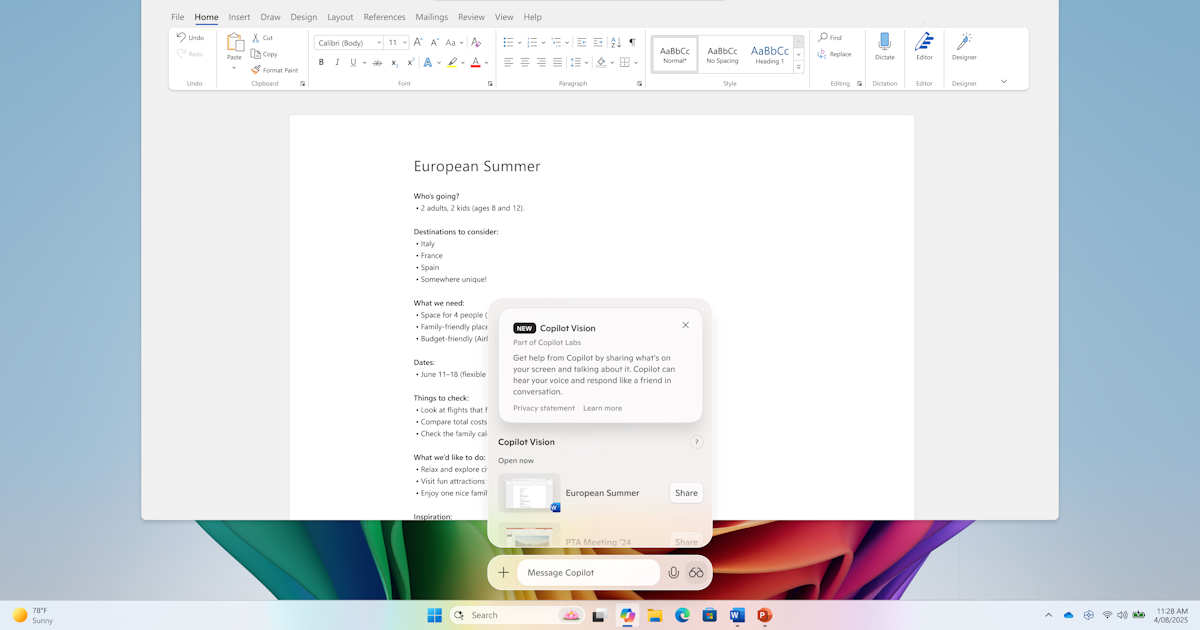
Hello Windows Insiders, we are beginning to roll out an update for the Microsoft Copilot app on Windows via the Microsoft Store which introduces the following changes and improvements: File search: You can now find, open and ask que blogs.windows.com
- Related coverage: tomshardware.com

Admins finally get the power to uninstall Microsoft Copilot on Windows 11 Pro, Enterprise, and EDU versions — devices must meet specific conditions to allow the removal of the AI app | Tom's Hardware
One less bloatware on Windows 11.www.tomshardware.com - Related coverage: techradar.com
Microsoft's planned new AI trick for Edge will 'automatically open the Copilot side pane' with Outlook email links — and I can feel the hate already | TechRadar
New feature is on the roadmap for May 2026www.techradar.com - Official source: news.microsoft.com
- Related coverage: vendorcompliance.surf.nl
Manual advice on disabling Copilot applications in Microsoft products
PDF documentvendorcompliance.surf.nl