

A two‑minute tweak in Windows 11 — marking a network as metered — can dramatically reduce the operating system’s background appetite for bandwidth and stop frustrating stalls in streaming, gaming, and file transfers, but the fix carries trade‑offs and a few important caveats every Windows user should understand.
Windows 11 includes several network‑aware subsystems that can consume significant upload and download capacity without explicit user consent: Delivery Optimization (the peer‑to‑peer update system), background syncing (OneDrive and UWP apps), and quality‑of‑service reservations allowed by the QoS Packet Scheduler. For many users on constrained or shared connections this behavior manifests as buffering video, laggy games, and slow downloads at critical moments. The fastest practical fix for most people is to mark the active Wi‑Fi or Ethernet network as a metered connection, which forces Windows and many modern apps to dramatically scale back nonessential background transfers. This article explains what Windows is doing, shows how to reclaim bandwidth safely, provides advanced options for power users, and outlines the trade‑offs and network‑level alternatives to consider. The MakeUseOf primer that pointed out the simple metered toggle is a helpful starting point for everyday users.
Authoritative policy documentation and modern testing show that the QoS reservation is a maximum reservation the system can make for applications that actually request prioritized traffic. In practice, if no application requests higher‑priority bandwidth, Windows will not sit on an unused 20% brick of your link — the bandwidth is available when not actually reserved. If specific QoS‑aware processes are requesting priority, the packet scheduler can limit how much of the link those reservations can consume. Microsoft’s ADMX policy documentation and community testing explain that the default behavior allows applications to reserve up to 20% (i.e., system leaves 80% for general use), but changing the Group Policy or the Psched registry values adjusts the limit. How To Geek and other deep dives clarify the nuance: flipping the Group Policy does not magically unlock a permanently lost 20% for all workloads — it reduces the cap on reservations and only matters when reservation requests exist. For most home users the difference is marginal, but for specific scenarios (corporate QoS deployments, VoIP prioritization, etc. it's a meaningful control.
For users with more persistent or network‑wide problems, pairing a metered connection with Delivery Optimization limits or router‑side QoS produces the most reliable outcomes. Changing the QoS reservable band cap is a legitimate tool for specific scenarios — but it’s often overhyped as a universal “20% reclaim” trick. Modern documentation and testing show the setting controls a cap on reservations rather than an always‑held 20% black box, so expect marginal returns unless your workload actually engages QoS reservations. Finally, exercise caution: delaying updates or disabling peer‑to‑peer behavior reduces convenience and can impact patch timeliness. If security updates matter — as they do for most users — adopt a disciplined manual update routine or use the Delivery Optimization bandwidth sliders to create a middle ground between full automatic updates and complete blocking. Microsoft provides the UI and policy controls to help reach that trade‑off. Windows shouldn’t be an invisible bandwidth hog for your household. A 30‑second metered toggle is a low‑risk, reversible measure that restores immediate responsiveness for the apps you care about — and for those who want deeper control, Delivery Optimization settings, Group Policy, and router QoS let you fine‑tune the balance between automatic maintenance and real‑time performance.
Source: MakeUseOf I stopped Windows 11 from stealing my bandwidth with this simple setting
 Overview
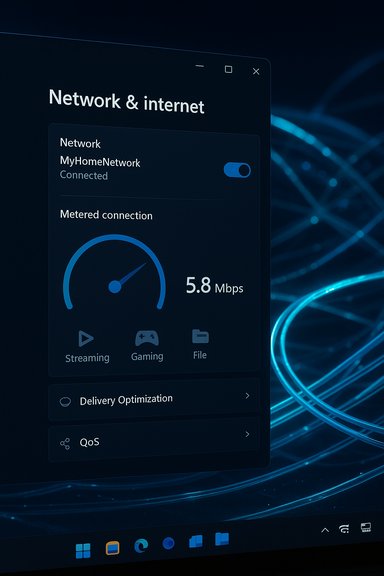
Windows 11 includes several network‑aware subsystems that can consume significant upload and download capacity without explicit user consent: Delivery Optimization (the peer‑to‑peer update system), background syncing (OneDrive and UWP apps), and quality‑of‑service reservations allowed by the QoS Packet Scheduler. For many users on constrained or shared connections this behavior manifests as buffering video, laggy games, and slow downloads at critical moments. The fastest practical fix for most people is to mark the active Wi‑Fi or Ethernet network as a metered connection, which forces Windows and many modern apps to dramatically scale back nonessential background transfers. This article explains what Windows is doing, shows how to reclaim bandwidth safely, provides advanced options for power users, and outlines the trade‑offs and network‑level alternatives to consider. The MakeUseOf primer that pointed out the simple metered toggle is a helpful starting point for everyday users.Background: How Windows 11 uses — and sometimes hoards — bandwidth
Delivery Optimization: the peer‑to‑peer update system
Windows’ Delivery Optimization (DO) was designed to make updates faster and reduce aggregate bandwidth usage by allowing machines to share pieces of update files with one another, either on the local LAN or across the internet. In mixed environments this can accelerate large downloads — but it also means a given PC can both download and upload update data, consuming upstream capacity that matters to gamers and anyone relying on real‑time apps. DO operates with a local cache and configurable bandwidth limits, but those defaults can still be disruptive on tight connections. Microsoft documents how Delivery Optimization works and shows the exact settings in Windows Update > Advanced options > Delivery Optimization. The community explanation of DO and the practical advice to limit or disable peer‑to‑peer behavior is widespread in how‑to guides and user forums; those same guides also point out that DO does not touch personal files and includes integrity checks for update pieces.QoS Packet Scheduler and the “20% reserved” belief
A long‑standing Windows tweak in public forums and guides centers on the Group Policy item Limit Reservable Bandwidth (found at Computer Configuration → Administrative Templates → Network → QoS Packet Scheduler). The legacy text describing the policy notes the packet scheduler “limits the system to 80 percent of the bandwidth of a connection,” which led many users to claim Windows always held back 20% of a connection for system tasks. That interpretation is misleading.Authoritative policy documentation and modern testing show that the QoS reservation is a maximum reservation the system can make for applications that actually request prioritized traffic. In practice, if no application requests higher‑priority bandwidth, Windows will not sit on an unused 20% brick of your link — the bandwidth is available when not actually reserved. If specific QoS‑aware processes are requesting priority, the packet scheduler can limit how much of the link those reservations can consume. Microsoft’s ADMX policy documentation and community testing explain that the default behavior allows applications to reserve up to 20% (i.e., system leaves 80% for general use), but changing the Group Policy or the Psched registry values adjusts the limit. How To Geek and other deep dives clarify the nuance: flipping the Group Policy does not magically unlock a permanently lost 20% for all workloads — it reduces the cap on reservations and only matters when reservation requests exist. For most home users the difference is marginal, but for specific scenarios (corporate QoS deployments, VoIP prioritization, etc. it's a meaningful control.
The simple fix: mark the network as metered
Why this works
A metered connection tells Windows you’re on a network with limited or metered data. In response Windows throttles or delays background operations that would otherwise run automatically:- Windows Update will refrain from non‑critical downloads (you still receive priority security fixes when configured).
- Microsoft Store app updates and large background downloads are paused.
- Delivery Optimization avoids peer‑to‑peer transfers over the public internet and reduces local uploads.
- Some apps (OneDrive, sync clients, etc. will pause or scale back activity.
Step‑by‑step (Windows 11)
- Press Windows + I to open Settings.
- Select Network & internet.
- Click Wi‑Fi (or Ethernet if a wired connection).
- Select the active network and open its properties.
- Toggle Metered connection to On.
What you’ll gain — and what you’ll lose
Gains
- Immediate bandwidth relief: Background downloads and uploads are minimized, improving browsing, streaming, and multiplayer stability on the same machine and in some cases on the shared network.
- Control without tinkering: No registry edits or Group Policy access required (ideal for Windows Home users).
- Simple rollback: Flip the toggle off to restore normal behavior when you have time or a faster connection.
Trade‑offs and downsides
- Delayed or paused updates: Non‑priority Windows updates, Store updates, and some driver updates may not download automatically. This helps prevent interruptions but requires manual update checks for feature updates or larger cumulative packages. Microsoft documents how metered connections limit automatic updates.
- App behavior changes: Some apps pause syncing; OneDrive may stop uploading changes until the network is unmetered. Expect temporary differences in app behavior while the setting is active.
- Enterprise restrictions: If the device is managed by an organization, the metered toggle might be grayed out or managed by policy — you’ll need to check with IT. Microsoft notes managed devices can lock Delivery Optimization or metered settings.
Advanced tuning for power users (Windows 11 Pro / Enterprise)
If you run Windows 11 Pro, Enterprise, or Education and want to go beyond metered toggles, several deeper options exist.1) Limit Reservable Bandwidth via Group Policy (gpedit.msc)
- Open the Local Group Policy Editor (Win + R → gpedit.msc).
- Navigate to Computer Configuration → Administrative Templates → Network → QoS Packet Scheduler.
- Double‑click Limit reservable bandwidth, set it to Enabled, and adjust the Bandwidth limit (%) value. Setting it to 0 prevents QoS reservations from exceeding 0% of the connection (i.e., no reservation cap). Be aware this affects the maximum limit for reservations — it only changes behavior when applications request prioritized bandwidth.
2) Registry alternative for Home edition
For Home users without gpedit, the Psched registry key can be used to set NonBestEffortLimit under HKLM\SOFTWARE\Policies\Microsoft\Windows\Psched. Setting NonBestEffortLimit to 0 mirrors the Group Policy effect. Editing the registry has risk; back up the registry or create a system restore point before changes. Community resources document the registry path and expected behavior.3) Tame Delivery Optimization bandwidth specifically
Windows Update includes Delivery Optimization advanced options where you can:- Limit background and foreground download speeds in absolute Mbps or percentage of bandwidth.
- Configure upload caps and monthly upload limits for DO.
- Restrict DO to “Devices on my local network” (disables internet peers).
How to measure and confirm improvements
Before and after any change, measure the impact so you can make an informed decision.- Task Manager (Performance / App history): view per‑app network usage and check whether Delivery Optimization or system processes are active.
- Resource Monitor (resmon.exe): shows per‑process send/receive rates and can help identify unexpected upload activity.
- Delivery Optimization Activity monitor: Settings > Windows Update > Advanced options > Delivery Optimization > Activity monitor shows DO’s contribution to downloads and uploads for the current month. This view reveals how much boost devices are getting from peers and what the PC is uploading.
- Router QoS graphs: many home routers display per‑device throughput over time — useful to verify that the PC’s background transfers actually decreased after the change.
Router and network‑level alternatives (recommended for shared households)
If multiple devices on a shared connection suffer when one Windows machine starts a large update, treating the problem at the network edge often yields the best balance:- Enable QoS on the router: prioritize gaming/streaming traffic by device or port. This prevents a single machine’s uploads/downloads from stomping latency‑sensitive flows.
- Set per‑device bandwidth limits: many modern routers support per‑client rate limiting or bandwidth allocation (commonly called bandwidth control).
- Use guest networks or VLANs: segment traffic so backups and updates run on a different logical network without impacting real‑time devices.
Common myths and cautions
- Myth: “Windows always reserves 20% of my bandwidth and disabling it will free that 20%.” Reality: the 20% figure represents the maximum the QoS scheduler will reserve for priority traffic, not an always‑held amount. Only applications that request high‑priority reservations consume it, and Windows will make bandwidth available when reservations are not active. How‑to guides and testing explain the difference in plain terms.
- Caution: Disabling QoS limits or aggressively blocking Windows Update can increase security risk if critical patches are delayed. If you choose to postpone updates, create a schedule to manually check and apply security fixes. Microsoft’s Update settings and the Delivery Optimization bandwidth controls give safer, more controlled alternatives to bluntly turning off update mechanisms.
- Managed devices: If a PC is enrolled in an organization’s management suite, group policies may enforce Delivery Optimization, update settings, or metered state. Attempting to override corporate policy is both futile and potentially non‑compliant; consult IT.
A quick decision guide
- Want the fastest, safest fix with no risk? Set the connection as metered. This is ideal for hotspots, mobile tethering, and occasional bandwidth emergencies.
- Want to throttle only Windows Update and DO without changing other app behavior? Use Delivery Optimization advanced bandwidth limits and restrict peers to local network only.
- Are you a power user with Pro/Enterprise and need fine control? Adjust Limit Reservable Bandwidth via Group Policy or Psched registry — but understand the change is only relevant when QoS reservations are active.
- Is the problem shared across a household or apartment? Put limits at the router: QoS, per‑device caps, or separate SSIDs for bulk transfers.
Step‑by‑step checklist: reduce Windows’ background bandwidth (practical)
- Mark the network as metered: Settings > Network & internet > Wi‑Fi/Ethernet > select network > toggle Metered connection = On.
- Open Windows Update > Advanced options > Delivery Optimization and set “Allow downloads from other PCs” to Devices on my local network or Off if you prefer. Also set background download/upload limits if needed.
- If on Pro/Enterprise and you understand QoS, edit gpedit.msc → Computer Configuration → Administrative Templates → Network → QoS Packet Scheduler → Limit reservable bandwidth and change the Bandwidth limit (%) to desired value. Use caution and document changes.
- Measure with Resource Monitor, Delivery Optimization Activity monitor, and router graphs. Confirm improvement before leaving changes in place.
Final analysis and recommendation
For most users experiencing intermittent slowdowns while streaming or gaming, the metered connection toggle is the most pragmatic first step. It is fast, reversible, and intentionally designed to reduce background traffic without requiring technical skill. MakeUseOf’s concise tutorial is accurate in pointing users to this option as the quickest fix.For users with more persistent or network‑wide problems, pairing a metered connection with Delivery Optimization limits or router‑side QoS produces the most reliable outcomes. Changing the QoS reservable band cap is a legitimate tool for specific scenarios — but it’s often overhyped as a universal “20% reclaim” trick. Modern documentation and testing show the setting controls a cap on reservations rather than an always‑held 20% black box, so expect marginal returns unless your workload actually engages QoS reservations. Finally, exercise caution: delaying updates or disabling peer‑to‑peer behavior reduces convenience and can impact patch timeliness. If security updates matter — as they do for most users — adopt a disciplined manual update routine or use the Delivery Optimization bandwidth sliders to create a middle ground between full automatic updates and complete blocking. Microsoft provides the UI and policy controls to help reach that trade‑off. Windows shouldn’t be an invisible bandwidth hog for your household. A 30‑second metered toggle is a low‑risk, reversible measure that restores immediate responsiveness for the apps you care about — and for those who want deeper control, Delivery Optimization settings, Group Policy, and router QoS let you fine‑tune the balance between automatic maintenance and real‑time performance.
Source: MakeUseOf I stopped Windows 11 from stealing my bandwidth with this simple setting

