

Joining an online meeting or starting a movie only to be met with silence, crackling, or robotic voices is a uniquely aggravating modern problem — and one that’s surprisingly common on Windows 11 PCs. The good news: most of these issues are fixable without special tools, and a methodical troubleshooting approach will restore clear sound in the majority of cases. The following in-depth guide summarizes a practical troubleshooting flow, explains why Windows 11 audio problems occur so often, and gives power-user tactics plus prevention strategies so you can stop battling sound on your PC. This piece is informed by a sponsored troubleshooting primer from My Computer Works and modern platform guidance and community experience.
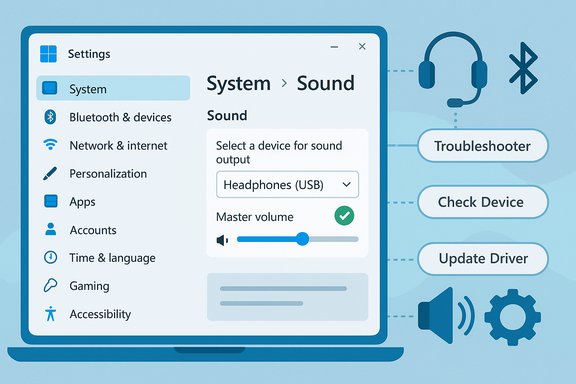
Windows 11 manages multiple audio paths at once: internal speakers, USB headsets, Bluetooth profiles, HDMI outputs, and external sound cards. That flexibility is powerful — but it’s also the reason audio problems are so frequent. When audio is routed to the wrong endpoint, when drivers become corrupted after an update, or when third‑party audio “enhancements” conflict with system audio, users experience everything from muffled playback to total silence. The sponsored guide from My Computer Works distills this into a compact troubleshooting flow — run the Windows troubleshooter, confirm device selection and level settings, update or reinstall audio drivers, and disable problematic enhancements — which is effective for most users.
Microsoft’s official troubleshooting documentation follows the same order: run the built‑in audio troubleshooter, check the selected output, inspect physical connections and volume controls, and then update or reinstall drivers via Device Manager. Those steps map to real outcomes: built‑in tools fix a high percentage of simple configuration errors, while manual driver management resolves lingering driver corruption.
Microsoft’s documentation underpins each of those steps and provides concrete UI locations and recommended order. When used carefully and methodically, users can recover sound quickly in most scenarios; when those steps fail, targeted professional support or hardware replacement is the practical next move. Where the landscape is changing fastest is Bluetooth audio: Windows 11’s LE Audio work is moving the ecosystem forward, but it also means compatibility checks (PC Bluetooth chipset, headset firmware, and Windows build) are becoming an increasingly important part of audio troubleshooting for wireless headsets. For the time being, if you need reliable audio for work, keep a wired fallback at hand.
The path from silence to clean sound is usually short if you follow a structured approach: run the troubleshooter, confirm device selection, check services, update or reinstall drivers, and disable enhancements. Keep OEM drivers and firmware up to date, prefer manufacturer installers when available, and use a wired backup when reliability matters. If the problem resists these techniques, remote diagnostics from a qualified technician can save time and frustration — especially when hardware replacement is the likely remedy.
Source: AMAC PC Audio Problems Troubleshooting Guide | @AmacforAmerica
 Background / Overview
Windows 11 manages multiple audio paths at once: internal speakers, USB headsets, Bluetooth profiles, HDMI outputs, and external sound cards. That flexibility is powerful — but it’s also the reason audio problems are so frequent. When audio is routed to the wrong endpoint, when drivers become corrupted after an update, or when third‑party audio “enhancements” conflict with system audio, users experience everything from muffled playback to total silence. The sponsored guide from My Computer Works distills this into a compact troubleshooting flow — run the Windows troubleshooter, confirm device selection and level settings, update or reinstall audio drivers, and disable problematic enhancements — which is effective for most users.Microsoft’s official troubleshooting documentation follows the same order: run the built‑in audio troubleshooter, check the selected output, inspect physical connections and volume controls, and then update or reinstall drivers via Device Manager. Those steps map to real outcomes: built‑in tools fix a high percentage of simple configuration errors, while manual driver management resolves lingering driver corruption.
Why Windows 11 Audio Problems Happen
Multiple endpoints and accidental routing
Windows 11 often has several playable endpoints at once (speakers, HDMI, USB DACs, Bluetooth devices). When you plug in, wake from sleep, or apply an update, Windows can silently switch outputs — making it appear as if your PC has no sound. This default behavior is by design but can be confusing for users who expect one persistent output device.Driver mismatches, updates, and vendor packages
Audio is driven by driver stacks that come either from Windows Update, OEM (laptop/motherboard) packages, or third‑party vendors like Realtek. When those drivers get out‑of‑sync with a Windows update or are partially removed/reinstalled, distortion, silence, or crashes can follow. Microsoft documents updating or reinstalling drivers as core steps to resolve these failures.Audio enhancements and exclusive mode
Many OEMs and third‑party audio suites ship “enhancements” intended to improve voice clarity or bass. In practice, these can add signal processing that conflicts with other software, producing muffled, echoing, or robotic audio. Disabling enhancements is a low‑risk step often recommended by both Microsoft and third‑party support resources.Bluetooth profile limitations
Classic Bluetooth audio historically forced a tradeoff: high‑fidelity stereo (A2DP) or low‑fidelity microphone use (HFP). Windows 11’s recent work on Bluetooth LE Audio (and “super wideband stereo” in newer updates) is fixing that, but only for compatible hardware and drivers. This is improving the Bluetooth experience but also adds another layer of compatibility to confirm.Hardware causes and physical wear
Sometimes the culprit is a bad cable, a faulty jack, or a dying speaker/headset. Simple hardware isolation (try the headset on a phone or another PC) quickly reveals whether the issue is software or hardware.Quick Recovery Checklist (fastest path to sound)
Use this ordered checklist to eliminate the simple, common causes first. Each item takes one to a few minutes.- Run the Windows audio troubleshooter (Settings > Troubleshoot > Playing Audio). Let Windows try automatic fixes; it often corrects device selection and basic driver problems.
- Check the basics: make sure Windows isn’t muted, confirm per‑app volume levels in the Volume Mixer, and verify any hardware volume/mute switches are off.
- Confirm the correct output device: Settings > System > Sound > Output and choose the device you expect. Windows can silently route audio to another device after hardware changes.
- Unplug and replug wired devices; toggle Bluetooth off/on for wireless headsets. Test the headset or speakers on another device to rule out hardware.
- Restart the PC after simple checks — a reboot resolves transient driver/service glitches frequently.
Deep‑Dive Troubleshooting: Step‑by‑Step
1) Run built‑in troubleshooters and confirm services
Windows 11’s Troubleshooters are a good starting point and can fix registry or device‑selection issues automatically. If the troubleshooter doesn’t help, confirm audio‑related Windows services are running:- Open services.msc and check:
- Windows Audio
- Windows Audio Endpoint Builder
- Multimedia Class Scheduler (MMCSS)
2) Verify device selection & per‑app routing
Windows 11 can route audio per app. Open Settings > System > Sound > Advanced > App volume and device preferences and ensure apps aren’t silently routed to a different endpoint or muted. Also use the classic Sound Control Panel (mmsys.cpl) to Show Disabled/Disconnected Devices, then enable and set the intended device as default. Community troubleshooting logs and Microsoft guidance both highlight per‑app routing as a frequently missed cause.3) Update, roll back, or reinstall audio drivers
Drivers are the most common root cause for persistent or intermittent audio faults.- Update from Device Manager: Right‑click Start → Device Manager → Sound, video and game controllers → right‑click device → Update driver → Search automatically. Microsoft documents this as the supported method.
- If audio stopped after a driver update, try Roll Back Driver on the Driver tab, then reboot.
- If Roll Back isn’t available or doesn’t help, uninstall the device (Device Manager → Uninstall device). First uninstall without deleting driver software, reboot, and test; if that fails, uninstall again and choose Delete driver software, then reinstall the OEM package.
- Prefer OEM drivers from your laptop or motherboard vendor for tuned experiences instead of generic downloads. Community tests show OEM packages often fix hardware‑specific quirks.
4) Turn off audio enhancements and exclusive mode
If you hear distortion, pops, or robotic voices, disabling enhancements is a low‑risk troubleshooting step:- Open Settings > Sound > choose device > Device properties > Additional device properties > Enhancements (or Advanced) tab and select “Disable all enhancements” or uncheck “Enable audio enhancements.” Also uncheck “Allow applications to take exclusive control of this device.” Microsoft explicitly documents this step.
5) Test alternate formats and sample rates
Occasionally changing the default format (16‑bit/44100 Hz → 24‑bit/48000 Hz, etc. in the Advanced tab can stop clicks and pops. This is harmless to test and may reveal driver/codec sample‑rate incompatibilities. Community posts often recommend toggling sample rates while testing audio.6) Bluetooth headsets and LE Audio caveats
If you’re using Bluetooth, understand the profile tradeoffs:- Older Bluetooth headsets often drop to low‑quality HFP when mic use is required.
- Windows 11 is adding LE Audio and “super wideband stereo” support that allows higher‑quality mic+stereo simultaneously, but it requires compatible Bluetooth radios and headset firmware on both ends. If you expect modern Bluetooth quality, verify hardware compatibility and vendor firmware updates. Windows Central’s coverage explains this evolution and the compatibility caveats.
7) When to suspect hardware
If the headset or speakers fail on multiple machines, the device itself is likely faulty. For analog jacks, test both front and rear panel outputs; front‑panel wiring or the audio header on desktop cases can be finicky. If you suspect an internal sound card or jack, swap to a USB headset or an inexpensive external USB DAC as a diagnostic and a practical workaround.Advanced Tools and Power‑User Steps
Clean driver installs and Realtek complexities
Realtek driver packages come in DCH/UAD and legacy HDA variants. Modern DCH packages integrate with the Microsoft Store to present the Realtek Audio Console; legacy packages use HD Audio Manager. Using the wrong package for your motherboard can break features or hide the console. Many community guides recommend uninstalling the existing driver (including the driver software), rebooting, and then installing the OEM EXE package matched to your motherboard. This procedure resolves numerous Realtek‑specific issues but must be done carefully.Use System Restore or Rollback when updates break audio
If audio breaks immediately after a Windows update, consider rolling back the update or using System Restore to revert to a known good point. This is a blunt but effective tool when a recent system change is the clear trigger. Community troubleshooting logs frequently contain success stories after restoring to a prior point.PowerShell and service automation
For recurring audio service failures, an elevated PowerShell script that checks and ensures services (AudioSrv, AudioEndpointBuilder, MMCSS) are running and set to Automatic can automate recovery after boots or wakes from sleep. Use these commands carefully and only from trusted guides; community posts frequently include exact commands for advanced diagnostics.Preventing Future Audio Problems
- Keep audio and chipset drivers up to date via OEM support pages or Windows Update, but avoid installing drivers from untrusted mirrors. For critical audio setups (streaming, pro audio), test updates on a spare machine or create a restore point first.
- Avoid installing “sound enhancer” utilities from unknown publishers. Many cause more trouble than they solve.
- Maintain a wired backup headset or USB microphone if you rely on audio for work — a wired path bypasses Bluetooth and analog jack quirks.
- Use quality cables and connectors; intermittent hardware contact causes many intermittent audio faults that look like driver or OS issues.
- Before any major driver or firmware update, create a System Restore point so you can roll back quickly if regressions occur.
Strengths and Weaknesses of the Common Troubleshooting Flow
Strengths
- The investigative flow (troubleshooter → basics → drivers → enhancements → hardware) is efficient and resolves the majority of cases without professional help. Microsoft’s built‑in tools and Device Manager handle many common misconfigurations automatically.
- Disabling enhancements and toggling sample rates is low risk and frequently clears up distortion and stuttering.
- Using OEM driver packages when needed addresses vendor‑specific fixes that generic drivers lack. Community experience backs this approach repeatedly.
Risks and caveats
- Driver rollbacks and clean installs can temporarily leave the system without advanced audio features (e.g., proprietary EQ, console apps). Always keep installer backups and note driver versions in case you need to restore them.
- Installing the wrong driver or a driver from an untrusted source can introduce instability or security risks. Prefer OEM and Microsoft channels for downloads.
- Advanced steps like BIOS changes, flashing headset firmware, or messing with registry settings carry nontrivial risks; take them only if you understand the process and have backups. Community guides warn strongly about firmware/BIOS changes without vendor documentation.
When to Seek Professional Help
If you’ve exhausted the steps above — troubleshooter, services, device selection, driver reinstall/rollback, disabling enhancements, testing alternate hardware — and audio remains broken, it’s reasonable to call in a professional. Persistent, unexplained absence of both input and output across multiple devices may indicate a failing audio codec on the motherboard, a corrupted Windows audio stack beyond simple fixes, or a hardware fault requiring component‑level repair. My Computer Works and other qualified remote‑support services can run deeper diagnostics, obtain logs, and perform controlled driver reinstalls or component tests remotely to restore sound. The sponsored guidance provided originally emphasizes contacting tech support when basic steps fail.Quick Reference — Troubleshoot “No Sound” in 10 Minutes
- Confirm volume & mute, check app mixer levels.
- Select correct Output in Settings > System > Sound.
- Run Settings > Troubleshoot > Playing Audio.
- Reboot; if still dead, open services.msc → restart Windows Audio + Endpoint Builder.
- If you have driver warnings or an update occurred, open Device Manager → Sound controllers → Update / Roll Back / Uninstall → reboot and reinstall OEM driver if needed.
- Disable audio enhancements and exclusive mode if you hear distortion.
- Test with wired/USB headset to isolate Bluetooth or jack issues.
- If audio worked before a Windows update, consider uninstalling the update or restoring to an earlier restore point.
Final Assessment
Audio problems on Windows 11 are often an interplay of device routing, driver management, and optional audio processing layers. The troubleshooting sequence promoted by My Computer Works — start with Windows tools, check output and volume basics, update or reinstall drivers, disable enhancements, then investigate hardware — accurately reflects best practice and real community experience.Microsoft’s documentation underpins each of those steps and provides concrete UI locations and recommended order. When used carefully and methodically, users can recover sound quickly in most scenarios; when those steps fail, targeted professional support or hardware replacement is the practical next move. Where the landscape is changing fastest is Bluetooth audio: Windows 11’s LE Audio work is moving the ecosystem forward, but it also means compatibility checks (PC Bluetooth chipset, headset firmware, and Windows build) are becoming an increasingly important part of audio troubleshooting for wireless headsets. For the time being, if you need reliable audio for work, keep a wired fallback at hand.
The path from silence to clean sound is usually short if you follow a structured approach: run the troubleshooter, confirm device selection, check services, update or reinstall drivers, and disable enhancements. Keep OEM drivers and firmware up to date, prefer manufacturer installers when available, and use a wired backup when reliability matters. If the problem resists these techniques, remote diagnostics from a qualified technician can save time and frustration — especially when hardware replacement is the likely remedy.
Source: AMAC PC Audio Problems Troubleshooting Guide | @AmacforAmerica
