

Windows becomes markedly less distracting when users disable five categories of low-value alerts: tips and suggestions, recurring setup prompts, browser notices, game-launcher messages, and routine Windows Security scan results. The key is to make these changes selectively rather than silencing every notification.
Use one decision rule throughout the cleanup: disable a notification if it is promotional or routine; retain it only if delayed review could cause data loss, missed communication, or a security consequence.
Windows notifications solve a real desktop problem. They let applications report events without requiring users to keep every program open and visible. A notification might warn about a low battery, announce a message, report a system change, or confirm that attached media has been recognized.
The same interface can also carry tips, setup reminders, website notices, store messages, and routine reports that require no action. Because these categories arrive through a common interface, their visual treatment does not always communicate their relative importance.
The five settings in How-To Geek’s guide are useful starting points because each can generate notifications that many users do not need immediately. None of the associated features must be considered defective. The narrower question is whether each message needs to appear while the user is doing something else.
A practical review is more effective than a universal shutdown:
For someone encountering a feature for the first time, an occasional hint may be useful. For an established Windows user, however, generic suggestions tend to have diminishing value. They compete with the user’s existing knowledge, habits, and chosen software without necessarily identifying a problem that requires action.
Windows also provides other ways to discover features, including searchable Settings pages and contextual controls. Users who want guidance can look for it when needed rather than keeping an open-ended suggestion channel enabled.
The decision rule here is simple: disable Windows tips when they have become repetitive or promotional. Retain them only if they still provide guidance you would otherwise miss. Because a tip can usually be reviewed—or the same information found—later, most experienced users will lose little by turning this setting off.
This change concerns the delivery of suggestions. It should not be presented as a broader modification to Windows features or system protections.
The phrasing can make the prompt sound as though the computer remains operationally incomplete. The examples described by How-To Geek include invitations related to Microsoft 365, Windows Hello, Microsoft Edge, and OneDrive.
Those options are not identical, and some may be useful. Windows Hello may improve a user’s sign-in experience. OneDrive may suit someone who wants cloud synchronization. Edge may already be the preferred browser. Microsoft 365 may be appropriate for users who want its applications and services.
Possible value, however, does not make a recurring setup reminder urgent. A user may have intentionally declined one or more services, postponed the decision, or chosen an alternative. Repeating the invitation does not necessarily provide new information.
Disabling the prompt does not prevent the user from configuring a wanted service later. Those decisions can still be made from the relevant application or Settings page.
Apply the same test: disable the setup prompt if it primarily repeats product or configuration suggestions. Keep it only while it is helping you complete a task you actually intend to finish. If postponing the message has no meaningful consequence, it does not need to interrupt other work.
How-To Geek recommends beginning at the Windows level when no browser-generated notices are wanted. Open Settings > System > Notifications, scroll to Notifications from apps and other senders, locate each browser in use, and disable its notifications.
That is the broad control. It is appropriate when the user has no need for notifications delivered through that browser.
Users who depend on a small number of website alerts should take a narrower approach. Leave the browser enabled in Windows and review website permissions inside the browser. The exact wording and organization of browser menus may change between releases, so users should look for the browser’s privacy, site-settings, permissions, or notifications section.
In Firefox, How-To Geek directs users through the main menu to Settings and then to the area for notification permissions. In Chrome, the corresponding controls are found under Settings, Privacy and Security, Site Settings, and Notifications. These pages allow users to review which websites have notification access and remove permissions they no longer want.
The troubleshooting order should depend on the desired outcome:
This does not require treating all website notifications as dangerous or all browser alerts as useless. It is simply a reason to grant notification access selectively.
How-To Geek points to the Xbox app as one example of a sender whose notifications the author did not find useful. Other launchers may appear separately in Windows, allowing users to review each one rather than treating all gaming software as a single category.
The Windows-level route is Settings > System > Notifications > Notifications from apps and other senders. Turn off notifications for any installed launcher whose messages are consistently unnecessary.
This does not uninstall the launcher or prevent users from opening it to inspect their libraries, downloads, account information, or updates. It changes only whether Windows displays notifications from that sender.
Sender-by-sender review is preferable to disabling every gaming-related application indiscriminately. A user may still want alerts from a voice or messaging application while having no need for notices from a launcher. Those applications should be judged separately.
Use the same standard: disable launcher notifications when they are promotional or when they report routine information you already check inside the application. Retain them only if missing a specific launcher alert could create a meaningful account, communication, or security consequence.
For shared or multipurpose PCs, the case for review is stronger. Software installed for occasional use should not automatically keep notification access merely because it remains installed.
The route begins by opening Windows Security, selecting Settings, opening Notifications, and reviewing the available notification choices. Users who do not need routine activity or scan-result reports can disable that category.
The distinction is between an informational report and an actionable warning. A scan result may be useful when a user manually started a scan and is waiting for an answer. The same kind of report may be unnecessary when it merely confirms an expected routine outcome.
This setting should not be discussed as though every important security warning is guaranteed to remain visible under every Windows configuration. Notification options, administrator restrictions, and future software changes can affect what users see. Before disabling any Windows Security category, users should read the labels presented on their own PC and confirm that the change is limited to the reports they intend to remove.
The decision rule is therefore stricter: disable only routine security notifications that you understand and consistently find unnecessary. Retain any alert whose delayed review could allow a threat, disabled protection, account problem, or other security condition to persist.
Users should also avoid equating a notification setting with the underlying security feature. Changing how a result is reported is not the same action as turning off antivirus, firewall, or other protection components. Even so, users should verify their current Windows Security status after making changes rather than relying on assumptions about which messages will continue to appear.
On a work or school PC, settings may be unavailable or controlled by the organization. If a control is locked, users should not attempt to bypass it; they should ask the responsible administrator what notification behavior is intended.
The safest review does not assume that an entire application is either important or unimportant. An essential program can still send routine messages, while an occasionally used utility may generate an alert that matters. Judge the notifications by their consequences, not merely by the sender’s name.
Ask three questions:
A quiet desktop is valuable, but a universal shutdown can leave users unaware of events they expected Windows to report. Selective cleanup is more work initially and usually produces a better result.
Do not disturb is best treated as a separate tool from sender cleanup. Disabling a sender expresses a lasting preference: its messages are not wanted through the Windows notification system. Do not disturb addresses periods when the user wants fewer interruptions regardless of the sender.
The settings area also includes an option to configure priority notifications. Users can review that list and decide whether any applications should be treated as exceptions during quiet periods.
The priority list should remain short. If most installed applications are granted an exception, Do not disturb will provide little practical benefit. A useful exception should have a clear reason, such as preventing a missed communication or another consequence that cannot comfortably wait.
Users should test Do not disturb on their own systems before depending on it during meetings, presentations, games, recording sessions, or focused work. The safest approach is not to assume that every wanted alert will appear or that every unwanted alert will be hidden under every configuration. Enable the mode, send a test message from an important application if possible, and inspect the resulting behavior.
The distinction is straightforward:
Instead, these examples illustrate the kinds of events users may want to evaluate more carefully before disabling them.
A low-battery warning can be time-sensitive because an unexpected shutdown may interrupt a session or threaten unsaved work. A storage warning may provide an opportunity to free space before low capacity interferes with downloads, updates, or ordinary application use.
AutoPlay notifications can be useful when they confirm that Windows recognized newly connected media and present available actions. Users who do not rely on AutoPlay may make a different choice, but the alert is at least tied to a physical event the user initiated.
AMD Software notifications may interest users who actively track graphics-driver availability. Other users may prefer to open the software periodically and check manually. The correct choice depends on whether delayed awareness has a practical cost for that machine.
Startup-app notifications can also be valuable because they may draw attention to a program registering itself to run when the user signs in. That gives the user an opportunity to review a change to startup behavior.
None of these categories receives automatic approval. Apply the same decision rule to each:
Organizations should verify supported management mechanisms for their Windows edition, release, security product, and device-management platform before attempting a fleet-wide change. A setting visible in the local Windows interface should not be assumed to have an equivalent Group Policy, configuration service provider setting, mobile-device-management control, or security baseline entry.
The following checklist is therefore editorial guidance for planning and testing, not a claim that all items can be enforced through one Windows management mechanism.
Notification value also varies by role. A graphics workstation may benefit from driver-related notices that are irrelevant on a tightly controlled office endpoint. A support employee may need communication alerts that would be distracting on a presentation system. A kiosk or shared device may require a narrower configuration than an individually assigned laptop.
Administrators should avoid two extremes. If users disable everything out of frustration, they may miss warnings the organization expected them to see. If every routine report remains prominent, users may become less likely to examine messages carefully.
Users do not need an abstract notification philosophy to fix these problems. They need a repeatable test applied to each setting:
The result should not be a silent PC. It should be a Windows desktop where the notifications that remain have a clear reason to appear.
Use one decision rule throughout the cleanup: disable a notification if it is promotional or routine; retain it only if delayed review could cause data loss, missed communication, or a security consequence.
That is the practical argument behind How-To Geek’s guide. Windows uses the same notification area for urgent warnings, ordinary status reports, application messages, and product suggestions. Users must therefore decide which senders merit immediate attention and which can wait.Do this now
Before changing any setting, consider what you could miss. Keep an alert when postponing it could lead to lost work, missed communication, or an overlooked security problem.
- Windows tips: Settings > System > Notifications > Additional settings > uncheck “Get tips and suggestions when using Windows.”
- Setup prompts: In the same Additional settings section, uncheck “Suggest ways to get the most out of Windows and finish setting up this device.”
- Browser notices: Settings > System > Notifications > Notifications from apps and other senders > disable the browser, or revoke individual website permissions inside the browser.
- Game-launcher messages: Settings > System > Notifications > Notifications from apps and other senders > disable unwanted launcher notifications.
- Routine security results: Windows Security > Settings > Notifications > disable “Recent activity and scan results” if those reports are not useful to you.
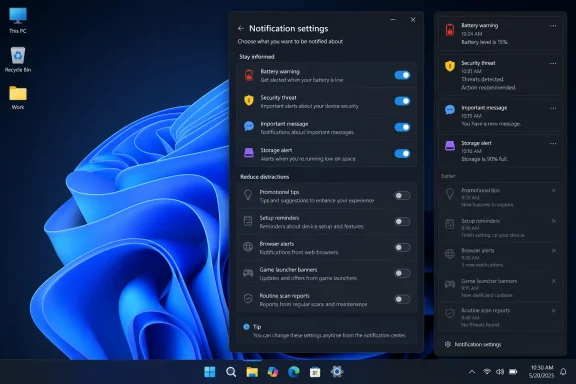 Start With the Lowest-Value Windows Notifications
Windows notifications solve a real desktop problem. They let applications report events without requiring users to keep every program open and visible. A notification might warn about a low battery, announce a message, report a system change, or confirm that attached media has been recognized.The same interface can also carry tips, setup reminders, website notices, store messages, and routine reports that require no action. Because these categories arrive through a common interface, their visual treatment does not always communicate their relative importance.
The five settings in How-To Geek’s guide are useful starting points because each can generate notifications that many users do not need immediately. None of the associated features must be considered defective. The narrower question is whether each message needs to appear while the user is doing something else.
A practical review is more effective than a universal shutdown:
- Disable promotional or routine messages.
- Retain messages when delayed review could have a meaningful cost.
- Review ambiguous senders individually instead of assuming every alert from an important application is important.
Microsoft’s Helpful Tips Can Become Repetitive
The easiest notifications to remove are Windows tips and suggestions. The control sits under Settings > System > Notifications > Additional settings, where users can uncheck “Get tips and suggestions when using Windows.”For someone encountering a feature for the first time, an occasional hint may be useful. For an established Windows user, however, generic suggestions tend to have diminishing value. They compete with the user’s existing knowledge, habits, and chosen software without necessarily identifying a problem that requires action.
Windows also provides other ways to discover features, including searchable Settings pages and contextual controls. Users who want guidance can look for it when needed rather than keeping an open-ended suggestion channel enabled.
The decision rule here is simple: disable Windows tips when they have become repetitive or promotional. Retain them only if they still provide guidance you would otherwise miss. Because a tip can usually be reviewed—or the same information found—later, most experienced users will lose little by turning this setting off.
This change concerns the delivery of suggestions. It should not be presented as a broader modification to Windows features or system protections.
“Finish Setting Up” Does Not Always Mean the PC Is Incomplete
The second setting occupies the same Additional settings area. Users can uncheck “Suggest ways to get the most out of Windows and finish setting up this device” under Settings > System > Notifications > Additional settings.The phrasing can make the prompt sound as though the computer remains operationally incomplete. The examples described by How-To Geek include invitations related to Microsoft 365, Windows Hello, Microsoft Edge, and OneDrive.
Those options are not identical, and some may be useful. Windows Hello may improve a user’s sign-in experience. OneDrive may suit someone who wants cloud synchronization. Edge may already be the preferred browser. Microsoft 365 may be appropriate for users who want its applications and services.
Possible value, however, does not make a recurring setup reminder urgent. A user may have intentionally declined one or more services, postponed the decision, or chosen an alternative. Repeating the invitation does not necessarily provide new information.
Disabling the prompt does not prevent the user from configuring a wanted service later. Those decisions can still be made from the relevant application or Settings page.
Apply the same test: disable the setup prompt if it primarily repeats product or configuration suggestions. Keep it only while it is helping you complete a task you actually intend to finish. If postponing the message has no meaningful consequence, it does not need to interrupt other work.
Browser Notifications Require Two Levels of Review
Browser notifications can be controlled at two levels. Windows recognizes the browser as a notification sender, while the browser maintains its own list of websites that have been granted notification permission.How-To Geek recommends beginning at the Windows level when no browser-generated notices are wanted. Open Settings > System > Notifications, scroll to Notifications from apps and other senders, locate each browser in use, and disable its notifications.
That is the broad control. It is appropriate when the user has no need for notifications delivered through that browser.
Users who depend on a small number of website alerts should take a narrower approach. Leave the browser enabled in Windows and review website permissions inside the browser. The exact wording and organization of browser menus may change between releases, so users should look for the browser’s privacy, site-settings, permissions, or notifications section.
In Firefox, How-To Geek directs users through the main menu to Settings and then to the area for notification permissions. In Chrome, the corresponding controls are found under Settings, Privacy and Security, Site Settings, and Notifications. These pages allow users to review which websites have notification access and remove permissions they no longer want.
The troubleshooting order should depend on the desired outcome:
- If every browser-delivered notification is unwanted, disable the browser as a sender in Windows.
- If only certain websites are unwanted, keep the browser enabled and revoke those sites’ permissions.
- If a useful website alert disappears, revisit both layers rather than assuming the website alone is responsible.
This does not require treating all website notifications as dangerous or all browser alerts as useless. It is simply a reason to grant notification access selectively.
Game Launchers Can Remain Useful Without Sending Banners
Game launchers manage libraries, installations, accounts, and updates. Those functions do not automatically mean every launcher message warrants immediate display.How-To Geek points to the Xbox app as one example of a sender whose notifications the author did not find useful. Other launchers may appear separately in Windows, allowing users to review each one rather than treating all gaming software as a single category.
The Windows-level route is Settings > System > Notifications > Notifications from apps and other senders. Turn off notifications for any installed launcher whose messages are consistently unnecessary.
This does not uninstall the launcher or prevent users from opening it to inspect their libraries, downloads, account information, or updates. It changes only whether Windows displays notifications from that sender.
Sender-by-sender review is preferable to disabling every gaming-related application indiscriminately. A user may still want alerts from a voice or messaging application while having no need for notices from a launcher. Those applications should be judged separately.
Use the same standard: disable launcher notifications when they are promotional or when they report routine information you already check inside the application. Retain them only if missing a specific launcher alert could create a meaningful account, communication, or security consequence.
For shared or multipurpose PCs, the case for review is stronger. Software installed for occasional use should not automatically keep notification access merely because it remains installed.
Routine Security Results Need the Most Careful Decision
Windows Security deserves a more cautious review because some of its notifications may call attention to problems that require action. The specific recommendation in How-To Geek’s guide is limited to notifications labeled “Recent activity and scan results.”The route begins by opening Windows Security, selecting Settings, opening Notifications, and reviewing the available notification choices. Users who do not need routine activity or scan-result reports can disable that category.
The distinction is between an informational report and an actionable warning. A scan result may be useful when a user manually started a scan and is waiting for an answer. The same kind of report may be unnecessary when it merely confirms an expected routine outcome.
This setting should not be discussed as though every important security warning is guaranteed to remain visible under every Windows configuration. Notification options, administrator restrictions, and future software changes can affect what users see. Before disabling any Windows Security category, users should read the labels presented on their own PC and confirm that the change is limited to the reports they intend to remove.
The decision rule is therefore stricter: disable only routine security notifications that you understand and consistently find unnecessary. Retain any alert whose delayed review could allow a threat, disabled protection, account problem, or other security condition to persist.
Users should also avoid equating a notification setting with the underlying security feature. Changing how a result is reported is not the same action as turning off antivirus, firewall, or other protection components. Even so, users should verify their current Windows Security status after making changes rather than relying on assumptions about which messages will continue to appear.
On a work or school PC, settings may be unavailable or controlled by the organization. If a control is locked, users should not attempt to bypass it; they should ask the responsible administrator what notification behavior is intended.
| Notification source | Where to control it | Suggested change | Decision rule |
|---|---|---|---|
| Windows tips | Settings > System > Notifications > Additional settings | Uncheck “Get tips and suggestions when using Windows” | Disable if repetitive or promotional; keep only while it provides needed guidance |
| Windows setup prompts | Settings > System > Notifications > Additional settings | Uncheck “Suggest ways to get the most out of Windows and finish setting up this device” | Disable if it repeats decisions already made; keep temporarily for a setup task you intend to complete |
| Browser and website alerts | Windows sender list and the browser’s site-permission settings | Disable the browser broadly or revoke individual website permissions | Keep only alerts whose delayed review could mean missed communication or another meaningful consequence |
| Game launchers | Settings > System > Notifications > Notifications from apps and other senders | Disable unwanted launcher senders | Disable promotional and routine messages; retain only alerts with a clear account, communication, or security purpose |
| Windows Security results | Windows Security > Settings > Notifications | Review “Recent activity and scan results” | Disable only routine reports you understand; retain notifications that may signal a security consequence |
The Best Configuration Is Selective, Not Silent
Once those five sources are addressed, the remaining sender list becomes easier to audit. Open Settings > System > Notifications > Notifications from apps and other senders and inspect each application individually.The safest review does not assume that an entire application is either important or unimportant. An essential program can still send routine messages, while an occasionally used utility may generate an alert that matters. Judge the notifications by their consequences, not merely by the sender’s name.
Ask three questions:
- Is the notification promotional or routine? If so, disable it unless it serves a specific need.
- What happens if I see it later? If delay changes nothing, immediate display is difficult to justify.
- Could delay cause data loss, missed communication, or a security consequence? If yes, retaining the notification may be prudent.
A quiet desktop is valuable, but a universal shutdown can leave users unaware of events they expected Windows to report. Selective cleanup is more work initially and usually produces a better result.
Do Not Disturb Provides a Temporary or Scheduled Alternative
Users who want fewer interruptions without permanently disabling senders can consider Do not disturb under Settings > System > Notifications.Do not disturb is best treated as a separate tool from sender cleanup. Disabling a sender expresses a lasting preference: its messages are not wanted through the Windows notification system. Do not disturb addresses periods when the user wants fewer interruptions regardless of the sender.
The settings area also includes an option to configure priority notifications. Users can review that list and decide whether any applications should be treated as exceptions during quiet periods.
The priority list should remain short. If most installed applications are granted an exception, Do not disturb will provide little practical benefit. A useful exception should have a clear reason, such as preventing a missed communication or another consequence that cannot comfortably wait.
Users should test Do not disturb on their own systems before depending on it during meetings, presentations, games, recording sessions, or focused work. The safest approach is not to assume that every wanted alert will appear or that every unwanted alert will be hidden under every configuration. Enable the mode, send a test message from an important application if possible, and inspect the resulting behavior.
The distinction is straightforward:
- Disable a sender when its notifications are generally promotional, routine, or unnecessary.
- Use Do not disturb when notifications may be useful later but should not interrupt the current activity.
- Grant priority status sparingly when delayed review could cause a meaningful problem.
Some Alerts May Still Be Worth Keeping
How-To Geek identifies AutoPlay, low-battery warnings, storage alerts, AMD Software notifications, and startup-app notifications as examples that can be useful. That does not establish that every message from those sources should be enabled, nor does it guarantee how each one behaves under every Windows notification or Do not disturb configuration.Instead, these examples illustrate the kinds of events users may want to evaluate more carefully before disabling them.
A low-battery warning can be time-sensitive because an unexpected shutdown may interrupt a session or threaten unsaved work. A storage warning may provide an opportunity to free space before low capacity interferes with downloads, updates, or ordinary application use.
AutoPlay notifications can be useful when they confirm that Windows recognized newly connected media and present available actions. Users who do not rely on AutoPlay may make a different choice, but the alert is at least tied to a physical event the user initiated.
AMD Software notifications may interest users who actively track graphics-driver availability. Other users may prefer to open the software periodically and check manually. The correct choice depends on whether delayed awareness has a practical cost for that machine.
Startup-app notifications can also be valuable because they may draw attention to a program registering itself to run when the user signs in. That gives the user an opportunity to review a change to startup behavior.
None of these categories receives automatic approval. Apply the same decision rule to each:
- Keep a battery alert if missing it could cause shutdown or lost work.
- Keep a storage alert if delay could lead to failed operations or system disruption.
- Keep an AutoPlay alert if it supports how you handle newly attached media.
- Keep a driver-related alert if timely awareness matters to your maintenance routine.
- Keep a startup-app alert if it helps you identify unwanted system changes.
Enterprise IT Should Treat This as Editorial Guidance, Not an Assumed Policy Framework
For administrators, notification fatigue can affect whether users notice warnings, respond to authentication requests, or report unusual endpoint behavior. At the same time, WindowsForum is not asserting that every setting discussed here has a corresponding centrally deployable management policy.Organizations should verify supported management mechanisms for their Windows edition, release, security product, and device-management platform before attempting a fleet-wide change. A setting visible in the local Windows interface should not be assumed to have an equivalent Group Policy, configuration service provider setting, mobile-device-management control, or security baseline entry.
The following checklist is therefore editorial guidance for planning and testing, not a claim that all items can be enforced through one Windows management mechanism.
Notification value also varies by role. A graphics workstation may benefit from driver-related notices that are irrelevant on a tightly controlled office endpoint. A support employee may need communication alerts that would be distracting on a presentation system. A kiosk or shared device may require a narrower configuration than an individually assigned laptop.
Administrators should avoid two extremes. If users disable everything out of frustration, they may miss warnings the organization expected them to see. If every routine report remains prominent, users may become less likely to examine messages carefully.
Action checklist for admins
- Audit Settings > System > Notifications on representative endpoints and record which senders are present.
- Identify messages that are promotional or routine before considering broader changes.
- Define the events for which delayed review could cause data loss, missed business communication, or a security consequence.
- Review browser-level website permissions separately from the browser’s entry in the Windows sender list.
- Treat Windows Security notification changes cautiously and confirm the exact labels and behavior on supported test devices.
- Keep any Do not disturb priority list short and tied to documented business needs.
- Test representative low-battery, storage, security, AutoPlay, driver, startup-app, and communication scenarios rather than assuming they will behave identically across devices.
- Verify whether each desired configuration has a supported management mechanism before describing it as organization policy.
- Document settings that are intentionally managed so users know why a control may be unavailable.
- Provide a support route for users who believe an important alert has been suppressed.
A Quieter Desktop Requires Better Choices, Not Fewer Features
The five changes highlighted by How-To Geek address distinct sources of notification noise. Windows tips can become repetitive. Setup prompts can revisit product and configuration decisions. Browsers can deliver notices for multiple websites. Game launchers can send messages that a user would rather review inside the application. Routine security results can add reports even when no immediate response is expected.Users do not need an abstract notification philosophy to fix these problems. They need a repeatable test applied to each setting:
Start with the five concrete paths, then review the remaining sender list. Use Do not disturb for periods when messages may still be useful but should not interrupt current work. Test any configuration that affects alerts you rely on, and do not assume that all useful warnings will survive every combination of sender settings, browser permissions, security options, and quiet modes.Disable it if it is promotional or routine. Retain it only if delayed review could cause data loss, missed communication, or a security consequence.
The result should not be a silent PC. It should be a Windows desktop where the notifications that remain have a clear reason to appear.
References
- Primary source: How-To Geek
Published: 2026-07-11T11:32:08.802177
Loading…
www.howtogeek.com - Official source: support.mozilla.org
Loading…
support.mozilla.org - Official source: support.microsoft.com
Loading…
support.microsoft.com - Official source: support.google.com
Loading…
support.google.com - Related coverage: u3ahavelocknorth.com
Loading…
www.u3ahavelocknorth.com - Official source: learn.microsoft.com
Loading…
learn.microsoft.com