

Windows 11 users can reduce notification interruptions by combining Do Not Disturb, Focus sessions, priority notifications, per-app notification priority, and lock-screen privacy controls in Settings, rather than disabling alerts outright or relying on a single global notification switch. That is the useful idea buried inside a familiar productivity tip: Windows is not just noisy because apps are noisy, but because the operating system still treats too many events as equally urgent. The fix is not silence. The fix is hierarchy.
The old advice for Windows notifications has usually been binary: turn them on, turn them off, or disable the worst offenders one app at a time. That works if the problem is spam. It fails when the problem is priority.
A password-expiration warning, a Teams call, a backup failure, a Store update, a browser promotion, and a calendar reminder may all appear through the same visual mechanism. They slide in, play a sound if allowed, occupy attention, and demand the same reflexive glance. Windows 11 gives users the tools to impose order on that stream, but it hides them across several settings pages and describes them in language that sounds more like etiquette than policy.
That is why the TweakTown approach is more interesting than another “turn off notifications” guide. It treats Windows notification management as a layered system: Do Not Disturb for interruption control, Focus for timed concentration, priority notifications for exceptions, per-app priority for sorting, and lock-screen settings for privacy. The result is less about making Windows quiet and more about making Windows discriminating.
This distinction matters more in 2026 than it did when desktop notifications first became normal. Windows is now the shell for work chat, password managers, endpoint security tools, package managers, cloud sync clients, browser apps, phone integrations, and Microsoft’s own services. On a modern PC, the notification center is not a courtesy tray. It is a contested surface.
That makes Do Not Disturb less like a mute button and more like a traffic diversion. The alerts still exist. They are simply prevented from barging into the foreground at the moment an app emits them.
This is a subtle but important design choice. A true “off” switch creates risk because it can hide information the user actually needed. Do Not Disturb lowers the interruption cost while preserving the audit trail. For knowledge workers and administrators, that difference is the line between sane notification management and operational negligence.
The feature also explains a common Windows complaint: users turn on Do Not Disturb, forget about it, and then wonder why things are not popping up. The alerts have not necessarily vanished. They may be waiting behind Win + N in Notification Center, or behind the notification clock area depending on the device and shell state.
Microsoft’s current model effectively separates delivery from interruption. Delivery means the notification lands somewhere in the system. Interruption means the notification gets permission to demand immediate attention. Once users understand that split, Windows 11’s notification settings become much less mysterious.
Those triggers are not decorative. They are Microsoft’s implicit admission that a desktop operating system should understand context. A chat banner during a spreadsheet session is annoying; the same banner during a conference-room presentation is professionally dangerous.
The display duplication rule is especially valuable. Anyone who has presented from a Windows laptop has either experienced or feared the moment a private message appears on a shared screen. Suppressing banners while duplicating a display is not merely a productivity setting. It is a privacy and reputation setting.
Full-screen and gaming rules occupy a similar space. Full-screen applications often indicate concentration, presentation, media playback, or specialized workflows where visual interruptions are unusually disruptive. Games add another complication: notifications can steal focus, appear over anti-cheat-protected applications, or create latency and immersion problems. Even when those issues are rare, they are memorable.
The catch is that automatic rules can make Do Not Disturb appear haunted. A user may disable it manually, only for a rule to turn it back on when a condition reappears. That is not Windows being capricious; it is Windows applying a rule the user may have forgotten existed.
For administrators, this is the part worth documenting. If a user says notifications are “randomly” suppressed, the culprit may not be the app, Outlook, Teams, or the notification platform. It may be an automatic Do Not Disturb rule doing exactly what it was configured to do.
That difference is why Focus is more than a second entrance to the same setting. Starting a Focus session turns on Do Not Disturb for the session duration and also reduces taskbar distractions, including badges and flashing app icons. In practical terms, Focus wraps quiet mode in a timer and adds a broader visual cleanup pass.
This is a more opinionated model than Do Not Disturb. Do Not Disturb can remain on indefinitely or follow rules in the background. Focus is a session. It starts, runs, and ends. That makes it better suited for writing, coding, incident review, training, exam prep, or any task where the user wants a bounded period of reduced noise rather than a standing rule.
The Clock app connection is easy to overlook, but it is part of the feature’s identity. Microsoft is treating concentration as a timed activity rather than a static preference. That is a consumer-friendly framing, but it also maps cleanly onto professional workflows. A 45-minute change-review block and a 25-minute Pomodoro are different rituals, but they benefit from the same underlying behavior: hold the noise, then restore normal visibility.
The automatic restoration is not a small thing. Many users avoid quiet modes because they fear forgetting to turn them off. Focus lowers that risk. A quiet period that expires by design is easier to trust than a toggle that depends on memory.
For power users, Focus is the better default for temporary work. Do Not Disturb is the policy layer. Focus is the session layer. Confusing those two leads to either overblocking or underusing both.
The priority list is not the same as per-app notification priority in Notification Center, and that distinction is crucial. The priority list determines what can break through Do Not Disturb. It is an allowlist for interruption. Calls, VoIP calls, reminders, and selected apps can be allowed to show notifications even when most other alerts are being held back.
That means the priority list is where users should be conservative. If everything is priority, nothing is priority. The feature only works when the list is short enough to represent genuine exceptions.
For a home user, that might mean calls, calendar reminders, and a messaging app used by family. For an IT admin, it might mean endpoint protection alerts, an incident-management tool, authenticator prompts, or an on-call paging app. For a developer, it might mean build failures or production-monitoring notifications, but not every chat message in every workspace.
The TweakTown model gets this right by framing Do Not Disturb as a closed room and the priority list as the guest list. That metaphor is useful because it makes the configuration decision social rather than technical. Who is allowed to knock while the door is closed?
The danger is app creep. Users tend to promote apps after a single missed notification, and vendors increasingly design apps to argue for that promotion. Once an app is on the exception list, it regains the power to interrupt. The list should be audited, not accumulated.
Per-app notification priority controls ordering inside Notification Center. It decides what appears at the top of the pile when the user chooses to review deferred alerts. It does not, by itself, decide what breaks through Do Not Disturb.
This is the setting that turns Notification Center from a junk drawer into a triage queue. Windows offers Top, High, and Normal levels, with only one app allowed to occupy the Top position. High-priority notifications appear above Normal ones, which gives the user a practical way to keep important but non-interrupting alerts visible.
The one-app limit for Top is a rare example of good restraint in a modern settings interface. Many systems let users declare everything important and then collapse under the contradiction. By allowing a single Top app, Windows forces a decision. That decision may be uncomfortable, but the discomfort is the point.
For many users, the Top slot should not go to the noisiest app. It should go to the app whose missed alert creates the highest cost. That may be a password manager, a security tool, a calendar app, a work-chat client, or a monitoring agent depending on the machine’s role.
High should be used for apps that matter but do not deserve the crown. Normal should remain the default for almost everything else. The goal is not to flatter important software vendors. The goal is to make the next review pass faster.
This is where Windows 11’s notification system quietly becomes more sophisticated than its reputation. It separates immediate interruption from later ordering. That is exactly how humans process information when they are in control: emergencies interrupt, important items rise to the top of the inbox, and routine items wait their turn.
Windows 11 includes controls for showing notifications on the lock screen and for hiding notification content. The latter matters because the mere presence of an alert is not always the sensitive part; the content often is. A message preview, meeting title, one-time code, customer name, or security alert can reveal more than the user intended.
Recent Windows behavior tends toward privacy-preserving lock-screen notifications, but users should not treat defaults as policy. The right setting depends on where the PC lives. A home desktop in a private room, a laptop used in airports, a shared family machine, and a domain-joined workstation in an open office do not have the same exposure.
The smarter approach is to treat lock-screen notifications as their own review category. Do you want notifications visible at all when the machine is locked? If yes, should content be hidden? Which apps are allowed to show anything? These questions are not about convenience alone. They are about shoulder surfing, compliance, and basic operational hygiene.
For administrators, lock-screen notification policy is easy to underestimate because it sounds like a user preference. In regulated environments, it is closer to data handling. A locked PC that displays message content is still leaking information to anyone nearby.
The practical compromise is simple: keep lock-screen alerts minimal, hide content broadly, and disable lock-screen visibility for apps that display sensitive messages. If a notification is important enough to require action, the user can unlock the device. The lock screen does not need to be a second inbox.
Do Not Disturb, Focus, priority notifications, app notification priority, banners, sounds, badges, lock-screen visibility, browser site prompts, and Windows suggestions are all parts of the same attention economy. Windows does not explain them that way. It hands users a drawer full of switches.
That design reflects a familiar Microsoft compromise. Windows must serve casual users, enterprise administrators, gamers, students, developers, accessibility needs, and device makers. A single “notification philosophy” would not fit all of them. So Microsoft exposes granular controls and leaves the philosophy to the user.
The result is powerful but under-taught. A careful user can build a nuanced system in a few minutes. An average user may only discover the global notification toggle and assume that Windows offers nothing between chaos and silence.
This is not only a usability problem. It is a trust problem. If users do not understand why notifications appear or disappear, they blame the platform. If they understand the layers, they can predict the platform. Predictability is the difference between a feature and a superstition.
Microsoft has shown some awareness of this in adjacent parts of Windows, especially where Widgets and taskbar badging have become quieter by default in recent Insider builds. That trend suggests the company knows interruption is no longer a harmless side effect. It is a core part of the user experience.
But quieter defaults are only one half of the answer. The other half is making priority legible. Windows should not merely ask whether an app may notify. It should help users decide whether an app may interrupt.
This is where many “I turned off that app” stories go sideways. The app may not be an installed app at all. It may be a site permission inside a browser profile. The Windows notification layer can sort or suppress the final alert, but the origin lives elsewhere.
For users, browser notification permissions deserve the same audit as startup apps. If a site does not have a clear reason to interrupt the desktop, revoke the permission. Web apps used for work may deserve access; random sites that asked for notification rights should not.
The same logic applies to Windows tips, suggestions, welcome experiences, and vendor-installed utilities. Windows 11’s notification center is only as disciplined as the inputs feeding it. Sorting is valuable, but reducing low-value sources still matters.
The difference is that source reduction should come after priority design, not before it. If users start by turning everything off, they may remove useful signals along with junk. If they first decide what deserves interruption, what deserves high placement, and what deserves only quiet delivery, the cleanup becomes more rational.
This is the larger lesson from the TweakTown setup. Notification management is not a purge. It is an editorial process.
This is particularly visible in environments that rely on Microsoft 365, Teams, Defender, identity prompts, update compliance notices, VPN clients, remote management tools, and line-of-business apps. Users learn which alerts matter through repetition, but Windows often presents them with the same visual weight. That trains dismissal.
Security teams have spent years warning about alert fatigue in operations centers. The same phenomenon exists on the endpoint, just at a smaller scale. If a user is conditioned to close banners reflexively, the organization has weakened its own communication channel.
The remedy is not to force every corporate alert through as urgent. That only accelerates fatigue. The better path is a managed hierarchy: define which apps can interrupt during quiet periods, which alerts should rise in Notification Center, and which categories should be silent unless explicitly opened.
The complication is personal context. A finance user, a developer, a help-desk technician, and an executive assistant do not need the same notification profile. Heavy-handed standardization can produce the same dysfunction as no policy at all.
Still, IT can offer templates, documentation, and baseline recommendations. “Here is how to configure Do Not Disturb without missing incident alerts” is more useful than “turn notifications off if they bother you.” The former respects the work. The latter punts the problem to the user.
Windows Backup for Organizations and settings catalogs also make clear that many notification preferences are now part of the broader device-state conversation. As Windows increasingly syncs, restores, and manages user settings across devices, notification configuration becomes part of the endpoint’s personality. That makes sloppy defaults more persistent and good defaults more valuable.
That sounds harsh, but the evidence is on every desktop. Apps routinely notify for successful syncs, minor updates, promotional messages, engagement nudges, and status changes that should have remained inside the app. The toast notification became too cheap, so it became overused.
A better Windows notification ecosystem would require developers to classify urgency honestly. A failed backup is not the same as a completed backup. A direct mention is not the same as channel activity. A security prompt is not the same as a release note. Users should not need to repair that taxonomy after the fact.
Microsoft’s own platform features give developers signals they can respect. Windows has APIs for detecting Focus session state, allowing apps to adjust behavior when the user has deliberately entered a concentration period. That is the right direction: applications should respond to user attention state rather than merely shouting into it.
But platform etiquette rarely wins without incentives. If interruptive notifications drive engagement metrics, some apps will keep interrupting. That leaves the operating system as referee and the user as final editor.
Windows 11’s layered controls are therefore a necessary defense against app-level ambition. They are not perfect, but they are enough to build a working boundary between the user and the attention market running on the desktop.
Windows notifications are not going away, and neither are the apps that compete to use them. The next step for Microsoft should be to make this hierarchy clearer at setup and easier to audit over time, because the future of Windows productivity will not be won by silencing the PC. It will be won by teaching it when to speak.
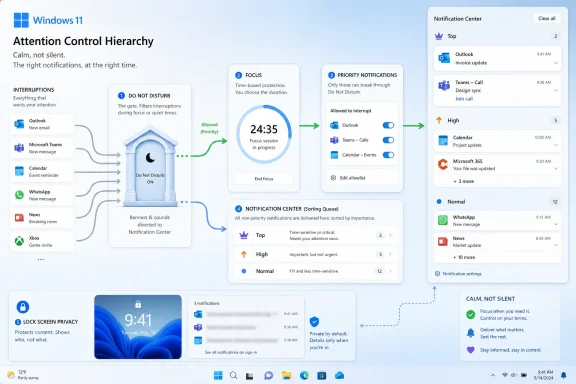 Windows 11’s Notification Problem Is Not Volume, It Is Flattened Urgency
The old advice for Windows notifications has usually been binary: turn them on, turn them off, or disable the worst offenders one app at a time. That works if the problem is spam. It fails when the problem is priority.A password-expiration warning, a Teams call, a backup failure, a Store update, a browser promotion, and a calendar reminder may all appear through the same visual mechanism. They slide in, play a sound if allowed, occupy attention, and demand the same reflexive glance. Windows 11 gives users the tools to impose order on that stream, but it hides them across several settings pages and describes them in language that sounds more like etiquette than policy.
That is why the TweakTown approach is more interesting than another “turn off notifications” guide. It treats Windows notification management as a layered system: Do Not Disturb for interruption control, Focus for timed concentration, priority notifications for exceptions, per-app priority for sorting, and lock-screen settings for privacy. The result is less about making Windows quiet and more about making Windows discriminating.
This distinction matters more in 2026 than it did when desktop notifications first became normal. Windows is now the shell for work chat, password managers, endpoint security tools, package managers, cloud sync clients, browser apps, phone integrations, and Microsoft’s own services. On a modern PC, the notification center is not a courtesy tray. It is a contested surface.
Do Not Disturb Is the Gate, Not the Trash Bin
The most important misconception about Do Not Disturb is that it deletes or blocks notifications. It generally does not. In Windows 11, enabling Do Not Disturb stops most notification banners from appearing and sends notifications quietly to Notification Center, where the user can review them later.That makes Do Not Disturb less like a mute button and more like a traffic diversion. The alerts still exist. They are simply prevented from barging into the foreground at the moment an app emits them.
This is a subtle but important design choice. A true “off” switch creates risk because it can hide information the user actually needed. Do Not Disturb lowers the interruption cost while preserving the audit trail. For knowledge workers and administrators, that difference is the line between sane notification management and operational negligence.
The feature also explains a common Windows complaint: users turn on Do Not Disturb, forget about it, and then wonder why things are not popping up. The alerts have not necessarily vanished. They may be waiting behind Win + N in Notification Center, or behind the notification clock area depending on the device and shell state.
Microsoft’s current model effectively separates delivery from interruption. Delivery means the notification lands somewhere in the system. Interruption means the notification gets permission to demand immediate attention. Once users understand that split, Windows 11’s notification settings become much less mysterious.
Automatic Quiet Hours Are Where the Feature Becomes Useful
Manual Do Not Disturb is handy, but automation is where the feature earns its keep. Windows 11 can enable Do Not Disturb during scheduled time windows and during common attention-sensitive scenarios, including display duplication, full-screen app use, gaming, and the first hour after a feature update.Those triggers are not decorative. They are Microsoft’s implicit admission that a desktop operating system should understand context. A chat banner during a spreadsheet session is annoying; the same banner during a conference-room presentation is professionally dangerous.
The display duplication rule is especially valuable. Anyone who has presented from a Windows laptop has either experienced or feared the moment a private message appears on a shared screen. Suppressing banners while duplicating a display is not merely a productivity setting. It is a privacy and reputation setting.
Full-screen and gaming rules occupy a similar space. Full-screen applications often indicate concentration, presentation, media playback, or specialized workflows where visual interruptions are unusually disruptive. Games add another complication: notifications can steal focus, appear over anti-cheat-protected applications, or create latency and immersion problems. Even when those issues are rare, they are memorable.
The catch is that automatic rules can make Do Not Disturb appear haunted. A user may disable it manually, only for a rule to turn it back on when a condition reappears. That is not Windows being capricious; it is Windows applying a rule the user may have forgotten existed.
For administrators, this is the part worth documenting. If a user says notifications are “randomly” suppressed, the culprit may not be the app, Outlook, Teams, or the notification platform. It may be an automatic Do Not Disturb rule doing exactly what it was configured to do.
Focus Gives Silence a Timer and a Purpose
Do Not Disturb answers the question “should Windows interrupt me right now?” Focus answers a slightly different question: “how long am I deliberately protecting this block of time?”That difference is why Focus is more than a second entrance to the same setting. Starting a Focus session turns on Do Not Disturb for the session duration and also reduces taskbar distractions, including badges and flashing app icons. In practical terms, Focus wraps quiet mode in a timer and adds a broader visual cleanup pass.
This is a more opinionated model than Do Not Disturb. Do Not Disturb can remain on indefinitely or follow rules in the background. Focus is a session. It starts, runs, and ends. That makes it better suited for writing, coding, incident review, training, exam prep, or any task where the user wants a bounded period of reduced noise rather than a standing rule.
The Clock app connection is easy to overlook, but it is part of the feature’s identity. Microsoft is treating concentration as a timed activity rather than a static preference. That is a consumer-friendly framing, but it also maps cleanly onto professional workflows. A 45-minute change-review block and a 25-minute Pomodoro are different rituals, but they benefit from the same underlying behavior: hold the noise, then restore normal visibility.
The automatic restoration is not a small thing. Many users avoid quiet modes because they fear forgetting to turn them off. Focus lowers that risk. A quiet period that expires by design is easier to trust than a toggle that depends on memory.
For power users, Focus is the better default for temporary work. Do Not Disturb is the policy layer. Focus is the session layer. Confusing those two leads to either overblocking or underusing both.
The Priority List Is the Escape Hatch That Makes Quiet Mode Safe
Every quiet-mode system eventually runs into the same problem: silence is useful until the wrong thing is silenced. Windows 11’s priority notification list exists to solve that.The priority list is not the same as per-app notification priority in Notification Center, and that distinction is crucial. The priority list determines what can break through Do Not Disturb. It is an allowlist for interruption. Calls, VoIP calls, reminders, and selected apps can be allowed to show notifications even when most other alerts are being held back.
That means the priority list is where users should be conservative. If everything is priority, nothing is priority. The feature only works when the list is short enough to represent genuine exceptions.
For a home user, that might mean calls, calendar reminders, and a messaging app used by family. For an IT admin, it might mean endpoint protection alerts, an incident-management tool, authenticator prompts, or an on-call paging app. For a developer, it might mean build failures or production-monitoring notifications, but not every chat message in every workspace.
The TweakTown model gets this right by framing Do Not Disturb as a closed room and the priority list as the guest list. That metaphor is useful because it makes the configuration decision social rather than technical. Who is allowed to knock while the door is closed?
The danger is app creep. Users tend to promote apps after a single missed notification, and vendors increasingly design apps to argue for that promotion. Once an app is on the exception list, it regains the power to interrupt. The list should be audited, not accumulated.
Notification Center Priority Solves a Different Problem
Windows 11’s per-app “priority of notifications” setting is unfortunately named because it sounds like it belongs to the same system as priority notifications. It does not.Per-app notification priority controls ordering inside Notification Center. It decides what appears at the top of the pile when the user chooses to review deferred alerts. It does not, by itself, decide what breaks through Do Not Disturb.
This is the setting that turns Notification Center from a junk drawer into a triage queue. Windows offers Top, High, and Normal levels, with only one app allowed to occupy the Top position. High-priority notifications appear above Normal ones, which gives the user a practical way to keep important but non-interrupting alerts visible.
The one-app limit for Top is a rare example of good restraint in a modern settings interface. Many systems let users declare everything important and then collapse under the contradiction. By allowing a single Top app, Windows forces a decision. That decision may be uncomfortable, but the discomfort is the point.
For many users, the Top slot should not go to the noisiest app. It should go to the app whose missed alert creates the highest cost. That may be a password manager, a security tool, a calendar app, a work-chat client, or a monitoring agent depending on the machine’s role.
High should be used for apps that matter but do not deserve the crown. Normal should remain the default for almost everything else. The goal is not to flatter important software vendors. The goal is to make the next review pass faster.
This is where Windows 11’s notification system quietly becomes more sophisticated than its reputation. It separates immediate interruption from later ordering. That is exactly how humans process information when they are in control: emergencies interrupt, important items rise to the top of the inbox, and routine items wait their turn.
The Lock Screen Is a Notification Surface With an Audience
The lock screen often gets treated as a cosmetic boundary. In notification terms, it is a public display surface.Windows 11 includes controls for showing notifications on the lock screen and for hiding notification content. The latter matters because the mere presence of an alert is not always the sensitive part; the content often is. A message preview, meeting title, one-time code, customer name, or security alert can reveal more than the user intended.
Recent Windows behavior tends toward privacy-preserving lock-screen notifications, but users should not treat defaults as policy. The right setting depends on where the PC lives. A home desktop in a private room, a laptop used in airports, a shared family machine, and a domain-joined workstation in an open office do not have the same exposure.
The smarter approach is to treat lock-screen notifications as their own review category. Do you want notifications visible at all when the machine is locked? If yes, should content be hidden? Which apps are allowed to show anything? These questions are not about convenience alone. They are about shoulder surfing, compliance, and basic operational hygiene.
For administrators, lock-screen notification policy is easy to underestimate because it sounds like a user preference. In regulated environments, it is closer to data handling. A locked PC that displays message content is still leaking information to anyone nearby.
The practical compromise is simple: keep lock-screen alerts minimal, hide content broadly, and disable lock-screen visibility for apps that display sensitive messages. If a notification is important enough to require action, the user can unlock the device. The lock screen does not need to be a second inbox.
Microsoft Built a System, Then Hid the System in Plain Sight
The reason guides like this resonate is not that the individual settings are obscure. Most of them are sitting in Settings under System and Notifications. The problem is that Windows presents them as isolated toggles instead of a coherent model.Do Not Disturb, Focus, priority notifications, app notification priority, banners, sounds, badges, lock-screen visibility, browser site prompts, and Windows suggestions are all parts of the same attention economy. Windows does not explain them that way. It hands users a drawer full of switches.
That design reflects a familiar Microsoft compromise. Windows must serve casual users, enterprise administrators, gamers, students, developers, accessibility needs, and device makers. A single “notification philosophy” would not fit all of them. So Microsoft exposes granular controls and leaves the philosophy to the user.
The result is powerful but under-taught. A careful user can build a nuanced system in a few minutes. An average user may only discover the global notification toggle and assume that Windows offers nothing between chaos and silence.
This is not only a usability problem. It is a trust problem. If users do not understand why notifications appear or disappear, they blame the platform. If they understand the layers, they can predict the platform. Predictability is the difference between a feature and a superstition.
Microsoft has shown some awareness of this in adjacent parts of Windows, especially where Widgets and taskbar badging have become quieter by default in recent Insider builds. That trend suggests the company knows interruption is no longer a harmless side effect. It is a core part of the user experience.
But quieter defaults are only one half of the answer. The other half is making priority legible. Windows should not merely ask whether an app may notify. It should help users decide whether an app may interrupt.
The Browser Is the Loophole in Every Desktop Notification Plan
No Windows notification strategy is complete if it ignores browsers. Edge, Chrome, and other Chromium-based browsers can relay notifications from websites that users approved months or years ago with a careless click. Those alerts then ride into Windows looking like legitimate desktop notifications, even when their source is a shopping site, news site, forum, or web app the user barely remembers.This is where many “I turned off that app” stories go sideways. The app may not be an installed app at all. It may be a site permission inside a browser profile. The Windows notification layer can sort or suppress the final alert, but the origin lives elsewhere.
For users, browser notification permissions deserve the same audit as startup apps. If a site does not have a clear reason to interrupt the desktop, revoke the permission. Web apps used for work may deserve access; random sites that asked for notification rights should not.
The same logic applies to Windows tips, suggestions, welcome experiences, and vendor-installed utilities. Windows 11’s notification center is only as disciplined as the inputs feeding it. Sorting is valuable, but reducing low-value sources still matters.
The difference is that source reduction should come after priority design, not before it. If users start by turning everything off, they may remove useful signals along with junk. If they first decide what deserves interruption, what deserves high placement, and what deserves only quiet delivery, the cleanup becomes more rational.
This is the larger lesson from the TweakTown setup. Notification management is not a purge. It is an editorial process.
Enterprise IT Should Treat Notification Policy as Part of Endpoint Experience
For businesses, Windows notifications sit at an awkward intersection of productivity, security, and support. Too many alerts create fatigue. Too few alerts create missed actions. Poorly ordered alerts create both at once.This is particularly visible in environments that rely on Microsoft 365, Teams, Defender, identity prompts, update compliance notices, VPN clients, remote management tools, and line-of-business apps. Users learn which alerts matter through repetition, but Windows often presents them with the same visual weight. That trains dismissal.
Security teams have spent years warning about alert fatigue in operations centers. The same phenomenon exists on the endpoint, just at a smaller scale. If a user is conditioned to close banners reflexively, the organization has weakened its own communication channel.
The remedy is not to force every corporate alert through as urgent. That only accelerates fatigue. The better path is a managed hierarchy: define which apps can interrupt during quiet periods, which alerts should rise in Notification Center, and which categories should be silent unless explicitly opened.
The complication is personal context. A finance user, a developer, a help-desk technician, and an executive assistant do not need the same notification profile. Heavy-handed standardization can produce the same dysfunction as no policy at all.
Still, IT can offer templates, documentation, and baseline recommendations. “Here is how to configure Do Not Disturb without missing incident alerts” is more useful than “turn notifications off if they bother you.” The former respects the work. The latter punts the problem to the user.
Windows Backup for Organizations and settings catalogs also make clear that many notification preferences are now part of the broader device-state conversation. As Windows increasingly syncs, restores, and manages user settings across devices, notification configuration becomes part of the endpoint’s personality. That makes sloppy defaults more persistent and good defaults more valuable.
Developers Need to Stop Treating Every Toast Like a Siren
The other side of notification discipline belongs to app developers. Windows gives users tools to suppress, sort, and prioritize notifications because apps cannot be trusted to do it themselves.That sounds harsh, but the evidence is on every desktop. Apps routinely notify for successful syncs, minor updates, promotional messages, engagement nudges, and status changes that should have remained inside the app. The toast notification became too cheap, so it became overused.
A better Windows notification ecosystem would require developers to classify urgency honestly. A failed backup is not the same as a completed backup. A direct mention is not the same as channel activity. A security prompt is not the same as a release note. Users should not need to repair that taxonomy after the fact.
Microsoft’s own platform features give developers signals they can respect. Windows has APIs for detecting Focus session state, allowing apps to adjust behavior when the user has deliberately entered a concentration period. That is the right direction: applications should respond to user attention state rather than merely shouting into it.
But platform etiquette rarely wins without incentives. If interruptive notifications drive engagement metrics, some apps will keep interrupting. That leaves the operating system as referee and the user as final editor.
Windows 11’s layered controls are therefore a necessary defense against app-level ambition. They are not perfect, but they are enough to build a working boundary between the user and the attention market running on the desktop.
The WindowsForum Playbook for a Quieter but Safer Desktop
The concrete lesson is that Windows 11 notification tuning should start with intent, not irritation. Decide which alerts may interrupt you, which alerts should be easy to find later, and which alerts are merely background noise. Then configure Windows around that hierarchy.- Do Not Disturb should be used to stop most banners without losing notifications that still need later review in Notification Center.
- Automatic Do Not Disturb rules should be checked before blaming an app for “missing” notifications, especially on systems used for presentations, gaming, or full-screen work.
- Focus sessions are best for bounded concentration because they turn quiet mode on temporarily and restore normal behavior when the timer ends.
- The priority notification list should stay short because it controls which calls, reminders, and apps can break through Do Not Disturb.
- Per-app Top, High, and Normal priority should be treated as a sorting system for Notification Center, not as an interruption permission system.
- Lock-screen notification settings should be reviewed separately because a locked PC can still disclose sensitive context in shared spaces.
Windows notifications are not going away, and neither are the apps that compete to use them. The next step for Microsoft should be to make this hierarchy clearer at setup and easier to audit over time, because the future of Windows productivity will not be won by silencing the PC. It will be won by teaching it when to speak.
References
- Primary source: TweakTown
Published: Sat, 20 Jun 2026 18:18:06 GMT
I stopped Windows 11 notifications from interrupting me with Do Not Disturb, Focus, and a priority list
Most notification advice stops at turning things off. Mine sorts them instead, so what's urgent reaches me, and everything else waits in the center. www.tweaktown.com
- Official source: support.microsoft.com
Notifications and Do Not Disturb in Windows - Microsoft Support
Learn how to manage and configure notifications in Windows, including using the "Do Not Disturb" feature to silence alerts and stay focused. Discover how to activate "Do Not Disturb" from the Notification Center and use shortcuts to enhance productivity.support.microsoft.com - Official source: learn.microsoft.com
Notifications don't show in the action or notification center - Windows Client | Microsoft Learn
Provides basic guidelines to resolve the issue in which notifications don't show in the action or notification center by checking if the Quiet Hours (also known as focus assist) option is enabled.learn.microsoft.com - Official source: microsoft.com
Windows Learning Center | Microsoft
Whether you’re working, gaming, or just browsing, Windows Learning Center has helpful tips, tricks, and tools to help make the everyday easier.www.microsoft.com
- Related coverage: makeuseof.com
How to Enable Do Not Disturb Mode on Windows 11
If notifications keep dragging you away from work, here's how to quiet things down with Do Not Disturb mode on Windows 11. www.makeuseof.com
- Related coverage: windowscentral.com
How to make notifications less annoying on Windows 11 | Windows Central
On Windows 11, you can disable notifications in multiple ways. You can disable all the notifications, or you can turn off notifications individually for the different apps and features, and in this guide, I'll show you how.www.windowscentral.com
- Related coverage: techadvisor.com
How To Manage Notifications in Windows 11 - Tech Advisor
Notifications on Windows 11 can easily get out of hand, but Microsoft has plenty of built-in tools to help you manage themwww.techadvisor.com - Official source: techcommunity.microsoft.com
How to use Focus Assist Windows 11 | Microsoft Community Hub
How to use Focus Assist Windows 11 Focus assist is a feature that helps you stay focused on your work and avoid distractions. The main idea... techcommunity.microsoft.com
- Related coverage: scscc.club
- Related coverage: information-services.ed.ac.uk
