
Microsoft’s October servicing wave left a fresh scar on enterprise admins and cautious home users alike: several Windows 11 systems booted into the BitLocker recovery screen after installing October cumulative updates, and in a related regression USB keyboards and mice stopped responding inside the Windows Recovery Environment (WinRE). What began as isolated field reports escalated into an official Microsoft advisory and an out-of-band emergency patch — but the incident underscores both the brittle boundaries between secure boot, BitLocker, and the Safe OS, and the operational risk of rolling security updates across mixed hardware fleets.
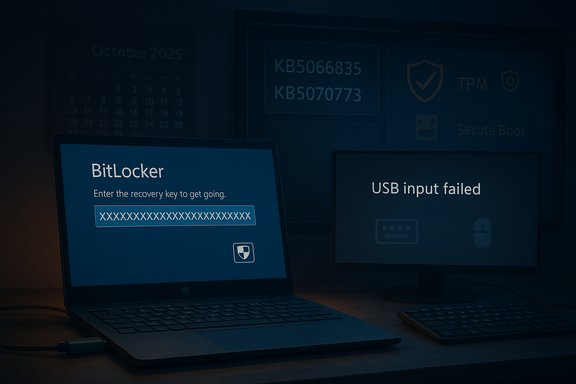
Microsoft shipped the October 14, 2025 cumulative security update identified as KB5066835 for Windows 11 clients and related server builds. Within days, administrators and users reported two high-impact symptoms: (1) affected machines could prompt for a BitLocker recovery key after rebooting, and (2) USB keyboards and mice were unresponsive within WinRE — making recovery actions impossible on USB-only systems. Microsoft acknowledged the WinRE USB regression on its Release Health pages and issued an out-of-band cumulative update, KB5070773, on October 20, 2025 to restore USB input in WinRE. This episode is the most recent example of a recurring pattern: cumulative security updates can interact with low-level platform components (Safe OS images, TPM/firmware states, Modern/Connected Standby modes) in ways that inadvertently trigger BitLocker or break recovery tooling. Microsoft’s documentation and past KB entries show BitLocker recovery prompts have appeared after other updates before, indicating the platform has a documented history of fragile interactions between updates and pre-boot security.
Cumulative updates touch many low-level components: kernel code, boot manager logic, and the Safe OS image used by WinRE (commonly packaged as winre.wim). WinRE runs a reduced driver set and Safe OS; small mismatches between the main OS and Safe OS driver/firmware expectations can break device enumeration (USB HID devices, for example) or create states where the TPM/boot measurements diverge, causing BitLocker to request the recovery key on the next boot. Two operational failure modes emerge:
For administrators, the pragmatic takeaways are clear: harden recovery procedures, ensure centralized backup and audit of recovery keys, adopt phased deployment rings, and script safe suspend/resume flows for BitLocker during maintenance. For individual users, the best defenses are proactive recovery-key backup to your Microsoft account and a tested recovery drive on hand. Operating system security is non-negotiable, but the platform’s resilience will be judged by how it keeps devices recoverable when security protections are doing their job.
Source: TechPowerUp Windows 11 25H2 and 24H2 October Update Triggers BitLocker Recovery
 Background
Microsoft shipped the October 14, 2025 cumulative security update identified as KB5066835 for Windows 11 clients and related server builds. Within days, administrators and users reported two high-impact symptoms: (1) affected machines could prompt for a BitLocker recovery key after rebooting, and (2) USB keyboards and mice were unresponsive within WinRE — making recovery actions impossible on USB-only systems. Microsoft acknowledged the WinRE USB regression on its Release Health pages and issued an out-of-band cumulative update, KB5070773, on October 20, 2025 to restore USB input in WinRE. This episode is the most recent example of a recurring pattern: cumulative security updates can interact with low-level platform components (Safe OS images, TPM/firmware states, Modern/Connected Standby modes) in ways that inadvertently trigger BitLocker or break recovery tooling. Microsoft’s documentation and past KB entries show BitLocker recovery prompts have appeared after other updates before, indicating the platform has a documented history of fragile interactions between updates and pre-boot security. What happened, in plain terms
- The October 14, 2025 cumulative update KB5066835 was broadly distributed for Windows 11 versions 25H2 and 24H2 (and related server SKUs).
- Some systems — predominantly Intel-based devices with power-management features such as Connected Standby — showed a one-time (or in some reports multiple) BitLocker recovery prompt on boot after the update. Providing the recovery key allowed normal operation to resume.
- Separately (but during the same update window), WinRE on affected machines would not accept USB keyboard or mouse input, effectively preventing in-place recovery actions for users without alternative input methods. Microsoft marked that WinRE regression as a confirmed issue and released KB5070773 to fix it.
Which systems were affected
Affected Windows builds and platform details
- Client: Windows 11, version 25H2 and 24H2 — originating update KB5066835 (October 14, 2025).
- Some reporting also associated similar behavior with Windows 10, version 22H2 and its October KB, but the primary field evidence and official advisories centered on Windows 11 clients.
Hardware commonalities and risk factors
- Reports and vendor writeups indicate a higher incidence on Intel-based laptops and devices that implement Connected Standby (also known as Modern Standby). The power-management path used by these platforms appears to surface states that make BitLocker or the Safe OS decide a “security boundary change” occurred, forcing recovery. That said, Microsoft has not published a definitive, line-by-line root-cause breakdown linking Connected Standby to the BitLocker prompt; the connection remains a plausible field correlation rather than an unequivocal, documented root cause. Treat the Connected Standby linkage as a strong but partially unverified field observation.
Technical anatomy: why updates can trigger BitLocker recovery
BitLocker protects the OS volume by tying protection to a combination of the TPM, platform configuration (Secure Boot, UEFI variables), and stored key protectors. If the pre-boot environment detects changes to the boot chain, firmware, or other trusted components, BitLocker can require a recovery key to ensure an attacker has not tampered with the system.Cumulative updates touch many low-level components: kernel code, boot manager logic, and the Safe OS image used by WinRE (commonly packaged as winre.wim). WinRE runs a reduced driver set and Safe OS; small mismatches between the main OS and Safe OS driver/firmware expectations can break device enumeration (USB HID devices, for example) or create states where the TPM/boot measurements diverge, causing BitLocker to request the recovery key on the next boot. Two operational failure modes emerge:
- The update inadvertently modifies or repackages Safe OS assets so WinRE has a driver set mismatch; USB HID devices are present in Windows but not enumerated in WinRE. That prevents access to recovery UI.
- The update alters the measured boot state or leaves the TPM reporting a different measurement set. BitLocker interprets that as a potential unauthorized change and prompts for the recovery key. This can be transient (one-time prompt) if the update process includes the expected suspend/resume sequence for BitLocker, but if the flow fails the recovery screen can appear. Past Microsoft advisories (from prior update cycles) confirm that updates can provoke the exact BitLocker prompt phenomenon.
Microsoft’s official response and timeline
- October 14, 2025 — Microsoft published the monthly security rollup KB5066835 (the October 2025 cumulative). Field reports of WinRE USB failures and BitLocker prompts began to appear within days.
- Microsoft acknowledged the USB-in-WinRE regression on the Release Health pages and in support notes. The vendor recommended temporary mitigations and signalled an ongoing investigation.
- October 20, 2025 — Microsoft released an out-of-band cumulative update KB5070773 to address the WinRE USB issue; this update is cumulative and contains the WinRE fix along with security content. Administrators were advised to install the OOB update as soon as practical.
- For the BitLocker recovery behavior, Microsoft published guidance and tracked the issue with Windows Release Health identifiers; enterprises were given options like known-issue rollbacks and Group Policy artifacts to orchestrate mitigations fleet-wide. Microsoft did not publish a simple one-sentence cause for the BitLocker prompts; analysis and correlation largely come from combined vendor notes and field reporting.
Practical impact: what administrators and end users saw
- Single-user laptops and many business devices required a one-time entry of the 48-digit BitLocker recovery key after reboot. Once the correct key was entered, most devices booted normally and did not repeatedly ask for the key.
- On machines that entered Automatic Repair and then WinRE, the recovery UI was sometimes unusable because USB keyboards and mice did not work in WinRE. That placed techs in the awkward position of having the recovery key but lacking the input method to enter it or choose recovery options. Workarounds included touchscreen input, PS/2 keyboards, or booting from a pre-created USB recovery drive.
- The user experience burden was higher for corporate fleets: help desks needed BitLocker keys, and remote or distributed workers without physical alternatives (PS/2 ports or touchscreens) faced potential on-site visits. For some organizations, the incident translated to measurable downtime and extra support costs.
What to do now: immediate mitigation and recovery steps
For all users (consumers and small businesses)
- If your device already shows the BitLocker recovery screen, retrieve the BitLocker recovery key from the Microsoft account or Entra/Microsoft Entra ID where it was backed up. The Microsoft recovery key portal remains the primary retrieval method for consumer accounts. Enter the 48-digit key to unlock the drive and continue.
- If you cannot access the USB keyboard in WinRE, try one of these workarounds:
- Use a touchscreen (if available) to navigate the recovery UI.
- Plug in a legacy PS/2 keyboard or mouse if the device supports it.
- Boot from a previously created Windows USB recovery drive — in some cases, a recovery drive’s winre.wim will restore USB functionality.
For IT administrators and enterprise fleets
- Don’t rush to uninstall security updates unless necessary. Instead, prioritize the vendor-provided remediation path:
- Verify Windows Update and install KB5070773 (the out-of-band cumulative released October 20, 2025) on affected Windows 11 24H2/25H2 devices to restore WinRE USB input.
- If multiple devices are encountering BitLocker recovery prompts, confirm recovery keys are backed up (Azure AD / Active Directory / Microsoft account), and prepare helpdesk workflows for key retrieval and safe reboots.
- For managed fleets, Known Issue Rollback (KIR) and Microsoft’s Group Policy packages are the recommended enterprise mechanisms to mitigate rollout problems without forcing a mass uninstall. Microsoft published guidance for deploying KIR via Group Policy in support docs tied to the problematic KB. Use your management tooling (WSUS, SCCM, Intune) to orchestrate controlled deployments.
Commands and scripts (safe, authoritative patterns)
When maintenance requires suspending BitLocker temporarily (for firmware updates or risky operations), use Microsoft’s supported tooling. The platform-native commands remain the most reliable:- Check BitLocker status:
- manage-bde -status C:
- Suspend protection for one reboot:
- manage-bde -protectors -disable C: -rebootcount 1
- Suspend protection indefinitely (dangerous; use only for controlled maintenance):
- manage-bde -protectors -disable C: -rebootcount 0
- Resume protection:
- manage-bde -protectors -enable C:
How to harden your update posture to reduce future incidents
- Back up BitLocker recovery keys centrally: Azure AD / Active Directory / MDM-backed key backups are the single best defense against downtime. Verify your fleet’s recovery key backup policy and audit it regularly.
- Stagger update rollouts for mixed hardware fleets. Roll security updates to a pilot ring first (representative hardware), monitor for recovery or WinRE issues, then progress to broader rings.
- Create and test USB recovery drives and a device recovery SOP. A tested recovery drive avoids on-site visits when WinRE USB is broken.
- Document PS/2 and alternative input availability for known-critical models. For laptop fleets, consider maintaining a small inventory of legacy input dongles or USB hubs known to work in recovery.
- Automate BitLocker suspension for critical maintenance, using trusted scripts that call manage-bde with a controlled reboot count, ensuring keys remain backed up before suspending.
Risk analysis and why this matters
Security updates are non-negotiable: they patch vulnerabilities that attackers can exploit. But every update that touches the boot stack or Safe OS carries a small chance of disturbing the measurements used by pre-boot security, leading to BitLocker recovery prompts. The risk is not just theoretical:- Operational continuity: When recovery UI is unusable or keys are not readily accessible, users can be stranded and helpdesks overloaded. That translates to real downtime and lost productivity.
- Security vs. availability trade-off: Suspending BitLocker to perform risky updates reduces protection and should only be done in controlled ways; but failing to do so may cause recovery prompts that lock users out. Enterprises must balance these forces with policies and automation.
- Reputational and compliance risk: Organizations under regulatory obligations (HIPAA, PCI, national data protection laws) must ensure keys are recoverable and that changes are auditable; mass recovery prompts complicate compliance reporting and incident handling.
What to watch for next (post-incident indicators)
- Microsoft’s post-mortem or deeper engineering notes: any definitive explanation linking specific Safe OS packaging steps, driver sets, or telemetry will materially change remediation strategies.
- Additional known-issue rollbacks or revised servicing stack updates (SSU) that refine how Safe OS is built and delivered.
- OEM firmware updates: in some past incidents, firmware changes from OEMs (BIOS/UEFI) or their handling of Connected Standby modes have been part of the manifested configuration differences that lead to recovery prompts. Maintain coordination with OEM channels for model-specific advisories.
- Patterns where the same hardware consistently triggers BitLocker recovery after updates; that will indicate an actionable compatibility hold or targeted blocking policy for that hardware class.
Strengths and weaknesses of Microsoft’s handling
Strengths
- Microsoft acknowledged the high-severity WinRE USB regression quickly and shipped an out-of-band cumulative update (KB5070773) within days — the right move for a problem that jeopardized recovery tooling. Public Release Health entries and rebuilds were published promptly.
- Microsoft provided enterprise-grade mitigations (KIR and Group Policy MSI artifacts) that allow administrators to target mitigations without mass uninstall. That shows maturity in post-deployment risk management for enterprise channels.
Weaknesses and operational risks
- The incident revealed fragility at the interface between the main OS, Safe OS (WinRE), and firmware/TPM states. Small packaging or measurement differences can cause a disproportionate operational impact.
- Microsoft’s public communication described the symptoms and fixes but did not publish a thorough technical post-mortem at the time of emergency remediation. That left admins relying on field research and community signal to diagnose connected-standby correlations. Until Microsoft publishes an engineering RCA, some claims remain partially unverified.
Historical context: this isn’t the first time
Windows update waves have previously triggered BitLocker recovery scenarios — Microsoft’s update history shows BitLocker-related known issues in prior months and years, resolved via targeted fixes. That history should inform how organizations design update rings and recovery plans: BitLocker is a crucial security control, but it must be paired with reliable key management and recovery workflows to be effective without becoming a liability.Practical checklist (concise)
- Confirm whether your environment installed KB5066835 (October 14, 2025) and whether KB5070773 is applied. If not, prioritize KB5070773 for affected Windows 11 24H2/25H2 systems.
- Ensure BitLocker recovery keys are backed up to Azure AD / AD / Microsoft account and validate a recovery test workflow.
- For planned maintenance on fleets with BitLocker, suspend protection using manage-bde with explicit reboot counts and restore after the operation.
- Keep a tested USB recovery drive and alternative input devices available for remote or distributed user populations.
- Use phased update rings and monitor for telemetry that indicates repeated recovery commits or WinRE failures before expanding the rollout.
Conclusion
The October update incident is a timely reminder that the intersection of security hardening (BitLocker), recovery tooling (WinRE), and frequent cumulative servicing is an area of non-trivial risk for both consumers and enterprise fleets. Microsoft moved quickly to remedy the most visible failure (broken USB input in WinRE) with KB5070773 and provided enterprise mitigations, but the chain of causes that led to BitLocker recovery prompts in some hardware configurations remains partially opaque in public engineering notes.For administrators, the pragmatic takeaways are clear: harden recovery procedures, ensure centralized backup and audit of recovery keys, adopt phased deployment rings, and script safe suspend/resume flows for BitLocker during maintenance. For individual users, the best defenses are proactive recovery-key backup to your Microsoft account and a tested recovery drive on hand. Operating system security is non-negotiable, but the platform’s resilience will be judged by how it keeps devices recoverable when security protections are doing their job.
Source: TechPowerUp Windows 11 25H2 and 24H2 October Update Triggers BitLocker Recovery
