
Microsoft’s optional October preview updates put a redesigned, scrollable Start menu and colorized battery indicators into Release Preview test builds, and they bundle a small but consequential set of security, reliability and enterprise-facing features — including a preview of a new Administrator Protection (just‑in‑time elevation) option and fixes for several update and media-tool edge cases.
Microsoft published preview packages for Windows 11 on October 28–29, 2025 under the KB preview umbrella so enterprise and enthusiast testers can validate UI changes and fixes before the regular Patch Tuesday roll‑out. The Release Preview packages carrying these features are listed as KB5067036 for Windows 11 versions 24H2 and 25H2 (resulting builds after install: 26100.7019 for 24H2 and 26200.7019 for 25H2), and a leaner 23H2 preview arrives as KB5067112 (build 22621.6133). These build numbers and KB identifiers are documented in Microsoft’s preview release notes. These preview packages are explicitly non‑security, optional updates intended as a staging ground for features and fixes that may be rolled into subsequent cumulative updates. Microsoft is using a mixed delivery model: some experiences are enabled immediately in a “normal rollout” while others are delivered by a gradual rollout (server‑side gating / A/B testing), so installing the MSU does not guarantee immediate exposure to every new user interface or Copilot‑related capability.
Source: heise online Windows Update Preview: New Start Menu and Colored Battery Display
 Background / Overview
Microsoft published preview packages for Windows 11 on October 28–29, 2025 under the KB preview umbrella so enterprise and enthusiast testers can validate UI changes and fixes before the regular Patch Tuesday roll‑out. The Release Preview packages carrying these features are listed as KB5067036 for Windows 11 versions 24H2 and 25H2 (resulting builds after install: 26100.7019 for 24H2 and 26200.7019 for 25H2), and a leaner 23H2 preview arrives as KB5067112 (build 22621.6133). These build numbers and KB identifiers are documented in Microsoft’s preview release notes. These preview packages are explicitly non‑security, optional updates intended as a staging ground for features and fixes that may be rolled into subsequent cumulative updates. Microsoft is using a mixed delivery model: some experiences are enabled immediately in a “normal rollout” while others are delivered by a gradual rollout (server‑side gating / A/B testing), so installing the MSU does not guarantee immediate exposure to every new user interface or Copilot‑related capability. What’s new — quick summary
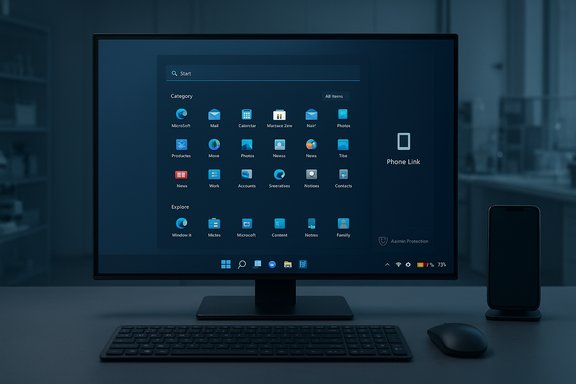
- Redesigned Start menu: a single, vertically scrollable “All” surface with Category, Grid, and List views, device‑sized responsive layouts and integrated Phone Link access. The menu remembers the last view selected.
- Colorized battery indicators: green (charging/healthy), yellow (battery saver / ≤20%), red (critically low). Battery percentage can be shown persistently in the system tray and on the lock screen; the change also simplifies charging overlays so the progress bar remains visible.
- Administrator Protection (preview): a just‑in‑time admin elevation model that requires explicit user confirmation (often Windows Hello) and is off by default; it must be enabled by administrators through Intune (OMA‑URI) or Group Policy.
- Reliability and bug fixes: Windows Update reliability fixes (including an asserted fix for error 0x800f0983), Remote Credential Guard compatibility fixes, File Explorer stability improvements, and a correction for an Arm64 Media Creation Tool crash reported by community testers. Some community reports indicate residual install failures remain for some device configurations — use caution and test.
Deep dive: the redesigned Start menu
What changed and why it matters
The Start menu’s biggest structural change is the removal of the old two‑level flow (Pinned/recommended surface + separate “All apps” page) in favor of a single vertically scrollable canvas where the All apps area sits at the top of the primary Start surface. Users can switch between:- Category view — system‑generated buckets (Productivity, Games, Creativity, etc. that surface frequently used apps.
- Grid view — an alphabetized, tile‑like grid for denser scanning.
- List view — a classic alphabetical list for deterministic ordering.
Rollout behavior and what to expect
Microsoft classifies the Start redesign as a gradual rollout for some elements. Practically, that means:- Installing KB5067036 gives your device the binaries, but the new UI may not appear until Microsoft flips the server‑side feature flag for your device cohort.
- Different machines on the same network or even the same user’s devices can show different Start experiences during rollout.
- Some Copilot‑adjacent behaviors (for example, on‑device AI features) are hardware‑gated to Copilot+ PC configurations and region‑restricted in certain markets.
Power‑user options and community workarounds
The Windows enthusiast community has used feature‑flag toggles (third‑party tools like ViVeTool) to enable the new Start earlier than the staged rollout. This approach is unofficial and unsupported and can cause instability or unexpected behavior with future updates; it is not recommended in production or managed fleets. For enterprise pilots, rely on the Microsoft preview release channels and controlled testing rather than feature‑flag hacks.Colored battery display — small change, big UX win
What’s included
The taskbar battery icon now supports:- Color indicators: green = charging/healthy, yellow = battery saver (≤20%), red = critically low.
- Persistent battery percentage: a toggle in Settings → System → Power & battery enables a numeric percentage next to the icon in the system tray.
- Lock screen support: the colorized battery indicator and percentage appear on the lock screen in supported builds (rolled out gradually). Overlays (like the charging bolt) were redesigned so they do not obscure the battery progress bar.
Why this matters
This update addresses a longstanding, low‑friction complaint: battery status used to be hard to parse quickly. Color and explicit percentages are faster to process visually and improve accessibility for users with certain visual or cognitive needs. For laptop and tablet users, this reduces “battery anxiety” and makes last‑minute decisions about saving work or connecting to power more reliable at a glance. Third‑party coverage and Microsoft’s own notes corroborate the color thresholds and how to enable the percentage display in Settings.Caveats and rollout
- The colored icons and lock‑screen support are staged; you may not see them immediately after installing the preview package.
- The battery percentage option is user‑controlled and lives under Settings → System → Power & battery.
- Accessibility‑focused UX is an improvement, but any UI tweak must be monitored for contrast and color‑blind friendly behavior; Microsoft’s statements don’t specify alternate hints (text/numeric) for all accessibility profiles, so administrators should validate on representative devices if accessibility compliance is required.
Administrator Protection preview — what IT teams need to know
What Administrator Protection does
The Administrator Protection preview introduces a just‑in‑time elevation model intended to eliminate “free‑floating” administrative tokens for interactive sessions. When enabled:- Administrative tasks request a temporary elevated context that is isolated from the normal user session.
- Elevation flows can require authentication via Windows Hello or PIN to confirm the consent event.
- Temporary elevated tokens are discarded when no longer needed, reducing the attack surface for privilege escalation.
How it’s delivered and enabled
- The feature is off by default in these preview builds. Microsoft requires administrators to enable it manually via Microsoft Intune (Settings Catalog or OMA‑URI) or via Group Policy for on‑premises environments. Microsoft’s KB entry explicitly mentions these management paths but does not publish a one‑click policy string in the preview notes; administrators should consult the official enterprise documentation for the exact policy names and OMA‑URI values once they are published.
Deployment implications — test first
Administrator Protection changes the assumptions behind UAC (User Account Control) and many traditional admin workflows. The risk profile includes:- Breakage of legacy installers, management agents, scheduled scripts or provisioning flows that rely on persistent elevated tokens.
- Automation and management software that expects continuous admin context may fail. Thoroughly test installers, SCCM/Intune management agents, driver/package scripts and any third‑party endpoint agents in a controlled pilot before enabling broadly.
- Identify critical administrative scripts and installers and run them under the Administrator Protection pilot to confirm behavior.
- Validate RMM / agent update sequences on both domain-joined and workgroup endpoints.
- Stage policies via Intune configuration profiles with logging and rollback plans.
- Train helpdesk staff on the new consent/authentication flows (Windows Hello prompts for elevation).
- Keep recovery ISOs and a rollback plan available for affected endpoints.
Fixes and reliability notes: what’s repaired (and what still looks fragile)
Notable fixes included in the preview
- Addressed a Media Creation Tool crash on Arm64 when creating 25H2 installation media. This was a consistent pain point for some Arm‑based testers and is now corrected in the preview notes.
- Resolved several Remote Credential Guard mismatches between current Windows 11 builds and Windows Server 2022.
- Addressed Windows Update failures including a claim that error 0x800f0983 scenarios were fixed. Microsoft’s release notes list improvements to update reliability and an explicit line item for this error code.
Reports from the field and verification caution
- Community posts and forums show some users continuing to encounter install failures (including 0x800f0983) after the preview packages. Microsoft’s notes state the issue is addressed, but real‑world telemetry across heterogeneous fleets sometimes reveals lingering regressions. Where the update is optional, conservative rollout and staged testing is prudent. If you encounter persistent failure, Microsoft’s documented remediation has generally been an in‑place repair (Reinstall now under Settings > System > Recovery) or rolling back the preview until the next cumulative.
- A web server/HTTP.sys related fix is listed in the preview notes; independent community writeups suggest the error description differs slightly from the October Patch Tuesday error — it is not fully clear if this is the same underlying bug or a closely related regression. Treat that as partially unverifiable until Microsoft clarifies whether the two descriptions refer to the same root cause.
Privacy and governance: Copilot and File Explorer changes
The preview also expands File Explorer Home with Recommended files for personal/local accounts and quick "Ask Copilot" hover actions; the StorageProvider APIs allow cloud vendors to surface suggested files. These features accelerate content discovery but create additional governance considerations:- File recommendations and Copilot quick actions can reveal contextual content. For enterprise or regulated environments, policy controls and sign‑in type restrictions exist (Entra/work accounts are staged later than personal Microsoft accounts).
- The taskbar’s “Share with Copilot” affordance (appearing in thumbnail previews) enables Copilot Vision scanning a window’s visible content; Microsoft exposes settings to opt out, but organizations should update acceptable‑use policies and privacy training if enabling these features widely.
How to get the preview (safe path) — step‑by‑step
- Enroll a test device in the Windows Insider Release Preview channel via Settings → Windows Update → Windows Insider Program.
- Check for updates and look under Optional updates for the KB preview entry (KB5067036 for 24H2/25H2; KB5067112 for 23H2) and install.
- Wait 24–72 hours after install if you don’t immediately see the new Start or battery visuals — some features are server‑gated.
- For enterprise test deployments, stage the preview on an isolated pilot group (representative hardware and apps). Validate critical workflows, management agents and domain services. Keep a rollback/recovery plan ready.
Recommended actions for power users and IT teams
- Power users: Try the new Start and battery UI on a non‑critical test machine or VM; don’t use feature‑flag hacks in production. If you value early access and can tolerate instability, join the Release Preview channel.
- IT administrators: Run a staged pilot. Validate agent behavior, scripted installs, packaging workflows, and authenticators that interact with elevation flows. Prepare documentation for support staff on Windows Hello prompts that appear with Administrator Protection.
- Security teams: Evaluate Administrator Protection’s behavior under red‑team testing to confirm that elevation flows are authentic and auditable, and ensure incident response playbooks reflect the temporary elevation model.
Strengths, risks and final assessment
Strengths
- The Start redesign is a pragmatic UX improvement that reduces clicks and improves app discoverability for users with large app libraries. The single, scrollable canvas is a sensible simplification.
- Colorized battery indicators and the return of persistent percentage are small but meaningful quality‑of‑life features with clear accessibility benefits.
- Administrator Protection promises a material security improvement: moving from persistent elevated contexts to ephemeral, authenticated elevation reduces attack surface if implemented and adopted carefully.
Risks and unknowns
- Phased rollouts and gating create inconsistent user experiences during early deployment, complicating support and documentation. Devices on the same build can differ in behavior for days or weeks.
- Changes to elevation semantics risk breaking legacy installers, management scripts and third‑party agents that assume persistent admin tokens. This is the primary operational risk for enterprise environments.
- While Microsoft lists fixes for update failures (0x800f0983) and other regressions, community reports show some users continue to experience install issues — treat the preview as a test vehicle, not a final remedy, and keep recovery plans ready.
Conclusion
KB5067036 (and companion KB5067112 for 23H2) brings tangible, user‑facing polish to Windows 11 — a more discoverable Start menu, clearer battery indicators, and a promising new Administrator Protection model — while bundling a suite of reliability fixes. The features are thoughtfully directed at everyday usability and enterprise security alike, but they are delivered as preview experiences inside a mixed (normal + gradual) rollout model. That delivery pattern demands careful piloting: enable the preview on representative test hardware, validate critical workflows (especially anything that relies on elevation), and keep rollback procedures at hand. For enthusiasts and administrators who run structured pilots, this update looks like a helpful step forward; for broad enterprise rollouts, patience and staged verification remain the safest path.Source: heise online Windows Update Preview: New Start Menu and Colored Battery Display
