

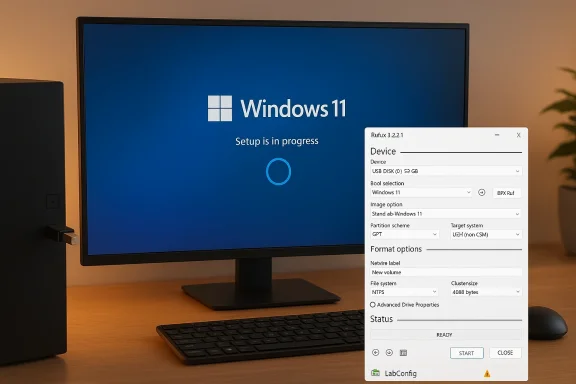
I upgraded a desktop that Microsoft’s compatibility check said couldn’t run Windows 11 — no TPM 2.0, Secure Boot disabled — and within minutes I had the installer running and, within an hour, a working Windows 11 desktop without buying new hardware. That “five‑minute” claim is shorthand for the quick media-prep step; the full in‑place upgrade still takes longer, but the core takeaway is this: for many otherwise-capable PCs, “incompatible” doesn’t always mean incapable — provided you understand the trade‑offs and proceed with careful safeguards.
Microsoft’s public Windows 11 requirements are short and strict: a compatible 64‑bit CPU on Microsoft’s approved list, 4 GB RAM, 64 GB storage, UEFI firmware with Secure Boot capability, and TPM 2.0 among a few other checks. These rules are meant to raise the platform security baseline and enable hardware‑rooted protections such as BitLocker device encryption, Windows Hello key storage, and virtualization‑based security features. Microsoft’s own specifications and support pages remain the authoritative reference for those minimums.
But the real world is complicated. Many systems built in the last decade have CPUs and NVMe/SSD performance perfectly capable of running Windows 11, yet get tripped up by a disabled firmware TPM (Intel PTT / AMD fTPM), Secure Boot toggled off for legacy compatibility, or a CPU that is functionally fine but not listed on Microsoft’s approved whitelist. Community scans and enterprise inventories over the past few years have repeatedly shown TPM/firmware settings to be a common blocker, and that’s produced a cottage industry of practical workarounds.
Two practical routes have emerged:
There’s also a manual registry approach you can run during Setup by opening a command prompt (Shift+F10), launching regedit, and adding values like:
Security impact:
From a pragmatic standpoint, these workarounds are a stopgap — a toolset for users who understand and accept the trade‑offs. From a policy standpoint, they underscore legitimate public debate about how aggressively platform owners should enforce security baselines versus enabling broader device compatibility. The best path for most people still remains: enable firmware features where possible, follow OEM guidance, and avoid third‑party downloads from untrusted sources.
That said, there are meaningful, non‑theoretical costs: possible update restrictions, diminished hardware‑rooted security, and the ongoing risk that Microsoft may change enforcement. If you’re an enthusiast with good backups and a tolerance for occasional tinkering, this path can save money and extend hardware life. If you manage sensitive data or run a business fleet, follow vendor guidance and meet the supported spec.
Do the homework: check firmware first, back up fully, prefer the supported route when possible, and download community tools only from their official sources. If you accept those trade‑offs, the bypass is a practical, well‑documented way to bring new life to capable hardware without immediate hardware upgrades.
Source: FindArticles Windows 11 Installed On Unsupported PC In Five Minutes
 Background / Overview
Microsoft’s public Windows 11 requirements are short and strict: a compatible 64‑bit CPU on Microsoft’s approved list, 4 GB RAM, 64 GB storage, UEFI firmware with Secure Boot capability, and TPM 2.0 among a few other checks. These rules are meant to raise the platform security baseline and enable hardware‑rooted protections such as BitLocker device encryption, Windows Hello key storage, and virtualization‑based security features. Microsoft’s own specifications and support pages remain the authoritative reference for those minimums. But the real world is complicated. Many systems built in the last decade have CPUs and NVMe/SSD performance perfectly capable of running Windows 11, yet get tripped up by a disabled firmware TPM (Intel PTT / AMD fTPM), Secure Boot toggled off for legacy compatibility, or a CPU that is functionally fine but not listed on Microsoft’s approved whitelist. Community scans and enterprise inventories over the past few years have repeatedly shown TPM/firmware settings to be a common blocker, and that’s produced a cottage industry of practical workarounds.
Two practical routes have emerged:
- Reconfigure firmware (enable PTT/fTPM and Secure Boot) so the machine becomes supported by Microsoft.
- Use documented setup hooks, registry flags, or installer customizers (commonly Rufus or community tools) to bypass the compatibility gate and perform an in‑place upgrade or clean install.
How the “five‑minute” path actually works
The realistic timeline
What people call “five minutes” is usually the hands‑on media creation step: point a USB authoring tool at a pre‑downloaded Windows 11 ISO and let it write a customized installer. Once the USB exists, launching Setup from within Windows 10 to do an in‑place upgrade is very quick to start — but the full upgrade (file copy, driver install, multiple reboots) typically ranges from 20–60 minutes depending on disk and CPU speed. The short time is the media prep; the install itself takes longer.What tools do people actually use?
The two mainstream methods seen in community reporting and tests are:- Rufus’s customized media: Recent Rufus releases have an explicit “Windows User Experience” option that can add installer flags like removing the TPM 2.0, Secure Boot, and RAM checks, or disabling forced Microsoft account requirements. This creates a USB that instructs Windows Setup to skip certain preflight checks when the installer runs from the USB. Community guides and how‑tos document the exact options and the expected flow.
- Registry bypass / LabConfig: For in‑place upgrades launched from a mounted ISO, Microsoft’s own documented workaround uses a registry value such as AllowUpgradesWithUnsupportedTPMOrCPU (or LabConfig keys when running Setup from boot) to tell Setup to ignore specific checks. This is more manual and error‑prone, but it is a known route and is sometimes preferred if users don’t want to alter installer media.
Step‑by‑step: the quick, practical flow I used
This is a condensed, practical checklist that mirrors multiple community-tested accounts. Do not skip the preflight steps.- Backup first. Create a full disk image and copy critical files externally. Suspend BitLocker or other disk encryption and record recovery keys. No shortcut is worth losing irreplaceable data.
- Download the official Windows 11 ISO from Microsoft and verify you have the correct edition for your license. Microsoft is the source of truth for ISOs and editions.
- Download the latest Rufus (portable exe is fine). Insert an empty USB (8–16 GB at minimum).
- In Rufus: select the Windows 11 ISO, leave image option as “Standard Windows Installation,” then click Start. When Rufus prompts the “Windows User Experience” options, check the box to remove requirement for 4GB+ RAM, Secure Boot and TPM 2.0 (and other choices you prefer, e.g., bypass Microsoft account). Confirm and let Rufus finish.
- Open the new USB in File Explorer on your Windows 10 machine and run Setup.exe (don’t boot from USB unless you want a clean install). Choose “Keep personal files and apps” for an in‑place upgrade.
- Accept the compatibility warnings and continue. Expect multiple reboots and a total install time usually under an hour on modern SSDs.
- After first login: check Device Manager, install vendor drivers, and update Windows. Re‑enable BitLocker only after you’re confident the system is stable.
What changes under the hood — technical explanation
When you create Rufus’s modified USB, Rufus does not “crack” Windows or strip signatures. Instead, the tool writes additional configuration (setup/installer flags and sometimes an XML for OOBE) that instructs Windows Setup to ignore certain hardware gates — commonly via LabConfig-like keys or by launching the server installation path that is less strict about client CPU checking. The end result is a machine with a genuine Windows 11 installation and an activated digital license (if a valid license was present). Drivers, apps, and user profiles typically carry over after an in‑place upgrade.There’s also a manual registry approach you can run during Setup by opening a command prompt (Shift+F10), launching regedit, and adding values like:
- LabConfig\BypassTPMCheck = 1
- LabConfig\BypassSecureBootCheck = 1
- LabConfig\BypassRAMCheck = 1
The support and security trade‑offs — what Microsoft says and what can happen
Microsoft’s position is straightforward: systems that do not meet the published requirements are unsupported and “aren’t guaranteed to receive updates.” That language appears in Microsoft’s official support materials, and the company reserves the right to withhold updates on unsupported configurations. In practice, many users report receiving monthly cumulative security updates on bypassed systems, but there are documented cases where feature updates (or future servicing changes) are blocked until the device is brought into compliance. That means your update experience may be fine today and change tomorrow.Security impact:
- TPM absence or disabled TPM removes hardware‑rooted protections used by BitLocker, Windows Hello key protection, Device Health Attestation, and other features. Some mitigation exists in software, but it’s not equivalent to a hardware root of trust.
- Secure Boot disabled reduces platform integrity protection at the boot stage, increasing exposure to certain classes of boot‑level malware.
- Enterprise and compliance risk: organizations subject to regulations or corporate security baselines should not use unsupported installs; guidance from bodies like NIST emphasizes hardware‑rooted trust for many enterprise protections.
Try this first: enable firmware TPM and Secure Boot
Before any bypass, check firmware. On many modern motherboards TPM is present but disabled (Intel PTT or AMD fTPM). Enabling PTT/fTPM and turning on Secure Boot in UEFI often flips PC Health Check to “Meets requirements,” letting you upgrade without hacks. That’s the recommended, supported path. Microsoft provides instructions and links on checking and enabling TPM and Secure Boot in UEFI. If a firmware update from your OEM adds TPM support, install it.Real‑world caveats: what’s been observed in the wild
- Many community reports and guides show that the Rufus and Flyby11/FlyOOBE flows work for a broad set of machines, especially desktops with 8th/9th Gen Intel or similar AMD CPUs that were blocked only by firmware TPM being off. These practical guides and forum threads explain step‑by‑step tactics and real user timelines.
- Third‑party bypass tools have become targets for malicious actors. The developers of FlyOOBE (previously Flyby11) have publicly warned about fake download sites distributing tampered, malware‑packed versions of the tool. Download such utilities only from the project’s official GitHub release page and verify checksums where provided. That alone is a reason to prefer Rufus or manual registry methods unless you trust the third‑party developer.
- Microsoft can and does change setup flows. Installer hooks and bypass mechanisms are not guaranteed to persist across future Windows builds. Tools that work for 24H2 may be patched in later updates, and Microsoft could tighten enforcement at any time. That’s part of the “unsupported” risk.
Who should consider this — and who should not
This route makes sense for:- Home users and enthusiasts with a solid Windows 10 machine (fast SSD, adequate CPU) who want Windows 11 features and accept the update/support trade‑offs.
- People who tested their firmware settings and are comfortable with backups, driver installation, and occasional troubleshooting.
- Business fleets, regulated environments, or systems that handle sensitive data. Organizational guidance and compliance requirements favor hardware-rooted trust and vendor‑supported platforms.
- Users who cannot or will not maintain robust backups or who are uncomfortable troubleshooting boot/driver issues.
Practical safety checklist before you press Install
- Back up your entire system image and copy critical files to external media.
- Note BitLocker keys and suspend encryption before upgrade.
- Have a Windows 10 recovery USB or image ready to roll back if needed.
- Prefer in‑firmware fixes (enable PTT/fTPM & Secure Boot) before using bypass tools.
- Download tools only from official projects (Rufus site or official GitHub) and verify checksums or signatures if available.
- Test on a spare machine or virtual machine if you can; this helps you practice the flow and limit surprise downtime.
The ethical and ecosystem angle
There’s a broader debate here about inclusivity vs. security policy. Microsoft designed Windows 11’s hardware baseline to improve security and reliability for the whole ecosystem, but that baseline also excluded many otherwise‑useful PCs, forcing costly hardware refreshes for some users. Community tools that enable bypass represent user agency and help avoid e‑waste and needless purchases. At the same time, they can create a fragmentation problem: unsupported installs complicate update telemetry and support planning, and they provide an attack surface if distributed irresponsibly.From a pragmatic standpoint, these workarounds are a stopgap — a toolset for users who understand and accept the trade‑offs. From a policy standpoint, they underscore legitimate public debate about how aggressively platform owners should enforce security baselines versus enabling broader device compatibility. The best path for most people still remains: enable firmware features where possible, follow OEM guidance, and avoid third‑party downloads from untrusted sources.
Conclusion
The headline — “Windows 11 installed on an unsupported PC in five minutes” — is attention‑grabbing but a little shorthand. The real story is practical: with an official Windows 11 ISO, a reliable USB authoring tool (Rufus), and a careful approach, many otherwise-capable PCs can be upgraded even when Microsoft’s automated checker flags them as ineligible. The installer remains Microsoft’s code; what changes is the installer environment or a small registry directive telling Setup to skip checks.That said, there are meaningful, non‑theoretical costs: possible update restrictions, diminished hardware‑rooted security, and the ongoing risk that Microsoft may change enforcement. If you’re an enthusiast with good backups and a tolerance for occasional tinkering, this path can save money and extend hardware life. If you manage sensitive data or run a business fleet, follow vendor guidance and meet the supported spec.
Do the homework: check firmware first, back up fully, prefer the supported route when possible, and download community tools only from their official sources. If you accept those trade‑offs, the bypass is a practical, well‑documented way to bring new life to capable hardware without immediate hardware upgrades.
Source: FindArticles Windows 11 Installed On Unsupported PC In Five Minutes
