

Paul Thurrott’s July 7, 2026 update to the Windows 11 Field Guide documents Microsoft Photos as Windows 11’s default image viewer and light editor, covering its viewer, browser, crop tools, markup, sharing, OneDrive and iCloud integration, and the split from the old Windows 10 Photos video editor. The modest subject matters because Photos is one of those Windows components that millions of people touch without ever choosing it. In Microsoft’s current Windows strategy, even a photo viewer is no longer just a utility; it is a front door to accounts, cloud libraries, AI-adjacent editing, and the company’s preferred app model.
As detailed by Thurrott.com and reflected in Microsoft’s own support material, Photos now sits at the intersection of three Windows 11 ideas: modernized inbox apps, cloud-first media management, and simplified consumer editing. That makes it more capable than the old “open a JPEG and get out of the way” viewer many Windows veterans remember. It also makes it more complicated, more opinionated, and more revealing about what Microsoft thinks everyday Windows should feel like in 2026.
The old Windows Photo Viewer was never glamorous, which was precisely its appeal. It opened quickly, showed the image, let users move forward and backward through a folder, and stayed out of the way. For a certain class of Windows user — photographers triaging a card dump, admins checking screenshots, enthusiasts browsing wallpapers — that was not a limited experience. It was the product.
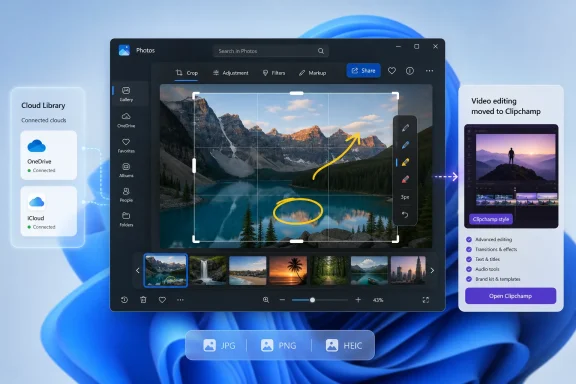
Windows 11’s Photos app is built from a different premise. It is not only a viewer but a media surface, a library, a light editor, and a bridge to online storage. Thurrott’s updated Field Guide chapter describes two primary experiences: a photo viewer that launches when opening supported image files, and a broader browser experience for navigating local, phone, OneDrive, and optionally Apple iCloud content.
That split is important. Microsoft knows that the act of double-clicking a JPG is different from the act of managing a lifetime of pictures. But instead of preserving separate, purpose-built tools, Windows 11 channels both jobs through a single modern app. The result is a program that can feel pleasantly capable when it is doing exactly what Microsoft designed it to do, and oddly heavy when the user only wanted to inspect one PNG.
This is not just an app-design quibble. Inbox Windows apps define the baseline experience for the entire PC ecosystem. Most users will never install IrfanView, ImageGlass, FastStone, Adobe Lightroom, or any other alternative. For them, Photos is Windows photography, and its defaults become Windows’ personality.
The Field Guide notes that Photos is configured as the default app for common formats including BMP, GIF, HEIC, JPG, JPEG, PNG, and others. That is the power move. Defaults do not merely save a click; they determine what most users believe Windows can do.
Once Photos is the default, Microsoft gets to define the path from image viewing to editing, from local files to cloud libraries, and from a static picture to a shareable object. In the Windows 10 era, Photos also tried to absorb video editing. In Windows 11, that function is pushed toward Clipchamp, which Microsoft presents as the more appropriate modern video editor. The Photos app, meanwhile, becomes more focused but still far from minimal.
The administrative headache is that Windows defaults are no longer just file associations. They are user expectations. If an organization standardizes on another image viewer, it has to fight not only Settings and file types but also years of Windows muscle memory and Microsoft’s preference for its own app stack.
There is a reasonable case for this design. A screenshot-heavy workplace needs cropping. A family PC needs rotation and red-eye-level cleanup. A student needs annotation. A support tech needs to open an image, draw on it, and send it back. The idea that Windows should ship with no competent image-editing surface is untenable in 2026.
But the viewer’s expanded role also changes the feel of the task. The presence of a filmstrip, gallery affordances, cloud sources, and editing buttons tells the user that an image is not merely a file. It is part of a collection, a workflow, and potentially a synchronized library. That is helpful when true and annoying when false.
This is where Microsoft often misjudges power users. The company sees “more capable by default.” Enthusiasts often see “less predictable by default.” Both readings can be true at the same time.
For ordinary users, this is progress. Open an image, choose edit, drag the crop handles, optionally rotate or flip, and save. That is the right amount of power for most casual tasks. Microsoft’s own help pages emphasize the same direction: Photos is not Photoshop, but it is supposed to be good enough for common fixes.
For IT pros, the question is not whether cropping works. It is whether the app is predictable, controllable, and supportable across devices. Store-delivered inbox apps can change more frequently than classic Windows components. Their UI can shift outside the cadence of annual OS upgrades. A help desk script written around one Photos layout may age faster than the Windows build number suggests.
That matters in regulated or standardized environments. A default image viewer that receives consumer-style feature churn is not the same thing as a stable shell accessory. The difference may sound pedantic until a training document, kiosk workflow, or evidence-handling process depends on yesterday’s buttons.
This is the pragmatic Microsoft of the 2020s. Users own iPhones, Android phones, Windows PCs, iPads, and cloud accounts in messy combinations. A Windows photo app that ignores iCloud is less useful to many real households. A Photos app that understands OneDrive is obviously aligned with Microsoft 365 and Windows backup strategy. The local folder is still there, but it is no longer the center of the story.
The upside is convenience. The downside is ambiguity. When photos appear from multiple sources, users can lose track of what is local, what is synced, what is backed up, and what is merely visible. That confusion is not unique to Microsoft; Apple Photos and Google Photos have trained users into the same fog. But Windows historically had a simpler mental model: files were somewhere, and Explorer could show you where.
Photos softens that model. It makes pictures feel like a library rather than a directory tree. That is good product design for consumers and a recurring source of friction for people who still think in paths, extensions, and storage boundaries.
Microsoft has not fully killed that sentiment because it keeps giving users reasons to remember it. Every time Photos loads slowly, changes its interface, struggles with folder navigation, or feels too large for a single image, users compare it with the simpler thing they once had. That comparison is not always technically fair, but it is emotionally potent.
Thurrott’s Field Guide takes the more practical route: explain the app users actually have. That is the right move for a Windows 11 guide. But the persistence of third-party viewer recommendations in enthusiast circles shows that the default does not fully satisfy the audience that cares most about speed and determinism.
The lesson for Microsoft is not that every inbox app must be frozen in amber. It is that replacement apps need to preserve the essential virtues of what they replace. A modern Photos app can have cloud integration and editing, but if it loses the feeling of instant, boring reliability, it will always be judged against a ghost.
Clipchamp is also a better expression of what Microsoft thinks casual video editing has become: template-driven, social-friendly, cloud-aware, and closer to a creator workflow than a file utility. Keeping that inside Photos would have made the app even more confused. Moving it out gives Photos a cleaner identity.
Yet the split also reinforces Microsoft’s broader bundling pattern. Windows users are not simply given a viewer, an editor, and a media manager. They are guided into a constellation of Microsoft-preferred apps and services. Photos handles images. Clipchamp handles video creation. OneDrive handles synchronization. Microsoft accounts increasingly tie the experience together.
That may be coherent, but coherence is not neutrality. Windows remains a platform, but its inbox apps increasingly behave like a funnel.
Admins care about file associations, default app policies, Store app provisioning, privacy settings, cloud integration, and whether users can accidentally expose or synchronize content through consumer services. A photo viewer that can see OneDrive and iCloud is not inherently dangerous, but it does belong in the same governance conversation as account sign-in, backup prompts, and data loss prevention.
There is also the question of repairability. Classic Windows utilities were part of the OS image. Modern inbox apps can be reset, repaired, updated, removed in some contexts, reinstalled from the Store, or affected by Store policy. That flexibility is useful, but it means troubleshooting becomes more layered. Is the problem Windows, the app package, the Store, the user profile, the codec, OneDrive, or the file association?
The more Microsoft shifts baseline functionality into app packages, the more Windows administration becomes application lifecycle management. Photos is not the biggest example of that trend, but it is a visible one.
It has picked the mainstream consumer, not the enthusiast. That is rational. The number of people who want a lightweight, local-first, keyboard-driven image viewer is large enough to be loud but not large enough to define the default Windows experience. Most users benefit more from simple editing and cloud visibility than from shaving milliseconds off a JPEG open.
Still, defaults should not punish the users who know what they want. Windows 11’s default-app settings have improved from the earliest days of the OS, but Microsoft still tends to make changing defaults feel like a negotiation rather than a preference. Thurrott’s guide notes that configuring Photos as the default viewer requires changing file associations rather than clicking a single universal “make this my image viewer” button. The reverse problem applies to users who want out.
A more confident Windows would make both paths easy. Let Photos be the friendly default. Let alternatives become the default without ceremony. If Microsoft’s app is good enough, it should not need friction as a retention strategy.
The risk is cumulative. A single Photos feature that surfaces OneDrive or iCloud is not a scandal. A single editing toolbar redesign is not a crisis. A single default association is not coercion. But taken together, Windows can feel less like a neutral workspace and more like an environment constantly steering the user toward Microsoft’s preferred interpretation of computing.
That perception is especially strong among the WindowsForum.com crowd because enthusiasts and IT pros notice defaults. They notice when a viewer becomes a library, when a library becomes a sync surface, and when a sync surface becomes a service relationship. They also remember when Windows utilities were less ambitious.
Microsoft’s challenge is to make modern Windows feel helpful rather than extractive. Photos is a test case because the job is so intimate and so mundane. People’s pictures are personal; their screenshots are operational; their folders are habits. If the app feels trustworthy there, Microsoft earns room to modernize elsewhere. If it feels pushy, even small features become suspect.
That is not inherently bad. Software grows because users ask more of it. The question is whether the growth respects the original job. In Photos, the answer is mixed but not hopeless.
The viewer mode still exists. Basic editing is accessible. Crop, rotate, markup, and share are exactly the kind of tasks an operating system should make easy. The browser experience acknowledges the reality of cloud photo storage. The old video-editor sprawl has been moved elsewhere. These are sensible decisions.
But the app’s success depends on execution: speed, stability, predictable navigation, clear source labeling, and respectful defaults. If Microsoft gets those right, Photos can be the rare modern inbox app that justifies its added complexity. If it gets them wrong, users will keep reaching for the old viewer, third-party tools, or whatever registry trick restores the feeling of Windows staying out of the way.
For Windows enthusiasts and admins, the more important lesson is that Photos should be evaluated like any other managed app. It has defaults, dependencies, update behavior, cloud affordances, user-training implications, and support consequences. Treating it as a harmless accessory undersells how much of modern Windows now lives in these app-shaped surfaces.
As detailed by Thurrott.com and reflected in Microsoft’s own support material, Photos now sits at the intersection of three Windows 11 ideas: modernized inbox apps, cloud-first media management, and simplified consumer editing. That makes it more capable than the old “open a JPEG and get out of the way” viewer many Windows veterans remember. It also makes it more complicated, more opinionated, and more revealing about what Microsoft thinks everyday Windows should feel like in 2026.
 Microsoft Turns the Humble Photo Viewer Into a Strategy Document
The old Windows Photo Viewer was never glamorous, which was precisely its appeal. It opened quickly, showed the image, let users move forward and backward through a folder, and stayed out of the way. For a certain class of Windows user — photographers triaging a card dump, admins checking screenshots, enthusiasts browsing wallpapers — that was not a limited experience. It was the product.Windows 11’s Photos app is built from a different premise. It is not only a viewer but a media surface, a library, a light editor, and a bridge to online storage. Thurrott’s updated Field Guide chapter describes two primary experiences: a photo viewer that launches when opening supported image files, and a broader browser experience for navigating local, phone, OneDrive, and optionally Apple iCloud content.
That split is important. Microsoft knows that the act of double-clicking a JPG is different from the act of managing a lifetime of pictures. But instead of preserving separate, purpose-built tools, Windows 11 channels both jobs through a single modern app. The result is a program that can feel pleasantly capable when it is doing exactly what Microsoft designed it to do, and oddly heavy when the user only wanted to inspect one PNG.
This is not just an app-design quibble. Inbox Windows apps define the baseline experience for the entire PC ecosystem. Most users will never install IrfanView, ImageGlass, FastStone, Adobe Lightroom, or any other alternative. For them, Photos is Windows photography, and its defaults become Windows’ personality.
The Field Guide Update Is Really About Defaults
Thurrott’s entry is framed as guidance, not breaking news, but the timing is still useful. Microsoft has spent the Windows 11 era rebuilding many of its bundled apps around WinUI-style interfaces, store-delivered updates, account hooks, and cloud awareness. Photos is one of the clearest examples of that transition because it replaced an app that had already replaced an older viewer, and because the emotional attachment to the older behavior remains unusually strong.The Field Guide notes that Photos is configured as the default app for common formats including BMP, GIF, HEIC, JPG, JPEG, PNG, and others. That is the power move. Defaults do not merely save a click; they determine what most users believe Windows can do.
Once Photos is the default, Microsoft gets to define the path from image viewing to editing, from local files to cloud libraries, and from a static picture to a shareable object. In the Windows 10 era, Photos also tried to absorb video editing. In Windows 11, that function is pushed toward Clipchamp, which Microsoft presents as the more appropriate modern video editor. The Photos app, meanwhile, becomes more focused but still far from minimal.
The administrative headache is that Windows defaults are no longer just file associations. They are user expectations. If an organization standardizes on another image viewer, it has to fight not only Settings and file types but also years of Windows muscle memory and Microsoft’s preference for its own app stack.
The Viewer Is Better Than Its Reputation, But Not Innocent
The Photos viewer experience, as described by Thurrott, includes the basics that a modern image viewer should have: folder navigation, previous and next controls, a thumbnail filmstrip, keyboard shortcuts, zoom controls, rotation, deletion, favorites, markup, and access to editing. Microsoft Support similarly presents Photos as the built-in place to adjust, crop, filter, mark up, retouch, and otherwise prepare images without reaching for a full creative suite.There is a reasonable case for this design. A screenshot-heavy workplace needs cropping. A family PC needs rotation and red-eye-level cleanup. A student needs annotation. A support tech needs to open an image, draw on it, and send it back. The idea that Windows should ship with no competent image-editing surface is untenable in 2026.
But the viewer’s expanded role also changes the feel of the task. The presence of a filmstrip, gallery affordances, cloud sources, and editing buttons tells the user that an image is not merely a file. It is part of a collection, a workflow, and potentially a synchronized library. That is helpful when true and annoying when false.
This is where Microsoft often misjudges power users. The company sees “more capable by default.” Enthusiasts often see “less predictable by default.” Both readings can be true at the same time.
Cropping Is the Perfect Example of Windows 11’s Trade-Off
The crop tool is a tiny feature with outsized symbolic value. Thurrott’s attachment pages for “crop,” “photos,” and “viewer” are fragments of a larger Field Guide update, but they point toward the everyday reality of Photos: this app is where Windows users are expected to perform the small edits that used to require either Paint, a third-party viewer, or an Office workaround.For ordinary users, this is progress. Open an image, choose edit, drag the crop handles, optionally rotate or flip, and save. That is the right amount of power for most casual tasks. Microsoft’s own help pages emphasize the same direction: Photos is not Photoshop, but it is supposed to be good enough for common fixes.
For IT pros, the question is not whether cropping works. It is whether the app is predictable, controllable, and supportable across devices. Store-delivered inbox apps can change more frequently than classic Windows components. Their UI can shift outside the cadence of annual OS upgrades. A help desk script written around one Photos layout may age faster than the Windows build number suggests.
That matters in regulated or standardized environments. A default image viewer that receives consumer-style feature churn is not the same thing as a stable shell accessory. The difference may sound pedantic until a training document, kiosk workflow, or evidence-handling process depends on yesterday’s buttons.
The Cloud Library Has Won, Even on the Local PC
The Photos browser experience is where Microsoft’s larger bet becomes clearest. Thurrott describes the app as a place to view, edit, manage, and share photos stored on a PC, phone, OneDrive, and optionally Apple iCloud. That last part is worth lingering on. Windows is no longer pretending that the user’s photos live only in Pictures.This is the pragmatic Microsoft of the 2020s. Users own iPhones, Android phones, Windows PCs, iPads, and cloud accounts in messy combinations. A Windows photo app that ignores iCloud is less useful to many real households. A Photos app that understands OneDrive is obviously aligned with Microsoft 365 and Windows backup strategy. The local folder is still there, but it is no longer the center of the story.
The upside is convenience. The downside is ambiguity. When photos appear from multiple sources, users can lose track of what is local, what is synced, what is backed up, and what is merely visible. That confusion is not unique to Microsoft; Apple Photos and Google Photos have trained users into the same fog. But Windows historically had a simpler mental model: files were somewhere, and Explorer could show you where.
Photos softens that model. It makes pictures feel like a library rather than a directory tree. That is good product design for consumers and a recurring source of friction for people who still think in paths, extensions, and storage boundaries.
The Ghost of Windows Photo Viewer Still Haunts the Room
No discussion of Photos can avoid the nostalgic gravity of Windows Photo Viewer. The older tool remains a shorthand for a kind of Windows that did small jobs quickly and without insisting on a broader experience. It was not modern, not especially extensible, and not designed for cloud libraries. It was also fast, legible, and beloved by people who value utilities that behave like utilities.Microsoft has not fully killed that sentiment because it keeps giving users reasons to remember it. Every time Photos loads slowly, changes its interface, struggles with folder navigation, or feels too large for a single image, users compare it with the simpler thing they once had. That comparison is not always technically fair, but it is emotionally potent.
Thurrott’s Field Guide takes the more practical route: explain the app users actually have. That is the right move for a Windows 11 guide. But the persistence of third-party viewer recommendations in enthusiast circles shows that the default does not fully satisfy the audience that cares most about speed and determinism.
The lesson for Microsoft is not that every inbox app must be frozen in amber. It is that replacement apps need to preserve the essential virtues of what they replace. A modern Photos app can have cloud integration and editing, but if it loses the feeling of instant, boring reliability, it will always be judged against a ghost.
The Clipchamp Split Shows Microsoft Learning and Repeating Itself
One of the more defensible Windows 11 changes is the removal of Photos’ old integrated video editor in favor of Clipchamp. Thurrott notes that the Windows 10 Photos app included video editing and that Windows 11 now relies on a separate video-editing solution. That separation makes conceptual sense. Photos should not be a junk drawer for every media task.Clipchamp is also a better expression of what Microsoft thinks casual video editing has become: template-driven, social-friendly, cloud-aware, and closer to a creator workflow than a file utility. Keeping that inside Photos would have made the app even more confused. Moving it out gives Photos a cleaner identity.
Yet the split also reinforces Microsoft’s broader bundling pattern. Windows users are not simply given a viewer, an editor, and a media manager. They are guided into a constellation of Microsoft-preferred apps and services. Photos handles images. Clipchamp handles video creation. OneDrive handles synchronization. Microsoft accounts increasingly tie the experience together.
That may be coherent, but coherence is not neutrality. Windows remains a platform, but its inbox apps increasingly behave like a funnel.
The Admin View Is Less About Images Than Control
For enterprise IT, Photos is rarely a headline application. It is not the app that drives a Windows deployment decision, and it is not usually the thing that breaks a migration. But it is exactly the kind of small surface that can generate disproportionate support load when it changes.Admins care about file associations, default app policies, Store app provisioning, privacy settings, cloud integration, and whether users can accidentally expose or synchronize content through consumer services. A photo viewer that can see OneDrive and iCloud is not inherently dangerous, but it does belong in the same governance conversation as account sign-in, backup prompts, and data loss prevention.
There is also the question of repairability. Classic Windows utilities were part of the OS image. Modern inbox apps can be reset, repaired, updated, removed in some contexts, reinstalled from the Store, or affected by Store policy. That flexibility is useful, but it means troubleshooting becomes more layered. Is the problem Windows, the app package, the Store, the user profile, the codec, OneDrive, or the file association?
The more Microsoft shifts baseline functionality into app packages, the more Windows administration becomes application lifecycle management. Photos is not the biggest example of that trend, but it is a visible one.
Enthusiasts Are Right to Want Less, Even When Microsoft Is Right to Ship More
The strongest defense of Photos is also the strongest criticism of it: it tries to serve everyone. The home user wants memories from a phone. The office worker wants to crop a screenshot. The student wants markup. The casual creator wants quick edits. The Windows veteran wants a fast viewer. The admin wants stable defaults. Microsoft has to pick a center of gravity.It has picked the mainstream consumer, not the enthusiast. That is rational. The number of people who want a lightweight, local-first, keyboard-driven image viewer is large enough to be loud but not large enough to define the default Windows experience. Most users benefit more from simple editing and cloud visibility than from shaving milliseconds off a JPEG open.
Still, defaults should not punish the users who know what they want. Windows 11’s default-app settings have improved from the earliest days of the OS, but Microsoft still tends to make changing defaults feel like a negotiation rather than a preference. Thurrott’s guide notes that configuring Photos as the default viewer requires changing file associations rather than clicking a single universal “make this my image viewer” button. The reverse problem applies to users who want out.
A more confident Windows would make both paths easy. Let Photos be the friendly default. Let alternatives become the default without ceremony. If Microsoft’s app is good enough, it should not need friction as a retention strategy.
Microsoft’s Inbox Apps Now Carry the Burden of Trust
Photos also sits inside a broader trust problem for Windows 11. Microsoft has repeatedly asked users to accept more cloud integration, more account prompts, more Store-mediated components, more AI features, and more service-connected defaults. Some of these changes are useful. Some are strategic. Some are both.The risk is cumulative. A single Photos feature that surfaces OneDrive or iCloud is not a scandal. A single editing toolbar redesign is not a crisis. A single default association is not coercion. But taken together, Windows can feel less like a neutral workspace and more like an environment constantly steering the user toward Microsoft’s preferred interpretation of computing.
That perception is especially strong among the WindowsForum.com crowd because enthusiasts and IT pros notice defaults. They notice when a viewer becomes a library, when a library becomes a sync surface, and when a sync surface becomes a service relationship. They also remember when Windows utilities were less ambitious.
Microsoft’s challenge is to make modern Windows feel helpful rather than extractive. Photos is a test case because the job is so intimate and so mundane. People’s pictures are personal; their screenshots are operational; their folders are habits. If the app feels trustworthy there, Microsoft earns room to modernize elsewhere. If it feels pushy, even small features become suspect.
The Real Story Is a Utility Trying to Behave Like a Platform
The updated Field Guide chapter is useful precisely because it treats Photos as something worth learning. That would have sounded absurd in the Windows XP era. A photo viewer did not need a field guide. But Windows 11’s Photos app has enough modes, sources, shortcuts, and editing functions that documentation is now helpful.That is not inherently bad. Software grows because users ask more of it. The question is whether the growth respects the original job. In Photos, the answer is mixed but not hopeless.
The viewer mode still exists. Basic editing is accessible. Crop, rotate, markup, and share are exactly the kind of tasks an operating system should make easy. The browser experience acknowledges the reality of cloud photo storage. The old video-editor sprawl has been moved elsewhere. These are sensible decisions.
But the app’s success depends on execution: speed, stability, predictable navigation, clear source labeling, and respectful defaults. If Microsoft gets those right, Photos can be the rare modern inbox app that justifies its added complexity. If it gets them wrong, users will keep reaching for the old viewer, third-party tools, or whatever registry trick restores the feeling of Windows staying out of the way.
The Photo App’s Small Details Point to Windows’ Bigger Future
The practical read is straightforward, and Thurrott’s guide gives Windows users the map. Photos is the default image experience in Windows 11, and it is meant to be used, not ignored. It is a viewer when launched from a file, a browser when opened directly, and a light editor when the task calls for cleanup rather than professional production.For Windows enthusiasts and admins, the more important lesson is that Photos should be evaluated like any other managed app. It has defaults, dependencies, update behavior, cloud affordances, user-training implications, and support consequences. Treating it as a harmless accessory undersells how much of modern Windows now lives in these app-shaped surfaces.
The Windows 11 Photos Bargain Comes With Fine Print
The Windows 11 Photos app is not merely better or worse than what came before; it is a bargain. Microsoft gives users a more capable built-in image tool, and in return it asks them to accept a heavier, more connected, more service-aware default experience.- Photos is now the practical default for common Windows image formats, which means its behavior defines image viewing for most Windows 11 users.
- The app’s viewer and browser modes reflect two different jobs, but Microsoft has chosen to house both inside one modern inbox app.
- Crop, rotate, markup, retouch, and sharing features make Photos useful for everyday work that once required extra tools.
- OneDrive and iCloud integration make the app more realistic for modern households, but they also blur the line between local files and cloud libraries.
- Enterprises should treat Photos as a managed app surface, not as a trivial accessory, because defaults, updates, cloud access, and user expectations all matter.
- Microsoft’s biggest opportunity is to keep the modern features while restoring the speed, predictability, and low-friction default control that made older Windows viewers feel trustworthy.
References
- Primary source: thurrott.com
Published: 2026-07-07T23:38:09.225945
crop - Thurrott.com
 www.thurrott.com
- Official source: microsoft.com
Best photo and video apps in Windows | Microsoft Windows
Discover the photo editor app and video editor app lineup built into Windows 11. Learn how to choose the best app for each task.www.microsoft.com
- Official source: support.microsoft.com
Edit photos and videos in Windows | Microsoft Support
Learn how to edit photos and videos using the Photos app in Windows.support.microsoft.com - Related coverage: windowscentral.com
How to get started with new Photos app on Windows 11 | Windows Central
If you are new to the Photos app, here's everything you need to know to get started.www.windowscentral.com - Related coverage: geekchamp.com
Hide Or Show Filmstrip In Photos App In Windows 11
Learn how to hide or show filmstrip in the Windows 11 Photos app, fix missing toggle, and troubleshoot UI issues fast geekchamp.com
