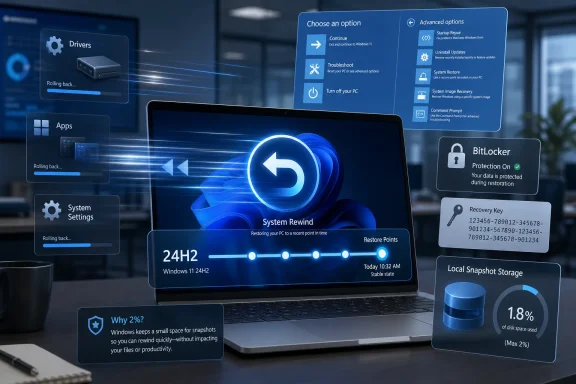
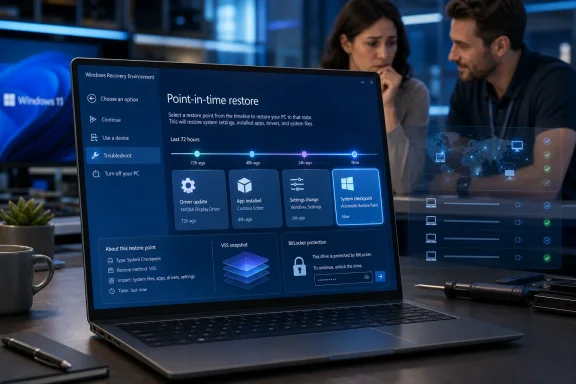
Microsoft has made point-in-time restore generally available for Windows 11 version 24H2 and later, adding a built-in recovery feature for Home, Pro, and Enterprise PCs that can roll a device back to a locally stored earlier state from Windows Recovery Environment in minutes. The pitch is simple: when Windows breaks, Microsoft wants recovery to look less like forensic archaeology and more like undo. The catch is that this new power cuts both ways, because a true rollback includes user files as well as apps, settings, and system state. For IT departments, that makes point-in-time restore both one of the most useful Windows resilience features in years and one that will need policy, training, and sober expectations from day one.
Windows has never lacked recovery tools. It has had Safe Mode, System Restore, Reset this PC, startup repair, recovery drives, Known Issue Rollback, cloud download reinstalls, deployment images, and enough command-line incantations to keep desktop engineers busy for a career. What it has lacked is a modern, predictable, built-in way to rewind an entire PC after a bad update, driver regression, app corruption, or configuration mistake without turning the incident into a rebuild.
Point-in-time restore is Microsoft’s attempt to close that gap. It automatically creates restore points on a schedule, stores them locally, and exposes the restore workflow through Windows Recovery Environment. In other words, the feature is designed for the moment when Windows is unhealthy enough that logging in normally may no longer be possible.
That matters because the most painful endpoint incidents are rarely elegant. A machine may boot-loop after a driver update, lose network access after a policy change, or become unusable after a line-of-business app mangles a dependency. In those cases, the distinction between “we can fix it” and “we can fix it before lunch” is the distinction users actually feel.
Microsoft is also making a broader argument about Windows itself. The company has spent years pushing Windows toward cloud identity, cloud backup, cloud management, and cloud PCs, but this feature is notably local. The restore point sits on the device, the restore path runs through Windows RE, and the win condition is speed without waiting for a full redeployment pipeline.
Point-in-time restore is more ambitious. Microsoft says the new feature captures Windows, installed applications, system and app configurations, settings, and local user files. That makes it closer to a whole-PC rewind than to a troubleshooting convenience.
The inclusion of local user files is the headline and the hazard. If a user downloads a spreadsheet at 3 p.m. and restores the PC to a point captured at 9 a.m., that file is gone from the local machine. Cloud-stored data should survive, but only because it lives outside the local restore boundary and may later resync.
That trade-off is not a bug; it is the feature’s defining choice. Microsoft is prioritizing an exact earlier machine state over selective preservation of everything that happened afterward. For a bricked device, that is often the right call. For a user who treats the Downloads folder as a document management system, it could be an ugly surprise.
That limit says a lot about Microsoft’s design intent. This is not meant to answer “can I recover a file I deleted last month?” It is meant to answer “can I get this device back to the state it was in before yesterday’s change broke it?”
The storage model reinforces that. Restore points are stored locally and constrained by disk limits, with Microsoft describing integration with reserved storage to reduce the impact on available space. The default maximum usage is 2 percent of disk, with a minimum and maximum boundary rather than an open-ended appetite for snapshots.
That is sensible engineering, especially on consumer and business laptops where storage is already contested by feature updates, caches, OneDrive placeholders, games, developer tools, Teams data, Outlook profiles, and whatever else users drag around. But it also means administrators should resist treating point-in-time restore as a substitute for endpoint backup, file retention, or disaster recovery.
The feature is best understood as incident rollback. It covers the narrow but important period when a recent change has created a recent failure and the fastest path forward is to reverse the machine state.
For managed systems, Microsoft is more cautious. Windows Enterprise and Education devices, along with domain-joined or organization-managed Windows Pro devices, have the feature off by default until Windows 11 version 26H2. That delay gives IT teams time to understand the behavior, decide whether local rollback fits their risk model, and configure policy before it becomes a default part of managed endpoint life.
That is the right sequencing. Consumers benefit from safety rails they do not have to discover. Enterprises, meanwhile, need to think about compliance, support scripts, data placement, BitLocker recovery key access, and the help desk choreography of asking a user to initiate recovery from Windows RE.
The management story is also still transitional. Microsoft says the general availability release includes configuration service providers for remote configuration, which matters for Intune and other management paths. But restore initiation is currently local: the user must boot into Windows RE and start the restore there.
Microsoft has said remote initiation through Intune recovery is planned. That future capability is the one enterprise administrators will watch most closely, because the ability to remotely trigger rollback across affected machines would move this from a useful endpoint feature to a serious fleet resilience tool. Until then, point-in-time restore reduces recovery time, but it does not remove the human being at the keyboard.
Point-in-time restore fits that model. The user enters Windows RE, selects Troubleshoot, chooses point-in-time restore, provides the BitLocker recovery key if required, selects the restore point, accepts warnings about data loss, and starts the restore. It is not glamorous, but it is the right layer of the stack.
The BitLocker requirement is especially important. In managed environments, recovery keys should already be escrowed in Microsoft Entra ID, Active Directory, or another approved system. In reality, many organizations still discover key-management gaps only during an incident, which is exactly the worst time to discover them.
For home users, BitLocker and device encryption can be even more confusing. A consumer may not know where the recovery key is stored, whether it is tied to a Microsoft account, or why Windows is asking for it before undoing a bad change. Point-in-time restore may therefore succeed or fail not only on snapshot mechanics, but on whether the surrounding recovery ecosystem is understandable.
This is where Microsoft’s messaging about “minutes instead of hours” needs qualification. The restore operation may be fast once started, but the total incident clock includes getting into Windows RE, finding the right restore point, locating a BitLocker key, accepting local data loss, and resyncing cloud data afterward. In a well-managed environment, that can still be dramatically faster than reimaging. In a messy one, the bottleneck simply moves.
Point-in-time restore is part of Microsoft’s larger Windows resiliency push, and it arrives in a world where organizations are less willing to accept that a bad driver, update, or security agent can strand thousands of endpoints until technicians touch them one by one. The industry has relearned that bootability is a business continuity issue.
Still, point-in-time restore is not a magic antidote to every mass incident. If the device cannot reach Windows RE, if the restore point includes the broken component, if local storage is damaged, or if users cannot supply required recovery credentials, rollback may not save the day. It is a powerful mitigation, not a force field.
The most plausible near-term use case is not necessarily the global catastrophe. It is the regional outage, the bad app deployment, the misconfigured policy, the driver package that breaks a class of laptops, or the executive machine that needs to be back online before the next meeting. Those are the incidents where shaving hours down to minutes changes the support experience.
The more ambitious future is coordinated recovery. If Intune can eventually identify affected devices, present available restore points, and trigger rollback remotely, Windows administrators will gain something closer to a fleet-wide undo button. That would be a meaningful shift in how endpoint management teams think about risk.
But local storage also means local exposure to disk constraints and device health. If the drive is failing, encrypted without an accessible key, or too small to maintain useful restore points, the feature cannot perform miracles. If malware has sufficient access to damage restore infrastructure or encrypt local data, point-in-time restore may not be the recovery line administrators hoped for.
There is also a governance question. Because point-in-time restore can roll back local user files, organizations need to decide how to communicate that behavior. A user who thinks of restore as “fix Windows” may not expect it to remove a locally saved presentation created after the restore point.
Microsoft’s recommendation to store data in the cloud is unsurprising, but it is not merely a cloud upsell. It is a design requirement if organizations want the benefits of whole-system rollback without unacceptable local data loss. OneDrive Known Folder Move, SharePoint document libraries, redirected folders, and disciplined app data practices all become more important when rollback can erase recent local changes.
That turns point-in-time restore into a test of endpoint hygiene. Organizations that already manage identity, storage, BitLocker, update rings, and app deployment cleanly will get the most out of it. Organizations that rely on users to keep critical data scattered across local folders will need to fix that habit before they celebrate the new safety net.
Point-in-time restore gives Microsoft a new rung in the ladder. Before a reset or rebuild, an administrator can attempt a recent full-system rollback. If it works, the user keeps the familiar environment, the help desk avoids a long rebuild, and the organization preserves productivity.
This matters for developers and power users as much as for office workers. A developer workstation can take hours or days to rebuild properly, especially when toolchains, SDKs, package caches, certificates, containers, and local configuration are involved. A rollback to yesterday morning may be far less disruptive than a clean setup, even if some local work must be recovered from Git or cloud storage.
For security teams, the calculus is more complicated. Rolling back a machine after instability is not the same as remediating a compromise. If an endpoint is suspected of being maliciously altered, incident responders may need preservation, forensics, isolation, and clean rebuilds rather than a quick return to service. Point-in-time restore should not become a button that erases evidence before anyone understands what happened.
That distinction will need to be written into runbooks. Use rollback for operational failures; be careful with it during security incidents. A feature that is excellent for recovering from a bad driver can be dangerous if it encourages teams to skip investigation after suspicious behavior.
The enterprise default timeline adds another wrinkle. The feature is off by default on enterprise-managed systems until Windows 11 version 26H2, even though it is generally available now. That creates a period where availability, default state, and management intent are not the same thing.
For IT teams, the practical answer is inventory. Which devices are on 24H2 or later? Which have OS volumes of at least 200GB? Which are Home, unmanaged Pro, managed Pro, Enterprise, or Education? Which are BitLocker-protected with recoverable keys? Which are covered by cloud data redirection?
The answers determine whether point-in-time restore is a real option or merely a settings page. They also determine what the help desk should tell users during an incident. A recovery feature that exists on some machines, is enabled on others, and is policy-disabled elsewhere can quickly become another source of confusion.
Microsoft’s gradual default posture is defensible, but administrators should not mistake it for a deployment plan. General availability is the starting gun for evaluation, not the finish line.
The promise of future Intune recovery integration is therefore more than a convenience. It is the difference between “we have a fast local recovery option” and “we can orchestrate recovery as part of endpoint operations.” The latter is where the feature becomes strategically important.
Imagine a bad driver rollout identified by device model and update timestamp. An administrator could target affected machines, initiate rollback to a known-good restore point, and monitor completion. That kind of workflow would not eliminate all incident work, but it would change the economics of endpoint failure.
Until that exists, organizations should treat point-in-time restore as a local recovery capability with remote policy controls. It can reduce support burden, but it still depends on user instructions, technician access, or out-of-band support channels when Windows is not booting.
That limitation should not obscure the progress. Many Windows recovery improvements arrive as obscure administrative capabilities or niche boot options. This one is visible, understandable, and aimed at the most common support question: can we get back to the last working state?
On that measure, the feature has a good chance of mattering. A restore point captured within the last 24 hours is often enough to undo a bad app install, a problematic update, a broken configuration change, or an unstable driver. Even when it fails, it may fail quickly enough that the support team can move on to reset, reimage, or replacement without burning hours on speculative troubleshooting.
The biggest cultural shift may be for users. Windows users have been trained, often painfully, that recovery is either too technical or too destructive. If point-in-time restore proves reliable, it could normalize the idea that a PC has a short-term memory it can safely return to.
But reliability will be judged harshly. If restore points disappear unexpectedly, if storage limits are opaque, if BitLocker prompts strand users, or if restored machines come back with confusing sync conflicts, confidence will erode quickly. Recovery tools do not get many second chances; people remember the one that failed when they needed it most.
Microsoft’s claim that the feature was enabled on more than 2 million devices during preview is encouraging, but production is a different theater. General availability means broader hardware, broader user behavior, broader policy variety, and a much larger supply of edge cases.
Microsoft’s broader Windows resilience push is moving in the right direction because it accepts an uncomfortable truth: modern PCs will break, and the winning platform is not the one that pretends otherwise, but the one that recovers cleanly when they do. Point-in-time restore gives Windows 11 a stronger local recovery story today and hints at a more automated fleet-recovery model tomorrow; whether it becomes indispensable will depend on how well Microsoft closes the remote-management gap and how seriously administrators treat rollback as a discipline rather than a panic button.
 Microsoft Turns Recovery Into a First-Class Windows Feature
Windows has never lacked recovery tools. It has had Safe Mode, System Restore, Reset this PC, startup repair, recovery drives, Known Issue Rollback, cloud download reinstalls, deployment images, and enough command-line incantations to keep desktop engineers busy for a career. What it has lacked is a modern, predictable, built-in way to rewind an entire PC after a bad update, driver regression, app corruption, or configuration mistake without turning the incident into a rebuild.Point-in-time restore is Microsoft’s attempt to close that gap. It automatically creates restore points on a schedule, stores them locally, and exposes the restore workflow through Windows Recovery Environment. In other words, the feature is designed for the moment when Windows is unhealthy enough that logging in normally may no longer be possible.
That matters because the most painful endpoint incidents are rarely elegant. A machine may boot-loop after a driver update, lose network access after a policy change, or become unusable after a line-of-business app mangles a dependency. In those cases, the distinction between “we can fix it” and “we can fix it before lunch” is the distinction users actually feel.
Microsoft is also making a broader argument about Windows itself. The company has spent years pushing Windows toward cloud identity, cloud backup, cloud management, and cloud PCs, but this feature is notably local. The restore point sits on the device, the restore path runs through Windows RE, and the win condition is speed without waiting for a full redeployment pipeline.
This Is Not the System Restore You Forgot to Enable
The natural comparison is System Restore, but Microsoft clearly wants to distance the new feature from that older Control Panel-era safety net. System Restore was useful when it worked, but it was never a complete rollback strategy. It focused on system files, registry state, drivers, and installed programs; it generally did not include local user files, and its restore points were often event-triggered or manually created.Point-in-time restore is more ambitious. Microsoft says the new feature captures Windows, installed applications, system and app configurations, settings, and local user files. That makes it closer to a whole-PC rewind than to a troubleshooting convenience.
The inclusion of local user files is the headline and the hazard. If a user downloads a spreadsheet at 3 p.m. and restores the PC to a point captured at 9 a.m., that file is gone from the local machine. Cloud-stored data should survive, but only because it lives outside the local restore boundary and may later resync.
That trade-off is not a bug; it is the feature’s defining choice. Microsoft is prioritizing an exact earlier machine state over selective preservation of everything that happened afterward. For a bricked device, that is often the right call. For a user who treats the Downloads folder as a document management system, it could be an ugly surprise.
The 72-Hour Window Shows Microsoft Knows This Is Emergency Gear
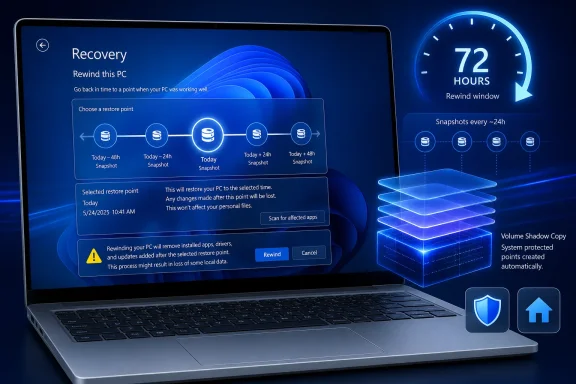
Point-in-time restore is not being positioned as long-term backup. On Windows client PCs, restore point retention tops out at 72 hours, with a default capture cadence of every 24 hours. Enterprise can adjust frequency and retention across supported values, but even the maximum is a short operational window.That limit says a lot about Microsoft’s design intent. This is not meant to answer “can I recover a file I deleted last month?” It is meant to answer “can I get this device back to the state it was in before yesterday’s change broke it?”
The storage model reinforces that. Restore points are stored locally and constrained by disk limits, with Microsoft describing integration with reserved storage to reduce the impact on available space. The default maximum usage is 2 percent of disk, with a minimum and maximum boundary rather than an open-ended appetite for snapshots.
That is sensible engineering, especially on consumer and business laptops where storage is already contested by feature updates, caches, OneDrive placeholders, games, developer tools, Teams data, Outlook profiles, and whatever else users drag around. But it also means administrators should resist treating point-in-time restore as a substitute for endpoint backup, file retention, or disaster recovery.
The feature is best understood as incident rollback. It covers the narrow but important period when a recent change has created a recent failure and the fastest path forward is to reverse the machine state.
The Default Settings Reveal Microsoft’s Consumer-First Confidence and Enterprise Caution
The most interesting part of the rollout may be where Microsoft turns the feature on automatically. Point-in-time restore is on by default for Windows Home devices and for Windows Pro devices that are not domain joined or enrolled in enterprise endpoint management, assuming the OS volume is at least 200GB. On smaller OS volumes, the feature remains off by default, though administrators can enable it.For managed systems, Microsoft is more cautious. Windows Enterprise and Education devices, along with domain-joined or organization-managed Windows Pro devices, have the feature off by default until Windows 11 version 26H2. That delay gives IT teams time to understand the behavior, decide whether local rollback fits their risk model, and configure policy before it becomes a default part of managed endpoint life.
That is the right sequencing. Consumers benefit from safety rails they do not have to discover. Enterprises, meanwhile, need to think about compliance, support scripts, data placement, BitLocker recovery key access, and the help desk choreography of asking a user to initiate recovery from Windows RE.
The management story is also still transitional. Microsoft says the general availability release includes configuration service providers for remote configuration, which matters for Intune and other management paths. But restore initiation is currently local: the user must boot into Windows RE and start the restore there.
Microsoft has said remote initiation through Intune recovery is planned. That future capability is the one enterprise administrators will watch most closely, because the ability to remotely trigger rollback across affected machines would move this from a useful endpoint feature to a serious fleet resilience tool. Until then, point-in-time restore reduces recovery time, but it does not remove the human being at the keyboard.
Windows RE Becomes the Place Where the Real Recovery Happens
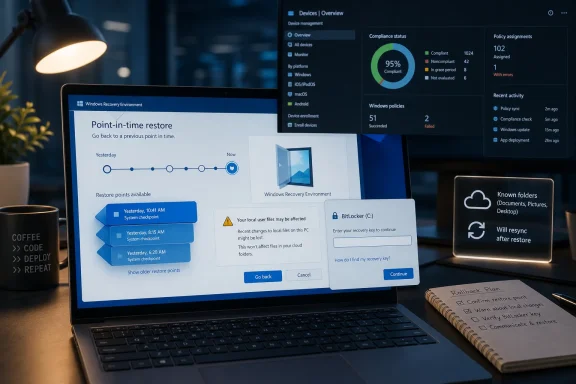
By placing the restore action in Windows Recovery Environment, Microsoft is making a pragmatic bet. If Windows is broken, the recovery interface cannot depend on the broken installation behaving normally. Windows RE has long been the staging ground for startup repair, reset operations, uninstalling updates, command-line recovery, and other last-mile repairs.Point-in-time restore fits that model. The user enters Windows RE, selects Troubleshoot, chooses point-in-time restore, provides the BitLocker recovery key if required, selects the restore point, accepts warnings about data loss, and starts the restore. It is not glamorous, but it is the right layer of the stack.
The BitLocker requirement is especially important. In managed environments, recovery keys should already be escrowed in Microsoft Entra ID, Active Directory, or another approved system. In reality, many organizations still discover key-management gaps only during an incident, which is exactly the worst time to discover them.
For home users, BitLocker and device encryption can be even more confusing. A consumer may not know where the recovery key is stored, whether it is tied to a Microsoft account, or why Windows is asking for it before undoing a bad change. Point-in-time restore may therefore succeed or fail not only on snapshot mechanics, but on whether the surrounding recovery ecosystem is understandable.
This is where Microsoft’s messaging about “minutes instead of hours” needs qualification. The restore operation may be fast once started, but the total incident clock includes getting into Windows RE, finding the right restore point, locating a BitLocker key, accepting local data loss, and resyncing cloud data afterward. In a well-managed environment, that can still be dramatically faster than reimaging. In a messy one, the bottleneck simply moves.
The CrowdStrike Era Changed the Politics of Endpoint Recovery
Microsoft does not need to say “CrowdStrike” for everyone in enterprise IT to hear the echo. The July 2024 outage that left Windows machines crashing around the world turned endpoint recovery from a help desk concern into a boardroom topic. It also exposed a basic truth: when enough PCs fail at once, even good manual recovery instructions collapse under scale.Point-in-time restore is part of Microsoft’s larger Windows resiliency push, and it arrives in a world where organizations are less willing to accept that a bad driver, update, or security agent can strand thousands of endpoints until technicians touch them one by one. The industry has relearned that bootability is a business continuity issue.
Still, point-in-time restore is not a magic antidote to every mass incident. If the device cannot reach Windows RE, if the restore point includes the broken component, if local storage is damaged, or if users cannot supply required recovery credentials, rollback may not save the day. It is a powerful mitigation, not a force field.
The most plausible near-term use case is not necessarily the global catastrophe. It is the regional outage, the bad app deployment, the misconfigured policy, the driver package that breaks a class of laptops, or the executive machine that needs to be back online before the next meeting. Those are the incidents where shaving hours down to minutes changes the support experience.
The more ambitious future is coordinated recovery. If Intune can eventually identify affected devices, present available restore points, and trigger rollback remotely, Windows administrators will gain something closer to a fleet-wide undo button. That would be a meaningful shift in how endpoint management teams think about risk.
Local Restore Points Create Local Responsibilities
The local nature of point-in-time restore is both its advantage and its limitation. Local snapshots are fast, do not depend on WAN bandwidth, and can be available even when network configuration is part of the failure. For branch offices, remote workers, and machines with unreliable connectivity, that is a practical benefit.But local storage also means local exposure to disk constraints and device health. If the drive is failing, encrypted without an accessible key, or too small to maintain useful restore points, the feature cannot perform miracles. If malware has sufficient access to damage restore infrastructure or encrypt local data, point-in-time restore may not be the recovery line administrators hoped for.
There is also a governance question. Because point-in-time restore can roll back local user files, organizations need to decide how to communicate that behavior. A user who thinks of restore as “fix Windows” may not expect it to remove a locally saved presentation created after the restore point.
Microsoft’s recommendation to store data in the cloud is unsurprising, but it is not merely a cloud upsell. It is a design requirement if organizations want the benefits of whole-system rollback without unacceptable local data loss. OneDrive Known Folder Move, SharePoint document libraries, redirected folders, and disciplined app data practices all become more important when rollback can erase recent local changes.
That turns point-in-time restore into a test of endpoint hygiene. Organizations that already manage identity, storage, BitLocker, update rings, and app deployment cleanly will get the most out of it. Organizations that rely on users to keep critical data scattered across local folders will need to fix that habit before they celebrate the new safety net.
Microsoft Is Quietly Rewriting the Windows Recovery Ladder
The old Windows recovery ladder often jumped too quickly from “try a few repairs” to “reimage the machine.” That made sense when endpoints were treated as semi-disposable shells around server-hosted data, but modern Windows PCs are not always so stateless. They carry app state, cached credentials, VPN clients, security tools, developer environments, offline files, and deeply personalized settings.Point-in-time restore gives Microsoft a new rung in the ladder. Before a reset or rebuild, an administrator can attempt a recent full-system rollback. If it works, the user keeps the familiar environment, the help desk avoids a long rebuild, and the organization preserves productivity.
This matters for developers and power users as much as for office workers. A developer workstation can take hours or days to rebuild properly, especially when toolchains, SDKs, package caches, certificates, containers, and local configuration are involved. A rollback to yesterday morning may be far less disruptive than a clean setup, even if some local work must be recovered from Git or cloud storage.
For security teams, the calculus is more complicated. Rolling back a machine after instability is not the same as remediating a compromise. If an endpoint is suspected of being maliciously altered, incident responders may need preservation, forensics, isolation, and clean rebuilds rather than a quick return to service. Point-in-time restore should not become a button that erases evidence before anyone understands what happened.
That distinction will need to be written into runbooks. Use rollback for operational failures; be careful with it during security incidents. A feature that is excellent for recovering from a bad driver can be dangerous if it encourages teams to skip investigation after suspicious behavior.
The Version Story Is Simple, Until It Isn’t
Microsoft says point-in-time restore is generally available on Windows 11 client PCs running version 24H2 and later. That places the feature in the modern Windows 11 baseline rather than in legacy Windows 10 recovery thinking. It also means organizations still standardizing on older Windows 11 releases will not see the same recovery posture everywhere.The enterprise default timeline adds another wrinkle. The feature is off by default on enterprise-managed systems until Windows 11 version 26H2, even though it is generally available now. That creates a period where availability, default state, and management intent are not the same thing.
For IT teams, the practical answer is inventory. Which devices are on 24H2 or later? Which have OS volumes of at least 200GB? Which are Home, unmanaged Pro, managed Pro, Enterprise, or Education? Which are BitLocker-protected with recoverable keys? Which are covered by cloud data redirection?
The answers determine whether point-in-time restore is a real option or merely a settings page. They also determine what the help desk should tell users during an incident. A recovery feature that exists on some machines, is enabled on others, and is policy-disabled elsewhere can quickly become another source of confusion.
Microsoft’s gradual default posture is defensible, but administrators should not mistake it for a deployment plan. General availability is the starting gun for evaluation, not the finish line.
The Feature Enterprises Wanted Still Needs the Button Enterprises Need
Remote initiation is the missing piece. Microsoft’s current design lets administrators configure point-in-time restore, but the restore itself must be launched locally from Windows RE. That is workable for single-device incidents and technically literate users. It is less workable when a large number of devices need coordinated recovery.The promise of future Intune recovery integration is therefore more than a convenience. It is the difference between “we have a fast local recovery option” and “we can orchestrate recovery as part of endpoint operations.” The latter is where the feature becomes strategically important.
Imagine a bad driver rollout identified by device model and update timestamp. An administrator could target affected machines, initiate rollback to a known-good restore point, and monitor completion. That kind of workflow would not eliminate all incident work, but it would change the economics of endpoint failure.
Until that exists, organizations should treat point-in-time restore as a local recovery capability with remote policy controls. It can reduce support burden, but it still depends on user instructions, technician access, or out-of-band support channels when Windows is not booting.
That limitation should not obscure the progress. Many Windows recovery improvements arrive as obscure administrative capabilities or niche boot options. This one is visible, understandable, and aimed at the most common support question: can we get back to the last working state?
The Real Win Is Fewer Rebuilds, Not Perfect Rollbacks
The most sensible way to judge point-in-time restore is not by asking whether it replaces every backup, imaging, or recovery tool. It does not. The better question is whether it reduces the number of incidents that escalate to full rebuilds.On that measure, the feature has a good chance of mattering. A restore point captured within the last 24 hours is often enough to undo a bad app install, a problematic update, a broken configuration change, or an unstable driver. Even when it fails, it may fail quickly enough that the support team can move on to reset, reimage, or replacement without burning hours on speculative troubleshooting.
The biggest cultural shift may be for users. Windows users have been trained, often painfully, that recovery is either too technical or too destructive. If point-in-time restore proves reliable, it could normalize the idea that a PC has a short-term memory it can safely return to.
But reliability will be judged harshly. If restore points disappear unexpectedly, if storage limits are opaque, if BitLocker prompts strand users, or if restored machines come back with confusing sync conflicts, confidence will erode quickly. Recovery tools do not get many second chances; people remember the one that failed when they needed it most.
Microsoft’s claim that the feature was enabled on more than 2 million devices during preview is encouraging, but production is a different theater. General availability means broader hardware, broader user behavior, broader policy variety, and a much larger supply of edge cases.
The Undo Button Arrives With Conditions Attached
Point-in-time restore is one of those Windows features whose value depends on preparation done before the crisis. The technology may live in Recovery settings and Windows RE, but the operational work belongs in endpoint management, identity, storage, security, and user education.- Point-in-time restore is generally available for Windows 11 version 24H2 and later across Home, Pro, and Enterprise client PCs.
- The feature captures scheduled local restore points that include Windows, apps, configuration, settings, and local user files.
- Restoring to an earlier point can delete local changes made afterward, so cloud storage and known-folder protection become more important.
- Enterprise administrators can configure the feature, but restore initiation is currently local through Windows Recovery Environment.
- BitLocker-protected devices require access to the recovery key before restoration can proceed.
- The 72-hour maximum retention window makes this an incident rollback tool, not a replacement for backup or long-term recovery.
Microsoft’s broader Windows resilience push is moving in the right direction because it accepts an uncomfortable truth: modern PCs will break, and the winning platform is not the one that pretends otherwise, but the one that recovers cleanly when they do. Point-in-time restore gives Windows 11 a stronger local recovery story today and hints at a more automated fleet-recovery model tomorrow; whether it becomes indispensable will depend on how well Microsoft closes the remote-management gap and how seriously administrators treat rollback as a discipline rather than a panic button.
References
- Primary source: Windows IT Pro Blog
Published: Tue, 23 Jun 2026 16:00:00 GMT
Point-in-time restore for Windows 11 is now generally available
Restore devices to an earlier state in minutes to keep users productive. techcommunity.microsoft.com
- Official source: learn.microsoft.com
Point-in-time restore for Windows | Microsoft Learn
documentation for point-in-time restore featurelearn.microsoft.com - Official source: support.microsoft.com
System Restore - Microsoft Support
Learn how to use System Restore in Windows.support.microsoft.com - Official source: blogs.windows.com
Announcing new builds for 19 June 2026, version 26H2 for Experimental
Hello Windows Insiders, We have new releases today with builds across Beta and Experimental, including Windows 11, version 26H2 for Experimental. Windows 11, version 26H2 Windows 11, version 26H2 represents our yearly second halfblogs.windows.com - Related coverage: windowscentral.com
"Minimize downtime and simplify troubleshooting": Microsoft's powerful new recovery tool is quietly fixing System Restore. Here's how it actually works. | Windows Central
System Restore has long been the go-to option for Windows recovery, but it's certainly not perfect. Microsoft's new Point-in-Time Restore aims to fill in the blanks.www.windowscentral.com - Related coverage: windowslatest.com
Windows 11 24H2 System Restore points now expire after 60 days, Microsoft confirms
Microsoft has confirmed that Windows 11 System Restore points will be deleted after 60 days, so you need to be more careful. www.windowslatest.com
- Related coverage: tomshardware.com
Microsoft confirms Windows 11 26H1 will be for Arm devices only at launch — Snapdragon X2-powered devices officially shipping with 26H1 | Tom's Hardware
It's 24H2 all over again, but with the caveat that 26H1 will only support specific hardware for its entire lifecycle. Devices running 26H1 will not be able to upgrade to 26H2.www.tomshardware.com - Related coverage: techradar.com
Microsoft expands Windows backup to include restore at first sign-in | TechRadar
Backup feature adds new 'second chance' options for adminswww.techradar.com