

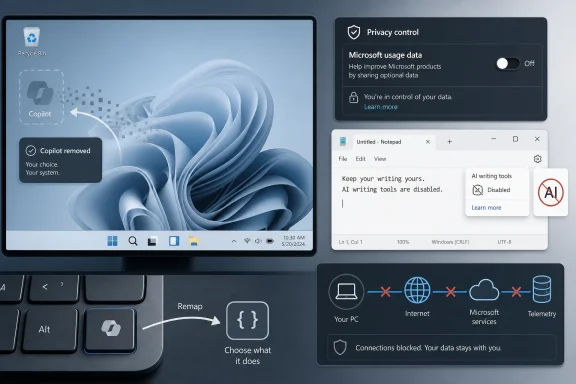
BGR’s May 2026 privacy guide argues that Windows 11 users can make the operating system less intrusive by uninstalling the standalone Copilot app, disabling app-level AI features such as Notepad writing tools, and turning off Copilot’s cross-product Microsoft usage data setting. The advice is simple, but the underlying story is bigger than a few toggles. Windows 11 has become a negotiation between Microsoft’s AI ambitions and the user’s right to keep the desktop boring, predictable, and quiet. The most important privacy setting may not be one switch; it is the habit of treating every new “helpful” surface as opt-in until proven otherwise.
Windows has always carried Microsoft’s business model inside it. Internet Explorer, OneDrive, Teams, Widgets, Edge prompts, Microsoft account nudges, and now Copilot all follow the same basic logic: the operating system is the place where habits are formed. If Microsoft can make a feature visible enough, familiar enough, and difficult enough to ignore, a percentage of users will eventually accept it as part of the furniture.
Copilot changes the temperature of that old argument because it is not merely another app tile. It is a cloud-connected assistant, a branding layer, a keyboard key, a chat experience, a Microsoft 365 entry point, and a set of smaller AI conveniences sprinkled across first-party apps. That makes the user’s complaint harder to dismiss as nostalgia for a simpler Start menu. When an assistant is designed to personalize itself, remember things, and appear across products, privacy becomes part of the product architecture rather than a settings-page afterthought.
The BGR piece focuses on practical annoyances, and that is the right doorway into the problem. Most people do not begin with a formal privacy threat model. They begin with the sense that their PC is talking too much, suggesting too much, syncing too much, and asking for too many permissions in places that used to be quiet.
That irritation matters. Annoyance is often the first privacy warning a normal user can actually feel.
That is progress compared with the worst fears of Windows users who expected Copilot to become another immovable platform component. But it is not the same thing as removing AI from Windows. The app is only one manifestation of a broader push that includes Microsoft 365 Copilot, Edge Copilot, app-specific writing tools, image tools, Recall-adjacent features on Copilot+ PCs, and the dedicated Copilot key on newer hardware.
This distinction is where many privacy guides become misleading by accident. “Remove Copilot” sounds final. In practice, it usually means removing the most visible launcher for the consumer chatbot. The deeper question is whether Windows and Microsoft apps continue to surface cloud AI features in context, sometimes under the Copilot name and sometimes under blander labels like writing tools.
Microsoft appears to understand that “Copilot everywhere” created backlash. Recent reporting and Microsoft’s own product direction suggest the company has been reducing unnecessary Copilot entry points and softening some branding. But a renamed button is not a privacy reversal. It is a user-experience adjustment.
Adding AI writing features to Notepad therefore lands differently than adding AI to Word. In Word, users expect spellcheck, grammar suggestions, templates, and cloud collaboration. In Notepad, even a subtle writing assistant feels like a philosophical trespass. It turns the simplest local scratchpad in Windows into another place where Microsoft can ask, “Would you like help with that?”
BGR’s advice to disable Notepad’s writing tools through the gear icon is not just housekeeping. It is a small act of restoring purpose. Users who want a plain text editor should not have to wonder whether a local note, draft command, configuration snippet, or copied password-adjacent fragment is being offered to a cloud-connected helper.
To be clear, the presence of a button does not automatically mean every character typed into Notepad is being uploaded. Privacy analysis should not depend on panic. The better objection is product-design based: Microsoft keeps placing connected intelligence beside local workflows and then asking users to trust the boundaries. That may be acceptable in an enterprise suite with compliance controls, but it is jarring in a utility whose value has always been that it does almost nothing.
That makes this a cross-device issue rather than merely a Windows 11 issue. A user may think they are cleaning up a laptop, but the setting can involve activity from Bing, Edge, MSN, and other Microsoft services associated with the same account. The privacy surface follows the account, not the chassis.
This is where Microsoft’s modern Windows strategy becomes especially slippery for ordinary users. Windows settings, Edge settings, Microsoft account settings, Copilot settings, Microsoft 365 settings, and app-specific settings are all different doors into the same house. A reasonable person can uninstall a Windows app and assume they have opted out of the relevant experience, while a web-level personalization setting continues to exist elsewhere.
That is not necessarily a dark pattern in every instance; complex ecosystems require layered controls. But the burden is still on Microsoft to make the mental model legible. If Copilot personalization draws from Microsoft services broadly, the control for that behavior should be as visible as the branding that promotes Copilot in the first place.
That administrative machinery matters because businesses cannot run on vibes. They need to know whether prompts and responses are governed by enterprise commitments, whether work data is grounded in Microsoft Graph, whether retention and audit policies apply, and whether users can accidentally route sensitive material through a consumer experience. Microsoft has spent the last two years trying to split those worlds more cleanly.
Consumers, however, are left with a more scavenger-hunt experience. Uninstall one app here. Disable a writing tool there. Open Copilot in a browser to change memory settings. Check Edge separately. Remember that Microsoft 365 Copilot is not the same thing as Microsoft Copilot, even though the icons and names invite confusion.
That mismatch is not new. Windows Home users have long received a thinner policy surface than enterprise administrators. But AI raises the stakes because personalization is not just a convenience feature. It is a data relationship.
Fluid boundaries help Microsoft ship quickly. A feature can move from sidebar to app, from app to web, from web to Microsoft 365, from branded Copilot button to generic writing tool. The company can say it removed or changed one thing while preserving the strategic direction underneath.
For users, though, fluid boundaries create accountability problems. If Copilot is an app, uninstall it. If Copilot is a service, change web settings. If Copilot is a key, remap it. If Copilot is inside Notepad, disable writing tools. If Copilot is inside Edge, manage Edge. If Copilot is inside Microsoft 365, ask your administrator. The user is forced to track Microsoft’s internal product taxonomy simply to keep the PC quiet.
This is why “less annoying” is a more powerful phrase than it looks. The annoyance is not just that a button exists. It is that the button belongs to a system whose edges keep moving.
Privacy is harder because modern AI features often operate through partial triggers, cloud calls, account-level personalization, and service-specific retention rules. A feature may be dormant until invoked. A button may not transmit anything by itself. A personalization setting may affect only certain classes of data. A consumer account may have different protections than a work account.
That complexity is exactly why privacy-conscious users tend to disable first and investigate later. The risk is not always that Microsoft is secretly vacuuming up everything on screen. The risk is that ordinary users cannot easily tell which surface does what, which account context applies, what is remembered, and where the off switch lives.
The more AI becomes ambient, the less acceptable that ambiguity becomes. Ambient computing requires ambient trust. Microsoft has not earned enough of it from Windows users who still remember forced upgrades, browser nags, Start menu ads, and account-pressure screens.
Microsoft has since adjusted the key behavior, including a more streamlined prompt model and administrative remapping options. That is sensible, especially in commercial environments where a key that launches the wrong assistant can be a governance problem. But the larger symbolism remains.
A key is not a notification you can dismiss. It is a reminder built into the machine. For enthusiasts and sysadmins, that matters because hardware outlives marketing cycles. If Microsoft changes branding, pricing, licensing, or data behavior, the key remains on the keyboard, waiting to be reinterpreted by policy.
This is the uncomfortable truth about AI-first PCs: some of their most visible features are bets on user behavior that has not fully materialized yet. Copilot may become indispensable for some workflows. It may also remain, for many users, the key they remap to something else.
The first tier is obvious: uninstall the standalone Copilot app if you do not use it. Remove Microsoft 365 Copilot if it is merely a confusing launcher on a personal PC and you do not need it for Office access. Disable AI writing tools in Notepad if the app’s value to you is its plainness.
The second tier lives in the account layer. Open Copilot on the web, inspect memory and personalization settings, turn off Microsoft usage data if you do not want Copilot drawing from broader Microsoft activity, and delete existing memory if you want a cleaner break. Then repeat the same skeptical audit in Edge, Bing, and Microsoft 365 apps where AI features may have their own surfaces.
The third tier is for managed or power-user environments. Administrators should use documented policy controls rather than relying on users to uninstall apps by hand. Power users should prefer built-in Windows settings, app settings, and Microsoft-documented policy paths before reaching for third-party “debloat” scripts that may break servicing or create their own security problems.
Source: bgr.com These Privacy Settings Can Make Windows 11 Far Less Annoying To Use - BGR
 Microsoft Turned the Desktop Into a Distribution Channel
Windows has always carried Microsoft’s business model inside it. Internet Explorer, OneDrive, Teams, Widgets, Edge prompts, Microsoft account nudges, and now Copilot all follow the same basic logic: the operating system is the place where habits are formed. If Microsoft can make a feature visible enough, familiar enough, and difficult enough to ignore, a percentage of users will eventually accept it as part of the furniture.Copilot changes the temperature of that old argument because it is not merely another app tile. It is a cloud-connected assistant, a branding layer, a keyboard key, a chat experience, a Microsoft 365 entry point, and a set of smaller AI conveniences sprinkled across first-party apps. That makes the user’s complaint harder to dismiss as nostalgia for a simpler Start menu. When an assistant is designed to personalize itself, remember things, and appear across products, privacy becomes part of the product architecture rather than a settings-page afterthought.
The BGR piece focuses on practical annoyances, and that is the right doorway into the problem. Most people do not begin with a formal privacy threat model. They begin with the sense that their PC is talking too much, suggesting too much, syncing too much, and asking for too many permissions in places that used to be quiet.
That irritation matters. Annoyance is often the first privacy warning a normal user can actually feel.
The Copilot App Is Removable, but the Copilot Strategy Is Not
The cleanest piece of advice is also the most limited: uninstall the Copilot app. On current Windows 11 builds, the consumer Microsoft Copilot app can be removed like other Store-delivered apps, either through Installed apps in Settings or by finding it in Start/Search and choosing Uninstall. Microsoft’s own enterprise documentation also describes administrative ways to remove or prevent the consumer app, including AppLocker and PowerShell.That is progress compared with the worst fears of Windows users who expected Copilot to become another immovable platform component. But it is not the same thing as removing AI from Windows. The app is only one manifestation of a broader push that includes Microsoft 365 Copilot, Edge Copilot, app-specific writing tools, image tools, Recall-adjacent features on Copilot+ PCs, and the dedicated Copilot key on newer hardware.
This distinction is where many privacy guides become misleading by accident. “Remove Copilot” sounds final. In practice, it usually means removing the most visible launcher for the consumer chatbot. The deeper question is whether Windows and Microsoft apps continue to surface cloud AI features in context, sometimes under the Copilot name and sometimes under blander labels like writing tools.
Microsoft appears to understand that “Copilot everywhere” created backlash. Recent reporting and Microsoft’s own product direction suggest the company has been reducing unnecessary Copilot entry points and softening some branding. But a renamed button is not a privacy reversal. It is a user-experience adjustment.
Notepad Is the Perfect Symbol Because It Used to Mean Nothing
The fight over AI in Notepad is almost comically small, which is why it is so revealing. Notepad has long been the anti-platform: a blank rectangle, no account, no ribbon, no ambition. It opens text files. It does not have a worldview.Adding AI writing features to Notepad therefore lands differently than adding AI to Word. In Word, users expect spellcheck, grammar suggestions, templates, and cloud collaboration. In Notepad, even a subtle writing assistant feels like a philosophical trespass. It turns the simplest local scratchpad in Windows into another place where Microsoft can ask, “Would you like help with that?”
BGR’s advice to disable Notepad’s writing tools through the gear icon is not just housekeeping. It is a small act of restoring purpose. Users who want a plain text editor should not have to wonder whether a local note, draft command, configuration snippet, or copied password-adjacent fragment is being offered to a cloud-connected helper.
To be clear, the presence of a button does not automatically mean every character typed into Notepad is being uploaded. Privacy analysis should not depend on panic. The better objection is product-design based: Microsoft keeps placing connected intelligence beside local workflows and then asking users to trust the boundaries. That may be acceptable in an enterprise suite with compliance controls, but it is jarring in a utility whose value has always been that it does almost nothing.
The Real Privacy Switch Lives Outside Windows
The most consequential setting in the BGR article is not the uninstall button. It is the Copilot memory and Microsoft usage data control tied to the user’s Microsoft account. According to Microsoft’s support material, Copilot can use activity from Microsoft products to personalize responses when the relevant setting is enabled, and users can turn off Microsoft usage data and delete Copilot memory.That makes this a cross-device issue rather than merely a Windows 11 issue. A user may think they are cleaning up a laptop, but the setting can involve activity from Bing, Edge, MSN, and other Microsoft services associated with the same account. The privacy surface follows the account, not the chassis.
This is where Microsoft’s modern Windows strategy becomes especially slippery for ordinary users. Windows settings, Edge settings, Microsoft account settings, Copilot settings, Microsoft 365 settings, and app-specific settings are all different doors into the same house. A reasonable person can uninstall a Windows app and assume they have opted out of the relevant experience, while a web-level personalization setting continues to exist elsewhere.
That is not necessarily a dark pattern in every instance; complex ecosystems require layered controls. But the burden is still on Microsoft to make the mental model legible. If Copilot personalization draws from Microsoft services broadly, the control for that behavior should be as visible as the branding that promotes Copilot in the first place.
Enterprise IT Gets Controls, Consumers Get Hide-and-Seek
Commercial customers have a more explicit management story. Microsoft documents the difference between consumer Copilot and Microsoft 365 Copilot Chat, describes enterprise data protection for work and school accounts, and gives administrators ways to control installation, pinning, taskbar behavior, and the Copilot key. In Windows 11 version 25H2 with the relevant April 2026 update and later, Microsoft’s policy framework includes a RemoveMicrosoftCopilotApp setting for targeted removal under certain conditions.That administrative machinery matters because businesses cannot run on vibes. They need to know whether prompts and responses are governed by enterprise commitments, whether work data is grounded in Microsoft Graph, whether retention and audit policies apply, and whether users can accidentally route sensitive material through a consumer experience. Microsoft has spent the last two years trying to split those worlds more cleanly.
Consumers, however, are left with a more scavenger-hunt experience. Uninstall one app here. Disable a writing tool there. Open Copilot in a browser to change memory settings. Check Edge separately. Remember that Microsoft 365 Copilot is not the same thing as Microsoft Copilot, even though the icons and names invite confusion.
That mismatch is not new. Windows Home users have long received a thinner policy surface than enterprise administrators. But AI raises the stakes because personalization is not just a convenience feature. It is a data relationship.
Microsoft’s Favorite Word Is “Experience”
One reason these debates become exhausting is that Microsoft rarely talks about software as software anymore. It talks about experiences. Copilot is an experience. Microsoft 365 Copilot Chat is an experience. The hardware key opens an experience. The Windows sidebar was replaced by an experience. This language is not accidental; it allows product boundaries to stay fluid.Fluid boundaries help Microsoft ship quickly. A feature can move from sidebar to app, from app to web, from web to Microsoft 365, from branded Copilot button to generic writing tool. The company can say it removed or changed one thing while preserving the strategic direction underneath.
For users, though, fluid boundaries create accountability problems. If Copilot is an app, uninstall it. If Copilot is a service, change web settings. If Copilot is a key, remap it. If Copilot is inside Notepad, disable writing tools. If Copilot is inside Edge, manage Edge. If Copilot is inside Microsoft 365, ask your administrator. The user is forced to track Microsoft’s internal product taxonomy simply to keep the PC quiet.
This is why “less annoying” is a more powerful phrase than it looks. The annoyance is not just that a button exists. It is that the button belongs to a system whose edges keep moving.
Performance Is the Easier Argument, Privacy Is the Harder One
BGR describes Copilot as a possible drag on performance, and many users will reach for that explanation first. It is tangible. If a background process consumes memory, starts with Windows, or opens when a key is pressed accidentally, users know what they are angry about.Privacy is harder because modern AI features often operate through partial triggers, cloud calls, account-level personalization, and service-specific retention rules. A feature may be dormant until invoked. A button may not transmit anything by itself. A personalization setting may affect only certain classes of data. A consumer account may have different protections than a work account.
That complexity is exactly why privacy-conscious users tend to disable first and investigate later. The risk is not always that Microsoft is secretly vacuuming up everything on screen. The risk is that ordinary users cannot easily tell which surface does what, which account context applies, what is remembered, and where the off switch lives.
The more AI becomes ambient, the less acceptable that ambiguity becomes. Ambient computing requires ambient trust. Microsoft has not earned enough of it from Windows users who still remember forced upgrades, browser nags, Start menu ads, and account-pressure screens.
The Dedicated Copilot Key Was a Hardware Bet on Software Acceptance
The Copilot key may eventually be remembered as the moment Microsoft overestimated how much users wanted AI in the operating system. Adding a physical key to new PCs turned Copilot from a feature into a declaration. It said, in plastic, that Microsoft expected AI assistance to become as fundamental as Search, Alt, or the Windows key.Microsoft has since adjusted the key behavior, including a more streamlined prompt model and administrative remapping options. That is sensible, especially in commercial environments where a key that launches the wrong assistant can be a governance problem. But the larger symbolism remains.
A key is not a notification you can dismiss. It is a reminder built into the machine. For enthusiasts and sysadmins, that matters because hardware outlives marketing cycles. If Microsoft changes branding, pricing, licensing, or data behavior, the key remains on the keyboard, waiting to be reinterpreted by policy.
This is the uncomfortable truth about AI-first PCs: some of their most visible features are bets on user behavior that has not fully materialized yet. Copilot may become indispensable for some workflows. It may also remain, for many users, the key they remap to something else.
Less Annoying Windows Starts With Refusing the Default
There is a practical path through this without turning every Windows 11 setup into a weekend hardening project. The user does not need to become a group policy specialist to reduce noise. The goal is to identify the places where Microsoft has moved from local utility to connected personalization and decide whether the trade is worth it.The first tier is obvious: uninstall the standalone Copilot app if you do not use it. Remove Microsoft 365 Copilot if it is merely a confusing launcher on a personal PC and you do not need it for Office access. Disable AI writing tools in Notepad if the app’s value to you is its plainness.
The second tier lives in the account layer. Open Copilot on the web, inspect memory and personalization settings, turn off Microsoft usage data if you do not want Copilot drawing from broader Microsoft activity, and delete existing memory if you want a cleaner break. Then repeat the same skeptical audit in Edge, Bing, and Microsoft 365 apps where AI features may have their own surfaces.
The third tier is for managed or power-user environments. Administrators should use documented policy controls rather than relying on users to uninstall apps by hand. Power users should prefer built-in Windows settings, app settings, and Microsoft-documented policy paths before reaching for third-party “debloat” scripts that may break servicing or create their own security problems.
The Settings That Actually Change the Windows 11 Mood
A privacy cleanup is most useful when it changes daily behavior, not when it produces a false sense of purity. The realistic win is a Windows install that interrupts less, remembers less without permission, and keeps AI tools out of workflows where they add no value.- Uninstalling the standalone Microsoft Copilot app removes the most obvious consumer chatbot entry point from Windows 11, but it does not remove every AI feature in Microsoft’s ecosystem.
- Disabling Notepad writing tools restores the app closer to its traditional role as a plain local text editor, especially for users who treat it as a scratchpad for sensitive or technical notes.
- Turning off Copilot’s Microsoft usage data setting matters because it addresses personalization across Microsoft services rather than only the local Windows installation.
- Deleting Copilot memory is the cleanup step users should not skip if they previously allowed personalization and now want to unwind it.
- Enterprise administrators should manage Copilot through policy, AppLocker, Microsoft 365 admin settings, and documented Windows AI controls instead of treating consumer uninstall steps as a fleet strategy.
- Users should expect Microsoft to keep changing Copilot branding and entry points, so the durable habit is periodic review rather than one-time removal.
Source: bgr.com These Privacy Settings Can Make Windows 11 Far Less Annoying To Use - BGR
