

Windows 11’s real productivity story isn’t flashy animation or rounded corners — it’s the small, well-integrated tools that quietly shave minutes off everyday workflows and add up to hours saved over weeks. Built‑in features like the Snipping Tool, the modern clipboard, Snap Layouts, Focus Sessions, and Microsoft’s PowerToys transform routine tasks (screenshots, window arrangement, notification control, and quick text capture) from friction points into near‑invisible parts of a productive day. This feature dissects those five tools, verifies their capabilities, explains practical workflows, and highlights the strengths and risks that every Windows user should know before adopting them as core parts of a work setup.
Windows has long shipped with basic utilities that people only half noticed until they became indispensable. Over recent releases Microsoft has layered in practical upgrades — not swooping paradigm shifts, but incremental improvements that solve real pain: multi‑pane snapping, persistent clipboard history, on‑device OCR, and a set of optional productivity utilities in PowerToys. The result is a more cohesive, lower‑friction computing environment for knowledge work, creative tasks, and everyday multitasking. Several independent technical roundups and hands‑on reviews converge on the same conclusion: these small features deliver outsized returns when adopted consistently.
Windows 11 isn’t about a single dramatic productivity feature — it’s about a collection of small, dependable improvements that, when combined, create a smoother, faster working experience. The Snipping Tool brings OCR and short recordings to your fingertips; the clipboard history prevents needless recopying; Snap Layouts and FancyZones remove window chaos; Focus Sessions keep interruptions at bay; and PowerToys fills the remaining gaps with power‑user utilities. Adopted judiciously, these five tools let Windows respect your time — and that’s a productivity improvement that’s measurable in minutes reclaimed, fewer context switches, and clearer focus across the workday.
Source: Root-Nation.com https://root-nation.com/en/articles-en/windows-en/en-5-windows-11-tools-to-boost-your-productivity/
 Background
Windows has long shipped with basic utilities that people only half noticed until they became indispensable. Over recent releases Microsoft has layered in practical upgrades — not swooping paradigm shifts, but incremental improvements that solve real pain: multi‑pane snapping, persistent clipboard history, on‑device OCR, and a set of optional productivity utilities in PowerToys. The result is a more cohesive, lower‑friction computing environment for knowledge work, creative tasks, and everyday multitasking. Several independent technical roundups and hands‑on reviews converge on the same conclusion: these small features deliver outsized returns when adopted consistently.Overview of the five tools covered
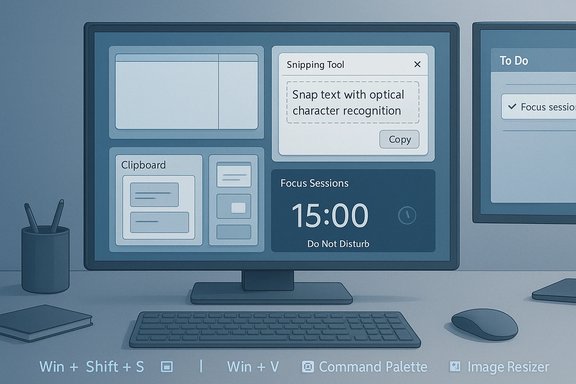
- Snipping Tool — modern screenshot capture, light editing, OCR (Text Extractor), and short screen recordings.
- Clipboard & Emoji panel — emoji/kaomoji/symbol quick picker and clipboard history for multi‑item paste. (Note: clipboard history uses Win + V; the emoji panel uses Win + ..
- Window management / Snap Layouts & FancyZones — quick multi‑pane layouts and custom zone editors for precise multi‑monitor setups.
- Focus Sessions — Clock app integration that silences notifications, ties to Microsoft To Do, supports break scheduling and optional Spotify integration.
- PowerToys — an official, modular suite with high‑value utilities such as FancyZones, Always on Top, Command Palette, File Preview, Image Resizer, PowerRename, and Text Extractor.
Snipping Tool — the capture utility that stopped being just a screenshot app
What it does now
The modern Snipping Tool is a compact capture + light editor + recorder. Use Win + Shift + S to launch the overlay and capture:- rectangular, free‑form, window, or full‑screen screenshots,
- quick annotation (pen, highlighter, simple shapes and cropping),
- Text Extractor (OCR) to copy selectable text from images,
- short screen recordings for demos or micro‑tutorials.
Practical workflows
- Capture a slide or table with Win + Shift + S → click the OCR/Text Extractor → paste raw text into Excel or Word for quick edits.
- Record a 30–90 second screen capture to show a UI bug or explain a short process instead of building a full screencast; the captured clip is ready to share or attach.
Strengths and limits
- Strength: Zero friction — no third‑party install, quick keyboard activation, built‑in OCR and light editing. This reduces context switching and saves incremental time on frequent tasks.
- Risk: OCR is excellent for short, high‑contrast text but can stumble on stylized fonts, low‑resolution screenshots, or complex tabular layouts; always verify pasted text. If you need enterprise‑grade OCR or structured table extraction, a dedicated OCR pipeline remains superior. Flagged: claim of “perfect OCR” is overstated — verify results on a case‑by‑case basis.
Clipboard and emoji panel — small pickers, big time savings
Two separate features people conflate
There are two related but distinct utilities:- The Emoji / Kaomoji / Symbols / GIF picker opens with Win + . (period) and is ideal for quick reactions, inserting currency symbols, arrows, and special characters without Alt codes or web searches. This panel is compact and fast.
- Clipboard history is a separate feature accessed with Win + V (after enabling it in Settings). It stores multiple copied items — text, links, images — and makes past clippings instantly available for paste. This reduces the need to re‑copy or reopen tabs to recover a snippet.
Why clipboard history matters
- No more “I accidentally overwrote my copied paragraph” panic.
- Pin frequently reused snippets (email templates, code fragments).
- Optionally sync clipboard items across devices if you enable cloud sync (be cautious with sensitive data).
Security and privacy considerations
- Clipboard content can include passwords or confidential text. If you enable cloud sync, treat it like any other cloud‑backed artifact: limit sensitive entries and use device policies in corporate environments. Several advisory notes in technical reviews recommend disabling clipboard sync for high‑sensitivity workflows. Flagged for readers: evaluate the trade‑off between convenience and exposure.
Window management — Snap Layouts, Snap Groups, and PowerToys FancyZones
Snap Layouts and Snap Groups (built into Windows 11)
Windows 11 added a visible, keyboard‑friendly layout picker that appears when you hover the maximize button or press Win + Z. It offers multi‑pane templates (two‑up, three‑up, four‑way, wide multi‑pane) and Snap Groups that remember the arrangement so you can restore a whole workspace from the taskbar. This is designed to reduce the time spent resizing windows and to make multi‑app setups reproducible.FancyZones (PowerToys) — when presets aren’t enough
For advanced needs, PowerToys’ FancyZones provides a robust custom zone editor where you design precise layouts per monitor, assign hotkeys, and snap windows into those zones. It’s especially valuable for ultrawide displays, multi‑monitor rigs, and workflows that demand asymmetric layouts (for example, a large central code editor plus narrow side panes for logs and chat).Practical tips
- Start with Snap Layouts (Win + Z) for quick two‑ or three‑pane setups — it’s fast and requires no install.
- If you need consistent, pixel‑perfect zones across monitors, install PowerToys and configure FancyZones: create a custom layout, assign it to specific monitors, and use shift‑drag snapping or hotkeys to populate it.
Caveats
- Elevated apps (running as administrator) may not respect FancyZones unless PowerToys runs with matching privileges; test critical apps after setup. This is a commonly reported interoperability caveat.
Focus Sessions — built‑in attention management that ties to tasks
How it works
Focus Sessions lives in the Clock app and is essentially a structured timer that:- activates Do Not Disturb and silences notifications while a session is active,
- links sessions to tasks in Microsoft To Do (so work is task‑based, not vague),
- optionally integrates with Spotify for background music, and
- supports work/break schedules to enforce time separation.
Best practices
- Link a specific Microsoft To Do task to each Focus Session to keep sessions outcome‑oriented rather than time‑only.
- Use Focus Sessions for repetitive deep‑work chunks (50/10 or 25/5 patterns) to train attention and to provide predictable break cues.
Limitations
- Focus Sessions won’t block everything (some app behaviors or third‑party messengers may still surface unless they respect the OS Do Not Disturb signals). Test with your core apps.
PowerToys — Microsoft’s modular productivity toolbox
Why PowerToys still matters
PowerToys is official, open‑source, and modular. It fills gaps that Windows’ native features either expose only partially or don’t address at all. Many community roundups recommend PowerToys as a day‑one install after upgrading to Windows 11 because the features are practical and low‑cost in terms of system overhead.High‑value modules to enable immediately
- FancyZones — for custom multi‑pane workflows.
- Command Palette (PowerToys Run) — fast launcher that replaces slow Start searches with fuzzy search and quick actions.
- Always on Top — pin a window above others with Win + Ctrl + T. Ideal for reference materials or video calls.
- Image Resizer — quick context‑menu resizing for publishing or email.
- PowerRename — powerful bulk renaming with search/replace and regex support.
- Text Extractor — on‑device OCR to copy text from anywhere on screen (distinct but complementary to Snipping Tool’s OCR).
- Preview Pane / File Explorer add‑ons — preview Markdown, SVG, PDFs, and developer file formats directly in Explorer.
Installation and update recommendations
- Install PowerToys from the Microsoft Store, GitHub releases, or winget (winget install Microsoft.PowerToys). For managed environments, use scripted installers and validate versions before fleet deployment.
Risks and governance
- PowerToys uses global input hooks for some modules (keyboard, mouse, clipboard). This improves functionality but can conflict with other software and some security products may flag these behaviors. For corporate deployments, test compatibility with endpoint protection and MDM policies.
- Only enable modules you need. The modular design exists to reduce background resource usage and minimize potential conflicts.
Practical quick‑start: how to adopt these five tools in a day
- Enable Clipboard History: Settings > System > Clipboard > turn on Clipboard history, then use Win + V to access it. Pin one or two essential snippets.
- Master basic capture: press Win + Shift + S to open the Snipping overlay; try Text Extractor on a slide and paste the result. Save one or two common annotation styles.
- Use Snap Layouts: with two or three apps open, press Win + Z and select a layout. Combine with Virtual Desktops for role‑specific stations (research vs. meetings).
- Start a Focus Session: open Clock > Focus Sessions, link a Microsoft To Do task, and set a work/break cadence you can sustain.
- Install PowerToys from the Store or winget and enable FancyZones and Command Palette. Configure one FancyZones layout that matches your primary monitor. Test elevated apps to ensure compatibility.
Critical analysis — what to expect, and when you’ll need more
Notable strengths
- Low onboarding cost: most features are available immediately with built‑in shortcuts and require minimal configuration. This makes adoption frictionless for most users.
- Time savings compound: repeated micro‑savings (faster pastes, one‑click layouts, OCR from screenshots) accumulate into measurable daily gains for knowledge workers. Multiple editorial analyses emphasize this cumulative effect.
- Cohesion within the Windows ecosystem: integration with Microsoft To Do, the Clock app, and OS‑level notification controls reduces the need to stitch together third‑party services.
Practical and security risks
- Privacy exposure in clipboard sync: enabling cloud sync may leak sensitive content if not managed; audit your clipboard content policy before enabling cross‑device sync. Flagged: treat clipboard cloud sync cautiously in regulated environments.
- Compatibility and privilege boundaries for PowerToys: global hooks can conflict with other software and elevated apps may not behave as expected with FancyZones; test in your environment before rolling out widely.
- Dependence on correctness of OCR / quick captures: Snipping Tool OCR and PowerToys Text Extractor are excellent for speed, but not substitutes for structured OCR workflows for high‑accuracy needs; always verify critical text.
Verdict and recommendations
Windows 11’s productivity value comes less from headline features and more from well‑engineered micro‑tools that remove repetitive friction. For most users the pragmatic path is:- Adopt the built‑ins first: Snipping Tool + Clipboard history + Snap Layouts + Focus Sessions. These give immediate, secure gains at minimal risk.
- Add PowerToys selectively: install from a trusted source (Store, winget, or GitHub), enable FancyZones and Command Palette, then test other modules as needed. Keep the footprint minimal and document hotkey mappings.
- Treat cloud sync features (clipboard sync, cloud backups) as optional and assess them against your privacy and compliance requirements before enabling.
Windows 11 isn’t about a single dramatic productivity feature — it’s about a collection of small, dependable improvements that, when combined, create a smoother, faster working experience. The Snipping Tool brings OCR and short recordings to your fingertips; the clipboard history prevents needless recopying; Snap Layouts and FancyZones remove window chaos; Focus Sessions keep interruptions at bay; and PowerToys fills the remaining gaps with power‑user utilities. Adopted judiciously, these five tools let Windows respect your time — and that’s a productivity improvement that’s measurable in minutes reclaimed, fewer context switches, and clearer focus across the workday.
Source: Root-Nation.com https://root-nation.com/en/articles-en/windows-en/en-5-windows-11-tools-to-boost-your-productivity/
