

How-To Geek’s latest Windows 11 tweak guide argues that three small Registry edits can make a fresh Windows 11 install feel less noisy and more familiar by disabling Bing results in Start search, restoring the classic right-click menu, and bypassing the lock screen. The advice is not revolutionary, and that is precisely why it lands. Windows 11’s most persistent annoyances are no longer missing features so much as defaults that assume Microsoft’s preferred workflow is everyone’s preferred workflow. The Registry remains the place where that argument gets settled, quietly and unofficially.
Windows 11 has spent the years since its 2021 debut becoming a better operating system in the practical sense. The taskbar regained some flexibility, File Explorer matured, Settings absorbed more legacy Control Panel work, and the platform stopped feeling quite as much like a design manifesto shipped before the footnotes were ready.
But the How-To Geek piece highlights a more stubborn problem: improvement has not erased the sense that Windows 11 is constantly making editorial decisions on the user’s behalf. The Start menu wants to be a web search surface. File Explorer wants to simplify a context menu that power users already understood. The sign-in experience wants to present a lock screen even when the machine’s owner sees it as pure friction.
These are not catastrophic defects. They are not blue screens, failed cumulative updates, or broken drivers. They are the lower-grade irritants that shape how a machine feels after the excitement of a clean install wears off.
That is why Registry hacks retain their cultural power among Windows users. They are less about “hacking” than about vetoing defaults. They say, in effect: this is my PC, and I would like it to behave like one.
The complaint behind the tweak is familiar to anyone who uses Start as a launcher rather than a portal. Type the name of an installed app, a document, or a setting, and Windows usually does the right thing. Type imperfectly, pause too long, or search for something ambiguous, and Windows may decide the web deserves a seat at the table.
Microsoft’s logic is obvious enough. Search is one of the most valuable surfaces in modern computing, and Windows has hundreds of millions of users passing through that surface every day. Folding Bing into that flow turns local intent into cloud opportunity.
The user’s logic is simpler: if they wanted the web, they would have opened a browser.
That tension explains why this Registry value has become a staple of Windows 11 setup guides. It does not remove Windows Search. It does not break the Start menu’s basic role as an app and settings launcher. It simply narrows the scope of search back toward the local machine, which is what many desktop users thought they were asking for in the first place.
There is a policy story here as well as a usability story. The path used by the tweak is not some random application preference buried in a vendor-specific corner of the Registry. It sits under
When a user types into Start, the mental model is closer to “find the thing on this PC” than “interpret my query across Microsoft’s ecosystem.” Even when Bing results are harmless, they introduce ambiguity. Did Windows fail to find the local item? Did the user mistype it? Is the top result local, web-based, sponsored, suggested, or merely guessed?
For novice users, that ambiguity can send them into the browser when they were trying to open a local tool. For power users, it is worse: it slows down a practiced gesture. Muscle memory depends on stable outcomes, and web suggestions make Start feel less deterministic.
There is also a privacy-adjacent concern, even when no one is alleging anything exotic. Local search terms can reveal work habits, filenames, projects, vendors, and internal jargon. Users and administrators who are comfortable searching a local index may not be equally comfortable with the operating system treating the same field as a cloud-connected suggestion box.
Microsoft has periodically adjusted Windows Search behavior, and preview builds have reportedly tested ways to make app and file results more prominent. But that is not the same as giving users a simple, durable Settings toggle that says: keep Start search local. Until that exists everywhere, the Registry value will continue to circulate.
This is the tweak that best captures Windows 11’s design dilemma. Microsoft’s redesigned context menu was not irrational. The old menu had become a junk drawer, crowded by decades of shell extensions, compression tools, cloud clients, editors, scanners, media apps, and vendor utilities. The Windows 11 version tries to put the most common commands in a cleaner, more modern arrangement and move the rest behind “Show more options.”
That is defensible on paper. It is often annoying in practice.
Context menus are not read like documents. They are navigated through habit. Users learn where 7-Zip appears, where “Open with” lives, where a developer tool adds its command, where an image editor hooks itself into the shell. Changing that map imposes a tax every time the user right-clicks.
Microsoft did preserve the older menu. Shift-right-click can expose the expanded menu, and “Show more options” remains available. But forcing an extra click or modifier key for commands that users rely on daily is a classic example of a design improvement that saves complexity for the median user by exporting inconvenience to the expert.
That ecosystem does not modernize on command. Some utilities update quickly. Others are maintained slowly. Some are internal enterprise tools that no one wants to touch unless they break. Plenty of perfectly useful programs still expose their shell integrations through older mechanisms.
The result is a split-brain interface. The new Windows 11 context menu is the polished front room, while the old menu remains the basement where half the tools still live. Users who depend on those tools are not being nostalgic when they restore the classic menu. They are reducing the number of times the interface asks them to detour.
There is a reason this tweak is usually framed as a personal preference rather than a universal recommendation. The modern menu is better for some people, especially those who only need common file operations and prefer a less cluttered interface. But the classic menu is better for users whose right-click workflow includes developer tools, archive managers, security scanners, version-control commands, image conversion utilities, or specialized enterprise software.
That distinction matters. Windows 11’s problem is not that Microsoft redesigned the menu. It is that the operating system still lacks an obvious first-party setting that lets users choose which context menu philosophy fits their work.
The motivation is blunt: the lock screen is one more thing between the user and the password prompt. On a phone or tablet, a lock screen can be useful real estate. It shows notifications, media controls, weather, time, and glanceable status. On a desktop PC, especially a private workstation, it can feel like an ornamental gate.
Windows has increasingly blurred the line between functional surfaces and promotional surfaces. The lock screen can be beautiful, particularly with rotating imagery, but beauty does not make an extra interaction necessary. If the user’s goal is to authenticate, a screen that must be dismissed before authentication is a delay by design.
That said, this tweak deserves more caution than the other two because the lock screen can carry information and policy significance. Shared machines, managed devices, kiosks, classrooms, and workplaces may use the lock screen as part of a broader security or compliance posture. Removing it on a personal desktop is one thing; doing so across an organization without thinking is another.
For many home users, though, the case is easy. If a machine wakes to a sign-in prompt faster, with no intervening wallpaper page, the computer feels more direct. The tweak does not remove the need to sign in. It removes the page before sign-in.
That is what makes them both appealing and revealing. Users are not asking for an alternate operating system. They are asking for three switches Microsoft could plausibly expose in Settings: keep Start search local, use the classic context menu, and skip the lock screen on this device.
Microsoft may disagree with those choices as defaults. Fair enough. Defaults are product strategy, and the company has every right to design Windows 11 around a cleaner shell, connected services, and a visually rich sign-in path. But Windows has traditionally earned loyalty by letting users bend it into shape.
The Registry is where that older Windows bargain still lives. It is powerful, inelegant, underexplained, and sometimes dangerous. It is also the last resort when Settings becomes more curated than comprehensive.
The danger is that Microsoft trains users to treat unsupported tweaks as normal configuration. If a change is common enough to appear in mainstream how-to guides, forum threads, and admin scripts, it has crossed from fringe modification into unmet demand. At that point, burying it in the Registry does not prevent customization. It merely makes customization more error-prone.
The Windows Registry is not a preferences file in the casual sense. It is a hierarchical database used by Windows, drivers, services, applications, shell components, policies, and user profiles. A typo in one place may do nothing. A typo in another may break sign-in behavior, application launch, Explorer stability, device configuration, or update paths.
These three tweaks are relatively contained. Two live under the current user hive and can be reversed by deleting a key or changing a DWORD back to
Still, the safe pattern matters. Export the key before changing it. Create a restore point when experimenting with multiple tweaks. Document what was changed, especially on machines you may need to support later. If a tweak becomes part of a deployment routine, put it in a script or policy process rather than relying on memory and manual clicking through Regedit.
The worst Registry mistakes often happen not because the intended change was risky, but because the user edited the wrong branch, created a value with the wrong type, pasted a malformed path, or followed instructions written for a different Windows version. Precision is the price of admission.
That form is not neutral. It has Bing in search, a simplified context menu, a lock screen, recommended content surfaces, Microsoft account nudges, Edge defaults, cloud prompts, and a visual language optimized for broad consumer legibility. Some of those choices are good. Some are defensible. Some are exhausting.
The three Registry tweaks stand out because they are applied early, almost as setup hygiene. They are part of the ritual by which enthusiasts turn a generic Windows installation into a personal workstation. Install drivers. Run updates. Remove unwanted startup apps. Pin the real tools. Fix the right-click menu. Kill web search. Skip the lock screen.
This ritual is not just aesthetic. It is about reducing interruptions before habits form. A user who performs these tweaks on day one is trying to prevent Windows from training them into workarounds.
That should interest Microsoft. The company often speaks about productivity, flow, and reducing friction. Here is a clear signal from experienced users about where friction still lives. It is not buried in a benchmark. It is in the first hour after installation.
The classic context menu is more situational. Some help desks may prefer the Windows 11 default because it reduces clutter and makes common actions easier to describe. Others may support users whose workflows depend on legacy shell extensions, in which case restoring the old menu can reduce tickets rather than create them.
The lock screen is the complicated one. In managed environments, sign-in and lock behavior intersects with security baselines, compliance expectations, user training, and physical access assumptions. Even if disabling the decorative lock screen does not remove authentication, changing the pre-authentication experience may not be acceptable everywhere.
There is also a supportability issue. Registry changes applied ad hoc do not always survive policy refreshes, feature updates, provisioning changes, or profile rebuilds in predictable ways. An admin who likes one of these tweaks should translate it into a controlled deployment mechanism, not a tribal instruction passed around chat.
The broader lesson for IT is that Windows 11 customization has become part of endpoint experience management. Users judge a managed PC not only by whether it is secure and patched, but by whether it gets in their way. The same operating system can feel polished or patronizing depending on a handful of defaults.
There is no shame in advanced settings. A good Settings app can serve ordinary users without pretending advanced users do not exist. Apple hides some power-user controls; Linux desktops often expose too many; Windows historically lived in the productive middle, where almost anything could be changed if you knew where to look.
Windows 11 sometimes feels less confident about that identity. It wants to be clean, modern, secure, cloud-connected, and approachable. Those goals are reasonable. But a desktop operating system also needs to respect the accumulated habits of people who spend eight or ten hours a day in it.
The three tweaks in the guide are modest, but they point toward a larger design principle. If a setting changes the scope of a built-in feature, the density of a core shell menu, or the number of steps required to authenticate, it probably deserves first-class user control.
That does not mean Microsoft should expose every Registry value in a graphical interface. It does mean the company should notice when the same values become community canon.
Windows 11 has become a stronger operating system than it was at launch, but its most telling weaknesses now live in the distance between Microsoft’s defaults and users’ routines. If Microsoft wants the next phase of Windows to feel less adversarial, it should not wait for another generation of Registry folklore to identify the pain points. The better answer is obvious: promote the most common vetoes into real settings, let users choose their friction level, and trust that a personal computer becomes more valuable when it feels personal again.
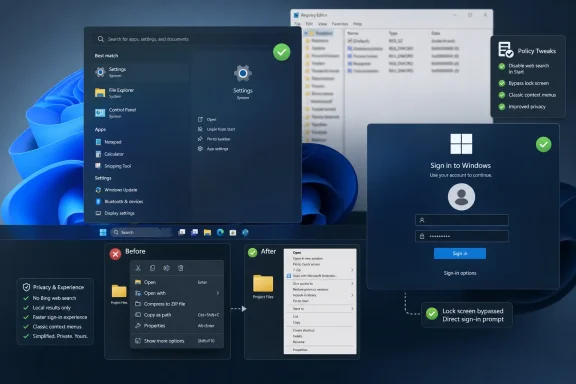 Microsoft’s Defaults Still Treat the Desktop as Negotiable Territory
Windows 11 has spent the years since its 2021 debut becoming a better operating system in the practical sense. The taskbar regained some flexibility, File Explorer matured, Settings absorbed more legacy Control Panel work, and the platform stopped feeling quite as much like a design manifesto shipped before the footnotes were ready.But the How-To Geek piece highlights a more stubborn problem: improvement has not erased the sense that Windows 11 is constantly making editorial decisions on the user’s behalf. The Start menu wants to be a web search surface. File Explorer wants to simplify a context menu that power users already understood. The sign-in experience wants to present a lock screen even when the machine’s owner sees it as pure friction.
These are not catastrophic defects. They are not blue screens, failed cumulative updates, or broken drivers. They are the lower-grade irritants that shape how a machine feels after the excitement of a clean install wears off.
That is why Registry hacks retain their cultural power among Windows users. They are less about “hacking” than about vetoing defaults. They say, in effect: this is my PC, and I would like it to behave like one.
The Start Menu Became a Search Engine Before Users Asked for One
The first tweak disables Bing search suggestions in the Windows 11 Start menu by creating or editing a policy value under the current user hive. The relevant value,DisableSearchBoxSuggestions, lives under HKEY_CURRENT_USER\SOFTWARE\Policies\Microsoft\Windows\Explorer and is set as a 32-bit DWORD with a value of 1.The complaint behind the tweak is familiar to anyone who uses Start as a launcher rather than a portal. Type the name of an installed app, a document, or a setting, and Windows usually does the right thing. Type imperfectly, pause too long, or search for something ambiguous, and Windows may decide the web deserves a seat at the table.
Microsoft’s logic is obvious enough. Search is one of the most valuable surfaces in modern computing, and Windows has hundreds of millions of users passing through that surface every day. Folding Bing into that flow turns local intent into cloud opportunity.
The user’s logic is simpler: if they wanted the web, they would have opened a browser.
That tension explains why this Registry value has become a staple of Windows 11 setup guides. It does not remove Windows Search. It does not break the Start menu’s basic role as an app and settings launcher. It simply narrows the scope of search back toward the local machine, which is what many desktop users thought they were asking for in the first place.
There is a policy story here as well as a usability story. The path used by the tweak is not some random application preference buried in a vendor-specific corner of the Registry. It sits under
Policies, the branch Windows uses for managed behavior. That matters because it frames the change less as a skin-deep customization and more as an administrative preference: do not use this user-facing search box to surface web suggestions.Bing in Start Is a Trust Problem Disguised as a Convenience Feature
The irritation around Bing results is not simply anti-Bing sentiment, though Microsoft has invited plenty of that by pushing the service into places where users did not expect it. The deeper issue is predictability. A launcher should be boring, fast, and literal.When a user types into Start, the mental model is closer to “find the thing on this PC” than “interpret my query across Microsoft’s ecosystem.” Even when Bing results are harmless, they introduce ambiguity. Did Windows fail to find the local item? Did the user mistype it? Is the top result local, web-based, sponsored, suggested, or merely guessed?
For novice users, that ambiguity can send them into the browser when they were trying to open a local tool. For power users, it is worse: it slows down a practiced gesture. Muscle memory depends on stable outcomes, and web suggestions make Start feel less deterministic.
There is also a privacy-adjacent concern, even when no one is alleging anything exotic. Local search terms can reveal work habits, filenames, projects, vendors, and internal jargon. Users and administrators who are comfortable searching a local index may not be equally comfortable with the operating system treating the same field as a cloud-connected suggestion box.
Microsoft has periodically adjusted Windows Search behavior, and preview builds have reportedly tested ways to make app and file results more prominent. But that is not the same as giving users a simple, durable Settings toggle that says: keep Start search local. Until that exists everywhere, the Registry value will continue to circulate.
The Right-Click Menu Is Where Design Theory Meets Muscle Memory
The second tweak restores the old right-click context menu in File Explorer. The recipe is now almost folklore: create the CLSID key{86ca1aa0-34aa-4e8b-a509-50c905bae2a2} under HKEY_CURRENT_USER\SOFTWARE\CLASSES\CLSID, add an InprocServer32 subkey, and set its default value to an empty string. Restart Explorer, and the classic menu becomes the default again.This is the tweak that best captures Windows 11’s design dilemma. Microsoft’s redesigned context menu was not irrational. The old menu had become a junk drawer, crowded by decades of shell extensions, compression tools, cloud clients, editors, scanners, media apps, and vendor utilities. The Windows 11 version tries to put the most common commands in a cleaner, more modern arrangement and move the rest behind “Show more options.”
That is defensible on paper. It is often annoying in practice.
Context menus are not read like documents. They are navigated through habit. Users learn where 7-Zip appears, where “Open with” lives, where a developer tool adds its command, where an image editor hooks itself into the shell. Changing that map imposes a tax every time the user right-clicks.
Microsoft did preserve the older menu. Shift-right-click can expose the expanded menu, and “Show more options” remains available. But forcing an extra click or modifier key for commands that users rely on daily is a classic example of a design improvement that saves complexity for the median user by exporting inconvenience to the expert.
The Classic Menu Persists Because the Windows Ecosystem Is Messy
The context-menu change also collided with the reality of Windows software. Microsoft’s modern menu design depends partly on applications adopting newer extension models and presenting commands in a cleaner way. But Windows is valuable precisely because it carries an enormous legacy software ecosystem forward.That ecosystem does not modernize on command. Some utilities update quickly. Others are maintained slowly. Some are internal enterprise tools that no one wants to touch unless they break. Plenty of perfectly useful programs still expose their shell integrations through older mechanisms.
The result is a split-brain interface. The new Windows 11 context menu is the polished front room, while the old menu remains the basement where half the tools still live. Users who depend on those tools are not being nostalgic when they restore the classic menu. They are reducing the number of times the interface asks them to detour.
There is a reason this tweak is usually framed as a personal preference rather than a universal recommendation. The modern menu is better for some people, especially those who only need common file operations and prefer a less cluttered interface. But the classic menu is better for users whose right-click workflow includes developer tools, archive managers, security scanners, version-control commands, image conversion utilities, or specialized enterprise software.
That distinction matters. Windows 11’s problem is not that Microsoft redesigned the menu. It is that the operating system still lacks an obvious first-party setting that lets users choose which context menu philosophy fits their work.
The Lock Screen Is Pretty Until It Becomes a Turnstile
The third tweak disables the Windows lock screen by creating aPersonalization key under HKEY_LOCAL_MACHINE\SOFTWARE\Policies\Microsoft\Windows, then adding a 32-bit DWORD named NoLockScreen with a value of 1. Unlike the first two changes, this one affects the local machine policy area rather than just the current user’s preferences.The motivation is blunt: the lock screen is one more thing between the user and the password prompt. On a phone or tablet, a lock screen can be useful real estate. It shows notifications, media controls, weather, time, and glanceable status. On a desktop PC, especially a private workstation, it can feel like an ornamental gate.
Windows has increasingly blurred the line between functional surfaces and promotional surfaces. The lock screen can be beautiful, particularly with rotating imagery, but beauty does not make an extra interaction necessary. If the user’s goal is to authenticate, a screen that must be dismissed before authentication is a delay by design.
That said, this tweak deserves more caution than the other two because the lock screen can carry information and policy significance. Shared machines, managed devices, kiosks, classrooms, and workplaces may use the lock screen as part of a broader security or compliance posture. Removing it on a personal desktop is one thing; doing so across an organization without thinking is another.
For many home users, though, the case is easy. If a machine wakes to a sign-in prompt faster, with no intervening wallpaper page, the computer feels more direct. The tweak does not remove the need to sign in. It removes the page before sign-in.
Registry Tweaks Are a Symptom of Missing Switches
The striking thing about all three tweaks is that they are not exotic. They do not overclock the shell, replace system files, patch binaries, or depend on obscure third-party services. They are small changes to values Windows already reads.That is what makes them both appealing and revealing. Users are not asking for an alternate operating system. They are asking for three switches Microsoft could plausibly expose in Settings: keep Start search local, use the classic context menu, and skip the lock screen on this device.
Microsoft may disagree with those choices as defaults. Fair enough. Defaults are product strategy, and the company has every right to design Windows 11 around a cleaner shell, connected services, and a visually rich sign-in path. But Windows has traditionally earned loyalty by letting users bend it into shape.
The Registry is where that older Windows bargain still lives. It is powerful, inelegant, underexplained, and sometimes dangerous. It is also the last resort when Settings becomes more curated than comprehensive.
The danger is that Microsoft trains users to treat unsupported tweaks as normal configuration. If a change is common enough to appear in mainstream how-to guides, forum threads, and admin scripts, it has crossed from fringe modification into unmet demand. At that point, burying it in the Registry does not prevent customization. It merely makes customization more error-prone.
The Registry Is Not a Toy, Even When the Tweaks Are Small
How-To Geek correctly warns readers to back up the Registry before editing it. That warning can feel ritualistic, like the “don’t try this at home” disclaimer before a stunt everyone is about to try at home. But it remains good advice.The Windows Registry is not a preferences file in the casual sense. It is a hierarchical database used by Windows, drivers, services, applications, shell components, policies, and user profiles. A typo in one place may do nothing. A typo in another may break sign-in behavior, application launch, Explorer stability, device configuration, or update paths.
These three tweaks are relatively contained. Two live under the current user hive and can be reversed by deleting a key or changing a DWORD back to
0. The lock-screen tweak is machine-wide but still straightforward. None of them should be confused with deep system surgery.Still, the safe pattern matters. Export the key before changing it. Create a restore point when experimenting with multiple tweaks. Document what was changed, especially on machines you may need to support later. If a tweak becomes part of a deployment routine, put it in a script or policy process rather than relying on memory and manual clicking through Regedit.
The worst Registry mistakes often happen not because the intended change was risky, but because the user edited the wrong branch, created a value with the wrong type, pasted a malformed path, or followed instructions written for a different Windows version. Precision is the price of admission.
Fresh Installs Expose the Gap Between Microsoft’s PC and Yours
A fresh Windows 11 install is the moment when Microsoft’s idea of the PC is most visible. Before the user installs their preferred browser, shell utilities, development tools, terminal profile, file archiver, backup client, and Start-menu replacement, Windows presents itself in its purest retail form.That form is not neutral. It has Bing in search, a simplified context menu, a lock screen, recommended content surfaces, Microsoft account nudges, Edge defaults, cloud prompts, and a visual language optimized for broad consumer legibility. Some of those choices are good. Some are defensible. Some are exhausting.
The three Registry tweaks stand out because they are applied early, almost as setup hygiene. They are part of the ritual by which enthusiasts turn a generic Windows installation into a personal workstation. Install drivers. Run updates. Remove unwanted startup apps. Pin the real tools. Fix the right-click menu. Kill web search. Skip the lock screen.
This ritual is not just aesthetic. It is about reducing interruptions before habits form. A user who performs these tweaks on day one is trying to prevent Windows from training them into workarounds.
That should interest Microsoft. The company often speaks about productivity, flow, and reducing friction. Here is a clear signal from experienced users about where friction still lives. It is not buried in a benchmark. It is in the first hour after installation.
Enterprise IT Will See Both Policy and Liability
For administrators, the How-To Geek tweaks divide into two categories: changes that map comfortably to managed preference, and changes that should trigger a policy conversation. Disabling web results in Start search is easy to justify in many workplaces. It reduces distraction, keeps search intent local, and may align with organizations that want less consumer web integration on corporate endpoints.The classic context menu is more situational. Some help desks may prefer the Windows 11 default because it reduces clutter and makes common actions easier to describe. Others may support users whose workflows depend on legacy shell extensions, in which case restoring the old menu can reduce tickets rather than create them.
The lock screen is the complicated one. In managed environments, sign-in and lock behavior intersects with security baselines, compliance expectations, user training, and physical access assumptions. Even if disabling the decorative lock screen does not remove authentication, changing the pre-authentication experience may not be acceptable everywhere.
There is also a supportability issue. Registry changes applied ad hoc do not always survive policy refreshes, feature updates, provisioning changes, or profile rebuilds in predictable ways. An admin who likes one of these tweaks should translate it into a controlled deployment mechanism, not a tribal instruction passed around chat.
The broader lesson for IT is that Windows 11 customization has become part of endpoint experience management. Users judge a managed PC not only by whether it is secure and patched, but by whether it gets in their way. The same operating system can feel polished or patronizing depending on a handful of defaults.
The Unofficial Fixes Tell Microsoft Where Settings Should Grow
Microsoft has been slowly moving Windows away from the old Control Panel sprawl and toward a more coherent Settings app. That project is necessary. But simplification becomes a problem when it removes the visible controls that make Windows feel user-governed.There is no shame in advanced settings. A good Settings app can serve ordinary users without pretending advanced users do not exist. Apple hides some power-user controls; Linux desktops often expose too many; Windows historically lived in the productive middle, where almost anything could be changed if you knew where to look.
Windows 11 sometimes feels less confident about that identity. It wants to be clean, modern, secure, cloud-connected, and approachable. Those goals are reasonable. But a desktop operating system also needs to respect the accumulated habits of people who spend eight or ten hours a day in it.
The three tweaks in the guide are modest, but they point toward a larger design principle. If a setting changes the scope of a built-in feature, the density of a core shell menu, or the number of steps required to authenticate, it probably deserves first-class user control.
That does not mean Microsoft should expose every Registry value in a graphical interface. It does mean the company should notice when the same values become community canon.
Three Small Edits Draw the Boundary Around a Better Windows 11
These tweaks are not magic, and they are not a substitute for a thoughtful setup. They are useful because each one removes a specific kind of friction that Microsoft chose to add or preserve in the default experience.- Disabling Bing suggestions makes Start search behave more like a local launcher and less like a web portal.
- Restoring the classic context menu favors speed and legacy compatibility over Microsoft’s cleaner Windows 11 shell design.
- Disabling the lock screen removes a decorative step without removing the requirement to authenticate.
- Backing up the Registry before editing remains the difference between customization and avoidable self-inflicted troubleshooting.
- The popularity of these tweaks shows that Windows 11’s problem is not a lack of polish, but a lack of visible choice in places users touch constantly.
Windows 11 has become a stronger operating system than it was at launch, but its most telling weaknesses now live in the distance between Microsoft’s defaults and users’ routines. If Microsoft wants the next phase of Windows to feel less adversarial, it should not wait for another generation of Registry folklore to identify the pain points. The better answer is obvious: promote the most common vetoes into real settings, let users choose their friction level, and trust that a personal computer becomes more valuable when it feels personal again.
References
- Primary source: How-To Geek
Published: Tue, 23 Jun 2026 19:02:45 GMT
3 registry hacks I always use on a fresh Windows 11 install
You don't have to tolerate the little annoyances. www.howtogeek.com
- Official source: learn.microsoft.com
Disable web search in the windows 11 Start menu - Microsoft Q&A
this is annoying when i use search in the start menu i want it to search applications and local files i do not want it using Bing and lunching edge I use Searx and Firefox and if i want to search the net I know how to open a browser and search is there a…learn.microsoft.com - Related coverage: thedroidguy.com
Disable Web Search & Bing in Windows 11 Start Menu | The Droid Guy
Disable Bing and web results in the Windows 11 Start menu with registry, Group Policy, and Search permissions tweaks for fast, private, local-only search.thedroidguy.com - Related coverage: woshub.com
Disable Web Search Results in Windows 10/11 Start Menu | Windows OS Hub
When a user searches using the Start menu in Windows 10 or Windows 11, the search results show suggestions from the local computer (files, apps, settings) and search results from…woshub.com - Related coverage: windowscentral.com
How to stop internet results in Search for Windows 11 | Windows Central
Turn off online suggestions inside the Windows Search feature and regain a local-only experience on Windows 11.www.windowscentral.com - Related coverage: serverman.co.uk
Windows 11 Right-Click Menu Missing Options — How to Fix - Serverman | Tech Reviews | How-To Guides
Restore the full Windows 10 right-click menu in Windows 11, fix slow context menus, and solve right-click problems with these step-by-step fixes.www.serverman.co.uk
- Related coverage: dedoimedo.com
Disable Web search suggestions in Windows 11 Start menu
Tutorial showing how to disable Web search suggestions in the Windows 11 Start menu using a registry key, some additional observations and musings, and morewww.dedoimedo.com
- Related coverage: tomshardware.com
How to Disable Windows Web Search and Speed Up Your PC | Tom's Hardware
Stop Windows from showing you web results when you just want files and apps.www.tomshardware.com - Related coverage: ctrlaltnod.com
How to Enable/Disable "Show More Options" in Windows 11
Learn how to enable or disable Windows 11's "Show more options" button in the right-click menu to customize your File Explorer experience.www.ctrlaltnod.com - Related coverage: techradar.com
Microsoft is fixing one of the most baffling things about Windows 11 — 'spam' in search results | TechRadar
Why didn't this happen long before now? Search mewww.techradar.com - Related coverage: simplified.guide

How to disable web results in Windows Search
www.simplified.guide
- Related coverage: askwoody.com
- Related coverage: wiki.plecko.hr
