

Microsoft’s Windows 11 Reserved Storage feature can be disabled with an elevated DISM command, temporarily returning several gigabytes of system-reserved disk space, but the safer move is to re-enable it after using the toggle as a reset mechanism. That is the useful truth buried inside a familiar “one-line fix” story: Windows sometimes hoards space in places its own cleanup tools do not clearly explain. The more uncomfortable truth is that Microsoft built Reserved Storage because Windows servicing still needs a private runway to land safely. Treating that runway as spare parking may feel good on a cramped SSD, but it changes the risk profile of every future update.
The MakeUseOf account is compelling because it starts where many Windows maintenance stories start: not with malware, not with corruption, but with the slow realization that the numbers in Settings do not add up. Storage Sense promises automatic cleanup of temporary files, Recycle Bin contents, and other disposable debris. Yet the author found the real bulk sitting under Settings, System, Storage, Show more categories, and then System & reserved.
That distinction matters. Storage Sense is aimed at user-visible clutter and some categories of temporary content. Reserved Storage is not just a messy folder waiting for a broom; it is a logical allocation inside the system drive that Windows uses to protect updates, caches, and system operations from a full-disk crisis.
The command at the center of the story is straightforward:
Run from an elevated Command Prompt, it tells Windows to disable Reserved Storage on the online operating system image. The companion command reverses the decision:
That is not a hack in the old registry-tweak sense. DISM is Microsoft’s own servicing tool, and the Reserved Storage state is a supported target for it. The interesting part is not that the command exists; it is that a normal Windows 11 user may have to reach for a servicing tool to correct a storage condition the Settings app can show but not meaningfully fix.
The commonly repeated number is around 7GB, but that figure has always been a baseline rather than a contract. The actual amount can vary with optional features, installed languages, system configuration, and update history. On a large SSD, that is easy to ignore. On a 64GB or 128GB device, it can feel like a tax.
Microsoft’s logic was defensible. Windows feature updates are not small, tidy transactions; they stage files, expand packages, preserve rollback data, and write temporary content. When a user keeps a device perpetually on the edge of full, Windows servicing becomes less predictable and more fragile.
That is the part enthusiasts sometimes underplay. Reserved Storage is not there because Microsoft enjoys making the free-space number look worse. It is there because the Windows ecosystem includes millions of machines with small drives, inconsistent maintenance habits, OEM images, language packs, old drivers, abandoned app caches, and users who understandably expect updates to succeed anyway.
That category can include system files, virtual memory, hibernation data, restore points, and Reserved Storage. Some of those are normal and desirable. Some can be adjusted. Some fluctuate with workload and memory size. Some are not really “junk” even when the number looks offensive.
This is why the MakeUseOf story lands: a Reserved Storage number north of 30GB on a 256GB SSD feels wrong in a way any user can understand. It is not the usual 7GB-ish buffer. It is not a few gigabytes of old thumbnails. It is a large enough amount of disk space to change how the PC feels day to day.
But Windows does not present a “reset Reserved Storage” button. Storage Sense does not expose a “reserved pool cleanup” action. Disk Cleanup, where it still exists, is increasingly treated as a legacy tool rather than the central maintenance console. The user is left with a graph, a suspicious number, and a command-line escape hatch.
That distinction should matter to Microsoft, because the branding invites confusion. If the feature is called Storage Sense, users naturally expect it to make sense of storage. When it fails to touch a bloated reserve, the tool feels broken even if it is technically operating within its design.
The mismatch also reveals a broader Windows problem. Microsoft has layered modern Settings pages over decades of servicing architecture, compatibility requirements, and administrative tooling. A consumer sees a storage number. An IT pro sees update staging, component cleanup, servicing state, rollback requirements, and policy choices.
Both are looking at the same disk. Only one of them is given enough vocabulary to understand it.
If Reserved Storage has ballooned far beyond its expected range, toggling it off can force Windows to return the reserved allocation to usable space. Re-enabling it afterward lets Windows recreate the buffer at a more reasonable size. In the reported case, that meant moving from more than 30GB back toward the expected neighborhood.
That is a very different recommendation from the usual internet optimization ritual. Permanent disablement turns a safety mechanism into free disk space. Temporary disablement treats Windows’ own servicing command as a way to correct an apparent accounting problem.
The difference is not academic. A PC with plenty of free space and Reserved Storage disabled may run fine indefinitely. A PC with a small SSD, low free space, and Reserved Storage disabled is closer to the failure condition Microsoft designed the feature to avoid.
Low disk space is one of those conditions that turns deterministic software into folklore. Users see strange crashes, stalled installs, disappearing temp files, and cryptic update errors. The root cause may be boring, but the symptoms often are not.
Reserved Storage is an attempt to make that boring cause less likely. It gives Windows a small reserve of oxygen. Remove the oxygen and nothing dramatic happens immediately, which is exactly why the tweak feels safe.
Then a large update arrives.
This is where Microsoft’s reliability story collides with hardware reality. Windows 11 officially expects a 64GB or larger storage device, but a modern Windows installation, cumulative updates, app caches, OneDrive sync choices, hibernation, pagefile behavior, and restore points can crowd that floor quickly. A “small” reserve can become the difference between installing an app and uninstalling something useful.
For these systems, the DISM toggle is not just a curiosity. It can be a survival tool. But survival tools need discipline. The user who disables Reserved Storage because a feature update is stuck should re-enable it when the crisis passes.
The user who disables it because a benchmark blog promised more free space is making a different bargain.
For enthusiasts and sysadmins, that fragmentation is manageable. For ordinary users, it is absurd. The operating system can tell them “System & reserved” is huge, but it cannot say, in plain language, whether the size is expected, temporary, stale, or unsafe.
A better Windows storage page would distinguish between protected system allocations, removable update residue, user-controlled features, and genuinely abnormal growth. It would not need to turn everyone into a deployment engineer. It would simply tell users what Windows is doing with their disk and when intervention is appropriate.
Microsoft has spent years moving control-panel-era plumbing into the Settings app. Storage remains one of the places where the migration looks modern on the surface and unfinished underneath.
That does not mean administrators should ignore the DISM state. In managed environments, there are legitimate reasons to query, disable, or re-enable Reserved Storage during imaging, remediation, or controlled update workflows. The point is that it should be handled as policy, not as folklore passed around in a helpdesk chat.
The command also belongs in the same mental drawer as component cleanup, Windows Update cache remediation, and feature update staging checks. It is a tool for a known condition. It is not a universal performance tweak, and it will not solve every case where “System & reserved” looks large.
Admins should also be careful about user education. If staff learn that “one command gives back space,” they may remember the first half and forget the second. That is how a servicing safety feature becomes another variable in an already messy endpoint fleet.
That does not prove Windows is broadly broken. Individual systems accumulate history: failed updates, old feature update staging, optional components, language changes, OEM choices, driver packages, and cleanup routines that did not fire as expected. Windows is especially prone to this kind of archaeological layering because it tries so hard to preserve compatibility and rollback paths.
Still, users should not have to normalize mystery growth. If Windows is going to reserve space dynamically, it should also explain that dynamism. A line item that quietly expands from tolerable to alarming undermines trust, even if the underlying mechanism is technically justified.
Disk space is emotional because it is tangible. Users know what 30GB means. It is a game install, a video project, a local photo library, a virtual machine, or the difference between working comfortably and playing uninstall roulette.
That is not inherently bad. Powerful systems need powerful tools, and DISM is exactly the kind of utility administrators expect to exist. The problem is discoverability. A user can stare at the Reserved Storage line in Settings and never learn that Microsoft provides a supported way to change its state.
This creates an information vacuum that third-party articles fill. Sometimes they fill it responsibly. Sometimes they turn administrative levers into “secret tricks.” The same command can be good advice or bad advice depending on whether the article explains the consequences.
In this case, the responsible interpretation is narrow: use the DISM toggle if Reserved Storage has clearly grown beyond reason, then turn the feature back on. Anything broader should be treated skeptically.
Windows created that fund because updates and system operations need headroom. If disabling and re-enabling the reserve resets it to a healthier size, great. If disabling it simply lets the user fill the drive to the brim, the underlying problem has not been solved.
A healthy Windows installation needs slack. It needs room for cumulative updates, browser caches, application installers, crash dumps, restore points, and the pagefile. The exact amount depends on workload, but “nearly full all the time” is still a bad operating mode.
That is why the most conservative advice remains boring: uninstall unused apps, move large libraries, review OneDrive offline availability, clear known temporary files, check restore point usage, and consider a larger SSD where possible. The DISM toggle is useful when the reserved pool itself is the abnormality, not when the entire storage plan is broken.
Microsoft’s position is rational. Updates need space. Users do not reliably preserve it. A reserved allocation improves servicing reliability. That chain of logic is sound.
The user’s frustration is rational too. A system-controlled bucket that grows past 30GB without an obvious explanation looks like waste. A cleanup tool that cannot address it looks incomplete. A fix that requires an elevated command looks like the operating system hiding the ball.
Both can be true. Reserved Storage can be a good feature, and its management experience can still be poor.
Before reaching for DISM, users should first confirm that Reserved Storage is actually the culprit. Settings can show the line item under System & reserved, and that number should be compared against the normal expectation of several gigabytes rather than treated as suspicious by default.
If the number is unusually large, the temporary toggle pattern is reasonable: disable Reserved Storage, reboot if needed, verify the space returned, re-enable Reserved Storage, and check that the reserve settles back into a sane range. That is maintenance, not optimization theater.
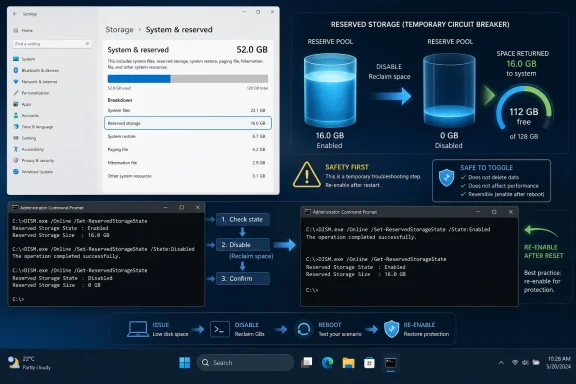 The One-Line Fix Works Because Windows Keeps Two Ledgers
The MakeUseOf account is compelling because it starts where many Windows maintenance stories start: not with malware, not with corruption, but with the slow realization that the numbers in Settings do not add up. Storage Sense promises automatic cleanup of temporary files, Recycle Bin contents, and other disposable debris. Yet the author found the real bulk sitting under Settings, System, Storage, Show more categories, and then System & reserved.That distinction matters. Storage Sense is aimed at user-visible clutter and some categories of temporary content. Reserved Storage is not just a messy folder waiting for a broom; it is a logical allocation inside the system drive that Windows uses to protect updates, caches, and system operations from a full-disk crisis.
The command at the center of the story is straightforward:
DISM.exe /Online /Set-ReservedStorageState /State:DisabledRun from an elevated Command Prompt, it tells Windows to disable Reserved Storage on the online operating system image. The companion command reverses the decision:
DISM.exe /Online /Set-ReservedStorageState /State:EnabledThat is not a hack in the old registry-tweak sense. DISM is Microsoft’s own servicing tool, and the Reserved Storage state is a supported target for it. The interesting part is not that the command exists; it is that a normal Windows 11 user may have to reach for a servicing tool to correct a storage condition the Settings app can show but not meaningfully fix.
Reserved Storage Was Microsoft’s Answer to a Problem Users Created Accidentally
Reserved Storage arrived with Windows 10 version 1903, and it carried a simple premise: Windows Update should not have to beg for free space at the worst possible moment. On clean installs and new devices, Windows began setting aside a chunk of the system drive so updates, temporary files, apps, and system caches had room to work even when the rest of the disk was nearly full.The commonly repeated number is around 7GB, but that figure has always been a baseline rather than a contract. The actual amount can vary with optional features, installed languages, system configuration, and update history. On a large SSD, that is easy to ignore. On a 64GB or 128GB device, it can feel like a tax.
Microsoft’s logic was defensible. Windows feature updates are not small, tidy transactions; they stage files, expand packages, preserve rollback data, and write temporary content. When a user keeps a device perpetually on the edge of full, Windows servicing becomes less predictable and more fragile.
That is the part enthusiasts sometimes underplay. Reserved Storage is not there because Microsoft enjoys making the free-space number look worse. It is there because the Windows ecosystem includes millions of machines with small drives, inconsistent maintenance habits, OEM images, language packs, old drivers, abandoned app caches, and users who understandably expect updates to succeed anyway.
The Settings App Shows the Symptom, Not the Mechanism
Windows 11’s storage interface is better than the old days of spelunking through hidden folders, but it still has a habit of turning complex system behavior into deceptively simple categories. “System & reserved” sounds like a bucket. In practice, it is a neighborhood.That category can include system files, virtual memory, hibernation data, restore points, and Reserved Storage. Some of those are normal and desirable. Some can be adjusted. Some fluctuate with workload and memory size. Some are not really “junk” even when the number looks offensive.
This is why the MakeUseOf story lands: a Reserved Storage number north of 30GB on a 256GB SSD feels wrong in a way any user can understand. It is not the usual 7GB-ish buffer. It is not a few gigabytes of old thumbnails. It is a large enough amount of disk space to change how the PC feels day to day.
But Windows does not present a “reset Reserved Storage” button. Storage Sense does not expose a “reserved pool cleanup” action. Disk Cleanup, where it still exists, is increasingly treated as a legacy tool rather than the central maintenance console. The user is left with a graph, a suspicious number, and a command-line escape hatch.
Storage Sense Was Never Built to Police the Servicing Reserve
Storage Sense often gets blamed for situations it was not designed to solve. Its job is housekeeping, not surgery. It can clear temporary files, manage cloud-backed local content, and empty the Recycle Bin on a schedule. It is not a general-purpose answer to every unexplained gigabyte in Windows.That distinction should matter to Microsoft, because the branding invites confusion. If the feature is called Storage Sense, users naturally expect it to make sense of storage. When it fails to touch a bloated reserve, the tool feels broken even if it is technically operating within its design.
The mismatch also reveals a broader Windows problem. Microsoft has layered modern Settings pages over decades of servicing architecture, compatibility requirements, and administrative tooling. A consumer sees a storage number. An IT pro sees update staging, component cleanup, servicing state, rollback requirements, and policy choices.
Both are looking at the same disk. Only one of them is given enough vocabulary to understand it.
The DISM Toggle Is a Reset Lever, Not a Lifestyle Choice
The strongest practical advice in the MakeUseOf piece is not “disable Reserved Storage.” It is “disable it, reclaim the space, then re-enable it.” That framing turns a risky permanent tweak into a controlled reset.If Reserved Storage has ballooned far beyond its expected range, toggling it off can force Windows to return the reserved allocation to usable space. Re-enabling it afterward lets Windows recreate the buffer at a more reasonable size. In the reported case, that meant moving from more than 30GB back toward the expected neighborhood.
That is a very different recommendation from the usual internet optimization ritual. Permanent disablement turns a safety mechanism into free disk space. Temporary disablement treats Windows’ own servicing command as a way to correct an apparent accounting problem.
The difference is not academic. A PC with plenty of free space and Reserved Storage disabled may run fine indefinitely. A PC with a small SSD, low free space, and Reserved Storage disabled is closer to the failure condition Microsoft designed the feature to avoid.
Low Disk Space Makes Windows Weird Before It Makes Windows Obvious
The danger of reclaiming Reserved Storage permanently is that the first failure may not announce itself cleanly. Windows Update might fail, roll back, or sit in a half-useful error state. An app might fail to write cache files. A driver installer might behave unpredictably. A feature update might demand manual cleanup at precisely the moment the user is least prepared to do it.Low disk space is one of those conditions that turns deterministic software into folklore. Users see strange crashes, stalled installs, disappearing temp files, and cryptic update errors. The root cause may be boring, but the symptoms often are not.
Reserved Storage is an attempt to make that boring cause less likely. It gives Windows a small reserve of oxygen. Remove the oxygen and nothing dramatic happens immediately, which is exactly why the tweak feels safe.
Then a large update arrives.
Small SSDs Are Where the Argument Gets Morally Complicated
On a 1TB drive, telling people to leave Reserved Storage alone is easy. Seven or even ten gigabytes is not nothing, but it is rarely decisive. On a 64GB Windows tablet, an old school laptop with eMMC storage, or a 128GB SSD serving as a boot drive, the same reserve can feel punitive.This is where Microsoft’s reliability story collides with hardware reality. Windows 11 officially expects a 64GB or larger storage device, but a modern Windows installation, cumulative updates, app caches, OneDrive sync choices, hibernation, pagefile behavior, and restore points can crowd that floor quickly. A “small” reserve can become the difference between installing an app and uninstalling something useful.
For these systems, the DISM toggle is not just a curiosity. It can be a survival tool. But survival tools need discipline. The user who disables Reserved Storage because a feature update is stuck should re-enable it when the crisis passes.
The user who disables it because a benchmark blog promised more free space is making a different bargain.
Windows Still Lacks a Grown-Up Storage Maintenance Story
The episode also exposes a product-design gap. Windows has several storage cleanup mechanisms, but they do not feel like one coherent system. Storage Sense lives in Settings. Disk Cleanup still exists in the old world. DISM handles component and image servicing. PowerShell exposes additional administrative controls. The Microsoft Store and Windows Update maintain their own caches and behaviors.For enthusiasts and sysadmins, that fragmentation is manageable. For ordinary users, it is absurd. The operating system can tell them “System & reserved” is huge, but it cannot say, in plain language, whether the size is expected, temporary, stale, or unsafe.
A better Windows storage page would distinguish between protected system allocations, removable update residue, user-controlled features, and genuinely abnormal growth. It would not need to turn everyone into a deployment engineer. It would simply tell users what Windows is doing with their disk and when intervention is appropriate.
Microsoft has spent years moving control-panel-era plumbing into the Settings app. Storage remains one of the places where the migration looks modern on the surface and unfinished underneath.
Enterprise Admins Should See Policy, Not a Parlor Trick
For IT departments, Reserved Storage is less about reclaiming gigabytes and more about standardizing servicing outcomes. The feature was built for predictable updates, and predictability is the thing enterprise Windows fleets value most. A few gigabytes per device may be annoying; a failed feature update across a class of low-storage endpoints is worse.That does not mean administrators should ignore the DISM state. In managed environments, there are legitimate reasons to query, disable, or re-enable Reserved Storage during imaging, remediation, or controlled update workflows. The point is that it should be handled as policy, not as folklore passed around in a helpdesk chat.
The command also belongs in the same mental drawer as component cleanup, Windows Update cache remediation, and feature update staging checks. It is a tool for a known condition. It is not a universal performance tweak, and it will not solve every case where “System & reserved” looks large.
Admins should also be careful about user education. If staff learn that “one command gives back space,” they may remember the first half and forget the second. That is how a servicing safety feature becomes another variable in an already messy endpoint fleet.
The 30GB Figure Is the Story’s Warning Light
The most important number in the MakeUseOf report is not 7GB. It is 30GB. A Reserved Storage allocation around the expected baseline is not a scandal. A reserved pool that grows to several times that size deserves scrutiny.That does not prove Windows is broadly broken. Individual systems accumulate history: failed updates, old feature update staging, optional components, language changes, OEM choices, driver packages, and cleanup routines that did not fire as expected. Windows is especially prone to this kind of archaeological layering because it tries so hard to preserve compatibility and rollback paths.
Still, users should not have to normalize mystery growth. If Windows is going to reserve space dynamically, it should also explain that dynamism. A line item that quietly expands from tolerable to alarming undermines trust, even if the underlying mechanism is technically justified.
Disk space is emotional because it is tangible. Users know what 30GB means. It is a game install, a video project, a local photo library, a virtual machine, or the difference between working comfortably and playing uninstall roulette.
The Command Line Remains Windows’ Court of Last Resort
There is a familiar irony in modern Windows: the prettier the Settings app becomes, the more often serious fixes still end at an elevated terminal. DISM, PowerShell, registry edits, and legacy control panels remain the places where Windows exposes its real machinery.That is not inherently bad. Powerful systems need powerful tools, and DISM is exactly the kind of utility administrators expect to exist. The problem is discoverability. A user can stare at the Reserved Storage line in Settings and never learn that Microsoft provides a supported way to change its state.
This creates an information vacuum that third-party articles fill. Sometimes they fill it responsibly. Sometimes they turn administrative levers into “secret tricks.” The same command can be good advice or bad advice depending on whether the article explains the consequences.
In this case, the responsible interpretation is narrow: use the DISM toggle if Reserved Storage has clearly grown beyond reason, then turn the feature back on. Anything broader should be treated skeptically.
The Space You Reclaim Is Not Always Space You Should Spend
There is a psychological trap in storage cleanup: reclaimed space feels like found money. If a command returns 20GB or 30GB, the temptation is to spend it immediately on apps, games, media, or synced files. But if that space came from a system reserve, the better analogy is not found money. It is an emergency fund.Windows created that fund because updates and system operations need headroom. If disabling and re-enabling the reserve resets it to a healthier size, great. If disabling it simply lets the user fill the drive to the brim, the underlying problem has not been solved.
A healthy Windows installation needs slack. It needs room for cumulative updates, browser caches, application installers, crash dumps, restore points, and the pagefile. The exact amount depends on workload, but “nearly full all the time” is still a bad operating mode.
That is why the most conservative advice remains boring: uninstall unused apps, move large libraries, review OneDrive offline availability, clear known temporary files, check restore point usage, and consider a larger SSD where possible. The DISM toggle is useful when the reserved pool itself is the abnormality, not when the entire storage plan is broken.
The Real Lesson Is That Windows Needs More Honest Accounting
The Reserved Storage debate is not really about whether users deserve their 7GB back. It is about whether Windows can clearly explain what it is doing in a world where storage is both cheaper than ever and still scarce on millions of devices.Microsoft’s position is rational. Updates need space. Users do not reliably preserve it. A reserved allocation improves servicing reliability. That chain of logic is sound.
The user’s frustration is rational too. A system-controlled bucket that grows past 30GB without an obvious explanation looks like waste. A cleanup tool that cannot address it looks incomplete. A fix that requires an elevated command looks like the operating system hiding the ball.
Both can be true. Reserved Storage can be a good feature, and its management experience can still be poor.
The Sensible Windows User Treats the Toggle Like a Circuit Breaker
The practical takeaway is not to fear the command, and not to worship it. It is a supported switch for a specific Windows servicing behavior. Used carefully, it can reset an oversized reservation and return a meaningful amount of disk space. Used casually, it can remove a buffer that Windows may need later.Before reaching for DISM, users should first confirm that Reserved Storage is actually the culprit. Settings can show the line item under System & reserved, and that number should be compared against the normal expectation of several gigabytes rather than treated as suspicious by default.
If the number is unusually large, the temporary toggle pattern is reasonable: disable Reserved Storage, reboot if needed, verify the space returned, re-enable Reserved Storage, and check that the reserve settles back into a sane range. That is maintenance, not optimization theater.
The Five Rules for Not Turning a Fix Into Future Trouble
The best version of this trick is boring, reversible, and documented. That is also what makes it useful.- Reserved Storage is a Windows reliability feature, not random junk, and disabling it permanently can make future updates less predictable on low-space systems.
- A reserve around the usual several-gigabyte range is normally not worth touching, especially on a PC with a large SSD.
- A reserve that has grown dramatically beyond the expected range may justify a temporary DISM reset after ordinary cleanup tools fail to help.
- The safer pattern is to disable Reserved Storage only long enough to reclaim or reset the bloated allocation, then re-enable it.
- Administrators should treat the setting as part of servicing policy and remediation workflow, not as a blanket tweak for every endpoint.
- Users who are constantly fighting for free space should view this as a warning to review their storage layout, not as a substitute for more capacity.
References
- Primary source: MakeUseOf
Published: Sun, 31 May 2026 16:00:18 GMT
I ditched Windows Storage Sense for this single-line fix and reclaimed space I didn't know I had
One DISM command freed space Storage Sense missed www.makeuseof.com
- Official source: learn.microsoft.com
DISM Storage reserve command-line options | Microsoft Learn
DISM Commands for managing storage reservelearn.microsoft.com - Official source: support.microsoft.com
Storage settings in Windows | Microsoft Support
Learn about storage settings in Windows and how reserved storage works to conserve disk space for temporary files, caches, and other files.support.microsoft.com - Related coverage: guidingtech.com
How to Temporarily Disable Reserved Storage in Windows 11 - Guiding Tech
If you need a bit of storage in a pinch, you can temporarily disable reserved storage in Windows 11 to get a few more GBs for vital apps and updates.www.guidingtech.com
- Related coverage: tomshardware.com
How to Save Space on Windows 11 | Tom's Hardware
Storage is more affordable than ever, but that doesn’t mean it should go to waste. These are some of the best ways to save space on Windows 11.www.tomshardware.com - Official source: techcommunity.microsoft.com
Managing reserved storage in Windows 10 environments | Microsoft Community Hub
Explore new controls you can use to manage and optimize reserved storage for the devices in your organization. techcommunity.microsoft.com
- Related coverage: howtogeek.com
How to Free Up Space on Windows 11 by Disabling Reserved Storage
Disabling this Windows setting is like a double-edged sword. www.howtogeek.com
- Related coverage: windowsforum.com
Windows 11 Reserved Storage: Reclaim 7GB+ Safely (What It Really Does) | Windows Forum
A familiar Windows 11 storage debate is back in the spotlight after MakeUseOf highlighted a setting that can quietly hold back roughly 7GB or more of space...windowsforum.com - Related coverage: windows-faq.de
Reservierter Speicher bei Windows 10 - Windows FAQ
Mit Windows 10 Version 1903 hat Microsoft die Funktionalität des „reservierten Speichers“ eingeführt und diese Funktion steht auch in den nachfolgenden Windows 10 Versionen zur Verfügung. Der reservierte Speicher ist dafür gedacht, dass Windows 10 so viel Speicherplatz auf Eurem PC...www.windows-faq.de - Related coverage: windowsreport.com
Reserved Storage on Windows 11: How to Enable or Disable It
Do you want to enable/ disable the Reserved Storage on Windows 11? Then hop on this guide to find the easy steps to achieve that. windowsreport.com
